
Passkey Lost Device: How to Regain Access and Revoke the Old One
Published November 5, 2026

If you lose a device containing your passkey, you may still be able to access your accounts using a synced passkey, another trusted device, backup security key, or an approved account recovery method. Once you regain access, remove credentials associated with the missing device and register a new passkey if necessary.
Losing your phone does not automatically mean losing your passkeys permanently.
The outcome depends on whether your passkey was synchronized through a credential provider or stored exclusively on the missing device.
This passkey lost device recovery guide explains how to restore account access, protect your information, and prevent unauthorized sign-ins.
It includes recovery instructions for Apple Passwords, iCloud Keychain, Google Password Manager, Microsoft accounts, and third-party password managers.
According to the FIDO Alliance’s Passkey Index 2026, passkeys achieved a 93% authentication success rate compared with 78% for traditional multi-factor authentication across participating services.
Although passkeys are designed to be convenient and secure, users should understand how recovery works before losing access to their primary device.
1. Passkey Lost Device: Can You Recover Your Passkey?
Yes, passkeys can often be recovered after losing a device, but recovery depends on how they were originally stored.
There are two major categories of passkeys: synchronized passkeys and device-bound passkeys.
Understanding the difference is the first step in any passkey lost device recovery process.
Synced Passkeys vs. Device-Bound Passkeys
A synced passkey is stored using a compatible credential provider that can make it available across authorized devices.
Common examples include Apple Passwords with iCloud Keychain, Google Password Manager, and supported third-party password managers.
A device-bound passkey remains associated with a specific device or physical security key.
| Feature | Synced Passkey | Device-Bound Passkey |
|---|---|---|
| Storage | Compatible credential provider | Specific device or hardware key |
| Cross-device availability | Usually supported | Usually requires original authenticator |
| Lost device recovery | May be restored through provider | May require new registration |
| Authentication | Cryptographic challenge-response | Cryptographic challenge-response |
| Security | Phishing-resistant | Phishing-resistant |
| Primary recovery dependency | Credential-provider account | Backup authenticator or account recovery |
If your passkey was synchronized, losing one phone does not necessarily destroy the credential.
However, you must still authenticate to the credential provider and complete any required device approval.
What Is a Passkey?
For users asking what is a passkey, it is a digital authentication credential that replaces a reusable password with public-key cryptography.
A passkey uses a public key registered with a service and a private key protected by an authenticator.
The private key is not transmitted to the website during sign-in.
This design reduces risks associated with password theft, credential reuse, and phishing attacks.
How Does a Passkey Work?
The question how does passkey work becomes particularly relevant when a device goes missing.
During login, the service sends a cryptographic challenge.
Your authenticator signs the challenge using the private key after appropriate user verification, such as a fingerprint, facial recognition, or device PIN.
The service verifies the signature using the registered public key.
A passkey is not a password or numeric code that you can simply write down and re-enter on another device.
Consequently, passkey lost device recovery usually involves restoring an existing synchronized credential or registering a replacement.
💡 Discover Helpful Guides: Passkeys vs 2FA: Which Is More Secure in 2026?
2. What Happens to Your Passkey When You Lose Your Phone?
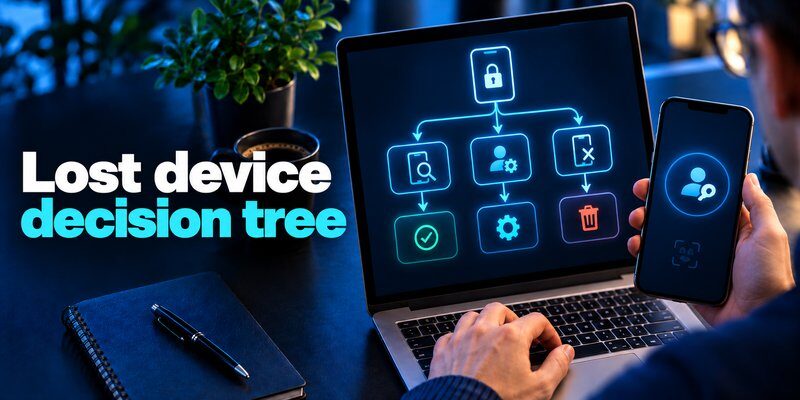
Losing a smartphone can affect authentication, but the consequences vary based on your credential storage method.
A passkey lost phone situation generally falls into one of three scenarios.
Scenario 1: Your Passkey Is Synced
If you saved your credentials in Apple Passwords, Google Password Manager, or another supported synchronized provider, you may be able to restore access on a replacement device.
For example, an iPhone user can sign in to the appropriate Apple Account, enable iCloud Keychain, and complete the required recovery or device approval steps.
Supported passkeys may then become available through Apple’s Passwords app.
Similarly, passkeys managed through Google Password Manager may become available after signing in to the correct Google Account and completing the required provider verification.
Recovery is possible only if you can successfully recover access to the credential provider.
Scenario 2: Your Passkey Is Device-Bound
Device-bound credentials are not ordinarily synchronized.
If the original device is permanently unavailable, its private key may also become inaccessible.
In that case, you generally need another authorized authentication method to recover the account.
After signing in, register a replacement passkey and revoke the old one.
Scenario 3: The Lost Device Was Your Only Authenticator
This is the most difficult situation.
If your only passkey was device-bound and you have no backup authenticator, you may need to complete the service’s account recovery procedure.
Some providers require verification through previously registered contact information, trusted devices, or identity checks.
Other services may not offer recovery if all authentication credentials are lost.
Do not assume that every account can be recovered without its original authenticator.
The safest passkey lost device recovery plan includes at least one independent backup authentication method.
💡 Discover Helpful Guides: Best Apps That Support Passkeys: Which Manager Should You Choose?
3. Passkey Lost Device: Immediate Security Steps

When a phone is lost or stolen, account protection should begin before troubleshooting individual passkeys.
Follow these steps as soon as you recognize that your device is missing.
Step 1: Locate and Secure the Device
For iPhone users, Apple’s Find My service can locate supported devices and enable Lost Mode.
Lost Mode locks the device and helps prevent unauthorized access to personal information.
If the device cannot be recovered, Apple also provides a remote erase option.
According to Apple Support’s September 14, 2026 guidance, users should avoid removing a stolen iPhone from Find My after erasing it, because doing so can remove Activation Lock.
Android users can use Google’s supported device-finding and protection features where available.
Step 2: Protect Your Main Accounts
Access important accounts from another trusted device.
Prioritize:
- Your primary email account.
- Your Apple or Google Account.
- Password manager accounts.
- Banking and financial services.
- Work-related accounts.
Review recent login activity and terminate sessions associated with the missing device when supported.
For additional security guidance, read how to protect your online accounts.
Step 3: Revoke Credentials Associated With the Lost Device
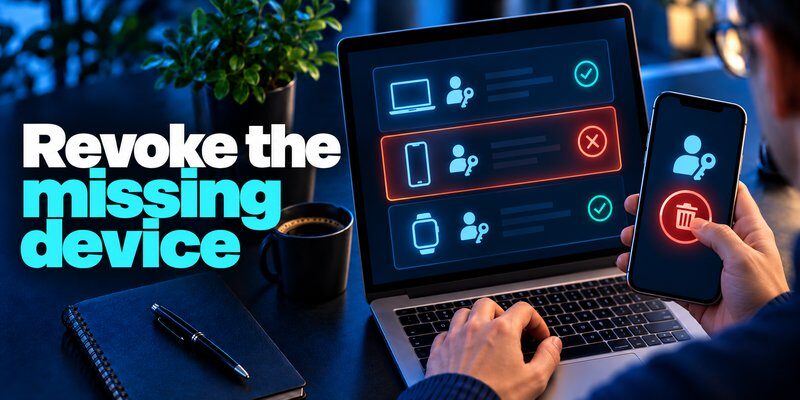
After securing another sign-in method, inspect registered passkeys.
Remove any passkey that could remain accessible on the missing device.
Removing a device from a password manager does not necessarily revoke every website credential associated with that device.
You may need to revoke both the device’s access and individual passkey registrations.
Step 4: Review Your Passwords and Recovery Information
If there is evidence of unauthorized access, change affected passwords and review recovery email addresses, telephone numbers, and trusted devices.
Contact your mobile carrier if your SIM or phone number could be compromised.
An attacker who controls your phone number may attempt to intercept SMS-based recovery messages.
Step 5: Keep Recovery Options Available
Avoid deleting your only remaining authentication method.
The safest passkey lost device response is to establish working replacement credentials before removing older ones whenever that is possible and does not delay urgent revocation of a compromised credential.
4. How to Recover Passkeys on a New iPhone or Android Device
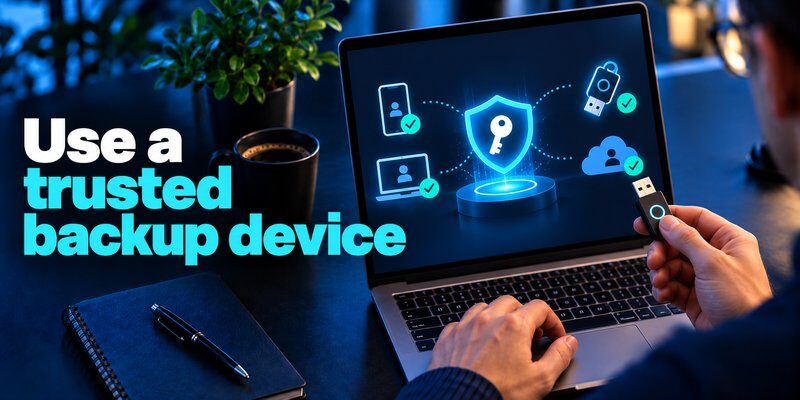
The recovery process depends on your operating system and credential provider.
Recover Passkeys on a New iPhone
If you previously used iCloud Keychain, follow these steps:
- Set up your replacement iPhone.
- Sign in with the Apple Account associated with your saved credentials.
- Complete the required Apple Account verification.
- Enable iCloud Keychain through Settings.
- Approve the device or complete the supported Keychain recovery process.
- Open the Passwords app.
- Check whether your saved passkeys are available.
On supported iOS versions, iCloud Keychain synchronization can restore compatible passkeys to approved devices.
Apple’s documentation explains that a new device may be approved through another trusted device or an established recovery mechanism.
Do not reset encrypted iCloud Keychain data merely because synchronization has not completed.
Resetting the wrong information may complicate recovery.
Users interested in Apple’s authentication options can also explore our apple authenticator guide.
Recover Passkeys on a New Android Phone
If you used Google Password Manager:
- Set up the replacement Android device.
- Sign in with the correct Google Account.
- Complete the required account verification.
- Enable a supported screen lock.
- Open Google Password Manager.
- Complete any required credential restoration or encryption verification.
- Check whether the expected passkeys appear.
The exact steps may vary depending on your Android version, device manufacturer, and password manager.
If your passkeys were stored in a different provider, sign in to that provider instead.
Google Password Manager cannot automatically restore passkeys stored exclusively in another unrelated credential manager.
What If Your Passkey Does Not Reappear?
Confirm that you are using the correct account and credential provider.
Also check whether the original credential was synchronized or device-bound.
A passkey stored only on a hardware security key will not normally reappear in Apple Passwords or Google Password Manager.
The passkey lost device recovery process should therefore identify the original storage location before attempting credential re-registration.
💡 Discover Helpful Guides: What Is Passwordless Authentication? What It Is and How It Works?
5. Passkey Lost Device: Google and Microsoft Account Recovery
Google and Microsoft provide account-specific mechanisms for managing passkeys and recovering access.
These procedures are particularly important when the missing device contained the only regularly used authenticator.
Google Passkey Lost Device: What Should You Do?
For a google passkey lost device problem, Google’s official account guidance recommends removing the credential associated with the missing phone.
If you can still sign in:
- Open your Google Account.
- Select Security & sign-in.
- Find Passkeys and security keys.
- Review the registered credentials.
- Identify the passkey associated with the missing device.
- Remove the affected passkey.
For passkeys automatically created by an Android device, Google may require you to sign out the device through Your devices → Manage all devices instead.
If multiple sessions share the same device name, review them carefully.
Recover Google Without Your Lost Passkey
On the Google sign-in screen, select Try another way if that option appears.
Depending on the account, available methods may include another registered passkey, a backup security key, a previously saved backup code, or another authorized verification method.
If no alternative method is available, follow Google’s official account recovery process.
Google notes that some recovery cases involving two-step verification may take 3–5 business days while ownership is verified.
This is not a guaranteed recovery time for every account.
For additional instructions, read Google account two-step verification.
Microsoft Forgot Passkey: Recovery Instructions
The search microsoft forgot passkey can refer to a Microsoft account passkey or, in other contexts, a device-specific PIN.
For a Microsoft account passkey that is no longer available:
- Open the Microsoft account sign-in screen.
- Select an available alternative authentication method.
- Complete the required identity verification.
- Open your account security settings.
- Review existing passkeys.
- Register a new passkey on a trusted device.
- Remove the old credential associated with the missing device.
Microsoft recommends registering replacement passkeys before removing obsolete credentials, provided the older credential does not present an immediate security risk.
If you use a work or school account, your organization may control recovery and authentication policies.
For information about alternative verification methods, explore Microsoft Authenticator recovery.
The passkey lost device recovery process can therefore differ substantially between personal accounts and organization-managed accounts.
6. How to Recover Passkeys From Password Managers

Third-party password managers can make recovery easier because compatible passkeys are synchronized across authorized devices.
However, users must still protect access to the password manager itself.
Recover Passkeys With 1Password
If your passkeys were saved in a synchronized 1Password account:
- Install 1Password on another trusted device.
- Sign in using your established account credentials.
- Complete the required device authorization.
- Open the vault containing your passkeys.
- Check whether the affected credential is available.
- Test authentication with the relevant website.
According to 1Password’s official lost-device support documentation, account data remains available through the user’s synchronized account even when a registered device is lost.
If the device was stolen, 1Password also recommends reviewing device authorization and regenerating the account Secret Key when appropriate.
Losing a device does not automatically mean the 1Password account password has been compromised.
What About Other Password Managers?
Other supported providers may offer similar synchronization capabilities.
Before attempting recovery, confirm:
- Which password manager stored the credential.
- Whether synchronization was enabled.
- Whether the replacement device supports the provider.
- Whether you can complete provider account recovery.
- Whether an additional hardware key was required.
Do not assume that every password manager supports identical recovery options.
For help selecting a suitable credential provider, read how to choose a password manager.
Can an Authenticator App Recover a Passkey?
A traditional Authenticator app generates time-based verification codes for supported accounts.
These codes can provide additional protection when services still use passwords and TOTP-based multi-factor authentication.
However, a TOTP authenticator does not automatically store, synchronize, or restore FIDO2 passkeys.
The two systems use different authentication technologies.
If a service offers OTP as an alternative sign-in method, it may help you regain access and register a replacement passkey.
This is an important distinction during passkey lost device recovery.
📘 Find the Right Guide: Google Passkey Setup Guide: How to Set Up Google Passkeys in 2026
7. How to Reset a Lost Passkey and Prevent Future Problems
If a credential cannot be restored, creating a new passkey may be necessary.
However, passkey reset procedures vary between services.
How to Reset Passkey Credentials
If you are searching for how to reset passkey access, the general process is:
- Sign in using another approved authentication method.
- Open the service’s account security settings.
- Find the registered passkeys.
- Create a new passkey on a trusted device.
- Test the new credential.
- Remove obsolete or compromised passkeys.
- Review account recovery settings.
You generally cannot recreate a lost device-bound private key simply by resetting your phone or changing your account password.
Instead, the service must register a new credential.
Add More Than One Recovery Method
A strong authentication strategy should not depend exclusively on a single phone.
Consider registering a second passkey, maintaining a backup hardware security key, or using other supported recovery methods.
Avoid storing every recovery credential on the same device.
For example, an independent security key can be useful if your primary smartphone becomes unavailable.
Secure Your Replacement Device
After restoring access:
- Enable a strong device screen lock.
- Install operating-system security updates.
- Protect your password manager.
- Review synchronized credentials.
- Confirm account recovery information.
- Test authentication on another trusted device.
Our guide on best account security practices provides additional recommendations.
The goal of passkey lost device prevention is not to avoid passkeys. It is to make secure authentication recoverable without creating an easy path for attackers.
8. Passkey Lost Device: Frequently Asked Questions
What Is My Passkey and Where Can I Find It?
The question what is my passkey usually refers to locating the credential associated with an online account.
Passkeys are not typically displayed as readable passwords.
Instead, you can inspect registered credentials through Apple Passwords, Google Password Manager, Windows passkey settings, or another supported credential provider.
The website may also display registered passkeys in its security settings.
How to Use Passkey Authentication After Losing a Phone?
If you are researching how to use passkey authentication after replacing a device, first restore access to the appropriate credential manager.
Once the passkey becomes available, select the passkey sign-in option on the relevant website.
Then complete the authenticator’s requested verification.
If the original credential cannot be restored, register a replacement through the service’s authorized recovery process.
Can I Recover a Lost Passkey Without My Old Phone?
A lost passkey may remain available through an approved synchronized password manager.
However, an exclusively device-bound credential usually cannot be copied from a permanently inaccessible device.
In that case, use another authorized sign-in method and create a replacement credential.
What Is an X Passkey?
An x passkey generally refers to a passkey registered for an X account, formerly Twitter.
If the device containing that credential is lost, check whether it is synchronized through your password manager.
Otherwise, use an alternative sign-in method offered by X and review the account’s security settings.
For more information about securing X accounts, read Twitter X two-factor authentication.
How to Find Passkey for Bluetooth Device?
The search phrase how to find passkey for bluetooth device usually concerns a Bluetooth pairing PIN rather than a FIDO2 authentication passkey.
Bluetooth pairing codes may be displayed during device setup or documented by the hardware manufacturer.
A Bluetooth pairing code cannot recover a website passkey or unlock a passkey-protected account.
These technologies serve different purposes despite sharing the term “passkey.”
Can I Sign In Without a Passkey?
Sometimes.
Many services provide alternative authentication methods, such as passwords, backup codes, recovery keys, or previously registered security devices.
However, the available methods depend on the service and the account’s security configuration.
Some passwordless accounts may require a specific recovery procedure.
📘 Find the Right Guide: Apple Passkey iCloud Keychain Guide: Setup, Sync & Security
Should I Use a Separate Authenticator App?
For accounts that support time-based one-time passwords, an authenticator application can provide an additional verification method.
This may be helpful during account recovery if the service explicitly accepts TOTP codes.
Users researching google authenticator for mac should distinguish OTP authentication from passkey storage.
For supported iPhone accounts, you can Download authenticator app to manage compatible TOTP verification codes.
Remember that installing an authenticator application does not automatically restore passkeys from a missing phone.
Are Passkeys Still Worth Using in 2026?
Yes.
The FIDO Alliance’s October 2026 Passkey Index reported that passkeys represented 36% of successful sign-ins across participating services, compared with 26% in the previous edition.
It also reported that passkey authentication saved an average of 27 seconds per sign-in compared with the benchmark used by participating services.
These results demonstrate growing adoption and usability benefits, although they do not mean that every service offers identical recovery options.
Final Thoughts: What Should You Do After Losing Your Passkey Device?
The most important lesson from this passkey lost device guide is that losing a device does not always mean permanently losing access to your accounts.
If your passkeys were synchronized, you may be able to restore them by recovering access to the original credential provider.
If they were device-bound, you may need to use a backup authenticator or an authorized recovery method before creating replacements.
Protect the missing device, regain account access through trusted methods, revoke compromised credentials, and establish secure backups.
A properly designed passkey lost device recovery strategy makes passwordless authentication safer and more practical, even when unexpected device loss occurs.
Download Authenticator App
Secure your accounts with fast, reliable two-factor authentication. Download now and protect your login in seconds.
