
How to Choose a Password Manager: A Practical Checklist for 2026
Published October 6, 2026
Choose a password manager that works on every device you use, fills the right accounts reliably, and has a recovery plan you can complete without your usual phone. Start by writing down your operating systems, browsers, and the people with whom you legitimately share logins. Then test two candidates with a low-risk account before importing a whole vault.
A long feature list matters less than successfully saving, finding, filling, and recovering a credential in your own routine. This guide gives you a decision process, a short comparison, and a way to verify the choice without committing your most important accounts first.
1. Start with the devices and browsers you actually use
The first step in how to choose a password manager is mundane: list the devices on which you sign in every week. A manager that looks excellent on a desktop may be frustrating if its iPhone or Android AutoFill flow never appears where you need it. Include your main browser, a second browser, your phone, and any shared computer you use only occasionally. Do not count a platform as supported merely because a web vault opens there; test the extension or mobile integration you would actually rely on.
A one-device household has a different shortlist
An iPhone-and-Mac household may find Apple Passwords sufficient for personal credentials, especially when everyone already uses compatible Apple devices. A Chrome-and-Android routine may make Google Password Manager a low-friction starting point. Both are convenient within their ecosystems. If your work laptop runs Windows while your family uses iPhones and Android phones, a dedicated cross-platform manager such as Bitwarden, 1Password, or Proton Pass may reduce awkward copying and repeated sign-ins. Apple and Google documentation describes their respective device and account integration; verify your own combination before assuming every browser behaves alike.
Test a real website and an app
Create a throwaway login or use a low-risk existing account. Save it in the candidate, sign out, and sign back in through both a browser and its mobile app. Check whether the manager suggests the correct account rather than a similar-looking domain. If you must hunt through settings every time, that small friction will eventually encourage reuse or manual workarounds. Also try a login with two usernames under one domain; this exposes whether its suggestions remain understandable when your vault grows.
2. Decide whether built-in or dedicated storage fits

There is no universal answer to what is a good password manager. Built-in tools minimize setup. Dedicated services often add richer sharing, organization, and platform reach. Start with the tasks you need rather than declaring one category automatically safer. Compare how the vault is protected, where an authorized user can open it, whether it supports passkeys, and what happens when the main account is unavailable.
| Approach | Often suits | Main decision to test |
| Apple Passwords | Mostly Apple devices | Shared groups, Windows access, Apple Account recovery |
| Google Password Manager | Android and Chrome routine | Google Account recovery and non-Chrome workflow |
| Dedicated synced vault | Mixed devices, families, or teams | Subscription, recovery, sharing, export |
| Local database such as KeePassXC | Deliberate file custody | Backups, mobile access, synchronization labor |
Consider the lock around the vault
The manager’s account can become a gateway to many services. Use a strong, unique master password or account protection appropriate to the product, enable an available second factor, and keep the provider’s recovery materials somewhere independent. Do not put the only recovery code for the vault inside that same inaccessible vault. A passkey or hardware security key can be valuable when the service supports it, but you still need a tested lost-device route. The National Institute of Standards and Technology describes password managers as a way to maintain distinct passwords for each service; that benefit depends on protecting access to the vault itself.
Know what a browser can and cannot do for you
Browser storage may be plenty for a person using one browser profile. A full manager may be better when you need a shared household collection, secure notes, several browsers, or an export you can inspect. An extension can also be disabled, signed out, or blocked in a private window. Test the exact browser context instead of trusting a product screenshot. If you routinely move between a corporate browser and a personal phone, ask whether your organization’s policy permits a personal extension before making it your sole sign-in path.
3. Inspect recovery before importing anything
Ask a concrete question: if the phone and laptop disappeared tonight, how would you get back into the vault tomorrow? The answer may involve another trusted device, a recovery key, a family organizer, an account email, or provider support. Different products make different promises, and a reset may restore account access without decrypting old vault contents. Read the current provider documentation, then conduct an authorized rehearsal while you still have your existing devices.
Keep a recovery route outside the vault
Write down which information the provider actually requires. Store it securely apart from your daily phone and apart from the vault it unlocks. If the service offers a printable emergency kit or recovery code, protect the copy as carefully as a password. Verify that the recovery email itself can be accessed without the vault; otherwise, the plan loops back on itself. This is the point in how to choose a password manager at which an attractive interface can lose to a simpler product with a recovery method your household can execute.
Distinguish recovery from a backup
A synchronized vault makes a new device convenient, but syncing a mistaken deletion can propagate the mistake. A separate protected export may preserve a snapshot, yet an unencrypted CSV is a sensitive temporary file, not a safe archival format. A local encrypted database can be copied to an offline drive, provided you know where the current copy and its unlock material are. Decide who will update that backup after new accounts are added. Try restoring one noncritical item and make sure it has the correct URL and username.
4. Compare sharing and family access honestly
If more than one person needs a utility, streaming, or household account, the sharing model matters more than a headline about unlimited passwords. Look for private vaults plus a deliberately shared collection; do not give everyone access to one master login. 1Password Families documents a Shared vault, Bitwarden uses organizations and collections, Proton Pass supports shared vaults, and Apple Passwords offers shared groups to eligible Apple users. The right model depends on who needs ongoing access and who might leave the group later.
Share an item, not your entire vault
Test granting a partner access to one low-risk item. Confirm what they can see, whether they may edit it, and whether a changed password updates for them. A one-time link that sends a copy may not update when the source changes; an ongoing shared vault usually does. If you remove a member, review whether a credential they previously saw must be changed. Revoking access to a shared collection cannot erase a password someone already copied. This distinction is essential when deciding how to choose a password manager for family use.
Keep emergency access separate from casual sharing
A family organizer or emergency contact may help if the primary owner cannot sign in, but that role need not see every private credential today. Ask the product what an organizer can reset or recover, whether they can decrypt a private vault, and what account access is required. Test with a low-risk login before assuming a relative can rescue your email or financial account. For households that mix devices, check each person’s phone and browser before paying for an annual family plan.
5. Check the work of generating and changing passwords
A manager should generate a new random password at a website’s signup or password-change screen and save the resulting credential without losing track of which account it belongs to. Choose a length and character rules accepted by the site; longer unique generated passwords are generally more useful than forcing a memorable pattern across unrelated services. The website may have outdated character restrictions, so the generator must let you adapt without reusing a prior credential.
A generated password is not enough until saved
When changing a password, the failure mode is familiar: the manager suggests a strong value, the website accepts it, and the vault still holds the old one. Save the generated value first or confirm the manager updated the entry, then sign out and perform a fresh login. Keep the old password only as long as the change workflow needs it; avoid writing the new value into an unprotected note or message. A good password manager makes this check easy and shows the correct domain alongside the record.
Use checks as a queue, not a panic list
Products may flag reused, weak, or compromised credentials. Tackle primary email, the manager account, banking, and recovery accounts first, then the rest. Confirm a warning refers to an active account rather than a stale login. Changing fifty passwords at once can create confusion and lockouts; a paced process with a verified login after each change is safer operationally. The ability to identify duplicates and sort by importance belongs on your evaluation checklist, not merely on a marketing page.
6. Run a fifteen-minute trial of two candidates
Install each candidate only from its publisher’s official distribution. Do not import the entire vault at this stage. Use the same test script for both: create an entry, fill it on desktop, fill it on mobile, change its password, find it again, and inspect the account’s recovery instructions. A side-by-side trial makes vague preferences measurable. It may also reveal that the free tier already covers your needs or that a paid sharing feature is indispensable.
| Test | What success looks like | Warning sign |
| Save and fill | Correct account on the correct domain | Wrong suggestion or frequent manual copying |
| Password change | New value survives a fresh login | Vault silently retains the old value |
| Second device | Same item appears after authorized sign-in | Unexplained missing items or sync ambiguity |
| Recovery | You know an independent route | Instructions depend on the lost device |
Record the irritating details
Note how many taps a normal login requires and whether the manager obscures the website’s domain. Try a login with two accounts, a browser private window, and an app that uses the phone’s system AutoFill. If one candidate repeatedly interrupts your actual flow, do not dismiss that as a minor nuisance. Usability affects whether you keep unique passwords over time. This practical trial is more informative than ranking by a single advertised encryption phrase.
Compare cost at your household size
Plans, introductory discounts, and feature limits can change. Compare the current official pricing pages for the number of people you intend to enroll, then confirm which sharing and recovery features are included. Avoid a recommendation that assumes everyone needs a premium plan. If you will never share entries and use one ecosystem, a built-in option may be sufficient; if several people need granular access, a family plan may justify the cost. Export capability should still be checked before committing.
7. Make migration and exit part of the decision
Before moving a large collection, inspect the import format, duplicate handling, notes, passkeys, and attachments. Plain CSV commonly carries website, username, and password, but may omit organization, history, or two-factor secrets. Google Chrome Help documents CSV import for Google Password Manager; the exact format of other products must be checked with their official instructions. Keep the old manager available until important logins pass on the new one.
Treat a CSV as live credentials
Export only on a trusted device, import directly, check a sample of records, then remove the plaintext file from Downloads and any synced trash or cloud folder. Do not email it to yourself or upload it to a general conversion site. If an import creates duplicates, resolve them against a successful sign-in rather than bulk deleting by label. A saved login can have the right name and the wrong URL; that is why a fresh browser sign-in is the acceptance test.
Plan a clean exit
Look for documented export options before paying. If you later change services, you will want a current, portable copy and time to re-enroll accounts that cannot be transferred automatically. Review browser extensions and mobile AutoFill after migration so two managers do not race to fill the same form. Never delete the old vault on the first day; wait until the critical accounts and the new recovery path have both been verified.
8. Add a separate factor to the accounts that matter most
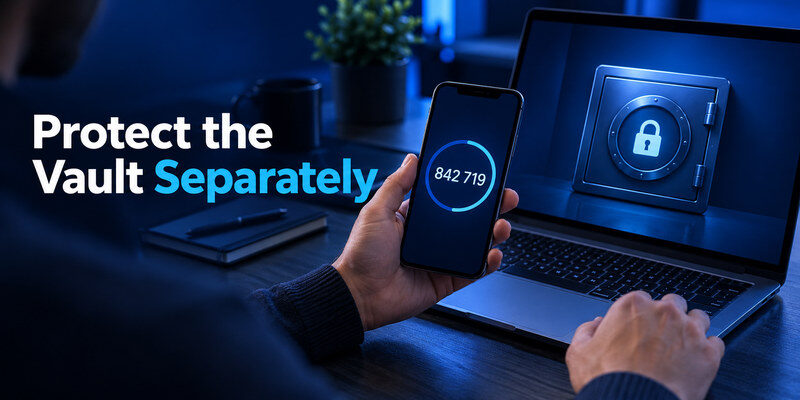
A password manager protects and organizes passwords, while an authenticator can supply a separate time-based code where a service offers that method. For the manager account itself, follow the vendor’s supported two-factor setup and keep its backup codes outside that vault. Authenticator App can be a dedicated code holder for compatible personal logins if you prefer to keep TOTP entries apart from password storage. It cannot replace an employer’s app-specific push or a website’s recovery process; check the issuer’s accepted methods first.
Avoid a circular lockout
If your email password, its recovery code, and the manager’s second factor all live in the same place, losing that place becomes a compounded problem. Put the recovery materials for your primary email and password vault in an independent protected location. When enabling a new authenticator, confirm the issuer accepts a current code and save the issuer’s backup codes before ending the setup session. A visible rotating code alone does not prove enrollment.
Keep the security model understandable
Some people value the convenience of passwords and codes in one vault; others want them in separate apps. Either can be defensible for ordinary accounts if the device is protected and recovery is planned. The distinction matters most for the vault’s own login and for high-value accounts. Make a short inventory of where each factor resides and who could restore it. That inventory is part of how to choose a password manager, because a vault changes the way you recover everything else.
9. Frequently Asked Questions
Is a free password manager good enough?
Yes, if its current free plan works on your devices and covers the features you actually need. Test saving, filling, password generation, export, and recovery. Family sharing and some advanced features may require a paid plan; compare current official terms before deciding.
Should I choose my browser’s built-in manager?
It can be a sound starting point for a mostly single-ecosystem routine. Test mobile apps, secondary browsers, and recovery. A dedicated manager may be more useful when you need detailed sharing, mixed devices, or more control over organization and exports.
What if I forget the master password?
The outcome depends on the provider’s recovery design and the steps you set up beforehand. A reset is not necessarily a way to decrypt an existing vault. Read the current recovery instructions, save required materials independently, and rehearse a safe path while you still have access.
Can I move passwords later?
Usually many website logins can be exported and imported, but record types and formats differ. Inspect a sample of passkeys, notes, attachments, and shared items before assuming everything moved. Protect any plaintext export and keep the old manager until critical logins work.
Do I still need two-factor authentication?
Yes where the account offers a useful additional factor. The manager generates and fills distinct passwords; a second factor can protect the account if a password is exposed. Store the manager’s own recovery codes independently and choose an authenticator accepted by each issuer.
10. Final Thoughts
How to choose a password manager comes down to device fit, a recovery route you can execute, and a normal login flow you will actually use. Trial two candidates with a small account set; then migrate priority accounts in stages, protect exports, and test a new-device sign-in. For sites that accept standard authenticator codes, [Authenticator App]() can complement the chosen vault as a separate factor. Keep the password manager’s own recovery information outside it.
Sources reviewed: NIST SP 800-63B (2025 revision); CISA Secure Our World; Apple Support, Passwords and shared groups; Google Chrome Help, password import; 1Password Families Support; Bitwarden Help, organizations and collections; Proton Pass Support; KeePassXC documentation.
Download Authenticator App
Secure your accounts with fast, reliable two-factor authentication. Download now and protect your login in seconds.
