
Google Authenticator for Mac: Setup, Use & Best Alternatives
Published August 12, 2026 · Updated October 13, 2026
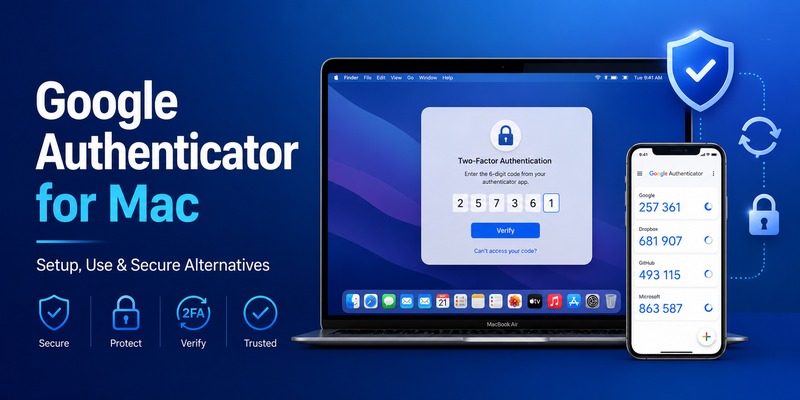
Looking for Google Authenticator for Mac to secure your online accounts without constantly switching between your computer and phone? Whether you use a MacBook Air, MacBook Pro, iMac, or Mac mini, you can complete two-factor authentication (2FA) while working on macOS.
However, there is one important detail: Google does not currently offer an official native Google Authenticator desktop application for macOS.
Quick Answer: You cannot download an official Google Authenticator for Mac desktop app. Instead, you can install Google Authenticator on your iPhone or Android phone and use its verification codes when signing in on your MacBook. If you want to generate 2FA codes directly on your Mac, Apple’s built-in Passwords app or a compatible third-party authenticator can provide that functionality.
This guide explains how to use Google Authenticator on Mac, set up verification codes on MacBook Air and Pro, explore alternatives, and troubleshoot common authentication problems.
Can You Download Google Authenticator for Mac?
Google Authenticator is an authentication application that generates temporary one-time passwords (OTPs) for accounts protected by two-step verification.
Although many users search for a Google Authenticator Mac download, Google does not currently distribute an official standalone macOS application.
The official Google Authenticator app is available for supported mobile devices, including iPhone, iPad, and Android.
That means you can use Google Authenticator to protect accounts accessed from your Mac, but the official app itself normally runs on your mobile device.
Is Google Authenticator Available for MacBook?
The situation is the same for MacBook users.
Whether you own a MacBook Air or MacBook Pro, there is no separate official Google Authenticator for MacBook download.
However, you can still complete two-factor authentication by entering verification codes generated on your phone.
For example, when signing into Gmail, GitHub, or another compatible website from Safari or Chrome, Google Authenticator can generate the required six-digit code on your smartphone.
The MacBook handles the login, while your phone provides the additional verification factor.
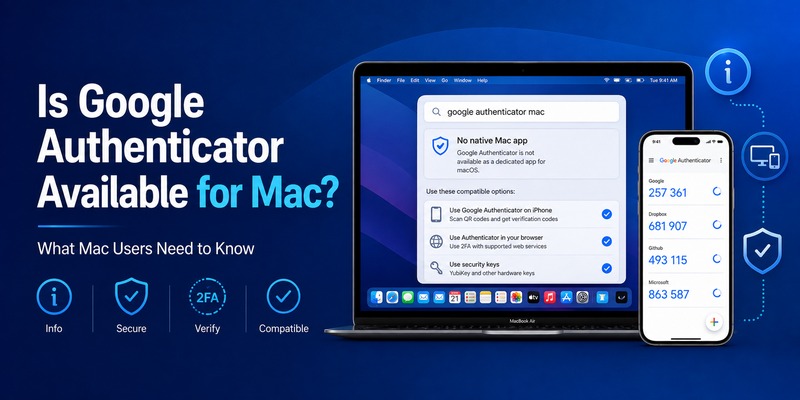
Google Authenticator for Mac vs Other Options
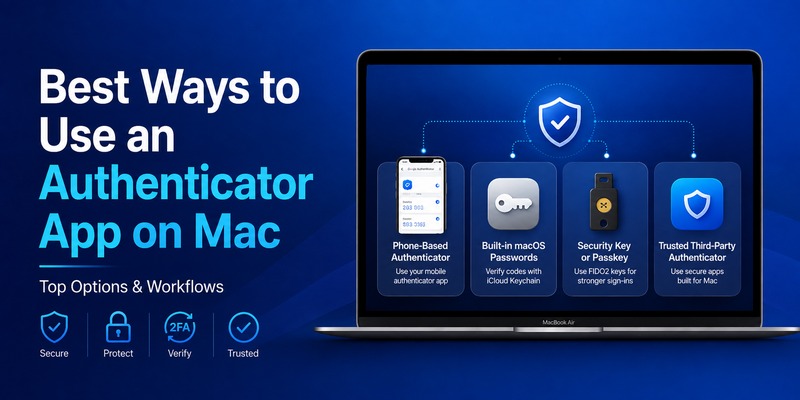
If you want to manage verification codes while using macOS, several solutions are available.
| Authentication method | Works with Mac logins? | Generates codes directly on Mac? |
|---|---|---|
| Google Authenticator on iPhone or Android | Yes | No |
| Apple Passwords | Yes | Yes |
| Compatible third-party macOS authenticator | Yes | Yes |
| Hardware security key | Yes, where supported | Uses a different authentication method |
| Passkeys | Yes, where supported | Uses a different authentication method |
For users who specifically prefer Google’s application, using Google Authenticator on a phone remains a straightforward solution.
If your priority is accessing verification codes directly on your Mac, Apple Passwords may be more convenient.
You can also explore our Google Authenticator setup guide to understand how Google’s two-step verification works.
Download Authenticator App
Secure your accounts with fast, reliable two-factor authentication. Download now and protect your login in seconds.
💡 Discover Helpful Guides: Google Authenticator: Complete 2FA Setup & Security Guide
How to Set Up Google Authenticator on Mac or MacBook
Setting up Google Authenticator for Mac does not require installing the application on macOS.
Instead, you configure Google Authenticator on your mobile device and connect it to the account you want to access from your MacBook.
Step 1: Download Google Authenticator on Your Phone
First, install Google Authenticator from the official Google Play Store or Apple App Store.
- Open your device’s application store.
- Search for Google Authenticator.
- Confirm that Google LLC is the developer.
- Install and open the application.
- Choose whether to use Google Account synchronization, where available.
Avoid downloading unofficial Mac installers that claim to be Google’s desktop application.
For additional installation information, read our download Google Authenticator app guide.
Step 2: Enable Two-Factor Authentication on Your MacBook
Open Safari, Chrome, or another browser on your MacBook.
Sign in to the account you want to protect and navigate to its security settings.
Look for an option labeled:
- Two-Factor Authentication
- Two-Step Verification
- Authenticator App
- Verification App
Select the authenticator application option.
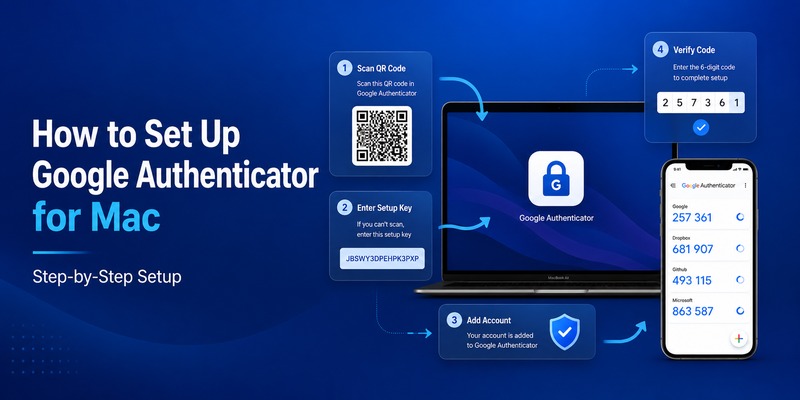
The website will typically display a QR code or a manual setup key.
Step 3: Scan the QR Code Using Google Authenticator
Keep the QR code visible on your MacBook screen.
Open Google Authenticator on your phone and select the option to add an account.
Choose the QR code scanning option and point your phone’s camera toward the QR code displayed on your Mac.
Once scanned successfully, the account should appear inside Google Authenticator.
The application will begin generating temporary verification codes.
Step 4: Verify the Code on Your MacBook
Return to the website on your MacBook.
Enter the current six-digit verification code from Google Authenticator.
If the code is accepted, your authenticator setup is complete.
Your future login process will generally follow this sequence:
MacBook login → Enter password → Open Google Authenticator on phone → Enter verification code → Access account
This workflow works with MacBook Air, MacBook Pro, iMac, and other Mac computers.
Remember to save any recovery codes provided during setup. These may be essential if your authentication device becomes unavailable.
How to Use an Authenticator App Directly on Mac
If you prefer not to use your phone for every verification request, you can generate compatible authentication codes directly on macOS.
Although this is not the same as installing the official Google Authenticator application, it can provide similar functionality for websites supporting standard time-based one-time passwords.
Method 1: Use Apple Passwords for Verification Codes
Apple Passwords includes support for verification codes on compatible macOS versions.
This makes it a practical Google Authenticator alternative for MacBook users.
How to set up verification codes using Apple Passwords:
- Open the website you want to protect.
- Navigate to its two-factor authentication settings.
- Select the authenticator app option.
- Find the manual setup key provided by the website.
- Open the Passwords app on your Mac.
- Select or create the corresponding website account.
- Choose Edit and then Set Up Code.
- Paste the verification setup key.
- Save the configuration.
- Enter the generated code on the website to confirm setup.
Once configured, Apple Passwords can generate temporary verification codes for that account.
Depending on your browser and settings, verification codes may also be suggested automatically when signing in.
Important: Google Authenticator codes do not automatically appear in Apple Passwords simply because both services are used on Apple devices. You must configure the verification secret in Apple Passwords separately.
Method 2: Use a Compatible Third-Party Authenticator
Another option is installing a trusted authenticator application that supports macOS and standard TOTP verification codes.
When selecting an authenticator app for Mac, consider:
- Compatibility with your macOS version.
- Support for standard TOTP authentication.
- Secure storage and encryption.
- Backup and recovery options.
- Availability across your preferred devices.
- Developer reputation and update history.
For users working across multiple devices, an authenticator that supports secure synchronization may offer additional convenience.
The Authenticator App also provides authentication and backup features for supported devices, including Mac support as described on its official website.
Before switching applications, verify the current platform compatibility and migration options.
Method 3: Continue Using Google Authenticator on Your Phone
If account security and separation between devices are your priorities, keeping Google Authenticator on your phone may be preferable.
Your Mac handles the website login, while your smartphone stores the authentication secret and generates verification codes.
This arrangement reduces reliance on storing both your primary credentials and second-factor secrets on the same computer.
Google Authenticator can also generate configured verification codes without an active internet connection.
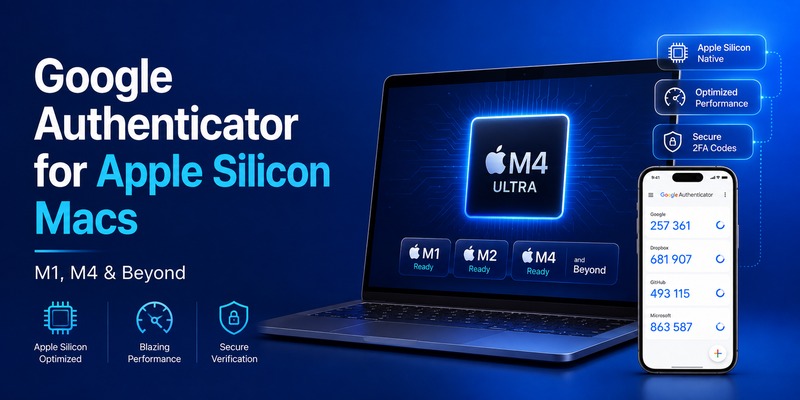
Google Authenticator for MacBook Air, Pro, M1–M5
People searching for Google Authenticator MacBook often want to know whether their particular Mac model supports the application.
The answer depends less on the MacBook model and more on Google’s official application availability.
Google Authenticator for MacBook Air
Using Google Authenticator with a MacBook Air is straightforward.
You can open websites in Safari or Chrome, enter your login credentials, and use Google Authenticator on your phone to complete verification.
If you want codes directly on the MacBook Air, you can configure Apple Passwords or another compatible macOS authenticator.
The process is essentially the same across supported MacBook Air generations.
Google Authenticator for MacBook Pro
The Google Authenticator MacBook Pro workflow is identical to the MacBook Air setup.
You can use Google Authenticator on a mobile device while signing into accounts from your MacBook Pro.
For professionals accessing development platforms, cloud services, or work dashboards, this provides an additional layer of account protection.
If you frequently authenticate during work, Apple Passwords or another trusted desktop authenticator may offer a more convenient workflow.
Can Google Authenticator Run on M1, M2, M3, M4, or M5 Macs?
Apple Silicon Macs can run certain iPhone and iPad applications when developers make them available for macOS.
However, Apple Silicon compatibility does not automatically mean that every iOS application can be installed on a Mac.
Google does not currently list a dedicated official macOS version of Google Authenticator.
Therefore, users searching for Google Authenticator for Mac M1, M2, M3, M4, or M5 should not assume that an official desktop installer exists.
Instead, check the official application listing for compatibility and use a supported authentication method.
Key takeaway: Whether you use an Intel Mac or Apple Silicon MacBook, the recommended Google Authenticator workflow remains the same: generate codes on a supported mobile device and enter them when signing in on your Mac.
How to Sync and Transfer Google Authenticator Codes
If you use Google Authenticator across several devices, understanding synchronization and account recovery is essential.
Google Authenticator supports optional Google Account synchronization for verification codes on supported devices.
However, synchronization does not create an official Google Authenticator desktop application for Mac.
Sync Google Authenticator Across Mobile Devices
When you sign in to your Google Account within Google Authenticator, supported verification codes can be synchronized through that account.
To access synchronized codes on another supported device:
- Install Google Authenticator on the new device.
- Open the application.
- Sign in using the same Google Account associated with your synchronized codes.
- Check whether your previously configured accounts appear.
- Test access to important accounts before removing your old device.
Synchronization availability depends on your previous configuration.
If you used Google Authenticator without Google Account synchronization, your codes may be stored only on the original device.
Transfer Codes to Another Authenticator
If you want to move from Google Authenticator to a different application, first check whether the destination app supports Google’s export format or another secure migration method.
Google Authenticator provides an account export feature that uses migration QR codes.
However, not every authenticator supports importing these codes directly.
For an individual account, you may need to revisit the account provider’s security settings and configure a new authenticator.
Never remove the existing authenticator until the new setup has been tested successfully.
ple searching for Google Authenticator MacBook often want to know whether their particular Mac model supports the application.
The answer depends less on the MacBook model and more on Google’s official application availability.
Google Authenticator for MacBook Air
Using Google Authenticator with a MacBook Air is straightforward.
You can open websites in Safari or Chrome, enter your login credentials, and use Google Authenticator on your phone to complete verification.
If you want codes directly on the MacBook Air, you can configure Apple Passwords or another compatible macOS authenticator.
The process is essentially the same across supported MacBook Air generations.
Google Authenticator for MacBook Pro
The Google Authenticator MacBook Pro workflow is identical to the MacBook Air setup.
You can use Google Authenticator on a mobile device while signing into accounts from your MacBook Pro.
For professionals accessing development platforms, cloud services, or work dashboards, this provides an additional layer of account protection.
If you frequently authenticate during work, Apple Passwords or another trusted desktop authenticator may offer a more convenient workflow.
Can Google Authenticator Run on M1, M2, M3, M4, or M5 Macs?
Apple Silicon Macs can run certain iPhone and iPad applications when developers make them available for macOS.
However, Apple Silicon compatibility does not automatically mean that every iOS application can be installed on a Mac.
Google does not currently list a dedicated official macOS version of Google Authenticator.
Therefore, users searching for Google Authenticator for Mac M1, M2, M3, M4, or M5 should not assume that an official desktop installer exists.
Instead, check the official application listing for compatibility and use a supported authentication method.
Key takeaway: Whether you use an Intel Mac or Apple Silicon MacBook, the recommended Google Authenticator workflow remains the same: generate codes on a supported mobile device and enter them when signing in on your Mac.
How to Sync and Transfer Google Authenticator Codes
If you use Google Authenticator across several devices, understanding synchronization and account recovery is essential.
Google Authenticator supports optional Google Account synchronization for verification codes on supported devices.
However, synchronization does not create an official Google Authenticator desktop application for Mac.
Sync Google Authenticator Across Mobile Devices
When you sign in to your Google Account within Google Authenticator, supported verification codes can be synchronized through that account.
To access synchronized codes on another supported device:
- Install Google Authenticator on the new device.
- Open the application.
- Sign in using the same Google Account associated with your synchronized codes.
- Check whether your previously configured accounts appear.
- Test access to important accounts before removing your old device.
Synchronization availability depends on your previous configuration.
If you used Google Authenticator without Google Account synchronization, your codes may be stored only on the original device.
Transfer Codes to Another Authenticator
If you want to move from Google Authenticator to a different application, first check whether the destination app supports Google’s export format or another secure migration method.
Google Authenticator provides an account export feature that uses migration QR codes.
However, not every authenticator supports importing these codes directly.
For an individual account, you may need to revisit the account provider’s security settings and configure a new authenticator.
Never remove the existing authenticator until the new setup has been tested successfully.
Frequently Asked Questions
Is Google Authenticator available for Mac?
No. Google does not currently offer an official native Google Authenticator application for macOS. However, you can use Google Authenticator on your phone to verify logins performed on your Mac.
Can I install Google Authenticator on a MacBook Air?
There is no official Google Authenticator MacBook Air desktop application. You can use the mobile app to generate codes or configure Apple Passwords to generate compatible verification codes directly on your Mac.
Does Google Authenticator work on MacBook Pro?
Yes, Google Authenticator can protect accounts accessed from a MacBook Pro. The verification codes are normally generated on a supported mobile device rather than inside an official macOS application.
Can I use Google Authenticator on an M1 or M2 Mac?
You can use Google Authenticator codes when signing into websites on M1 and M2 Macs. However, Google does not currently provide an official native macOS version of the application.
How do I get Google Authenticator codes on my Mac without a phone?
You can use Apple Passwords or a compatible third-party authenticator to generate standard TOTP codes directly on macOS. You must first configure the relevant account’s authentication secret in that application.
Can I sync Google Authenticator with my MacBook?
Google Authenticator supports optional Google Account synchronization across supported devices, but this does not provide an official Mac desktop interface for viewing synchronized codes.
Is Apple Passwords the same as Google Authenticator?
No. Apple Passwords and Google Authenticator are different products. However, both can generate compatible time-based verification codes for services supporting standard authenticator-based two-factor authentication.
Can I use Google Authenticator on Mac without internet?
Once Google Authenticator is configured on your mobile device, it can generate verification codes without an internet connection. Your Mac may still need internet access to complete the website login.
Final Thoughts
Although an official Google Authenticator for Mac desktop app is not currently available, MacBook users have several reliable ways to complete two-factor authentication.
For most users, the simplest approach is to keep Google Authenticator on an iPhone or Android device and enter the generated verification codes when signing into websites on macOS.
If you want to generate verification codes directly on your MacBook Air, MacBook Pro, or iMac, Apple Passwords and compatible third-party authenticators provide alternative solutions.
Whichever method you choose, protect your authentication secrets, prepare backup recovery options, and avoid unofficial downloads claiming to be Google’s macOS application.
For more information about securing your accounts, explore our Google Authenticator guide and learn how authenticator-based verification helps protect your online accounts.
Download Authenticator App
Secure your accounts with fast, reliable two-factor authentication. Download now and protect your login in seconds.
