
Apple Passkey iCloud Keychain Guide: Setup, Sync & Security
Published November 5, 2026

Apple passkeys let you sign in to supported websites and apps using Face ID, Touch ID, or a device passcode instead of a traditional password. iCloud Keychain securely stores and synchronizes those passkeys across approved Apple devices signed in to the same Apple Account.
To get started, enable iCloud Keychain, turn on two-factor authentication for your Apple Account, and create a passkey on a supported website. Your saved credentials can then appear in Apple’s Passwords app.
This apple passkey icloud keychain guide explains the setup process for iPhone, iPad, and Mac, including how to manage passkeys, resolve synchronization issues, and understand compatibility with other password managers.
According to the FIDO Alliance’s October 2026 Passkey Index, passkey authentication achieved a 93% sign-in success rate, compared with 78% for traditional multi-factor authentication among participating services.
Passkeys also provide stronger resistance to common password-phishing attacks.
For Apple users, combining passwordless authentication with encrypted credential synchronization offers a convenient approach to protecting digital accounts.
What Is Apple Passkey and iCloud Keychain?
Apple passkeys and iCloud Keychain work together, but they perform different functions.
A passkey authenticates your identity, while iCloud Keychain securely stores and synchronizes authentication credentials.
Understanding the distinction is the first step in this apple passkey icloud keychain guide.
How Apple passkeys work
Passkeys use public-key cryptography instead of reusable passwords.
When you create a passkey, the authentication system generates two related cryptographic keys:
- Public key: Registered with the website or application.
- Private key: Protected by your device or credential provider.
During sign-in, the private key signs a cryptographic challenge from the legitimate service.
The website verifies the response without receiving your private key.
This prevents attackers from stealing a reusable password through a fake login page.
Apple devices use Face ID, Touch ID, or device passcodes to authorize passkey authentication.
Biometric information itself is not sent to the website as a login credential.
What does iCloud Keychain store?
For users searching apple keychain explained, iCloud Keychain is Apple’s encrypted credential synchronization service.
It can store and synchronize:
- Website usernames and passwords.
- Passkeys for supported websites and apps.
- Wi-Fi passwords.
- Saved verification codes.
- Certain payment and account information.
The keychain icloud password experience allows users to access saved credentials without memorizing every login.
Since iOS 18 and macOS Sequoia, Apple has provided the dedicated Passwords app for managing these credentials.
Apple Passwords is the management interface, while iCloud Keychain provides secure synchronization across approved devices.
Are Apple Passwords and iCloud Keychain the same?
They are closely related but not identical.
Apple Passwords provides a user-facing application for viewing, editing, and organizing credentials.
iCloud Keychain handles encrypted storage synchronization between authorized devices.
Users searching icloud passwords & keychain are often looking for both features.
This apple passkey icloud keychain guide covers the setup and management processes for each.
How to Enable iCloud Keychain on iPhone, iPad, and Mac

Before creating passkeys, make sure your Apple devices meet the basic requirements.
You generally need:
- A compatible iPhone, iPad, or Mac.
- An Apple Account.
- Two-factor authentication enabled for that account.
- A device passcode or password.
- iCloud Keychain synchronization enabled.
- Updated operating-system and browser software.
Apple confirms that iCloud Keychain and Apple Account two-factor authentication must be enabled to use its synchronized passkey functionality.
Enable iCloud Keychain on iPhone
Follow these steps on a supported iPhone:
- Open Settings.
- Tap your name to open Apple Account settings.
- Select iCloud.
- Under Saved to iCloud, select Passwords.
- Enable Sync this iPhone.
- Enter your device passcode or Apple Account credentials if requested.
Depending on your iOS version, the setting may appear as Passwords & Keychain, or you may need to tap See All first.
Once enabled, your iPhone can synchronize supported passwords and passkeys across trusted devices.
This is the foundation of the apple passkey icloud keychain guide setup process.
Enable iCloud Keychain on Mac
On a compatible Mac:
- Open the Apple menu.
- Select System Settings.
- Click your Apple Account name.
- Choose iCloud.
- Select Passwords.
- Enable Sync this Mac.
- Complete any required verification.
On older macOS versions, the setting may be labeled Passwords & Keychain.
Both devices must use the same Apple Account for iCloud Keychain synchronization.
Turn on password and passkey AutoFill
To make authentication easier:
- Open Settings or System Settings.
- Select General.
- Open AutoFill & Passwords.
- Enable AutoFill Passwords and Passkeys.
- Select the preferred credential provider.
This allows supported websites and apps to suggest saved credentials automatically.
If you use multiple password managers, review the enabled providers to avoid saving new credentials in an unintended location.
How to Create and Save Passkeys in iCloud Keychain
Once synchronization is enabled, you can create passkeys on websites that support passwordless authentication.
The following apple passkey icloud keychain guide steps apply to typical Apple authentication workflows.
Create a passkey on iPhone or iPad
Step 1: Open a supported website
Visit a website or application that offers passkey registration.
You may need to sign in with your existing password first.
Step 2: Find the security settings
Look for options such as:
- Create a passkey.
- Add passkey.
- Passwordless sign-in.
- Security and authentication.
Step 3: Choose to create a passkey
Select the passkey registration option.
Your device should display an authentication prompt.
Step 4: Confirm your identity
Authorize the action using Face ID, Touch ID, or your device passcode.
Step 5: Save the credential
Choose the Apple Passwords or iCloud Keychain option if prompted.
Your new icloud keychain passkey can now be used for future authentication.
Step 6: Test the login
Sign out and try signing in with your new passkey.
Avoid removing existing recovery methods before confirming that the new login works.
Create a passkey on Mac
Mac users can create passkeys through compatible browsers and applications.
The process is similar:
- Open a website supporting passkeys.
- Sign in and access account security settings.
- Choose the passkey registration option.
- Select a compatible passkey provider.
- Authenticate using Touch ID or another supported method.
- Confirm that the credential was saved.
If your Mac does not have Touch ID, supported authentication flows may allow you to use an iPhone or iPad.
The Mac displays a QR code that you scan using the nearby device.
The passkey can remain in the chosen credential provider rather than being transferred to the Mac itself.
Can you create passkeys for every website?
No.
Passkeys require support from the website or application.
If a service offers only password-based authentication, you cannot force it to use a passkey.
In that situation, use a unique password and enable additional verification.
For example, an Authenticator app can generate time-based verification codes for compatible services.
This provides another security option while websites transition toward passwordless login.
How to Find, Manage, and Sync Apple Passkeys

After creating your credentials, you should know where to find them and how synchronization works.
The apple passkey icloud keychain guide management process uses Apple’s Passwords app on modern supported devices.
Find saved passkeys on iPhone
To view your saved credentials:
- Open the Passwords app.
- Unlock it using the authentication method requested.
- Select Passkeys.
- Find the website or account.
- Open the entry to review its available information.
You can also use the search feature.
The my icloud keychain search commonly refers to locating passwords and passkeys associated with an Apple Account.
In older operating-system versions, saved passwords may appear within Settings rather than a standalone Passwords application.
Find passkeys on Mac
Open the Passwords app on a compatible Mac.
Authenticate using Touch ID or your Mac password, then select Passkeys.
You can review entries, locate associated accounts, and manage supported credentials.
For a saved passkey icloud keychain entry, the actual private key is not displayed as readable text.
This is intentional because passkeys rely on protected cryptographic credentials.
How synchronization works
When you create a passkey using Apple’s synchronized credential system, iCloud Keychain can make it available on other approved Apple devices.
For synchronization to work:
- Devices must use the same Apple Account.
- iCloud Keychain must be enabled.
- Devices must complete the required account verification.
- Software must support the credential and authentication method.
- An internet connection is needed for synchronization.
Once synchronized, passkeys may remain available for supported authentication even when connectivity is limited, depending on the service and sign-in method.
The purpose of iCloud Keychain synchronization is to provide secure access without manually transferring private authentication keys.
Can you delete or replace a passkey?
Yes.
Open Passwords, select Passkeys, choose the relevant account, and review the available editing or deletion options.
However, deleting a locally stored passkey does not always remove the corresponding credential registration from the website’s server.
For complete removal, also check the service’s security settings.
If you need to replace a passkey, create and test the new credential before deleting your previous working method.
How Secure Are Apple Passkeys and iCloud Keychain?
Security is one of the most important parts of this apple passkey icloud keychain guide.
Apple combines cryptographic authentication with encrypted credential synchronization to protect account access.
End-to-end encryption
Apple states that iCloud Keychain information is protected using end-to-end encryption.
Its documentation describes 256-bit AES encryption for iCloud Keychain data during storage and transmission.
End-to-end encryption means the information is designed to remain unreadable to Apple while being accessible to authorized devices.
This protection applies to sensitive iCloud Keychain credentials, including passwords and passkeys.
Protection against phishing
Traditional passwords can be stolen through fake login pages.
Passkeys are associated with the legitimate website or application’s identity.
An attacker cannot normally use a passkey registered for one website to authenticate a different fraudulent domain.
This makes passkeys phishing-resistant by design.
The FIDO Alliance’s Passkey Index 2026 reported:
| Metric | Reported Result |
|---|---|
| Estimated passkeys in use worldwide | 7 billion |
| Passkey sign-in success rate | 93% |
| Traditional MFA sign-in success rate | 78% |
| Average time saved per passkey sign-in | 27 seconds |
These figures come from FIDO Alliance research involving major participating consumer services, rather than measurements of Apple users alone.
They demonstrate the broader adoption and usability advantages of passkey authentication.
Does iCloud Keychain require two-factor authentication?
Yes.
Apple requires two-factor authentication for Apple Accounts using iCloud Keychain’s synchronized passkey functionality.
For people researching icloud keychain 2 factor authentication, the requirement helps protect access when adding or approving devices.
However, Apple Account two-factor authentication should not be confused with a generic authenticator application’s TOTP codes.
Apple Account verification uses Apple’s supported trusted-device, security-code, and account security mechanisms.
For a broader explanation of Apple’s authentication options, read apple authenticator.
Can hackers steal Apple passkeys?
Passkeys significantly reduce traditional password-phishing risks, but they do not eliminate every threat.
Potential problems include:
- A stolen device with an exposed unlock credential.
- Malware compromising a trusted device.
- Unauthorized access to an unlocked computer.
- Weak recovery procedures at a website.
- Social engineering during account recovery.
Protecting your Apple Account and trusted devices remains essential, even when using passkeys.
Using iCloud Keychain With 1Password and Google

Apple’s credential system works alongside other authentication providers, but synchronization behavior varies.
This section of the apple passkey icloud keychain guide explains common compatibility questions.
Can 1Password sync directly with iCloud Keychain?
People searching 1password icloud keychain sync often expect both credential managers to share the same vault.
1Password and iCloud Keychain do not automatically maintain identical synchronized credential databases.
1Password uses its own vault and synchronization infrastructure.
iCloud Keychain uses Apple’s credential synchronization service.
Both may be available on the same Apple device, but credentials saved in one provider are not automatically copied into the other.
How to move passwords from iCloud Keychain to 1Password
1Password provides an import process for passwords exported from Apple’s password management system.
However, its documented standard import process does not import passkeys alongside password entries.
For users searching icloud keychain 1password, this distinction matters.
You should:
- Review the export and import features supported by your software versions.
- Create a secure backup or recovery plan.
- Transfer supported password credentials.
- Verify that imported entries work.
- Check passkey migration capabilities separately.
- Remove temporary unencrypted export files securely.
Do not assume that importing passwords automatically transfers passkeys.
A search for 1password icloud passkey may refer to creating a new passkey directly in 1Password rather than copying one already stored in iCloud Keychain.
Choose your preferred credential provider before creating new passkeys whenever possible.
Can Google passkeys use iCloud Keychain?
Yes.
Google Account passkeys can be created and stored using a compatible Apple device and iCloud Keychain.
Google’s official account documentation explains that iPhone, iPad, and macOS users should enable iCloud Keychain before creating supported passkeys.
The google passkey icloud keychain setup generally involves:
- Opening Google Account security settings.
- Selecting the passkey management option.
- Creating a passkey on your Apple device.
- Choosing the Apple credential provider.
- Completing device verification.
The passkey may then be available through Apple’s synchronized credential system.
This does not mean Google Password Manager and iCloud Keychain automatically synchronize all their stored passkeys.
The selected storage provider determines where the credential is managed.
How to Fix Apple Passkey and iCloud Keychain Problems
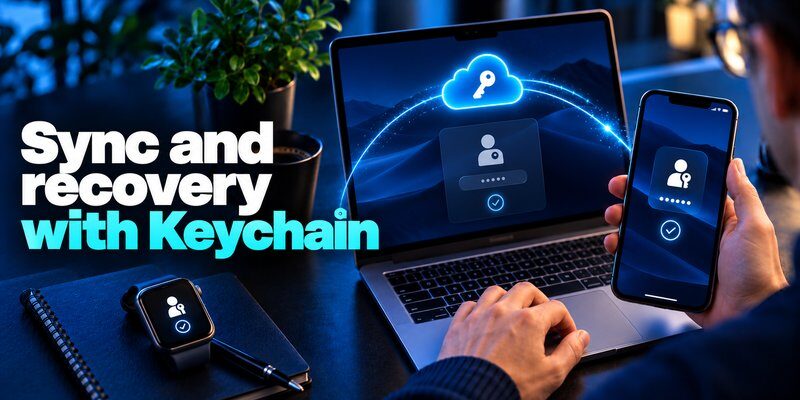
Even with correctly configured devices, users may encounter synchronization or authentication problems.
The following troubleshooting steps complete the apple passkey icloud keychain guide.
Problem 1: Passkeys are not syncing
Check whether both devices use the same Apple Account.
Then verify that iCloud Keychain synchronization is enabled on each device.
Also check:
- Internet connectivity.
- Pending Apple Account verification.
- Operating-system updates.
- Device approval prompts.
- Password and passkey AutoFill settings.
If credentials remain unavailable, confirm that they were saved in Apple Passwords rather than a different password manager.
Problem 2: A saved passkey does not appear
Open Passwords and search for the website or account.
Make sure you are viewing the Passkeys section.
If the credential is missing, check the website’s security settings to determine whether passkey registration was completed.
Some services may require the user to create a passkey manually.
A website supporting passkeys does not guarantee that a passkey has already been created for your account.
Problem 3: Face ID or Touch ID does not work
If biometric authentication fails, verify that the feature is enabled and functioning on your device.
Depending on the authentication prompt, your device passcode may provide another way to authorize the credential.
Restarting the device or installing available updates may resolve temporary problems.
Do not reset or delete passkeys unnecessarily.
Problem 4: Verification codes are missing
Apple Passwords can store verification codes for compatible accounts.
However, not every service uses the same authentication process.
Users who need separate TOTP management can explore how to use authenticator app.
For Mac-related verification options, see google authenticator for mac.
A dedicated authentication app is useful when a service supports TOTP but not passkeys.
Problem 5: You lost your Apple device
Losing a device does not necessarily mean losing every synchronized credential.
Apple provides protected iCloud Keychain recovery mechanisms.
Recovery may require Apple Account verification, another trusted device, a previously used device passcode, or other supported recovery procedures.
Avoid resetting encrypted keychain data unless you understand the potential consequences for credentials that cannot otherwise be recovered.
Frequently Asked Questions About Apple Passkeys
1. Is iCloud Keychain the same as Apple Passwords?
No.
Apple Passwords is the application used to manage credentials, while iCloud Keychain provides encrypted synchronization across authorized Apple devices.
Both work together to provide password and passkey management.
2. Can Apple passkeys work without Face ID?
Yes.
Supported devices can authorize passkey authentication using Touch ID, a device passcode, or other compatible authentication methods.
Face ID is convenient but not universally required.
3. Can I use iCloud Keychain on Windows?
Apple provides iCloud Passwords functionality for supported Windows computers and browsers.
However, password autofill support and passkey functionality may differ by platform and software version.
Check the supported credential features before relying on Windows for a specific passkey workflow.
4. What is an Apple iCloud Keychain passkey?
An apple icloud keychain passkey is a cryptographic authentication credential saved using Apple’s secure credential infrastructure.
It can be synchronized across approved Apple devices and used to sign in to supported services without entering a traditional password.
5. Is iCloud Keychain 2 a separate application?
No official Apple product is named icloud keychain 2.
The phrase may appear in searches discussing newer versions of iCloud Keychain or its relationship with two-factor authentication.
Apple continues to use iCloud Keychain as part of its credential management system.
6. Can Apple passkeys replace passwords completely?
Not yet.
Many websites support passkeys, but some still require passwords.
Others retain password-based recovery options after passkeys are enabled.
Using unique passwords and strong verification remains necessary for unsupported services.
7. Can I share passkeys with family members?
Apple Passwords supports sharing passwords and passkeys through supported shared groups.
Users should share credentials only with trusted people and understand that access to a shared credential can allow account authentication.
For further guidance, see how to share passwords securely with family.
8. Do I still need an authenticator app with iCloud Keychain?
An authenticator application can still be useful for accounts that require time-based verification codes.
Apple Passwords also supports verification-code storage, but users may prefer a separate application for managing TOTP credentials.
If your accounts require this method, you can Download authenticator app for compatible iPhone authentication workflows.
9. Are passkeys safer than passwords stored in iCloud Keychain?
Passkeys generally provide stronger phishing resistance than traditional passwords, even when those passwords are securely stored.
A saved password remains a reusable secret.
A passkey uses cryptographic verification associated with the legitimate service.
However, overall security still depends on device protection and account recovery procedures.
Final Verdict: Apple Passkey iCloud Keychain Guide
This apple passkey icloud keychain guide demonstrates how Apple combines passwordless authentication with encrypted credential synchronization.
Passkeys reduce exposure to password theft and phishing, while iCloud Keychain helps users securely access credentials across approved Apple devices.
For the best experience:
- Enable iCloud Keychain synchronization.
- Protect your Apple Account with two-factor authentication.
- Create passkeys on supported websites.
- Manage credentials through the Apple Passwords app.
- Maintain secure recovery methods.
- Use authenticator-based verification when passkeys are unavailable.
As passwordless authentication continues expanding, Apple users can improve both security and convenience without relying entirely on traditional passwords.
The strongest practical approach combines passkeys, secure credential management, trusted devices, and additional authentication where necessary.
Download Authenticator App
Secure your accounts with fast, reliable two-factor authentication. Download now and protect your login in seconds.
