
Apple Authenticator: Complete Guide to 2FA, Verification Codes & Apple Devices
Published August 11, 2026 · Updated October 12, 2026
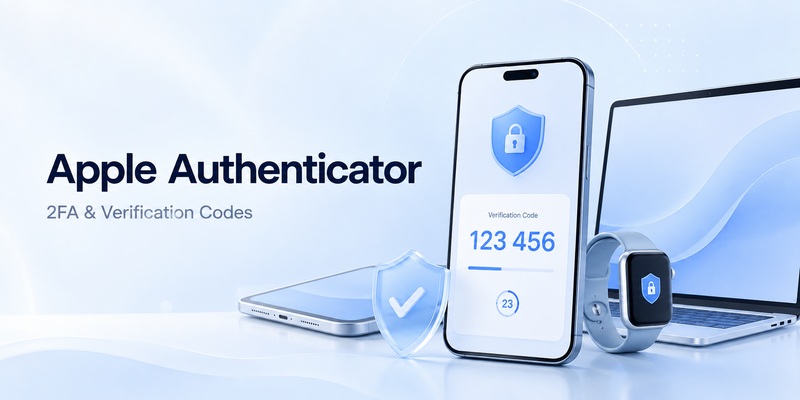
Quick Answer: Apple does not offer a separate application officially named “Apple Authenticator.” Instead, the built-in Passwords app on supported iPhones, iPads, and Macs can generate six-digit verification codes for websites that support authenticator-based two-factor authentication (2FA). To get started, open the website’s security settings, enable an authenticator app, and scan its QR code with your iPhone or add its setup key in Passwords. Confirm the generated code to finish enrollment.
If you’re searching for an Apple authenticator app, you may be wondering whether you need to download Google Authenticator, Microsoft Authenticator, or another application.
For many Apple users, the answer is no.
Apple’s Passwords app can store time-based verification codes alongside website credentials and automatically suggest them during sign-in.
However, this feature is different from the two-factor authentication used to protect your Apple Account.
This guide explains how Apple’s built-in authenticator functionality works, how to set up verification codes on iPhone and Mac, how to fix common problems, and when a dedicated authenticator app may be a better choice.
1. Does Apple Have an Authenticator App?
Apple does not market a standalone app named Apple Authenticator.
Instead, Apple includes authenticator-style verification codes in its Passwords app.
Starting with iOS 18, iPadOS 18, and macOS Sequoia, Passwords became a dedicated application for managing:
- Saved passwords.
- Passkeys.
- Verification codes.
- Wi-Fi passwords.
- Security recommendations.
On older supported operating systems, related password and verification-code features were available through system settings rather than a standalone Passwords app.
What Does Apple’s Built-In Authenticator Do?
For compatible third-party accounts, Apple Passwords can:
- Store the setup secret used for time-based verification.
- Generate temporary six-digit codes.
- Associate codes with saved website credentials.
- Suggest codes automatically when signing in.
- Synchronize supported credentials across Apple devices through iCloud Keychain.
This is useful when a website asks you to use an authenticator app.
Is Apple Passwords a Real TOTP Authenticator?
Yes.
Apple Passwords supports time-based one-time passwords (TOTP) for compatible websites and apps.
A TOTP code is generated from a shared secret and the current time.
Most standard TOTP codes change every 30 seconds.
Once configured, these codes can be generated without receiving an SMS message.
To understand the technology behind these codes, read our guide to TOTP authenticator apps.
Do You Need to Download Apple Authenticator?
No.
There is no official Apple Authenticator download because that is not the name of a separate Apple application.
On a supported Apple device, use the built-in Passwords app.
If you need additional features, such as a dedicated authenticator interface or cross-platform support, you can choose a third-party app.
Download Authenticator App
Secure your accounts with fast, reliable two-factor authentication. Download now and protect your login in seconds.
2. How to Set Up Apple Authenticator Codes on iPhone
There are two main ways to add a verification code to Apple Passwords:
- Scan the website’s authenticator QR code.
- Enter the website’s manual setup key.
The process begins with the account you want to protect.
Method 1: Set Up a Verification Code Using a QR Code
This method works well when the website’s QR code is displayed on another screen.
Step 1: Open the Website’s Security Settings
On your computer or another device, sign in to the website you want to protect.
Find a setting such as:
- Two-factor authentication.
- Two-step verification.
- Authenticator app.
- Verification codes.
Select the authenticator-app option.
Step 2: Display the Setup QR Code
The website should show a QR code.
Keep this page open.
Step 3: Scan the QR Code With Your iPhone
Open the iPhone Camera app.
Point the camera at the QR code.
Follow the option to add the verification code to Passwords.
Step 4: Select the Correct Saved Account
Choose the website or app account that should receive the verification code.
Apple Passwords associates the new code with that saved login.
Step 5: Confirm the Generated Code
Return to the website.
Enter the verification code generated by Passwords.
Complete the website’s setup process.
Step 6: Save Recovery Codes
If the service provides backup or recovery codes, store them securely.
Do not assume that adding the code to Passwords completes enrollment until the website confirms it.
Method 2: Set Up Apple Authenticator With a Manual Key
Manual setup is useful when QR scanning is unavailable or the website is open on the same iPhone.
Step 1: Get the Setup Key
Open the website’s two-factor authentication settings.
Choose the option to use a setup key or enter the authenticator information manually.
Copy the provided key.
Step 2: Open Apple Passwords
Launch the Passwords app on your iPhone.
Unlock it using the available device authentication method.
Step 3: Select the Website Account
Tap All.
Find the saved account for the website.
If the account has not been saved, create or select the correct website entry as supported by Passwords.
Step 4: Open Verification Code Setup
Tap Edit.
Select Set Up Code or the equivalent verification-code option.
Step 5: Enter the Setup Key
Paste the setup key.
Choose Use Setup Key.
Step 6: Confirm the Code
Return to the website.
Enter the new verification code.
Finish the 2FA enrollment process.
Security warning: The setup key is sensitive. Anyone who obtains it may be able to generate matching verification codes.
Method 3: Add a QR Code Displayed on the Same iPhone
Some websites show their authenticator QR code directly on your iPhone screen.
You may not need a second device.
When supported:
- Open the website’s authenticator setup page.
- Touch and hold the QR code.
- Select Add Verification in Passwords.
- Choose the correct account.
- Return to the website.
- Confirm the generated code.
If the option does not appear, use the manual setup key instead.
What if You Cannot Find Set Up Code?
Check that:
- Your device is running a supported operating system.
- You opened the correct account in Passwords.
- The website supports standard authenticator-app codes.
- You are editing the website credential rather than Apple Account security settings.
On older iOS versions, verification-code settings may be located under Settings → Passwords.
For a broader explanation of authenticator setup, see our complete authenticator app guide.
3. Apple Account Two-Factor Authentication Explained
Apple Account versus authenticator codes
Searches such as secondary authentication apple id often mix Apple’s account-security system with conventional authenticator apps.
Apple ID is now called Apple Account. Apple’s current two-factor authentication system normally verifies a new sign-in using:
- The Apple Account password.
- A six-digit verification code.
That six-digit code appears on a trusted device or can be sent to a trusted phone number.
It is therefore different from storing your Apple Account inside an apple authenticator TOTP list.
What is a trusted device?
Apple defines a trusted device as an iPhone, iPad, Apple Watch, Apple Vision Pro, or Mac that has already signed into the Apple Account using two-factor authentication.
Trusted devices can help verify your identity by displaying Apple verification codes when you attempt to sign in somewhere else.
Suppose you sign into iCloud on a new Mac.
Your trusted iPhone may display a sign-in notification.
You review the request, choose Allow if it is yours, and Apple displays the verification code.
You then enter that code on the Mac.
This is Apple’s own account-authentication system and does not require a separate apple authenticator application.
Trusted phone numbers
Apple requires at least one trusted phone number for two-factor authentication. A trusted number can receive a verification code through a text message or phone call when necessary.
Apple also recommends considering an additional trusted number, particularly if your iPhone is your only trusted device and also your only way to access the registered number.
This provides another recovery path if the main iPhone is lost or damaged.
4. How to Get Apple Verification Codes
Automatic verification prompt
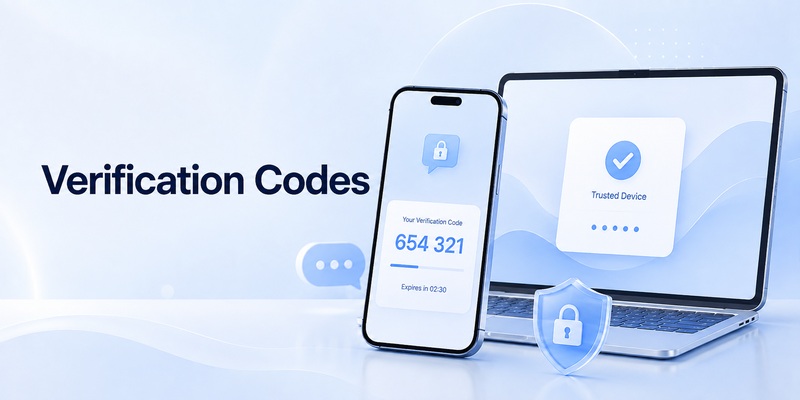
With Apple Account two-factor authentication enabled, a sign-in on a new device can automatically trigger an alert on trusted devices.
Apple’s process is:
- Begin signing into the Apple Account.
- Find the notification on a trusted device.
- Review the request.
- Choose Allow.
- View the six-digit verification code.
- Enter that code on the device where the login began.
Apple notes that the notification may include an approximate sign-in location based on the new device’s IP address, so that location may not always match your exact physical location.
This trusted-device process is another reason apple authenticator should not be understood only as a traditional TOTP generator.
Requesting a code through a phone number
If you cannot access a trusted device, the verification screen can provide an option such as “Didn’t Get a Code?” or “Can’t get to your devices?”
You can then request that Apple send a verification code to a trusted phone number.
The message or automated phone call contains the code required for the current sign-in.
Generate a code manually on Apple devices
Apple devices can also generate a verification code from account security settings.
For example, on supported Apple Watch versions, users can open Apple Account settings, choose Two-Factor Authentication, and select Get Verification Code.
This means Apple’s account-verification system remains available even though there is no standalone apple authenticator app.
💡 Discover Helpful Guides: Apple Watch Authenticator: Apps, Codes, and Limits
5. Apple Watch Authenticator and Trusted Device Verification
Can Apple Watch display Apple verification codes?
The phrase apple watch authenticator can refer to several different ideas.
For Apple Account two-factor authentication, Apple Watch can serve as a trusted device. Apple’s current support documentation lists Apple Watch alongside iPhone, iPad, Apple Vision Pro, and Mac as devices capable of helping verify identity.
Apple also states that Apple Watch running watchOS 6 or later can automatically display an Apple Account verification code.
Therefore, if you start signing into your Apple Account on another device, your Apple Watch may display the authorization notification and code.
Manually getting a code from Apple Watch
Current watchOS documentation also allows the user to generate a verification code manually.
Open the relevant Apple Account settings on the watch, access Two-Factor Authentication, and choose Get Verification Code.
This makes the watch a useful companion to the apple authenticator ecosystem.
Is Apple Watch a full TOTP authenticator?
Do not assume that Apple Watch’s role in Apple Account verification is identical to the verification-code storage available in Passwords on iPhone and Mac.
Apple’s current Passwords documentation specifically provides automatic verification-code setup instructions for iPhone, iPad, Mac, and Apple Vision Pro.
So when discussing an apple watch authenticator, it is safest to distinguish Apple Account trusted-device verification from third-party TOTP management.\
📘 Find the Right Guide: Apple iPhone Authentication: Face ID, 2FA, Passkeys
6. Apple TV Two-Factor Authentication
Signing into Apple TV
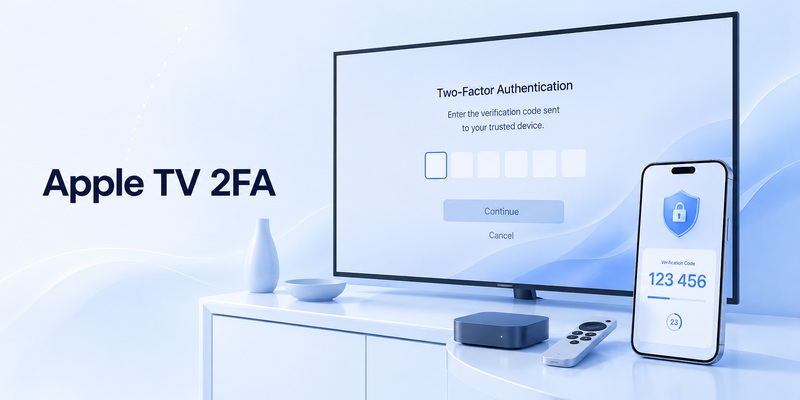
The keyword apple tv 2 factor authentication usually relates to signing an Apple Account into Apple TV 4K, Apple TV HD, or the Apple TV app on another streaming device.
Current Apple TV hardware supports two main account sign-in approaches:
- Use Another Apple Device.
- Sign in manually.
If you sign in manually and two-factor authentication is required, Apple can ask you to enter the six-digit verification code sent to a trusted device or phone number.
You do not normally open an apple authenticator code list on Apple TV.
The verification code belongs to the Apple Account trusted-device system.
Use Another Apple Device
On Apple TV 4K or Apple TV HD:
- Open Settings.
- Go to Users and Accounts.
- Choose a suggested user or Add New User.
- Select Use Another Apple Device when available.
- Bring a signed-in iPhone or iPad nearby.
- Follow the prompts on both devices.
Apple notes that compatible software and Bluetooth are required for the nearby-device workflow.
Smart TVs and streaming devices
The Apple TV app on supported smart TVs and other streaming devices can also offer QR-code login.
Apple’s current documentation says users can enter their Apple Account information or scan a QR code displayed by the Apple TV app and use their phone to sign in.
Again, this is related to Apple Account authentication rather than the third-party TOTP side of apple authenticator.
7. How to Change Apple Two-Factor Authentication Settings
Managing trusted phone numbers
People searching changing two factor authentication apple are often trying to replace an old telephone number.
On an iPhone or iPad:
- Open Settings.
- Tap your name.
- Open Sign-In & Security.
- Select Two-Factor Authentication.
- Add or remove trusted phone numbers as appropriate.
Apple provides similar controls on Mac and through the Apple Account website.
Before deleting an old trusted number, it is wise to make sure another accessible trusted phone number is already registered.
Your apple authenticator verification codes for third-party services are separate from these Apple Account trusted numbers.
Can Apple Account 2FA be disabled?
For most established Apple Accounts that use modern two-factor authentication, the answer is generally no.
Apple says that if an Apple Account was created with two-factor authentication, this protection cannot be removed. If two-factor authentication was enabled recently, there may be a two-week period in which account security can be lowered again.
Therefore, users should not assume that Apple Account two-factor authentication works like a website where a simple toggle can always turn off an apple authenticator.
Removing a trusted device
If you sell or stop using an iPhone, iPad, Apple Watch, Mac, or another trusted Apple device, review the Apple Account device list.
Removing a trusted device prevents it from continuing to receive Apple Account verification codes. Apple’s documentation also notes that removing a device blocks its Apple Account access until it is authenticated and added again.
8. Apple Authenticator vs Third-Party Authenticator Apps
Apple Passwords advantages
The primary advantage of using apple authenticator functionality through Passwords is integration.
Passwords already stores compatible account credentials. A verification code can be connected to the same entry, synchronized using Apple’s credential infrastructure, and automatically suggested during login.
You may not need to:
- Open another application.
- Find the account.
- Memorize the code.
- Switch back to the browser.
- Enter the code manually.
That reduces friction.
When third-party apps make sense
An independent Authenticator App may be preferable when:
- Your organization mandates one.
- You regularly use non-Apple devices.
- You want a separate authentication store.
- You need features specific to a particular identity provider.
For example, Microsoft Authenticator supports Microsoft’s MFA workflow on iPhone, while Google Authenticator supports standard verification-code generation and Google Account synchronization.
Security versus convenience
One consideration with an integrated apple authenticator setup is that passwords and verification codes may be part of the same Apple credential environment.
Some users prefer that integration because it simplifies sign-in and synchronizes credentials.
Others deliberately keep passwords and TOTP codes in separate systems.
There is no single configuration that fits every threat model. The important part is using two-factor authentication correctly, protecting your trusted devices, and maintaining recovery methods.
9. How to Fix Apple Authentication and CarPlay Problems

Authentication versus CarPlay connection problems
The search phrase apple device authentication failed carplay can be misleading because Apple does not describe every CarPlay connection problem as an Apple Account authenticator failure.
If CarPlay fails to connect, Apple’s official troubleshooting focuses first on device compatibility, iOS updates, USB or wireless connectivity, Siri, CarPlay permissions, and vehicle firmware.
Therefore, do not immediately reset your apple authenticator or Apple Account because a car displays an authentication-related message.
Official CarPlay troubleshooting steps
Apple recommends checking the following when CarPlay does not behave correctly:
- Confirm the vehicle supports CarPlay.
- Update the iPhone to the latest supported iOS version.
- Check the USB cable and USB port for wired CarPlay.
- Confirm Bluetooth and Wi-Fi are enabled for wireless CarPlay.
- Make sure Auto-Join is enabled for the CarPlay Wi-Fi network.
- Restart the iPhone and vehicle.
- Make sure Siri is enabled.
- Check Screen Time restrictions.
- Forget the car under Settings > General > CarPlay.
- Set up CarPlay again.
- Confirm the vehicle’s infotainment firmware is current.
These steps address the CarPlay connection itself rather than the apple authenticator system.
Check whether the problem is really Apple Account authentication
If the error occurs while an Apple service inside the vehicle is asking you to sign into your Apple Account, then trusted-device verification may become relevant.
In that case:
- Confirm your Apple Account password.
- Check your trusted devices for an approval prompt.
- Request a verification code if necessary.
- Verify trusted phone numbers.
Separating account authentication from CarPlay connectivity prevents unnecessary security resets.
10. Final Thoughts
The term apple authenticator is useful for describing Apple’s authentication capabilities, but understanding what is actually happening behind the phrase prevents a lot of confusion.
Apple does not currently provide a standalone application officially named Apple Authenticator.
Instead, modern Apple devices include two important authentication systems.
The first is the Passwords app. Passwords can store verification codes for third-party websites and applications that support authenticator-based two-factor authentication. Users can configure these codes by scanning a QR code or entering a setup key. iPhone can then automatically suggest the appropriate verification code during login.
For many users, this is effectively the built-in apple authenticator.
The second system protects the Apple Account itself.
Apple Account—formerly Apple ID—uses Apple’s trusted-device architecture. When signing into a new device or browser, you may need your password and a six-digit verification code that appears on a trusted device or is sent to a trusted phone number.
This distinction is critical.
Do not expect the Apple Account verification code to behave exactly like the TOTP code for a third-party website.
Apple Watch can act as a trusted device and can display Apple Account verification codes. Apple TV can request an Apple Account verification code during manual sign-in. iPhone, iPad, Mac, and other trusted devices all participate in Apple’s broader authentication system.
At the same time, third-party options remain valuable.
Microsoft Authenticator is available on Apple devices and is particularly relevant for Microsoft-based work or school environments. Google Authenticator is also available for iPhone and supports standard verification codes.
So the question is not simply, “Should I use apple authenticator or another authenticator?”
The better question is, “Which authentication method does this account require, and which recovery model works best for me?”
For Apple Account security, use Apple’s built-in two-factor authentication, trusted devices, and trusted phone numbers.
For third-party TOTP accounts, the apple authenticator functionality in Passwords can provide a highly integrated solution.
For organizational or cross-platform requirements, Microsoft Authenticator, Google Authenticator, or another supported authentication solution may make more sense.
Whichever approach you choose, protect your devices with a strong passcode, keep trusted phone numbers current, maintain recovery options, review unexpected sign-in requests carefully, and never approve an authentication prompt you did not initiate.
Used correctly, apple authenticator capabilities provide Apple users with a convenient way to combine passwords, passkeys, verification codes, trusted devices, and two-factor authentication into a much stronger account-security workflow.
Download Authenticator App
Secure your accounts with fast, reliable two-factor authentication. Download now and protect your login in seconds.
