
What to Do If You Clicked a Phishing Link: Decide by What Happened Next
Published October 28, 2026
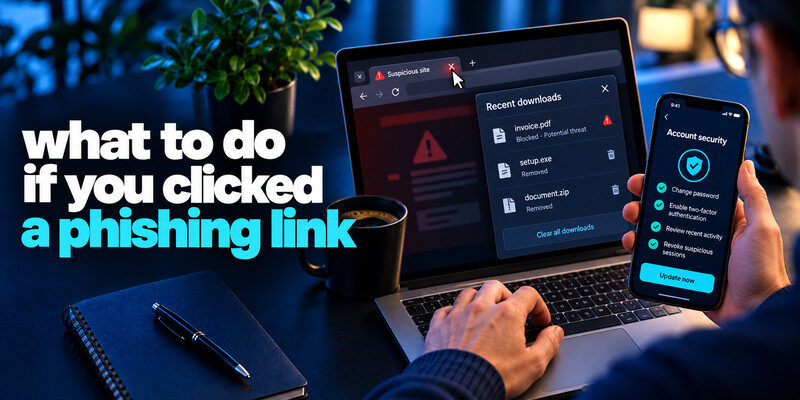
If you’re wondering what to do if you clicked a phishing link, the first step is to close the suspicious page and identify whether you entered personal information, shared a verification code, downloaded a file, or approved a sign-in request. Clicking a phishing link does not automatically mean your account has been compromised, but taking immediate precautions can help prevent identity theft, malware infections, and unauthorized access.
If you submitted a password or verification code, visit the official website using a trusted device, change your credentials, and review active sessions. If you shared payment details, contact your bank or card issuer immediately. For work-related accounts or devices, notify your IT security team.
What to Do If You Clicked a Phishing Link: Immediate Steps
Knowing what to do if you clicked a phishing link can help you respond quickly without taking unnecessary actions. The right response depends on whether you simply opened the page or shared sensitive information.
Follow these essential steps:
- Close the suspicious page: Stop interacting with the website and avoid clicking additional links.
- Check what information you shared: Determine whether you entered a password, verification code, financial information, or personal details.
- Secure affected accounts: Change compromised passwords through official websites and revoke unfamiliar sessions.
- Inspect your device: Check for unexpected downloads, browser extensions, or permissions.
- Report the phishing attempt: Notify the affected service, your workplace security team, or the appropriate reporting authority.
If you only opened the page without entering information or downloading anything, you may not need to reset every password. However, you should still review unexpected downloads and suspicious account activity.
Secure your accounts with fast, reliable two-factor authentication. Download now and protect your login in seconds.Download Authenticator App
First minute: stop the interaction
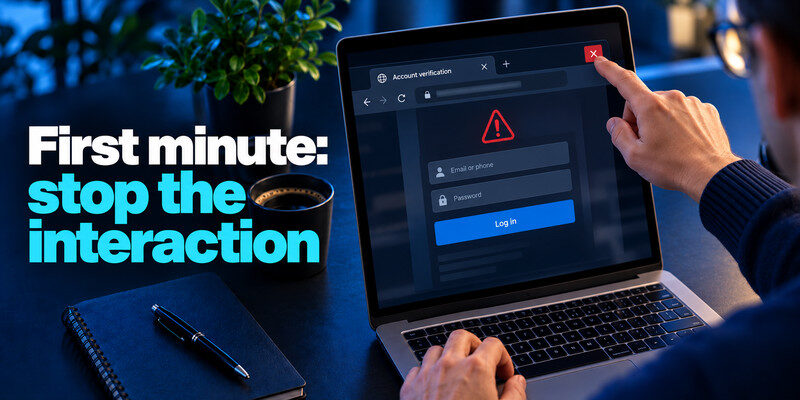
Understanding what to do if you clicked a phishing link also means recognizing the difference between visiting a malicious website and actually exposing sensitive information.
Do not continue through the fake form, call its support number, or follow a second “cleanup” link. Close the tab. Note the time, message source, and what you did. A screenshot of the visible page may help an investigation, but avoid capturing a password or code.
If you only visited
Check whether anything downloaded or a permission prompt was accepted. Keep the browser and operating system updated. You do not need to reset every account simply because you opened a page, but do not ignore an actual unknown successful sign-in.
After closing the suspicious page, avoid opening any follow-up links that claim to verify your identity or remove the threat. Our guide on how to avoid phishing scams explains how to recognize fraudulent requests and verify messages through official websites or trusted communication channels.
If you submitted something
Treat the submitted field as exposed. A password, MFA code, card, identity document, or payment instruction each has a different response. Work through the relevant branch below.
| Action taken | First response | Then check |
| Opened page only | Close, inspect downloads | Browser and account alerts |
| Entered password | Change at real service | Reuse, sessions, recovery |
| Shared live code/approved push | Revoke sessions quickly | Account changes |
| Submitted card/paid | Contact institution | Transactions |
| Installed software | Device security/IT | Permissions and accounts |
| What happened | Immediate action | Follow-up |
| Opened link only | Close and inspect downloads | Update browser if needed |
| Entered password | Reset at real site and revoke sessions | Replace reused copies |
| Entered card details | Contact issuer | Monitor and dispute transactions |
Read more: What to Do If You Clicked a Phishing Link: Decide by What Happened Next
Password entered: secure the actual account
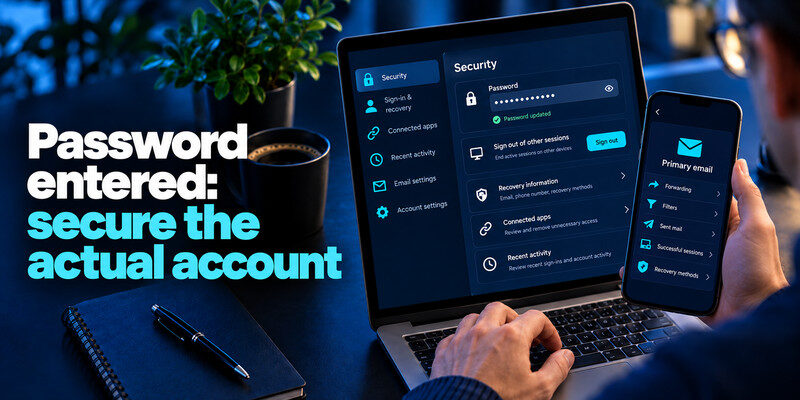
Open the genuine app or a known bookmark on a trusted device. Change the password to a unique generated one, replace every reused copy, and use the provider’s “sign out of other sessions” control where available. Check recovery email, phone, connected apps, and recent activity.
Primary email comes first
If the phished password protects your inbox, an attacker might reset other services. Check forwarding, filters, sent mail, successful sessions, and recovery methods before moving to linked accounts.
MFA and recovery
Add a strong method after you regain control. can generate TOTP codes for compatible accounts, but those live codes can be phished. Store backup codes separately; a passkey or security key is more resistant to a lookalike site where supported.
Clicking a phishing link does not automatically mean someone has accessed your account. However, if you notice unfamiliar security alerts or unexpected sign-ins, follow our guide on how to spot suspicious login activity to review unknown devices, successful login attempts, and changes to account security settings.
Read more: Signs of a Scam Text Message: A Practical Checklist
Live code or approval shared: assume a possible session
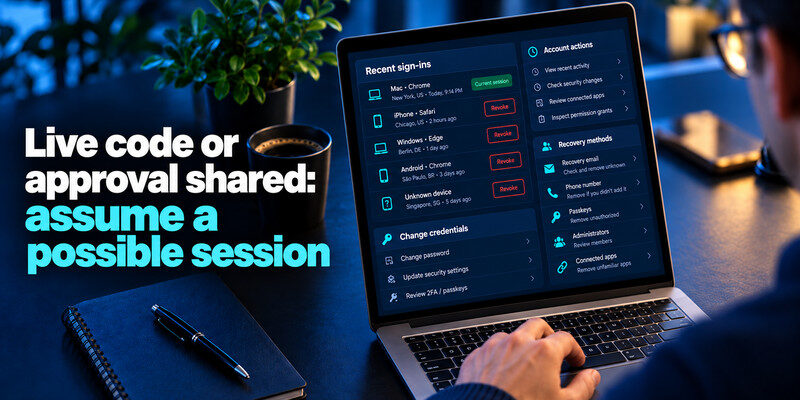
A code may be relayed to the real service immediately. Review successful sign-ins, revoke unknown sessions, change credentials, and inspect account actions even if you later close the fake page. A new password may not invalidate every token, so use explicit session revocation.
Unrecognized recovery changes
Remove any added recovery email, phone number, passkey, administrator, or connected app you did not authorize. If the attacker locked you out, use the provider’s official recovery flow.
Work account
Contact IT or the security team promptly with the timeline and affected service. They may revoke identity-provider sessions and check logs beyond what you can see.
Download or installation: check the device
An unexpected attachment, extension, app, or configuration profile can create a separate risk from the page visit. Do not install a “repair” tool offered by the same message. Use the device maker’s official guidance and security software you already trust.
Browser extensions and permissions
Review recently added extensions and notification permissions. Remove unrecognized access and update the browser. If the device is managed, let IT guide the process so evidence is preserved.
Sensitive accounts on that device
If malware may have captured credentials, use a different trusted device to secure priority accounts. Do not rely only on a password change performed inside a potentially compromised environment. If you entered your password on a phishing website, treat it as compromised even if you have not noticed unauthorized access. Our guide on how to recover a hacked account explains how to replace exposed credentials, revoke unfamiliar sessions, review recovery settings, and regain control if your account has been taken over.
Read more: How to Protect Yourself From Smishing: A Phone-First Safety Routine
Payment or identity data: contact the right institution
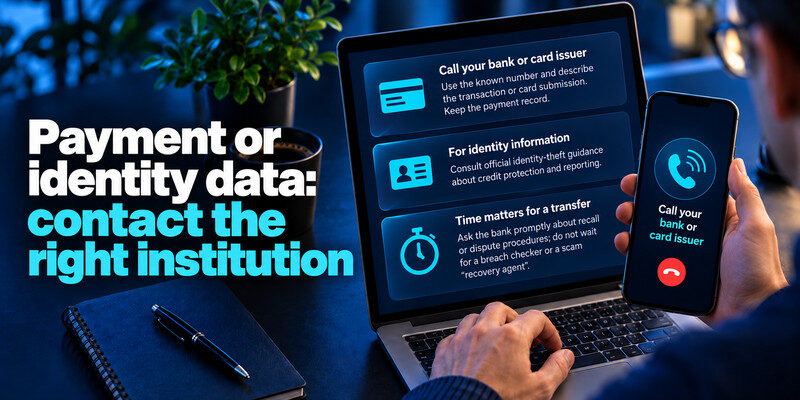
Call your bank or card issuer using the known number and describe the transaction or card submission. Keep the payment record. For identity information, consult official identity-theft guidance about credit protection and reporting.
Time matters for a transfer
Ask the bank promptly about recall or dispute procedures; do not wait for a breach checker. A scam “recovery agent” who asks for another fee is likely another attempt.
Watch for follow-up messages
Attackers may use the information you submitted to make a later call more convincing. Continue verifying through known channels.
Report and follow up
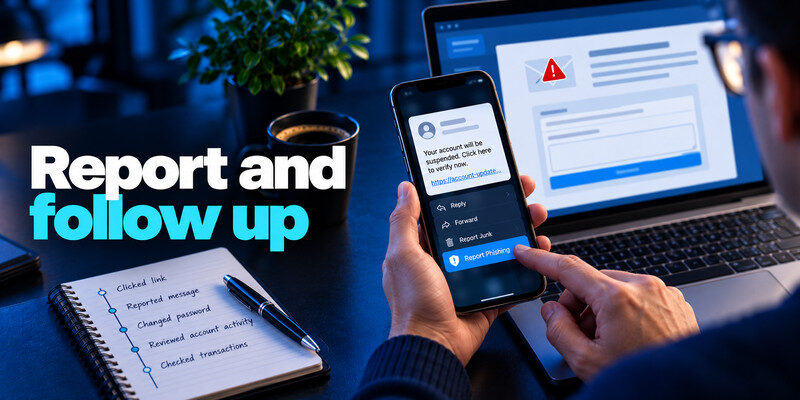
Report the phishing message in your mail or text app. Work users should follow internal process. In the US, the FTC accepts scam reports through ReportFraud.ftc.gov. Over the following days, review successful account activity, recovery changes, and transactions.
Keep a short timeline
Record the click, submissions, password changes, session revocation, bank contact, and case numbers. Do not include the old password or live codes in the log. If your primary email password was exposed, securing the mailbox should be a priority because attackers may use it to reset other accounts. Follow our guide on how to secure your email account to review unfamiliar sessions, forwarding rules, connected applications, and unauthorized recovery changes.
Tell affected contacts
If a compromised account sent messages, warn recipients through another channel. Describe the malicious content without forwarding the live link.
A third person opened the page, recognized the fake domain, closed it, and did not download or submit anything. Their response is to report the message, inspect for unexpected permissions or downloads, update the browser, and watch real account activity. They should not claim certainty that nothing happened, but a mass password reset is not automatically the most useful step.
Keep the facts straight: The difference between “clicked” and “entered” determines the response. Record it accurately, especially for a work report.
Avoid recovery scams: Do not pay a company that contacts you promising to remove the page or reverse a breach. Use official provider and device support.
Read more: Check Email Data Breach Free Online: Fast, Safe Options
A scenario with a password and a code
Suppose you opened a fake cloud-storage page, entered your email password, and then entered a genuine six-digit code that arrived on your phone. The code may have completed an attacker’s sign-in at the real service. Close the fake page, use a trusted device to reach the actual email provider, change the password, revoke sessions, and inspect forwarding, filters, recovery methods, sent mail, and connected apps.
Why primary email comes first
It can reset other accounts. If an attacker added a forwarding rule, future reset messages could be copied even after a password change. Remove unauthorized changes and secure linked financial or social services next.
Why the code matters
It was time-limited, but the session it authorized may remain. Explicitly ending unknown sessions is as important as replacing the secret.
At 10:00 you receive an “account locked” email; at 10:02 you tap its link; at 10:03 you enter a password and one-time code; at 10:06 you notice the domain is wrong. The right response is to open the real service through a trusted route immediately, change the password, revoke all sessions, inspect recovery methods, and report the incident. Record the time because it helps compare successful login logs with your actions.
Password entered but code withheld: The attacker may still know the password and try a different route. Replace it at the real service and anywhere else it was reused. Check that MFA remains enabled and that recovery contacts are still yours. If the service exposes sign-in history, examine it for successful access; a failed code request is a different fact from a completed login.
Card data entered: Contact the card issuer through the number on the card or official app. Ask about replacement, pending transactions, and dispute steps. A password reset will not cancel a card number. Keep the suspicious URL and receipt details for reporting without revisiting the site.
File downloaded or app installed: Do not open the file again. Update security software and follow device-platform advice for scanning or removing an app and its permissions. On a work device, contact the security team promptly so it can assess access and containment. If you only opened a page and gave nothing, avoid claiming a compromise without evidence, but inspect downloads and browser behavior.
Read more: Best Way to Secure Your WiFi Router: A Practical Home Checklist
A scenario with a download but no credentials
Another person clicked a “shared document,” downloaded a file, and ran it but did not type a password. The concern is device access or malware. They should stop using that device for sensitive accounts, notify work IT if managed, and follow official security guidance. Changing every password on the same suspect device may expose the new credentials too.
Preserve details
Record filename, source message, install time, and permissions granted. Do not send the file to friends for inspection. A security team can decide what evidence it needs.
After cleanup
Review important account activity from a trusted device. If malware could have captured sessions or credentials, revoke them as guided by the provider or incident team.
Frequently Asked Questions
What to Do If You Clicked a Phishing Link but Didn’t Enter Any Information?
If you clicked a phishing link but did not enter personal information, download files, or approve permissions, close the suspicious website immediately. Check your browser downloads, review recently granted permissions, and make sure your browser and operating system are updated.
You generally do not need to change every password after a click alone. However, if you notice unfamiliar account activity, unexpected downloads, or security alerts, investigate them promptly and secure any affected accounts.
Does clicking alone infect my phone?
Not necessarily. Risk depends on the page, device, downloads, permissions, and any data entered. Close it, update the device, inspect what occurred, and follow specific alerts.
Should I reset all passwords?
Start with the submitted password and every reused copy, plus primary email if it may have been accessed. A blanket reset can cause errors without addressing sessions or payments.
Is MFA enough after entering a password?
It helps, but a live code or approval can be phished. Check successful sessions and recovery methods.
What if I cannot sign in?
Use the genuine provider’s account-recovery route, secure your recovery email, and contact its support. Work users should involve IT.
Final Thoughts
Knowing what to do if you clicked a phishing link helps you respond effectively and protect your digital accounts. The most important step is to identify whether you exposed sensitive information, approved an unauthorized login, or downloaded potentially harmful software.
If your credentials were compromised, change your passwords through official websites, revoke suspicious sessions, and strengthen your account security with two-factor authentication. Continue monitoring your accounts and avoid interacting with unexpected messages or suspicious links.
