
How to Secure Your Email Account: Protect the Inbox That Resets Everything
Published October 9, 2026
To secure your email account, use a unique password, enable a strong second factor, verify recovery methods, and inspect recent sessions and forwarding rules. Email is often the route for resetting your other accounts, so a compromised mailbox can undo security work elsewhere. Start with the address you use for banking and password recovery, then apply the same checks to secondary and work mailboxes. This guide shows what to change, what to inspect, and how to respond if messages or settings already look wrong.
Identify the mailbox that matters most
Find the address used to sign in to your password manager, device platform, banks, and social accounts. That mailbox is a root account. Also check recovery addresses: a forgotten secondary inbox can let someone redirect resets even when the primary inbox has a strong password. Make a list of addresses and which services depend on each, but do not put passwords or codes into an unprotected note.
Primary versus secondary email
An old address may look unimportant until you discover it is still the recovery email for your main account. Sign in, review its security settings, and either secure it or replace it in the dependent accounts. Do not delete the old mailbox before verifying changes have taken effect. A service may send a confirmation link to both the old and new addresses, and a delay can leave you without an expected path.
Work and personal boundaries
Avoid making an employer-managed mailbox the only recovery route for personal accounts. Access may end when a job changes. Similarly, do not use your personal inbox as the sole recovery method for a business administrator account. Document ownership so an authorized colleague can recover a company service without asking for your personal passwords. Organizations should define who owns business email accounts, how administrators recover access, and which authentication methods employees must use. Our guide to creating a strong password policy for businesses explains how to establish practical credential, MFA, and recovery requirements.
Replace reused passwords and review sign-ins
Give each mailbox its own long, unique password. A password manager can generate and store it. If you have reused the email password elsewhere, change it now and then check whether the old password was used on other high-value accounts. From the email provider’s official app or website, inspect recent security activity and logged-in devices. Google’s Security Checkup and Microsoft’s Recent activity are examples of provider tools for this purpose.
Using a different password for every email account is easier when you have a secure way to generate and store credentials. Learn how to use a password manager to organize unique passwords, enable autofill, and reduce the risks of password reuse.
Interpret location and device clues
An unfamiliar city alone is not conclusive; mobile networks and VPNs can alter location estimates. An unfamiliar successful sign-in, security-setting change, new device, or message you did not send is stronger evidence. Compare time, browser or device, and the action shown. If you cannot explain a successful session, secure the account from a trusted device and use the provider’s compromised-account flow.
If you notice unfamiliar sign-ins or security alerts, avoid assuming that every unusual location means an attacker accessed your mailbox. Our guide on how to check if your account has been hacked explains how to distinguish suspicious signals from stronger evidence of unauthorized access.
Revoke what a password change may miss
Review active sessions, third-party apps, app passwords, connected mail clients, and delegated access. Some access tokens may outlive a normal password change. Use the provider’s option to sign out other devices when appropriate. Check whether a former phone or laptop still has a usable session before selling it. Do not remove an app you need without understanding it, but do not leave unknown access in place.
Secure your accounts with fast, reliable two-factor authentication. Download now and protect your login in seconds.Download Authenticator App
Turn on MFA and keep recovery independent
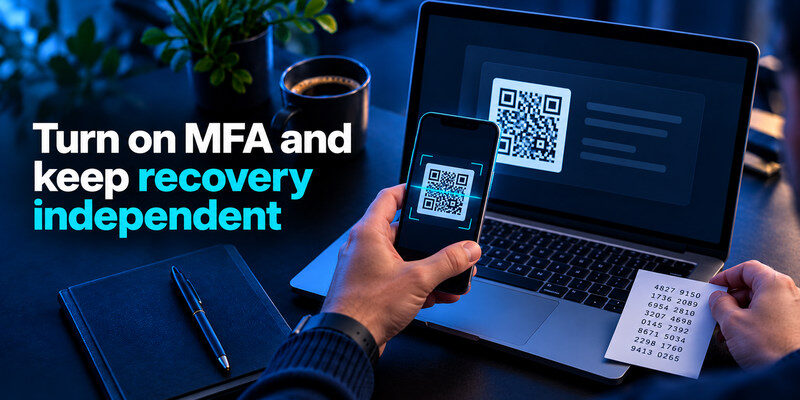
Use a passkey or security key if the provider offers one and your devices support it; otherwise, an authenticator app is a good second step. The FTC recommends two-factor authentication for sensitive accounts, including email, and CISA favors phishing-resistant methods where practical. Save backup codes, register a backup key or recovery method where supported, and test a fresh sign-in. A verification code does not protect you if you type it into a phishing site.
If you’re unfamiliar with verification apps, understanding what an authenticator app is can help you choose a suitable second factor for your email account. The guide explains temporary verification codes, 2FA setup, and why an authenticator adds protection beyond a password alone.
Register the second factor carefully
Open security settings directly from the provider. Scan the displayed QR code into the authenticator, enter a current code to finish enrollment, and sign out and back in once to test it. Do not photograph the setup QR code or share its manual key; it is the reusable seed, not just a temporary display. If a countdown is almost finished, use the next code instead of racing through the final seconds.
Create an offline route for a lost phone
Keep recovery codes in a protected location separate from the phone and, for a password manager’s own login, separate from the locked vault. Verify recovery phone and email entries are current. A phone number can be lost or reassigned, so it should not be the only backup if the provider offers stronger options. Test whether another trusted device is still signed in before wiping the old one during a migration.
Choose a dedicated app when appropriate
can generate standard one-time codes for email providers that offer authenticator-app 2FA. Keeping the email code separate from a vault holding the email password can limit one-vault exposure. Follow the provider’s own setup screen and retain its official recovery codes. The app does not override a provider’s account-recovery requirements.
Inspect forwarding, filters, and account changes
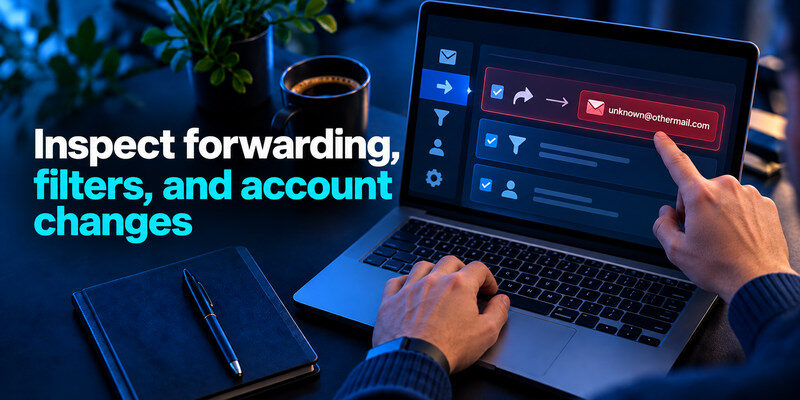
An attacker who gains mailbox access may set up forwarding or a rule that hides security notifications. Review forwarding addresses, filters, inbox rules, automatic replies, linked accounts, and delegated users. Microsoft specifically recommends checking connected accounts, forwarding, and automatic replies during compromised-account recovery. Gmail and other providers have their own equivalents; menus change, so use the provider’s current security and mail settings rather than relying on an old screenshot.
| Clue | Possible explanation | Check |
| Reset emails missing | Rule or forwarding | Filters, trash, forwarding destinations |
| Messages sent without you | Active intruder or connected app | Sent folder, sessions, app access |
| New recovery address | Unauthorized change | Security history and recovery settings |
| Friends receive strange requests | Mailbox misuse or spoofing | Headers, account activity, direct confirmation |
Do not overlook hidden folders
Inspect trash, archive, spam, and deleted-items recovery where the provider offers it. A malicious rule may move messages without deleting them. Check both the web interface and mobile app; one may hide advanced settings. If the provider has an activity log, record the suspicious changes before removing them so you can explain what happened to official support or an employer’s security team.
Distinguish spoofing from account access
A message that appears to come from your address does not by itself prove someone signed in; email sender fields can be forged. Look for the message in Sent, inspect account activity, and ask a recipient for the full headers if needed. Conversely, no visible Sent copy does not rule out a takeover because an attacker can delete it. Combine evidence rather than dismissing or panicking over a single clue.
Reduce phishing and malware exposure
Use a trusted bookmark or type the provider’s address when an email urges you to “verify” your account. Avoid signing in through unexpected attachments or QR codes. Keep the browser, operating system, and email app updated. Review extensions that can read page contents and revoke ones you do not use. A strong email password cannot help if an unlocked device or malicious extension can read the inbox.
Treat unexpected codes as warnings
If you receive a login code you did not request, do not share or enter it. Open your account directly and check whether there is a successful sign-in or account-change event. Someone may merely have typed your address, but repeated unsolicited prompts or a changed recovery setting merits stronger action. Never approve an MFA push simply to make notifications stop.
Watch connected services
Many accounts use “Sign in with Google,” Microsoft, or Apple, and email is commonly the recovery channel for others. Review connected app permissions and remove unused ones. A third-party authorization can retain access to data even if the mailbox password changes. If an app is unfamiliar, research it through the provider’s own permission page before revoking and rotating associated credentials.
If the mailbox may already be compromised
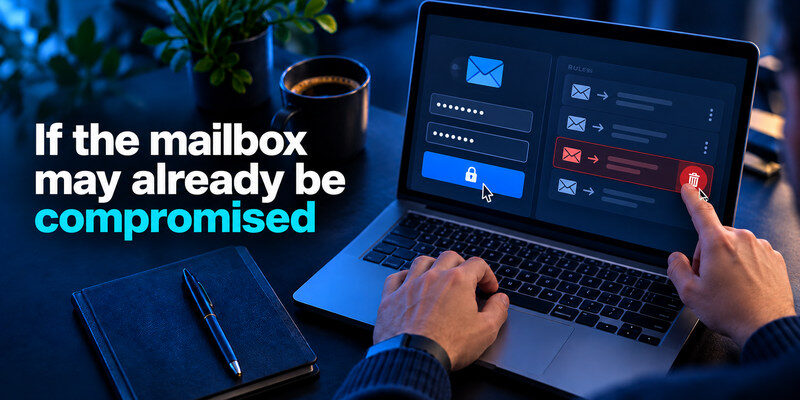
Use a trusted device to follow the provider’s official hacked-account recovery flow. Change the password, remove unknown sessions and recovery methods, inspect forwarding and apps, and enable or re-enroll MFA. Then check other accounts whose reset links went to that mailbox, starting with finance and your password manager. The FTC advises warning contacts if an attacker sent messages from your account; tell them through another channel not to follow those links.
Preserve the right order
If the attacker still has a live session or a forwarding rule, merely changing a website password can expose the new reset message. Secure the mailbox and revoke access first, then reset dependent services. If the device itself may be compromised, use a clean device for changes. In a workplace, inform the security administrator because the mailbox may have access to shared files or colleagues’ messages.
When you cannot sign in
Use the official recovery entry point and provide information you can verify. Do not pay a third party claiming to bypass the provider. Google says it does not provide phone support to sign users into a Google Account and does not work with services claiming to provide password support. Recover linked phone and backup email access through their providers as needed. Be patient with security delays that protect against an attacker changing every recovery method at once.
A maintenance rhythm that takes minutes
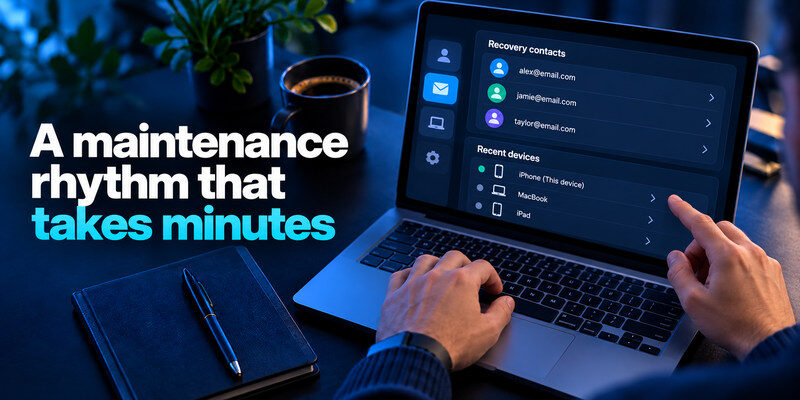
Once the account is secure, review recovery contacts and connected devices after a phone change. Revisit forwarding and app permissions if a suspicious message appears. Keep backup codes current after re-enrolling MFA. There is no need to change a strong, unique password on an arbitrary schedule unless the provider or credible evidence calls for it. A brief routine tied to device changes is easier to maintain than a monthly overhaul.
A second mailbox needs its own test
Sign out of the secondary address, confirm its recovery method, and send a test message. It is easy to leave a mailbox signed in for years without knowing its password or backup route. If that address is a recovery endpoint for the primary mailbox, make sure the dependency is not circular. Label the recovery plan in a protected record so you know which account opens which.
Audit every path into the mailbox
The login page is not the only route to email. A desktop mail client may use an app password, an authorized third-party app may read messages, and forwarding may copy mail to another address. Run a focused audit after securing the main password. Start with provider security activity, then examine mail settings and connected apps. Record legitimate integrations before removing anything so you can restore a necessary calendar or work automation if it breaks.
| Access path | What to inspect | Action on an unknown entry |
| Signed-in device | Device, date, success status | Revoke and investigate |
| Connected app | Permissions and owner | Remove; review data access |
| Forwarding or mail rule | Destination and conditions | Disable; inspect affected messages |
| Recovery method | Email, phone, key | Remove and replace securely |
Do a sign-out test
After changes, sign out of one low-risk device and sign back in with the intended password and factor. Then confirm the provider sends security alerts to a mailbox you control. You do not need to sign out the only working device before you have tested recovery. When all routes are known, revoke any session you cannot identify and review the activity page again after a day.
Check the mailbox’s financial reach
Search for recent legitimate account-change notices from banking, payroll, and payment services. If the mailbox was compromised, those services may have been targeted even if their passwords have not changed visibly. Use each provider’s official transaction and security history, and contact its fraud channel if there is unauthorized activity. Do not forward full account statements to a new address as a makeshift backup.
Check other mailboxes that forward into this one. A secondary account may have weak recovery and send all messages to your primary inbox, or the primary may forward to an address you stopped using years ago. Map the direction of forwarding, then remove unnecessary routes. A rule you created for convenience can become a silent copy of password-reset mail on a device you no longer control.
If you use a custom email domain, include the domain registrar and hosting administrator in the security review. Someone who can change mail routing may redirect future messages without signing into the mailbox itself. Use unique credentials and strong MFA on those administrative accounts, and keep ownership details current. This is especially important for a small business using email addresses under its own domain.
Frequently Asked Questions
Is an authenticator app better than SMS for email?
It avoids some phone-number risks, while a phishing-resistant security key or passkey can provide stronger protection where offered. Use a method you can recover and save backup options. Do not leave the inbox with no second factor while deciding.
Does a strange email mean my account was hacked?
Not always. The sender may be spoofed, or a contact may have been compromised. Check Sent, security activity, forwarding, and connected apps. Treat an unfamiliar successful login or changed recovery detail as stronger evidence.
Should I delete an old recovery email?
Replace it with a current, secure address and verify the change before deleting the old mailbox. Removing the only working recovery path can cause lockout. Review every service still using the old address.
Can I secure email without a password manager?
Yes. You still need a unique password and a safe way to retain it, plus MFA and recovery. A manager makes unique credentials easier across many accounts, but the security plan is broader than the storage tool.
Final Thoughts
How to secure your email account begins with recognizing that the inbox may reset everything else. Give it a unique credential and independent second factor, audit sessions and mail rules, and make recovery work without the phone you use daily. If compromise is suspected, secure the mailbox before changing dependent services, then warn affected contacts through another channel.
