
Best Way to Secure Your WiFi Router: A Practical Home Checklist
Published October 9, 2026
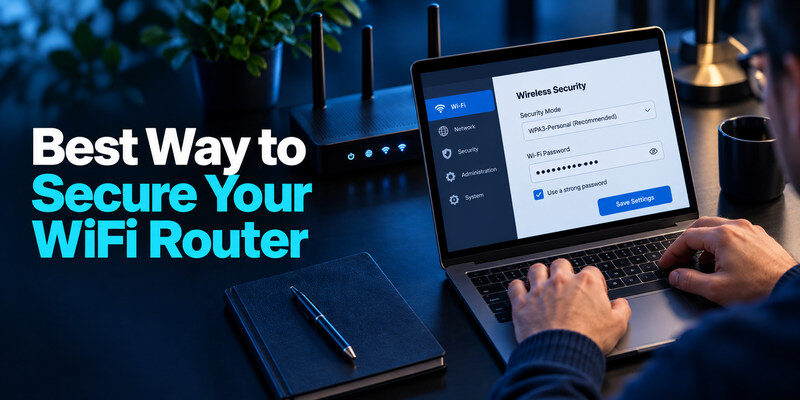
The best way to secure your WiFi router is to change its administrator credentials, use WPA3 Personal or WPA2 Personal with a long unique Wi-Fi password, install firmware updates, and turn off remote features you do not need. Then review connected devices and isolate visitors or less-trusted smart devices. These steps close more common gaps than hiding the network name or repeatedly changing a strong password without a reason.
Know the two passwords before changing either
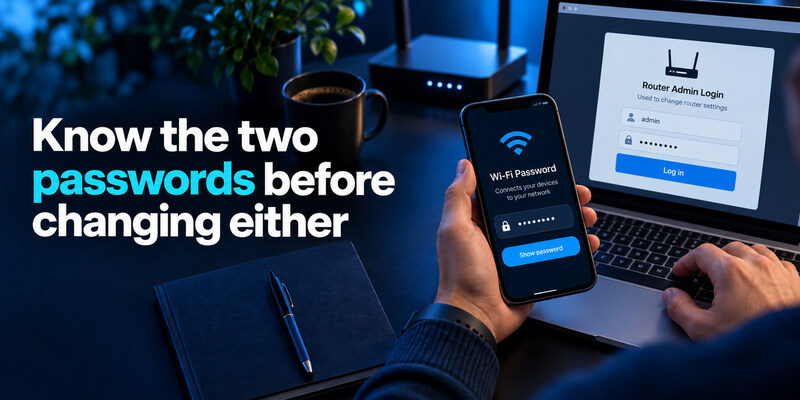
Your router has an administrator login for its settings and a Wi-Fi password for joining the network. They may be on the same printed label, but they protect different things. Changing one does not necessarily change the other. Use a unique admin password so a visitor who knows the Wi-Fi password cannot also change the router’s configuration. If your internet provider manages the router, check which settings you are allowed to change.
Your router’s administrator password should be different from your Wi-Fi password and every other account password you use. Our guide on how to create a strong password explains how to generate long, unique credentials and avoid predictable patterns that attackers may try against administrative accounts.
Find the genuine management route
Use the router maker’s documented app or local management address, reached from your home network. Avoid a search-result advertisement asking you to enter a router password. Verify the model on the label and the maker’s support page before a firmware download. A carrier-supplied gateway may use a provider app instead of a local login.
Make a recovery note
Record the router model, admin username, where the password is stored, and how to reset the device if access is lost. Never keep the only copy on an unreachable computer. Before changing advanced settings, export a configuration backup if the maker supports it and protect that file; it may contain sensitive network details.
Secure your accounts with fast, reliable two-factor authentication. Download now and protect your login in seconds.Download Authenticator App
Prioritize settings by the risk they reduce
| Priority | Setting | Recommended approach | Why it matters |
| First | Admin password | Unique, long credential | Prevents unauthorized setting changes |
| First | Wi-Fi encryption | WPA3 Personal; WPA2 Personal if needed | Protects wireless traffic from casual nearby access |
| First | Wi-Fi password | Long and unique | Limits who can join the network |
| Next | Firmware | Enable automatic updates or check maker releases | Fixes known flaws |
| Next | Remote administration | Disable unless required and secured | Reduces exposure beyond home |
| Next | Guest/IoT network | Separate less-trusted devices where supported | Limits routine access to main devices |
The FTC’s home Wi-Fi guidance supports strong encryption, changing default passwords, keeping router software updated, and using a guest network. The controls available on your model may differ. If WPA3 prevents an older essential device from connecting, a secure WPA2 Personal setting can be a practical compatibility choice; avoid obsolete WEP or open security modes.
Change administrator access safely
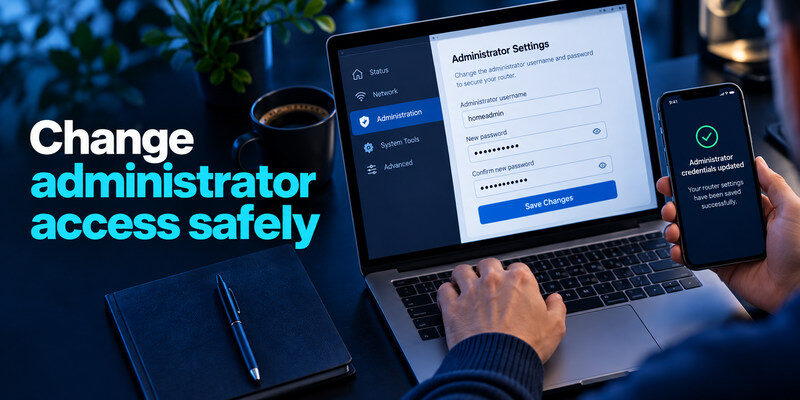
Sign in while connected locally, change any default admin password, and save it in a trusted password manager. If the router offers a second factor for its cloud account, enable it and save its recovery option. If the admin username can be changed, treat that as an additional measure, not a substitute for a good password. Check whether a separate provider account also has control over the gateway.
Distinguish local and cloud controls
Some routers have both a local admin page and a maker’s cloud account. Secure both. A strong local password does not protect a weak cloud login that can alter settings remotely. Conversely, deleting the app may not disable remote management. Review the actual remote-access setting and account sessions.
Limit who can administer
Do not share the admin password with visitors. For a shared household, decide who performs updates and how another trusted person can recover access in an emergency. If a technician needs temporary access, use the provider’s supported process, then review the setting afterward. Avoid sending screenshots that show passwords or setup QR codes.
Because router administration is usually infrequent, it can be difficult to remember a strong, unique login password. Our guide on how to use a password manager explains how to store credentials securely, generate unique passwords, and keep important account details organized without reusing passwords.
Set wireless encryption and a distinct network password
Select WPA3 Personal where all devices support it, or WPA2 Personal with AES for older equipment. Mixed mode may be available for compatibility; understand that older clients may use the weaker supported mode. Use a long unpredictable Wi-Fi password unrelated to your admin or account password. Enter it on devices you trust; do not post it where anyone passing by can photograph it.
Renaming the network has a limited role
A network name can disclose a name, apartment, or router model. Choose a neutral label. Hiding the SSID is not meaningful authentication: devices can still reveal the network and users may connect less reliably. Spend your time on encryption, credentials, and updates instead.
Treat WPS cautiously
Wi-Fi Protected Setup may let devices join without typing the full password. If you do not use it, turn it off where available. Some devices expose a button method or PIN method; behavior differs by model. If you must use it for a device, check the router manual and review the connected-device list after pairing.
Install firmware updates from a trusted source
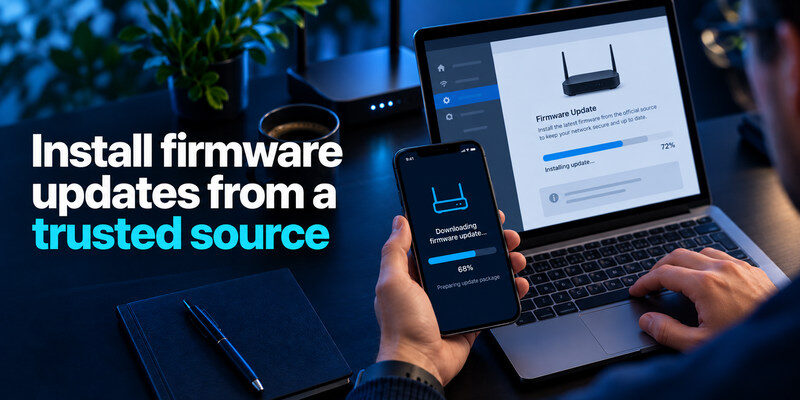
Look for automatic firmware updates in the router interface. If the model requires manual updates, use its official support page for the exact hardware revision, follow instructions, and avoid interrupting power. A firmware update can restart the network and occasionally reset configuration, so schedule it when interruption is acceptable and keep the admin recovery note handy.
Router firmware updates help address known security vulnerabilities, but computers, phones, and smart devices on the same network also need regular updates. Our beginner cybersecurity checklist explains how to make software updates and device protection part of a simple ongoing routine.
Replace unsupported hardware when needed
If the maker no longer provides security updates or modern encryption, consider a supported replacement, particularly for a router exposed to many devices. First check whether an ISP-managed model receives updates behind the scenes. A new router does not protect a compromised phone or a phished email account, but unsupported network equipment is an avoidable weak point.
Verify the update actually applied
Record the firmware version and update date before and after. An “up to date” message may mean no update is available for that particular model; it does not prove continued vendor support. If the update fails, use the maker’s recovery instructions rather than a firmware file from an unverified forum.
Reduce exposed management features
Disable remote administration, UPnP, and port forwards you do not need, after checking whether a game, camera, or home service relies on them. These settings have legitimate uses, and a blanket change can break service. For each exception, identify the device and owner, restrict access where possible, and document why the feature remains enabled.
Remote access is a separate decision
If you need to manage the router away from home, use a supported secure method, a strong cloud account, MFA if offered, and current firmware. Do not expose the admin interface directly to the internet just for convenience. On a business or advanced setup, ask a network professional before changing VPN or firewall rules.
Keep DNS changes visible
Check the router’s DNS settings if pages redirect unexpectedly or an unfamiliar person previously administered it. Some households deliberately use provider or filtered DNS. Document legitimate settings before changing them. If you suspect tampering, secure the admin account and follow the maker’s reset and reconfiguration process.
An unfamiliar device on your Wi-Fi network deserves investigation, although device names and randomized MAC addresses can sometimes make legitimate devices difficult to recognize. Network access and online account access are different security issues. For related warning signs involving your online services, see our guide on how to spot suspicious login activity.
Put visitors and smart devices on suitable networks
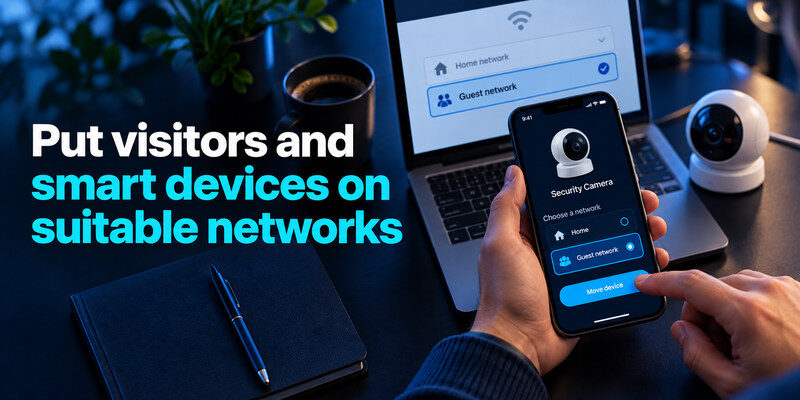
A guest network lets visitors get internet access without the main Wi-Fi password. Some routers also offer an IoT network for TVs, cameras, and speakers. Review whether guest clients can communicate with the main network and each other; labels alone do not guarantee isolation. Choose a separate strong guest password and turn the guest network off when no longer needed if that fits your household.
| Device group | Suggested network | Check before moving |
| Personal computers and phones | Main trusted network | Updated OS and screen lock |
| Visitors | Guest network | Internet-only access and expiry |
| Cameras, plugs, older smart devices | IoT or guest if supported | Whether local app control still works |
| Printer or local media device | Depends on discovery needs | Guest isolation may block printing or casting |
Verify guest isolation
Connect a visitor device to the guest network and test ordinary internet access. Then check whether it can reach a main-network printer or computer; some routers allow local access even when the network is named “guest.” If isolation is important for smart devices, consult the model’s instructions and test rather than trusting a label.
Inventory devices without panic
Many routers list connected devices by technical names or randomized addresses. Compare MAC address, hostname, timing, and a device’s own settings before concluding an entry is an intruder. If genuinely unknown, change the Wi-Fi password, remove the device if the router permits, and reconnect trusted devices. Also check whether a visitor or a smart appliance was forgotten.
Test the changes before calling the job done
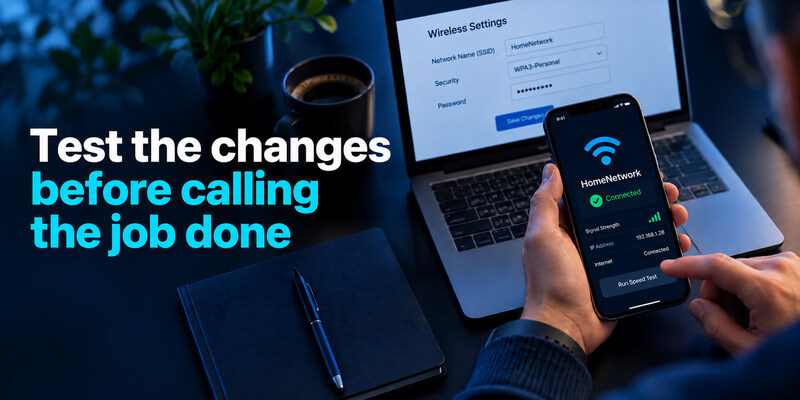
After saving, reconnect a trusted phone and laptop, confirm normal browsing, and test a guest device’s access. Sign out and back in to the admin interface with the new password. Check that the selected encryption mode persisted and that remote administration is off. Keep a copy of the new Wi-Fi password for household members through a safe channel.
If an older device stops connecting
Confirm the device’s Wi-Fi capabilities and update it. If it cannot use WPA3, use supported WPA2 Personal or a separate appropriately protected network. Avoid lowering the entire home network to an obsolete mode for one gadget. For a safety-critical device, follow its maker’s instructions and consider replacement.
If you are locked out of the router
Use the maker or provider’s official recovery process. A physical reset may erase internet and Wi-Fi settings, so collect provider credentials first if required. Do not attempt random “default password” lists from untrusted sites. Once back in, restore only settings you understand and rotate credentials if the old password may have leaked.
Handle a provider-owned router carefully
An ISP gateway may receive firmware automatically and expose only a small subset of settings to you. Check the provider’s documentation before attempting to install a maker’s firmware or replacing equipment. Record the model and support contact, and ask whether WPA3, guest networking, and remote administration controls are available. A label saying “managed” does not automatically mean the Wi-Fi password is strong or the admin account is protected.
Avoid a double-router surprise
If you add your own router behind the ISP gateway, two routing layers can complicate port forwarding, gaming, remote work, and device discovery. Plan the network before switching modes. A supported bridge or passthrough setting may be appropriate, but its steps depend on the provider and model. Do not turn off the gateway’s firewall based on a generic article without understanding what your replacement handles.
Make a small network map
Write down which box supplies internet, which broadcasts Wi-Fi, and which devices are on guest or main networks. This can be a private list of device names, not a diagram of passwords. If a printer disappears after moving smart devices to a guest network, the isolation setting may be working as designed. Decide whether that local connection is necessary before weakening the separation. Recheck after replacing hardware so an old guest network does not remain unexpectedly enabled.
The goal is a router setup you can maintain. A household member should know where to find the official management route and what to do if service fails, without receiving a password in an unprotected message.
Frequently Asked Questions
Should I change my Wi-Fi password every month?
A strong unique password does not need a calendar-based rotation. Change it when it was shared beyond the intended group, a device is lost, you suspect unauthorized access, or household access changes. Reconnect devices and update guest credentials in a planned way.
Does a VPN secure the router?
A VPN can protect certain connections, but it does not replace router updates, encryption, or admin access controls. VPN setup itself may introduce complexity. Secure the router’s basic settings first, then decide whether a VPN serves a specific need.
Is the router password the same as my online account password?
It should not be. Use separate credentials for the local admin page, the maker or ISP cloud account, and the Wi-Fi network. Protect the cloud account with MFA where offered; a TOTP option can be managed with if that service supports it.
Can I hide my Wi-Fi name instead of using a password?
No. Hiding the name is not a replacement for WPA3 or WPA2 and a strong password. Authorized devices still need secure authentication. A neutral visible network name with good encryption is generally the simpler approach.
Can a guest network protect a compromised smart camera?
It can limit the camera’s ordinary access to your main devices if isolation is correctly configured, but it does not repair the camera or stop exposure to its own cloud account. Update the device, change default credentials, secure its vendor account, and replace unsupported equipment when appropriate. Test whether guest clients truly cannot reach main devices on your router.
Should I disable every port forward immediately?
Identify the service and owner first. An old forward to a retired camera should go, while a necessary remote-work or hosted service may need a planned replacement. Document the exception and keep the destination updated. Do not leave an unknown rule enabled indefinitely simply because the internet still works.
Final Thoughts
Secure your WiFi router in layers: admin access, wireless encryption, firmware, exposed features, and device separation. Make one change at a time and verify connectivity. A documented, maintainable setup is more useful than a complicated configuration no one in the household can recover.
