
How to Spot Suspicious Login Activity: Read the Signals and Act Safely
Published October 9, 2026
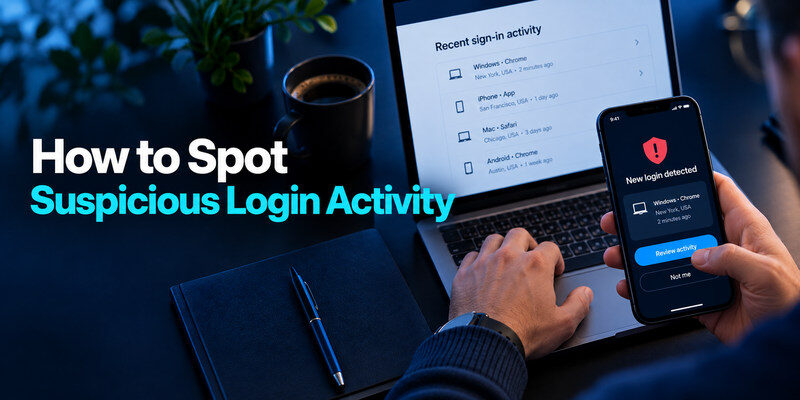
To spot suspicious login activity, check the provider’s official sign-in history for an unfamiliar successful session, new device, or security-setting change you cannot explain. A location mismatch or failed attempt alone is not proof of takeover. Open the account directly rather than following an alert link, compare time and device details with your own activity, and secure the account promptly if an unauthorized session succeeded. This guide shows how to interpret common signals and what to do without erasing useful evidence.
Start with the activity page, not the notification
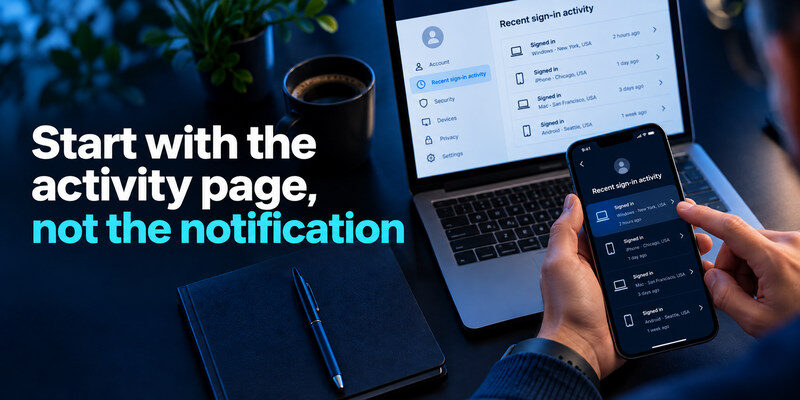
A convincing email or text can itself be phishing. Open the service’s app or type its known address and find security activity, signed-in devices, and recent account changes. Google Account Help directs users to Security Checkup and recent security activity; Microsoft’s Recent activity page shows sign-ins and security events for its accounts. Interfaces and retention periods differ, so use the current provider help if a label has moved. Note the time of the alert and the event it claims to describe.
Distinguish attempt from access
An unsuccessful login means the provider rejected the attempt; an unfamiliar successful login means someone may have entered. A challenge such as a blocked MFA request falls between those cases. Read the event status before changing every password in panic. A string of failures may justify a unique password and stronger MFA, while a confirmed success calls for session revocation and a review of what the intruder changed.
Preserve the first clues
Take a screenshot of the event details if the account may require provider, bank, or workplace investigation. Record date, time zone, device type, approximate location, and any changes shown. Do not include live one-time codes or backup codes in the screenshot. You can act quickly and still keep a short timeline; deleting the event before you know what happened makes follow-up harder.
Secure your accounts with fast, reliable two-factor authentication. Download now and protect your login in seconds.Download Authenticator App
Rank the signals by confidence
One clue may be benign. Two or three independent clues can change the conclusion: a successful login from an unknown device followed by a new recovery email is far more concerning than a city you do not recognize. Mobile networks, VPNs, travel, and delayed alerts explain some location surprises. Use the account’s actions and status, not the map alone.
| Signal | Interpretation | Immediate check |
| Unknown successful session | Strong evidence of access | Devices, changes, messages |
| New recovery method or MFA factor | Possible persistence | Account security history |
| Unsolicited code or push | Attempt or typo, not necessarily access | Success status; never approve |
| Unexpected city only | Ambiguous | VPN, device, timestamp |
| Failed sign-in attempts | Password guessing may have been blocked | Reuse and MFA coverage |
Successful login plus changed settings
Look for a new recovery address, phone number, trusted device, authenticator enrollment, passkey, app password, or connected app. An intruder may leave one of these behind to return after you change the password. Microsoft’s activity guidance identifies security-information changes as events worth reviewing. If you see an unauthorized change, use the provider’s compromised-account process from a trusted device.
If you find a device or session you cannot recognize, review the account’s official security activity page before taking action. Our guide on how to protect your online accounts explains how to secure account access, review trusted devices, strengthen authentication, and reduce the risk of future unauthorized sign-ins.
Behavior inside the account
Messages sent without you, purchases, altered profile details, new ad campaigns, or missing emails add context. Some attackers delete their traces or set inbox rules to hide alerts, so a clean Sent folder is not a complete defense. For a work account, even an unfamiliar file download or delegated access can matter. Tell the organization’s security team rather than trying to reconstruct every event alone.
Recognize common false alarms
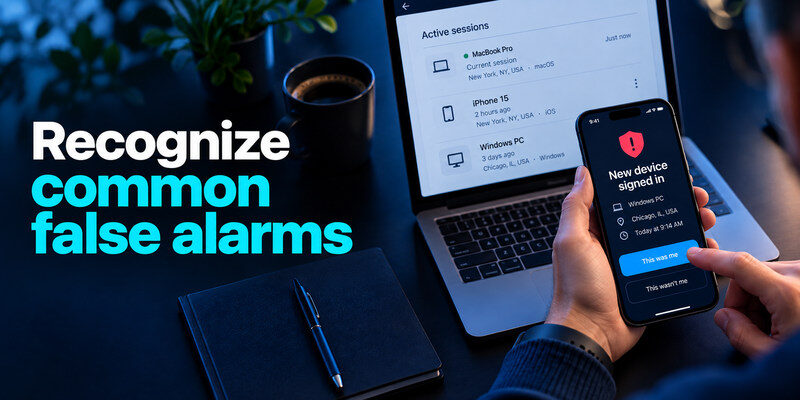
An approximate location can reflect your carrier’s network exit point or a VPN. A device may show a generic name after a browser update. A sign-in from an app you deliberately connected may appear as a different client. Check your own device history and ask other authorized users of a shared account before concluding compromise. Do not dismiss an unfamiliar successful event merely because one detail might be explained.
New phone, old session
After replacing a phone, you may see both the new and old device for a period. Verify which is which using last-used time and model information if available, then remove the old session when no longer needed. If you sold a device without signing out, treat that as an exposure worth addressing. A factory reset should normally remove local access, but session review provides another check.
Delayed security alert
Email delivery can lag behind the sign-in. Compare the event timestamp, not just when the notification reached your inbox. If you signed in earlier from a hotel or new browser, the alert may describe that event. If it describes a successful login after you went to sleep and no authorized person used the account, investigate even if the city is nearby.
Attackers sometimes imitate legitimate security notifications to trick users into opening phishing links or entering verification codes. Instead of clicking an unexpected alert, open the service directly through its official website or app. Our guide on how to secure your email account explains how to protect the inbox that receives password resets, security alerts, and account recovery messages.
Check the device list and connected apps
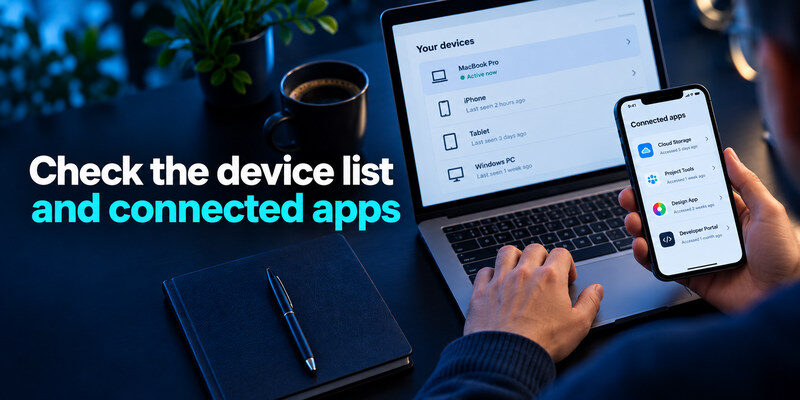
Review currently signed-in devices, active browser sessions, authorized apps, and tokens. A password change may not revoke every session or app authorization, so use the provider’s sign-out or revocation options where appropriate. Identify legitimate work integrations before removing them. If you cannot tell what an app does, record its name and ask the account owner or administrator.
Inspect the recovery chain
Primary email and phone are often the way to reset the account. Verify both still belong to you. Check the security of the recovery email itself, especially if it received an unsolicited reset notice. A suspicious login can originate from a compromised mailbox rather than a password guessed directly on the service. Correcting the target password without protecting the reset channel may not end the incident.
Do not mistake an app token for a person
An authorized calendar or email client may access the account repeatedly from cloud servers. It should still be recognizable as an app you installed. If it has permissions you did not grant or its owner is unknown, revoke it and review what data it could access. Work administrators may have audit logs beyond the consumer-facing activity page.
If you confirm that someone has accessed your account without permission, changing the password may not be enough to remove their access. Our guide on how to recover a hacked account explains how to regain control, revoke unauthorized sessions, check recovery settings, and secure connected services after an account takeover.
Respond to a credible unauthorized sign-in
Use a trusted device to change the password to a unique one, revoke unfamiliar sessions, remove unauthorized recovery methods and connected apps, and enroll a strong second factor. If the account is email, inspect forwarding and inbox rules before resetting dependent services. If the original device may be infected, avoid typing the new secret there. Contact a bank or workplace security team immediately if their data may be involved.
Order the steps around attacker persistence
First make sure you control the recovery email and have a working way back into the account. Then change the password, remove unknown factors, and revoke sessions. Finally check affected messages, payments, and linked services. A rushed sign-out from your only trusted device before replacing an attacker-controlled factor could lock you out. Follow the provider’s current recovery guidance when the order is constrained.
Handle an unsolicited MFA prompt
Do not approve it to stop repeated notifications. Open the account independently, check activity, and change a reused password if one exists. CISA notes that MFA helps prevent account takeover even when a password is exposed, but a person can still be tricked into approving a prompt. Report repeated bombardment using the provider’s security mechanism if available.
If the evidence is inconclusive
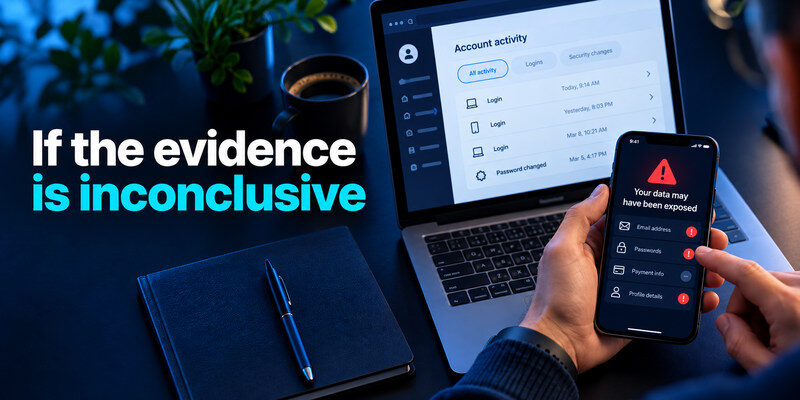
You can strengthen the account without declaring that it was hacked. Replace any reused password, enable MFA, remove unused apps, and verify recovery. Monitor the activity page for a short period. If a new unauthorized success appears, escalate with your timeline. Avoid repeated password resets without addressing a potentially compromised device or recovery channel.
A breach listing is not a session log
An email address appearing in a known data breach means information was exposed somewhere; it does not establish a current successful login. Conversely, no known breach does not prove the account is untouched. Use breach information to prioritize password rotation, then rely on provider activity and account changes to judge current access. Have I Been Pwned’s FAQ distinguishes email breach listings from its separate Pwned Passwords service.
Keep a baseline
After resolving a question, note your known devices and current recovery methods in a protected record without secrets. The next alert is easier to interpret if you know which laptop and phone should be present. Review after travel, a device sale, or changing your primary email. Baselines should be small enough to maintain, not a spreadsheet of every routine login.
Use a separate verification method where it fits
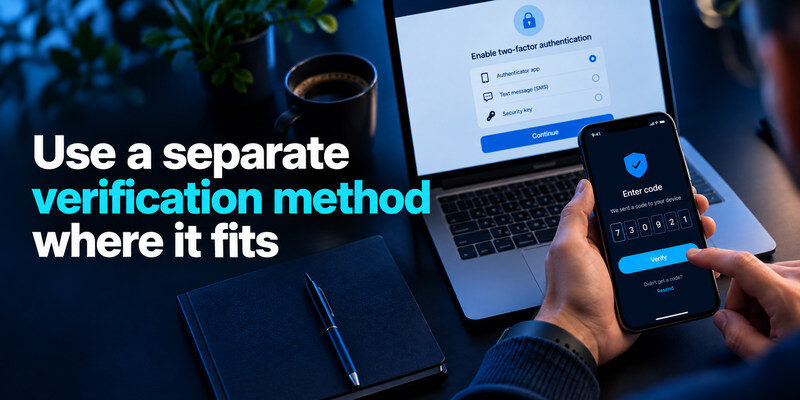
If the service supports standard authenticator-app codes, can provide a second factor independent of the password vault. Enable it in the service’s official security settings, confirm a code, and save recovery codes away from the device that might be lost. This blocks many password-only attempts; it does not make an unexpected approval request safe or prevent a real-time phishing page from relaying a TOTP code.
Test a fresh sign-in
After setting up MFA, sign out on a noncritical device and sign in again. Check that the expected code appears and the service accepts it. If a code is near expiry, wait for the next one rather than racing to submit it. Do not remove the old factor until the new method and backup route work.
Prefer phishing resistance for root accounts
For primary email, administrator access, and other high-impact services, a properly implemented passkey or security key may better resist lookalike-site phishing. CISA recommends phishing-resistant MFA where feasible. The choice should also be recoverable: register a backup key or method and protect the account that manages it.
An unexpected verification request may mean someone is trying to sign in using your account credentials. Do not approve a prompt or share a one-time code unless you initiated the login yourself. Our guide on what is an authenticator app explains how app-based verification works and why it adds another layer of protection when a password is exposed.
Build a short investigation record
When you are unsure whether login activity is suspicious, document the evidence before changing several settings at once. Record the provider, exact time and time zone, success or failure status, device description, location estimate, and any action you took. A screenshot of the official activity page can help if the entry later disappears. Do not include passwords, live codes, or full recovery keys in a support ticket.
Compare a known session with the alert
Open an entry you recognize, such as your own laptop from yesterday, and note how that provider describes browser, IP location, and device. Compare it with the questionable entry. A cellular connection may appear in a neighboring city, and a browser update can change a device label. A successful sign-in from an unrecognized device followed by a recovery change is more persuasive than one unusual city on its own. If the provider shows only approximate information, say that plainly in your notes.
Escalate based on access and damage
| Evidence combination | Immediate action | Follow-up |
| Failed attempt only, no other change | Check password reuse and MFA | Revisit activity if attempts continue |
| Unknown successful session | Revoke session and change credential | Inspect recovery and connected apps |
| Unknown session plus financial action | Secure account and contact provider | Contact bank or card issuer promptly |
| Work account or shared admin role | Notify authorized security team | Preserve timeline and affected access |
The record helps you avoid two opposite errors: dismissing a true intrusion as travel, or treating every alert as proof of data theft. If evidence points to active compromise, act first and refine the timeline afterward. Where a provider offers an incident-report form, attach only the relevant information it requests.
Frequently Asked Questions
Does an unfamiliar city mean my account was hacked?
No. Location estimates can reflect VPNs, carriers, or routing. Check whether the event succeeded, which device it involved, when it happened, and whether settings or content changed. An unknown successful session merits action even if the location seems plausible.
What does a failed sign-in mean?
The provider rejected that attempt. It may indicate guessing, a typo, or an old app using outdated credentials. Review reuse and MFA; look for subsequent successful events. A failure alone does not prove the attacker entered.
Should I click “secure account” in an email alert?
It is safer to open the provider directly through its app or a known bookmark, then find the same event in its security area. A fake alert can lead to a phishing page. If the official account shows the event, follow its instructions there.
Can I see every time data was copied?
Usually not in a consumer account. Activity pages vary and may omit detailed actions. If a work account or financial service is involved, ask the provider or security team what logs are available and preserve the event timeline.
Should I change my password after every unfamiliar attempt?
A failed attempt by itself does not mean the password was known. First confirm whether the account has a unique credential and MFA; change a reused or exposed password promptly. If an unknown successful session, altered recovery method, or unusual action appears, change the password from a trusted device and revoke sessions. Repeated random failures can continue even after a change because attackers may know only the username.
Final Thoughts
How to spot suspicious login activity is an evidence task: compare successful sessions, devices, setting changes, and account behavior before deciding. A location or failed attempt alone is weak evidence; an unknown successful session plus altered recovery deserves immediate containment. Use the official activity page, protect the recovery chain, and return after a short interval to confirm the account stays stable.
