
What Is a Passkey? The Passwordless Credential Explained
Published October 30, 2026
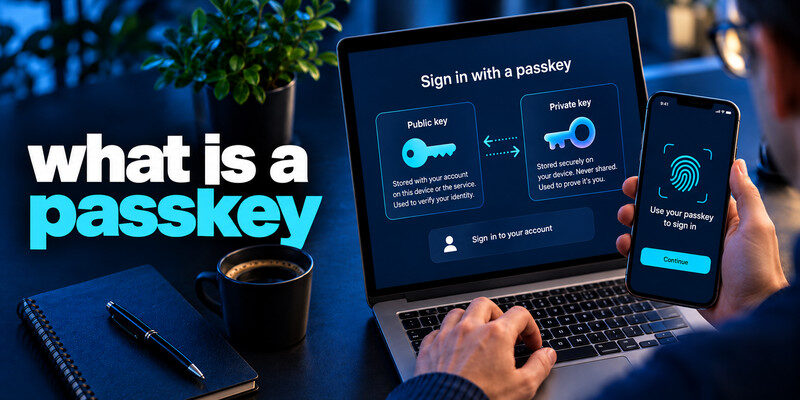
What is a passkey? A passkey is a digital credential that lets you sign in to a website or app without typing a password. It uses cryptographic keys to verify your identity, while your device’s fingerprint, face recognition, or PIN authorizes the sign-in. Passkeys are more resistant to phishing and password theft than traditional passwords.
Unlike passwords, passkeys don’t require you to remember complex combinations of letters, numbers, and symbols. They are created and stored by your device or a compatible credential manager.
In this guide, you’ll learn what a passkey is, how it works, where it’s stored, and why it offers stronger account protection.
How Does a Passkey Work?
A passkey uses public-key cryptography, a security technology that relies on two mathematically related digital keys.
- Public key: Stored by the website or application to verify your identity.
- Private key: Protected by your device, credential manager, or hardware security key.
These keys work together to authenticate your account without transmitting a reusable password.
Here’s how passkey authentication works:
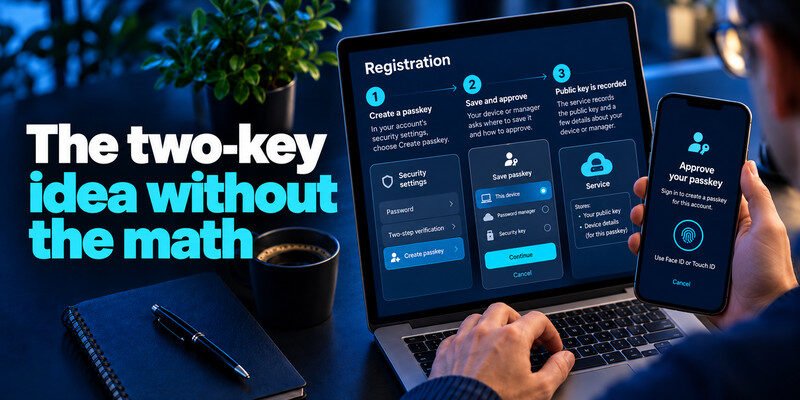
- Create a passkey. When you register a passkey, your device or credential manager generates a public-private key pair.
- Store the keys. The website receives the public key, while the private key stays protected by your chosen authenticator.
- Start signing in. The website sends an authentication challenge to your device.
- Verify your identity. You approve the request using a fingerprint, facial recognition, or device PIN.
- Complete authentication. Your authenticator signs the challenge, and the website verifies it using the public key.
Your private key is not sent to the website during authentication.
Example: When signing in to a supported Google account, you may only need to select your passkey and unlock your phone. The website verifies the cryptographic response without asking you to enter your Google password.
Read more: Best Free Password Manager: What You Get Without Paying
Secure your accounts with fast, reliable two-factor authentication. Download now and protect your login in seconds.Download Authenticator App
Why Are Passkeys More Secure Than Passwords?
Understanding what a passkey is also helps explain why it provides stronger protection against common account attacks.
Protection Against Phishing
Traditional passwords can be stolen through fake login pages that imitate legitimate websites.
Passkeys are associated with the real website’s domain. A passkey created for a legitimate service cannot normally be used to authenticate a lookalike phishing website.
This makes passkeys resistant to common credential-phishing attacks.
No Password Reuse
Many users reuse the same password across multiple accounts, creating additional risks when one service experiences a data breach.
Passkeys are unique to their registered services, eliminating traditional password reuse for passkey authentication.
Reduced Credential Theft Risk
Websites store the public key associated with your passkey rather than a reusable password secret.
If a website’s authentication database is exposed, the public key alone cannot be used as a password to sign in.
However, passkeys do not prevent every type of cyberattack. Compromised devices, stolen sessions, and insecure account recovery methods can still create risks.
Read more: Password Manager With Built In 2FA Support: Convenience, Risks, and the Right Setup
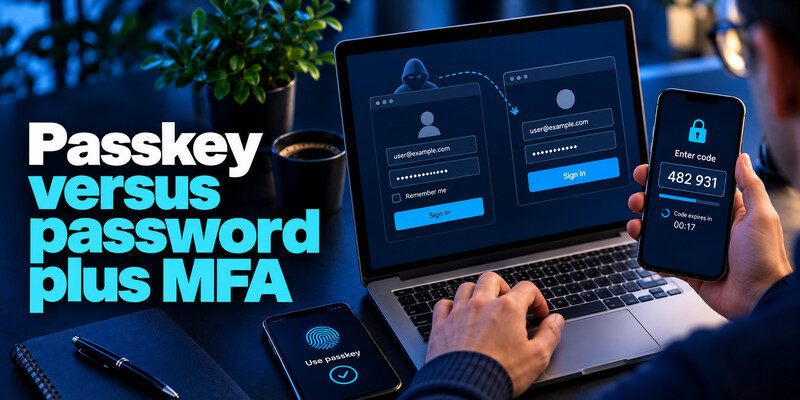
Passkey vs Password vs Two-Factor Authentication
Passkeys, passwords, and traditional two-factor authentication all help verify account access, but they work differently.
| Feature | Password | Password + TOTP 2FA | Passkey |
|---|---|---|---|
| Requires a memorized account password | Yes | Yes | No |
| Uses cryptographic key authentication | No | Not for the password/TOTP flow | Yes |
| Resistant to fake-domain credential phishing | No | No, codes can be relayed | Yes |
| Risk of password reuse | Yes | Yes | No |
| Uses device verification | Not necessarily | Usually requires a second factor | Often fingerprint, face, or PIN |
| Requires service support | Standard login | TOTP support | Passkey support |
A passkey can provide multi-factor authentication when its cryptographic credential is combined with local user verification.
Traditional two-factor authentication remains valuable for accounts that do not support passkeys.
For more information about code-based authentication, read our TOTP authenticator app guide.
Where Are Passkeys Stored?
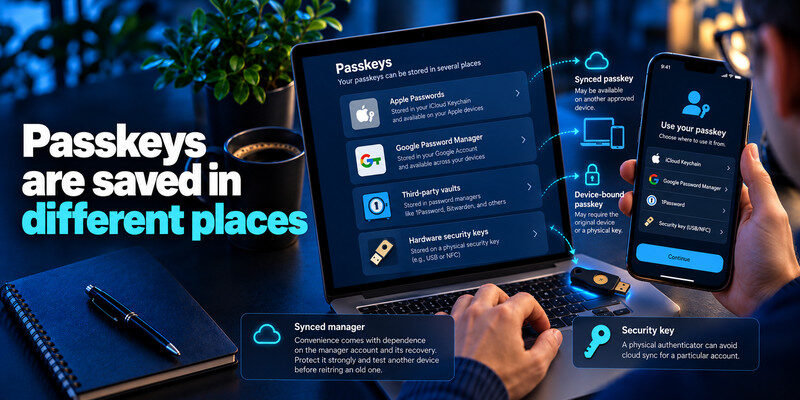
Passkeys can be stored in several types of credential managers and authentication devices.
Apple Passwords
Apple Passwords supports passkey storage on compatible Apple devices.
Passkeys saved through Apple’s supported synchronization system can be available across approved devices using iCloud Keychain.
Users can authorize passkey sign-in with Face ID, Touch ID, or their device passcode.
Learn more about how to use passkeys on iPhone.
Google Password Manager
Google Password Manager supports passkey storage and authentication on compatible Android devices and browsers.
Depending on your setup, saved passkeys can synchronize across supported devices connected to your Google Account.
For instructions, see how to use passkeys on Android.
Third-Party Password Managers
Compatible password managers, including 1Password and Bitwarden, can store and manage passkeys across supported platforms.
These options may be useful for people who regularly switch between operating systems.
Hardware Security Keys
Some physical security keys can store device-bound passkeys.
Unlike synchronized passkeys, device-bound credentials remain associated with their specific authenticator.
For more options, explore our guide to the best apps that support passkeys.
What Are the Different Types of Passkeys?
There are two common types of passkeys: synced passkeys and device-bound passkeys.
Synced Passkeys
Synced passkeys are stored and synchronized through a compatible credential manager.
They can be available on multiple approved devices, making sign-in and device replacement more convenient.
Examples include supported passkeys stored through Apple Passwords and Google Password Manager.
Device-Bound Passkeys
Device-bound passkeys remain on a specific device or hardware security key.
They are not automatically synchronized to other devices.
This approach can be useful when an organization or individual requires tighter control over where authentication credentials are stored.
The main difference is portability: synced passkeys prioritize convenience across devices, while device-bound passkeys provide stronger control over credential location.
Read more: How to Create a Strong Password Policy People Can Follow
How Do You Create and Use a Passkey?
Once you understand what a passkey is, setting one up is usually straightforward.
- Open a website or app that supports passkeys.
- Sign in to your account.
- Navigate to Security or Sign-in options.
- Select Create a passkey or Add passkey.
- Choose a compatible credential manager or device.
- Confirm using your fingerprint, facial recognition, or device PIN.
After creating the passkey, you can use it for future sign-ins without entering your account password.
The exact setup process varies by service and operating system.
For detailed instructions, follow our step-by-step guide to setting up a passkey.
What Happens If You Lose Your Passkey?
Losing a phone or computer does not always mean losing access to your passkeys.
If your passkeys are synchronized through a compatible credential manager, they may be recoverable on another approved device.
If your passkey is device-bound, you may need another registered credential or the service’s official account recovery process.
To reduce the risk of account lockout:
- Protect your device with a strong screen lock.
- Keep your credential manager’s recovery information updated.
- Register a backup passkey or security key where supported.
- Test account access on another trusted device.
- Remove lost or unrecognized devices from your account security settings.
Important: Creating a passkey does not always disable an existing password. Review all enabled authentication and recovery methods for your account.
Are There Any Disadvantages to Passkeys?
Although passkeys offer strong security benefits, they have some limitations.
Limited website support: Not every website or application currently offers passkey authentication.
Device and manager compatibility: Some passkeys work only with certain operating systems, browsers, or credential managers.
Recovery considerations: Losing access to a device or credential manager may require a backup passkey or account recovery.
Password fallback: Some services continue to support password-based authentication even after a passkey is created.
These limitations do not eliminate the security advantages of passkeys, but they make it important to choose a reliable credential manager and maintain recovery options.
Read more: How to Protect Your Online Accounts: A Priority-First Plan
Frequently Asked Questions
What is a passkey in simple terms?
A passkey is a secure digital credential that replaces a traditional password for supported websites and apps. You typically use your device’s fingerprint, face recognition, or PIN to approve sign-in.
Is a passkey the same as a password?
No. A password is a secret you enter, while a passkey uses cryptographic keys to authenticate your account without sending a reusable password to the website.
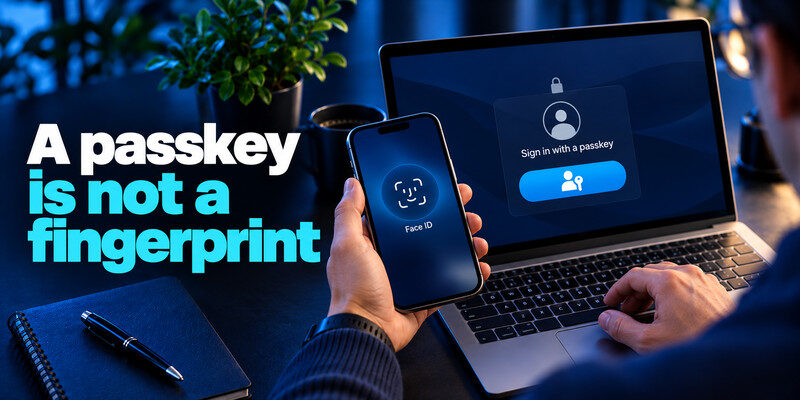
Is a passkey the same as Face ID?
No. Face ID is a biometric verification method that can authorize the use of a passkey. The passkey itself is a cryptographic credential.
Can passkeys be hacked?
Passkeys resist common password-phishing and credential-reuse attacks, but no authentication system is completely risk-free. Device compromise, stolen sessions, and insecure recovery methods can still threaten accounts.
Can I use passkeys on multiple devices?
Yes, if your passkeys are stored in a compatible credential manager that supports synchronization. Device-bound passkeys may require separate registration on each device.
Do passkeys replace two-factor authentication?
Passkeys with local user verification can provide multi-factor authentication. However, services may have different security policies and recovery requirements, and traditional 2FA remains useful for accounts without passkey support.
Do I need an authenticator app to use passkeys?
Not necessarily. Passkeys can be stored in built-in credential managers such as Apple Passwords or Google Password Manager. Apps that only generate six-digit TOTP codes are not automatically passkey managers.
Final Thoughts
A passkey is a passwordless authentication credential that uses public-key cryptography to provide convenient, phishing-resistant sign-ins.
Unlike traditional passwords, passkeys cannot be reused across unrelated websites and do not require users to remember or type account secrets.
For accounts that support them, passkeys are a strong option for improving everyday login security.
For services that still require passwords, continue using unique credentials and enable additional protection through a compatible authenticator app where TOTP authentication is supported.
