
TOTP Authenticator App: How It Works, Setup Guide & 2FA Security
Published August 28, 2026 · Updated October 13, 2026
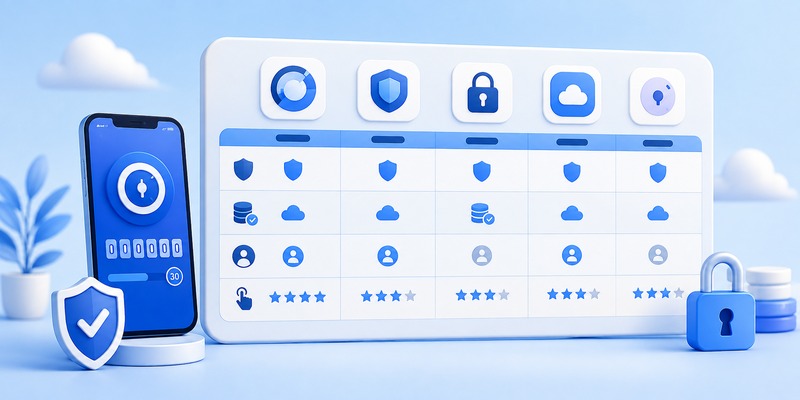
A TOTP authenticator app generates time-based one-time passwords that help protect online accounts with two-factor authentication (2FA). These temporary codes are usually six digits long and refresh every 30 seconds, allowing you to verify your identity without receiving SMS messages.
Quick Answer: To use a TOTP authenticator app, install a compatible app, enable authenticator-based 2FA in your account’s security settings, and scan the provided QR code or enter a setup key. The app will generate a verification code that you enter on the website to complete setup.
In this guide, you’ll learn how TOTP works, how to set up and use verification codes, what to do when codes fail, and how to protect your accounts if you lose your phone.
What Is a TOTP Authenticator App?
A TOTP authenticator app is an application that generates time-based one-time passwords for supported online accounts.
These codes are commonly used as a second authentication factor after entering a password.
For example, when you sign in to a website with app-based two-factor authentication enabled, the service may ask you to enter the current code displayed in your authenticator.
The app calculates that code using a secret established during setup and the current time.
Because the app and the website can calculate matching values independently, the authenticator does not need to receive a new code from the website for every login.
TOTP is defined in RFC 6238, published by the Internet Engineering Task Force (IETF).
What Does TOTP Stand For?
TOTP means Time-Based One-Time Password.
Each part describes how the system works:
- Time-Based: The generated value depends on the current time.
- One-Time: The code is intended for temporary use.
- Password: The value acts as a verification credential during authentication.
Most consumer authenticator apps use six-digit codes that refresh every 30 seconds.
However, some services support different code lengths, algorithms, or time intervals.
Is a TOTP App the Same as an Authenticator App?
Not exactly.
A TOTP app generates time-based verification codes, while the broader term authenticator app can describe software that supports additional authentication methods.
For example, Microsoft Authenticator can generate TOTP codes but also supports push notifications and eligible passwordless authentication methods.
A dedicated TOTP authenticator focuses primarily on generating one-time codes.
If you are new to the topic, see our complete guide to authenticator apps for an overview of 2FA methods and account protection.
Download Authenticator App
Secure your accounts with fast, reliable two-factor authentication. Download now and protect your login in seconds.
📘 Find the Right Guide: Two Factor Authentication App: How to Choose, Set Up, and Use One Safely
How to Set Up a TOTP Authenticator App
Setting up a TOTP authentication app usually takes only a few minutes.
The exact steps depend on the website you want to protect and the authenticator you choose.
Step 1: Choose and Install a TOTP App
Install a reputable authenticator from an official app store or the provider’s verified website.
Examples include:
- Google Authenticator
- Microsoft Authenticator
- Bitwarden Authenticator
- Proton Authenticator
- Other compatible TOTP applications
Before installing, check whether the app supports your device and offers the backup or transfer options you need.
For Google-specific installation instructions, read our Google Authenticator download guide.
Step 2: Open the Account’s Security Settings
Sign in to the website or service you want to protect.
Open its security settings and look for an option such as:
- Two-Factor Authentication
- Two-Step Verification
- Authenticator App
- Authentication App
- Time-Based One-Time Password
Select the authenticator app option if it is available.
Some services require you to verify your identity before changing authentication settings.
Important: Installing a TOTP app does not automatically enable two-factor authentication on your online accounts. You must register the app with each supported service.
Step 3: Scan the Setup QR Code
The website will typically display a QR code containing the enrollment information.
Open your TOTP authenticator app and select the option to add an account.
Choose Scan QR code, then point your phone’s camera at the code displayed on the website.
The app should create a new account entry and begin generating verification codes.
Do not share the setup QR code. It may contain the secret needed to generate matching codes.
If you are configuring a Google Account, follow our Google Account Authenticator QR code guide for a service-specific walkthrough.
Step 4: Use a Manual Setup Key if Needed
Some services provide a manual setup key when scanning is unavailable.
To use it:
- Find the manual setup option on the website.
- Copy the secret key provided by the service.
- Open your authenticator app.
- Choose Enter setup key or the equivalent option.
- Enter the account name and secret key.
- Select the time-based code type when required.
- Save the account entry.
Use only the key generated by the legitimate service.
Do not enter your setup key into an unfamiliar online TOTP generator.
Step 5: Verify Your First TOTP Code
After adding the account, your authenticator should display a temporary verification code.
Return to the website and enter that code in the confirmation field.
Submit it before the code expires.
If the website accepts the code, your authenticator has been successfully connected.
Step 6: Save Your Recovery Methods
Before finishing setup, check whether the service offers backup codes, additional authenticators, passkeys, or security keys.
Save supported recovery credentials in a secure location.
This is important because losing your phone can make account recovery difficult if your TOTP secrets were stored only on that device.
How to Use Your TOTP App During Login
Once setup is complete:
- Open the website or application.
- Enter your username and password.
- Choose the authenticator code option if prompted.
- Open your TOTP app.
- Find the correct account.
- Enter the current verification code.
- Complete sign-in.
If the code is close to expiring, wait for a new one before submitting it.
Comparing the Best TOTP Authenticator App Options in 2026
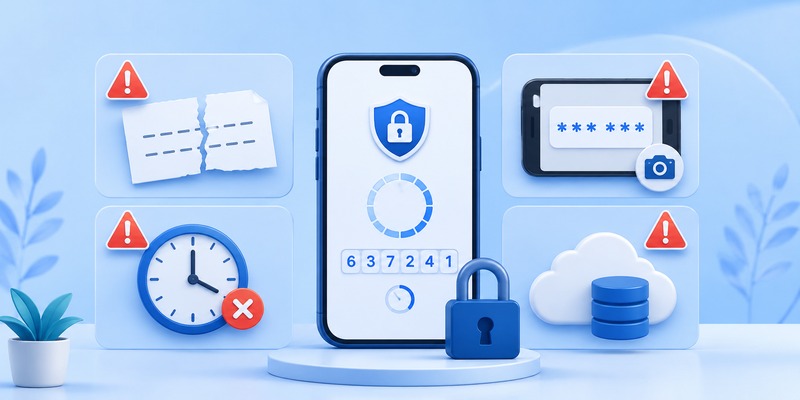
We evaluated the leading tools on the market to help you choose the right totp authenticator app for your workflow.
Google Authenticator
As the most recognizable google totp app, this tool remains popular for its simplicity and reliability. It recently gained cloud backup support, addressing a long-standing weakness where losing a phone meant losing every linked account. It’s ideal for casual users who want a minimal, no-frills experience.
Microsoft Authenticator
This authenticator app blends traditional TOTP codes with one-tap push approvals, making it especially convenient for Microsoft 365 and enterprise accounts. Its cloud backup ties directly into your Microsoft account, offering a smooth recovery process if you switch devices.
Authy
Authy is a favorite among people juggling many accounts because it supports encrypted cloud backups and multi-device access, including a desktop client. It’s one of the more feature-complete choices in the totp authenticator app category, though its backup system is closed-source.
2FAS
2FAS has earned a strong reputation as a free totp authenticator app with a fully open-source codebase. It offers browser extension pairing and encrypted backups without requiring account registration, appealing to users who value transparency.
Aegis Authenticator
For Android users seeking maximum privacy, Aegis is a leading totp app android option. It’s open-source, works entirely offline, and supports encrypted local backups without ever requiring an internet connection.
Duo Mobile
Built with enterprise deployment in mind, Duo Mobile is a dependable authenticator totp app frequently adopted by universities and corporations that need centralized authentication management across large teams.
💡 Discover Helpful Guides: Facebook Authentication App: Setup, Login Codes, and Recovery Guide
Best TOTP App Android Picks for Mobile Users
Android users have some of the richest choices available when it comes to a dependable totp app android solution:
- Aegis Authenticator – fully open-source, offline-first, and encrypted local backups
- 2FAS – open-source with cloud backup and browser extension support
- Google Authenticator – simple, lightweight, now with cloud sync
- Authy – strong multi-device support with desktop companion app
Each of these apps demonstrates that a totp app android doesn’t need to be complicated to be effective — the best options balance simplicity with strong underlying security.
Google TOTP App vs Independent Authenticator Tools

Many people default to the google totp app simply because it appears first when enabling 2FA on a Google account. It’s dependable and now supports backup and restore, closing one of its biggest historical gaps.
However, independent tools like Authy, 2FAS, and Aegis often outperform the google totp app in areas like organization, biometric locking, and cross-platform desktop support. If you only need to protect a couple of accounts, sticking with the google totp app is a reasonable choice. But if you’re managing dozens of logins across work and personal life, a more robust totp authenticator app built specifically around convenience features may serve you better.
Best Free TOTP Authenticator App for Budget-Conscious Users
The good news is that cost rarely limits quality in this category. If you’re specifically searching for a free totp authenticator app, these are worth prioritizing:
- 2FAS – free, open-source, with optional donation support
- Aegis Authenticator – completely free and ad-free
- Google Authenticator – free with no premium tier
- Microsoft Authenticator – free for personal accounts
Selecting a free totp authenticator app doesn’t mean settling for weaker security. In fact, several free options rank among the most trustworthy tools available today, thanks to open-source transparency and active community auditing.
Common Mistakes People Make When Using a TOTP Authenticator App
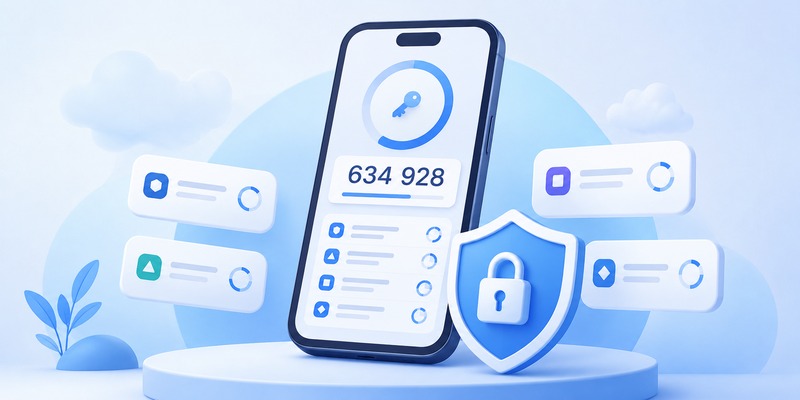
Even experienced users occasionally misuse their totp authenticator app in ways that weaken security:
- Skipping backup codes — without them, losing your phone can permanently lock you out of accounts.
- Screenshotting QR codes — screenshots can be accessed by other apps or synced to insecure cloud photo libraries.
- Not locking the app itself — always enable biometric or PIN protection on your authenticator app.
- Reusing one account across multiple TOTP tools — this can create sync conflicts and confusion.
- Ignoring software updates — outdated apps may contain unpatched vulnerabilities.
- Sharing codes with anyone — legitimate services never ask you to read your code aloud to a support agent.
Avoiding these mistakes ensures your totp authenticator app provides the protection it’s designed for, rather than becoming a false sense of security.
💡 Discover Helpful Guides: Authenticator App Code: How to Get Verification Codes and Fix Common Problems
Frequently Asked Questions
Is a TOTP authenticator app better than SMS codes?
Yes. A totp authenticator app generates codes locally, making it immune to SIM-swap interception, unlike text-message-based verification.
Can I use the same TOTP authenticator app across multiple devices?
It depends on the app. Authy and Microsoft Authenticator support multi-device sync, while apps like Aegis are designed for single-device use with manual backup and restore.
What happens if I lose my phone?
If you saved backup codes or enabled cloud sync, you can restore your totp app authenticator setup on a new device without losing access to your accounts.
Do I need internet access for a TOTP authenticator app to work?
No. Since codes are generated using local time and a stored secret key, your authenticator totp app works completely offline.
Which is the best free option?
2FAS and Aegis are widely considered the strongest choices when searching for a free totp authenticator app, thanks to their open-source design and zero cost.
🗺️ Browse How-To Guides: Authenticator App New Phone: How to Transfer It the Right Way
Which TOTP Authenticator App Should You Choose?

The right totp authenticator app ultimately depends on your priorities. Casual users who want simplicity will find the google totp app perfectly sufficient. People managing many accounts across devices should consider Authy or Microsoft Authenticator for their sync capabilities. Privacy-focused Android users will appreciate Aegis as a top totp app android pick, while 2FAS remains an excellent all-around free totp authenticator app.
Whichever totp authenticator app you settle on, the most important step is simply enabling it wherever two-factor authentication is offered. A few extra seconds at login is a small trade-off for dramatically stronger protection of your digital accounts in 2026 and beyond.
Download Authenticator App
Secure your accounts with fast, reliable two-factor authentication. Download now and protect your login in seconds.
