
LastPass Authenticator App Review: Push, Codes, and Account Recovery
Published October 13, 2026 · Updated October 23, 2026
LastPass Authenticator can serve people who already use LastPass and need standard verification codes, while some supported account integrations offer approval requests. It should be evaluated as a separate second-factor tool with its own backup path, not assumed to be identical to the LastPass password vault. This LastPass Authenticator App review tests which challenge an issuer actually presents and what happens when the only registered phone is lost. Current features and restoration should be checked against LastPass’s live support documentation before a migration.
First Determine the Challenge Type

If a website displays a standard authenticator QR, LastPass Authenticator can be considered alongside other TOTP apps. If a provider offers a LastPass-specific push or passwordless flow, the registration may be tied to that integration and cannot automatically be copied to another code app. The LastPass password manager is another product again. A confusing review that lumps all three under “authenticator” risks giving bad recovery advice.
When a website accepts a standard authenticator QR code, LastPass Authenticator can generate time-based one-time passwords from the enrolled secret. That is different from a provider-specific push approval or the authentication method used to unlock the LastPass vault. Our guide to a TOTP authenticator app explains rotating codes, shared secrets, and the differences between standard OTP and push authentication.
| Login screen asks for | What to use | Recovery owner |
| Rotating code | An enrolled TOTP entry | Protected website |
| App approval | Registered supported push app | Issuer and app integration |
| LastPass vault unlock | Vault account’s approved factor | LastPass account recovery |
| Backup code | Code issued by the website | Website, not the code app |
Who benefits most
Someone already familiar with LastPass’s ecosystem may like a separate recognizable app for codes. That can keep website passwords and OTP secrets in different application stores. But the division helps only if the authenticator itself can be recovered without relying on an inaccessible password vault. Test a second device or documented backup. For a user with no LastPass integration, the choice should rest on code handling, portability and current terms rather than brand familiarity.
What to verify now
Check the present official store listing and LastPass’s support guide for backup, supported push services and restore requirements. Product offerings and menu names can change. Avoid promising a cloud copy just because the phone is signed into an Apple or Google account. Inspect what is enabled and which credentials will be needed after losing the device. Keep the issuer’s own recovery codes independent in every case.
Advantages
Standard TOTP codes and supported one-tap approvals can be convenient for an existing LastPass user. The app’s official materials describe backup for a device change.
Drawbacks
A push is available only for specifically supported and enrolled services; it is not a universal upgrade to every QR code. Recovery can become circular if the same inaccessible LastPass account is needed to get at its authenticator backup.
Who should use it
An existing LastPass customer who has mapped independent vault and authenticator recovery routes.
Secure your accounts with fast, reliable two-factor authentication. Download now and protect your login in seconds.Download Authenticator App
Enroll a Standard Code with the Issuer

Start at the actual website’s account-security page, select a code-app method and scan its setup QR into LastPass Authenticator. Enter the newly displayed code back into the issuer’s confirmation step. Save the site’s backup codes in a protected place and sign in once from a fresh session. A code that appears in an app list before the website confirms it may be unusable on the next login.
To add a personal account to LastPass Authenticator, start from the protected website’s official security settings, scan the enrollment QR code, and verify a fresh code before finishing setup. Save the website’s recovery codes separately. Our complete authenticator app guide explains QR enrollment, manual setup keys, verification steps, and common problems when configuring two-factor authentication.
Test with enough time remaining
When the timer is nearly over, wait for the next code. Verify the right account entry and automatic time on the phone. Several work and personal logins under one provider can otherwise produce plausible but wrong digits. If the site keeps rejecting codes, check whether it has issued a new setup QR that replaced the previous secret. Stop before repeated guesses trigger a lockout.
The QR is more sensitive than a single code
An enrollment QR contains a reusable secret. Do not save its screenshot in a public folder or send it to someone offering support. A stolen live code may be useful briefly; a copied QR can make valid future codes until the site rotates the factor. If you suspect exposure, re-enroll on the legitimate website and review active sessions. Removing an item from LastPass Authenticator alone does not invalidate an attacker’s copy.
How to set it up safely
From a website’s security settings choose standard authenticator setup, scan its QR in LastPass Authenticator, confirm a live code and save that site’s recovery codes. Set up the app’s available backup, then confirm you can recover the LastPass vault independently before removing an old device.
Understand Supported Push Approvals
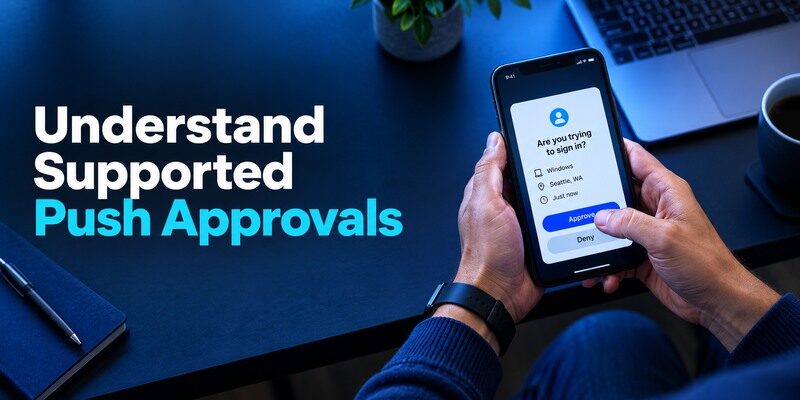
LastPass’s current official documentation is the source for where its app can handle push-style approvals. A push request should correspond to a sign-in you just started. Read the service and any visible context before approving. A generic third-party site that only supports TOTP will not send a LastPass push just because its QR was scanned into the app. Conversely, a proprietary app approval cannot necessarily be satisfied with a six-digit code from a competitor.
Unexpected approval requests
Reject an unknown request. Visit the account’s legitimate site directly and review activity; change credentials and report if the issuer advises. Do not approve a prompt to make repeated notifications stop. An attacker with a password can exploit fatigue if users routinely tap accept. If an old request arrives after a delayed connection, start a new sign-in and match it deliberately before responding.
Repeated authentication requests that you did not initiate can indicate an attempted account compromise or an MFA fatigue attack. Never approve a notification simply to stop it from appearing. Our guide on how to spot suspicious login activity explains how to recognize unexpected sign-in attempts, review account activity, and respond to suspicious authentication prompts.
No prompt is different from a bad code
A missing push might be a notification, connectivity or registration issue. A rejected TOTP value may be a time, wrong-entry or issuer-secret issue. Diagnose the type of challenge before resetting anything. If a supported alternate method appears on the legitimate login screen, use it and then investigate the original registration. Avoid changing the factor during a deadline without a recovery code or trusted session.
Read the source of a request
When a LastPass Authenticator push is offered for a supported service, check whether you initiated the sign-in and whether the named account matches the site in front of you. A notification by itself does not prove the caller or email that preceded it was legitimate. Deny an unsolicited prompt and examine the service’s account activity from a trusted route. If repeated requests arrive, report or secure the relevant credentials under the issuer’s current process. A phone app is a confirmation tool, not a way to make an unexplained request go away.
Diagnose a missing push in stages
First verify that the service actually offers the LastPass-specific integration rather than only standard TOTP. Then check the registered device, connectivity and notification permission. Start a fresh login after canceling older attempts. If an approved alternate code exists, use it to regain access and inspect the registration later. Avoid deleting an app entry merely because a notification was muted. The website and app can hold valid registration while the delivery path fails temporarily.
Keep approval and token backups distinct
A backed-up TOTP secret can allow a replacement phone to generate the same numerical code. A push integration may need the service to recognize and activate that replacement device separately. Test both where you use both. A successful personal website code does not prove a supported push works, and a push approval does not prove that all third-party token entries were restored. This distinction is the practical heart of the app’s recovery review.
Protect the LastPass Account Separately
If the password vault itself uses LastPass Authenticator, plan how to access the vault after losing the app. Follow the provider’s current account-recovery rules, maintain a separate approved factor or recovery material where available, and confirm that your primary email can also be reached. A password manager and the app that protects it can form a circular dependency if each requires a secret available only inside the other.
Make a dependency inventory
List the primary email, LastPass vault and the most important sites, then note which factor each asks for. Do not put live passwords or TOTP seeds in the list. Try a new-device sign-in for the vault while the old handset still works. If you cannot explain what you would do without that handset, add an official backup method before migrating more accounts.
Separate convenience from authority
The authenticator may display a code, but only LastPass can authorize access to its vault, and only each third-party issuer can reset that site’s MFA. A help-desk contact from an unsolicited message has no authority to request your current digits. Navigate through a known site for recovery. The legitimate process may involve identity checks or waiting, which is safer than a stranger’s instant-reset promise.
Rehearse access from an unfamiliar browser
Open a private session on a device you control and follow the vault account’s legitimate sign-in flow without relying on a cached session. Note exactly where a second factor and any recovery material are requested. If the required code exists only on the phone you intend to replace, enroll another approved method while it still works. A trusted desktop can ease a transition, but its session might expire unexpectedly and should not be the sole long-term backup.
A reliable LastPass recovery plan starts with protecting the vault account itself. Use a strong, unique master password, confirm that an independent second factor is available, and verify the provider’s current account recovery options. Our guide on how to create a strong master password explains how to protect the primary credential securing a password manager.
Record which team can reset which account
LastPass account recovery addresses vault access under its own rules. A bank or workplace whose code appears inside LastPass Authenticator controls its own factor and identity checks. Keep an issuer list with official recovery routes, not live token secrets. Under stress, the correct contact is easier to find from that list than from a search result advertising instant MFA removal.
Backup and Replacement-Phone Drill
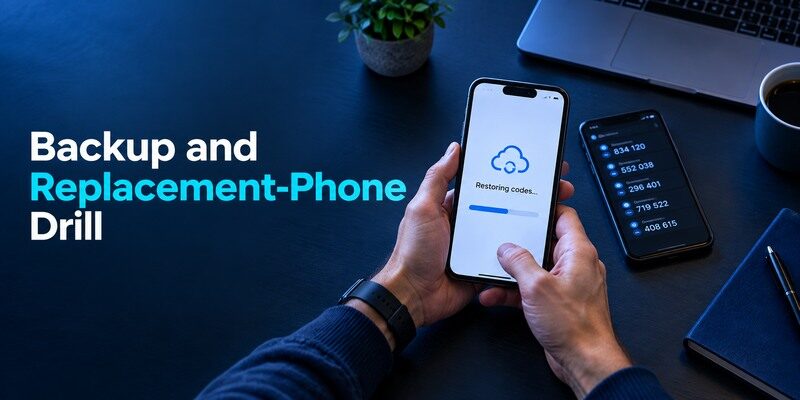
Read LastPass’s current backup and restore instructions for the app version you actually use. On a planned phone upgrade, configure the documented route, keep the old phone and confirm that a newly displayed code works on a low-risk issuer. Then separately test any supported push and the LastPass vault login. These checks are independent. If the old phone is already gone, begin with the app’s official restore route and fall back to each issuer’s recovery.
Before replacing your phone, confirm that the backup method supported by your current LastPass Authenticator version can restore the accounts you need. Test standard TOTP codes, supported push approvals, and access to the LastPass vault separately. Our guide on how to transfer authenticator to a new phone explains how to prepare for migration, verify replacement codes, and avoid deleting a working factor too early.
| What you see on new phone | What it proves | Next action |
| App installed | Software is present | Restore/enroll entries |
| Entry label visible | Some data transferred | Test fresh issuer code |
| Code accepted | One TOTP factor works | Verify priority accounts |
| Push accepted | Specific registration works | Review remaining integrations |
Never retire the old phone on a progress bar
Restore screens can complete while one category still needs reactivation. Keep the old device until the vault and high-value sites accept the replacement. If a corporate account mandates a separate managed app, record that exception. When an issuer issues new QR material during replacement, it may invalidate the previous secret. Mark old entries clearly, then remove them after success.
Lost device can be a security event
If the handset was stolen unlocked, use platform remote controls, review vault sessions and reset affected issuer factors where needed. A restored copy on your new phone does not revoke the old copy of a TOTP seed. A simply broken locked phone may call for a different response. Match remediation to actual exposure and follow the provider’s incident guidance.
Classify every restored entry
After a supported restore, write down which entries generate standard website TOTP and which correspond to specific push integrations. A personal shopping site’s code can be tested directly through its login page; a supported push must be tested with a fresh initiated request. Don’t conclude that the entire app is ready because one category works. If the app requests reactivation for a particular service, use that service’s official procedure and keep the old phone active until it accepts the replacement.
Avoid rebuilding the vault before diagnosing it
An empty screen on a new device may mean the wrong backup account, a disabled backup setting or missing decryption information. Check the current LastPass support steps and account identity before requesting every website to reset MFA. A trusted old session can preserve a path to the issuers while you investigate. Do not try random “restore” websites or supply an encrypted backup to a stranger. When the legitimate backup truly cannot be used, recover each issuer in priority order.
Protect the first recovery dependency
For a LastPass user, the primary email and password vault often unlock several later steps. Keep an independent approved factor for the vault and find each account’s recovery instructions before a phone trade-in. A code generated by the authenticator cannot help if the app’s backup requires signing into a vault that only the lost phone can open. Rehearse a new-device login while the old phone works and repair any circular step. This is a more concrete security measure than adding another unlabeled token entry.
Compare Standalone Code Apps
has optional account sync; 2FAS documents platform backups; Aegis emphasizes Android encrypted exports. LastPass Authenticator combines standard codes with certain supported approval experiences, but feature scope and restore behavior must be checked live. A dedicated iPhone option from another publisher is the . Test its current backup and a genuine website code before migrating.
The best option for a website is recoverable
For a generic QR-code account, the protocol does not reward brand loyalty: an enrolled compatible app can generate the code. Compare how the app protects the seed, whether you can restore to your next phone and how you recover its own account. For a site requiring a particular push integration, follow that issuer’s method. The two use cases should never be collapsed into a single “works with everything” checkmark.
A cautious alternative trial
can be tried with a standard personal website while LastPass Authenticator remains in place for any supported specific push. Keep both factors only during a controlled transition and preserve website-issued backup codes. Verify whether the site permits multiple enrolled apps or requires re-enrollment; moving a seed between apps does not automatically revoke an old copy.
Which alternative is better for your needs?
| App | Choose it when | Trade-off |
| LastPass Authenticator App | An existing LastPass customer who has mapped independent vault and authenticator recovery routes. | A push is available only for specifically supported and enrolled services; it is not a universal upgrade to every QR code. |
| Google Authenticator | You mainly need simple generic codes | You must choose between sync and manual transfer |
| 2FAS Auth | You want a separate mobile app and browser pairing | It will not replicate LastPass-specific push |
Phishing and Device Safety
A rotating code helps against password-only compromise but can be relayed by a convincing fake page. NIST distinguishes manually typed OTP from phishing-resistant credentials. Open sites directly, confirm the domain, lock the phone and avoid exporting token collections through untrusted services. Push requests offer an extra opportunity to notice an unsolicited login, but they only help if you inspect and deny it.
After a suspicious sign-in
Use the issuer’s security page to change affected credentials, review sessions and rotate TOTP if its secret may have leaked. If the LastPass vault itself might be exposed, follow its current account-security instructions promptly. Do not send a vault export, QR or one-time code in a support ticket. Non-secret timestamps and device types are more useful for legitimate troubleshooting.
Keep recovery material off the compromised path
A backup code stored in the same unlocked phone as the authenticator may not help after theft. Put issuer codes in a separate protected location you can access after phone loss. Check them when a service reissues a factor; old codes may be replaced. A small emergency plan for primary email, vault and financial accounts is usually more valuable than a large folder of undocumented screenshots.
Frequently Asked Questions
Can LastPass Authenticator make offline codes?
An already enrolled standard time-based code can be computed without phone connectivity. Push approvals and website verification have separate network needs.
Is it the same as LastPass Password Manager?
No. The authenticator app handles second-factor experiences, while the password manager holds vault credentials. Protect and recover the two roles deliberately.
Will it approve every website login?
No. Push integrations are limited to supported flows; many websites only accept a standard code generated from their enrollment QR.
What happens when I change phones?
Follow the current official backup or re-enrollment route, then verify both a TOTP site and any push integration. Keep the old phone until priority challenges pass.
Can support tell me a lost website code?
No legitimate helper should ask for or reveal your live secret. Use the protected website’s official backup codes or recovery process.
Final Thoughts
This LastPass Authenticator App review recommends choosing it only after identifying the exact role: ordinary codes, a supported push integration or protection of a LastPass vault. Each has different recovery ownership. Confirm one normal login, a replacement-device plan and an independent route back to the vault. That evidence is more valuable than a broad claim that an app is “secure” without the rest of the account setup.
