
LastPass Authenticator App: Complete Guide to Setup, Backup, Security, and Troubleshooting
Published September 8, 2026 · Updated October 8, 2026

Quick answer: The lastpass authenticator app is a mobile two-factor authentication application for iOS and Android that can generate six-digit TOTP codes, approve supported LastPass login requests through push notifications, and protect compatible third-party accounts. It can also support passwordless LastPass vault login and offers backup and account-transfer options for authentication tokens.
If you already use LastPass as your password manager, the lastpass authenticator app provides a convenient way to add another security layer to your vault and other online accounts.
Instead of allowing access with only a username and password, two-factor authentication requires another proof of identity.
That second factor can be a temporary code generated by your phone.
For supported LastPass workflows, it can also be a push notification that you approve with a tap.
The basic idea is simple: even if someone obtains your password, they should still need access to your authentication factor before they can sign in.
The lastpass authenticator app is not limited to the LastPass vault.
LastPass states that its mobile authenticator is TOTP-compliant and can work with websites and applications that support Google Authenticator-compatible authentication.
That means one application can potentially protect:
- your LastPass vault;
- email accounts;
- social media profiles;
- developer platforms;
- cloud services;
- shopping accounts;
- work applications;
- other websites supporting TOTP authentication.
It also has several features that distinguish it from a minimal code generator, including push authentication, biometric-supported approval, passwordless LastPass login, cloud backup, and token-transfer options.
This pillar guide explains what the lastpass authenticator app does, how it works, how to configure it correctly, how to recover accounts after changing phones, and what to do when authentication stops working.
What Is the LastPass Authenticator App?
LastPass Authenticator is a mobile authentication application developed by LastPass. It helps users verify their identity when accessing LastPass and other services that support compatible authentication methods.
The LastPass Authenticator app offers several useful features:
- Time-based one-time passwords (TOTP): Generate temporary six-digit verification codes that typically refresh every 30 seconds.
- Push notifications: Approve or deny supported LastPass login requests directly from your phone.
- QR code setup: Connect supported accounts by scanning a QR code.
- Multiple accounts: Manage verification codes for several online services.
- Encrypted backup: Back up supported authenticator data to help restore access when changing devices.
- iOS and Android support: Use the application on compatible smartphones.
Unlike a password manager, an authenticator app focuses primarily on generating or approving additional login verification.
For a deeper explanation of authentication codes, see our guide to the Google OTP app.
Download Authenticator App
Secure your accounts with fast, reliable two-factor authentication. Download now and protect your login in seconds.
How to Download and Set Up LastPass Authenticator
The LastPass Authenticator app is available for both Android and iPhone. You can install it from the official application stores and connect it to your LastPass account.
Step 1: Download LastPass Authenticator
Follow these steps:
- Open the Google Play Store or Apple App Store.
- Search for LastPass Authenticator.
- Confirm that the application is published by LastPass.
- Download and install the application.
- Open the app and follow the initial setup instructions.
Avoid downloading unofficial APK files or installing authentication applications from unknown websites.
Step 2: Enable LastPass Authenticator in Your Account
After installing the app, connect it to your LastPass account.
- Sign in to your LastPass vault using a web browser.
- Open Account Settings.
- Navigate to Multifactor Options.
- Locate LastPass Authenticator and select the option to edit or enable it.
- Follow the instructions to display the authentication QR code.
- Open LastPass Authenticator on your smartphone.
- Scan the QR code to register your account.
- Complete the verification process and save your settings.
Depending on your account type and current LastPass interface, some menu names may differ.
Business users may also have authentication settings managed by their organization’s administrator.
Step 3: Set Up a Backup Authentication Method
Before relying on LastPass Authenticator for everyday logins, configure an available backup authentication method.
A backup method can help you regain access if your smartphone is lost, damaged, or unavailable.
Check your LastPass account’s security settings for supported recovery and backup options.
Important: Do not assume that installing the authenticator app automatically creates a recoverable backup of all your authentication accounts.

How to Use LastPass Authenticator for Login
Once configured, LastPass Authenticator can verify supported sign-in attempts using temporary codes or push notifications.
Sign In Using a Verification Code
To use a TOTP verification code:
- Open the website or application you want to access.
- Enter your username and password.
- When prompted for a verification code, open LastPass Authenticator.
- Find the corresponding account.
- Enter the displayed six-digit code.
- Complete the login before the code expires.
Most TOTP codes refresh automatically every 30 seconds.
The code generation process usually works without an internet connection because the app uses a previously registered secret key and your device’s clock.
However, the website you’re signing in to may still require an internet connection.
Sign In Using Push Notifications
For supported LastPass authentication workflows, you may be able to approve a login directly from your smartphone.
- Start signing in to your LastPass account.
- Wait for the authentication notification.
- Open the notification on your registered device.
- Review the sign-in request.
- Approve it only if you initiated the login.
If you receive an unexpected authentication request, deny it.
Repeated unsolicited approval requests can indicate that someone is attempting to access your account.
Push approvals are not universally supported by every website that accepts TOTP codes.
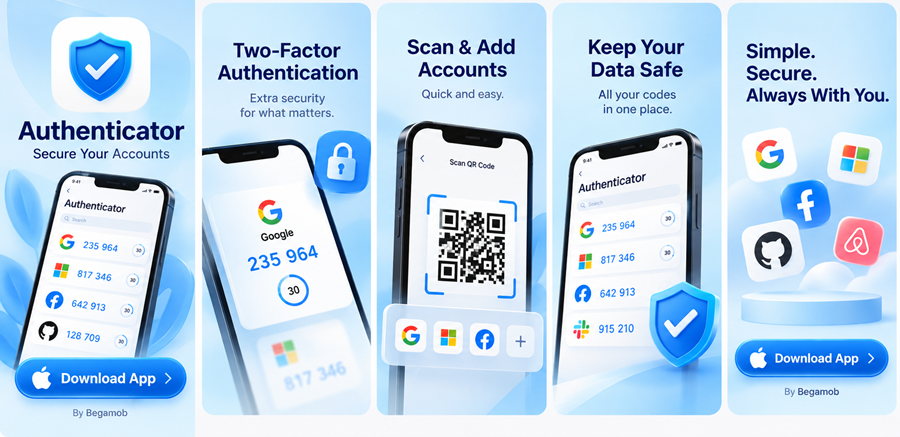
How to Download and Set Up LastPass Authenticator
If you want to download lastpass authenticator app, use an official mobile application marketplace.
The application is available for supported Apple iOS and Android devices. LastPass’s current documentation continues to identify both mobile platforms as supported.
Is LastPass Authenticator Free?
Users searching for lastpass authenticator app free should distinguish the authentication application from LastPass’s paid password-management subscriptions.
The Authenticator mobile application itself can be installed without purchasing it as a standalone paid app.
However, some LastPass password-management and business capabilities are associated with separate LastPass plans.
Using the authenticator to generate TOTP codes for compatible accounts does not mean you must purchase every LastPass product.
Step 1: Install the Application
Open the App Store or Google Play Store.
Search for LastPass Authenticator.
Check that you have selected the legitimate application.
Install it and open the app.
Avoid random APK websites or unofficial software mirrors.
An authentication application can contain secrets that protect your most important accounts, so installing a modified version from an unknown source creates unnecessary risk.
Step 2: Enable LastPass Authenticator for Your Vault
If you want to protect your LastPass account, sign into your LastPass vault.
Navigate to your account’s multifactor authentication settings.
Select LastPass Authenticator as the authentication method and enable it.
LastPass’s current setup documentation describes a three-stage process: enable LastPass Authenticator, enroll the mobile application, and configure a backup authentication method.
Step 3: Scan the Enrollment QR Code
During lastpass authenticator setup, the LastPass interface displays information used to connect your mobile device with your vault.
Open the lastpass authenticator app.
Scan the QR code when prompted.
Complete the confirmation process.
Your LastPass account should then recognize the mobile application as a multifactor authentication method.
Step 4: Set Up a Backup Authentication Method
Do not skip recovery preparation.
LastPass explicitly includes setting up a backup authentication method as part of its Authenticator configuration workflow.
A backup option becomes valuable if:
- your phone is lost;
- your phone is damaged;
- notifications stop working;
- the application is accidentally removed;
- you replace your smartphone.
Recovery should be configured while you still have access—not after the device disappears.
Step 5: Add a Third-Party Account
To use the lastpass authenticator app with another website:
- Sign in to the website.
- Open its Security or Two-Factor Authentication settings.
- Choose the authenticator-app option.
- Wait for the site to display a QR code.
- Open LastPass Authenticator.
- Add a new account.
- Scan the QR code.
- Enter the generated authentication code back into the website.
- Save any recovery codes the website provides.
Because LastPass Authenticator is TOTP-compatible, it can work with many services that support common authenticator-app standards.
LastPass Authenticator Backup and Account Transfer
One of the most important things to understand before storing many tokens in one authenticator app is how recovery works.
If your only copy of every TOTP secret exists on one phone, losing that device can create a significant account-recovery problem.
Lastpass authenticator backup functionality is designed to reduce this risk.
LastPass Support documentation and support responses describe cloud backup and restore functionality for TOTP accounts saved in LastPass Authenticator.
Why Backup Matters
Imagine you have 25 online accounts protected with the lastpass authenticator app.
Your phone suddenly stops working.
Without backup or recovery methods, you may need to recover each website separately.
That could involve:
- backup codes;
- email verification;
- identity checks;
- contacting support;
- temporarily disabling 2FA;
- reconfiguring every token.
A working backup strategy can save considerable time.
Cloud Backup
LastPass Authenticator supports backing up eligible authenticator accounts through the LastPass ecosystem.
When cloud backup has been configured, the lastpass authenticator app can restore supported authentication entries on a replacement phone. LastPass support guidance specifically references using cloud backup and restore when moving TOTP accounts.
Do not assume backup is enabled automatically.
Open your application settings and verify your current backup state before relying on it.
Account Export and Transfer
Current LastPass support guidance also indicates that TOTP accounts saved in LastPass Authenticator can be exported for transfer.
Support documentation describes options to export an individual TOTP account or multiple accounts for QR-based transfer and an option to export TOTP information to a JSON file.
That provides another migration path when you still have access to the existing phone.
Which Transfer Method Should You Use?
If both old and new phones are available, direct transfer may be convenient.
If the old device is damaged or unavailable, cloud restore may be more useful—assuming backup was configured beforehand.
If neither is available, your recovery options may depend on each individual service.
Keep Website Recovery Codes Anyway
Even if lastpass authenticator backup is enabled, save the emergency recovery codes provided by important websites.
Backup codes create an independent recovery path.
For critical accounts, this redundancy is valuable.
Do not make a single authentication application your only route back into every account you own.
How Secure Is the LastPass Authenticator App?

The lastpass authenticator app can significantly strengthen account security compared with relying on passwords alone.
However, no authenticator should be treated as an invisible security shield.
Its effectiveness depends on how it is configured and how users respond to authentication requests.
Why Two-Factor Authentication Helps
Passwords can be:
- reused;
- guessed;
- leaked;
- phished;
- exposed in data breaches.
Adding another authentication factor means possession of the password alone may no longer be enough.
LastPass’s current authentication guidance describes MFA as adding another verification step through methods including time-limited codes, biometric verification, and push authentication.
TOTP Codes Reduce Dependence on SMS
TOTP codes are generated by the application rather than delivered as text messages.
This avoids depending on SMS delivery every time you authenticate.
It also reduces exposure to some telephone-number-related attack scenarios.
However, TOTP is still phishable.
If you type a valid authentication code into a fake login page, an attacker may attempt to use that code immediately.
Push Notifications Require User Judgment
Push authentication improves convenience, but users must review requests carefully.
Do not turn authentication into a habit of pressing Accept automatically.
Ask yourself:
Did I just try to sign in?
Is this the account I intended to access?
Does the timing make sense?
If not, deny the request.
Protect the Phone Itself
Your phone becomes an important security device once the lastpass authenticator app is installed.
Protect it with:
- a strong screen-lock PIN;
- Face ID or fingerprint authentication;
- current operating-system updates;
- remote device-locking features;
- encryption;
- automatic application updates.
If someone gains access to an unlocked phone, the effectiveness of your second factor may be reduced.
Protect Your LastPass Account
If cloud backup is tied to your LastPass ecosystem, securing the LastPass account itself becomes especially important.
Use a strong, unique master password where applicable.
Enable appropriate authentication protections.
Keep recovery methods current.
The security of your backup strategy matters just as much as the security of the tokens being backed up.
What Happens If You Lose or Change Your Phone?
Changing phones is one of the situations where preparation pays off.
The lastpass authenticator app can be migrated more smoothly when backup and recovery methods have already been configured.
Before Buying or Resetting a New Phone
Before wiping your old device:
- Verify that LastPass Authenticator backup is active.
- Review the accounts stored in the application.
- Confirm your LastPass recovery options.
- Save recovery codes for critical services.
- Install the application on the new phone.
- Transfer or restore your accounts.
- Test important logins.
- Only then erase the old device.
Do not factory-reset the original phone first and figure out authentication later.
Moving Accounts With Cloud Restore
If your authentication accounts have been backed up correctly, install the lastpass authenticator app on the replacement phone and follow the restore workflow.
LastPass support guidance has confirmed that users with cloud backup can use the restore function when moving to a new phone.
Moving Accounts Directly
If the old phone still works, account transfer may be another option.
LastPass support describes a transfer workflow in which the original application creates transfer information that the new device can scan.
This can be useful when you want a controlled migration before decommissioning the previous device.
What If the Old Phone Is Lost?
Your options depend on what you configured beforehand.
You may be able to:
- restore backed-up tokens;
- use another LastPass authentication method;
- use service-specific recovery codes;
- use account-recovery procedures;
- contact the provider of the protected account.
For LastPass-specific MFA recovery, the company advises configuring backup authentication methods during initial setup.
Remove Access From the Lost Device
If a phone is stolen rather than simply replaced, use the operating system’s remote locking or wiping functionality where possible.
You should also review the security settings of important accounts and revoke sessions when appropriate.
Recovery is only half of the problem—the lost device must also be treated as a potential security risk.
LastPass Authenticator Not Working: Common Problems and Fixes

The search lastpass authenticator not working can describe several very different problems.
The application may open normally but show an invalid code.
Push notifications may not arrive.
Accounts may disappear after changing phones.
The application may fail to launch.
The correct fix depends on the symptom.
Generated Code Is Rejected
First, verify that you selected the correct account.
If you have multiple similar tokens, it is easy to use the wrong code.
Next, wait for a new code and try again.
Also check your phone’s time settings.
TOTP authentication depends on accurate device time.
Set the phone to use automatic date, time, and timezone settings.
Push Notification Does Not Arrive
Check that your phone is connected to the internet.
Open the lastpass authenticator app manually.
Review notification permissions in iOS or Android.
Make sure battery-saving or background restrictions are not preventing notifications from being delivered.
If TOTP is available as an alternative, you may still be able to authenticate using the generated six-digit code.
LastPass Authenticator Shows No Accounts on a New Phone
This often indicates that the tokens were not restored.
Check whether cloud backup was configured on the old phone.
If the old device is still available, consider using the account-transfer workflow.
If no backup or transfer exists, you may need to recover each service individually.
Authentication Fails After Changing Phones
Your LastPass vault authentication pairing may need to be reset or re-enrolled.
LastPass provides settings for enabling and enrolling the Authenticator application, and administrators may control these options for business accounts.
For company-managed LastPass environments, contact your administrator if policies prevent you from changing authentication settings yourself.
The App Crashes
Try:
- restarting the phone;
- updating the lastpass authenticator app;
- updating iOS or Android;
- checking storage space.
Do not immediately delete and reinstall the application if it contains your only copies of important tokens.
Confirm backup or transfer availability first.
You Deleted the Application Accidentally
If cloud backup was enabled, reinstall the application and attempt to restore your accounts.
If no backup exists, check whether the protected websites provided recovery codes.
You may need to disable and reconfigure two-factor authentication separately on each service.
Codes Disappeared
Determine whether:
- you restored the correct backup;
- you are signed into the expected LastPass account;
- the tokens were actually included in the previous backup;
- you transferred from the correct phone.
If one service is missing but the others remain, you may need to reconfigure only that service.
LastPass Authenticator vs Google Authenticator
The lastpass authenticator vs google authenticator comparison has become more interesting because both applications now offer more recovery and transfer functionality than early authenticator apps did.
Both can generate standard TOTP codes.
The major differences involve ecosystem integration, push authentication, cloud synchronization, passwordless features, and how users move tokens between devices.
TOTP Support
Both applications can generate standard time-based authentication codes.
LastPass specifically states that its lastpass authenticator app is compatible with services that support Google Authenticator-style TOTP authentication.
For basic third-party 2FA, either application may therefore work with many of the same websites.
Push Authentication
This is one of LastPass Authenticator’s notable advantages for LastPass users.
The lastpass authenticator app can receive push requests for supported LastPass workflows.
Google Authenticator primarily focuses on generated verification codes rather than serving as the dedicated push-approval component for a LastPass vault.
If you use LastPass heavily, that integration can make LastPass Authenticator more convenient.
Passwordless LastPass Login
LastPass Authenticator can also participate in supported passwordless vault login.
LastPass currently describes mobile push approval and one-time passwords as options for passwordless access to the LastPass vault.
Google Authenticator does not provide that same LastPass-specific integration.
Google Authenticator Cloud Sync
Google Authenticator has changed significantly from its older device-only model.
Google now allows users to synchronize Authenticator codes across devices by signing into a Google Account.
Google states that synchronized codes are encrypted in transit and at rest.
This means the old argument that Google Authenticator has no account synchronization is outdated.
Manual Transfer
Google Authenticator also provides manual transfer functionality.
Users can export accounts from an old device as QR codes and import them on a new phone.
LastPass Authenticator also offers token transfer capabilities, including QR-based transfer according to current LastPass support guidance.
Ecosystem Difference
The real difference often comes down to where you already manage your security.
Choose the lastpass authenticator app if you value:
- LastPass vault integration;
- LastPass push approval;
- passwordless LastPass workflows;
- LastPass-based backup and recovery;
- standard TOTP support in the same application.
Google Authenticator may make more sense if you value:
- Google Account synchronization;
- a simple Google-centered authentication workflow;
- automatic code synchronization across signed-in devices;
- Google’s built-in transfer interface.
Which One Is Better?
Neither is automatically better for every user.
For a heavy LastPass user, the tighter integration of the lastpass authenticator app can be a meaningful advantage.
For someone who primarily wants a standalone TOTP application with Google Account synchronization, Google Authenticator may be simpler.
The best choice depends on your recovery strategy and existing ecosystem—not merely which application generates six-digit codes.
Advantages, Limitations, and Who Should Use LastPass Authenticator

The lastpass authenticator app combines traditional authentication codes with deeper LastPass integration.
That combination can be useful, but it is not necessarily the best configuration for everyone.
Main Advantages
- TOTP support
The application can generate standard six-digit codes for compatible third-party services.
- LastPass push approval
Supported LastPass logins can be approved directly from the phone.
- Passwordless integration
Eligible users can use the application as part of LastPass passwordless access.
- Backup and restore
Cloud backup can reduce the difficulty of replacing a lost or damaged phone.
- Account transfer
Current LastPass support information describes QR transfer and other token export options.
- One application for multiple services
You can keep your LastPass authentication alongside third-party TOTP accounts instead of maintaining several different authenticator apps.
Important Limitations
One limitation is ecosystem concentration.
If you store your passwords in LastPass and also depend on the same ecosystem for authentication backups, you may prefer to evaluate whether that level of consolidation fits your personal security model.
Some security-conscious users deliberately separate their password manager from their TOTP application.
Others prefer the convenience of having related security services integrated.
Neither approach is universally correct.
Backup Requires Preparation
A recovery feature cannot help if you never configure it.
Users should verify that backup exists before replacing or wiping a phone.
TOTP Does Not Stop Every Phishing Attack
A fake site can potentially capture a current code and use it quickly.
Hardware security keys and modern phishing-resistant authentication methods can provide stronger protection for especially sensitive accounts.
Who Should Consider LastPass Authenticator?
The lastpass authenticator app is particularly suitable for users who:
- already use LastPass;
- want push approval for LastPass;
- want TOTP codes in the same mobile application;
- want backup and restoration options;
- use supported passwordless LastPass login;
- prefer a unified authentication workflow.
Who Might Prefer Another Authenticator?
Consider an alternative if you:
- do not use LastPass;
- want your authentication secrets completely separate from your password-management provider;
- rely heavily on another ecosystem;
- have specialized cross-platform requirements;
- prioritize phishing-resistant hardware authentication over TOTP.
The best authenticator is the one that provides strong security while still giving you a recovery strategy you will actually maintain.
Frequently Asked Questions About LastPass Authenticator
Is the LastPass Authenticator app free?
Yes, the mobile authentication application can be downloaded without purchasing it as a standalone paid application.
LastPass subscription products and business services are separate from simply installing the authenticator.
What is LastPass Authenticator used for?
The lastpass authenticator app provides multifactor authentication for the LastPass vault and compatible third-party accounts.
It supports methods including six-digit TOTP codes and supported push approval workflows.
Can LastPass Authenticator protect accounts other than LastPass?
Yes.
LastPass states that the application is TOTP-compliant and can work with services supporting Google Authenticator-compatible authentication.
How do I download LastPass Authenticator?
To download lastpass authenticator app, use the official application store for your iOS or Android device.
Avoid unofficial downloads.
Can LastPass Authenticator work without internet?
TOTP codes can generally be generated locally once the account has been configured.
Internet access is required for services such as push notifications, cloud backup, restoration, and some account-management functions.
How do I add a website?
Enable two-factor authentication on the website, choose its authenticator-app option, and scan the QR code with the lastpass authenticator app.
Enter the generated code back into the website to verify enrollment.
Does LastPass Authenticator support push notifications?
Yes.
LastPass lists one-tap push notifications among the supported authentication methods for its mobile application.
Can LastPass Authenticator use Face ID or fingerprints?
Supported workflows can incorporate biometric authentication such as face or fingerprint verification.
Availability depends on the device and authentication scenario.
Can I back up my accounts?
Yes.
LastPass support guidance documents cloud backup and restore functionality for TOTP accounts stored in LastPass Authenticator.
Can I transfer LastPass Authenticator accounts to a new phone?
Yes.
Depending on your configuration, you can use cloud restore or account-transfer features.
Current LastPass support information also describes QR-based TOTP transfer.
What should I do before changing phones?
Verify your backup first.
Then install LastPass Authenticator on the replacement device, restore or transfer your accounts, test critical logins, and only then wipe the old phone.
Why is my LastPass Authenticator code not working?
Check that:
- you selected the correct account;
- the code has not expired;
- your phone’s date and time are correct;
- the website’s 2FA configuration has not changed.
If only one service fails, the problem may be with that service rather than the lastpass authenticator app.
Why am I not receiving push notifications?
Check internet connectivity, notification permissions, background restrictions, and whether the LastPass authentication pairing is still active.
You may also be able to use a generated code as an alternative.
What happens if I lose my phone?
Restore your authentication accounts from backup if available.
For individual third-party websites, you may also use saved recovery codes or their account-recovery procedures.
For your LastPass vault, use the backup authentication methods configured during lastpass authenticator setup.
Can LastPass Authenticator replace Google Authenticator?
For many standard TOTP websites, yes.
Both applications can generate compatible authentication codes.
However, their synchronization, ecosystem integration, push functionality, and recovery systems differ.
Does Google Authenticator have backup now?
Google Authenticator can synchronize verification codes with a Google Account and make them available across devices.
Google says those synchronized codes are encrypted in transit and at rest.
Therefore, comparisons claiming that Google Authenticator has no synchronization are outdated.
Is LastPass Authenticator safer than SMS?
TOTP authentication avoids depending on text-message delivery for every login.
However, no method is risk-free.
The best protection depends on the service, device security, phishing resistance, and recovery configuration.
Should I store my recovery codes in LastPass?
A password manager can be a secure location for some recovery information, but consider whether you want all recovery factors concentrated in one system.
For extremely important accounts, an additional secure offline copy may provide useful redundancy.
Can LastPass Authenticator be used for passwordless login?
Yes.
LastPass currently supports using LastPass Authenticator as part of passwordless vault authentication workflows.
Final Thoughts
The lastpass authenticator app is a practical two-factor authentication option, particularly for people who already use LastPass.
Its value goes beyond simply generating six-digit codes.
It combines standard TOTP authentication, LastPass push approval, biometric-supported workflows, backup capabilities, account transfer, and passwordless LastPass integration in one mobile application.
For basic everyday use, the process is straightforward:
Enable 2FA on an account.
Scan the QR code.
Open the lastpass authenticator app when you sign in.
Enter the temporary code or approve the supported authentication request.
But the most important part of an authentication strategy is not the first setup.
It is recovery.
Before storing dozens of authentication tokens on one phone, configure lastpass authenticator backup, save emergency recovery codes for critical accounts, and understand how you will move those accounts when you eventually replace your device.
Also remember that two-factor authentication is not a substitute for other security practices.
Use unique passwords.
Keep your phone protected.
Update your software.
Review unexpected login requests carefully.
Do not share authentication codes.
And consider stronger phishing-resistant authentication such as hardware security keys or passkeys for accounts where they are available and appropriate.
For people deeply integrated into LastPass, the lastpass authenticator app offers a convenient way to combine vault authentication and third-party TOTP accounts.
For users who prefer to keep passwords and authentication secrets in completely separate ecosystems, another dedicated authenticator app may be a better fit.
The right choice depends on the balance you want between convenience, recovery, ecosystem integration, and security separation.
Whichever authentication tool you choose, enabling strong MFA on important accounts remains one of the most useful improvements you can make beyond relying on passwords alone.
Download Authenticator App
Secure your accounts with fast, reliable two-factor authentication. Download now and protect your login in seconds.
