
Zoho OneAuth Authenticator App Review: Zoho Sign-ins and External Codes
Published October 23, 2026
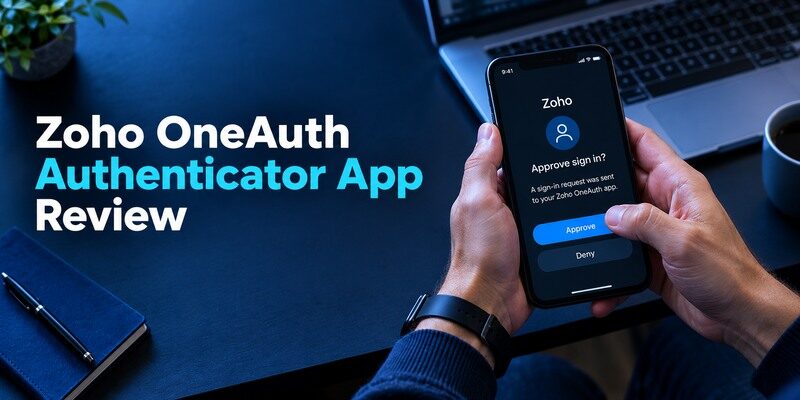
Zoho OneAuth is most relevant if your work or personal services already use a Zoho Account, because it supports Zoho’s own sign-in verification and can hold codes for other sites. Those are different capabilities with different recovery owners. This Zoho OneAuth Authenticator App review follows the distinction through setup, routine login and a lost phone. Zoho’s official documentation should guide the exact current approval and backup options; a generic code-app guide cannot predict every organization’s Zoho policy.
Is OneAuth the Right Tool for Your Account?

If a Zoho service asks you to enroll OneAuth or your administrator requires it, keep that registered flow. If an unrelated site issues an ordinary QR code, OneAuth’s third-party authenticator capability may work, subject to the site’s confirmation. Do not assume a six-digit code saved from a personal site can approve a Zoho-specific prompt. Identify the issuer and method on the actual login screen before choosing an app.
| Account type | OneAuth’s possible role | Check at the issuer |
| Zoho Account | Zoho-specific verification/approval | Current Zoho MFA settings |
| Organization-managed Zoho | Required methods under policy | Admin instructions |
| External TOTP website | Standard rotating code | Website confirms enrollment |
| Password vault access | Depends on separate product | Independent recovery |
Where integration is valuable
A user who frequently signs into Zoho applications may prefer an app designed for that account’s approval flow. Zoho’s official help discusses OneAuth as part of its authentication methods and also documents adding other accounts. The integration can make the Zoho login context more recognizable than a generic token name. It still requires you to inspect each request and maintain the account’s official recovery details.
Where the brand is incidental
For a third-party site that supports open-standard TOTP, many compatible apps can compute the same expected code after enrollment. Compare backup, platform support and your ability to find the correct entry quickly. If you do not use Zoho itself, its account-specific benefits may be irrelevant. A decision based purely on the word “authenticator” can produce an unnecessary dependency on a product ecosystem you otherwise never use.
Advantages
OneAuth can handle Zoho-specific sign-in and ordinary TOTP from other websites; Zoho documents backup, sync and export for external code entries. Existing Zoho users may prefer one managed workflow.
Drawbacks
Some Zoho account approvals and third-party codes have different restore paths. A user with no Zoho presence may inherit unnecessary account and passphrase management.
Who should use it
A Zoho Account user who wants the approved Zoho flow plus compatible external codes.
Set Up Zoho Verification from the Account
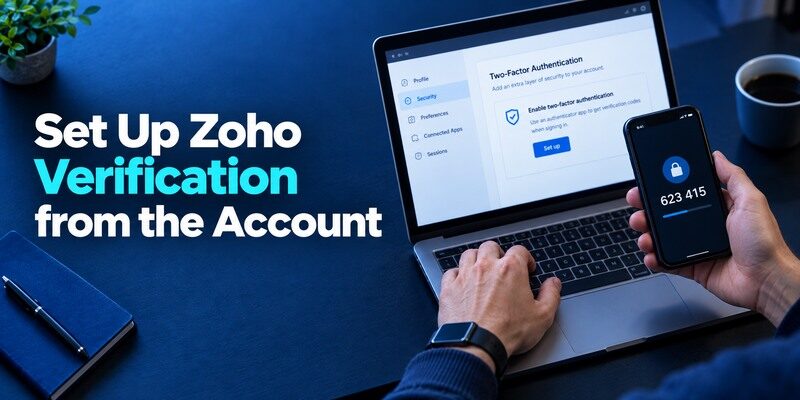
Sign in through the real Zoho Account security settings or your organization’s approved portal, choose the OneAuth method currently offered and follow the displayed registration. Complete an actual sign-in to test it before decommissioning an existing factor. If the portal asks for a prompt, review its context instead of pressing approve automatically. If it asks for a code, select the relevant Zoho entry and submit a fresh value. Current prompts may vary by account settings and policy.
A prompt you did not initiate
Decline the request and inspect recent activity through Zoho’s official site. An unsolicited approval could mean someone has your password or is trying to exhaust your attention. Do not approve to stop repeated notifications and do not read a code to a caller claiming to be support. Use the organization’s reporting process if the account is managed. If you already approved by mistake, review sessions and rotate credentials according to the issuer’s instructions.
Confirm the replacement device
When upgrading phones, follow Zoho’s currently documented OneAuth transfer or backup route and verify the new device with a real Zoho login. A restored list of accounts may not prove a push registration is active. Keep the original phone while both work and personal priority logins are tested. If your employer controls registration, a help-desk reset may be needed even after personal codes appear on the replacement.
How to set it up safely
Secure the Zoho Account with OneAuth through Zoho’s own settings; enroll another website by scanning its standard TOTP QR inside OneAuth and confirming the next code. Set a recovery mode and separately verify the current passphrase, sync or export plan for those external entries.
Add an External Website Code
At a separate website’s security settings, select its authenticator-app option and scan the setup QR into OneAuth. Enter the displayed code back into that website to finalize the factor. Save the site’s backup codes outside OneAuth. The website owns this secret and decides its reset procedure; Zoho support cannot independently bypass a bank’s MFA just because its code is displayed in OneAuth.
A duplicate account label needs care
If you re-enroll an external site, an older entry may still show plausible six-digit values. Give each entry a distinguishing account name and test from a fresh website session. Check automatic phone time and wait for a new interval if the current code is about to expire. Avoid repeatedly requesting new QRs before identifying why the original attempt failed. The site may overwrite its active secret with each enrollment.
Keep QR setup private
The QR holds a reusable TOTP seed. Do not attach it to a Zoho support ticket, email it to a colleague or store it in a shared album. If compromised, reset the factor at the external website and review its account sessions. Removing the label from OneAuth does not revoke copies of the seed stored elsewhere. An export file containing several entries deserves even stronger handling.
Test the external account outside the Zoho session
An active Zoho Account session can make OneAuth appear healthy even when a separate website token was never confirmed. Pick a low-risk non-Zoho service, enroll from that website’s security settings, close the session and sign in again with a fresh code. If the website rejects it, inspect its factor state before resetting OneAuth itself. The site may never have recorded the enrollment, or it may have issued a newer QR. A successful Zoho push does not diagnose an unrelated token.
Decide where personal tokens belong
If OneAuth is used primarily for a managed organization, consider whether storing private email and banking codes there complicates a future device return or account transition. Check the app’s current third-party backup path and your employer’s device policy. A separate personal code app can simplify ownership, but only if its backup is documented and tested. Either way, each personal issuer must accept a real code on a device you will keep. Do not rely on an employer’s tenant administrator to restore private secrets.
Handle account-name collisions
External codes may arrive with generic provider names. Add a distinguishing non-secret label that helps you select the right username or region. If two entries produce different digits, don’t guess repeatedly at the login form; review which secret the issuer currently recognizes. Re-enrollment may invalidate the earlier entry while it keeps rotating locally. Test the newer value and retain backup codes before deleting the old label.
Inspect access after a suspected incident
An unexpected Zoho approval and a rejected personal website code call for different responses. Deny and report the first through Zoho or the employer. For a possible leak of an external TOTP QR, rotate that website’s factor and review its sessions. Uninstalling OneAuth cannot command a third-party website to revoke a copied seed. A clear owner for each account makes incident response faster and avoids the temptation to send live codes to a purported helper.
Restore Paths Are Account-Specific

Review OneAuth’s current backup and recovery documentation and your own Zoho Account recovery settings before loading a large collection of codes. The mechanisms for restoring an app, reactivating Zoho approval and regaining an external issuer account may be distinct. Test each category while you still possess your phone. A backup success screen is only one stage of recovery; issuer verification is the last stage.
| Lost access to | Start with | If unavailable |
| OneAuth app | Official restore/transfer route | Zoho or issuer recovery |
| Zoho Account | Enrolled alternate factor | Official Zoho process |
| Managed Zoho tenant | Approved IT method | Organization help desk |
| External website | Its backup code | Website identity check |
Avoid circular dependencies
If the Zoho Account used for app restoration requires a code visible only after restoring OneAuth, the path can fail. Set up an independent approved factor or recovery option. Check where the primary email and password manager are protected too. A loss scenario reveals whether the plan works: imagine the phone gone and a new device asking for sign-in before it will display codes.
Transfer is not secret rotation
Moving the same standard TOTP secret to another device leaves any prior copy potentially valid. If the original phone was stolen unlocked, re-enroll the factor at each affected issuer. For a Zoho-specific trusted device, use Zoho’s registered-device controls or the administrator’s instructions. Be precise about what was exposed and what the server has revoked; deleting a local app entry alone is not enough.
Build two recovery rehearsals
On a spare authorized device, rehearse access to the Zoho Account using an alternate approved method, then inspect whether OneAuth’s current documented restore path brings back its entries. Separately try an external website’s issuer backup code or restored TOTP. These are different systems and can fail independently. Do not send Zoho an external site’s recovery code or assume that an organization administrator can restore a private bank login. Write down the support owner of each problem before a phone exchange.
Recognize a managed work account
An employee can be blocked by policy even while the OneAuth app shows a code. If an organization restricts device type, factor choice or registered approval, its current account portal determines access. Ask IT whether self-service reactivation is available on a new phone and whether a temporary alternate factor is permitted. Avoid improvised QR transfers that bypass employer instructions. A proper re-enrollment can also remove a lost registered device from the company’s account list.
Deal with an unexpected old-device prompt
After phone replacement, a notification on the old phone may reflect an unfinished session or an unauthorized attempt. Compare its timing and origin with a sign-in you initiated. Deny anything unclear and review Zoho Account security through the official portal. Remove old devices under the current account controls, and rotate issuer secrets for external sites if an unlocked phone was lost. Merely seeing the new phone work does not guarantee the old one can no longer access every account.
Compare OneAuth with General-Purpose Authenticators
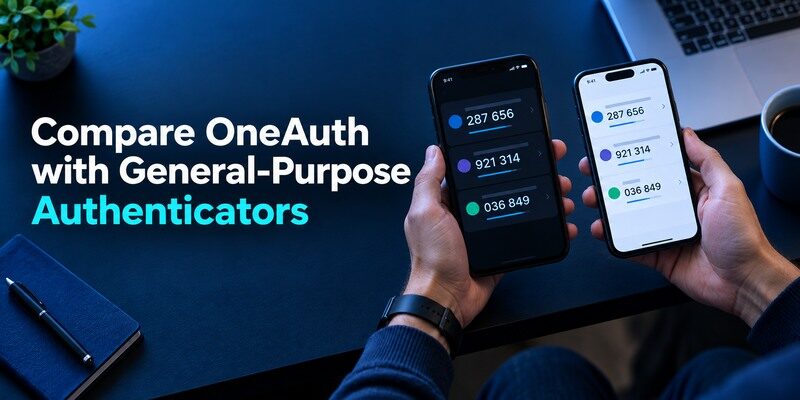
is a simple standard-code choice; 2FAS offers documented phone backups; Microsoft and Duo handle their own managed approval experiences; OneAuth’s distinctive reason to be on a phone is its Zoho relationship. For independent websites, evaluate code-app recovery rather than a logo. The is a dedicated standard-code alternative to check for QR/manual support and current restore terms.
Keep the right app for the right challenge
A work administrator may require OneAuth even when another app could generate TOTP for a personal website. You can keep that managed registration and put personal codes in another app if it simplifies ownership. Two apps increase device maintenance, so identify each backup route. can be trialed for a noncritical external QR-code site while OneAuth remains enrolled for Zoho.
No app can make a code phishing-resistant
A typed OTP can be captured and relayed by a fake site; NIST distinguishes it from phishing-resistant methods. Check the Zoho or external website domain before entering digits. A push approval can add context but is only protective if you decline requests you did not start. Where a service supports passkeys or security keys, examine them for valuable accounts.
Which alternative is better for your needs?
| App | Choose it when | Trade-off |
| Zoho OneAuth Authenticator App | A Zoho Account user who wants the approved Zoho flow plus compatible external codes. | Some Zoho account approvals and third-party codes have different restore paths. |
| 2FAS Auth | You have no Zoho account and only need personal mobile TOTP | Does not perform Zoho-specific registered approvals |
| Proton Authenticator | You want a dedicated multi-platform code app | Cannot replace a Zoho-only approval required by policy |
An Owner’s Maintenance Checklist

Review authorized devices and recovery contacts after changing phones, leaving an organization or changing the email used for Zoho. Keep the app and OS updated through legitimate channels. Check that each important external website has current issuer backup codes. A quick quarterly sign-in to the most important accounts can surface a stale token before an urgent deadline. Never put live codes or QR screenshots in the checklist itself.
After leaving an employer
Ask IT what happens to managed Zoho access and registered devices. Personal third-party TOTP entries in the same app may still be your responsibility, depending on the device and backup arrangement. If the phone is company-owned and must be returned, move personal factors through each issuer while you still have authorized access. Do not expect an employer’s account reset to transfer private website codes for you.
If a login suddenly changes methods
Check whether the issuer introduced a new prompt, passkey or policy requirement before blaming OneAuth. Use the legitimate account-security page or contact the administrator. An app can continue showing old codes after the server deactivates them. Keep a working trusted session if permitted while updating factors, and confirm the new method in a separate login before deleting the previous one.
Review changes to recovery contacts
When a phone number, recovery email or employer changes, open the official Zoho Account security settings and verify that the registered details remain under your control. Then test one Zoho sign-in on a fresh session. Do the same for an external website whose code is stored in OneAuth, using that website’s own controls. A stale recovery address can make a perfectly working app difficult to replace after loss. Keep a dated non-secret list of accounts tested and where their issuer backup instructions live.
Plan for a work phone return
If the handset is owned by an employer, ask how managed OneAuth registration is revoked and when the phone will be wiped. Move any permitted personal TOTP accounts through their own websites to a device you own before the deadline. Verify each new code at the issuer and save newly issued recovery codes. Do not export company factors to a personal device without authorization. Separating the two ownership groups in advance is easier than untangling them after the old handset is inaccessible.
Check a restored app for stale entries
A restored account label can outlive a website’s most recent MFA reset. Try one actual Zoho login and one representative personal website before declaring the migration complete. If a code fails, compare the issuer’s active factor and entry identity; do not immediately delete all tokens. A regular quarterly check of the accounts needed for email and password recovery can uncover a stale entry while another method still works.
Frequently Asked Questions
Can OneAuth store non-Zoho codes?
Zoho documents third-party authenticator accounts for supported standard codes. Enroll and confirm each one at its own website.
Can another app approve a Zoho OneAuth push?
Do not assume so. A registered Zoho-specific request may require OneAuth or another method Zoho or your administrator explicitly permits.
What if the phone is lost?
Use Zoho’s configured recovery route for the Zoho Account and each external issuer’s backup codes or account recovery. A managed tenant may require IT involvement.
Does an app restore prove every account works?
No. Test a real Zoho sign-in and a separate external website code. They validate different registrations.
Do OneAuth codes work offline?
Locally provisioned time-based codes can generally be generated offline. Push approvals and website verification have their own connectivity requirements.
Final Thoughts
This Zoho OneAuth Authenticator App review recommends the product most clearly for people who actually use Zoho’s sign-in ecosystem. Keep personal website tokens and managed approvals conceptually separate, test both after a device move and preserve each issuer’s recovery route. A single phone can display all the entries, but no single provider controls all of the accounts behind them.
When a device is replaced, check both the Zoho-specific approval and one external TOTP issuer. A successful result in one category says nothing conclusive about the other.
Sources reviewed: Zoho OneAuth official setup, backup, recovery and export guides; 2FAS; Proton.
