
Okta Verify Authenticator App Review: Registered Work Device First
Published October 23, 2026
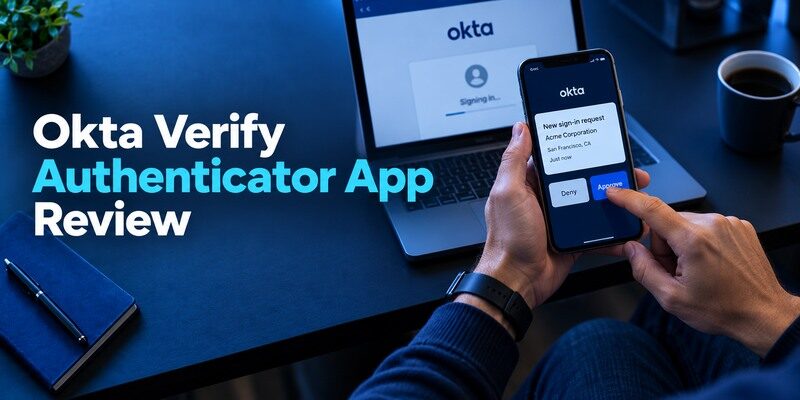
Okta Verify is the right app when your employer or school requires an Okta-registered device for sign-in, and it can support other methods depending on the organization’s configuration. Its value is in that managed relationship, not in serving as a universal substitute for every personal code app. This Okta Verify Authenticator App review explains why a new phone often needs re-enrollment, how to respond to an unknown push, and when a standard TOTP alternative is actually allowed. Okta’s official documentation and your institution’s policy determine the exact available options.
A Verdict for Managed and Personal Accounts
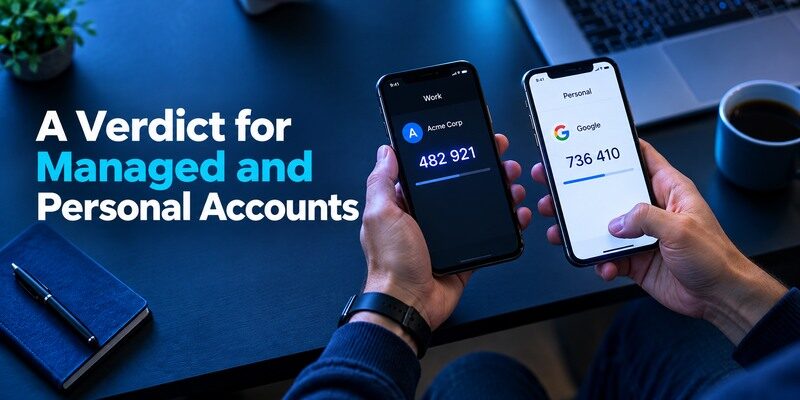
For a managed Okta tenant, follow the administrator’s Okta Verify enrollment; a different authenticator cannot invent the registered device relationship. If an external website presents a conventional QR for TOTP, compare other code apps on backup and usability. Okta Verify may offer multiple authentication experiences, including push and configurations such as FastPass, but these depend on the issuer and organization. Do not describe a code as equivalent to a device-bound policy check.
| Account challenge | What it requires | Can a generic code app stand in? |
| Okta Verify push | Registered device and allowed policy | Generally no |
| Okta FastPass | Configured device-bound flow | No generic TOTP substitution |
| Okta TOTP code | Issuer-approved enrollment | Only if policy permits |
| External website QR | Standard TOTP setup | Usually compatible apps |
The organization’s policy is part of the product
Two employees may see different choices even when both install the same app. Administrators can enforce device assurance, enrollment limits and acceptable factors. If a guide’s menu doesn’t match yours, check the real Okta sign-in page and IT instructions. A screenshot from another company cannot authorize a method your tenant forbids. The best review for work use begins with your specific access requirements.
A stand-alone code need is another job
If your employer’s Okta Verify entry is mandatory, keep it. You can evaluate a separate app for personal sites that use standard QR codes. This can make ownership and device-change planning clearer, especially if the work phone must be returned. The trade-off is maintaining two recovery routes. A unified list is only a benefit if you know who can reset each factor after loss.
Advantages
Okta Verify is appropriate when a company configures Okta Push or FastPass and registers a trusted device. Its context-aware prompts can make an employee’s intended sign-in straightforward.
Drawbacks
A generic app cannot substitute for a required Okta Verify enrollment. Replacement phones and lost devices may need IT reactivation; it is an unnecessary primary app for someone whose only need is ordinary personal TOTP.
Who should use it
An employee or student whose organization requires Okta Verify for Okta-protected resources.
Enroll the Phone on the Legitimate Tenant
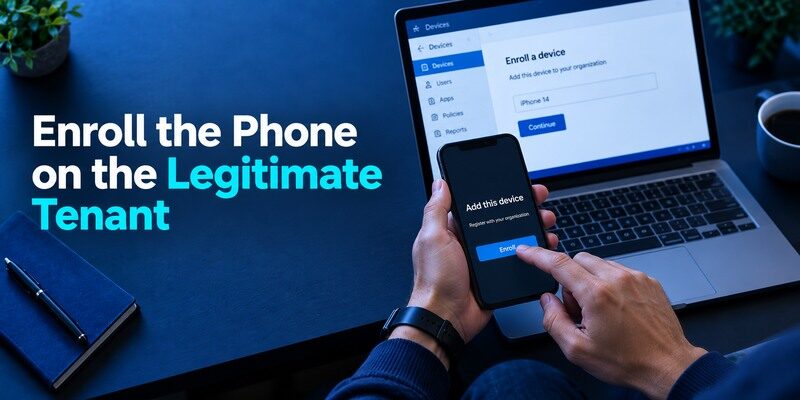
Begin from your employer’s known Okta portal, choose the administrator-approved enrollment path and follow the displayed QR or device registration. Verify a fresh sign-in while a prior factor still works. If the setup asks for device permissions, read the app’s current explanation and your organization’s instructions. A phone that merely has Okta Verify installed is not necessarily trusted by the tenant; the enrollment must complete on both sides.
Test the exact policy your job uses
A routine portal login might succeed while a sensitive application requires another challenge or an assured device state. Test an account flow your organization allows and note which factor it requests. If you change the phone’s OS, screen lock or management profile, the policy may reevaluate it. Don’t attempt to bypass the requirement with an unregistered QR app. Request the approved remediation from IT.
Avoid photographing enrollment QR codes
The QR can carry sensitive enrollment material. Do not send it to a coworker as a shortcut or attach it to a support request. Use the app and portal together on devices you control. If you believe someone else saw the registration secret or approved an unknown device, report that through the institution’s incident process. A local uninstall does not necessarily revoke the tenant’s trust record.
How to set it up safely
Follow your organization’s Okta sign-in URL, select the offered Okta Verify enrollment, scan or activate on your phone and complete a fresh initiated challenge. On a replacement phone use the tenant’s approved reset route; enroll ordinary third-party QR codes only when the issuer and policy allow it.
Read Every Push in Context

Approve only a sign-in you personally initiated through a trusted site. Compare the application and any displayed context or number. A barrage of prompts is a reason to deny and investigate, not to press accept to make them stop. Okta’s support guidance describes verification experiences, but their exact interface depends on the tenant. Keep notifications enabled where policy requires them; a missing alert can be a delivery issue rather than a password problem.
The delayed-push trap
If a request arrives long after your browser attempt, restart from the real portal and match a new request. Multiple pending challenges can be hard to distinguish on a busy phone. Reject anything whose origin is unclear. If you accidentally approved a suspicious attempt, notify security quickly so sessions and factors can be reviewed. Hiding the notification does not undo a server-side approval.
A typed code has different risks
An Okta Verify TOTP code, where offered, may work when a push cannot arrive, but it can be relayed by a phishing page. NIST distinguishes manual OTP from phishing-resistant options. FastPass or FIDO-style methods should be evaluated under the actual organization policy rather than inferred from the brand. Never type a code into an unexpected link or read it over a phone call.
Use context without trusting every displayed detail
A prompt can show an application, device or location cue, but rough geolocation and proxy networks can make location imperfect. The decisive check is whether you personally initiated that exact sign-in on the trusted portal. If several prompts arrive from retries, cancel the old flow and start one new attempt. Number matching, when configured, helps link the phone action to the browser challenge. It does not authorize a request that appeared after a phishing message or a phone call you did not expect.
Know what a denial does and what it does not do
Rejecting an unknown Okta Verify prompt prevents that approval, but it does not prove the underlying password remains secret. Follow your organization’s security reporting process and review account activity under its guidance. If a credential was exposed, changing it and revoking sessions may be necessary. Do not approve a request in order to reach a settings page faster. An independent approved recovery method should let you investigate without granting the suspicious login.
Keep permission troubleshooting contained
If a request from your own sign-in never appears, check that the app has its currently required notification permissions and network access. Open it directly to see whether a pending request exists. A device-registration or policy error needs the tenant administrator, even if notification settings look healthy. Preserve the last working factor during diagnosis; repeated reinstallations can erase evidence about where the process broke.
Replacing a Phone Without Breaking Work Access
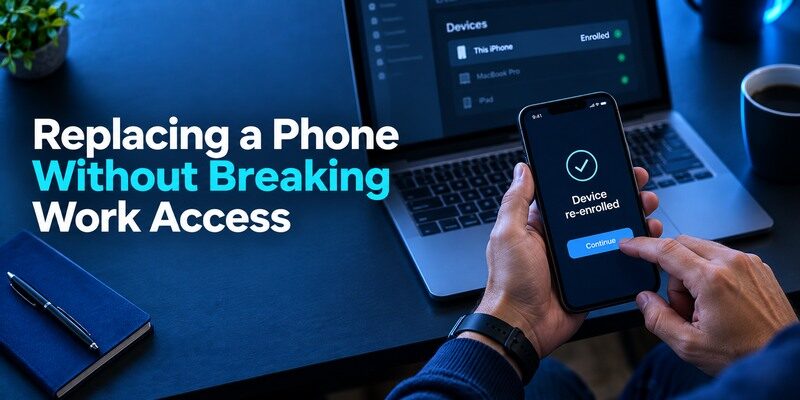
Ask IT whether the tenant provides a self-service factor reset, an alternate enrolled method or an administrator-assisted re-enrollment. Keep the old phone until the replacement completes a genuine Okta challenge. Restoring an operating-system backup may copy the app but not the tenant’s trust in a new device. Plan a phone trade-in away from travel or a deadline. For a lost handset, use the official identity-checked process rather than a third-party “Okta recovery” page.
| Device event | Useful preparation | Verification |
| Planned replacement | Alternate method and IT instructions | New phone completes work sign-in |
| Lost device | Official help desk contact | Old factor revoked as appropriate |
| Notifications stop | Check permissions/connectivity | Fresh prompt from known portal |
| Tenant policy changes | Read admin notice | Supported method in current portal |
Keep personal accounts in scope
If any unrelated TOTP secrets were stored in the same app, identify how those are backed up or re-enrolled separately. An Okta administrator cannot necessarily reset a private website. Retain that site’s backup code and test its login after the device change. Conversely, restoring a personal code does not reactivate a managed Okta FastPass registration. A clean phone migration needs both categories checked.
A stolen unlocked phone may require more action
Report the loss, use platform remote controls and ask the tenant administrator to review registered devices and sessions. An attacker with a usable registered device may pose a different risk from someone who finds a powered-off locked handset. Rotate affected issuer factors according to policy. Do not assume that signing out of the app on a new phone revokes every old registration.
Make a managed-device handoff plan
If the phone belongs to the organization, determine whether it will be wiped before or after the new device is enrolled. Ask which approved alternate factor can bridge the gap and who is authorized to reset Okta Verify. A personal phone replacement may also trigger a new registration or device-assurance check. Do not assume the OS backup preserves a tenant’s trust. Complete a fresh work login on the replacement and confirm that the original registration is removed where policy requires.
Record the exact denial
“Push not received,” “device not allowed,” and “code invalid” describe three different failures. Provide the administrator with the original error wording, time, account identifier, and whether another approved method still works. Don’t attach QR setup images, live OTPs or secrets. A device not allowed by policy may be fixed by management enrollment, while a rejected code may involve time or a rotated factor. The clearer the symptom, the less likely a reset will destroy a still-working access path.
Keep personal tokens off a returning handset
Before handing in a company phone, move any personally authorized standard TOTP entries through their own issuers to a device you control. Test the personal website after every move and save its recovery code. Follow company device-use policy and avoid transferring work enrollment to an unapproved personal phone. A manager can reset the work tenant, but generally cannot recover your unrelated private email codes from a wiped device.
Common Issues and the Correct Owner
A push not appearing calls for notification, connectivity and enrollment checks. A code rejected by the portal calls for account-entry, timing and policy checks. A “device not allowed” message may reflect an administrator’s assurance requirement. Avoid reinstalling repeatedly before distinguishing these symptoms. If you are blocked from a workplace application, IT can inspect the tenant’s current policy; an app publisher cannot override it for you.
A code app cannot fix policy denial
If the tenant requires a registered device, a generic authenticator code from another app may be cryptographically valid TOTP and still not satisfy the policy. Ask which alternate methods are approved. Trying unofficial clones or QR exporters can compromise account enrollment. A planned backup factor under policy is safer and more effective than searching for a shortcut after the phone is gone.
A phone time problem is narrower
If the current flow truly requests a TOTP code, check automatic date and time and wait for a fresh interval. Ensure the account selected belongs to the right tenant. If the login requests a push or FastPass, changing time alone will not complete device enrollment. Use the error wording to identify the method before changing settings. Preserve a screenshot only if it omits sensitive QR and live codes.
Work through a policy error without guessing codes
When a tenant says a device is not allowed, repeated TOTP submissions will not establish device compliance. Capture the exact non-secret message and check whether the phone has the required management state, screen lock and current registration according to the organization’s instructions. An administrator can inspect the applicable policy. If the same portal offers a backup factor, use only a method the tenant has approved. Sideloading a clone or exporting an enrollment QR can worsen the problem and expose a work credential.
Know which team controls each fix
Okta publishes the product, but the employer configures the tenant and verifies employee identity for resets. A personal website whose TOTP code happens to sit in an app has its own recovery team. The phone vendor manages device lock and notifications. Naming the right owner when seeking help avoids passing sensitive details among unrelated support channels. Give symptoms, OS version and timing; never provide a current approval number, QR seed or recovery code to a caller.
Verify after a reset
Once IT authorizes a new Okta Verify enrollment, complete one login from a fresh session and review registered devices under the current tenant controls. If the old phone was stolen, confirm whether its registration has been revoked and whether active sessions were reviewed. A password change may be appropriate when the incident also exposed credentials. A reset confirmation email is helpful, but a real accepted challenge on the new device proves the user’s access path is working.
Check alternate factors before travel
If the organization permits a second key or passkey, register it while you are at a trusted workstation and test it. Record the official after-hours help contact. Do not rely on SMS simply because a consumer account offers it; the work tenant may disallow that method. A five-minute pre-trip sign-in can reveal a missing notification or expired registration before the phone is in airplane mode. Keep recovery details secure without placing them in an unprotected travel note.
Alternatives for Unrelated Personal Websites

For an ordinary consumer site offering a standard authenticator QR, , 2FAS, Aegis on Android and are candidates with different backup models. The supplied lets you check Begamob’s current publisher and features. These comparisons do not change a work tenant’s approved method. Keep Okta Verify for required work registration while choosing personal-code custody separately.
Preserve separation if a work device is returned
If an employer provides the phone, personal TOTP secrets on it may be difficult to recover when the device is returned or wiped. Move personal accounts through their own issuer settings while authorized, validate a login on a personal device, and save backup codes. Follow company device-use policy. An employee exit process should not become an account-loss event for private email or finances.
Count the real recovery steps
The question is not whether another app has more features; it is how many independent actions are needed to regain access after a lost phone. Work Okta registration may involve IT, while personal TOTP may involve your own backup. Write a short priority list with official contacts. Leave live QR secrets and codes out of it. A little documentation now can prevent panicked approval of a fraudulent “support” request later.
Which alternative is better for your needs?
| App | Choose it when | Trade-off |
| Okta Verify Authenticator App | An employee or student whose organization requires Okta Verify for Okta-protected resources. | A generic app cannot substitute for a required Okta Verify enrollment. |
| Microsoft Authenticator | Your workplace uses Microsoft’s native verification instead | Cannot impersonate an Okta-registered device |
| 2FAS Auth | You only want independent personal-site codes | Does not replace Okta FastPass or push |
Frequently Asked Questions
Is Okta Verify required for my workplace?
Only your organization can answer. Its policy may require Okta Verify, allow other factors or offer several approved methods. Follow your actual tenant’s instructions.
Can Google Authenticator replace Okta Verify?
Not for a required push or FastPass registration. A standard code app may work only if your tenant explicitly permits TOTP as a method.
Why did a restored app fail on a new phone?
An OS restore may not reactivate the tenant’s trusted-device registration. Use the organization’s re-enrollment or administrator-assisted process.
What should I do with an unfamiliar push?
Deny it, open your account through a known route and report it to the security team. Do not approve to stop notifications.
Can a work code be generated offline?
Some configured TOTP methods can generate a code offline, but the tenant must allow it and the website needs connectivity to verify. Push and FastPass have different requirements.
Final Thoughts
This Okta Verify Authenticator App review recommends evaluating it as an enrolled part of a specific organization’s security system. Practice a genuine login and an approved phone-replacement path before retiring the old device. Keep personal-code recovery separate, reject unexpected pushes, and defer to the live tenant policy whenever a generic guide disagrees with what your account actually shows.
