
Duo Mobile Authenticator App Review: Know Which Account Is Registered
Published October 13, 2026
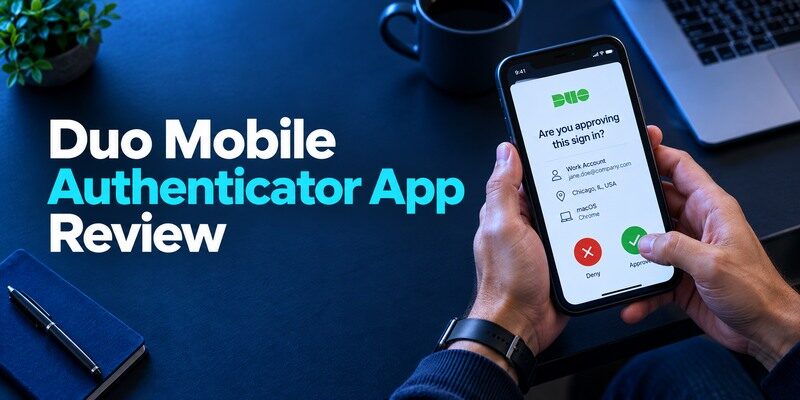
Duo Mobile works well as a managed sign-in app when your institution registers your phone, and it can also generate standard codes for other websites. This Duo Mobile Authenticator App review follows the account through enrollment, an actual approval, and a phone replacement. Its central question is operational: will your institution recognize the replacement device, and can you still reach personal tokens? The answer differs for Duo-protected work accounts and unrelated TOTP entries saved in the same app.
What a New Duo User Should Verify First
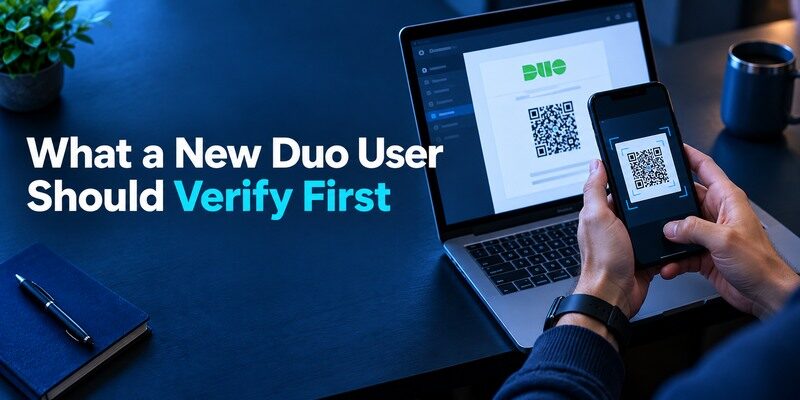
Open the exact enrollment instructions supplied by the employer, school or service. Note whether the approved method is Duo Push, a generated Duo passcode, a hardware key, or another factor. Install Duo Mobile from the legitimate store and register the device through that organization’s current enrollment page. A phone app installed without this pairing cannot receive that tenant’s approval request. Complete a test login before you need access for a deadline.
| Visible symptom | Possible explanation | Next check |
| App opens but no work account | Device never registered | Institution’s enrollment page |
| Personal codes appear, push absent | TOTP entries differ from Duo registration | Registered work device |
| Push arrives unexpectedly | Unknown login attempt | Deny and report |
| New phone restores codes but not work | Separate reactivation required | IT-approved procedure |
One phone, two kinds of trust
A website’s standard TOTP secret is stored in the app after you scan its QR and confirm a code. Duo Push depends on the institution recognizing a particular registered device. These are not the same piece of information. Cisco’s support materials describe both third-party accounts and Duo Restore, but your institution can restrict which options are offered. A new phone can look complete at a glance while the work enrollment remains inactive.
Standard TOTP codes and organization-managed Duo Push serve different authentication workflows. A personal website may accept a rotating code generated from a stored secret, while a Duo-protected workplace account can require a specifically registered device. Our guide to a TOTP authenticator app explains how time-based codes work and why an ordinary TOTP entry cannot automatically replace a managed push registration.
Why an administrator’s instructions take precedence
The Duo service can be configured differently across organizations. A guide for another university might show different enrollment prompts, alternate factors and self-service recovery. Use your actual institution’s portal and help desk. Never hand a setup QR or current code to a stranger who says they can enroll the phone remotely. A legitimate support process can verify ownership without asking you to approve an unknown sign-in.
Advantages
For a Duo-protected job, receiving a registered push and viewing work passcodes in the approved app is its central value. Separate personal TOTP entries can reduce the number of apps on the phone.
Drawbacks
Restore of an organization’s device registration is not the same as restoring personal OTP entries; Duo says Instant Restore does not restore third-party OTP accounts. Your administrator can restrict the available work methods.
Who should use it
A student or employee whose institution specifically uses Duo and who wants one phone app for work plus some personal codes.
Test the First Duo Push Safely
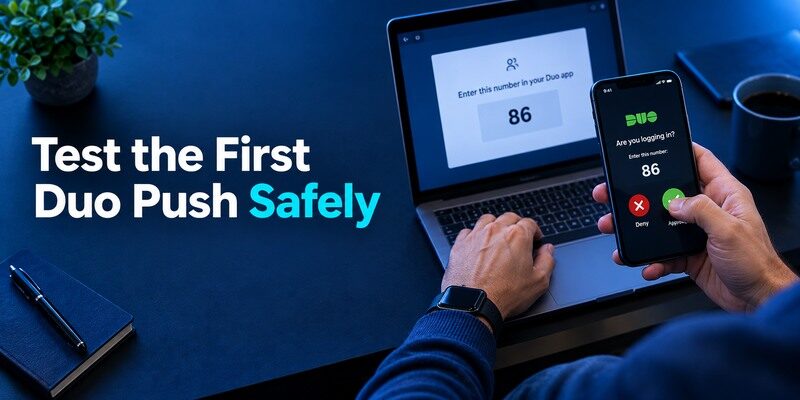
Start a sign-in from a device and site you recognize, then wait for the request on the registered phone. Compare any number displayed in the browser, application name and timing with the phone prompt. Approve only that request. If no notification appears, open Duo Mobile directly and inspect whether it shows a pending request; notification delivery and account registration are separate problems. Use an approved alternate method if offered, then investigate the push path later.
A stale request is not harmless
After several browser retries, multiple prompts can arrive out of order. Cancel old attempts and initiate one fresh login so you can match cause and effect. The request that arrives latest is not necessarily the one tied to the screen currently in front of you. If you cannot confidently identify it, deny and restart. Repeated approvals under frustration are exactly what prompt-bombing attackers hope to induce.
If a prompt was not yours
Reject it and report it through your institution’s security channel. Change the account password through the known portal if instructed, review sessions and registered factors, and preserve non-secret context such as time and device. Do not reply to a call that asks you to “approve to stop the notifications.” A Duo push reflects an access attempt; you need to know its origin before granting it.
An unexpected Duo Push request may indicate that someone is attempting to sign in using your credentials. Do not approve a prompt you did not initiate, even if repeated notifications become distracting. Our guide on how to spot suspicious login activity explains common warning signs, session checks, and the steps to take after a suspicious authentication request.
Establish a normal baseline
From a managed browser and known portal, initiate one login and note the application name, number-matching step and time between request and phone display. This gives you a reference for later troubleshooting. A push arriving when no browser session exists deserves denial and investigation. If an organization changes its policy, the screen may differ; consult its latest instructions rather than treating every new prompt as proof of a breach. The baseline is about your deliberate action, not memorizing a decorative interface.
Avoid turning notification repair into accidental approval
If alerts are delayed, open Duo Mobile on the registered device and cancel old browser attempts. Start a single fresh sign-in and match only its current prompt. Changing notification permissions or network conditions can release queued requests from earlier attempts, so the last notification may not correspond to the visible browser page. Deny any request whose origin you cannot confirm. An approved alternate factor, when the institution offers one, is safer than tapping through a pile of unexplained pushes.
How to set it up safely
From your organization’s real enrollment URL, register Duo Mobile and confirm an initiated work login. Add unrelated websites through each site’s standard authenticator QR, then separately test the organization’s device-change instructions and Duo’s third-party account recovery route.
Use Codes When Push Is Unavailable
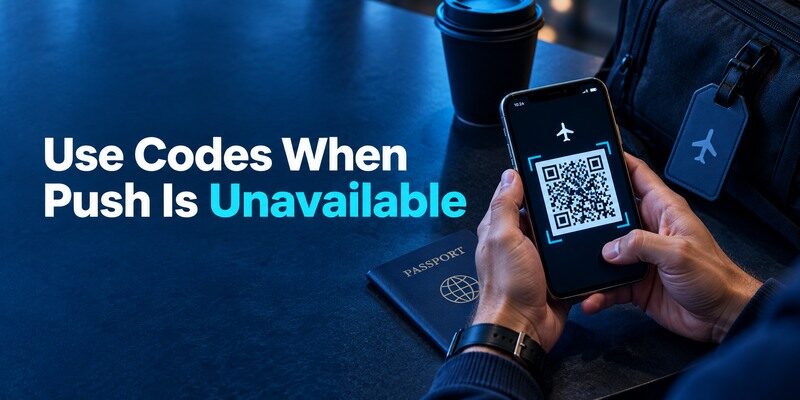
Some Duo tenants permit passcodes as an alternate sign-in option. Whether the app-generated code or a different method is accepted depends on policy. Check this while the original device still works and before travel to an area with weak signal. A standard third-party TOTP code saved elsewhere in Duo Mobile is not the same as an institution’s Duo passcode. Choose the factor that the portal actually requests.
Offline is conditional
Once an applicable code is provisioned, time-based generation can work without current phone data. The website still needs connectivity to verify it and the institution must permit that method. Duo Push needs request delivery. Do not infer that an offline code visible under a personal website will unlock your workplace account. Try the officially supported path once in a controlled test, not for the first time at an airport.
Clock and label checks
If a permitted code is rejected, check the phone’s automatic date/time, the exact account name and the remaining interval. Wait for a new code rather than racing one that is about to change. Repeated failures can trigger account protections, so stop and use the official help desk if the portal does not clearly identify the factor it wants. Avoid deleting entries before a working alternative is available.
Personal Websites in the Same App
Duo Mobile can add ordinary authenticator accounts for sites that issue a TOTP QR or setup key. Initiate enrollment on the website itself, scan with Duo Mobile, submit the fresh code at the website, and keep its recovery codes independently. This does not make the personal account subject to your employer’s Duo policy. A later work-phone reset might not automatically recover the personal secret, depending on backup settings.
For a personal website that supports standard TOTP, begin enrollment in the website’s official security settings, scan its QR code with Duo Mobile, and confirm a newly generated code. Save any website-issued recovery codes before completing setup. Our complete authenticator app guide explains QR enrollment, manual setup keys, verification steps, and common mistakes when adding personal accounts.
Keep work and personal recovery lists distinct
The employer can often reset a managed Duo registration after identity checks; it cannot necessarily recover a private shopping account. That website is its own issuer. Label personal entries with enough detail to choose the right code and note where each website’s recovery codes live. Do not put confidential business secrets in an entry title. A lost-phone plan should have a work branch and a personal-services branch.
Confirm the issuer’s second step
A rotating code appearing in Duo is not proof the personal website has completed enrollment. Return it to the issuer’s confirmation form, sign out, and try a new login. If a QR was exposed during setup, reset the factor there. Removing the item in Duo merely hides a local copy; the website can keep accepting any other copy of the secret.
Replace a Phone in the Right Order
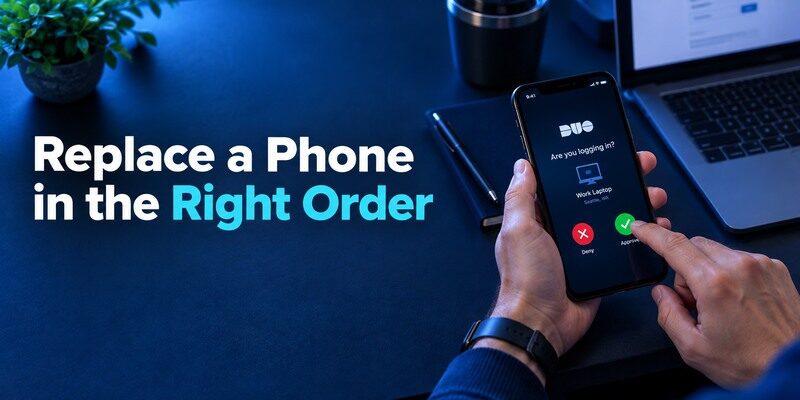
Before trading in a working phone, check the institution’s process for registering a replacement. Configure Duo Restore for personal third-party accounts according to Cisco’s current instructions, if applicable. Keep the old phone until the new one approves a real institutional login and a separate personal site accepts one of its codes. The two tests should be written into a short checklist. If the old phone is lost, follow the sanctioned alternate factor or identity-checked help-desk reset.
Moving Duo Mobile to a replacement phone requires two separate checks: whether the organization recognizes the new device for managed authentication and whether personal TOTP accounts still generate valid codes. Keep the original phone available until both workflows have been tested. Our guide on how to transfer authenticator to a new phone covers migration preparation, account verification, and recovery precautions.
| Phone-change step | Work account | Personal website |
| Prepare | Check administrator instructions | Locate issuer backup codes |
| Restore | Reactivate registered device if required | Restore/copy TOTP entries |
| Verify | Complete a fresh Duo challenge | Enter fresh website code |
| Retire old phone | Remove old registration if directed | Rotate if compromised |
Reappearance of a label is only inventory
On the replacement, a “Work” entry may be visible without having active push registration. Likewise, a “Bank” label can survive while its old secret no longer matches the issuer. A real challenge is the evidence. Check priority accounts before factory-resetting the source phone. If the replacement cannot pass a work login, do not attempt to clone credentials through third-party utilities; ask the administrator to reactivate the device.
Lost and possibly stolen are different cases
A simply broken phone calls for restoration; an unlocked stolen phone can require account-session review and factor rotation. Follow platform device controls, institution incident reporting and issuer account-security steps. A restored code on a new phone does not invalidate a copy potentially held on the old one. For a compromised standard TOTP secret, re-enroll at the protected service to revoke the old seed.
A four-point check after the transfer
First, can the replacement phone receive the institution’s actual Duo request? Second, does an approved alternate work if push delivery fails? Third, can a personal TOTP website accept a code from a restored entry? Fourth, has the old device been removed or scheduled for removal according to work policy? These questions cover distinct registrations. A person may answer yes to the third and no to the first, which explains why a restored code list can coexist with a blocked workday. Run the checks while the original handset remains available.
Make the help-desk call actionable
If managed reactivation fails, provide the institution’s official support team with the account identifier, phone model, OS, time of the attempt and whether the old registered phone still works. Do not provide current passcodes or QR images. Ask which approved method lets you regain access during verification and how the old registration will be revoked. A clear symptom report lets IT distinguish a missing notification from a tenant policy block without compromising the credential.
Plan for a shared family or employer phone
Personal TOTP entries on a phone that belongs to an employer can be lost when the device is wiped or returned. Follow policy and transfer those accounts through their own issuers before the handoff. In a family setting, avoid assuming another person’s Duo registration can substitute for yours; a protected account is tied to a specific identity. Keep spare recovery routes in secure, separate locations and do not turn a common phone into an undocumented single point of failure.
Compare the App by the Job It Does
For an account governed by a Duo tenant, the registered Duo Mobile workflow often decides the choice. For personal standard-code websites, , 2FAS, Aegis on Android and the can be evaluated on recovery and device support. None should be represented as a way around an employer’s registration. A careful comparison asks how each account actually issues its challenge.
Managed push has a different attacker signal
An unsolicited approval request can indicate somebody is attempting to enter the managed account. A conventional TOTP app does not push such an alert simply because an attacker knows the password. This is a useful difference in user experience, but it works only if the user denies unknown prompts. Do not turn the observation into a claim that one method is invulnerable to phishing or social engineering.
A separate personal authenticator may simplify ownership
If you want work push and personal codes in different places, can be trialed for a standard QR/manual site while Duo Mobile remains registered for work. Check its current restore features and test the website before moving anything critical. The benefit is a clearer personal recovery process, provided you actually maintain it. Two apps without two understood backup routes can increase confusion.
Which alternative is better for your needs?
| App | Choose it when | Trade-off |
| Duo Mobile Authenticator App | A student or employee whose institution specifically uses Duo and who wants one phone app for work plus some personal codes. | Restore of an organization’s device registration is not the same as restoring personal OTP entries; Duo says Instant Restore does not restore third-party OTP accounts. |
| Microsoft Authenticator | Your organization uses Microsoft’s native push instead | Cannot take over a registered Duo factor |
| Ente Auth | Your personal accounts need desktop-synced codes | Does not replace Duo’s work approval |
Questions to Ask IT Before Travel
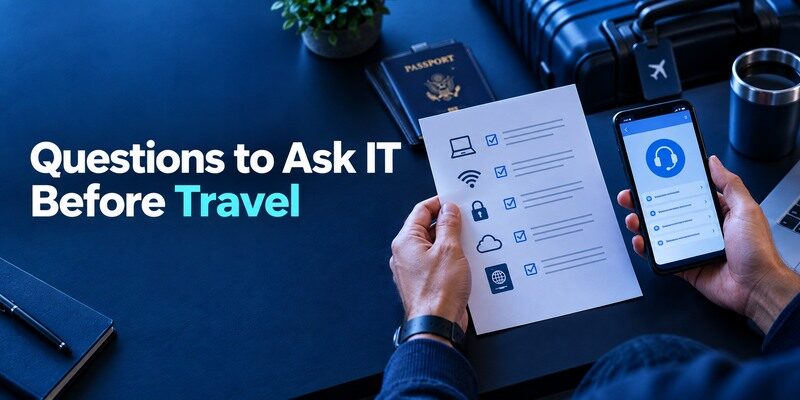
Ask which alternate method is permitted if push delivery fails, how a phone replacement is reactivated and whom to contact outside normal hours. Determine whether a borrowed device is allowed; often it is not. Make the inquiries while signed in and able to verify identity. A pre-trip test from a trusted network can reveal notification restrictions or an expired registration. Write down the official support location without recording passcodes or setup keys.
If the portal shows an unfamiliar prompt
Stop and compare the known institutional domain with the address in the browser. A phishing site may imitate a Duo challenge and request a current code. NIST distinguishes manually entered OTP from phishing-resistant methods. If the organization supports a security key or passkey, ask whether it is suitable for your account. If you already approved a suspicious request, report promptly rather than trying to repair the app silently.
If several sign-ins depend on one phone
Map which are institutionally managed and which are personal. The help desk can address the former under policy; each consumer issuer controls the latter. Save official recovery routes outside the phone. The aim is an orderly response after loss, not a folder of screenshots of QR secrets that could compromise every account if copied.
Check time zones and support hours
An international trip can put a lost-phone incident outside the institution’s normal help-desk hours. Record the official after-hours route and which identity checks it may require. Test the approved alternate factor from a trusted device before leaving, not after the primary phone loses service. Never read a Duo code to someone who calls claiming to be the help desk. A prepared support route reduces pressure to approve an unknown prompt simply because access is urgent.
Keep the same verification habits abroad
A new location may make a legitimate push look unfamiliar, which is precisely why you should compare it with the sign-in you initiated. Deny requests that do not match. If the browser login is blocked by risk policy, contact the administrator rather than trying a different unapproved authenticator. A code from a personal website inside Duo Mobile cannot satisfy a work factor merely because it has six digits.
Frequently Asked Questions
Can Duo Mobile hold a personal website’s QR code?
Yes, Cisco documents adding third-party authenticator accounts. The website must support standard TOTP and confirm the displayed code during enrollment.
Will installing Duo on a new phone automatically enable work push?
Not necessarily. A managed account may require reactivation or administrator approval. Test the institution’s actual challenge before retiring the old phone.
What should I do when no push arrives?
Check registration, phone notifications and connectivity; use an approved alternate method if available. Contact the organization’s official help desk for a registration problem.
Is a Duo passcode the same as an unrelated TOTP code?
No. Select the factor and account the portal asks for. Codes saved for personal websites are issued and reset by those websites.
Can Duo Mobile stop phishing by itself?
No. Verify the real sign-in page and decline unexpected approvals. Manually entered codes may be relayed by fraudulent sites.
Final Thoughts
The most useful conclusion in this Duo Mobile Authenticator App review is a two-part test: approve an authentic managed challenge and separately verify any personal TOTP accounts. A replacement handset may pass one and fail the other. Follow the institution’s enrollment policy, preserve consumer-site backup codes, and reject requests that did not begin with your own sign-in.
A fresh managed push and a personal website code need separate tests after any phone move.
