
Salesforce Authenticator App Review: Approval, Backup, and Admin Policy
Published October 23, 2026

Salesforce Authenticator is a good fit when your Salesforce organization uses its connected-account approval flow, while Salesforce also supports third-party TOTP apps and passkeys where administrators allow them. This Salesforce Authenticator App review starts with the verification method your account actually requests and then tests restore on a new phone. Salesforce’s official help documents connected-account backup, supported MFA methods and trusted-location behavior, but your organization’s configuration determines which choice appears at sign-in.
Which Salesforce Login Are You Reviewing?
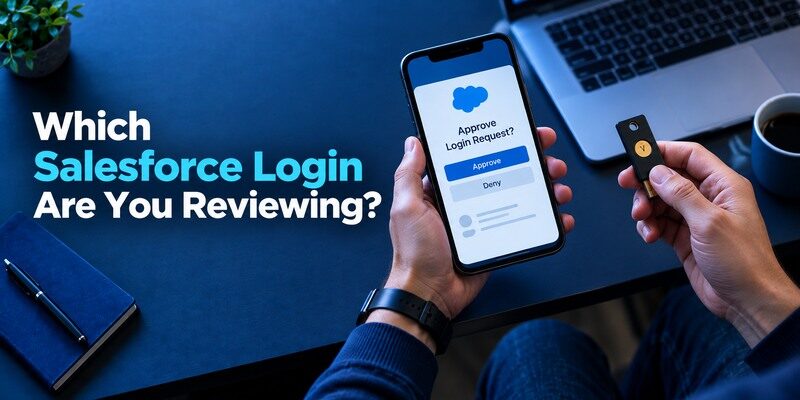
A Salesforce user may see a push approval in Salesforce Authenticator, a code from a third-party TOTP app or a passkey/security key challenge. The administrator controls the enabled methods for direct login. An app review that declares one universal “best” method without checking that policy misses the real decision. Determine the current challenge on your organization’s known Salesforce domain before downloading or replacing anything.
| Method at login | User action | Key consideration |
| Salesforce Authenticator | Review and approve connected-account request | Registered phone and backup |
| Third-party TOTP | Enter changing code | Manual code is phishable |
| Passkey/security key | Complete device/FIDO challenge | Phishing-resistant where properly deployed |
| Alternate approved factor | Follow tenant policy | Admin may restrict availability |
Where the branded app helps
Its approval screen can give more context than a bare six-digit token when tied to a connected Salesforce account. A user who primarily logs into a managed Salesforce environment may prefer this built-in flow and its documented connected-account backup. The value depends on reviewing the request; blindly tapping approve can undermine it. Some automated verification features depend on location and login type, so do not infer their behavior from one successful session.
Where third-party codes are legitimate
Salesforce’s official MFA help confirms that third-party authenticator apps can produce time-based codes for supported direct logins, subject to administrator settings. A compatible code app may therefore be a real alternative for an account that offers this method. It cannot assume the identity of a connected Salesforce Authenticator approval. If you plan to change factors, verify your administrator’s approved options and keep a working route during the transition.
Advantages
Salesforce Authenticator makes approval of a connected Salesforce account convenient and documents a backup route for connected accounts. It fits an organization that explicitly supports its approval flow.
Drawbacks
It is not a universal substitute for FIDO security keys or every third-party authenticator. Connected-account restore requires verified contact details and the backup passcode; tenant policy may govern alternatives.
Who should use it
A Salesforce employee whose org invites Salesforce Authenticator registration and has documented phone-replacement support.
Secure your accounts with fast, reliable two-factor authentication. Download now and protect your login in seconds.Download Authenticator App
Connect Salesforce Authenticator Safely

Begin at the organization’s legitimate Salesforce login or MFA enrollment page and follow its current instructions to connect the app. Approve a trial sign-in you initiated yourself and compare the displayed account and context. Keep existing approved factors until you have passed a fresh login. If the flow produces a setup code or QR, treat it as private registration material. Do not send a screenshot to a colleague or a caller who claims to be Salesforce support.
If you are unfamiliar with app-based verification, our guide on how to use an authenticator app explains common enrollment steps, verification codes, and recovery precautions. Always follow your Salesforce organization’s actual enrollment instructions, because a generic TOTP setup is not interchangeable with Salesforce’s connected approval method.
Unknown approvals are security signals
Reject an unsolicited request. Use the organization’s official route to report it and review recent sessions. A repeated approval barrage can mean somebody has the password or is attempting social engineering. Do not tap accept merely to make notifications stop. If you accidentally approved one, tell the administrator promptly; a response in the app may have granted server-side access that uninstalling the app does not undo.
Unexpected authentication prompts should be treated as potential security warnings, especially when you did not initiate a sign-in. Our authenticator app security guide explains common verification methods and why users should never approve unfamiliar requests simply to dismiss repeated notifications.
A delayed request needs a new attempt
When connectivity returns after several retries, old requests can appear. Cancel and restart from the real site, then match the active screen to a fresh phone prompt. Location-based automatic approval, where your tenant uses it, has specific limitations documented by Salesforce; for example, official help notes that it is unavailable for Lightning Login and certain mobile-app logins. Investigate a missing automatic approval by login type rather than approving a stale notification.
How to set it up safely
Connect the phone only from your organization’s genuine Salesforce login, verify each approval corresponds to your own sign-in, and enable the documented connected-account backup with verified contact and a protected passcode. Test a replacement-device procedure with an admin before retiring the old phone.
Backup Connected Accounts Before Replacing the Phone
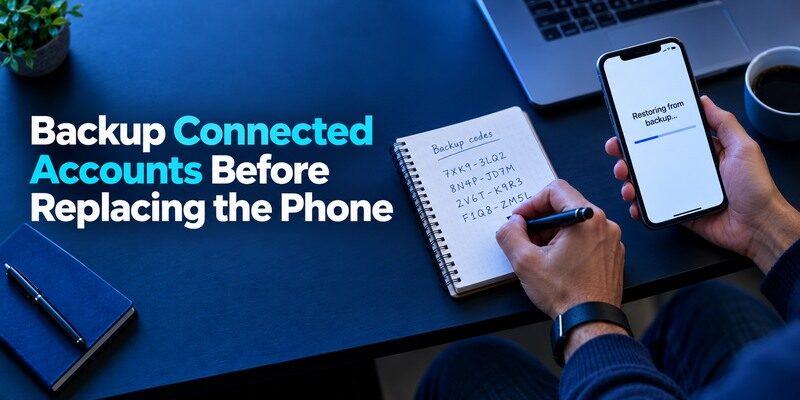
Salesforce documents a restore process for connected accounts and a backup passcode in supported configurations. Review the current app backup settings while your original phone works, preserve the required passcode independently and confirm which restore method your setup uses. On a new device, follow the documented restore path and complete a real Salesforce challenge before erasing the old handset. A backup message is not the same as a successful tenant login.
| Step | Evidence to collect | Risk if skipped |
| Enable supported backup | Current app confirms setup | No connected accounts to restore |
| Store backup passcode | Recoverable without old phone | Encrypted restore blocked |
| Restore on new phone | Correct account appears | Incomplete app state |
| Test real login | Issuer accepts new device | False confidence from icon |
If the old phone is already lost
Try the official restore path if it was configured. If no usable backup or passcode exists, Salesforce’s help describes disconnecting the old authenticator from the user account and reconnecting according to account access and admin policy. Contact your organization’s administrator through a known channel when self-service is unavailable. A generic app publisher cannot independently reset the Salesforce user’s verification state.
Recovery procedures differ between connected approval apps and standard code generators. For example, our guide to authenticator app recovery after losing a phone explains the recovery considerations for Google Authenticator. Salesforce Authenticator users must still follow Salesforce’s own restore or administrator-assisted reset process.
Don’t confuse backup passcodes
An app backup passcode used to restore connected accounts is distinct from an issuer-issued one-time recovery code or the daily six-digit TOTP value. Label and store them accordingly without leaving them on the only phone. A help request should describe the symptom and app version, not include any of these secrets. If a caller asks you to read a backup passcode, use the official support route instead.
Test restoration on a calendar you control
Avoid a phone trade-in immediately before a revenue deadline or long trip. While the original device still works, inspect whether backup is actually configured, verify the backup passcode is stored safely and review Salesforce’s current restore instructions. After setup on the replacement, complete a fresh Salesforce sign-in that requires the new phone. If the tenant uses another approved method for some applications, test that separately. A restored connected-account list is not a guarantee that every business workflow will accept the phone.
Distinguish a tenant reset from a personal backup
The administrator can disconnect an old Salesforce Authenticator registration and authorize a new enrollment after verifying the employee. That is not the same as restoring personal TOTP entries in a separate code app. If an employee loses the phone with no usable backup, use the approved tenant route rather than sharing backup passcodes over an unsolicited call. When the original handset was stolen unlocked, ask the security team to review active sessions and revoke the old factor as appropriate.
Review automatic approval settings deliberately
Trusted-location behavior can reduce routine prompts under the conditions Salesforce documents, but it should not be interpreted as permission to approve every notification. Check which login type you are using, whether a location is trusted and what the organization has configured. If automatic verification fails only on a Salesforce mobile-app or Lightning Login path, official documentation describes relevant exceptions. If an unexpected approval appears at any time, deny and report it even when other logins often complete automatically.
Using a Third-Party TOTP App Instead

If the organization enables a third-party authenticator method, enroll through Salesforce’s legitimate security settings and scan its QR into the chosen app. Confirm the generated code at Salesforce and then test a new login. Save any issuer recovery options that policy offers. A TOTP code is tied to a secret; adding an app entry without the server confirmation may leave the user unable to sign in later.
If your Salesforce organization allows third-party TOTP authentication, the Google Authenticator app may be used to generate standard time-based verification codes after enrollment. Confirm that Salesforce accepts the new code before removing an existing factor, and remember that Google Authenticator cannot receive Salesforce Authenticator’s proprietary connected-account approval requests.
The flexibility has a phishing cost
Manually entered codes can be captured and relayed through a fake Salesforce page. NIST distinguishes them from phishing-resistant passkey/security-key methods. Use the known organizational domain, avoid links in surprise messages and evaluate a stronger approved factor if your role warrants it. Even a hardware-stored TOTP seed yields a phishable typed code. The method chosen at Salesforce matters more than the logo on the phone app.
A personal code app has its own backup
, 2FAS and other standard TOTP apps differ in restore behavior. If your tenant permits one, ask how it will recover when the phone is lost and test that route with a low-risk account. The is another QR/manual code candidate to inspect for current features. None can bypass an administrator’s decision to require the connected Salesforce approval flow.
Read more: 2FAS Authenticator Review: A Mobile App with Backup Choices
Troubleshoot by Symptom, Not by Reinstalling
If the app receives no approval, check notification settings, connectivity, connected-account registration and whether the sign-in method supports the expected prompt. If a third-party TOTP code is rejected, check the correct entry, phone’s automatic time and countdown. If a restored phone displays the account but cannot approve, follow the official reconnection process or ask the administrator. These cases have different fixes; reinstalling immediately can remove a usable factor.
Trusted-location behavior has conditions
Salesforce’s official help describes trusted-location automated verification and notes exceptions for specific login experiences. If it stops working, first determine which Salesforce login you are performing and whether the administrator changed policy. Do not repeatedly approve unexplained prompts as a workaround. A frictionless successful login is not proof that a location is secure or that additional challenges have been disabled across the entire account.
Codes on the wrong account
Organizations often have production and sandbox logins or several Salesforce usernames. A TOTP entry labeled only “Salesforce” can point to the wrong user. Check the issuer and account identifier, then wait for a new interval if needed. If the account was re-enrolled, an old code may still rotate in the app but fail at the server. Test and remove stale labels only after identifying the working factor.
Inspect the issuer and application names
Salesforce users may have production, sandbox and company-specific login domains. A code labeled only “Salesforce” can refer to the wrong organization or username. Confirm the legitimate domain and selected account before submitting a fresh value. If an admin recently reset the factor, the old app entry can continue producing plausible but rejected digits. Do not repeatedly guess until the account locks. Use the tenant’s official enrollment or support route while a working session remains available.
Check notification delivery separately
For a connected Salesforce Authenticator approval, verify phone connectivity, notification permission and whether the account still shows as connected. Cancel old browser attempts and initiate a single new login. If the request arrives late, compare it to the current screen rather than approving by habit. A trusted-location automatic verification path may not operate for every login type; consult Salesforce’s current exceptions and your organization’s policy before calling the app broken.
Preserve the backup passcode’s role
Salesforce’s restore documentation describes a backup passcode for connected accounts. Store it apart from the phone in a protected place and do not confuse it with a website’s daily OTP. If the old phone disappears and no backup is configured, an administrator may need to disconnect the factor before a new enrollment. Giving a caller the backup passcode is not a support shortcut. Describe the error and follow an authenticated internal process.
Test the alternate method after an admin change
An administrator may enable third-party TOTP, a passkey or another approved method for a tenant. Register it through the real account settings and complete a fresh login. If you are migrating from the branded app, keep it until the new factor passes and the organization confirms when it can be removed. For a suspected compromise, also review sessions and old device registrations. A method list on a policy page is not evidence that your own user account has finished enrollment.
Read more: Aegis Authenticator Review: Is It Safe and Worth Using?
Compare Methods for Your Role

An administrator may prefer passkeys or security keys for stronger phishing resistance, Salesforce Authenticator for its connected request context, or TOTP for compatibility. This is an organizational access decision with user-experience consequences. Ask whether multiple factors can be registered and how users recover a lost handset. Do not trade away the only working method without a documented backup. The best app is the one that supports the approved method reliably and can be restored or reset lawfully.
Salesforce Authenticator versus a code-only app
The connected Salesforce flow can show a sign-in request that a generic code generator cannot receive. A code-only app can serve a standard QR enrollment if the tenant permits it and may offer a different backup path. may be tested for that standard-code role while Salesforce Authenticator remains for a required approval. Confirm the account’s actual accepted method before switching.
Work account life cycle matters
When employees change devices or leave an organization, the administrator may need to revoke connected accounts and sessions. Personal TOTP secrets should not be left on a company phone that will be wiped. Separate work and personal recovery documentation, and follow device policy. An app backup that restores connected accounts on a private phone may still require employer approval or violate policy; coordinate with the issuer.
Check the administrator’s response to phone loss
A user evaluating Salesforce Authenticator should ask whether the tenant permits a second registered factor and what the official reset involves. A passkey or security key can provide phishing-resistant sign-in when the tenant supports it; a third-party TOTP app offers different portability and manual-entry risks. The administrator may limit which choices appear for a role or application. Test one approved alternate while normal access is available. A method described in Salesforce’s global help is not necessarily enabled for your specific user.
Include the active session in the plan
After a stolen phone, restoring an app on a new device is only part of response. An admin may need to revoke the old connected-account registration and review active Salesforce sessions. If a backup passcode may have been exposed, follow the organization’s current incident procedure. A planned replacement of a locked phone calls for a different sequence: backup, restore, real login, then retire the old handset. Matching the action to the event keeps a routine upgrade from becoming a disruptive security reset.
Read more: Setting Up Google Authenticator: How to Set Up and Use 2FA
Which alternative is better for your needs?
| App | Choose it when | Trade-off |
| Salesforce Authenticator App | A Salesforce employee whose org invites Salesforce Authenticator registration and has documented phone-replacement support. | It is not a universal substitute for FIDO security keys or every third-party authenticator. |
| Yubico security key | Your Salesforce tenant permits a phishing-resistant FIDO method | Hardware enrollment and a spare must be arranged |
| Google Authenticator | Your tenant permits a third-party standard TOTP app | Typed TOTP lacks FIDO’s phishing resistance and cannot copy an existing connected approval |
Frequently Asked Questions
Does Salesforce require its own authenticator app?
Not universally. Salesforce documents third-party TOTP and passkey/security-key options for supported MFA, while an administrator decides what users may enroll.
Can I restore Salesforce Authenticator on a new phone?
Salesforce documents a connected-account restore process when backup was configured. Follow current instructions, retain the passcode and verify a real login.
Why did a trusted-location approval stop working?
The feature depends on current settings and login type. Salesforce notes exceptions, including Lightning Login and Salesforce mobile-app login; check your tenant’s policy.
What if my old phone is gone with no backup?
Use the approved alternate factor or ask the administrator to disconnect and re-enroll the old authenticator after identity verification.
Can another code app receive Salesforce push requests?
No ordinary TOTP generator can automatically receive a connected Salesforce Authenticator approval. It may supply a code only when the tenant offers that separate method.
Final Thoughts
This Salesforce Authenticator App review recommends starting from the organization’s actual MFA policy, then testing the chosen login and restore path on real devices. Prepare the connected-account backup passcode where applicable, reject unknown approvals and consider phishing-resistant approved methods for sensitive work. A working app screen is useful evidence, but a successful new-phone sign-in is the proof that recovery is ready.
During a phone change, verify the backup passcode and an approved alternate factor while the original handset still works. After an unexpected approval, deny and involve the organization’s security team. These two situations deserve different responses even if both initially appear as a problem in the authenticator app.
