
Best Free Authenticator Apps for Mac in 2026
Published September 3, 2026 · Updated October 20, 2026
Looking for the best free authenticator app for Mac? You have several ways to generate two-factor authentication (2FA) codes on macOS, including Apple’s built-in Passwords app, dedicated desktop authenticators, and browser extensions that connect to your phone.
The right option depends on whether you want to store verification codes directly on your Mac, synchronize them across devices, or use an authenticator without paying a subscription.
Quick Answer: Apple Passwords is one of the easiest free authenticator options for Mac users because it is built into supported macOS versions and can generate and autofill verification codes. Proton Authenticator is a strong option for users who want a dedicated cross-platform authenticator. 2FAS offers a free browser extension that works with its mobile app, while TwoFac provides a native macOS application. Always confirm the latest pricing, compatibility, and download source before installing.
Important: Google Authenticator and Microsoft Authenticator do not provide standard native macOS versions of their mobile apps. You can still use their phone apps to approve sign-ins or enter codes on a Mac.
This guide compares free Mac authenticator options, explains how to set up TOTP codes, and covers security, backups, and common problems.
What Is an Authenticator App and How Does It Work?
An authenticator app is a security application that helps verify your identity when signing in to online accounts.
Many authenticator apps use time-based one-time passwords (TOTP), a standard method for generating temporary codes.
During setup, the website and authenticator share a secret key. The app combines that key with the current time to calculate a code that the website can verify.
The most common TOTP codes contain six digits and refresh about every 30 seconds.
What Is the Difference Between OTP, TOTP, 2FA, and MFA?
| Term | Meaning | Example |
|---|---|---|
| OTP | One-time password | A temporary sign-in code |
| TOTP | Time-based one-time password | A rotating code in Google Authenticator |
| 2FA | Two-factor authentication | Password plus authenticator code |
| MFA | Multifactor authentication | Two or more distinct authentication factors |
| Push approval | Sign-in confirmation sent to an approved device | Microsoft Authenticator approval |
| Passkey | Cryptographic sign-in credential | Device-based passkey authentication |
TOTP is one method of implementing 2FA or MFA.
Some authenticator apps also support push notifications, number matching, passkeys, or passwordless sign-in.
These methods are not interchangeable.
Why Should You Use a 2FA Authenticator?
Passwords can be stolen through phishing, data breaches, or password reuse.
When an account requires an additional authentication factor, a stolen password alone may not be enough to complete a login.
Authenticator-based 2FA provides several benefits:
- Extra protection beyond passwords.
- Temporary verification codes.
- Support for multiple accounts.
- Offline code generation with standard TOTP.
- Reduced dependence on SMS for compatible services.
However, authenticator codes can still be stolen through phishing.
Where available, phishing-resistant passkeys and security keys may provide stronger protection against certain attacks.
Do Authenticator Apps Need Internet Access?
Standard TOTP codes can be generated offline after the account has been registered.
The authenticator and website independently calculate the code from the shared secret and current time.
Push approvals, cloud synchronization, backups, and some passwordless methods may require an internet connection.
For more information about authenticator technology, see our two-factor authentication app guide.
Download Authenticator App
Secure your accounts with fast, reliable two-factor authentication. Download now and protect your login in seconds.
How to Set Up an Authenticator App: 6 Steps
If you are learning how to use an authenticator app for the first time, follow this process.
The exact menu names depend on the app and website, but the overall setup is similar for most standard TOTP accounts.
Step 1: Download a Trusted Authenticator App
Choose a trusted application that supports your device and the authentication method required by your account.
Common options include:
- Google Authenticator.
- Microsoft Authenticator.
- Proton Authenticator.
- 2FAS Authenticator.
- Other reputable TOTP-compatible applications.
Download the app through Google Play, the Apple App Store, or another developer-authorized source.
Verify the publisher before installing.
For platform-specific instructions, see our authenticator app download guide.
Step 2: Open the Account’s Security Settings
Sign in to the website you want to protect.
Open a menu such as:
- Security.
- Password and security.
- Login and security.
- Two-factor authentication.
- Two-step verification.
- Multifactor authentication.
Look for the option to add an authenticator app.
For example, if you want to secure your email account, begin in the email provider’s account security settings rather than inside the authenticator app.
Step 3: Enable Authenticator-Based 2FA
Choose the authenticator or verification app option.
The website may ask you to confirm your password or complete an existing verification step.
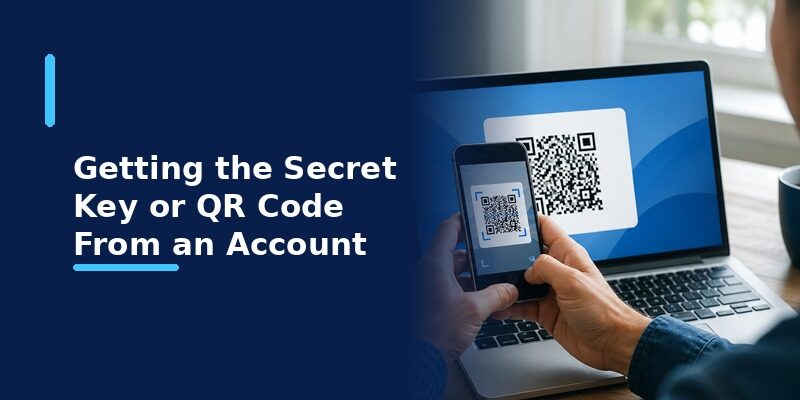
Afterward, it should display a setup QR code or manual setup key.
Do not close this page until enrollment is complete.
Step 4: Scan the QR Code With Your Authenticator App
Open the authenticator app.
Choose Add account, the plus icon, or Scan QR code.
Allow camera access if needed.
Point your phone camera at the QR code displayed on the website.
The authenticator should add the account and display a verification code when standard TOTP is used.
Where do you get the QR code? The QR code comes from the website or service you are protecting. It is not generated randomly by the authenticator app.
How to Set Up an Authenticator Without Scanning a QR Code
If the QR code cannot be scanned, many services offer a manual setup key.
To use it:
- Select the manual entry option on the website.
- Open your authenticator’s Add account menu.
- Choose Enter setup key or a similar option.
- Enter the account name and secret key.
- Select time-based authentication if required.
- Save the entry.
Only use setup keys from the official account provider.
Never share your QR code or setup key with another person.
Step 5: Enter Your First Verification Code
Return to the website.
Find the newly added account in your authenticator.
Enter its current verification code into the website’s setup form.
Most standard TOTP codes refresh approximately every 30 seconds.
If the code is about to expire, wait for a new one before submitting.
Complete the verification step.
The website should confirm that authenticator-based 2FA is enabled.
Step 6: Save Your Recovery Codes
Many websites provide backup or recovery codes when you activate 2FA.
Save these codes in a secure location separate from your phone.
Recovery codes may allow you to sign in if your authenticator becomes unavailable.
Do not assume that the authenticator app itself can recover access to every website.
How to Use an Authenticator App to Sign In
After setup, using a 2FA authenticator during login is straightforward.
How to Get a Code From an Authenticator App
- Open the website’s sign-in page.
- Enter your username and password.
- When prompted for a verification code, open your authenticator app.
- Find the entry matching the website and account.
- Read the current six-digit code.
- Enter the code on the website.
- Complete sign-in.
Some applications allow you to copy a code rather than typing it manually.
Always confirm that you are entering the code on the legitimate website.
Why Does the Authenticator Code Keep Changing?
TOTP codes are calculated using the current time.
Many services use a 30-second time step, so the displayed code changes regularly.
This limits the time during which a captured code can be used.
The exact code length and time interval depend on the service.
Can You Use the Same Authenticator App for Multiple Accounts?
Yes.
Most TOTP-compatible authenticator apps can store verification credentials for multiple websites.
For example, one app may contain separate entries for:
- Google.
- Facebook.
- Instagram.
- GitHub.
- Discord.
- Email accounts.
- Other supported services.
Each entry normally uses its own secret key.
You must select the correct account before entering a code.
How to Use Microsoft Authenticator Push Approval
Some Microsoft accounts use approval requests instead of manually entered TOTP codes.
When signing in:
- Start a legitimate Microsoft sign-in.
- Open the notification or Microsoft Authenticator.
- Review the request details.
- Complete number matching or the required approval.
- Unlock the app using device security if prompted.
Never approve a sign-in request you did not initiate.
For Microsoft-specific instructions, read our Microsoft Authenticator guide.
How to Use an Authenticator App With Popular Accounts
The general process is similar across services, but security menus and supported methods vary.
How to Use an Authenticator App With Google or Gmail
To connect an authenticator to your Google Account:
- Visit Google Account Security.
- Open the 2-Step Verification settings.
- Choose the option to set up an authenticator.
- Follow Google’s current enrollment instructions.
- Add the account to your authenticator.
- Complete the required verification.
Google may require additional checks or a waiting period before a newly registered authenticator is available for certain sign-ins.
For more information, see our Google Authenticator setup guide.
How to Use an Authenticator App With Facebook
To set up authenticator-based 2FA on Facebook:
- Open Facebook’s account security settings.
- Find the two-factor authentication options.
- Select the Facebook account you want to protect.
- Choose an authentication app if available.
- Follow the displayed QR code or setup instructions.
- Enter the generated code to confirm.
Facebook’s menus may appear under Accounts Center, Password and security, and Two-factor authentication.
For additional help, read our Facebook authentication app guide.
How to Use an Authenticator App With Instagram
To protect an Instagram account:
- Open Instagram’s settings.
- Navigate to Accounts Center.
- Open Password and security.
- Select Two-factor authentication.
- Choose the relevant Instagram account.
- Select the authentication app option.
- Complete setup and verification.
Save any recovery codes Instagram provides.
For more details, see our Instagram authenticator guide.
How to Use an Authenticator App With Microsoft 365
Microsoft 365 work or school accounts may require Microsoft Authenticator rather than a generic TOTP application.
If your organization allows registration:
- Visit Microsoft Security Info.
- Sign in with your work or school account.
- Select Add sign-in method.
- Choose the method allowed by your organization.
- Follow the registration instructions.
- Test the new authentication method.
Some accounts use push approvals, number matching, or passkeys instead of six-digit codes.
Follow your organization’s authentication policy.
How to Use an Authenticator App With Discord
To enable authenticator-based 2FA for Discord:
- Open Discord’s account settings.
- Find Password and Authentication or the current security section.
- Choose the option to enable an authenticator app.
- Scan the displayed QR code.
- Enter the generated verification code.
- Save the provided recovery codes.
Do not share setup QR codes or recovery codes.
How to Use an Authenticator App With Zoom or LinkedIn
For Zoom or LinkedIn, open the account’s official security settings and locate the two-step verification options.
If authenticator-based verification is supported:
- Choose the authenticator app method.
- Scan the setup QR code.
- Enter the generated code.
- Confirm enrollment.
- Save any backup codes.
The exact menu names and available authentication methods may change.
Can You Use 1Password as an Authenticator App?
1Password can store and generate TOTP codes for supported accounts.
This can make sign-in convenient because the password manager may fill both passwords and verification codes.
However, storing a password and its TOTP secret in the same vault changes the separation between authentication factors.
Evaluate that trade-off against the convenience and protection provided by your password manager.
How to Back Up, Transfer, and Recover Authenticator Codes
An authenticator app may contain credentials for many important accounts.
Before replacing your phone or uninstalling the app, prepare a recovery plan.
How to Back Up an Authenticator App
Backup methods vary by application.
Common options include:
- Cloud synchronization.
- Encrypted cloud backup.
- Local encrypted export.
- Device-to-device transfer.
- Re-registering accounts through their security settings.
Some apps do not support every method.
Review the official documentation for your chosen authenticator.
How to Transfer an Authenticator App to a New Phone
A safe transfer process is:
- Keep your old phone available.
- Install the authenticator on your new phone.
- Use the app’s supported transfer or restore feature.
- Check whether each account appears correctly.
- Test verification codes and sign-in approvals.
- Re-register accounts that require additional setup.
- Remove old device registrations only after successful testing.
For Google Authenticator, signed-in synchronization may restore supported codes on another device. Manual QR-based transfer is also available for users who do not use synchronization.
Microsoft Authenticator’s documented backup and restore process is limited to the same device type, such as Android to Android or iOS to iOS. Some Microsoft work or school accounts require reauthentication.
For a detailed tutorial, see our authenticator transfer guide.
What Happens if You Lose Your Phone?
If your authenticator phone is lost:
- Try another previously registered authentication method.
- Use an unused recovery code if the service supports one.
- Check for a valid authenticator backup.
- Follow the account provider’s official recovery process.
- Register a new authenticator after regaining access.
- Remove lost-device registrations when appropriate.
For work or school accounts, contact your IT administrator if you cannot complete verification.
Can You Recover an Authenticator Without Backup Codes?
Sometimes, but not always.
Recovery depends on the website, your registered authentication methods, and the authenticator’s backup capabilities.
Some services allow account recovery through another trusted method.
Others may require identity verification or administrator assistance.
An authenticator developer generally cannot bypass 2FA for an unrelated website.
Should You Uninstall Your Old Authenticator?
Only after confirming that your important accounts work with the replacement method.
Uninstalling an authenticator may remove locally stored credentials.
Deleting an app does not automatically disable 2FA on the websites that depend on it.
For more information, see our guide to removing an account from an authenticator app.
Authenticator App Not Working: Common Fixes
If your authenticator code is missing, rejected, or not updating, identify the exact problem before resetting the app.
Authenticator Code Is Invalid
Possible causes include:
- Incorrect phone date or time.
- Expired verification code.
- Selecting the wrong account.
- An outdated account registration.
- Incomplete setup.
Try these steps:
- Enable automatic date and time on your phone.
- Select the correct account entry.
- Wait for a fresh code.
- Enter the code promptly.
- Check whether the website requires a different authentication method.
Do not delete the account entry until another sign-in or recovery method is available.
Authenticator App Is Not Showing a Code
Some accounts are configured for push approval rather than standard TOTP.
Check whether the service is asking for:
- A six-digit code.
- A push notification.
- Number matching.
- A passkey.
- Another registered verification method.
If you use Microsoft Authenticator, see our missing code troubleshooting guide.
QR Code Will Not Scan
If you cannot scan a setup QR code:
- Check camera permissions.
- Update your authenticator app.
- Make sure the QR code is fully visible.
- Increase screen brightness if necessary.
- Generate a fresh setup QR code if the original expired.
- Use manual setup when the website supports it.
Never upload authentication QR codes to public QR-reading websites.
Authenticator Code Expired
If a code expires before you submit it:
- Wait for the next code.
- Enter it immediately.
- Check your device’s automatic time setting.
- Confirm that you are using the correct account.
Authenticator App Is Not Sending Notifications
Push-based authentication may require an internet connection and notification permissions.
Check:
- Wi-Fi or mobile data.
- Device notification settings.
- Focus or Do Not Disturb.
- Battery optimization.
- Old device registrations.
- App updates.
Standard TOTP codes do not require push notifications.
Authenticator Not Working After Changing Phones
The new device may not be registered for the affected account.
Restore supported credentials, then complete any required reauthentication or enrollment.
For Microsoft-specific issues, read our Microsoft Authenticator troubleshooting guide.
Best Practices for Using a 2FA Authenticator
Knowing how to use a 2FA authenticator safely is as important as setting it up.
Download Apps From Official Sources
Use the official app store or developer-authorized download channel.
Avoid modified APKs and applications that imitate trusted authenticator brands.
Protect Your Phone
Use a strong device PIN, password, or supported biometric lock.
Keep your operating system and authenticator updated.
Never Share Verification Codes
Do not share your TOTP codes, recovery codes, or setup keys.
An attacker may use a current verification code in a real-time phishing attack.
Save Recovery Codes Separately
Store recovery codes in a secure location.
Do not keep your only recovery copy on the same device as your authenticator.
Review Backup and Synchronization Settings
Understand where your authenticator credentials are stored.
If cloud synchronization is enabled, protect the account used for synchronization.
Use Phishing-Resistant Authentication When Available
Authenticator codes provide additional security, but they are not fully phishing-resistant.
Passkeys and security keys can offer stronger protection against phishing when supported.
Review Old Accounts and Devices
Periodically check which accounts and devices are registered for authentication.
Remove obsolete registrations only after verifying that you still have working access.
Frequently Asked Questions
How do I use an authenticator app for the first time?
Install a trusted authenticator, enable 2FA in your website’s security settings, scan its QR code, enter the generated verification code, and save recovery codes.
How do I use a 2FA authenticator?
Connect the authenticator to your account during 2FA setup. When signing in later, enter the current code or complete the approved authentication request.
How do I set up an authenticator app without a QR code?
Use the website’s manual setup key if it offers one. Enter that key in your authenticator’s manual account setup screen.
Where do I find my authenticator code?
Open the authenticator app and select the account associated with the website. The current code appears in the relevant entry when TOTP is enabled.
Why does my authenticator code change every 30 seconds?
Standard TOTP codes are calculated using the current time. Many services use a 30-second interval.
Can I use one authenticator app for multiple accounts?
Yes. Most TOTP authenticator apps can manage multiple account entries.
Does an authenticator app work without internet?
Standard TOTP codes work offline after setup. Push notifications, synchronization, and some passwordless methods require connectivity.
How do I use Google Authenticator?
Enable authenticator-based 2-Step Verification on the website, scan its setup QR code with Google Authenticator, and verify the generated code.
How do I use Microsoft Authenticator?
Register your account using Microsoft’s supported setup process. Depending on the account, you may enter a TOTP code or approve a sign-in request.
Can I use an authenticator app for Facebook and Instagram?
Yes, both services support authenticator-based 2FA for eligible accounts.
Can I use an authenticator app for my email account?
Yes, if your email provider supports the selected authentication method.
Is an authenticator app safer than SMS?
Authenticator-based TOTP avoids some risks associated with SMS, including SIM-swap attacks. However, TOTP remains vulnerable to phishing, and the strongest available method depends on the service.
What should I do if my authenticator code is invalid?
Check automatic time settings, choose the correct account, wait for a new code, and confirm that the website expects TOTP.
What happens if I uninstall my authenticator app?
You may lose locally stored authentication credentials. The protected websites may still require 2FA.
Can I transfer my authenticator to a new phone?
Many apps support synchronization, backup, or manual transfer. Some accounts require fresh registration.
Can I recover my authenticator if I lose my phone?
You may be able to restore a supported backup, use recovery codes, or recover access through the account provider.
Can I use 1Password as an authenticator?
Yes, 1Password supports TOTP for compatible services. Consider the security trade-offs of storing passwords and TOTP secrets together.
Do I need a different authenticator for each website?
No. One compatible TOTP authenticator can manage multiple accounts, although some organizations require a specific authentication method.
Conclusion
Learning how to use an authenticator app involves three essential actions: registering the app with a website, using the correct verification method when signing in, and preparing a recovery option.
For standard TOTP accounts, enable 2FA in the website’s security settings, scan the setup QR code, and enter the generated code to confirm enrollment.
After setup, open your authenticator whenever the website requests a verification code. Keep your device secure, save recovery codes, and test any replacement authenticator before removing the old one.
This authenticator app complete guide also covers popular accounts, QR code problems, backup, device transfers, and recovery so you can manage 2FA with confidence.
For further help, explore our authenticator app download guide, authenticator transfer tutorial, and two-factor authentication app guide.
