
Ente Auth Review: Encrypted Sync with a Recovery Plan
Published October 13, 2026
Ente Auth is a good option for people who want authenticator codes available on several supported devices through an encrypted sync model. Its account-based convenience still makes account recovery, export and device protection central to the choice. This Ente Auth review examines the product as a code vault rather than assuming every service accepts it for proprietary push approval. A short setup and restore rehearsal tells you more than a list of platforms.
The Verdict Depends on Your Device Mix
Ente’s official Auth documentation describes encrypted synchronization and multiple clients. That can be attractive if you frequently switch devices, use a computer for account management, or want a backup path that is not tied to one phone’s QR transfer. Before adopting it, verify current supported clients, the sign-in and recovery methods for the Ente account, and how an export works. Its promise is coherent only if you can access the vault on a replacement device.
| User priority | Ente Auth answer | Caveat |
| Same codes on several devices | Encrypted sync is a core capability | Protect account access and authorized devices |
| Offline code generation | Supported after codes are available locally | New-device synchronization needs connectivity |
| Local-only workflow | Check current offline and export options | Cloud sync may not fit your policy |
| Workplace push approval | Separate issuer registration | A TOTP vault does not replace managed push |
Why a multi-device vault is useful
An accessible second device can prevent an emergency when the phone breaks. Codes on a desktop can also ease a login on another device. Yet the additional endpoint becomes another place to secure and review. A family computer with a shared operating-system account is a poor home for private token secrets. The useful question is not merely “does it sync?” but “which authorized devices can unlock the copy?”
Ente Auth’s encrypted multi-device synchronization offers a different experience from Google Authenticator’s optional Google Account sync. Both approaches can help reduce dependence on one phone, but their account access, backup, and recovery workflows are not identical. Our Google Authenticator review examines its synchronization features, usability, security limitations, and recovery tradeoffs.
Why sync is not the whole recovery answer
You might still lose access to the Ente account or forget a recovery key while the phone is unavailable. Ente’s current setup instructions and recovery options should be followed before a crisis. Store independent website backup codes, especially for the email and account used to access Ente. A replacement-device test should demonstrate that you can sign in and read a code without relying on the lost phone.
Encrypted synchronization reduces reliance on a single device, but it does not eliminate the need for independent recovery methods. Protect the email account used for Ente, preserve website recovery codes, and verify that you can unlock your vault on a replacement device. Our guide to the best account security practices explains how to avoid single points of failure across authentication, passwords, and recovery.
Advantages
End-to-end encrypted sync across mobile and desktop gives one code list on several devices, with export and migration routes. That solves the classic phone-only problem for users who need codes at a computer.
Drawbacks
More signed-in devices create more access points, and losing both account access and recovery material still causes trouble. Some organizations do not permit personal synced stores for work factors.
Who should use it
A person switching between mobile and desktop platforms who will protect the Ente account and recovery path.
Secure your accounts with fast, reliable two-factor authentication. Download now and protect your login in seconds.Download Authenticator App
How Encrypted Sync Changes Secret Custody
An authenticator vault holds long-lived enrollment secrets from which rotating codes are computed. Encryption is designed to keep those secrets protected during sync; it does not eliminate the need for trustworthy clients, a secure device unlock and careful account recovery. Review Ente’s official documentation for the present encryption design and recovery policy rather than assuming that a similarly named photo-storage product has identical setup screens.
Ente Auth stores the underlying secrets used to generate time-based verification codes, not just the temporary numbers shown during login. This distinction matters because a compromised TOTP secret can be used to calculate future valid codes. Our guide to a TOTP authenticator app explains how shared secrets, rotating codes, and website enrollment work.
Understand which copy is authoritative
When codes appear on two devices, both may generate valid TOTP values from the same underlying secret. A device being removed from your visible account list does not necessarily rotate that secret at the issuer. If a device was compromised, revoke access according to Ente’s controls and re-enroll valuable service factors where exposure is plausible. Treat a lost unlocked laptop differently from a lost locked phone whose secure storage remained intact.
Set the account’s independent fallback
Avoid protecting the Ente account only with an Ente-held code if doing so would make a new-device sign-in circular. Use the recovery options documented by Ente and keep those details apart from the vault. If your primary email also needs a code stored only in Ente, identify an issuer backup code or another independent method. This is a practical dependency map, not a reason to abandon encryption.
Test a Website Enrollment End to End

Choose a noncritical site that supports standard authenticator codes. From its own security settings, scan the setup QR into Ente Auth or enter the manual key, and immediately confirm the displayed code back at the site. Save the site’s recovery codes securely. Then sign out and try a fresh session to verify that the issuer truly accepted the secret. A code shown in the vault before the site’s confirmation step is not proof of protection.
A code that fails at the last second
Time-based codes rotate at short intervals. When only a few seconds remain, wait for the next one. Check automatic clock time, the selected account label and the legitimate site address. If you have two entries for the same service, one may be an old secret left after re-enrollment. Do not wipe both entries without first checking which one passes an actual sign-in.
Record each provider’s recovery route
The issuer controls whether it will accept a backup code, another enrolled passkey or an identity-checked reset. A synchronized Ente vault can supply a code if you regain vault access; it cannot force the issuer to change its policy. For work accounts, ask whether the organization permits a generic TOTP app at all. Keep a simple service inventory that describes the route without recording live secrets.
How to set it up safely
Install the client from Ente’s official distribution, create or enter the intended account, add a low-risk site’s QR, finish its code confirmation, then check that the same entry appears on a second authorized device. Export securely and retain issuer recovery codes independently.
Inspect Desktop and Web Access Carefully
Ente documents clients beyond a single mobile platform, but current installation and feature details should be verified on its official pages. A computer can make copying codes convenient during a login, yet it also concentrates access on the machine where passwords and web sessions may already live. Choose a device you control, lock its operating-system account and avoid shared browser profiles. Do not assume a web client creates phishing resistance merely because typing becomes faster.
One of Ente Auth’s advantages is the ability to access verification codes on supported desktop and web clients, not just a mobile phone. However, every additional signed-in device must be protected against unauthorized access. Our guide to Ente Auth 2FA authenticator for PC covers desktop setup, supported workflows, QR code enrollment, synchronization, and common troubleshooting steps.
What a second device should prove
Install a current official client on an authorized secondary device and check that a low-risk entry arrives. Sign in to that site’s legitimate page with its code. Lock and reopen the client to see what a person with brief physical access would encounter. If you later remove that device, verify its local access is gone and consider issuer-side rotation after a security incident.
Public computers are a bad restore target
The pressure of a lost phone can tempt you to open a code vault in a hotel or library browser. Such a computer may log sessions or retain downloads. Prefer a trusted replacement or an issuer backup code; if no safe device exists, use the service’s official recovery route. Any exported vault file should be handled as a copy of multiple account secrets, even if the immediate goal is a single sign-in.
Decide whether desktop convenience is worth endpoint exposure
On a private computer, a locally available code can speed the last step of login. On a shared computer, the same feature gives another person access to a secret or a logged-in vault session. Use a distinct OS account, lock the screen and review whether the current Ente client stays unlocked after the browser closes. A website code displayed on a computer is not automatically more secure than one on a phone. Prefer a trusted device and a documented recovery route; avoid logging into a vault from a public kiosk merely because the phone is unavailable.
Ente Auth is worth considering if you want authentication codes available on a trusted Mac as well as your phone. However, storing codes on the same computer used for passwords and browser sessions introduces additional security considerations. Our comparison of the best authenticator app for Mac options examines desktop TOTP tools, Apple Passwords, and phone-pairing workflows.
Check a new client before calling it a backup
Install the official Ente Auth client on a secondary authorized device. Sign in through its current process, unlock the vault and confirm the count and labels of a few entries. Then open a low-risk website from a fresh session and enter the code shown on that device. If it fails, resolve whether the vault contains an old issuer secret or the new client never synced the latest enrollment. The distinction matters because one calls for an issuer reset and the other calls for sync diagnosis. Do not wipe the primary phone until the test succeeds.
Remove a client after the test
If the secondary device was used only for rehearsal, sign it out or wipe its app data according to Ente’s current instructions. Review the authorized-device list. A restore test that leaves an unneeded unlocked laptop behind creates a new risk even though the procedure worked. If the test device was borrowed, do not use it for token access at all; use a device under your control. A recovery plan should add resilience without turning every available screen into a permanent authenticator.
Consider who owns the sync account
If the Ente account is tied to a personal email that an employer might close, keep work and personal factors under appropriate ownership. Managed workplace sign-ins can require their own registered app regardless of Ente’s TOTP support. For personal sites, preserve issuer recovery codes independent of the synced vault. A multi-device product helps only when the account behind it remains yours to access at the time you need the codes.
Export, Migration, and an Honest Restore Drill
Look at Ente Auth’s current export tools before choosing it as your permanent home. Some apps can import a standard format but use their own encrypted format for backup. Test the exact format, password and target app with a small set of accounts. Keep the source device active until the destination generates codes accepted by the original websites. An export file in Downloads is sensitive material and should not be treated like a harmless spreadsheet.
| Event | First action | Proof it worked |
| New phone | Follow Ente’s documented sign-in/sync path | Critical codes appear and pass login |
| Platform change | Confirm client support and account access | Same issuer accepts fresh code |
| Vault export | Protect file and needed password | Test an authorized import |
| Lost Ente access | Use Ente recovery, then issuer fallbacks | Account access restored without unsafe shortcuts |
Migration can leave duplicate valid secrets
If you copy rather than re-enroll a code, both the previous and new apps may keep generating a valid value. That is useful during overlap but must not be mistaken for revocation. If you are moving because the old device may be compromised, rotate factors at each protected website. Remove old sessions and compare sign-in alerts. A neat new account list is not enough to solve an exposure.
Practice before deleting the old device
Use a spare device or a carefully planned replacement to simulate recovery while all current credentials remain available. Note exactly which prompt depends on the original handset. If a step fails, repair the plan and keep issuer backup codes accessible. A recovery checklist can be concise: account access, vault unlock, critical email login, password-manager login and the top financial or work account. Rehearsal lowers the chance of improvising on a phishing site.
Map the account needed to unlock the vault
Start with the email address and sign-in method used for Ente Auth. If that email account asks for an Ente-held code, make an independent issuer recovery route before switching devices. Then simulate a replacement by using an authorized second client without reaching for the original phone. Note every screen that requires a password, recovery key or code. A copied token collection is helpful only after you can open it. This dependency map makes encrypted sync genuinely useful instead of a vague comfort.
Count the clients you actually trust
Encrypted synchronization can put a code on multiple devices; each authorized client deserves an owner, device lock and review schedule. A long-forgotten laptop may still have local access even after you stop using it. Remove old sessions using Ente’s documented controls, wipe retired devices and rotate issuer secrets if an unlocked client may have been compromised. The risk grows with active endpoints, not simply with the word “cloud.” A carefully protected two-device setup can be more resilient than one irreplaceable phone.
Test recovery and export as separate mechanisms
Account sync can bring existing tokens to a new Ente client. Export is a way to move or preserve data in a format you manage. Verify both with a noncritical site and protect the export according to its encryption state. If an import into a second brand cannot read the file, you may need issuer-by-issuer re-enrollment; do this while the old app still works. Record the result before putting all critical accounts into the vault. A plausible-sounding “portable” claim is not a migration plan until a website accepts the new code.
Ente Auth Compared with Other Approaches
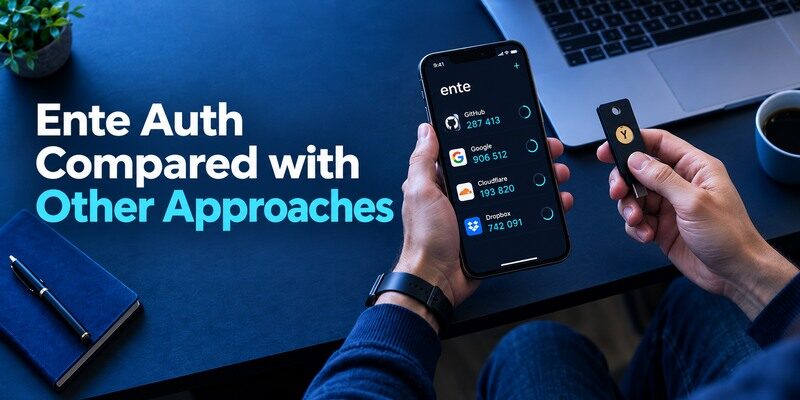
Ente stands apart from a strictly local Android vault such as Aegis because sync is central to its use case. also offers an account-sync route, while 2FAS documents iCloud or Google Drive backup by operating system. The right choice depends on your device combination and trust in the recovery path. If you want a simpler phone-only QR/manual app, inspect the and its current restore options first.
Choose by the event you fear
If the likely problem is a broken phone, a second authorized client can be valuable. If you worry about cloud-account takeover, focus on independent account protection and device review. If you expect an iOS-to-Android move, verify the actual portability path rather than a generic “backup” label. This Ente Auth review cannot make that decision for you, but it can narrow it to the scenario you can test.
Treat passkeys as a separate choice
For a service that supports passkeys or security keys, you may be able to choose a phishing-resistant method instead of a manually typed code. NIST distinguishes OTP entry from phishing-resistant authentication. An Ente vault remains useful for services offering only TOTP. Do not claim that its encrypted synchronization changes the protocol of the website challenge.
Use the same trial site for two candidates
If a website permits more than one authenticator factor, enroll and test each option under its approved method. Otherwise, choose a low-risk site to try Ente first and document its recovery, then use another low-risk site for the competitor. Avoid casually sharing one QR between apps just to make a comparison seem convenient: doing so creates duplicate holders of a long-lived secret. Compare the real path to a new device, not only how quickly a code copies today.
Keep source access until the issuer agrees
An imported entry can look perfect in a new vault and still be stale after the issuer rotates the factor. Verify a fresh website challenge with Ente before deleting the previous app. If the source was compromised, re-enroll for a new secret instead of transferring the old one. These steps make the conclusion of an Ente Auth review reproducible for the account owner rather than a promise based on icons.
Which alternative is better for your needs?
| App | Choose it when | Trade-off |
| Ente Auth | A person switching between mobile and desktop platforms who will protect the Ente account and recovery path. | More signed-in devices create more access points, and losing both account access and recovery material still causes trouble. |
| Aegis | Your Android policy calls for a local encrypted vault | Manual off-device backup is your responsibility |
| Proton Authenticator | You prefer Proton’s client and account ecosystem | Confirm the sync route for each OS you use |
Frequently Asked Questions
Is Ente Auth open source?
Ente describes Auth as open source in its official product material. Check the project’s current repository and release information when assessing a particular build.
Does Ente Auth work offline?
Locally available time-based codes can be generated offline after setup. Enrolling, syncing or recovering on a new device may require connectivity.
Can Ente Auth replace Microsoft work approval?
Only if that organization offers a standard TOTP method and allows it. An Ente code cannot automatically approve a registered Microsoft push request.
What if I lose both my phone and account access?
Use Ente’s current recovery process if configured, then the independent recovery route from each protected website. Avoid anyone requesting an exported vault or live codes in exchange for help.
Should I remove an old device after migration?
Yes, review authorized clients and remove devices no longer under your control. For a compromised device, also rotate the issuer’s TOTP secret where appropriate.
Final Thoughts
Ente Auth’s encrypted multi-device approach is useful when you understand how the vault is unlocked and recovered on a new device. Test a normal sign-in and a restore rehearsal, and keep issuer backup codes outside the vault. If you decide a dedicated phone code app is enough, is another standard QR/manual option to evaluate; check its current backup support before moving important accounts. A recovery test is the most credible conclusion to any Ente Auth review.
