
Best Authenticator App for Mac in 2026: Features Compared
Published October 13, 2026 · Updated October 21, 2026
The best authenticator app for Mac should make two-factor authentication convenient without compromising account security. Whether you want verification codes directly on your MacBook, automatic code filling in Safari, or encrypted synchronization with your iPhone, the right app depends on your workflow.
In this guide, we compare seven authenticator options for Mac in 2026, including Apple Passwords, Proton Authenticator, Ente Auth, 2Stable, Yubico Authenticator, 2FAS, and Begamob. We’ll examine macOS compatibility, security features, backup options, and pricing to help you choose the right solution.
Check Where a Mac Can Display the Code

| Route | Where the secret resides | Mac experience | Dependency to test |
| Apple Passwords | Apple Keychain under your account settings | Codes in Passwords and AutoFill | Apple Account and iCloud Keychain recovery |
| Ente Auth | Encrypted account sync or local mode | Supported desktop access | Account/decryption or export path |
| Proton Authenticator | Selected app sync/backup model | Desktop app listed by Proton | Current supported Mac version and restore |
| Yubico Authenticator | Compatible YubiKey | Native app reads key’s OATH codes | Physical key, spare key or issuer recovery |
| 2FAS browser extension | Phone app remains part of paired workflow | Request codes in supported browser | Phone availability and pairing state |
“Runs on Mac” can mean three different things
An actual native Mac application can display entries locally or through its own account. A website extension can ask a paired phone for a code. A mobile app shown through a compatibility layer may launch but lack the developer’s supported desktop workflow. Check the product’s official platform list and test the exact path you intend to use. A search result in the Mac App Store alone is not proof that an iPhone listing provides a full Mac authenticator.
Test from the browser you normally use
Open a recoverable website in Safari, Chrome or your work browser, depending on your routine. Sign out first so a remembered session does not bypass the code request. See whether the Mac app displays the correct issuer and username, whether AutoFill offers the expected code and whether the site accepts it before expiration. A demonstration on one browser may not carry to another; plan for the place where you actually sign in.
Which option should you choose?
Use Apple Passwords if your Mac and iPhone share an Apple Account and you want a code inside the same AutoFill workflow. Choose Ente Auth or Proton Authenticator when the Mac is one of several different platforms and you want a dedicated desktop client. Choose Yubico Authenticator when you already carry a compatible YubiKey and want key-bound TOTP secrets; register a spare for important accounts.
Apple’s tight ecosystem is convenient but places recovery on the Apple Account. Ente and Proton require deliberate account and device protection when sync is used. Yubico adds a physical dependency, and its ordinary TOTP codes are still phishable even if the secret lives on a key. A Mac owner who prefers a phone-only app can use Begamob for compatible TOTP sites, but should not expect that to create a native Mac code client.
Apple Passwords for an Apple-Only Setup
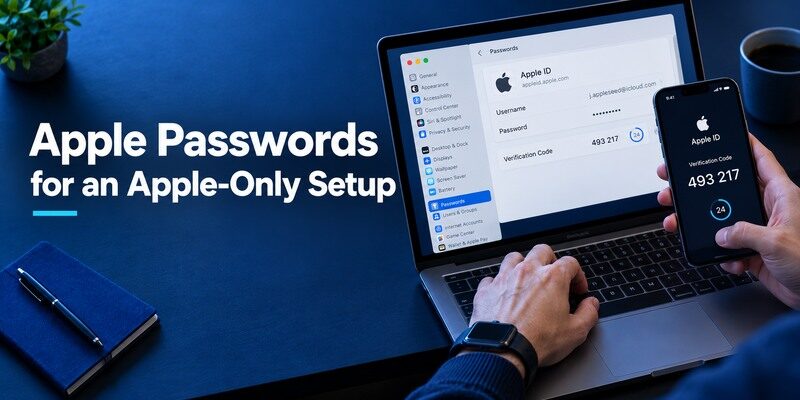
Apple’s Passwords app supports verification codes on current iPhone, iPad and Mac releases. With the relevant iCloud Keychain settings and the same Apple Account, credentials and codes can appear across authorized Apple devices. That is attractive for someone who owns a Mac and iPhone and wants AutoFill in everyday browsing. A person who also uses Android needs to assess that cross-platform requirement before building a large collection inside an Apple-specific workflow.
Apple Passwords can store verification codes for compatible websites and make them available across supported Apple devices when the required settings are enabled. However, these website codes are different from the verification process used to protect an Apple Account itself. Our guide to Apple 2FA authenticator explains the distinction between Apple’s account security features and third-party TOTP authentication.
Pair the entry with the right website
When a website presents an authenticator setup QR, add its code to the matching credential in Passwords according to Apple’s current instructions. Confirm that the username and domain match, especially when you have a personal and business login at the same service. Test from a fresh Mac browser session. A suggested code can feel automatic, but it still belongs to one enrolled TOTP secret; selecting the wrong account will fail.
Protect the Apple Account’s own recovery
If the Mac and iPhone are both lost or inaccessible, downloading the Passwords app again is not the whole recovery plan. Know how to sign in to the Apple Account and which trusted devices or numbers remain. Apple Account two-factor verification is a separate process from the third-party TOTP codes you store in Passwords. Avoid a loop in which the only way to enter your Apple Account requires a code from the unavailable collection.
Before relying on synchronized verification codes, review how you would regain access if both your Mac and iPhone became unavailable. Apple Account recovery and third-party website TOTP recovery are separate processes. Our Apple authenticator guide provides additional context on Apple’s authentication features and how they relate to external authenticator apps.
Ente and Proton for More Than One Ecosystem
Ente Auth and Proton Authenticator describe desktop plus mobile access, which can be useful when the Mac is one of several kinds of device you own. Their models have different account, export and offline choices, so read the current product guidance rather than labeling both simply “cloud apps.” A synced code can still be calculated offline after a device has received its secret. A blank Mac cannot necessarily rebuild the collection without the required account credentials.
Test a second device after a real enrollment
Enroll a low-risk site on the phone, then inspect the Mac installation under the intended account. Compare the issuer and username and perform a real website sign-in using the code on Mac. If the account was re-enrolled later, an old synchronized copy may remain visible but invalid. Repeat after adding a second account to learn how the app resolves duplicate labels. A multi-device claim is meaningful only if the entries and current secrets truly arrive where you plan to use them.
Review every authorized session
The ability to open codes on a Mac means a stolen or shared Mac becomes part of the security boundary. Use the Mac’s screen lock, the app’s available protection and the provider’s signed-in-device controls. Sign out of a borrowed machine and check that a browser session did not stay authorized. Keep credentials for the sync account recoverable without relying exclusively on the phone. A backup that you cannot unlock after a device loss is a false comfort.
Yubico Authenticator and the Physical-Key Model
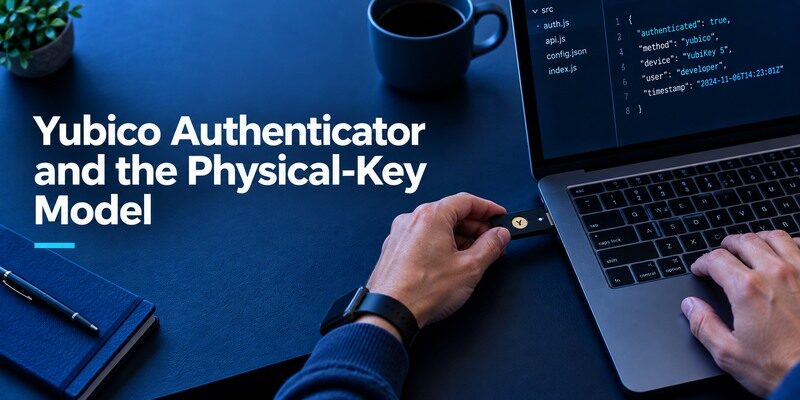
Yubico documents a native macOS authenticator that reads compatible OATH codes stored on a YubiKey. You can connect the same enrolled key to another supported computer with the app rather than exporting a secret from the old Mac. The trade-off is that the key must be present, compatible and usable with that connection. A Mac app installed without the enrolled key does not recreate the codes.
TOTP on a key is not the same as passkey sign-in
Yubico Authenticator can manage several kinds of credentials. Entering a six-digit OATH code from a YubiKey into a site remains a TOTP-style step; using the key as a FIDO2 security key or passkey is a separate protocol. NIST treats phishing-resistant authentication differently from manually entered codes. If a service offers a passkey, decide whether to register that method in addition to, or instead of, a TOTP fallback under its policy. Do not call the code phishing-resistant because a physical device stores its secret.
Storing a TOTP secret on a physical security key changes where the secret is protected, but it does not turn a manually entered verification code into phishing-resistant authentication. Our guide on how TOTP authenticator apps work explains how time-based codes are generated and why TOTP differs from passkeys and FIDO2 authentication.
Plan for a missing key
Register a second approved key when the issuer permits it, or store the issuer’s recovery codes separately. A single key on a ring can be lost with a bag, while a backup key in the same bag offers little redundancy. Yubico’s guide explains that adding the same code to another key has its own enrollment requirements. Rehearse a site login from the backup route before depending on the hardware setup for email or finance accounts.
Check the Mac’s connection, then the issuer’s method
A compatible YubiKey may communicate with a Mac through an available USB port or adapter, and Yubico Authenticator can display supported hardware-held TOTP codes. Confirm the exact key model, connector and current desktop client before purchasing. Then check whether the website actually offers a FIDO security-key method or only a standard authenticator QR. The same key can participate in different protocols, and a typed TOTP code remains vulnerable to real-time phishing even when its seed is on hardware. Use a genuine FIDO option if phishing resistance is the goal and the issuer supports it.
Store a spare independently
If one hardware key is the only way to reach a website, losing it can block the account. Register another key at the issuer where possible, keep its storage separate and test it in a new browser session. A second key bought but never registered provides no backup. If the site only supports TOTP, preserve issuer recovery codes and understand whether a copied seed or a fresh issuer enrollment is appropriate. For a Mac user, the physical-key model is most compelling when its recovery plan is as deliberate as its daily use.
Browser Extensions Are Paired Workflows
2FAS Auth offers a browser extension that pairs with the phone. That can make a desktop login convenient, but it is not the same as storing an independent, restorable code vault on Mac. Test a fresh sign-in with the phone available, then ask what would happen if the phone were lost. Review the pairing controls when a browser profile is retired. If the browser is managed by an employer, its policy may prohibit adding a personal extension.
Shared browsers deserve stricter handling
On a library or family Mac, do not leave a personal code account signed in, pair an extension or mark the website as a trusted device without understanding who can access the profile. Enter a one-time code from a phone you control if the site allows it, then sign out. A browser that can fill passwords and request codes can expose more than a standalone app on a locked phone. Evaluate the real device custody rather than assuming “desktop support” is uniformly convenient.
An extension cannot fix an issuer lockout
If the website no longer accepts the old TOTP secret after a factor change, pairing a browser does not restore it. Use the issuer’s backup codes or recovery process and re-enroll the new secret. A browser extension is a user-interface path; the issuer remains the authority that accepts or rejects the code. This distinction matters during migrations between apps and when an old phone is wiped too early.
Move Existing Codes onto Mac Safely
| Starting point | Safer transition | Proof of success |
| Apple Passwords on iPhone | Check same Apple Account and Keychain settings on Mac | Fresh login accepts Mac’s code |
| Other synced app | Sign in with intended account on Mac | Current entry and a new login work |
| Local-only phone app | Use supported protected export or issuer re-enrollment | Destination code accepted |
| YubiKey enrollment | Connect the enrolled key to Mac | Native app displays current valid code |
Do not mistake a transfer QR for a website QR
An app’s transfer code can package several entries in its own format. Another app may recognize only the single-service QR the issuer displays during setup. Check both sides’ documented import formats. If they do not match, visit each website’s security page while the old device remains available and enroll a new factor there. Keep newly generated recovery codes in a protected location outside the Mac and phone.
Wipe only after the priority accounts pass
Prioritize email, password manager and finance accounts because their loss can obstruct all other recovery. For each, close the old browser session, start a fresh one and enter a code obtained from the intended Mac path. A code list that looks complete is not proof that every secret is still current. Only after these tests should the old app or device be removed.
Know whether the computer receives secrets or requests codes
A Mac workflow can mean at least three things: a native app stores TOTP seeds locally, a browser extension asks the phone for a code, or Apple Passwords synchronizes verification codes through the user’s Apple Account. They look similar during a website login but have different compromise and recovery paths. Check which mechanism you are configuring. If a shared Mac profile can unlock the same seed used by your phone, the extra convenience expands access to that secret. A paired browser that relies on your phone might not work when the phone is lost.
Protect the Mac user session
Turn on the platform’s current disk encryption and a strong account lock before bringing a token collection onto the computer. Avoid guest or family-shared profiles for personal codes. Close the session before handing the laptop to a repair shop and review any browser profile syncing that could move extension data to another machine. A six-digit display may be transient, but a stored enrollment secret persists. For a managed Mac, ask IT whether code apps are allowed and how device loss is reported.
Re-enroll when import does not fit
An app-specific export QR may not be readable by another app on macOS. The safe fallback is signing into the website with your old factor, disabling and re-enabling its TOTP option, and enrolling the new Mac-supported app with the fresh QR. Save the website’s recovery codes. Test the new code from a fresh browser before deleting the old entry. If the old device was compromised, this issuer-side rotation is preferable to copying the old secret into a second app. A measured migration can take time, but it provides clear revocation.
Travel with an independent way back
If both your Mac and iPhone are lost in the same bag, a synchronized code list may not be reachable quickly. Keep issuer backup codes or a security key separately, especially for primary email and the account used to restore the code app. Rehearse the new-device sign-in from a device you control. The best authenticator app for Mac is one whose routine convenience does not make a simultaneous device-loss scenario impossible to solve.
Is Begamob an Option for Mac Owners?
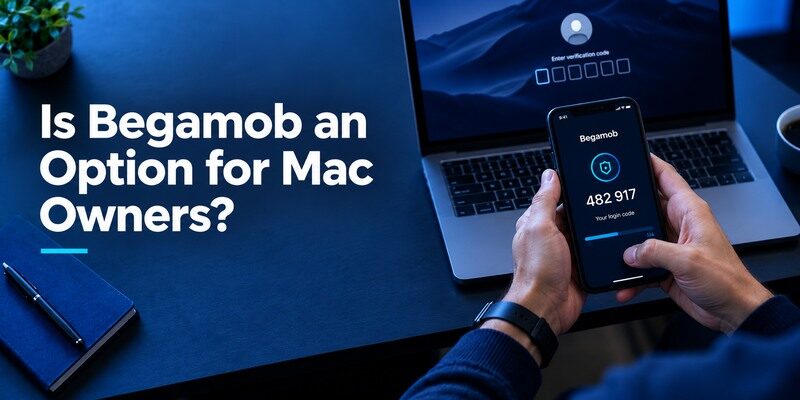
The describes a mobile TOTP workflow, and the supplied establishes an iOS listing. That information does not establish a native macOS app or independent desktop sync. A Mac owner can still read a code on the phone and type it into a Mac website, provided the issuer accepts standard TOTP. Test on one recoverable personal account and inspect the iPhone version’s current device-change controls.
An authenticator app generates verification codes for accounts that support app-based two-factor authentication, but the way those codes become available on a Mac varies by product. Some apps store TOTP secrets locally, while others synchronize them or request codes from a paired phone. Our guide on what is an authenticator app explains the underlying authentication process and how it differs from password storage.
Decide whether phone pairing is enough
Before looking for a native desktop app, try the routine task you actually perform: open a trusted website on the Mac, read a new code from the iPhone and complete the sign-in. That workflow may be entirely adequate for occasional use. It also keeps the token secret on the phone rather than copying it onto a shared Mac profile. Check what happens if the phone is unavailable and keep the issuer’s recovery code in a separate protected place. If several daily logins make phone switching cumbersome, a documented Mac client or browser-paired workflow may justify a different app choice.
Treat a future Mac claim as a fresh check
If the publisher adds Mac support, verify its actual listing and whether the code collection syncs, transfers or remains on the phone. Do not infer behavior from an App Store compatibility badge or a shared Apple Account. For someone who needs codes physically on the Mac today, choose a product with a documented desktop route; for someone who simply signs in on Mac and is content using a phone, a dedicated iPhone app can suffice.
Frequently Asked Questions
Can I use Apple Passwords as a Mac authenticator?
Yes, it supports verification codes on current Mac releases. Check your Apple Account and iCloud Keychain setup and verify a fresh website login.
Does 2FAS browser extension work without the phone?
It is a paired workflow; evaluate the current requirements and keep a separate lost-phone recovery route.
Do I need a YubiKey for Yubico Authenticator codes?
Yubico’s model stores compatible OATH secrets on the enrolled key, which must be present to display those codes.
Is an iPhone app automatically a Mac app?
No. Confirm a native or supported Mac experience and the associated secret-transfer behavior in the official listing.
Will Mac codes work offline?
An already configured TOTP app can calculate codes offline, but a website sign-in and a blank device’s restore have their own connectivity needs.
Final Thoughts
Apple’s tight ecosystem is convenient but places recovery on the Apple Account.
Choose a Mac authenticator by where the secret lives and whether that location survives the loss of a phone, Mac or key. Apple Passwords simplifies an Apple-only routine; Ente and Proton address wider device patterns; Yubico offers hardware custody; 2FAS can pair a browser with a phone. Begamob remains a mobile-code candidate for Mac website logins through its , subject to the actual iPhone recovery plan.
