Google Authenticator Review: Simple Codes, Clear Recovery Trade-offs
Published October 13, 2026 · Updated October 21, 2026
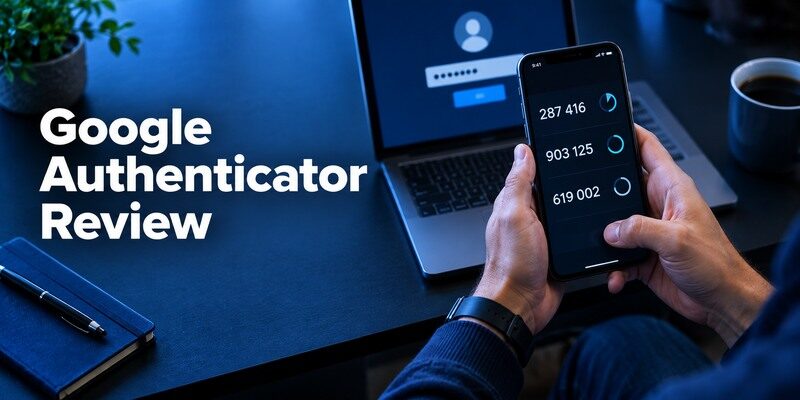
Is Google Authenticator a good choice for securing your online accounts? In this Google Authenticator review, we explore its security, key features, ease of use, and account recovery options. This free two-factor authentication app offers offline verification codes, Google Account synchronization, and support for multiple accounts, but it also has limitations worth considering. Discover its main advantages and drawbacks, compare it with popular alternatives, and decide whether Google Authenticator is the right 2FA app for your needs.
Verdict and Practical Scorecard

| Question | What Google Authenticator offers | What to check yourself |
| Can it make offline codes? | Yes, after an account is enrolled | The service must accept TOTP codes |
| Can codes follow a new phone? | Account sync is available; local transfer is another route | Which mode your installation currently uses |
| Is it the same as Google prompts? | No | Whether the website requires a prompt, passkey, or code |
| Does restoring the app restore every login? | Not necessarily | Each issuer’s backup and account recovery |
The main appeal is a short path from QR scan to a six-digit code. Google’s official Account Help explains both syncing with a Google Account and transferring accounts through QR codes. That flexibility is helpful, although it makes a casual claim like “the app automatically backs everything up” unreliable. A person who wants a local-only vault can use the app without account sync, while someone who wants easier device changes can choose sync and protect the Google Account accordingly.
Best fit
Choose it when you want a familiar mobile code generator, use mainstream services that offer standard authenticator enrollment, and will actually confirm the recovery mode. The interface keeps the next rotating code easy to find. If most of your logins already depend on Google, an account-backed transfer may reduce work at the next phone upgrade. Keep a separate recovery route for the Google Account itself.
Reasons to look elsewhere
A person who wants an explicitly password-protected export file, a hardware-key-bound vault, or a dedicated desktop app should compare other products. does not turn an ordinary six-digit TOTP code into phishing-resistant sign-in. It also cannot substitute for a workplace’s required Microsoft, Okta, or Duo approval flow. The question is whether the target account supports an open standard, not whether the two apps have similar names.
Google Authenticator is not the ideal choice for everyone, particularly if you need a different backup model or more control over how authentication secrets are stored. Our comparison of Google Authenticator vs Authy examines differences in setup, synchronization, account recovery, and device management to help you decide which approach fits your needs.
Advantages
The setup is fast, standard TOTP codes work offline after enrollment, and Google documents both account sync and QR transfer. It is an easy first app for a few personal logins.
Drawbacks
Recovery depends on whether sync was enabled and on your Google Account; local-only codes need a deliberate transfer. It does not supply a desktop client or replace a managed push approval.
Who should use it
Someone who wants a familiar free mobile code generator and already has a protected Google Account.
Secure your accounts with fast, reliable two-factor authentication. Download now and protect your login in seconds.Download Authenticator App
🗺️ Browse How-To Guides
Google Authenticator: Complete 2FA Setup & Security Guide
Scan and Verify Your First Account

Open the target service’s security settings from its own site and select an authenticator-app or verification-code option. Scan the service’s enrollment QR inside Google Authenticator, or choose the manual setup key if camera access is unavailable. Enter the current code back into that service to finish enrollment. The QR is a reusable secret during setup; keep it off screenshots and messaging apps. Provider menus and code length can vary.
Google Authenticator setup is straightforward when the website supports standard authenticator-app verification. You scan the enrollment QR code or enter a setup key, then confirm a generated code on the website. Our step-by-step guide to setting up Google Authenticator explains the enrollment process, common QR code problems, and the checks to complete before relying on the new authentication method.
A displayed code is not proof of enrollment
It is possible to save an entry in the app and leave the website before confirming it. In that case the next login can still fail. Complete the issuer’s confirmation step, save any recovery codes it provides, then open a private browser session you control to test a new sign-in. Do not disable the older working method until this succeeds. This small rehearsal exposes an incorrect account label or an accidental scan of a different user’s setup page.
Timing makes an ordinary code appear broken
If the countdown ring is nearly empty, wait for the next code rather than racing the form. Automatic date and time on the phone matter because the service independently calculates the expected time window. After a rejection, confirm the right entry, correct account, correct site domain, and clock setting before recreating the factor. Repeatedly scanning a new setup QR can replace a once-working secret at the issuer.
If a Google Authenticator code is rejected, check that you selected the correct account entry and that your phone’s date and time are set automatically. A code may also expire before you submit it. Our guide to the Google Authenticator verification code explains how rotating codes work, where to find them, and what to check when a website does not accept the displayed number.
How to set it up safely
Open the protected site’s own security settings, select authenticator-app codes, scan its QR in Google Authenticator, enter the current code to finish enrollment and save the issuer’s backup codes. Confirm whether you signed into a Google Account for sync before retiring the old phone.
Decide Between Google Account Sync and Local Codes
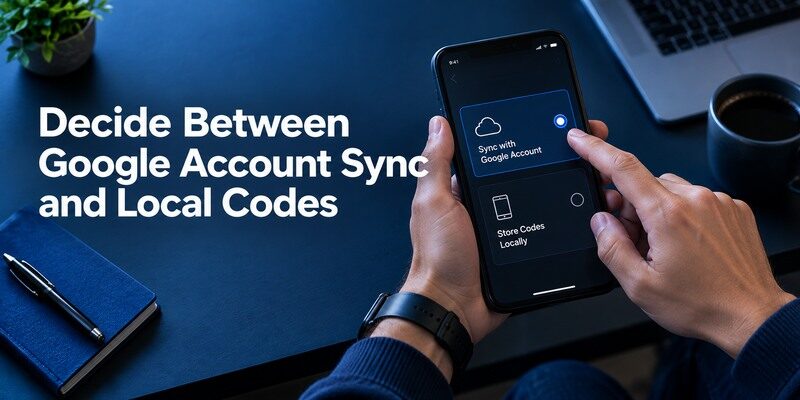
In an account-backed mode, Google’s documentation says Authenticator codes can sync through your Google Account. If you use the app without a Google Account, treat its locally held entries as device-dependent and plan a transfer before disposal. Neither mode is a full replacement for each website’s own recovery process. Review the account icon and settings on the actual installation instead of inferring its state from a screenshot in a tutorial.
Sync changes the threat model
Cloud-backed availability helps after a damaged phone, but the Google Account becomes central to regaining that collection. Protect it with a strong independent factor, store its recovery options separately, and know what happens when you cannot access the account. Do not rely on the same inaccessible handset as the sole way to sign in to the account that holds your synchronized codes. If you share devices, confirm which Google Account is active before enrolling a sensitive login.
Local storage changes the maintenance work
Keeping entries on one device may suit someone who prefers to control transfer explicitly. It also means that losing the device before exporting can leave the app without a copy of its secrets. Save service-issued backup codes at the time of enrollment and identify the account recovery route. A local code generator is easy to use day to day, but the operational cost appears at the moment of loss, not at initial setup.
🗺️ Browse How-To Guides: Google OTP App: Complete Guide to OTP, TOTP, and 2FA
Move to Another Phone Without Losing Logins
Google Account Help describes a transfer flow using an export QR on the old device and an import scan on the new one. Keep both devices physically under your control while transferring; an export QR represents credentials, not a harmless contact card. Check that every critical entry appears, and verify a fresh code with one real service before wiping the old handset. Some services might still require a new enrollment if their policy changes or the secret was rotated.
Before replacing your phone, determine whether your Google Authenticator entries are synchronized with your Google Account or stored only on the original device. The correct migration steps depend on that choice. Our guide on how to transfer Google Authenticator to a new phone explains transfer preparation, QR-based migration, verification, and why you should keep the old device until your important accounts work.
Use the right transfer path
If account sync is enabled, first check that the intended Google Account and codes appear after sign-in on the new phone. If using device transfer, follow the app’s current export/import prompts and scan every QR in a multi-part export. These are alternative paths, and blindly using both can create confusing duplicate entries. Label the entries after validation, and remove stale copies only when you can distinguish the new working one.
Lost the old phone already?
Try an already enabled sync path, then the backup code, another enrolled factor, a trusted session, or the service’s identity-checked recovery. Google Authenticator cannot reset a bank or workplace account by itself. Contact the issuer through a known official address if its recovery options are exhausted. Never provide a live verification code or an exported QR to someone who calls offering to “restore” the app.
Audit the Google Account that syncs the codes
Open the authenticator on the old device and confirm which account is selected before signing into the replacement. It is surprisingly easy to have two Google Accounts, one used for Gmail and one for an older phone, and expect the wrong account to contain the tokens. Check a few labels and deliberately choose a noncritical site for the first real-login test. If the list is empty on the new phone, verify account identity and sync status before requesting every website to issue a new QR. A rushed reset can invalidate codes that still work on the original handset.
Separate phone replacement from a Google Account compromise
A planned upgrade assumes the source device and account were trustworthy. If you are moving because the Google Account was taken over, simply syncing the same collection into a new phone may preserve a risk. Secure the Google Account through its official recovery, review authorized sessions, and rotate sensitive website TOTP factors at their issuers where secrets may have been exposed. This is more disruptive than a normal transfer, but the security goal is different. A transfer proves availability; rotation changes the secrets an attacker might know.
Know when a backup code beats an app restore
When only one urgent website is needed, its issuer-issued backup code may be a faster legitimate route than restoring an entire app collection. Use it only on that website’s real sign-in page. Some issuers replace consumed codes or change available methods after use, so update your secure record. The result does not automatically restore every other account in Google Authenticator. Finish the full recovery separately and test the primary email account that supports the rest of your identity.
📖 Read More Guides: Google Authenticator Web: How to Use 2FA Securely in Your Browser
Privacy and Security Limits

The app stores secrets from which codes are computed. Anyone with the setup secret may reproduce future codes, so QR enrollment and transfer screens should be protected. A rotating code helps against simple password reuse but can be typed into a convincing phishing page. NIST’s authentication guidance distinguishes manual OTP entry from phishing-resistant options such as properly deployed passkeys and security keys. Prefer the strongest method the service supports for high-value accounts.
Offline generation is useful, with a boundary
After enrollment, the phone can calculate a code without a network connection. The website still needs access for you to submit it, and a Google Account sync operation needs connectivity when it occurs. Offline operation does not mean the issuer will accept an expired code or that the device can be restored while completely isolated. In a spotty network, read the displayed code only when you are ready to submit it.
Look at the login page, not just the code
An unexpected text or email asking you to enter a fresh code elsewhere is a phishing signal. Navigate directly to your service, check its domain, and be skeptical of a page claiming an urgent security reset. If an attacker has the password and a live OTP, the short timer alone might not stop a real-time relay. The most valuable routine habit remains verifying where and why you are signing in.
Google Authenticator reduces the risk of password-only attacks, but a time-based code can still be stolen through a convincing phishing page. Attackers may use stolen credentials and live verification codes to access accounts without permission. Our guide on what is account takeover explains how these attacks happen and why phishing-resistant authentication methods offer additional protection.
Review access after signing into a second phone
If you enable Google Account sync on another handset, verify that you own and lock that device. Remove old signed-in devices from the Google Account according to its current controls. An authenticator entry on a replacement is not evidence that a previously lost phone can no longer show a locally cached code. If the old handset was compromised, rotate especially important TOTP factors at the respective websites. Google Account device review manages the sync relationship; each website still controls the validity of its enrolled secret. Treat the two actions as complementary rather than interchangeable.
Compare a legitimate sign-in with an unsolicited request
Google Authenticator normally displays a code when you open it; a caller or email cannot make a legitimate website require you to read that value aloud. If someone claims to be technical support and asks you to disclose a current code, end the contact. Open the issuer’s real site yourself and review security activity. A code entered into a convincing phishing page can be used before its timer expires. When a service supports a passkey or security key, that may reduce this specific phishing path; a code app remains useful where TOTP is the offered option.
📘 Find the Right Guide:
Google Authenticator App Store: Download, Setup & Best App
Google Authenticator Review Against Alternatives
| App or approach | Clear advantage | Important trade-off |
| Google Authenticator | Fast standard code setup; optional Google Account sync | Recovery depends on the chosen mode and your Google Account |
| 2FAS | Documented platform cloud backups and export | Backup behavior differs by operating system |
| Aegis | Android vault encryption and controlled exports | Android-focused; self-managed backup responsibility |
| Begamob Authenticator App | A dedicated QR/manual mobile code app to evaluate | Verify its current backup and platform support in the installed version |
This is a comparison of use cases, not a ranking of undocumented security guarantees. Aegis documents its encrypted Android vault; 2FAS documents backup through iCloud or Google Drive depending on platform. An iPhone user who wants the provided can inspect current features and publisher before enrolling a low-risk account. The chosen app should pass a real issuer login and a realistic recovery test.
Test the recovery promise before switching
Take one noncritical account through enrollment, sign-out, and device-change rehearsal with the chosen app. A vendor feature page can explain a backup mechanism; only your current setup tells you whether it is enabled and whether you still know the necessary password. Do not remove a working factor merely to make the app list look tidy. This Google Authenticator review favors a boring, provable restore path over the largest feature list.
Do not confuse transfer with factor rotation
An app-to-app export may copy the same underlying TOTP secret. Anyone with a prior leaked copy might still generate valid codes after your phone move. To revoke a compromised secret, use the service’s security settings to disable and re-enroll the factor, then test a new code. Renaming an entry, changing apps, or deleting the old phone does not necessarily revoke the credential server-side.
Which alternative is better for your needs?
| App | Choose it when | Trade-off |
| Google Authenticator | Someone who wants a familiar free mobile code generator and already has a protected Google Account. | Recovery depends on whether sync was enabled and on your Google Account; local-only codes need a deliberate transfer. |
| 2FAS Auth | You want dedicated mobile backups and browser pairing | Its backup route varies between iOS and Android |
| Aegis | You use Android and want local encrypted exports | You must maintain off-phone backups yourself |
Where Google Accounts Create a Special Dependency
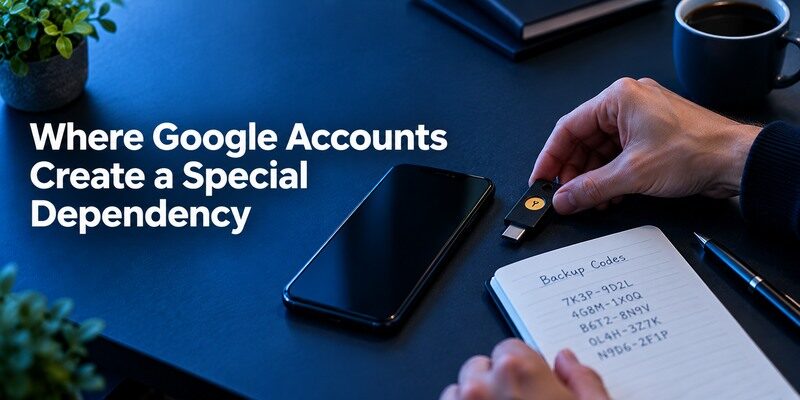
When Google Authenticator itself syncs through a Google Account, the security and recovery of that account deserve extra planning. Google offers several ways to secure account sign-in; examine which one remains available if the phone is lost. An independent security key or securely stored backup code can separate the recovery route from the lost code collection, where supported. A single phone holding the password manager, synced codes, and only recovery email can become a difficult single point of failure.
Avoid a circular recovery path
Imagine the new phone asks you to sign in to Google before showing your synchronized codes, but Google’s sign-in asks for a code from the old phone. Set up another enrolled verification method while you still have access. Then test a different device. The exact prompts vary by account risk and device history, so treat recovery as a rehearsal rather than a theoretical feature check.
Review old sessions after a device change
If the old phone was lost, changing a code-app setting alone may not secure all signed-in sessions. Use the issuer’s account security page to review devices and sign-ins. For the Google Account that backs the codes, review its recovery contact information and sessions as well. A lost-device incident can be both a login interruption and an account-access concern; handle both parts.
Frequently Asked Questions
Is Google Authenticator free?
Yes. The core authenticator app is free to use for supported standard verification codes. The service you protect may have its own account or subscription terms.
Does Google Authenticator need the internet?
No for generating an already enrolled time-based code. Internet access is needed for the website login and for account-based sync to exchange data.
Will reinstalling the app restore my codes?
Only if you previously used and can access a supported recovery or sync route. Locally stored entries do not magically reappear because an app with the same name was reinstalled.
Can Google Authenticator approve a Microsoft work prompt?
Usually no. A Microsoft work account might require its administrator-approved push flow in . If that account explicitly offers standard TOTP, a compatible code app may work.
What is the safest first change on a new phone?
Keep the old phone active, bring over or re-enroll one important account, and confirm a real login from the new phone. Save issuer-provided backup codes before deleting old entries.
💡 Discover Helpful Guides:
Google Authenticator Lost: How to Recover Codes and Account Acces
Final Thoughts
This Google Authenticator review finds an easy, capable generator of standard codes whose most consequential setting is its recovery mode. Decide whether account sync or deliberate local transfer fits your needs, and test that decision while you still have access to the old phone. If you prefer to evaluate a separate QR/manual code app, is a relevant option; confirm its present backup behavior before moving a critical account. The best result is a working login today and a documented way back after the next device change.