
2FAS Authenticator Review: A Mobile App with Backup Choices
Published October 13, 2026
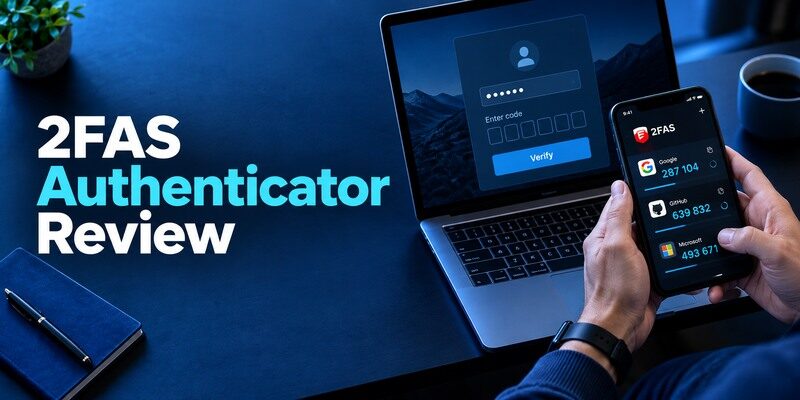
2FAS Authenticator is a useful free mobile code app if you want documented backup options and a straightforward way to enter codes on a computer through its browser integration. Its cloud backup uses iCloud on iOS or Google Drive on Android; that platform distinction matters during a phone switch. This 2FAS Authenticator review checks how enrollment, browser use and restores work together. Do not confuse 2FAS Auth, the code app, with a separate password-manager product carrying the same brand.
A Fast Decision Matrix

2FAS earns consideration when you want standard TOTP codes on a phone with a documented backup path. Its browser integration can make desktop logins less awkward, but the phone and the browser each need to be secured. The cloud route is not identical on the two major mobile operating systems. Someone whose next device may switch platforms should investigate export/import rather than assume a cloud backup transfers directly between them.
2FAS generates standard time-based one-time passwords for compatible websites. These codes are calculated from a stored secret and the current time, allowing an enrolled phone to generate codes without an internet connection. Our guide to a TOTP authenticator app explains how rotating codes work, why accurate device time matters, and how TOTP differs from push notifications and passkeys.
| What you need | 2FAS response | Verify before adopting |
| Basic authenticator codes | Mobile TOTP app | Site supports standard codes |
| Backup on iPhone | iCloud route documented | Correct Apple Account and enabled backup |
| Backup on Android | Google Drive route documented | Correct Google Account and enabled backup |
| Laptop convenience | Browser integration | The pairing and device security model |
Ideal user
A person who already uses one mobile platform, wants easy everyday codes and will set up a backup while the phone still works fits the app well. 2FAS’s official support explains how to synchronize devices within the same operating system and how a backup can be password-protected. The information is more actionable than a vague “safe cloud backup” badge. Keep the backup password independently accessible.
Main constraint
Cloud provider differences complicate iPhone-to-Android moves. A backup stored under iCloud cannot be assumed to appear in Google Drive, or vice versa. Find the current export flow and test it with a low-risk entry if you plan a cross-platform migration. Likewise, an organization that requires a proprietary approval push may not accept a generic TOTP app at all. Verify the issuer’s offered method before changing apps.
Advantages
A focused mobile TOTP experience, iCloud or Google Drive backup within the respective ecosystem, and optional browser pairing can make daily login quick.
Drawbacks
Moving between iOS and Android needs more thought than same-OS backup, and the browser extension is not a standalone replacement for an enrolled phone. The exact backup choice still needs testing.
Who should use it
A mobile-first user who wants a separate code app and likes browser-assisted sign-in.
Start from the Service That Issues the QR
Use the actual website’s security settings to enable an authenticator, scan its QR with 2FAS, and enter the current code back into the site to confirm pairing. An entry appearing on the phone is only the first half of enrollment. Keep the old factor until a new sign-in works and save the site’s recovery codes outside the app. A setup QR represents a lasting secret; do not photograph it for a shared album or send it to support.
Before adding a website to 2FAS, confirm that the service supports standard authenticator-app verification. Scan the official enrollment QR code, enter the generated code to complete setup, and save any recovery codes provided by the website. Our complete authenticator app guide explains QR code enrollment, manual setup keys, verification steps, and common setup mistakes.
When manual setup is necessary
If the camera cannot scan the QR, many websites provide a manual setup key under the same enrollment screen. Type it into the app only on a device you trust, preserve any digits and letter case as instructed, and select the expected code type if the site requires it. Check the code against the issuer immediately. A pasted key from a chat message could be both a phishing trap and a leaked secret.
Check the timer before declaring failure
If a six-digit code is near its rollover, wait for the next one. Make sure the phone uses automatic date and time and that the selected entry belongs to the correct account. A login can reject a valid code from another provider because the TOTP seeds differ. After several failures, check the site’s current enrollment rather than trying random old entries until the account is rate-limited.
How to set it up safely
From the site’s own two-factor settings, scan the QR with 2FAS Auth, enter the fresh code on the site and save its backup codes. Turn on the documented iCloud or Google Drive backup for your platform; pair a browser only through 2FAS’s official extension instructions.
What the Browser Integration Can and Cannot Do
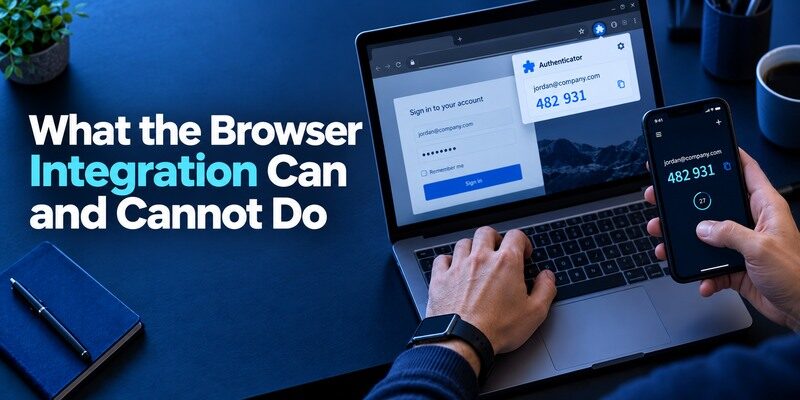
2FAS has documented browser integration that helps use a phone’s authenticator during a desktop login. Review the current extension permissions and pairing instructions from its official materials. A convenient handoff should not be mistaken for proof that the laptop is a safe place to keep every secret. Keep the browser and phone updated, secure both devices, and inspect the actual website URL before submitting a code.
The 2FAS browser extension can make website logins on a computer more convenient, but it should not be confused with a standalone desktop authenticator. The supported workflow still depends on the enrolled mobile app and its pairing process. If you want to compare browser-assisted authentication with native desktop options, our guide to the best authenticator app for Mac explains the differences between desktop TOTP apps, Apple Passwords, and phone-based verification.
Pair only a browser you control
Do not attach a shared lab computer or temporary loaner to your personal token workflow just to save a few keystrokes. If a paired computer is sold or lost, review the connection and revoke it using the app’s current controls. Confirm whether the integration transfers a code, requests an approval on the phone or exposes something else in the version you use. These details determine whether the browser becomes another recovery dependency.
Convenience does not cure phishing
A malicious sign-in page can still ask for an OTP and use it immediately. NIST distinguishes manually entered time-based codes from phishing-resistant factors. Open the intended service from a known address and check the domain. A fast browser handoff is most valuable when it removes typing friction on a legitimate page; it is no reason to trust an unexpected link in a message.
Observe a real pairing, not a diagram
On a computer you own, use 2FAS’s official current extension instructions and pair with a low-risk site. Note what the browser displays and what the phone must do before a code is entered. Then sign out of the website and try another login after locking the phone. That sequence tells you whether the workflow suits a desk-based routine and where the second factor is actually authorized. If a page asks to install a lookalike extension from an unrelated domain, stop and use the official distribution channel.
Revoke an old browser when changing computers
A browser profile can be copied or synced to another machine. Review the current 2FAS connection controls before selling or returning a laptop, then remove paired access and clear relevant sessions. Confirm the website itself has no old trusted-device exception that bypasses MFA during your test. A paired extension is a convenience layer; the website still owns its TOTP registration and recovery codes. If the original machine was compromised, rotate valuable issuer secrets where a copy might have been exposed.
Keep manual entry as an understood fallback
The browser helper may be unavailable after an extension update or on a temporary but trusted computer. If the site permits standard TOTP, opening the phone app and typing a current code into the legitimate page can still work. Wait for a new interval rather than submitting a nearly expired value. Check the destination domain manually; the absence of an extension suggestion can be a useful warning. Do not treat browser pairing as the only recovery method for the code collection.
Restore the phone before the browser link
On a replacement phone, first make sure one issuer code works. Only then reconnect the optional browser integration. If browser pairing fails while codes work, troubleshoot the extension separately without deleting the restored tokens. This order prevents a convenience problem from becoming an unnecessary MFA reset. Keep the old phone until the priority issuer sign-ins and any desktop handoff you rely on both pass.
Backup to iCloud or Google Drive
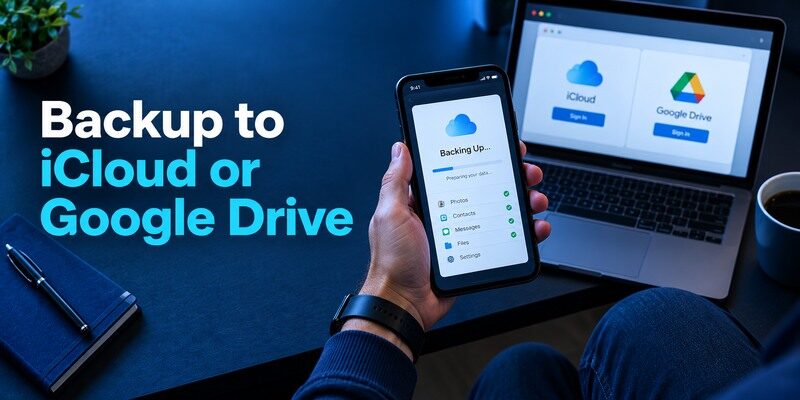
2FAS Support states that same-platform cloud synchronization uses iCloud on iOS and Google Drive on Android. It also describes a backup/export file and optional password protection. Check that the right cloud account is active, the relevant drive service is enabled, and the backup setting is actually on. If you change the backup password, keep the new one in a protected location separate from the phone.
For iPhone users, 2FAS’s iCloud backup option is an important factor when comparing authenticator apps. However, backup availability, cross-platform migration, and access to the Apple Account used for recovery all deserve attention. Our comparison of the best iOS authenticator app options explains how different apps handle code storage, synchronization, and device replacement.
| Scenario | Likely route | What to verify |
| iPhone replacement | iCloud 2FAS backup | Same Apple Account and a recent copy |
| Android replacement | Google Drive 2FAS backup | Same Google Account and a recent copy |
| iOS/Android switch | Export/import route | Supported current format and test login |
| No cloud access | Issuer codes or protected export | Which account can still be recovered |
A backup file needs its password
2FAS says exported or cloud-backed data can be protected with a password and warns that forgetting it makes the backup unusable. Store that password in a place you can reach after losing the phone. If your password manager requires a 2FAS code kept only in the missing app, make an independent plan. Test one restore before moving all high-value accounts into the app.
Sync on a second device is a test, not a promise
When you see account labels appear on another phone, select a fresh code and use it on the issuer’s legitimate site. A partially restored collection can look complete until the one account you need is missing. Do not wipe the old device on the basis of a cloud icon alone. If restore fails, use the issuer’s recovery code or trusted session to enroll a new factor rather than uploading a backup file to an unverified “repair” service.
Check the right account on the right platform
For an iPhone, confirm the intended Apple Account and iCloud Drive state. For Android, confirm the Google Account chosen for 2FAS backup. A user with multiple cloud accounts can create an empty-looking restore on a replacement despite a backup existing elsewhere. Check the backup date and a few entry labels before erasing the source phone. If the current app lets you password-protect the backup, keep that password in a protected location independent of the handset. A cloud sign-in without the encryption password may not be enough.
Prepare a platform switch differently
If the next phone changes operating systems, don’t count on the same-platform cloud path. Investigate 2FAS’s current export/import instructions and test a low-risk account on the new phone. For accounts whose QR format is not portable, sign in to the issuer with the old factor and enroll the replacement anew. Save newly issued backup codes; some sites invalidate previous ones after a factor reset. The safe time for this work is before selling the old phone, not at the first urgent bank login afterwards.
Verify a browser-paired workflow after restore
Even when phone codes are back, a browser extension may need to be paired again. Check the extension’s current connection on a computer you own, open a legitimate test website and confirm the prompt reaches the replacement phone as intended. Revoke old browser connections when the computer has been sold or its profile shared. A token restore and a browser handoff are distinct conveniences; each can fail without breaking the other. Avoid diagnosing one from the other’s icon.
Compare 2FAS with Google and Microsoft
‘s account sync and QR transfer provide a different recovery relationship with a Google Account. adds Microsoft-specific work and personal approval flows, while its backup is limited to the same device type. 2FAS focuses on phone-held codes, platform-specific cloud backup and browser handoff. The best fit depends on whether the site needs only standard TOTP, whether a push registration is mandatory, and what phone you will own next year.
For a normal personal website
When the account issues an ordinary authenticator QR, any compatible app can generate a valid code after enrollment. Compare the quality of its restore path and device support rather than the color of the countdown ring. If you prefer to explore a different dedicated mobile app, check the current for publisher and features. Confirm the installed version’s backup route before entrusting several accounts.
For an employer-managed sign-in
The company’s administrator may require a specific push app or registered device. An ordinary 2FAS code will not satisfy such a challenge unless the tenant offers standard TOTP as an approved alternative. Ask IT which methods are supported before removing an existing registration. This 2FAS Authenticator review rates the app as a personal code option, not a universal substitute for corporate access policy.
Which alternative is better for your needs?
| App | Choose it when | Trade-off |
| 2FAS Authenticator | A mobile-first user who wants a separate code app and likes browser-assisted sign-in. | Moving between iOS and Android needs more thought than same-OS backup, and the browser extension is not a standalone replacement for an enrolled phone. |
| Ente Auth | You want native desktop access and cross-platform sync | You must protect a synced account and its recovery |
| Aegis | You use Android and prefer encrypted file exports | The manual restore chore remains yours |
Plan a Cross-Platform Move Before the Phone Trade-In
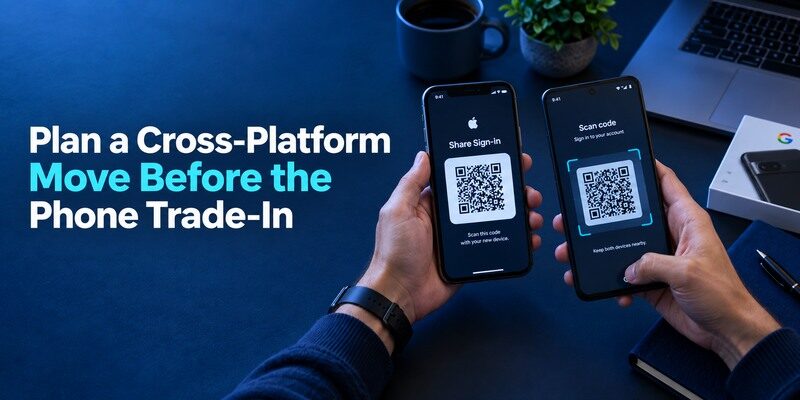
Create an inventory of critical accounts and recovery codes while the original phone is available. Identify whether current 2FAS export can be imported into the destination system, then trial an ordinary account. The backup tied to iCloud or Google Drive may not cross directly; prepare to re-enroll issuer-side if needed. Verify codes through real sign-ins from the new device. Do not erase the old phone until email, banking and the password manager work independently.
Copying is not rotation
If an export brings the same token secret to the new phone, both devices can potentially generate a valid code. For an ordinary safe upgrade, a temporary overlap can help. If the original phone was compromised, rotate the authenticator secret through each issuer and review sessions. Deleting an entry in 2FAS does not force the website to reject an old copy of that secret.
Put recovery dependencies in the right order
Restore the account that grants access to your cloud backup first, then the codes needed for primary email and password storage, and finally less urgent services. Make sure you have an independent second step for the cloud account itself. If no supported route works, each website’s backup codes and formal recovery process are the legitimate fallback. A code app vendor cannot unilaterally reset the website’s factor.
Update issuer backup codes after each reset
When an account is re-enrolled during an iOS-to-Android transfer, the issuer may replace its previously issued recovery codes. Save the fresh set securely and dispose of outdated copies according to the site’s instructions. Do not assume an imported TOTP value protects the account until a new session accepts it. If the first attempt fails, retain the old phone and review whether the website expects a newly generated secret. Work from a list of account names, not a folder of QR screenshots.
Check the cloud account’s own MFA
The Apple or Google Account holding a 2FAS backup can itself require a second factor during restore. Ensure an alternate trusted method exists outside the phone you plan to trade in. A cloud copy is only useful if you can access the provider account and decrypt the backup. Practice the steps with a low-risk site, noting any recovery password or key the app requests.
Frequently Asked Questions
Is 2FAS Authenticator free?
The 2FAS Authenticator mobile code app is offered as a free authenticator. Check its current official distribution and distinguish it from other branded products.
Does 2FAS work without internet?
An already enrolled time-based code can be computed offline. Browser pairing, cloud backup and issuer login can need connectivity.
Can I restore an iCloud backup on Android?
Do not assume it transfers directly. 2FAS documents iCloud for iOS and Google Drive for Android; check its current export/import method before switching platforms.
Is the browser extension required?
No. It is an optional desktop convenience for supported browsers. The phone app can supply a standard code for manual entry when the issuer accepts TOTP.
What if I forget the backup password?
An encrypted backup may be unusable without its password. Look for any still-authorized device, then use the protected websites’ independent recovery options.
Final Thoughts
The most persuasive feature in this 2FAS Authenticator review is a backup route that the project documents plainly. The deciding limitation is that iOS and Android use different cloud providers, making a platform switch a separate project. Turn on and test the path you actually need. If another QR/manual mobile app suits your devices better, is a reasonable comparison candidate; confirm its current restore options before switching critical accounts.
A successful issuer login remains the proof of the transfer.
