
Proton 2FA Authenticator: Download, Setup & How to Use
Published August 24, 2026 · Updated November 2, 2026
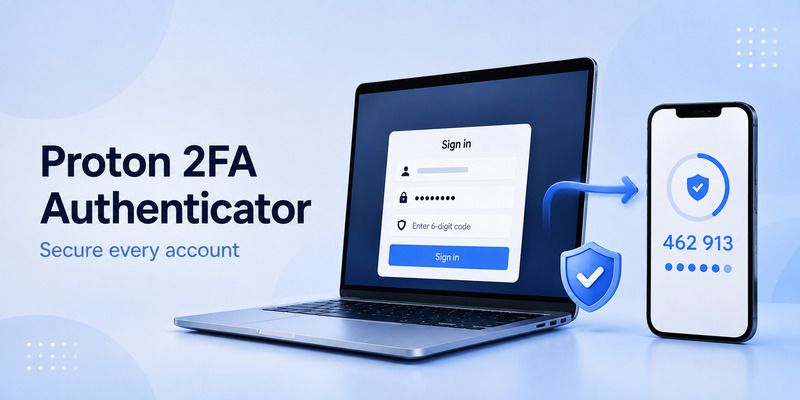
Proton 2FA Authenticator is a free, open-source authentication app developed by Proton. It generates temporary two-factor authentication (2FA) codes for compatible online accounts and supports Android, iPhone, Windows, macOS, and Linux.
Unlike traditional mobile-only authenticators, Proton Authenticator offers desktop applications, optional end-to-end encrypted synchronization, backup features, and tools for importing existing 2FA codes.
Quick Answer: To use Proton Authenticator, download the official app from Proton’s download page, install it on your device, and open the security settings of an account you want to protect. Enable authenticator-based 2FA, then scan its QR code or enter its setup key in Proton Authenticator. Enter the generated code on the website to complete enrollment and save the service’s recovery codes.
You can use Proton Authenticator without creating a Proton Account. If you want to synchronize codes across devices, Proton provides encrypted synchronization options.
This guide covers how to download and use Proton Authenticator, migrate codes from another app, protect your Proton Account, configure backups, and solve common issues.
What Is Proton Authenticator?
Proton Authenticator is a two-factor authentication application developed by Proton, the company behind Proton Mail, Proton VPN, and Proton Pass.
Released in July 2025, it generates time-based one-time passwords (TOTP) that provide an additional security layer beyond your account password.
Its main features include:
- Free access: No subscription is required.
- Open-source software: Its source code is publicly available for inspection.
- Cross-platform support: Works on Android, iOS, Windows, macOS, and Linux.
- Offline authentication: Generates codes without an internet connection.
- Encrypted synchronization: Supports secure syncing between compatible devices.
- Backup and export: Helps users retain control over their authentication codes.
- Import support: Allows migration from several other authenticator apps.
You do not need a Proton Account to use Proton Authenticator locally.
However, some synchronization features require signing in to a Proton Account.
For a closer look at the application, read our Proton Authenticator review.
Read more: Proton Authenticator Windows: Setup and Security Guide A-Z
Download Authenticator App
Secure your accounts with fast, reliable two-factor authentication. Download now and protect your login in seconds.
How to Download and Install Proton Authenticator
The safest way to download Proton Authenticator is through Proton’s official website or the app store linked from it.
Proton Authenticator Download for Android
To install the Android app:
- Open Proton’s official download page.
- Select the Android option.
- Follow the link to Google Play or another official distribution channel listed by Proton.
- Install Proton Authenticator.
- Open the app.
- Choose whether to use it locally or configure synchronization.
- Add your first 2FA account.
Proton also lists F-Droid as an available distribution option.
Avoid unofficial APK downloads from unfamiliar websites.
Proton Authenticator Download for iPhone
To install the iOS app:
- Open Proton’s official download page.
- Select the iOS option.
- Open the App Store listing.
- Install Proton Authenticator.
- Launch the application.
- Review its security and synchronization options.
- Add your first account.
Protect your device with a strong passcode and enable app-level protection when available.
Proton Authenticator for Windows, macOS, and Linux
Proton offers native desktop applications.
To install one:
- Visit the official Proton Authenticator download page.
- Choose Windows, macOS, or Linux.
- Download the appropriate installer or package.
- Follow the installation instructions.
- Open Proton Authenticator.
- Configure your preferred storage or synchronization method.
- Add or import accounts.
Desktop access can be convenient when you regularly sign in to websites from a computer.
However, keeping both passwords and authentication codes on the same device can reduce separation between authentication factors.
Consider using a separate mobile device or a phishing-resistant security key for especially sensitive accounts.
Read more: Ente Auth vs Proton Authenticator: Which Is Better?
How to Set Up Proton Authenticator
Setting up Proton Authenticator takes only a few minutes.
Step 1: Download Proton Authenticator
Visit the official Proton Authenticator download page.
Choose the version for your device:
- Android
- iPhone or iPad
- Windows
- macOS
- Linux
Install the application and open it.
If you need platform-specific instructions, see our Proton Authenticator download guide.
Step 2: Enable 2FA on Your Online Account
Before Proton Authenticator can generate codes for a website, you must enable authenticator-based 2FA on that service.
The general process is:
- Sign in to the account you want to protect.
- Open its Security or Account Settings.
- Find Two-Factor Authentication or 2-Step Verification.
- Select Authenticator App.
- Follow the instructions to display a QR code or setup key.
The exact steps depend on the website or service.
Step 3: Add the Account to Proton Authenticator
Open Proton Authenticator and select Create new code or the + button.
Choose one of the available setup methods.
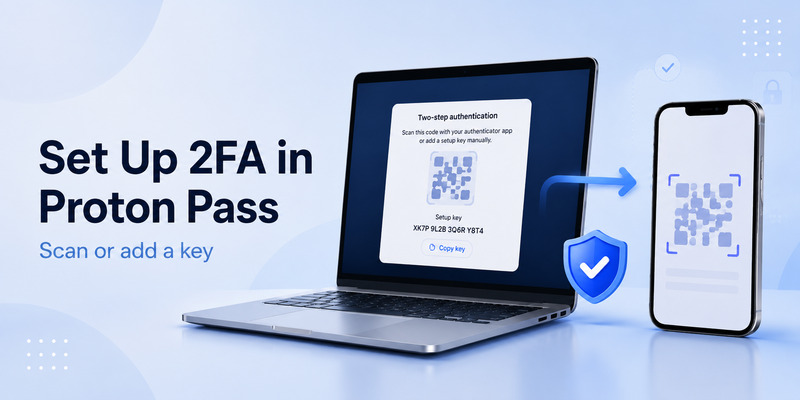
Option 1: Scan a QR code
- Select the QR code scanning option.
- Point your device camera at the QR code.
- Confirm the account details.
- Save the new entry.
Option 2: Enter a setup key manually
- Select Enter manually.
- Enter the account name or issuer.
- Paste or type the secret key provided by the website.
- Save the entry.
Proton Authenticator will begin generating temporary verification codes.
Step 4: Verify Your 2FA Setup
Return to the website where you enabled two-factor authentication.
- Open Proton Authenticator.
- Find the account you just added.
- Copy or enter the current six-digit code.
- Submit the code on the website.
- Confirm that 2FA has been activated.
Most standard TOTP codes refresh approximately every 30 seconds.
After activation, save any recovery codes provided by the website.
For more detailed instructions, see our guide on how to use Proton Authenticator.
How to Use Proton Authenticator for Proton Account 2FA
Proton Authenticator can generate codes for a Proton Account, including the account used to access Proton Mail and other Proton services.
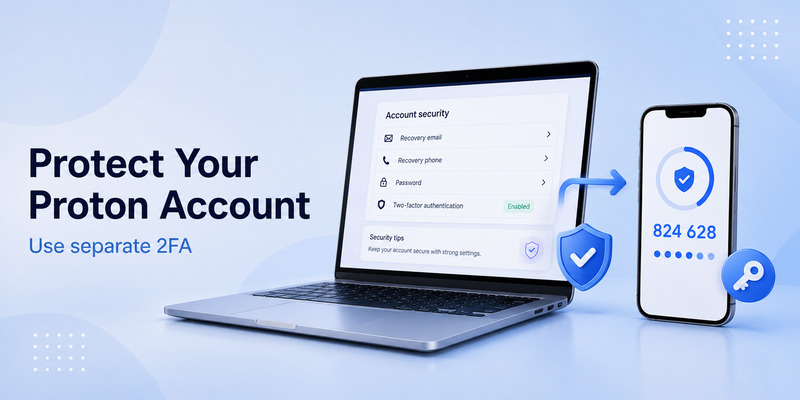
The app itself and the Proton Account security setting are separate things.
Enable Two-Factor Authentication on Your Proton Account
To enable authenticator-based 2FA:
- Sign in at Proton Account.
- Open Settings.
- Select All settings.
- Go to Account and password.
- Find Two-factor authentication.
- Enable the Authenticator app option.
- Follow Proton’s setup instructions.
- Add the displayed QR code or secret key to Proton Authenticator.
- Enter the requested verification code.
- Save your Proton Account recovery codes.
Proton may also offer security-key authentication, depending on the account and current configuration.
Should You Use Proton Authenticator to Protect the Same Proton Account Used for Sync?
You can, but you need to consider the recovery dependency.
If your Proton Authenticator codes are synchronized through the same Proton Account they protect, losing access to all trusted devices could create a circular recovery problem.
To reduce that risk:
- Keep an independently accessible copy of your Proton Account recovery codes.
- Register a supported security key when practical.
- Maintain a tested backup authentication method.
- Avoid depending solely on a synchronized authenticator to recover the synchronization account.
This consideration also applies when using other authenticator services that synchronize through a protected account.
Proton Authenticator vs Proton Pass for Proton Account Security
Proton Pass is designed to manage passwords and can generate TOTP codes for supported accounts.
For your Proton Account itself, keeping the second factor separate from the password manager is generally preferable.
Proton Authenticator is a dedicated app and can provide that separation when configured with appropriate recovery methods.
Proton Authenticator Sync, Backup and Account Transfer
Backup and recovery are major advantages of Proton Authenticator, but they should be configured intentionally.
How to Sync Proton Authenticator Across Devices
To enable supported synchronization:
- Open Proton Authenticator.
- Go to Settings.
- Find the Security section.
- Select Sync between devices.
- Sign in to your Proton Account if prompted.
- Confirm that synchronization is enabled.
- Install Proton Authenticator on another supported device.
- Sign in with the appropriate account and verify that your codes appear.
Proton documents end-to-end encryption for synchronized codes.
Apple users may also have an iCloud-based synchronization option.
Synchronization does not eliminate the need for independent recovery codes.
How to Back Up Proton Authenticator Codes
Proton Authenticator supports backup options that vary by platform.
According to Proton’s documentation:
- Apple devices can use iCloud-based backups.
- Android devices can select a backup location and configure backup frequency.
- Supported export features provide another way to preserve authentication data.
To review backup options, open Proton Authenticator and go to Settings → Security.
Choose a storage location you trust.
Protect exported files and backup locations against unauthorized access.
How to Import Codes From Google Authenticator
Proton Authenticator supports importing codes from Google Authenticator.
The general process is:
- Open Google Authenticator.
- Use its supported account export or transfer feature.
- Generate the export QR code.
- Open Proton Authenticator.
- Go to Settings → Import.
- Choose Google Authenticator.
- Follow the current import instructions.
- Scan or upload the supported export data.
- Check that your accounts appear.
- Test important sign-ins before deleting the old entries.
Do not upload transfer QR codes to untrusted websites or share them in screenshots.
For a more detailed walkthrough, see our Google Authenticator to Proton Authenticator guide.
Can You Import From Other Authenticator Apps?
Proton documents import support for several applications, including:
- 2FAS.
- Aegis Authenticator.
- Bitwarden Authenticator.
- Ente Auth.
- Google Authenticator.
- LastPass Authenticator.
- Proton Pass.
- Proton Authenticator exports.
Import methods vary by source application.
Some use QR codes, while others use supported file formats.
Follow the latest instructions shown in Proton Authenticator.
How to Move Proton Authenticator to a New Phone
Before replacing your phone:
- Confirm whether synchronization is enabled.
- Create or verify a usable backup.
- Save recovery codes for important services.
- Install Proton Authenticator on the new phone.
- Restore or synchronize your entries.
- Test the most important accounts.
- Keep the old phone until the new setup works.
Do not erase the old device before confirming that your codes can be recovered.
For general migration advice, see our authenticator transfer guide.
What Happens if You Lose Your Phone?
If your phone is lost:
- Restore codes from a supported synchronized account.
- Use a secure backup if one exists.
- Check another trusted device that already has the codes.
- Use service-specific recovery codes.
- Follow each service’s official account recovery process if necessary.
Proton Authenticator cannot reconstruct a local-only authentication secret that was never backed up or synchronized.
Proton Authenticator vs Google and Microsoft Authenticator
Proton Authenticator competes with established applications such as Google Authenticator and Microsoft Authenticator.
The main differences involve supported platforms, synchronization, backups, and account-specific features.
| Feature | Proton Authenticator | Google Authenticator | Microsoft Authenticator |
|---|---|---|---|
| Standard TOTP codes | Yes | Yes | Yes |
| Android and iPhone | Yes | Yes | Yes |
| Native Windows, macOS and Linux apps | Yes | No official native desktop app | No general-purpose native desktop TOTP app |
| Offline TOTP generation | Yes | Yes | Yes |
| Account-based synchronization | Optional | Optional | Backup/recovery features vary by platform |
| Open source | Yes | Not fully open source | Not fully open source |
| Import/export support | Broad supported imports and exports | Supported account transfer/export | Depends on account type and platform |
| Microsoft work/school push approvals | Not a replacement | Not a replacement | Supported when configured |
Proton Authenticator vs Google Authenticator
Google Authenticator is widely used and offers straightforward TOTP generation on Android and iOS.
Proton Authenticator adds official desktop apps, broader import/export functionality, and an end-to-end encrypted synchronization model.
If you primarily use a phone and want a simple authenticator, Google Authenticator may be sufficient.
If you want native desktop access and more portability options, Proton Authenticator is worth considering.
Proton Authenticator vs Microsoft Authenticator
Microsoft Authenticator supports standard TOTP codes but also offers specialized Microsoft account and organizational authentication features.
Proton Authenticator is designed as a general-purpose TOTP application.
It should not be assumed to replace Microsoft Authenticator push approvals or organization-specific authentication requirements.
If your workplace requires Microsoft Authenticator, follow its approved authentication policy.
Proton Authenticator vs Proton Pass
The choice depends on whether you prefer convenience or separation.
Choose Proton Pass TOTP if you want supported passwords and verification codes managed together.
Choose Proton Authenticator if you prefer a dedicated application for authentication codes and want greater separation from your password manager.
For a broader comparison, read our best authenticator app guide.
Proton Authenticator Not Working: Troubleshooting
If Proton Authenticator displays an invalid code, fails to import accounts, or does not synchronize correctly, identify the cause before deleting any credentials.
Proton Authenticator Code Is Invalid
If a website rejects your code:
- Check that you selected the correct account.
- Enable automatic date and time on your device.
- Wait for a new code.
- Enter the code before expiration.
- Confirm that the service’s 2FA registration has not changed.
- Try a registered backup method if necessary.
TOTP depends on accurate device time.
Proton Authenticator Is Not Syncing
If codes are missing on another device:
- Confirm that synchronization is enabled.
- Check whether you signed in to the correct Proton Account.
- Verify internet connectivity.
- Check for app updates.
- Review the synchronization settings on both devices.
- Follow Proton’s official troubleshooting documentation.
Do not delete local-only codes before verifying that synchronization has completed successfully.
Proton Authenticator Import Failed
If importing from another app fails:
- Check that the export format is supported.
- Follow Proton’s current provider-specific import instructions.
- Confirm that the export data is complete.
- Avoid third-party QR conversion tools.
- Reconfigure affected accounts through their official security settings if necessary.
Importing a token does not automatically verify that the token is still valid.
Test important accounts after migration.
Proton Authenticator Codes Disappeared
If codes are missing:
- Check whether you are using the correct device.
- Review your synchronization settings.
- Look for a supported backup.
- Check whether the entries were stored locally.
- Restore from a trusted backup if available.
- Use individual service recovery methods if needed.
Do not uninstall the application as your first troubleshooting step.
Proton Authenticator Not Working on Windows or Linux
If the desktop app does not open or function correctly:
- Confirm that your operating system is supported.
- Download the latest official version.
- Review Proton’s platform-specific support instructions.
- Check for known compatibility issues.
- Preserve your backup before reinstalling.
Proton maintains separate troubleshooting documentation for some desktop platforms.
Is Proton Authenticator Safe?
Proton Authenticator is open source and supports end-to-end encrypted synchronization, according to Proton’s published security documentation.
It also supports local operation and app protection features.
However, no authenticator can protect you if you expose setup secrets, share verification codes with an attacker, or enter them on a phishing website.
For especially sensitive accounts, consider a phishing-resistant passkey or FIDO2 security key when supported.
Frequently Asked Questions
What is Proton 2FA Authenticator?
Proton Authenticator is a free, open-source application developed by Proton that generates temporary two-factor authentication codes for compatible online accounts.
Is Proton Authenticator free?
Yes. Proton offers Proton Authenticator for free on supported desktop and mobile platforms.
Do I need a Proton Account to use Proton Authenticator?
No. You can use it locally without a Proton Account. A Proton Account can enable supported encrypted synchronization.
Where can I download Proton Authenticator?
Use Proton’s official download page at https://proton.me/authenticator/download.
Does Proton Authenticator work on Windows?
Yes. Proton provides an official Windows desktop application.
Is Proton Authenticator available for Mac and Linux?
Yes. Proton offers official macOS and Linux versions.
Can Proton Authenticator generate codes offline?
Yes. Standard TOTP codes can be generated without an internet connection after setup.
How do I add a new account to Proton Authenticator?
Enable authenticator-based 2FA on the website, then scan its setup QR code or enter the secret key in Proton Authenticator. Verify the first code on the website.
Can I import Google Authenticator codes into Proton Authenticator?
Yes. Proton documents support for importing codes from Google Authenticator.
Does Proton Authenticator support encrypted synchronization?
Yes. Proton provides end-to-end encrypted synchronization through supported account-based options.
Can I use Proton Authenticator without cloud sync?
Yes. You can keep codes locally and use supported backup or export methods.
Is Proton Authenticator different from Proton Pass?
Yes. Proton Authenticator is a dedicated TOTP application, while Proton Pass is a password manager that can also manage TOTP codes in supported configurations.
Can I use Proton Authenticator for Proton Mail?
Yes. You can use Proton Authenticator to generate TOTP codes for a Proton Account when authenticator-based 2FA is configured.
Why is my Proton Authenticator code not working?
Common causes include incorrect device time, an expired code, selecting the wrong account, or an outdated 2FA registration.
What happens if I lose my phone?
You may be able to restore codes through synchronization or backups. Otherwise, use recovery methods provided by the individual websites.
Can I transfer Proton Authenticator to a new phone?
Yes. Use supported synchronization, backup, or export/import options, then test the codes before removing the old device.
Is Proton Authenticator open source?
Yes. Proton publishes source code for its authenticator applications and shared components.
Is Proton Authenticator better than Google Authenticator?
It depends on your needs. Proton offers native desktop apps and flexible synchronization and export options, while Google Authenticator offers a simpler mobile-focused experience.
Can Proton Authenticator replace Microsoft Authenticator for work?
Not necessarily. Proton Authenticator supports standard TOTP, but it does not replace Microsoft-specific push approvals or organization-managed authentication requirements.
Are Proton Authenticator codes phishing-resistant?
No. Standard TOTP codes can still be stolen through phishing. Passkeys and FIDO2 security keys offer stronger phishing resistance when supported.
Conclusion
Proton 2FA Authenticator is a flexible choice for users who want a dedicated, open-source app to generate two-factor authentication codes.
With support for Android, iPhone, Windows, macOS, and Linux, Proton Authenticator combines offline TOTP generation with optional encrypted synchronization, backups, and import/export tools.
To get started, download the official app, connect your first account, verify the generated code, and save recovery information.
If you are switching from another authenticator, import your codes carefully and test important accounts before deleting old entries.
For more information, explore our Proton Authenticator GitHub guide, Google Authenticator to Proton migration tutorial, and two-factor authentication app guide.
