
How to Sign In Without a Password: Passkeys and Other Routes
Published October 30, 2026
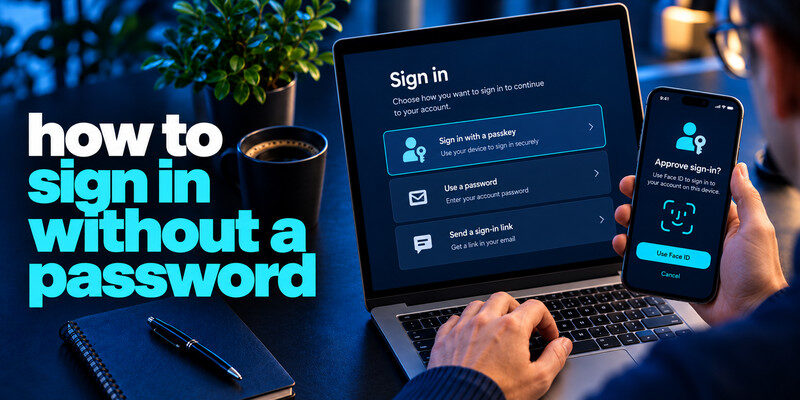
How to sign in without a password: Open a website or app that supports passwordless authentication, select Sign in with a passkey or another available passwordless option, and verify your identity using Face ID, fingerprint, device PIN, security key, or a one-time email link. The available methods depend on the service and your account settings.
Passwordless sign-in makes accessing online accounts faster and can reduce security risks associated with stolen or reused passwords. Whether you’re using a smartphone or computer, several authentication methods allow you to log in without typing a traditional password.
This guide explains how to sign in without a password using four common methods, what to do if passwordless login isn’t available, and how to troubleshoot sign-in problems.
What Is Passwordless Sign-In?
Passwordless sign-in allows you to access a website, application, or supported device without entering a traditional account password.
Instead, you authenticate using another method, such as a passkey, security key, email link, or approved sign-in request.
The most common passwordless methods include:
| Method | How It Works | Requirements |
|---|---|---|
| Passkey | Unlock a cryptographic credential using device verification | Previously registered passkey |
| Security key | Authenticate using a registered physical security key | Compatible hardware key |
| Email magic link | Open a temporary sign-in link | Access to registered email |
| Authenticator approval | Approve a sign-in request on a trusted device | Provider-supported authenticator |
Passkeys are particularly useful because they use cryptographic authentication tied to legitimate website domains, providing stronger resistance to phishing than traditional passwords.
However, not every service supports passwordless authentication, and some accounts require you to enable it before using it.
If you haven’t configured a passwordless method yet, follow our guide to switching to passwordless login.
Read more: What Is a Password Manager? A Plain-English Guide to Vaults and AutoFill
Secure your accounts with fast, reliable two-factor authentication. Download now and protect your login in seconds.Download Authenticator App
Method 1: How to Sign In Without a Password Using a Passkey
Using a saved passkey is one of the simplest ways to sign in without a password on supported websites and applications.
Step 1: Open the Website or App
Visit the official website or open the application where you’ve already created a passkey.
Select Sign in to begin.
Step 2: Choose Sign In With a Passkey
Look for an option such as:
- Sign in with a passkey
- Use a passkey
- Sign in another way
Depending on the service, your browser may automatically suggest an available passkey.
Step 3: Select Your Saved Passkey
Choose the credential associated with the account you want to access.
Your device may retrieve it from Apple Passwords, Google Password Manager, or another compatible credential provider.
Step 4: Verify Your Identity
Confirm the sign-in request using your device’s available authentication method:
- Face ID
- Fingerprint recognition
- Device PIN
- Screen-lock password or pattern
Once verification succeeds, the website authenticates your account without requiring you to enter its password.
Important: You must have a passkey registered for that account before using this method.
For first-time setup instructions, read our step-by-step guide to creating a passkey.

Method 2: Sign In Using a Passkey From Your Phone
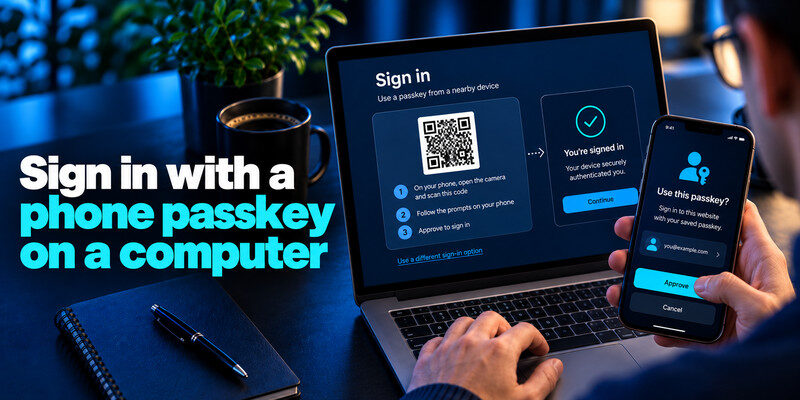
You can also sign in without a password on a compatible computer using a passkey stored on your smartphone.
This is useful when your passkey is saved on your phone rather than the computer you’re using.
Step 1: Open the Login Page
Visit the website on your computer and select its passkey sign-in option.
Step 2: Choose Another Device
If the browser doesn’t find a locally saved passkey, look for Use a phone or tablet, Use another device, or a similar option.
A QR code may appear on your computer screen.
Step 3: Scan the QR Code
Open your phone’s camera and scan the QR code displayed during the sign-in process.
Follow the system authentication prompt on your phone.
Step 4: Approve the Sign-In
Confirm using your fingerprint, Face ID, or device screen lock.
Keep both devices nearby and follow any Bluetooth or proximity instructions.
Once authentication is complete, the website should sign you in on your computer.
Security tip: Only scan passkey QR codes generated by a legitimate sign-in session you initiated. Avoid saving credentials on borrowed or public computers.
Read more: How to Switch to Passwordless Login Without Losing Access
Method 3: How to Sign In Without a Password Using an Email Link
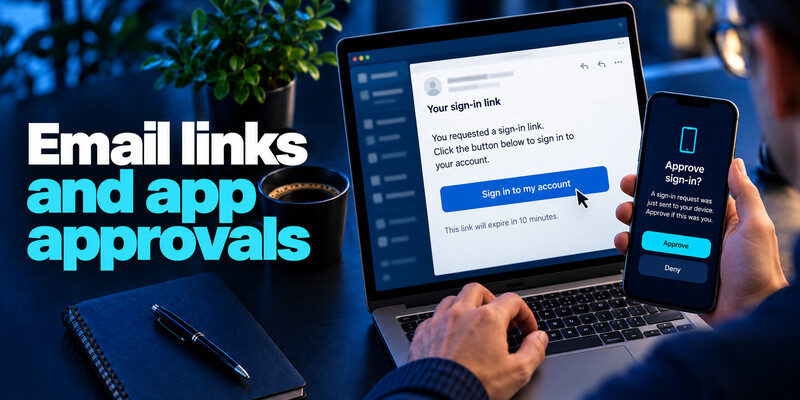
Some websites support passwordless authentication through a one-time email link, often called a magic link.
This method allows you to access your account without entering a password or using a passkey.
Step 1: Enter Your Email Address
Open the website’s official login page.
Select Sign in with email or Send me a login link, if available.
Enter the email address associated with your account.
Step 2: Check Your Inbox
The website sends a temporary sign-in link to your registered email address.
Open the message only if you requested it.
Step 3: Open the Sign-In Link
Check that the email and destination are legitimate, then follow the link to complete authentication.
Some services may require additional verification.
Magic links usually expire after a limited period and may be valid for only one use.
Is Email Passwordless Login Secure?
Email-based passwordless login can be convenient, but its security depends heavily on your email account.
If someone gains access to your mailbox, they may be able to use login links intended for you.
For this reason, protect your email account with a strong authentication method and enable multi-factor authentication where supported.
Learn more in our guide to passwordless email authentication.
Read more: Strong Password vs Passphrase: Which Should You Use?
Method 4: Sign In Without a Password Using an Authenticator or Security Key
Some services support passwordless authentication through an approved authenticator application or a physical security key.
Option A: Authenticator App Approval
For accounts that support passwordless app approval:
- Open the website’s sign-in page.
- Enter your username or email address if required.
- Choose the supported authenticator sign-in option.
- Open the authentication notification on your registered device.
- Complete the requested verification to approve the sign-in.
For example, eligible Microsoft accounts may support passwordless approval through Microsoft Authenticator.
Read our Microsoft Authenticator passwordless sign-in guide for more information.
Note: An authenticator app that generates six-digit TOTP codes does not automatically support passwordless sign-in. TOTP codes are commonly used as an additional factor alongside a password.
Option B: Physical Security Key
If your account supports FIDO2 security keys:
- Connect or tap your registered security key when prompted.
- Select the security-key authentication option.
- Enter the key’s PIN or complete user verification if required.
- Touch or activate the key when prompted.
- Wait for the website to authenticate your account.
The exact process depends on the service, browser, and security key.
Can You Sign In to Windows Without a Password?
Yes. Windows supports passwordless device sign-in through Windows Hello on compatible computers.
Depending on your device and account configuration, Windows Hello can use facial recognition, fingerprint authentication, or a PIN.
To configure Windows Hello:
- Open Windows Settings.
- Go to Accounts > Sign-in options.
- Choose an available Windows Hello method.
- Follow the instructions to complete setup.
- Use the configured method on your next Windows sign-in.
Windows Hello PIN sign-in is associated with the device and is different from entering your Microsoft account password.
However, using Windows Hello does not necessarily remove your Microsoft account password or enable passwordless authentication on unrelated websites.
Read more: How to Create a Strong Password Policy People Can Follow

What If a Website Still Asks for a Password?
Even after learning how to sign in without a password, you may encounter websites that continue requesting traditional credentials.
There are several possible reasons.
Passwordless Login Is Not Enabled
Some services require you to register a passkey or enable a passwordless method in account security settings.
If you haven’t completed setup, sign in using an existing supported method and configure passwordless authentication first.
Your Passkey Is Stored on Another Device
If your passkey is unavailable locally, check whether it is saved in another credential manager or on your phone.
Use the website’s cross-device authentication option if supported.
The Website Does Not Support Passwordless Login
Not every website provides passkeys, magic links, or other passwordless authentication methods.
If passwordless login is unavailable, use a strong, unique password and enable additional authentication protection.
For compatible password-based accounts, a two-factor authenticator app can generate TOTP verification codes as an additional security measure.
How to Recover Access If Passwordless Sign-In Fails
If your passkey or registered authentication device is unavailable, use an alternative method supported by the service.
Try Another Registered Device
If your passkeys are synchronized through a compatible credential manager, they may be available on another approved device.
Use a Backup Security Key
If you’ve registered a second security key, use it to authenticate.
Follow the Official Account Recovery Process
Some services allow recovery through a verified email address, recovery code, or another trusted authentication method.
Avoid third-party services claiming they can bypass passwordless account security.
Once access is restored, review your registered passkeys, trusted devices, and active sessions.
Is Signing In Without a Password More Secure?
Passwordless authentication can improve security by reducing reliance on passwords that may be reused, guessed, or stolen.
However, different passwordless methods provide different levels of protection.
Passkeys and compatible FIDO2 security keys are phishing-resistant because authentication is cryptographically associated with the legitimate service.
Email links and some code-based methods are more dependent on the security of the associated email account or communication channel.
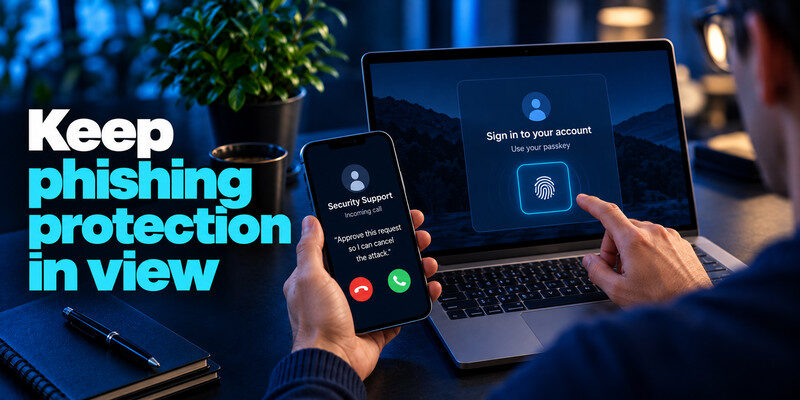
Regardless of the method, keep your devices updated, protect your recovery accounts, and avoid approving unexpected authentication requests.
Frequently Asked Questions
Can I sign in without a password if I never created a passkey?
Yes, if the service supports another passwordless method, such as an email magic link or authenticator approval. Otherwise, use an existing sign-in method and configure passwordless authentication first.
Can I sign in without a password on my phone?
Yes. Supported websites and apps allow you to sign in using passkeys unlocked by fingerprint, Face ID, or your device screen lock.
Can I log in without a password or phone?
Yes, if you have another registered passkey, a compatible security key, or a different passwordless method supported by the service.
Is Face ID the same as a passkey?
No. Face ID is a biometric verification method that can authorize the use of a passkey. The passkey itself is a cryptographic credential.
Can I use a six-digit authenticator code instead of a password?
Only if the service explicitly supports that sign-in method. Most TOTP codes are used as an additional authentication factor rather than a standalone password replacement.
Final Thoughts
Understanding how to sign in without a password makes it easier to access supported websites and applications while reducing dependence on traditional passwords.
For most users, a saved passkey offers a convenient and phishing-resistant sign-in experience. Other options, such as security keys, magic links, and authenticator approvals, may also be available depending on the service.
If your account doesn’t support passwordless login yet, continue using a unique password and enable two-factor authentication for additional protection.
