
How to Use Passkeys on Android: Create, Sign In, and Move Devices
Published October 30, 2026
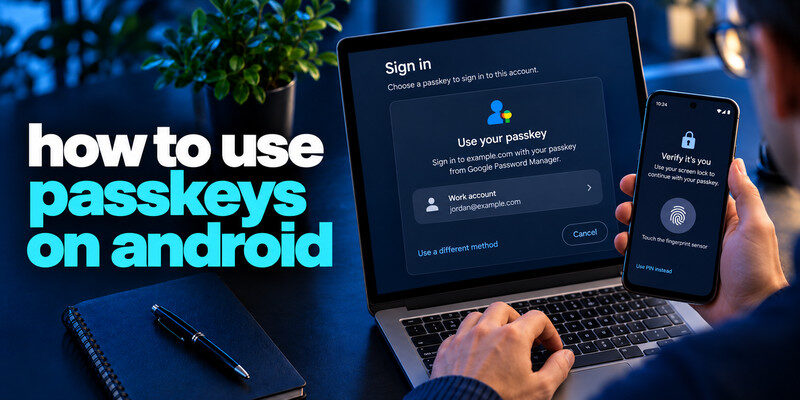
How to use passkeys on Android: Open a website or app that supports passkeys, go to its security settings, and select Create a passkey. Save the passkey using Google Password Manager or another supported provider, then verify with your fingerprint, face unlock, PIN, or screen-lock pattern. You can then sign in without entering your account password.
Passkeys make Android authentication faster and more secure by replacing traditional passwords with device-based verification. This guide explains how to create, use, and manage passkeys on Android, including what to do when passkey sign-in isn’t working.
What Are Passkeys on Android?
A passkey is a digital credential that allows you to sign in to supported websites and applications without typing a password.
Instead, your Android device verifies your identity using its screen-lock method, such as a fingerprint, facial recognition, PIN, or pattern.
Passkeys use public-key cryptography. The website stores a public key, while the corresponding private key remains protected by your device or credential provider.
Unlike traditional passwords, passkeys are tied to legitimate website domains, making them resistant to phishing attacks.
On Android, passkeys can be stored in Google Password Manager or another compatible credential manager. Depending on the provider, they may also synchronize across supported devices.
For a broader explanation of passkey authentication, read our complete guide on how to set up a passkey.
Read more: How to Use Passkeys on iPhone: Save, Sign In, and Recover
Secure your accounts with fast, reliable two-factor authentication. Download now and protect your login in seconds.Download Authenticator App
How to Enable Passkeys on Android
Before learning how to use passkeys on Android, make sure your device is ready.
Step 1: Enable a Screen Lock
- Open Settings on your Android phone.
- Go to Security & privacy or Lock screen.
- Select Screen lock.
- Set up a PIN, password, or pattern.
- Enable fingerprint or face recognition if your device supports it.
A screen lock is required for many Android passkey workflows because it protects access to your saved credentials.
Step 2: Check Google Password Manager
Google Password Manager is a common option for storing Android passkeys.
- Open Settings.
- Search for Passwords, passkeys & accounts, Password Manager, or Autofill service.
- Open the available credential manager settings.
- Check that Google Password Manager or your preferred supported provider is selected.
The exact menu names depend on your Android version and phone manufacturer.
Step 3: Update Your Device
Make sure Android, Google Play services, and your browser are updated.
Also confirm that the website or app you want to access supports passkey authentication.
Note: You do not need to create a separate passkey for Android itself. Passkeys are registered individually with supported websites and applications.
Read more: What Is a Password Manager? A Plain-English Guide to Vaults and AutoFill

How to Create a Passkey on Android
Once your phone is ready, you can create a passkey for a supported account.
Step 1: Open a Supported Website or App
Launch Google Chrome or another compatible browser.
Visit the official website where you want to enable passkeys and sign in using your existing credentials.
Step 2: Open Account Security Settings
Navigate to the website’s security or sign-in settings.
Look for an option such as:
- Create a passkey
- Add passkey
- Set up passkey
The exact wording varies between services.
Step 3: Save Your Passkey
Tap the passkey creation option.
Android should display a prompt asking you to save the credential using Google Password Manager or another supported provider.
Check the account and credential provider before continuing.
Step 4: Verify Your Identity
Approve the request using your fingerprint, face recognition, PIN, or screen-lock pattern.
Once verification succeeds, the website should confirm that your passkey has been created.
Your credential is now ready for future sign-ins.
Tip: Creating a passkey does not necessarily remove your existing account password. Keep your recovery options available until you have tested passkey authentication successfully.
Read more: Password Manager With Built In 2FA Support: Convenience, Risks, and the Right Setup

How to Sign In With Passkeys on Android
After creating a passkey, you can use it to access your account without manually entering a password.
Follow these steps to use passkeys on Android:
- Open the website or app where you created your passkey.
- Tap Sign in or Sign in with a passkey.
- Select the correct saved passkey if prompted.
- Confirm your identity using your Android screen lock.
- Wait for authentication to complete.
You should now be signed in to your account.
On supported websites, Android may automatically suggest your saved passkey during login.
If you have multiple credential managers installed, make sure the correct provider is selected.

How to Find and Manage Passkeys on Android
Knowing how to use passkeys on Android also means understanding where your credentials are stored.
View Saved Passkeys
If you use Google Password Manager:
- Open Settings on your Android phone.
- Search for Google Password Manager.
- Open the password manager.
- Find the website or app associated with your passkey.
- Select the entry to review its available details.
You can also access Google Password Manager through Chrome or supported Google account settings.
If you use a third-party credential manager, open that app instead.
Delete an Android Passkey
To remove a saved passkey, open its entry in your credential manager and select the available deletion option.
Deleting a passkey locally may not remove its registration from the website. Check the website’s security settings if you want to revoke the credential completely.
Important: Always confirm that another sign-in or recovery method works before deleting a passkey.
Read more: How to Create a Strong Master Password You Can Still Remember
How to Use Passkeys on a New Android Phone
If you replace your phone, you may be able to access your existing passkeys without creating them again.
For passkeys stored in Google Password Manager:
- Set up your new Android device.
- Sign in to the Google Account associated with your saved passkeys.
- Configure a secure screen lock.
- Complete any required Google Password Manager verification or recovery steps.
- Open a supported website and try signing in with your passkey.
If your passkeys were synchronized successfully, they should be available through the compatible credential manager.
Passkeys stored only on your old device or a physical security key may require a different recovery method.
Before resetting your previous phone, test passkey sign-in on the new device.

How to Fix Passkeys Not Working on Android
If you’re having trouble creating or using passkeys on Android, try these solutions.
Passkey Option Not Showing
- Confirm that the website supports passkeys.
- Update Android and your browser.
- Check that your screen lock is enabled.
- Try the website’s official application.
Google Password Manager Not Showing Passkeys
- Verify that you’re using the correct Google Account.
- Check your selected credential provider.
- Confirm that synchronization and any required recovery steps are complete.
- Look for the credential in another password manager if you previously used one.
Fingerprint or Face Unlock Not Working
- Check your biometric authentication settings.
- Restart your Android device.
- Try your PIN or screen-lock pattern when available.
Passkey Sign-In Keeps Failing
- Verify that you’re on the correct website.
- Check that you’re selecting the passkey for the correct account.
- Update your browser and credential manager.
- Try another supported sign-in method if necessary.
Avoid repeatedly creating duplicate passkeys until you’ve identified the problem.
Read more: How to Protect Your Online Accounts: A Priority-First Plan

Are Passkeys Safer Than Passwords on Android?
Passkeys provide stronger resistance to phishing and credential theft than traditional passwords.
Because the private key is not shared with the website, attackers cannot simply steal and reuse it through a fake login page.
However, your Android device and credential manager still need protection. Use a strong screen lock, keep your software updated, and maintain reliable account recovery methods.
For services that do not support passkeys, you can enable two-factor authentication using a compatible authenticator app.
Passkeys and TOTP authentication are different technologies. An authenticator app that generates verification codes does not automatically store or manage passkeys.
Frequently Asked Questions
Do Android passkeys require a fingerprint?
No. Depending on your device and credential provider, you can use a PIN, pattern, password, or supported biometric authentication method.
Where are passkeys stored on Android?
Passkeys can be stored in Google Password Manager or another compatible credential manager. Their storage location depends on the provider selected during creation.
Can I use passkeys on Samsung phones?
Yes. Compatible Samsung Galaxy devices support passkeys through supported browsers, applications, and credential providers, including Google Password Manager and Samsung Pass where available.
Can I use Android passkeys on another phone?
Yes, if your passkeys are stored in a compatible credential manager that supports synchronization. Device-bound credentials may require another registered passkey or account recovery.
What happens if I lose my Android phone?
You may be able to recover synchronized passkeys through your credential manager on another device. Otherwise, use another registered passkey or the website’s official account recovery process.
Final Thoughts
Learning how to use passkeys on Android helps you sign in to supported websites and applications without relying on traditional passwords.
Start by enabling a secure screen lock, choose a trusted credential manager, create your passkey, and test passwordless sign-in.
Keep your Android device updated and maintain a reliable recovery method in case you lose or replace your phone.
For accounts that still require passwords, consider using a two-factor authenticator app to add another layer of security where supported.
