
Best iOS Authenticator Apps in 2026 for iPhone & iPad
Published October 13, 2026 · Updated October 21, 2026
The best iOS authenticator app should make two-factor authentication easy to use while keeping your verification codes secure and recoverable. Whether you prefer Apple Passwords’ built-in autofill, Google Authenticator’s simple setup, or a dedicated app like Begamob Authenticator, the right choice depends on your devices and security needs.
In this guide, we compare seven authenticator apps for iPhone and iPad, covering their key features, backup options, pricing, and everyday usability to help you choose the right 2FA solution.
Decide Whether Codes Belong with Passwords
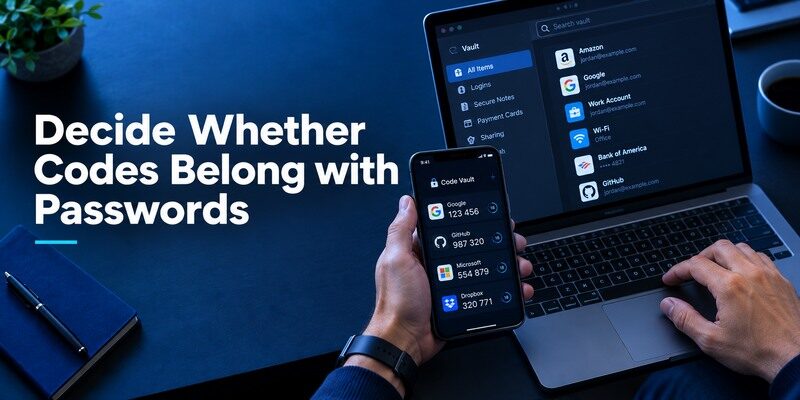
Apple’s Passwords app can keep verification codes alongside website credentials and offer AutoFill on supported Apple devices. That is an efficient iOS experience when the same person controls the iPhone, iPad and Mac. The trade-off is concentration: a person who gains access to an unlocked device may see both the password and its code. A separate authenticator can preserve a different access boundary, though that boundary depends on how its own backups and device locks are configured.
Apple’s built-in verification code features can be convenient for people who already use Passwords and iCloud Keychain across their devices. However, website TOTP codes stored in Apple Passwords are different from the trusted-device verification process used for an Apple Account. Our guide to Apple 2FA authenticator explains the relevant Apple authentication options and how they fit into an iPhone security setup.
The one-tap path is real convenience
When a compatible website requests a TOTP code, Apple can suggest the saved code near the keyboard or in Passwords. For someone who signs in repeatedly on an iPhone, that removes searching through a second app and the risk of copying the wrong account’s number. Test it on a low-risk website with two usernames under the same service: check whether the suggested entry belongs to the account currently on the login page. Convenience should survive a realistic multi-account case, not merely an empty demo vault.
A separate app creates a deliberate boundary
2FAS, Ente, Proton and Begamob are examples of dedicated code tools with different storage and device models. They can be useful if you want to keep credentials and codes apart or move between Apple and non-Apple devices. A second icon does not automatically mean independent security: if both the password manager and code app unlock through the same lost phone or sync account, their recovery routes can still fail together. Identify both dependencies before committing.
Keeping passwords and verification codes together can simplify sign-ins, while separating them may create an additional access boundary. The right setup depends on how credentials are stored and protected. Our comparison of password manager vs browser autofill explores related tradeoffs in credential storage, access controls, synchronization, and convenience.
Which option should you choose?
Apple Passwords is the first choice for someone living entirely on iPhone and Mac who values built-in AutoFill. Choose 2FAS for a separate mobile code app with iCloud backup and browser pairing. Ente Auth or Proton Authenticator better serves an iPhone owner who also uses Windows, Linux or Android. Choose the Begamob Authenticator App only after you have verified its current recovery route and the purchase terms for the specific version you install.
Apple Passwords puts codes beside passwords under the Apple Account’s recovery model; that convenience will not suit everyone. 2FAS’s backup and browser path is useful but does not provide the same native desktop code app as Ente or Proton. Cross-platform sync adds account and device security decisions. Trial a low-risk service on the iPhone, test a second device and a replacement-phone route, then migrate important accounts one at a time.
Secure your accounts with fast, reliable two-factor authentication. Download now and protect your login in seconds.Download Authenticator App
Best iOS Authenticator App Comparison Table
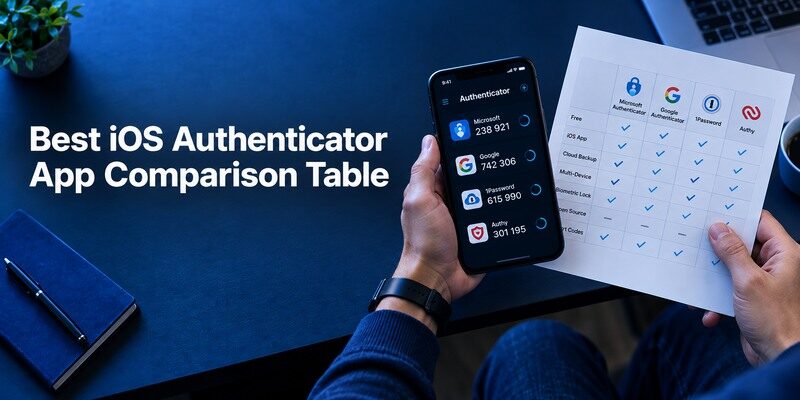
| Option | Useful when | Recovery dependency | Check before choosing |
| Apple Passwords | You mainly use Apple devices and AutoFill | Apple Account and iCloud Keychain configuration | Trusted-device access after losing the phone |
| 2FAS Auth | You want a standalone iPhone code list | Selected iCloud backup or export | Protected restore and browser pairing |
| Ente Auth | You use iOS plus desktop or Android | Ente account sync or local export, depending on mode | New-device decryption and session review |
| Proton Authenticator | You value open-source mobile/desktop access | Chosen sync or backup route | Current app and account settings |
| Begamob Authenticator | You want a dedicated mobile TOTP trial | Verify installed version’s route | Publisher, terms and a recoverable test |
This table does not claim each app implements iCloud in the same way. Apple’s own Keychain settings, 2FAS’s platform backup and another company’s encrypted account sync are separate mechanisms. Pick the one you can describe and rehearse with the actual accounts you care about.
If you want to evaluate another standalone authenticator for iPhone, the Bitwarden Authenticator app is also worth considering. It supports standard TOTP codes on iOS and Android, and its standalone app is distinct from the authenticator functionality available within Bitwarden Password Manager. Review its current backup and synchronization options before moving important accounts.
💡 Discover Helpful Guides: Best OTP App Guide 2026: Top Authenticator Apps Reviewed & Compared
Follow an iCloud Code onto a Second Device
Apple says Passwords and Keychain content can be available on devices signed in to the same Apple Account with the relevant iCloud setting enabled. In a controlled test, enroll a code for a recoverable website in Passwords on iPhone, then check whether the entry appears on an authorized iPad or Mac. Complete a fresh website sign-in there. An entry name on the second screen is weaker evidence than an accepted, newly rotated code.
Check the Apple Account first
If you cannot sign in to the Apple Account after a phone loss, easy sync has a hidden gate. Keep an approved recovery route and know which trusted devices or phone numbers remain available. This is particularly important when the iPhone being traded in is the only trusted device. Prepare the replacement before wiping the original whenever possible. Apple Account verification codes are part of Apple’s own trusted-device process; they are not necessarily a TOTP entry you can fetch from a third-party app.
A different app’s local codes will not inherit the promise
Restoring a new iPhone from an Apple backup does not prove that every unrelated authenticator secret is usable. Check the specific app’s documented storage, export and restore behavior. 2FAS describes an iCloud backup route; Ente has account and offline modes; Proton provides its own features. Begamob’s public overview establishes QR/manual codes, so its current replacement-phone controls need direct inspection. Avoid using the word “iCloud” as if it were a single switch for all these products.
Authenticator recovery depends on the app’s actual storage and backup design. Some apps support encrypted synchronization, while others require an export, transfer process, or fresh enrollment on each website. Our complete authenticator app guide explains how TOTP setup, backup planning, and recovery methods work so you can prepare before losing access to your iPhone.
Compare account sync with an app export
Apple Passwords can make verification codes available through the Apple ecosystem when the user’s account and device settings support it. A third-party authenticator may use its own cloud account, an encrypted file or a device-transfer QR instead. These routes can all feel like “the code is on my new iPhone,” yet they require different credentials after loss. Identify the exact route before enrolling high-value sites and check whether the new device is trusted under the relevant Apple Account. A first login on an unfamiliar iPhone may require another verification step before any code collection becomes available.
Test a real account, then lock the screen
On a second authorized device, verify a noncritical website’s code and check how it appears when the phone is locked. If codes are visible in a widget or watch interface, decide whether that fits the access you want. An option convenient at home might expose a value on a shared desk. The code’s short lifetime limits one type of exposure, but an unlocked app or account can reveal many entries. A usable iOS choice balances fast retrieval with the device lock and recovery controls you actually maintain.
💡 Discover Helpful Guides: App Authenticator: Complete Guide to 2FA, OTP Codes, Setup & Recovery
Plan the iPhone-to-Android Possibility
An iPhone choice becomes more durable when you consider the next device, not only today’s phone. Apple Passwords is strongest within its ecosystem. If you expect an Android device or need regular Windows access, verify a provider’s documented cross-platform route before storing dozens of entries. Ente and Proton describe access beyond iOS; a protected export may be another route for some apps. A platform-specific backup such as iCloud cannot simply be presumed readable by a different app on Android.
Inventory old accounts before leaving iOS
List issuer and username without recording TOTP secrets. Label the email, password manager and financial accounts that unlock other services. For each one, check whether it permits a second authenticator, requires replacing the existing secret or offers saved recovery codes. If no documented direct import exists between your apps, change the factor on the website while the iPhone still works. Verify on the new handset from a fresh session and retain the old one until the critical list passes.
Inspect the destination, not the filename
An exported file can have a generic extension that another app cannot consume or cannot decrypt without a password you forgot. Read both products’ current import/export instructions and test a low-risk entry. A transfer QR created by one authenticator is not necessarily the single-service enrollment QR another app expects. Do not expose secrets through screenshots or public conversion websites in an attempt to force compatibility.
Test the move before purchasing the next phone
If you expect to leave the Apple ecosystem, identify which code entries are held in Apple Passwords and which live inside an app that supports Android. For each high-value site, open its security settings and locate the factor-change path while the iPhone still works. Check whether the target app accepts an export or whether issuer re-enrollment will be required. A cloud restore tied to an Apple Account does not automatically create an Android-compatible code vault. Keep a trusted session and issuer backup codes during the move.
Schedule the accounts in dependency order
Move primary email and the password manager with particular care because their access may be needed to recover everything else. Start with a disposable site to validate your method, then work through important accounts one by one. Test a fresh login on the Android device and mark the account complete only when the issuer accepts its code. Keep the iPhone until all priority sites work. A well-planned migration is safer than trying to transfer an entire collection on the day of a phone trade-in.
💡 Discover Helpful Guides: Why Is My Authenticator App Not Opening? 7 Fixes That Actually Work
Keep Apple Account Verification Separate
Apple’s own two-factor sign-in may show a six-digit code on a trusted device or send one through an approved route. That is separate from the website verification codes stored in Apple Passwords or any TOTP app. During a new iPhone setup, a user can be blocked at the Apple Account prompt before a third-party authenticator is even installed. Prepare this account’s recovery route first, then restore the code collection, then test unrelated websites.
The same number of digits can mislead
A six-digit Apple Account prompt does not imply that you should open 2FAS or Begamob. Read which account initiated the request and follow the official Apple sign-in flow. Likewise, a six-digit code for a social site must come from its own enrolled secret, not from a trusted-device Apple prompt. Support documents often call both a “verification code,” so identifying the issuer avoids a needless account reset.
Avoid circular dependence
Suppose the Apple Account uses a trusted device that has been lost, while the codes for the recovery email live only in an app on that same device. A cloud backup may exist, but the route to reach it is blocked. Add an independent approved recovery method in advance and store issuer backup codes in a protected place separate from the iPhone. Rehearse the chain with the device you would actually use in an emergency.
📖 Read More Guides: Which Authenticator App Is Best? The Best 2FA Apps Compared for 2026
Check the App’s iOS Fit Beyond a Screenshot
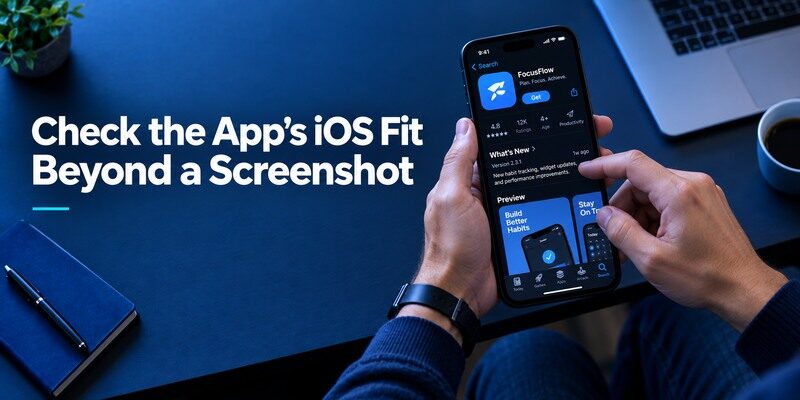
Compare account labels, search, screen lock, accessibility and whether the current listing describes a purchase that affects a needed feature. A beautiful code display cannot make a vague backup path dependable. Test a code with data off while the website is open on another connected device; then return to normal connectivity and verify a fresh login. The first test checks local code calculation, the second checks issuer acceptance.
Look at the keyboard and browser route
Apple Passwords can integrate with AutoFill. 2FAS offers a browser extension paired with the phone; it is not the same as a standalone desktop vault. Ente and Proton have their own supported desktop apps. If the place you log in most often is a Mac browser, test the exact flow there. On a shared Mac, avoid leaving a synced code account open or pairing an extension to a profile another person controls.
Check help when the device is unavailable
Open the provider’s current restore instructions from a browser, and determine what credentials, second devices or files you would need. If your chosen app gives no verifiable restore route, issuer re-enrollment while the old iPhone works may be the safe plan. Write down the support route for employer-managed factors separately. A missing personal website code and a company push enrollment have different owners even if both were on one phone.
Run an iOS-specific handoff test
Use the actual iPhone and iPad models you own, not an App Store screenshot. Enroll a low-risk account on the iPhone, check whether the second device receives a usable entry through the documented route, then lock both screens and inspect how quickly a code can be revealed. If you rely on an Apple Watch, check whether the current app genuinely supports the action you need there. A watch listing does not prove it can scan a new QR or restore a vault independently. Keep sensitive accounts on a method you can still use when the watch is charging.
Separate the Apple Account from the accounts it rescues
An iCloud-backed code collection is convenient when the same Apple Account remains accessible, but it creates a dependency. Imagine the iPhone lost and a new one demanding Apple Account verification. If the only available code for that account lived on the lost phone, the restore path may be circular. Maintain the Apple Account’s current trusted-device, recovery and security-key choices separately. Store issuer recovery codes outside the app. Test your plan from another authorized device before importing every account.
Audit the purchase before migration
Some App Store authenticators are free to download but place selected features behind in-app purchases. Review the current sheet for cloud backup, export, multi-device access and subscription renewal in your region. A comparison table should describe the path you can actually afford and maintain. Ask whether codes already enrolled remain accessible if you stop paying, then confirm through the product’s current terms. Do this before changing the primary email’s factor, because an unpleasant subscription surprise during recovery can create needless pressure.
| Trial task | What a good result proves | Remaining question |
| Scan and confirm one QR | Issuer accepts its code | Can it be restored? |
| Lock and reopen the app | Device access is controlled | What does a watch display? |
| Rehearse a new phone | Backup path is usable | Is a paid tier required? |
Trial Begamob on One iOS Account
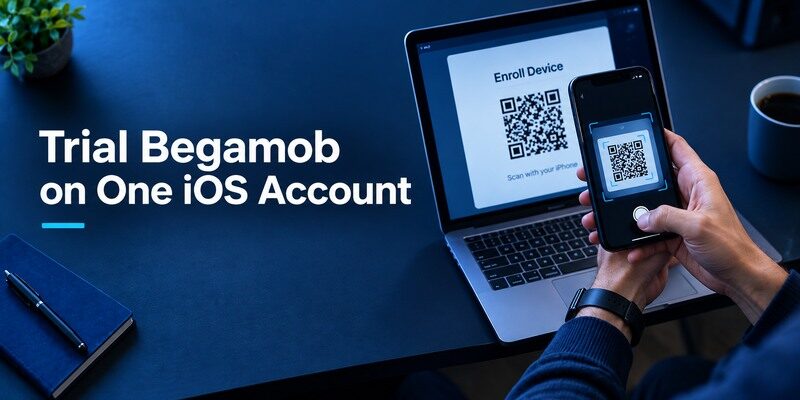
The describes adding ordinary TOTP entries by QR or manual key and generating them offline. Use the to check the current publisher and terms. Choose one low-risk account with working recovery codes. Add a new factor through that account’s security page, then submit a fresh code on a browser where you are signed out.
Ask two different questions in the trial
First, how quickly can you find the right code when several entries look similar? Second, what exact path would put that working secret on a replacement iPhone? The answer to the second may involve a documented app feature or service-side re-enrollment. Do not assume that an unrelated authenticator’s iCloud behavior applies. Keep the original factor until the destination passes a real sign-in.
Preserve a choice after the trial
If Begamob’s current version and restoration plan match your needs, moving another personal website is a reasonable next step. If Apple Passwords’ AutoFill is the main attraction, you may keep codes there. If a mixed-device household needs wider access, consider an app with the documented model you can recover. The choice is about actual custody and device use, not a universal winner imposed on every iPhone owner.
Frequently Asked Questions
What is the best free authenticator app for iPhone?
Apple Passwords, Google Authenticator, Microsoft Authenticator, 2FAS Auth, Ente Auth, and Proton Authenticator offer free authentication capabilities. The best option depends on your preferred backup method, devices, and account requirements.
Does iPhone have a built-in authenticator?
Yes. Apple’s Passwords app supports verification codes for compatible websites and applications. Users can configure TOTP authentication without installing a separate authenticator.
Is Google Authenticator better than Apple Passwords?
Google Authenticator is useful for standard TOTP management across iPhone and Android. Apple Passwords offers tighter integration with iOS, including automatic verification-code filling. Neither is universally better for every user.
Can I use an authenticator app without an internet connection?
Yes. Standard TOTP authenticators generate verification codes locally after account enrollment. Internet access may still be required for synchronization, backups, push authentication, or completing a website login.
Can I use the same authenticator on iPhone and Android?
Several services, including Google Authenticator, Ente Auth, Proton Authenticator, and 2FAS, support both platforms. However, backup and transfer processes vary, so check the supported migration method before switching devices.
What happens if I lose my iPhone?
Recovery depends on the authenticator. You may restore codes through a configured backup, access another authorized device, or use the protected service’s recovery options. Without these methods, account recovery may require contacting each service.
Is Begamob Authenticator available for iPhone and iPad?
Yes. Begamob Authenticator is available on the Apple App Store for supported iPhone and iPad models. Review the current App Store listing for operating-system requirements and subscription options.
Final Thoughts
Apple Passwords puts codes beside passwords under the Apple Account’s recovery model; that convenience will not suit everyone.
The best iOS authenticator app is the one that fits where you sign in and remains usable when the current iPhone is gone. Apple Passwords rewards a well-managed Apple-device setup; dedicated apps offer other backup and device models. For a focused mobile TOTP trial, read the and , then prove one account works before moving a collection.
