
Duo Mobile Review: Work Approval and Everyday Code Use
Published October 13, 2026
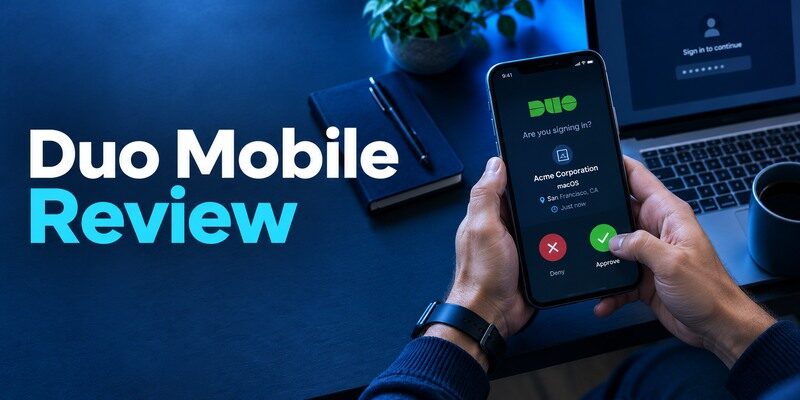
Duo Mobile is a sensible app when an employer or school requires Duo Push, and it can also hold standard time-based codes for personal accounts. Its value for a managed user is the registered approval flow, not a generic promise that every website integrates with Duo. This Duo Mobile review distinguishes push, passcode, third-party TOTP and device restoration. A smooth ordinary login is useful; knowing how your organization will restore access after a phone loss is decisive.
Start with the Organization, Not the App Store
When a workplace uses Cisco Duo, your access is governed by its enrollment policy. Install the official Duo Mobile app through the route your organization directs, register the phone against your account, and verify a genuine sign-in. Some deployments use Duo Push; others permit passcodes or security keys. An arbitrary third-party authenticator may generate a code for a separate site but cannot impersonate a registered Duo Push device.
| Task | Duo Mobile role | Who controls access? |
| Work Duo Push | Receive and review sign-in requests | Organization and Duo enrollment |
| Work passcode | Supply a code when allowed | Organization policy |
| Personal website TOTP | Scan a conventional QR | That website’s enrollment |
| Lost-phone reset | Restore or re-enroll as permitted | Administrator or issuer |
Where Duo stands out
The approval request can display context about a login you just initiated. Duo’s official documentation also describes Duo Restore and third-party account codes. For managed accounts, the organization can configure permitted methods, so an internet tutorial cannot guarantee the same buttons on your enrollment page. The best first step is reading the actual institution’s setup instructions, including its help-desk recovery route.
Where another app may suffice
If no account you use requires Duo Push and you only collect standard TOTP codes, compare backup and platform support with other code apps. Duo can still serve as a code generator, but the work-specific brand is not automatically an advantage for a personal bank or forum. Keep your method inventory clear: a Duo Push request, a Duo work passcode and a Google-site TOTP token can look similar on a phone while having different enrollment owners.
If your accounts only require standard TOTP codes and none of your organizations mandates Duo Push, a simpler authenticator may be sufficient. Our Google Authenticator review examines its setup experience, optional Google Account synchronization, security limitations, and recovery options for personal accounts.
Advantages
Duo Push is useful when a workplace or school requires it, while the same app can hold ordinary personal TOTP entries. Reviewing the request before approval is a clear daily action.
Drawbacks
A personal authenticator app cannot substitute for an institution’s Duo registration. Work account restoration and third-party OTP recovery follow different rules, and a replaced phone may need administrator involvement.
Who should use it
A person whose organization already uses Duo, especially if they also have a few personal code-based accounts.
A Genuine Duo Push Has a Cause
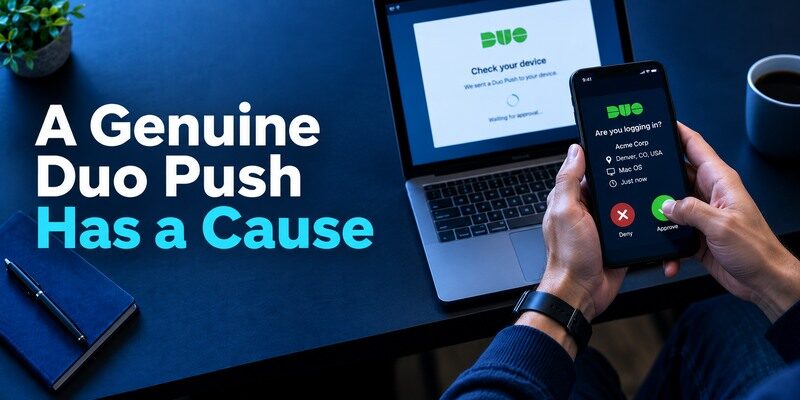
Start the login yourself through your organization’s known portal. When the phone requests approval, compare the displayed service, timing and any number or location cue provided by the current configuration. Approve only when they match your action. Repeated unexpected requests can mean someone knows your password or is trying to wear you down. Deny them and report them through your organization’s security channel.
Unexpected Duo Push requests should be treated as possible warning signs rather than routine notifications. If you receive repeated prompts for a login you did not initiate, deny the requests and follow your organization’s reporting procedure. Our guide on how to spot suspicious login activity explains common warning signs, account review steps, and actions to take after a suspicious sign-in attempt.
Delayed requests need fresh context
If a push arrives after a connection issue, don’t approve it reflexively. Restart the browser sign-in and use a fresh prompt so you can tie the request to that action. A phone held in a pocket may display multiple notifications that look alike. Check the actual app and active login screen instead of making a decision from the notification preview alone. Approval should be a considered step, not a reflex.
Passcodes offer a different route
Some Duo deployments permit an offline-generated passcode or another second factor when push delivery is unavailable. Whether that path is offered is an organizational policy question. If you are traveling or entering a building with poor mobile data, check available methods before losing signal. Do not request that a colleague approve on your behalf; use the institution’s legitimate backup and help-desk process.
Duo Mobile can generate supported passcodes without requiring a fresh push notification, but the organization determines which authentication methods are accepted. For standard third-party accounts, time-based codes follow the TOTP model. Our guide to a TOTP authenticator app explains how rotating codes work, why device time matters, and how code-based verification differs from push authentication.
Teach the team the denial path
An organization can have excellent MFA settings and still be vulnerable when employees believe they must approve every phone prompt. During a normal sign-in, identify where the denial control is and how suspicious requests should be reported. Test the process with an administrator-approved training exercise if available. A person who receives a surprise request should decline it, report the time and app shown, and independently check account activity. Do not ask them to share a live code or a screenshot containing enrollment details.
Check another allowed factor before a deadline
If policy permits a security key or offline passcode, enroll and test it while Duo Push still works. Document where the official login page offers the alternate choice. A method listed in general company guidance may not yet be active for your individual account. This distinction matters on an airplane, in a building with poor reception or after a phone replacement. Keep the support contact handy, but do not store the actual factor secret in a travel note.
Distinguish phone trouble from account trouble
A muted notification, stale mobile registration and a rejected username are different failures. Start from a known portal, note the exact stage that fails and cancel old attempts before making changes. If the account is locked, involve the owner of that account; reinstalling Duo Mobile will not necessarily clear a server-side lock. Preserve a working alternate rather than deleting the app and making the situation harder to diagnose.
How to set it up safely
Enroll the work account through your employer’s Duo setup page and test one prompted sign-in you initiate. For a personal site, scan its separate TOTP QR and complete its confirmation; arrange Duo Restore and site-specific backup codes separately before changing phones.
Personal TOTP Accounts Inside Duo Mobile
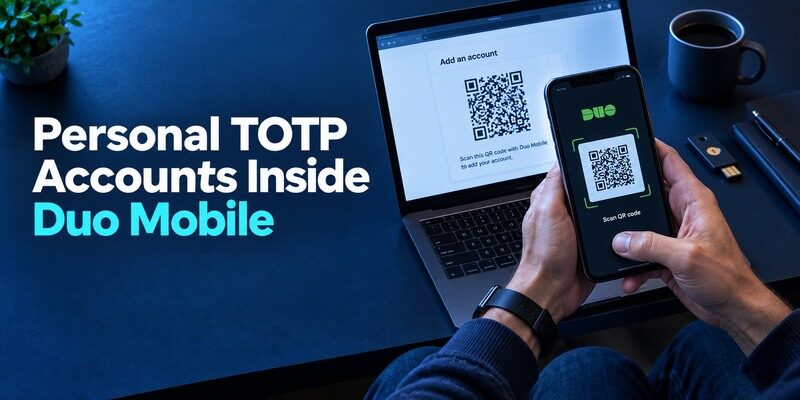
Cisco documents adding third-party accounts that use standard authenticator codes. Enroll at the service’s own security page, scan its QR with Duo Mobile, return the generated code to finish setup, and save issuer recovery codes separately. The fact that the app also handles Duo Push does not make personal accounts part of the employer’s tenant. Conversely, an employer reset does not necessarily restore a personal TOTP token.
Keep labels unmistakable
Several entries can share one provider name or email prefix. Add a label that identifies the actual account without exposing a password. If you submit the wrong entry, the code may be syntactically valid and still fail at the issuer. Use automatic time and avoid a code with only a couple of seconds left. A quiet test from a fresh session tells you which entry is actually accepted.
Do not leak the enrollment QR
A QR used to enroll TOTP contains the persistent secret behind future codes. Treat it differently from an ordinary public QR. If a screenshot or exported secret reaches an untrusted person, disable and re-enroll the factor at that website. Deleting the Duo Mobile entry only removes your local copy. The website may still accept codes from any other copy of the same secret.
A personal site is not managed by the employer
The Duo app on a work phone may show both a managed company entry and a private website token. The company can determine its own Duo registration, but the personal website decides when its TOTP seed is valid. Before changing employers or returning a company device, use the website’s real security page to move the personal factor to a device you own. Confirm a fresh login and preserve the issuer backup codes. Do not expect a work help desk to recover private account secrets from a wiped handset.
If you use Duo Mobile for personal TOTP codes on a work-issued phone, plan the migration before returning or replacing that device. Your employer can manage its Duo registration, but it generally cannot recover the secrets belonging to unrelated personal websites. Our guide on how to transfer authenticator to a new phone explains how to prepare for migration, verify replacement codes, and avoid deleting a working factor too early.
Distinguish a passcode from a third-party code
Both can appear as digits, yet the portal may ask for a Duo passcode associated with the managed account while an unrelated site expects its own TOTP. Select by issuer and account label, not by the first timer in the app. If an organizational login changes challenge type, consult the official policy instead of trying every visible value. Repeated wrong attempts can lock an account and complicate a simple notification issue.
Keep a private recovery record
For each personal site, record whether it issues backup codes, allows a second factor or offers a trusted session for re-enrollment. Store actual secrets in protected locations outside the phone. The record need only say where recovery lives. After a device swap, verify one site at a time and mark it complete. This turns a long anonymous code list into a manageable migration without exposing the seeds to a spreadsheet or colleague.
Treat a stolen unlocked handset as exposure
Reactivating the managed Duo account on a new phone restores your access but may not revoke personal TOTP seeds copied from the lost device. Follow employer incident instructions for work registration and rotate affected personal factors at their individual websites. Review sessions and recovery contacts. A locked phone that was safely wiped may pose a different risk; use the actual circumstances rather than applying the same reset to every device change.
Duo Restore Has Separate Work and Personal Details
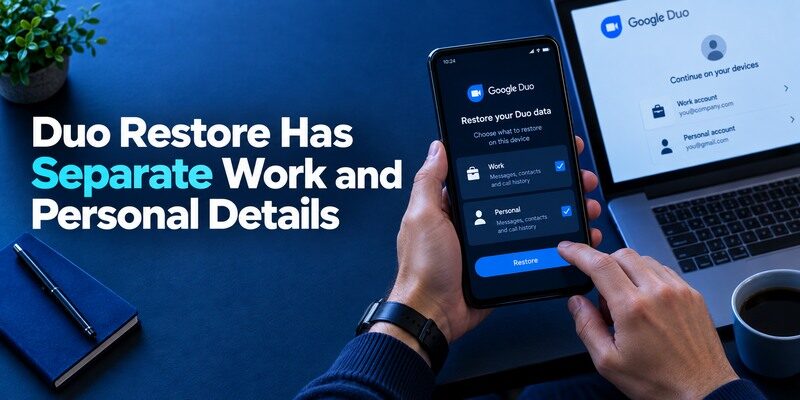
Duo’s support materials describe restoring third-party accounts and reactivating Duo-protected accounts, but the exact path depends on device type, setup and organization. Check Duo Restore settings while you still possess the phone, and ask IT how a replacement is activated. A new phone showing an app icon does not mean it can approve work logins. Run a real sign-in on the replacement before erasing the original handset.
Workplace authenticator recovery depends on the authentication platform and the policies configured by the organization. Duo Mobile and Microsoft Authenticator both support managed sign-in workflows, but their enrollment, approval, and device replacement procedures are not interchangeable. Our guide on how to use Microsoft Authenticator explains Microsoft’s personal and work-account authentication methods, including organization-managed approvals.
| Event | What to check | Safe fallback |
| Planned phone upgrade | Restore prerequisites and employer reactivation | Keep old device until test passes |
| Lost phone | Existing alternate enrolled method | Organization help desk |
| Personal code absent | App backup and issuer backup code | Issuer account recovery |
| Unexpected old-device prompt | Registered devices and sessions | Report potential compromise |
A second phone is not always self-service
Workplace registration may bind a particular device or require administrator approval. Even if personal code entries restore, the managed account might display a reactivation notice. That difference is expected. Preserve an approved backup factor if the organization permits one, and learn the support contact before an international trip or deadline. Avoid unofficial apps promising to “clone” Duo Push registration.
Test the two categories separately
After a restore, log into the organizational portal and answer its actual challenge. Then select one personal website and enter its fresh TOTP code. The two successful tests prove two different things. A single restored list does not establish that push enrollment is valid, nor that every third-party secret is present. Document a failure without sending anyone the QR, code or backup file.
Schedule a replacement rehearsal with the right people
If a work administrator controls the Duo factor, ask whether users can reactivate their own phone or need an identity-checked help-desk action. Do this before a planned upgrade, then use a noncritical work session to verify the replacement. For personal TOTP entries, check Cisco’s current backup/restore path separately. Keep the old handset until both categories pass a real challenge. A support team can reset managed enrollment but generally cannot recover a private website’s lost QR secret for you.
Document one legitimate alternate factor
If the organization permits a hardware key, passcode or another enrolled phone, register and test it while the primary phone is present. An alternate that exists only on a policy slide does not help during an outage. Write down the official support contact and which login page displays the alternate choice. Don’t store a live passcode in a plain document; the method and contact are enough. An unexpected push should never be approved as a workaround for missing access.
Separate routine replacement from suspected theft
On a safe upgrade, restoring codes and reactivating the work device may be sufficient. If the old phone was stolen while unlocked, review organization sessions and registered devices and rotate affected personal TOTP factors at their websites. A new Duo enrollment cannot necessarily revoke every personal seed copied from the old phone. Follow workplace incident policy promptly and use platform remote controls where available. The recovery plan must address both access and exposure.
Security Boundaries in Daily Use

Duo Push asks you to approve an event; standard TOTP asks you to transcribe a code. Neither excuses approving a request that wasn’t yours. A manually typed OTP can be captured and relayed by a phishing page. NIST distinguishes such codes from phishing-resistant methods. Where the organization offers a security key or passkey, consider its guidance for sensitive roles. Protect the phone with a strong lock and maintain OS updates.
Verify the destination
The work portal domain should be known before any prompt reaches your phone. An unexpected request to approve login after opening a link in a text deserves investigation. If you already approved a suspicious request, report immediately and change credentials through the official channel. The administrator may need to review sessions and registered devices. A push denial is useful, but it is not a substitute for follow-up when password exposure is plausible.
Personal accounts have their own issuer rules
An ordinary TOTP secret in Duo Mobile belongs to the protected website’s policy. The website might let you use backup codes, re-enroll while signed in, or require identity verification. The Duo app vendor cannot reset that site by itself. Keep recovery information organized by issuer so a future help request goes to the party that actually controls the factor.
Compare with Code-Only Alternatives

For a user whose organization demands Duo Push, the recommendation is straightforward: maintain the supported Duo enrollment. For a personal website using a standard QR, compare Duo Mobile with , 2FAS and the on backup, portability and current device support. Confirm every claim in current official product documentation; do not assume one app’s sync can restore another’s push registration.
Consolidate only when it eases recovery
Keeping personal codes in the same app as workplace requests can reduce daily friction but puts more functions on one phone. A separate personal code app can make ownership clearer and avoid an employer enrollment change affecting your habits, though it adds another recovery plan. Either arrangement can work. Write down which issuer controls each factor and test how a phone replacement affects both buckets.
Consider a second app for standard QR sites
can be tried with an ordinary third-party website’s QR or manual key while Duo Mobile remains installed for a required work push. Test the issuer’s acceptance and the alternative app’s current backup procedure before removing a working factor. The purpose is choice for the personal TOTP role, not a promise that it can receive Duo’s proprietary approval requests.
Which alternative is better for your needs?
| App | Choose it when | Trade-off |
| Duo Mobile | A person whose organization already uses Duo, especially if they also have a few personal code-based accounts. | A personal authenticator app cannot substitute for an institution’s Duo registration. |
| Microsoft Authenticator | Your employer mandates Microsoft rather than Duo approval | It does not stand in for Duo Push |
| 2FAS Auth | You only need personal TOTP and browser pairing | It cannot approve organization Duo prompts |
Frequently Asked Questions
Can Duo Mobile generate codes offline?
It can generate supported time-based passcodes after enrollment. Push requests need their normal delivery route, and the organization decides which methods it accepts.
Is Duo Mobile only for work?
No. Cisco documents third-party authenticator accounts for standard TOTP codes. A personal website’s QR must still be enrolled and confirmed at that website.
Does Duo Restore automatically reactivate my employer account?
Not always. Organization-specific reactivation can still be required. Follow the administrator’s recovery instructions and verify a real sign-in.
What should I do with an unexpected push?
Deny it and report it through your organization’s security process. Never approve a request merely to silence repeated notifications.
Can another authenticator replace Duo Push?
Only if the organization offers an alternative method and approves it. A conventional six-digit code app does not replicate a registered Duo Push device.
Final Thoughts
This Duo Mobile review recommends the app where it is part of an organization’s actual access policy and recognizes its separate usefulness for personal codes. The crucial habit is to distinguish work push, optional passcodes and third-party TOTP when planning a phone change. Test each category independently, deny unexpected requests, and keep issuer recovery options close enough to use but protected from others.
Ask the administrator which alternate factors your individual account has enrolled, then test one before a deadline. That preparation keeps an ordinary delivery failure from turning into an unnecessary approval risk.
