
How to Use an Authenticator App: Setup, Codes, and Every Account Type
Published September 3, 2026 · Updated October 1, 2026
How to use authenticator app comes down to three steps for almost any account: open the account’s security settings, scan the QR code or enter the setup key with your authenticator app, then type the six-digit code it generates to confirm the connection.
That same three-step pattern applies whether you’re protecting an email account, a work login, a video conferencing tool, or a password manager doubling as your authenticator, even though each account’s own settings screen looks slightly different.
This guide covers how to use authenticator app from first setup through everyday use, including the specific steps for email, Zoom, LinkedIn, and 1Password, how the codes actually work without an internet connection, and what to do when something doesn’t scan or sync correctly.
What Is an Authenticator App and How Does It Work?
An authenticator app generates a new six-digit code roughly every thirty seconds, calculated from a secret key shared between the app and the account during setup, without needing an internet connection to produce that code.
Once you understand how to use authenticator app for one account, the same pattern carries over to every other account you protect, since the underlying math and setup flow rarely changes between services.
| Term | What It Means |
|---|---|
| Secret key | A unique code shared once during setup that both sides use to generate matching codes |
| QR code | A scannable image encoding that same secret key, so you don’t have to type it manually |
| Six-digit code | The rotating code the app displays, valid for a short window before it changes |
Download Authenticator App
Secure your accounts with fast, reliable two-factor authentication. Download now and protect your login in seconds.
How to Set Up an Authenticator App
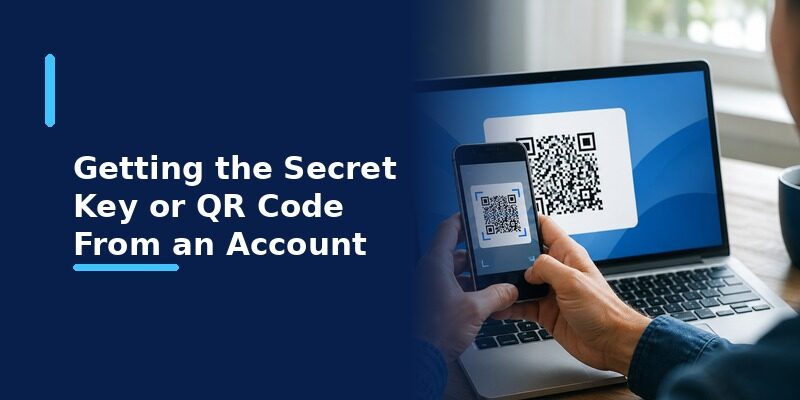
The setup starts inside the account you want to protect, not inside the authenticator.
Step 1: Open the Account’s Security Settings
Sign in to the website or app you want to secure.
Look for a menu such as:
- Security
- Login & Security
- Password & Security
- Two-Factor Authentication
- 2-Step Verification
- Multi-Factor Authentication
The exact wording varies by service.
Step 2: Choose Authenticator App
Select Authenticator App as the verification method.
Do not choose SMS or email if your goal is to connect an authenticator.
The service should then display either:
- A QR code
- A manual setup key
- Or both
Step 3: Open Your Authenticator
Open the authenticator app on your phone.
Look for an option such as:
Add account → Scan QR code
or
Add account → Enter setup key
Step 4: Connect the Account
Scan the QR code shown by the website.
The authenticator should create a new entry for that account and begin showing a temporary verification code.
Step 5: Confirm the Setup
Return to the website.
Enter the current code displayed by your authenticator.
If the website accepts it, the authenticator has been connected successfully.
How to Scan a QR Code With an Authenticator App
Scanning the QR code is usually the easiest way to add an account.
The QR code contains the setup information the authenticator needs to generate matching verification codes.
To scan it:
- Open your authenticator app.
- Tap Add account or the + button.
- Choose Scan QR code.
- Allow camera access if prompted.
- Point your phone at the QR code displayed by the website.
- Wait for the new account to appear.
The code should then begin generating automatically.
If You Cannot Scan the QR Code
Look for an option such as:
- Enter setup key
- Manual entry
- Can’t scan?
- Enter code manually
The website may provide a long string of letters and numbers.
Enter that key into the authenticator carefully.
The QR code and manual key usually contain the same setup information in different formats.
Keep the QR Code Private
Do not share screenshots of your authenticator QR code.
Someone who obtains the setup information may be able to generate the same verification codes.
Treat the QR code or manual setup key like sensitive account-security information.
4. How to Get a 6-Digit Code From an Authenticator App
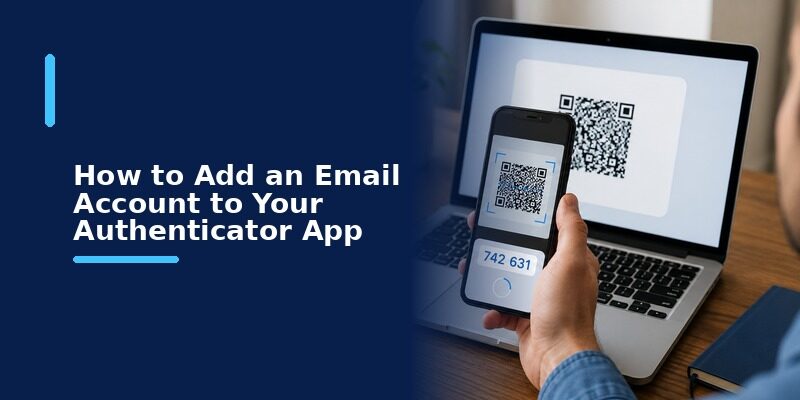
Once an account has been added, getting the verification code is straightforward.
Open the authenticator and find the account you are trying to sign in to.
You may see something like:
Example Account
482 193
That temporary number is the authenticator code.
Many apps also display a countdown showing how long the current code remains valid.
When the countdown ends, the authenticator automatically generates a new code.
You do not need to refresh the app manually.
Why Does the Code Keep Changing?
Changing codes are a normal part of TOTP authentication.
The code is designed to remain valid only for a short period.
This limits how long an intercepted verification code could potentially be reused.
How to Use an Authenticator App When Signing In
After setup, the everyday login process is usually:
- Open the website or app.
- Enter your username and password.
- Wait for the two-factor authentication prompt.
- Open your authenticator.
- Find the correct account.
- Enter the current verification code.
- Complete the login.
If your authenticator contains many accounts, make sure you select the correct entry.
A valid code from another account will still be rejected.
Can You Use 1Password as an Authenticator App?
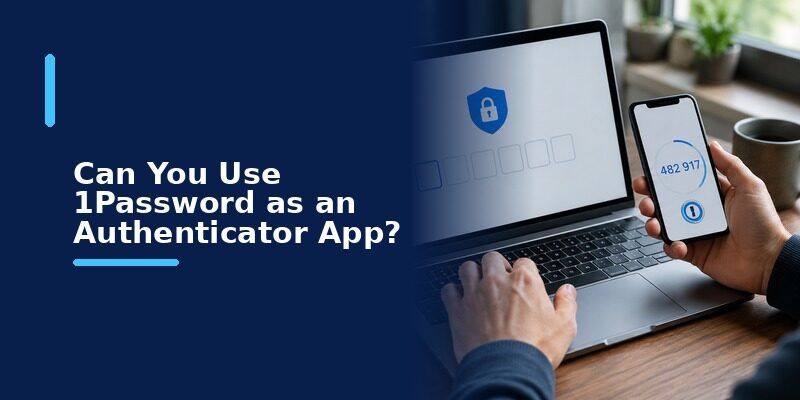
Yes. Password managers like 1Password can store the same secret key an authenticator app would, generating the same rotating six-digit codes directly inside the password manager instead of a separate dedicated app.
The trade-off is convenience versus separation: keeping codes in the same app as your passwords is faster day to day, but a dedicated authenticator app keeps that second factor independent if the password manager itself is ever compromised.
Either approach still follows the same underlying how to use authenticator app pattern; the only real difference is which app displays the rotating code when you need it.
🗺️ Browse How-To Guides: TOTP Authenticator App Guide 2026: How to Use & Compare the Best Options
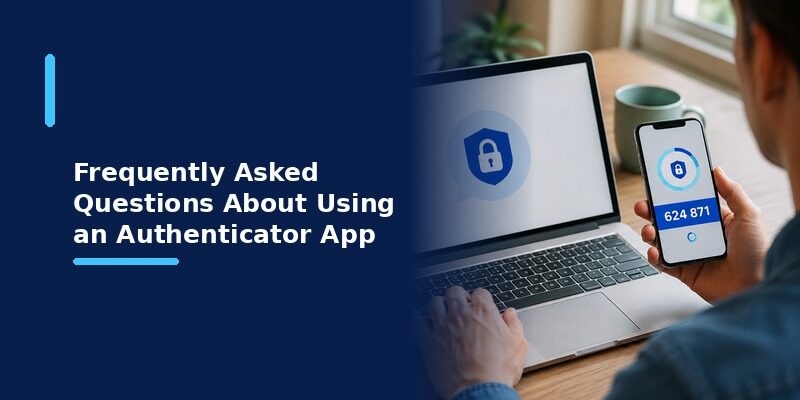
Frequently Asked Questions About Using an Authenticator App
Do I need a different authenticator app for every account?
No.
One authenticator can usually store multiple accounts.
For example, the same app may contain codes for email, social media, work services, and other websites.
Where do I get the QR code?
The QR code comes from the website or service you want to protect.
Open that account’s security settings and enable two-factor authentication using an authenticator app.
What is the setup key?
A setup key is the text version of the information contained in the QR code.
It can be entered manually if you cannot scan the QR code.
Where do I find my authenticator code?
Open the authenticator app and find the account you previously connected.
The temporary code displayed next to that account is the verification code.
Why does my authenticator code change?
TOTP codes are designed to change regularly.
Use the current code shown by the app when the website asks for verification.
Can I use one authenticator for several websites?
Yes.
A compatible authenticator can usually manage many separate account entries.
What if my authenticator code does not work?
First check that you selected the correct account, then wait for a fresh code and confirm that your phone’s date and time are correct.
If the app opens normally but codes continue to fail, that is a separate troubleshooting issue rather than a basic usage problem.
Final Thoughts
Learning how to use an authenticator app comes down to one repeatable process:
Enable authenticator-based 2FA → scan the QR code → confirm the setup → open the authenticator when signing in → enter the current verification code.
Once you know how to set up one account, the same basic workflow applies to most services that support TOTP authentication.
Keep your setup QR codes private, make sure you are using the correct account entry, and use the current code shown by the authenticator whenever a login asks for two-factor verification.
Download Authenticator App
Secure your accounts with fast, reliable two-factor authentication. Download now and protect your login in seconds.
