
Personal Cybersecurity Checklist 2026: A Practical Monthly System
Published October 21, 2026
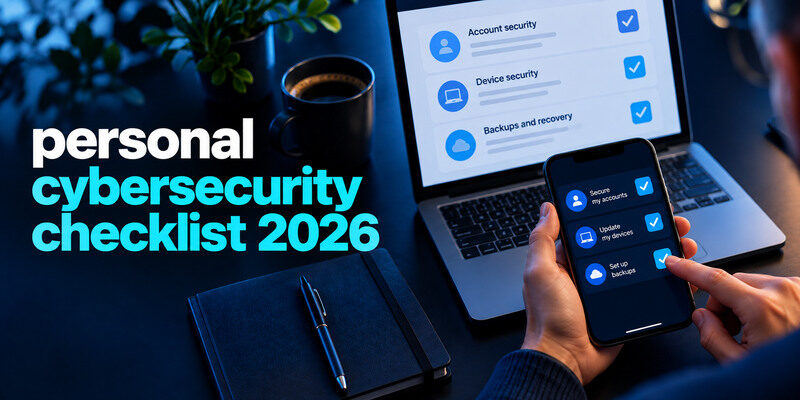
Use this personal cybersecurity checklist 2026 to protect your primary email, make every important password unique, enable recoverable MFA, update devices, back up irreplaceable data, and review unusual account activity. Do the high-impact one-time setup first, then use a short monthly check and event-based reviews. A checklist is useful only when you can verify each item and know who owns it; this one includes family and small-business adaptations without pretending they have identical risks.
The first-hour priorities
| Task | Done when | If you cannot finish now |
| Secure primary email | Unique credential, MFA, current recovery | Fix recovery and password first |
| Secure password vault or device account | Independent secret and backup access | Record a recovery route outside the vault |
| Protect financial and work accounts | MFA, activity alerts, no reuse | Escalate work controls to authorized admin |
| Update phone and computer | OS, browser, apps current | Schedule unsupported device replacement |
| Confirm a backup | One sample file restored | Find what is actually included |
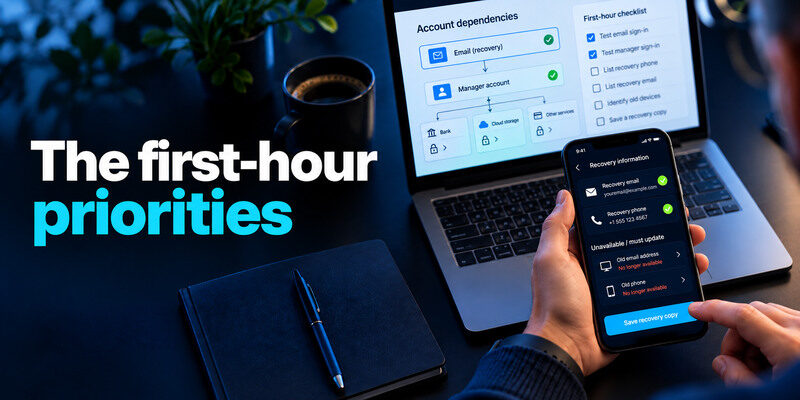
This order follows the reset chain: email and the manager can unlock many other services. Do not start by installing an extra scanner while the mailbox that resets your bank still has a reused password. Mark a task “done” only after a real sign-in or restore test, not after you see a green toggle.
Map the account dependencies
List the email and phone used to recover critical accounts. Identify any old address or device no longer available. Avoid writing live passwords in the checklist. For a shared household, note which adult manages subscriptions and who can reach recovery information after a lost phone. For a business, separate personal ownership from organization-owned assets.
Mapping account dependencies helps you identify which email addresses, devices, and recovery methods could become single points of failure. Review critical accounts first and confirm that losing one phone would not lock you out of every service. Our guide to the best account security practices explains how to protect these dependencies and maintain safer recovery options.
Save a safe recovery copy
Keep backup codes and emergency instructions somewhere protected outside the account they unlock. A printed copy in a secure location can supplement an encrypted vault. Test one noncritical recovery path while you still have the original device. Do not photograph TOTP setup QR codes or send recovery codes to a group chat.
Secure your accounts with fast, reliable two-factor authentication. Download now and protect your login in seconds.Download Authenticator App
Accounts: set defaults that prevent reuse
Use a reputable password manager or platform password tool to generate a different credential for every website. Replace reuse in priority order, then let the manager create new passwords automatically. Review the manager’s own sign-in and recovery. NIST emphasizes length and screening compromised passwords rather than arbitrary composition recipes or calendar-based changes.
Check a few high-value sessions
In primary email, social, bank, and work accounts, inspect recent successful sign-ins and trusted devices. Remove retired devices and investigate genuinely unknown sessions. A city estimate can be wrong; compare time and device too. Turn on provider alerts where available and know how to reach the real activity page without using a message link.
Unknown successful sessions, unauthorized changes to recovery settings, and unexpected activity are stronger warning signs than a strange location alone. Review the official account activity page before deciding whether an alert indicates compromise. Our guide on signs your account is hacked explains which signals deserve immediate investigation and which require more context.
Add the strongest practical factor
Use passkeys or security keys where the service supports them and you can maintain backup access. A TOTP app is a broad second-factor option; can generate codes for compatible services. Store each provider’s backup codes separately. Deny any prompt or code request you did not initiate. SMS can be a fallback when stronger choices are unavailable.
Devices: close the everyday gaps

Enable automatic operating-system, browser, and app updates. Use a screen lock and device encryption where supported. Remove unused extensions and apps, especially ones with broad access. Use separate profiles on shared computers. For an older device with no security updates, limit sensitive use and plan a replacement; an account’s MFA does not clean a compromised endpoint.
Keeping devices secure is an essential part of a personal cybersecurity checklist. Update operating systems and browsers, remove unnecessary extensions, enable device encryption, and avoid using unsupported devices for sensitive accounts. Our guide on how to protect your online accounts explains how these everyday precautions support stronger account security.
Test the lock-screen habit
Lock a laptop before leaving it at a café or office. Keep notifications from exposing sensitive codes on an unlocked display. On a family computer, check which browser profile holds autofill credentials. If a child or visitor uses the device, give them a separate profile rather than sharing your signed-in session.
Prepare for loss
Know how to locate or remotely lock a missing phone and how to revoke its sessions. Verify the backup factor before you need it. A lost device is a trigger to review primary email, wallet, and authenticator recovery, not just to buy a replacement handset. Keep the device’s serial information privately where it can help a report.
Data: make backups restorable
Back up important photos, documents, and recovery records using a trusted cloud or encrypted external storage plan. Check which folders are covered and restore a harmless file. Sync is not always a backup: deletion or corruption can propagate. Keep one copy separated from the everyday device when the data is irreplaceable. Protect the backup account with unique credentials and MFA.
Match the data to the backup
A photo library may sync automatically while downloaded documents, app data, or local project files do not. List the top three things you could not easily replace and test those. Do not assume a “backup complete” banner includes every folder. If a business handles customer data, follow its retention and access policy rather than copying it to a personal drive.
Set a restore date
Put a recurring reminder to restore one test file every few months. Record whether it opened, where the backup lived, and who can access it. A backup that exists but requires a forgotten account or unavailable phone is not a usable recovery path. Keep the test small and safe; no destructive drill is needed.
Home network and connected devices
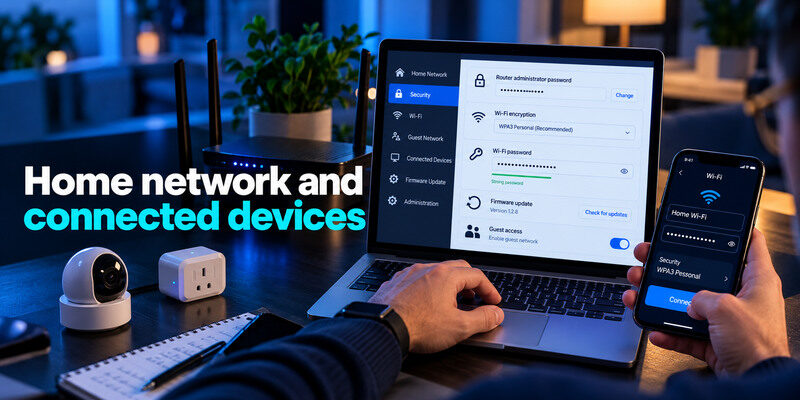
Check the router’s administrator password, WPA3 Personal or WPA2 Personal encryption, a long unique Wi-Fi password, firmware update path, and guest access. The FTC’s home-network advice covers these fundamentals. Inventory cameras and smart plugs; change default credentials and update them. Guest isolation can help, but test whether local printing or casting still works.
Separate admin from Wi-Fi access
The router login changes settings; the Wi-Fi password joins the network. Do not reuse them. An ISP-managed gateway may receive updates automatically, so verify with its official app or support rather than applying an arbitrary firmware download. Record the model and recovery route for another trusted household member.
Review unknown devices calmly
A connected-device list can show randomized technical names. Compare timing and a device’s own address before assuming intrusion. If access is genuinely unauthorized, change the Wi-Fi password, remove unknown clients where supported, and reconnect trusted devices. A guest’s old phone is often a simpler explanation than an elaborate attack.
The monthly ten-minute pass
| Minutes | Check | Evidence |
| 0–2 | Primary email and manager alerts | No unknown successful session |
| 2–4 | Device updates | No pending critical update |
| 4–6 | Backup status | Recent copy and one sample opens |
| 6–8 | Connected apps and roles | No obsolete permission |
| 8–10 | Recovery changes | Phone and email still yours |
If nothing changed, stop. Do not rotate strong unique passwords just to complete a calendar item. Use event-based reviews after a new phone, breach notice, financial alert, family move, or team departure. Short checks are more sustainable than an annual panic and more informative than a box checked without evidence.
After a breach alert
Verify the notice through the real service. Identify whether a password, payment card, or identity information was affected. Change exposed and reused passwords, check sessions, and take the data-specific action recommended by the FTC. A breach lookup can help identify known exposure but cannot prove every account is safe.
A leaked password becomes especially dangerous when the same credentials are used on multiple websites. Attackers may test exposed username-and-password pairs against other services, a technique known as credential stuffing. Our guide on what is credential stuffing explains how these attacks work and why replacing reused passwords should be a priority after a breach.
After an unexpected MFA prompt
Deny it and open the account independently. Review sign-ins and recovery methods. If the password is reused or there is an unknown successful session, change it and revoke access. Report work prompts to the authorized security team. Never tap approve to silence repeated requests.
Adapt the checklist for a family
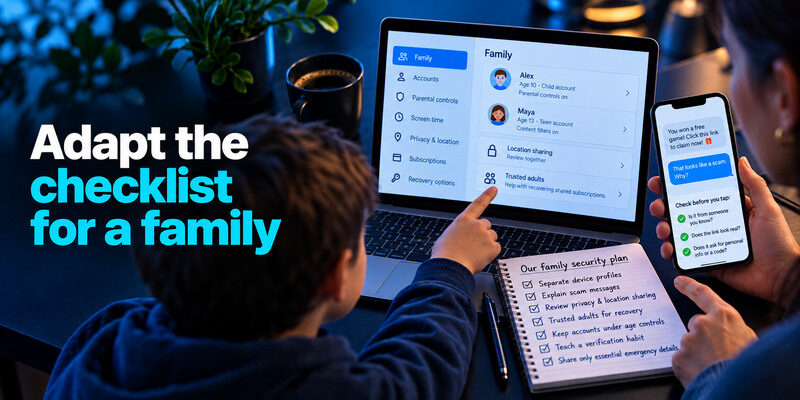
Families need clear ownership without making one person the sole recovery point. Separate device profiles, explain scam messages to children, review privacy and location sharing together, and decide how trusted adults can recover shared subscriptions. Keep children’s accounts under the platform’s actual age and family controls. A conversation about why a setting exists is more useful than secretly changing it and assuming it will hold.
Teach a verification habit
When a message claims urgency, open the known app or call a known number. QR codes and direct messages can carry phishing links just like email. Encourage family members to ask before sharing a code, making a payment, or installing remote-control software. Do not shame someone for reporting a click; prompt reporting reduces damage.
Keep shared emergency details narrow
The family may need router recovery, key account ownership, and backup location. It does not need every individual’s private password in a common notebook. Use supported delegation or family features where appropriate and test access before a trip or device replacement.
Families sometimes need shared access to subscriptions, household services, or emergency recovery information, but a common notebook containing everyone’s passwords creates unnecessary risk. Use supported password-sharing or delegation features instead. Our guide on how to share passwords securely with family explains how to grant appropriate access without exposing unrelated personal accounts.
Adapt it for a small business owner
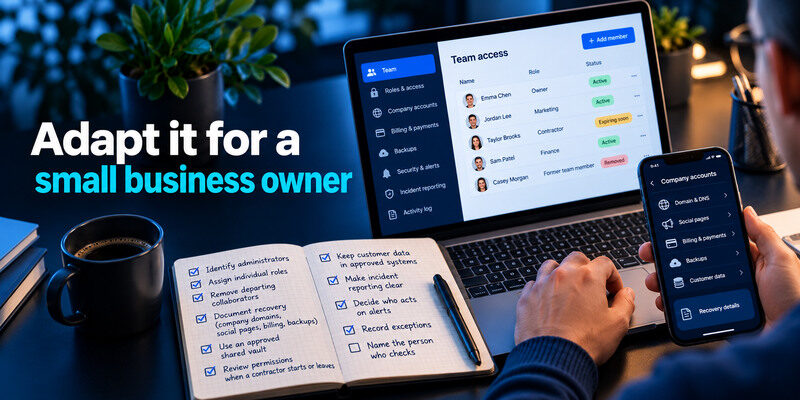
Small businesses should identify administrators, assign individual roles, remove departing collaborators, and document recovery for company-owned domains, social pages, billing, and backups. Use an approved shared vault rather than a personal free account passed among staff. Review account permissions when a contractor starts or leaves. Keep customer data in approved systems and make incident reporting clear.
Small-business cybersecurity requires clear ownership of shared accounts, individual user access, and a reliable offboarding process. Avoid passing one personal password-manager account among employees. Our guide to a password manager for small teams explains how shared vaults, permissions, and account ownership can support safer collaboration.
Decide who acts on alerts
Name the person who checks security notifications and a backup contact. Define how to reach them when email itself is compromised. A shared inbox is not an incident plan if the attacker can read it. Test a small restore and a role handover before an emergency.
Record exceptions
A legacy device or service may lack a preferred MFA method. Document why it remains, who owns it, and when to revisit it. Use stronger controls around it, such as limited permissions and monitoring. “We always did it this way” is not a durable exception.
Measure whether the checklist actually works
A checklist is useful only when its controls survive a lost phone, failed backup, or urgent account reset. Once a quarter, perform a small recovery drill: restore one non-sensitive file from a backup; open the password manager on a second device; verify where recovery codes are stored; and confirm that a family member knows how to reach important accounts in an emergency without sharing your daily passwords.
A household with mixed devices
Assign ownership of the router, shared subscriptions, and family recovery contacts. Review child accounts and device updates together. A household can use different password managers if each person can recover their own account; the important properties are unique credentials, MFA, and a clear recovery route.
A small-business handoff
Put admin accounts under named owners, remove departed users promptly, require MFA, and test access to one business-critical backup. Keep personal and work recovery paths distinct. A shared inbox with one common password obscures who acted and becomes difficult to revoke cleanly.
Frequently Asked Questions
Do I need paid security software for this checklist?
Not necessarily. Built-in device protection, updates, unique passwords, MFA, and tested backups cover many common personal risks. Pay for a feature when you have a specific need, such as managed team roles or support. A subscription does not replace configuration.
How often should I change passwords?
Change a password when it is exposed, reused, shared improperly, or the provider has a justified requirement. A strong unique secret need not be changed solely because a month passed. Review activity and recovery after a credible incident.
What if I have only ten minutes today?
Secure primary email: verify its recovery, replace a reused password, and enable MFA. Then choose a date to test the backup and work through the remaining accounts. This one account often controls many reset paths.
Is a breach check enough to know I am safe?
No. It covers known datasets and may lag a private incident. Check account activity, use unique passwords, and respond to provider alerts. A clean result is good news with limited scope.
Final Thoughts
This personal cybersecurity checklist 2026 is a sequence you can maintain: root accounts, devices, recoverable backups, then short reviews when something changes. Verify each control with a real sign-in or restore, and assign ownership for shared systems. That turns a list into a working plan.
