
How to Secure Your Home WiFi Network: From Router to Devices
Published October 21, 2026
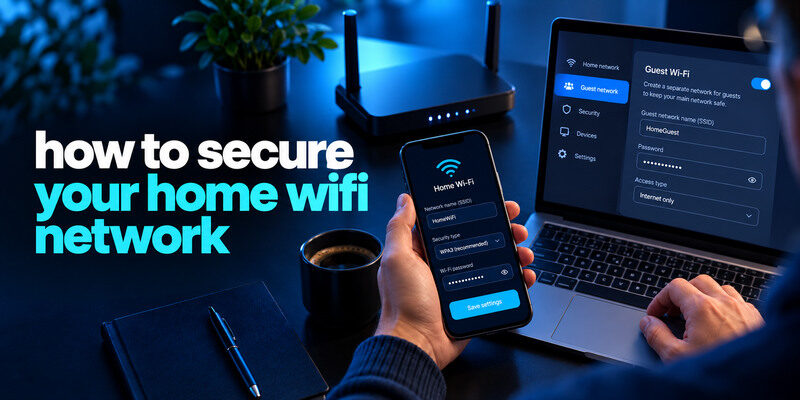
To secure your home WiFi network, use WPA3 Personal or WPA2 Personal, set a long unique Wi-Fi password, protect the router administrator login, update its firmware, and separate visitors or less-trusted smart devices where supported. Then check the devices actually connected and test the network after each change. Security is a property of the whole home setup: the router, its cloud account, connected cameras, computers, and recovery plan all matter.
Draw a simple map of the home network
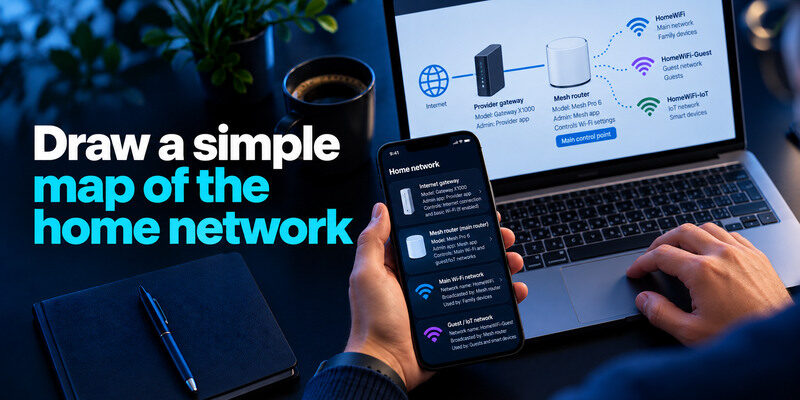
Identify the internet provider’s gateway, any separate router or mesh system, the main wireless network, and guest or IoT networks. Note which box actually controls Wi-Fi settings. A home with a provider gateway and personal mesh may have two administrator accounts and two firmware-update paths. Record model numbers and where the official management apps come from, without writing passwords in a public diagram.
Find the right control point
The device broadcasting the network name is not always the one routing traffic. Check labels and the provider’s documentation. If you have a managed gateway, some settings may be locked or updated automatically. Use its official app or support page instead of a random search-result “router login” site.
Know what you need to keep working
List printers, TVs, smart speakers, cameras, game consoles, and remote-work equipment. Guest isolation or disabled UPnP may affect casting, printing, or games. Test one change at a time and keep a recovery note. Do not turn off unknown settings blindly merely because a generic checklist recommends it.
Secure your accounts with fast, reliable two-factor authentication. Download now and protect your login in seconds.Download Authenticator App
Step 1: protect administrator access
Change default router admin credentials and use a password distinct from the Wi-Fi password. If a maker or ISP cloud account can manage the network remotely, secure that account too and enable MFA where offered. Keep recovery information privately. A visitor who knows the Wi-Fi password should not be able to change DNS, open ports, or add devices through the admin interface.
Local admin versus cloud admin
Some systems use both. The local page works at home; the cloud app may work anywhere. Changing one password may not change the other. Review remote administration and turn it off if you do not need it. If you do, follow the maker’s supported secure method and keep its account updated.
Avoid a lockout during setup
Confirm you can sign in again after changing the admin credential. If the router allows exporting settings, protect the backup because it may contain network details. A physical reset may erase provider settings, so check the official recovery instructions before relying on it.
Your router’s administrator password should be different from the password used to join the Wi-Fi network. Replace default administrator credentials with a long, unique password, and avoid using names, addresses, or predictable patterns. Our guide on how to generate a strong password explains how to create unpredictable credentials for sensitive accounts and devices.
Step 2: choose encryption and a network password
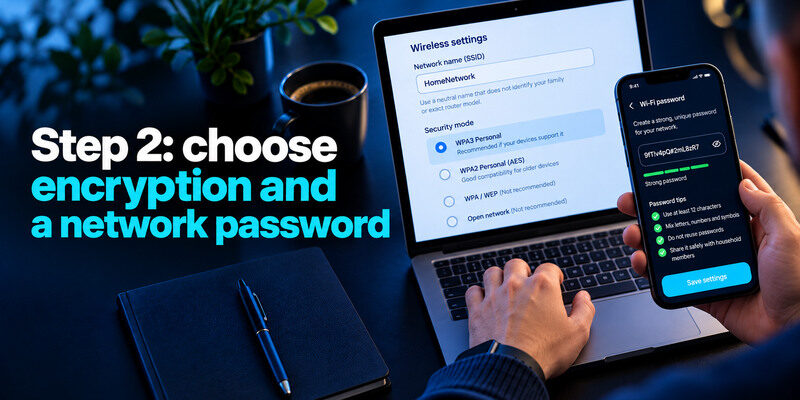
Select WPA3 Personal if your devices support it; WPA2 Personal with AES is a practical compatibility choice for older equipment. Avoid open, WEP, and obsolete security modes. Use a long unique Wi-Fi password and share it through a safe household method. The FTC recommends strong encryption and changing default router settings for home networks.
| Option | Use case | Caution |
| WPA3 Personal | Current compatible devices | Older devices may not connect |
| WPA2 Personal with AES | Compatibility with older devices | Still use a strong unique password |
| Mixed WPA2/WPA3 mode | Transitional households | Older clients may use WPA2 |
| Open or WEP | Avoid for home protection | Does not provide modern wireless security |
Network name is not authentication
Choose a neutral SSID that does not identify your family or exact router model. Hiding it does not replace encryption and may make connections less reliable. A visible neutral name with WPA3 or WPA2 and a strong password is more useful than an invisible weak network.
A strong Wi-Fi password should be long, unique, and difficult to guess. A randomly generated password or a sufficiently long, unpredictable passphrase can both work well, provided your devices support the chosen characters. Our comparison of strong password vs passphrase explains how to choose credentials that balance security and usability.
Handle one old gadget separately
If a camera or printer cannot connect under WPA3, update it and check its supported modes. Consider a separate supported network or replace unsupported hardware rather than weakening every device. Test whether the gadget needs local discovery to work. A guest network may prevent your phone from finding it, which can be an intentional isolation effect.
Step 3: keep router software supported
Enable automatic firmware updates if the maker provides them. Otherwise, check the official support page for the exact model and hardware revision. Install updates when a short interruption is acceptable and do not cut power during the process. Record the firmware version afterward. If updates have ended and modern encryption is unavailable, plan a supported replacement.
An ISP gateway may update itself
Ask the provider how it distributes security updates. “No update available” in an app does not necessarily mean the product remains supported indefinitely. If you own an added mesh system, it may have a separate update process. Keep both documented.
Avoid fake firmware downloads
Get files only from the manufacturer or provider. A search advertisement can imitate a support page. Installing the wrong firmware can interrupt internet service or compromise the device. If you are uncertain, use the model’s official instructions or provider support.
Store your router’s administrator credentials in a trusted password manager instead of reusing a password from another online account. Keep recovery instructions available to the household member responsible for the network. Our guide on use a password manager explains how to store unique credentials securely and retrieve them when needed.
Step 4: reduce exposed features
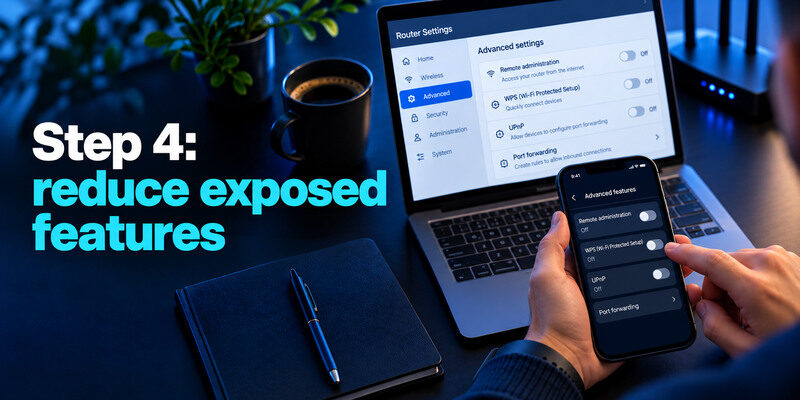
Review remote administration, WPS, UPnP, and port forwarding. Turn off features you do not use after identifying their purpose. A port forward may support a specific camera, game, or home server; document its owner and consider safer access methods. Leaving an unknown exposure indefinitely is a risk, but disabling it without testing can break an essential service.
WPS is a convenience trade-off
If you do not use Wi-Fi Protected Setup, disable it where possible. Models differ in button and PIN behavior. If you must pair a device, use the documented method and verify the connected-device list afterward. The stronger Wi-Fi password remains important regardless.
Check DNS after suspicious redirects
A router’s DNS setting may be intentional, such as a provider or filtering service. If websites unexpectedly redirect, inspect the setting along with extensions and the device itself. Secure admin access before changing it. Document the previous value so a household member can distinguish authorized filtering from tampering.
A secure router cannot compensate for every vulnerability on the devices connected to it. Keep phones, computers, browsers, and smart home products updated, and remove devices that no longer receive security support when practical. Our personal cybersecurity checklist provides a repeatable routine for protecting accounts, devices, and your home network.
Step 5: separate guests and smart devices
A guest network gives visitors internet without the main password. Some routers offer an IoT network for cameras, plugs, and TVs. Confirm whether guest devices can see each other or the main network; the name alone does not guarantee isolation. Use a distinct password and remove a guest’s access when it is no longer needed.
| Device type | Suggested placement | Test |
| Household laptops and phones | Main network | Browsing and local services |
| Visitors | Guest network | Internet works, main devices hidden if intended |
| Cameras and plugs | IoT/guest when supported | App controls still function |
| Printer or casting device | Based on local discovery need | Can authorized phone reach it? |
Secure the smart-device account too
A camera’s vendor cloud login may expose video even if the Wi-Fi is well encrypted. Change default device passwords, update firmware, turn on MFA for vendor accounts, and remove devices no longer supported. A separate network limits some local access but does not repair a compromised cloud account.
Check the device list calmly
Randomized MAC addresses and technical names can look unfamiliar. Compare device settings and connection times before assuming intrusion. If access is genuinely unknown, change the Wi-Fi password and reconnect trusted devices. Also check whether a former guest or forgotten appliance explains the entry.
Some routers can be managed through a manufacturer’s online account or mobile application. If your router supports cloud management, protect that account with a unique password and multifactor authentication where available. Our guide on how to protect your online accounts explains how to reduce the risk of unauthorized account access.
Step 6: test the whole setup
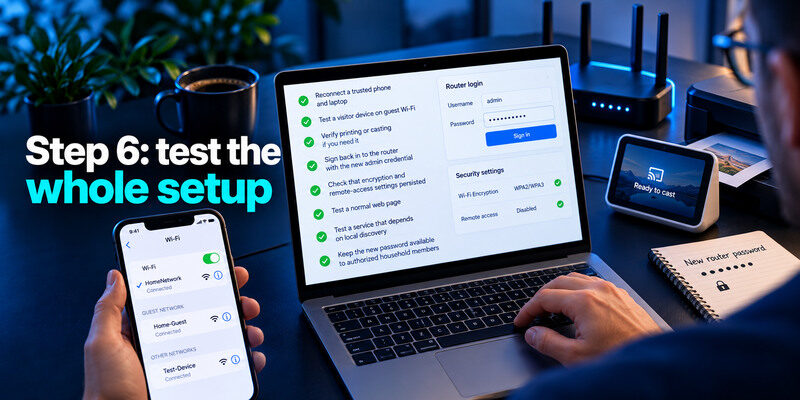
Reconnect a trusted phone and laptop, test a visitor device on guest Wi-Fi, and verify printing or casting if you need it. Sign back in to the router with the new admin credential. Check that encryption and remote-access settings persisted after reboot. Test a normal web page and a service that depends on local discovery. Keep the new password available to authorized household members in a protected form.
If devices disconnect
Check whether the issue is encryption compatibility, a mistyped password, band support, or guest isolation. Update device software first. Avoid reverting the whole network to an obsolete mode. If a provider gateway has custom internet settings, use its official recovery steps rather than a speculative reset.
If the router is unreachable
Try the maker’s local app or documented address while connected to its network. A physical reset is a last resort if it would erase service settings. Contact the provider for managed hardware. After recovery, rotate credentials if an old admin password may have been exposed.
Protect accounts reached over the network
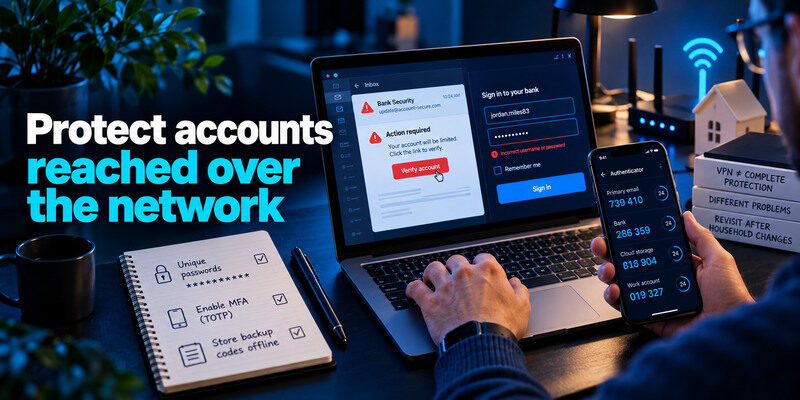
A secure Wi-Fi network does not stop phishing, a reused bank password, or an infected laptop. Use unique credentials and MFA for primary email and other important services. If an account supports TOTP, can generate codes independently of the Wi-Fi password; store backup codes outside the phone. The account layer and home network solve different problems.
Do not treat a VPN as a substitute
A VPN can serve a particular privacy or remote-access need, but it does not update router firmware or close an exposed admin interface. Secure the local network first. Likewise, a strong router does not make an unknown browser extension trustworthy.
Revisit after household changes
A moved roommate, contractor visit, new camera, or router replacement is a good reason to review guest access and connected devices. Rotate a shared Wi-Fi password when access should end or compromise is suspected. A strong password does not require monthly calendar changes without a reason.
Troubleshoot a setting that breaks a device
Routers and smart devices vary. After changing encryption or separating networks, reconnect one device at a time and confirm it can reach the service it needs. Some older gadgets may not support the best available mode; place them on a separate supported guest or IoT network if the router offers meaningful isolation, or replace them when support ends.
If an older device cannot join
Check the device’s vendor documentation and router compatibility settings. Avoid weakening the entire household network for one unsupported device when separation is possible. Record which network each device uses so a later firmware update does not silently reconnect it to the wrong one.
If management is exposed from outside
Turn off remote administration unless there is a specific need. If needed, follow the router vendor’s secure setup guidance and use unique administrator credentials and updates. UPnP, port forwarding, and cloud management solve different problems; inspect each rather than assuming a single toggle covers them all.
Frequently Asked Questions
Is WPA3 mandatory for every home device?
No. Use it where compatible; WPA2 Personal with AES remains a practical choice for older devices. Avoid obsolete modes and use a unique long password. Check the router’s documentation for its mixed-mode behavior.
Will changing the Wi-Fi password remove an intruder?
It will force devices to reconnect, provided the router applies the new password and the attacker has no administrator control. Secure the admin and cloud accounts too, review connected devices, and update trusted devices. Investigate how access occurred.
Can I hide the network name for security?
Hiding the SSID is not a meaningful replacement for encryption and authentication. It can make joining harder and may not hide the network from observation. Prioritize WPA3 or WPA2 and strong credentials.
Should smart devices always use guest Wi-Fi?
Only if they still work and the router provides the isolation you need. Some local controls, printers, or casting rely on device discovery across networks. Test the actual behavior and secure each device and its vendor account regardless.
Final Thoughts
Securing a home WiFi network is a sequence across hardware, accounts, and connected devices. Protect admin access, use modern wireless encryption, update supported equipment, limit unnecessary exposure, and test guest isolation. Keep a simple map and recovery note so the setup remains secure after the next device change.
