
How to Use Biometric Login Safely on Your Devices
Published November 3, 2026
Quick Answer: To how to use biometric login safely on your phone, computer, or online account, enable fingerprint or facial recognition, set a strong backup PIN or password, keep your device updated, and use additional authentication for sensitive accounts. Only register your own biometric information, avoid untrusted applications, and review account security settings regularly.
Biometric authentication makes everyday sign-ins faster, but convenience does not guarantee complete protection.
Fingerprints and facial recognition can be copied or spoofed under certain conditions. A stolen, unlocked device may also expose accounts even when biometric security is enabled.
This how to use biometric login safely guide explains how biometric authentication works, which security risks matter, and how to protect your information across smartphones, computers, banking applications, and online services.
The recommendations are based on official guidance from NIST, Apple, Google, Microsoft, and the FIDO Alliance.
What Is Biometric Login and How Does It Work?
The biometric login meaning is the process of verifying someone’s identity using a measurable biological or behavioral characteristic.
Common biometric methods include:
- Fingerprint recognition: Identifies patterns captured by a fingerprint sensor.
- Facial recognition: Compares facial features using a supported camera system.
- Iris recognition: Examines distinctive patterns within the iris.
- Voice recognition: Analyzes voice characteristics, although voice biometrics are not approved for authentication under NIST SP 800-63B’s current requirements.
Fingerprint and facial recognition are among the most familiar methods used by consumer devices.
How does biometric authentication work?
If you are wondering how does biometric login work, the process usually involves four stages.
1. Enrollment: The device captures biometric information when you register a fingerprint or face.
2. Template creation: The system converts relevant characteristics into a biometric representation or template.
3. Comparison: During authentication, the system compares a new biometric sample with the enrolled template.
4. Authorization: If the comparison meets the system’s acceptance threshold, the device allows the requested action.
Modern systems may use hardware security components to protect biometric templates and cryptographic credentials.
For example, Apple uses its Secure Enclave to protect Face ID and Touch ID information, while Windows Hello stores biometric enrollment information locally.
A secure biometric implementation does not need to send your raw fingerprint or facial image to every website you access.
Understanding the technology is an important foundation for learning how to use biometric login safely.
Is Biometric Login Safe in 2026?
A common question is is biometric login safe compared with a traditional password.
Biometric login can be secure when combined with trusted hardware, strong fallback credentials, and proper account authentication. However, no biometric system is completely risk-free.
What makes biometric login secure?
Biometric authentication offers several practical advantages.
Protection against password theft: A local biometric check does not require users to type a reusable password each time.
Convenient verification: Fingerprints and facial recognition reduce friction during everyday device access.
Hardware-backed protection: Supported systems can use secure hardware to protect credentials and biometric templates.
Integration with passkeys: Biometrics can authorize cryptographic authentication without sharing a password with the website.
What are the security limitations?
Fingerprints can sometimes be reproduced from traces left on physical surfaces. Facial recognition systems may also face spoofing attempts.
Biometric characteristics cannot be changed as easily as passwords.
Additionally, some implementations have weaker sensors or less sophisticated anti-spoofing protection than others.
What do the numbers say?
Apple’s official Face ID security documentation reports that the probability of a random person unlocking a supported device using Face ID is less than 1 in 1,000,000 with one enrolled appearance.
This is Apple’s stated probability under its specified conditions, not a guarantee for all facial recognition technologies. The probability may be higher for certain family members or enrollment configurations.
Meanwhile, NIST SP 800-63B specifies a false-match-rate requirement of 1 in 10,000 or better for biometric systems used within its authentication framework.
These figures describe different security measures and should not be treated as directly comparable.
The key lesson: Security depends on the entire authentication system, not simply whether it uses a fingerprint or face scan.
How to Use Biometric Login Safely: 8 Essential Steps
These steps to use biometric login safely apply to most smartphones, tablets, and computers.
Step 1: Use a trusted device
Start with a device from a reputable manufacturer that provides ongoing security updates.
Avoid relying on unsupported hardware, modified operating systems, or unknown biometric utilities for sensitive accounts.
Step 2: Create a strong backup password
Before enabling biometrics, configure a secure device PIN or password.
Most systems require this credential because biometric verification may be unavailable after a restart or during certain security-sensitive operations.
Avoid simple PINs such as 1234, 0000, or your birth year.
A longer, unpredictable PIN or strong password provides better fallback protection.
Step 3: Register only authorized biometrics
Enroll your own fingerprint or face using your device’s official settings.
Do not register another person’s fingerprint unless you intentionally want that person to access the device.
Review stored biometric entries whenever you change device ownership or sharing arrangements.
Step 4: Enable device encryption and automatic locking
Keep the device’s supported encryption protections enabled.
Configure automatic screen locking after a short period of inactivity.
Biometrics cannot protect information that someone can access through an already-unlocked device.
Step 5: Turn on biometric authentication selectively
Enable biometrics for trusted applications that support secure operating-system authentication.
Prioritize banking, payment, password management, and other sensitive apps.
Avoid enabling biometric access through unknown applications that request unnecessary personal information.
Step 6: Install security updates
Keep your operating system, browser, and installed applications updated.
Security patches may address vulnerabilities affecting authentication components or related software.
Step 7: Strengthen account-level authentication
For important accounts, use supported passkeys or multi-factor authentication.
Biometric device unlocking does not automatically protect every online account.
Step 8: Test your recovery options
Confirm that you can still unlock your device with your backup credential.
Make sure account recovery methods are current before changing phones or resetting biometric data.
For anyone researching how to use biometric login safely for beginners, these eight actions establish a practical security baseline without requiring advanced technical knowledge.
How to Enable Secure Biometric Login on Different Devices
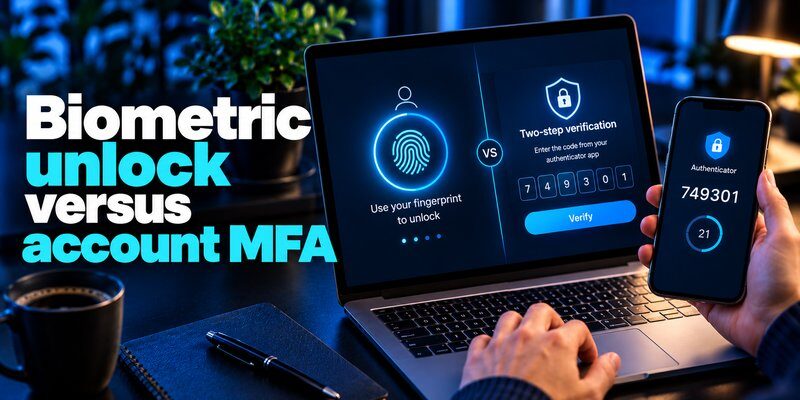
The exact setup process varies by manufacturer and operating system.
Always use the device’s built-in settings rather than downloading an unrelated fingerprint or face scanner application.
Enable Face ID on iPhone
On supported iPhones:
- Open Settings.
- Select Face ID & Passcode.
- Enter or create your device passcode.
- Tap Set Up Face ID.
- Follow the facial enrollment instructions.
- Enable the supported features you want to use.
Security tip: Keep Face ID’s attention-awareness protections enabled when available and appropriate for your accessibility needs.
Apple explains that attention-aware recognition can help prevent unauthorized unlocking when someone is sleeping or not looking at the device.
Enable fingerprint login on Android
On supported Android devices:
- Open Settings.
- Find Security & privacy, Biometrics, or the equivalent menu.
- Select Fingerprint unlock.
- Create or confirm your backup screen lock.
- Follow the enrollment instructions.
- Lock the screen and test recognition.
Menu names depend on the manufacturer.
For additional instructions, see Google’s Pixel fingerprint support documentation.
Enable Windows Hello
On Windows 11:
- Open Settings.
- Navigate to Accounts > Sign-in options.
- Choose Facial recognition or Fingerprint recognition (Windows Hello).
- Configure a Windows Hello PIN if required.
- Complete enrollment using compatible hardware.
- Test Windows sign-in.
According to Microsoft’s Windows Hello documentation, biometric information used for Windows Hello is stored locally rather than sent to external servers.
Enable Touch ID on Mac
On compatible Macs:
- Open System Settings.
- Select Touch ID & Password.
- Choose Add Fingerprint.
- Enter your Mac login password.
- Register your fingerprint.
- Select the supported Touch ID functions.
Some authentication operations still require the account password.
Knowing how to use biometric login safely across different platforms means maintaining both convenient biometric access and a reliable backup authentication method.
How to Use Biometric Login Safely for Apps and Online Accounts
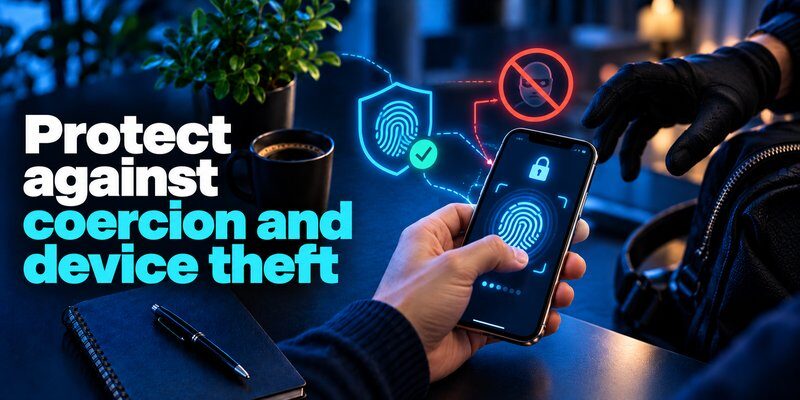
Device unlocking and application authentication are related but separate functions.
A smartphone may support fingerprint unlocking while an individual app requires its own biometric settings.
Enable biometric authentication inside an app
A typical setup process involves:
- Signing in with your existing credentials.
- Opening the application’s security settings.
- Finding Biometric Login, Face ID, or Fingerprint Authentication.
- Enabling the option if supported.
- Completing any additional verification.
- Testing the feature after closing and reopening the app.
Some applications label the feature biometric quick login.
This generally means users can access a previously authenticated app session more conveniently.
However, quick login should not be confused with a new, independent account authentication factor.
Protect banking and financial applications
When enabling biometric login for banking:
- Download the official banking application.
- Keep the application updated.
- Enable transaction notifications.
- Verify payment details before approving transactions.
- Require additional confirmation for sensitive activities where the service supports it.
Do not assume that successfully unlocking a banking app means a transaction is safe to approve.
Attackers may attempt to manipulate payment instructions, impersonate support staff, or take advantage of an already-unlocked device.
If you frequently login using biometrics, review the app’s session and device-management settings to understand when additional verification is required.
Use biometrics only with legitimate websites
When prompted to authenticate, verify that you are using the intended website or application.
Passkey-based authentication can provide stronger phishing resistance, but a visual biometric prompt alone does not prove that the surrounding website is trustworthy.
This distinction matters when considering how to use biometric login safely for financial, email, and social media accounts.
How to Combine Biometric Login With 2FA and Passkeys
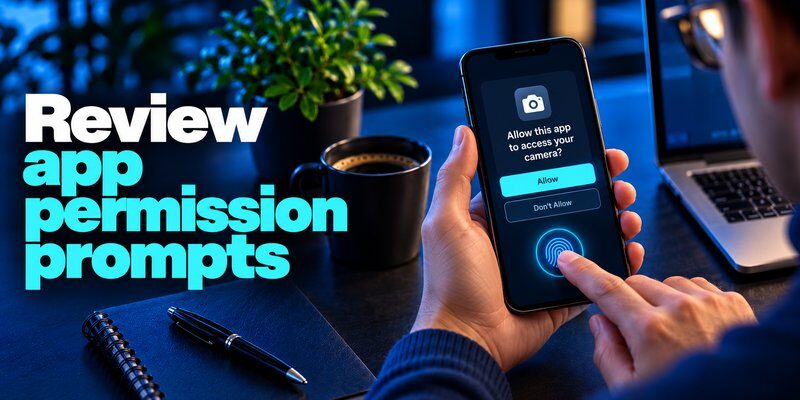
Biometrics can contribute to stronger account authentication, but they should not be confused with every form of two-factor authentication.
What is biometric two-factor authentication?
Biometric 2 factor authentication generally describes an authentication process that combines a biometric characteristic with another independent authentication factor.
For example, a cryptographic authenticator stored on a device may require fingerprint verification before using its private key.
This combines:
- Something you have: A registered device or cryptographic authenticator.
- Something you are: A fingerprint or facial characteristic.
Under NIST’s authentication guidelines, biometric characteristics must be used with a physical authenticator in the relevant approved multi-factor processes.
A fingerprint check by itself does not automatically constitute compliant multi-factor authentication.
Use passkeys for supported accounts
Passkeys are cryptographic credentials designed to resist phishing.
When a service supports them, you may use biometrics to sign in by unlocking your passkey with Face ID, Touch ID, or another supported biometric method.
The website receives a cryptographic authentication response rather than your fingerprint.
Google’s passkey documentation confirms that fingerprint and face data used for Google Account passkeys remain on the user’s device.
To understand another implementation, read our Microsoft Authenticator passkeys guide.
Add an authenticator app when needed
Some services do not support passkeys and instead offer verification codes generated by an authenticator application.
In these situations, an authenticator app can provide an additional account security method.
For more information, see how to use an authenticator app.
Protect your accounts with an additional verification method.
Download Authenticator App for iPhone to explore app-based authentication for supported accounts.
An authenticator app does not automatically enable biometric login on services that lack biometric support. It serves a separate authentication function, depending on the app’s supported capabilities.
For the strongest available protection, prioritize phishing-resistant MFA such as FIDO2 passkeys or security keys when supported.
How to Protect Your Biometric Data and Privacy

One of the most important parts of how to use biometric login safely is understanding how biometric information is collected, stored, and managed.
Unlike passwords, biometric characteristics are difficult or impossible to replace.
Choose systems that protect biometric templates
Trusted operating systems often provide hardware-backed protection for biometric information.
Apple states that Touch ID information is encrypted and protected within the Secure Enclave.
Microsoft explains that Windows Hello uses device-specific biometric enrollment information stored locally.
These examples demonstrate why operating-system biometric features are generally preferable to unverified third-party systems.
Understand the privacy policy
Before enrolling in a service’s biometric identification system, determine:
- What biometric information is collected?
- Is matching performed locally or remotely?
- Does the service retain images or biometric templates?
- Can users delete their enrolled information?
- How long is the data retained?
- Which organizations can access it?
Do not assume every biometric service follows Apple’s or Microsoft’s local-data storage model.
Some identity verification providers process information on remote servers under separate privacy and retention policies.
Limit unnecessary biometric enrollment
Avoid supplying facial scans or fingerprint data to unfamiliar websites simply to access basic content.
A service requesting biometric data should explain the purpose, handling, retention, and available alternatives.
Protect the devices holding your credentials
Enable device tracking and remote-lock features where available.
Keep a secure backup credential and remove biometric registrations that are no longer needed.
For a broader approach, follow our personal cybersecurity checklist 2026.
Common Biometric Login Security Risks to Avoid
Even a well-designed biometric system can be exposed to risks caused by account settings, device access, or user behavior.
Risk 1: Weak fallback credentials
A short, predictable device PIN may allow an attacker to bypass the practical protection offered by biometric unlocking.
Your backup credential is part of your biometric security system.
Choose a strong PIN or password and avoid sharing it.
Risk 2: Biometric spoofing
Some fingerprint or facial recognition systems may be vulnerable to artificial fingerprints, photographs, masks, or other presentation attacks.
Security depends on sensor quality and anti-spoofing mechanisms.
Risk 3: Malicious applications
Unknown applications may request excessive permissions or deceive users with fake security dialogs.
Install applications from trusted sources and verify their developers.
Risk 4: Unlocked-device theft
An attacker who obtains an unlocked phone may access active sessions, saved information, or applications that do not request additional authentication.
Enable automatic locking and protect sensitive actions separately.
Risk 5: Phishing and social engineering
A biometric prompt cannot protect you from every scam.
An attacker may still trick you into revealing recovery codes, approving a fraudulent transaction, or giving access to an existing session.
CISA recommends phishing-resistant authentication methods because traditional one-time codes can still be intercepted through phishing.
See our guide to best account security practices for additional recommendations.
Understanding these risks is essential to how to use biometric login safely when managing sensitive personal or financial information.
What to Do If Biometric Login Stops Working
Biometric recognition may fail because of temporary sensor conditions, operating system restrictions, software problems, or changes to the enrolled biometric sample.
Check the sensor and environment
For fingerprint recognition, ensure your finger and the sensor are clean and reasonably dry.
For facial recognition, check camera visibility and lighting conditions.
Avoid using excessive pressure or attempting repeated scans from an unsuitable position.
Restart your device
Restarting may resolve some temporary software issues.
You may be required to enter your backup password or PIN before biometric authentication becomes available again.
Review biometric enrollment
If recognition remains unreliable, delete the affected fingerprint or facial enrollment and register it again.
Only make enrollment changes through your device’s official security settings.
Check application permissions
If biometric unlocking works on the device but not inside a particular app, check whether that app still supports the feature.
You may need to sign in normally before re-enabling biometric access.
Protect a lost or stolen device
If your device is missing:
- Use the manufacturer’s device-finding service to lock it, if available.
- Change credentials for important accounts when appropriate.
- Revoke suspicious or lost-device sessions.
- Review recovery and MFA settings.
- Contact your bank if financial access may be exposed.
Do not rely solely on fingerprint or facial recognition after device theft.
Maintaining a recovery plan is a critical part of how to use biometric login safely.
Biometric Login vs. Passwords and Passkeys
Different authentication technologies provide different protections.
| Authentication Method | Main Benefit | Main Security Limitation |
|---|---|---|
| Fingerprint login | Fast, convenient local verification | Depends on sensor and enrollment security |
| Facial recognition | Convenient authentication without typing | Security varies by implementation |
| Password | Widely compatible and replaceable | Vulnerable to phishing and reuse |
| Device PIN | Useful fallback for supported systems | Weak PINs may be guessed or observed |
| Authenticator-generated OTP | Adds an account verification factor | Codes can still be phished |
| Passkey | Phishing-resistant cryptographic authentication | Requires compatible accounts and authenticators |
| Hardware security key | Strong physical possession factor | Requires compatible services and secure recovery planning |
A passkey and a biometric are not the same thing.
A biometric check commonly authorizes the use of a device-held credential, while the passkey performs the cryptographic authentication.
Why passkeys matter in 2026
The FIDO Alliance State of Passkeys 2026 report, released on May 7, 2026, reported:
- Approximately 5 billion passkeys in active use globally.
- 90% of surveyed consumers were familiar with passkeys.
- 75% had enabled passkeys on at least some accounts.
- 68% of surveyed organizations had deployed, were piloting, or were rolling out passkeys.
The consumer research included 11,000 adults across 10 countries.
These figures measure passkey awareness and adoption, not the number of people using biometric authentication.
Nevertheless, they demonstrate the increasing importance of modern sign-in methods that can use local biometric verification.
For accounts that still rely on passwords, a two factor authentication app can provide additional protection where supported.
Download Authenticator App
Secure your accounts with fast, reliable two-factor authentication. Download now and protect your login in seconds.
Best Practices for Biometric Authentication
Knowing how to use biometric login safely requires maintaining good security habits after the initial setup.
Keep your operating system updated
Apply trusted software and security updates promptly.
Older systems may contain vulnerabilities that affect authentication or device protection.
Review account access regularly
Check trusted devices, active sessions, and registered authentication methods.
Remove access that is no longer necessary.
Avoid unnecessary biometric sharing
Only enroll your biometric information in trusted systems with clear privacy practices.
Consider non-biometric alternatives when a service cannot adequately explain how personal data is protected.
Use strong account recovery methods
Maintain secure recovery options for important accounts.
Store recovery codes privately and avoid keeping unprotected copies on a device that could be stolen.
Enable appropriate MFA
Use passkeys or hardware security keys when available.
For other supported accounts, an authenticator app may provide additional verification.
Read more about whether authenticator apps are safe and how to select appropriate protection.
Recheck security after device changes
When replacing or selling a phone, remove sensitive information using the manufacturer’s recommended process.
Transfer authentication methods securely and verify access on your replacement device before erasing the original.
The safest authentication system is one that combines secure technology, appropriate account protection, and responsible recovery planning.
Frequently Asked Questions
1. Can biometric login be hacked?
Yes. Biometric systems can potentially be attacked through spoofing, device compromise, or weaknesses in their implementation.
However, modern hardware-backed authentication systems include protections designed to make unauthorized access more difficult.
No biometric method is completely immune to attack.
2. Is fingerprint login safer than passwords?
Fingerprint login can reduce some risks associated with repeatedly entering passwords.
However, security depends on the implementation, backup credentials, and account authentication process.
A fingerprint alone is not automatically more secure than every password-based system.
3. Does biometric login store my fingerprint online?
Not necessarily.
Apple Touch ID and Windows Hello are examples of systems that protect biometric enrollment data locally.
Other biometric identification services may have different storage arrangements.
Always review the provider’s privacy documentation.
4. Can I use biometric login without an internet connection?
Yes, local fingerprint or facial recognition generally works without internet access.
However, online accounts may still require connectivity to complete authentication.
5. Is biometric login the same as two-factor authentication?
No.
A biometric is an authentication factor, but biometric recognition alone does not automatically constitute two-factor authentication.
A secure cryptographic authenticator can combine device possession with biometric verification.
6. Can someone unlock my phone while I am sleeping?
The risk depends on the device and recognition technology.
Apple’s attention-aware Face ID features are designed to reduce this risk by checking whether a user is looking at the device.
Other systems may behave differently.
7. Should I enable biometric login for banking apps?
Biometric login can be useful for banking applications when supported by your financial institution.
Use the official app, keep your phone updated, and retain transaction verification protections.
Always inspect transaction details before approving a payment.
8. Can biometric login replace an authenticator app?
Not automatically.
Biometric unlocking provides local identity verification, while authenticator applications may generate account verification codes.
Some services support passkeys that combine device possession with local user verification.
The appropriate method depends on what the account supports.
9. What should beginners prioritize in 2026?
Readers searching how to use biometric login safely 2026 should focus on secure device enrollment, strong fallback credentials, regular software updates, and account-level authentication.
Avoid assuming that every fingerprint or facial recognition system offers identical protection.
10. How can I start protecting my accounts with biometrics?
If your goal is to start using biometric to secure your account, first configure a strong screen lock and register your biometric information on a trusted device.
Then enable supported biometric login features and review the security options available for important accounts.
For additional protection, use passkeys or a suitable MFA method where supported.
Conclusion
Learning how to use biometric login safely is an important part of protecting personal devices and online accounts in 2026.
Fingerprint and facial recognition can make authentication faster while reducing dependence on repeatedly entered passwords.
However, secure biometric authentication also requires strong backup credentials, trusted hardware, regular software updates, careful handling of biometric information, and appropriate account-level protection.
Whenever possible, combine convenient device authentication with phishing-resistant passkeys or other suitable multi-factor authentication.
Biometric login should make your accounts easier for you to access—not easier for attackers to compromise.
For accounts that support app-generated verification codes, consider adding another layer of protection with Authenticator App for iPhone.
Download Authenticator App
Secure your accounts with fast, reliable two-factor authentication. Download now and protect your login in seconds.
