
1Password Authenticator Review: Codes Inside a Password Vault
Published October 13, 2026
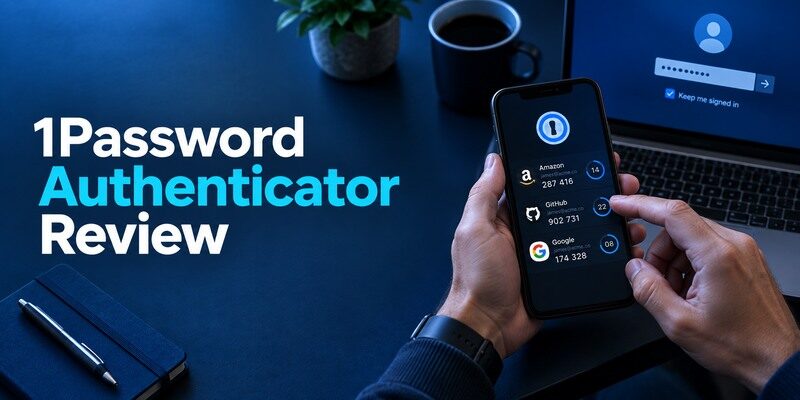
1Password can generate time-based authenticator codes for websites that support them, making everyday login convenient when your passwords already live in its vault. The key trade-off is concentration: a person who unlocks the vault may be able to access both the password and its TOTP secret for sites stored together. This 1Password Authenticator review examines that decision, especially the need for an independent second factor to protect the 1Password account itself. Its official guidance recommends using a separate authenticator for that vault account.
The Verdict Starts with the Vault Boundary

If you already trust 1Password for account credentials and want quick code entry for ordinary websites, its built-in TOTP feature is practical. If you want passwords and codes in separate security boundaries, use a dedicated authenticator instead. This is not a universal “safe versus unsafe” contest. The outcome depends on your vault security, trusted devices, emergency access and how you respond to phishing. Keep the account used to unlock 1Password separately protected.
| Account | Where to keep TOTP | Reason |
| Ordinary site saved in 1Password | 1Password may be convenient | Fast login from one managed vault |
| 1Password account itself | Separate authenticator/security key | Avoid circular protection |
| Employer-required push | Organization’s approved app | Vault TOTP cannot replace device registration |
| High-risk account | Decide by threat model | Separation or stronger phishing-resistant option |
What convenience buys you
1Password’s official support describes saving and using one-time passwords for eligible sites. The password and rotating code can be available in the same login workflow, reducing frantic phone switching. If the website supports standard TOTP, you can scan or enter its setup secret during security enrollment. The site still must confirm the code. The speed is a usability feature, not a change in what the site’s TOTP challenge proves.
What consolidation exposes
An attacker who obtains an unlocked vault and can use both stored password and code seed may have more of what a site requires. A strong account password, appropriate device locks, trusted-browser discipline and independent protection of the vault remain vital. For a high-value website, consider a passkey or hardware security key if available. NIST distinguishes manually entered OTP from phishing-resistant authenticators; combining fields in one vault does not upgrade the site’s protocol.
Keeping passwords and TOTP secrets together reduces the number of tools you need, but it also concentrates sensitive information behind the same vault access controls. This does not automatically make every account unsafe; the risk depends on device security, vault protection, and account recovery. Our guide on is it safe to store passwords in one app explores the advantages and risks of consolidating credentials.
Advantages
Codes alongside saved logins reduce switching between password vault and separate phone, especially across a user’s already signed-in devices. The site setup is familiar if 1Password holds the login.
Drawbacks
Placing a website password and its TOTP in one vault concentrates access; 1Password’s own sign-in factor must live elsewhere to avoid circular recovery. A subscription and vault availability shape the workflow.
Who should use it
An existing 1Password customer who prioritizes convenient everyday TOTP for ordinary sites.
Secure your accounts with fast, reliable two-factor authentication. Download now and protect your login in seconds.Download Authenticator App
Enroll One Site Carefully

Begin at the real website’s security settings and select its authenticator-code option. Add the provided setup QR or manual key to the correct 1Password login item, then return the current code to the issuer to finish enrollment. Save the issuer’s recovery codes in a protected location appropriate for your risk model. Do not close the setup page just because the 1Password item shows six digits. Test the next login in a fresh session before removing the previous factor.
Adding a TOTP code to 1Password begins with the protected website’s official security settings. Scan its enrollment QR code or enter the setup secret, then confirm a generated code before completing registration. Our complete authenticator app guide explains standard QR code enrollment, manual setup keys, verification steps, and the recovery precautions to take before replacing an existing authenticator.
Attach the secret to the right item
Many people keep several logins for one domain: work, personal, admin and a family account. Linking the TOTP field to the wrong item creates a code that looks valid but fails on the selected username. Check both the label and the issuer’s account email before saving. If a site gives no descriptive label in its QR, add your own context. Never put the setup secret in a plain note to distinguish accounts.
Protect the QR while moving it
The enrollment image can recreate future codes. A screenshot that syncs to an open photo account or a message sent to a helper exposes the secret. Use 1Password’s supported capture or entry flow on a device you control. If the QR might have leaked, rotate that factor at the website; removing the OTP field from the vault does not tell the website to reject old copies.
How to set it up safely
Open an existing website login in 1Password, add its authenticator setup QR or secret through the one-time-password field, and finish confirmation on that website. For the 1Password account itself, enroll a separate authenticator or supported security key and keep recovery material outside the vault.
Keep 1Password’s Own Two-Factor Separate
1Password’s official support guidance recommends using a different authenticator to generate the code for your 1Password account. The reason is operational as well as security related: a vault that you cannot unlock should not be the only place storing the code needed to unlock it. Use a separate registered authenticator or another supported second factor, and preserve the account’s current recovery materials. Verify access from a new device while your original device still works.
For the 1Password account itself, an independent authentication method helps avoid a circular lockout where the required verification code is trapped inside the vault you are trying to unlock. A separate TOTP authenticator app can generate codes outside the password manager, while a supported security key may provide stronger phishing resistance. Keep the chosen method and recovery information accessible independently.
Rehearse the circular-lockout scenario
Picture losing the only signed-in phone. On a new phone, 1Password asks for an additional factor before showing your vault; that factor is stored only in the locked vault. An independent second factor or documented recovery route breaks that loop. Do not merely note the existence of a “backup” toggle. Perform a realistic sign-in exercise with a device that has not already cached your account.
A trusted session is useful but fragile
An already signed-in desktop can help during a phone migration, but you should not plan to depend on it forever. A browser update, device wipe or stolen computer may remove that access without warning. Maintain the official recovery information 1Password currently issues and keep its location separate from the phone. If you need organizational help, follow the account administrator’s approved recovery route rather than giving support a live TOTP code.
Decide where an emergency sign-in begins
For many households the primary email is the gateway to vault recovery. If its password lives in 1Password and its TOTP also lives inside the locked vault, a lost-device event may block the first step. Keep an approved independent factor and current issuer backup codes for that email. Then practice signing in from a new browser without the original phone. If a trusted desktop session is the only thing allowing entry, treat it as temporary time to repair the plan, not a reliable long-term backup.
Understand emergency access and shared vaults
Some password managers provide family or business recovery features under specific account arrangements. Check 1Password’s current documentation and your plan rather than assuming any contact can reset your private vault. Sharing an item that includes TOTP gives collaborators more than a password; review who truly needs it. When a colleague leaves, rotate both the website password and the site’s authenticator factor if exposure is plausible. Removing vault membership does not revoke data already copied elsewhere.
Exercise a second-factor loss without a breach
While your phone is still present, map exactly what a replacement device asks for: account password, additional factor and any recovery material. Keep the needed artifacts in locations you can reach independently. The rehearsal can stop before completing any destructive reset; its purpose is to identify a circular dependency. If you choose to store ordinary-site codes within 1Password, that convenience does not weaken this rule for 1Password’s own account. Protect the root vault with a separate method.
Sharing a 1Password item that contains both a password and its TOTP secret gives the recipient access to more than one login factor. Review the sharing permissions, use supported vault-sharing features, and rotate credentials when access should end. Our guide on how to share passwords securely with family explains safer ways to manage shared credentials and avoid exposing sensitive login information.
Daily Use on Phone and Computer
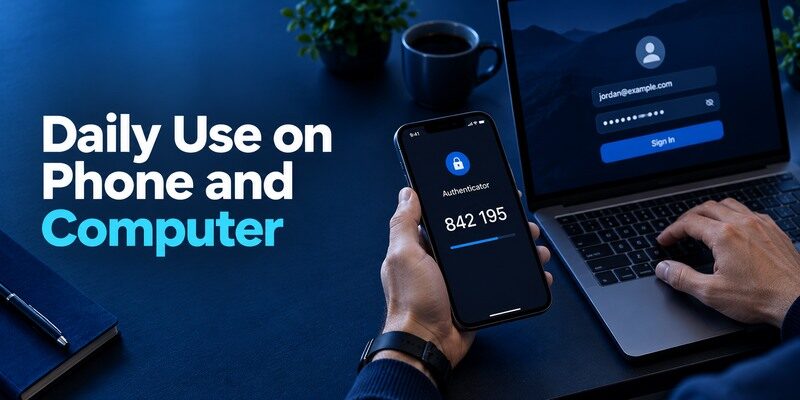
The quickest flow is opening the correct item after typing the account password through a trusted page, then using the current one-time code. Ensure the phone or computer clock is accurate. If a code is about to expire, wait for the next one. Copying an older code from the wrong vault item often looks like a clock problem; inspect the issuer and username first. Avoid blindly filling into pages opened from an email link.
The browser address still matters
A vault may suggest an item based on a domain, but verify the site yourself. A convincing phishing page can collect an OTP in real time. If the browser extension refuses to fill because the domain differs, treat that as a warning rather than copying everything manually without inspection. Open the service’s known URL. A code generator cannot determine your intent; the site’s login page is where the risk emerges.
Shared vaults deserve stricter scoping
If an item containing password and TOTP is in a shared vault, everyone with access to that item may possess both factors. Review who can read or export it, and whether a shared account is even permitted by the issuer. When responsibilities change, rotate the site’s password and second-factor secret where necessary. Moving the item to a private folder does not revoke data that was previously copied by an authorized member.
Test the autofill boundary on a known domain
With a low-risk site, open the exact saved website in a private browser session and see whether 1Password offers the corresponding login and code. Then try a harmless lookalike domain without entering credentials; a refusal to fill should prompt you to inspect the address. Never force a code into a page that appeared through an unsolicited link just because you recognize the logo. When a vault holds both fields, a fraudulent page may ask you to copy both manually. The browser address and your decision to start the sign-in remain important controls.
Review a compromised vault differently from a lost phone
A lost locked phone may call for restoring trusted vault access. An unlocked stolen device or exposed vault export may require rotating passwords and TOTP factors for affected sites, beginning with primary email and financial accounts. Moving the old TOTP seed into a new app does not make an attacker’s copy invalid. Check active sessions at each issuer and change the factor there. Keep a non-secret inventory to track the work; do not paste raw codes into a migration spreadsheet.
Consider issuer passkeys where available
For a valuable account that supports a passkey or FIDO security key, compare that method with the convenience of storing password plus TOTP in one vault. A passkey bound to the legitimate site’s domain can resist the live-code phishing path that TOTP cannot. Register spare access and understand recovery before removing an existing factor. The most sensible arrangement can include vault TOTP for routine sites and stronger, independently recoverable methods for a few critical ones.
Recovery When the Vault or Phone Is Unavailable

The recovery path for a 1Password account and the path for each website inside it are different. To regain the vault, use the product’s current account recovery process, security kit and independent second factor as applicable. To regain a website while the vault is inaccessible, use that site’s own backup codes or identity-checked support. Keep a priority order for primary email and password-management access. Do not send an exported vault or one-time codes to anyone offering to fix login trouble.
| Failure | Better preparation | Emergency route |
| Lost phone, vault accessible elsewhere | Independent factor, trusted client | Use official account sign-in |
| Locked out of 1Password | Recovery material separate from vault | Follow 1Password’s process |
| Website TOTP missing | Issuer backup codes | Website recovery |
| Vault exposure suspected | Device/session review | Rotate affected site factors |
Exporting does not rotate a secret
If you move a TOTP field to another app, the same setup secret can keep working in both until the issuer resets it. For a planned migration this overlap is useful. For a compromised vault it is insufficient: visit each affected site’s security settings, invalidate the old factor and enroll a new secret. Review sessions and passwords according to the exposure. An app-to-app copy changes storage, not what the server trusts.
A recovery note without the secrets
Keep an inventory naming the important sites, which factor protects them and where their official recovery instructions live. Avoid listing raw setup keys in a plain spreadsheet. Record which accounts must be recovered before others; the primary email often sits near the top. This small map helps under stress without creating a second unencrypted token vault.
Compare a Separate Authenticator
offers account-sync and local-transfer choices; Aegis offers an Android encrypted vault export; 2FAS documents mobile backups; the offers another dedicated QR/manual option to inspect. With any separate app, verify backup, platform support and actual issuer login before moving an important factor. Separation is useful only if its own recovery is sound.
A practical split
Keep a strong independent factor for the 1Password account. Decide whether less-sensitive websites belong in the vault for convenience and whether the most sensitive ones deserve separate code custody or a phishing-resistant method. Do not treat all accounts as identical. A forum login, the email used for recovery and a financial account have different consequences after vault compromise. This 1Password Authenticator review supports a deliberate mixed approach.
Try a low-risk move first
can be tested with a noncritical website that allows standard TOTP while you maintain 1Password for passwords. Verify its code at the website, check its current backup behavior, and retain the website’s recovery codes. Keep the 1Password account’s own independent factor regardless of which app eventually holds your other sites’ codes.
Protect high-value accounts on their own terms
It may be reasonable to store a low-risk forum’s password and code in one vault while giving a primary email, financial account or business admin console a separate factor. Review the issuer’s supported methods and recovery rules rather than setting a blanket rule for every website. If a passkey or security key is offered, assess it for phishing resistance and enroll a spare. A separate TOTP app can reduce one kind of vault concentration, but it needs its own backup plan. The goal is an arrangement you can use during a lost-phone event and defend during a realistic compromise.
Verify emergency access before inviting a collaborator
If family or business arrangements require someone else to regain account access, use official shared-vault or delegation functions where appropriate. Handing over a TOTP QR is a durable credential transfer, not a temporary code. Check who can see both password and OTP fields in any shared item and rotate secrets when access should end. Keep the 1Password account’s own second factor outside the vault. A well-documented legitimate recovery role reduces the pressure to share secrets through email in a crisis.
Which alternative is better for your needs?
| App | Choose it when | Trade-off |
| 1Password Authenticator | An existing 1Password customer who prioritizes convenient everyday TOTP for ordinary sites. | Placing a website password and its TOTP in one vault concentrates access; 1Password’s own sign-in factor must live elsewhere to avoid circular recovery. |
| 2FAS Auth | You want the website’s TOTP separate from its password vault | A separate mobile app and backup plan add steps |
| Yubico Authenticator | You want some TOTP secrets tied to a physical key | Carry a compatible key and prepare a spare |
Frequently Asked Questions
Can 1Password generate authenticator codes?
Yes for services that support standard time-based codes, according to 1Password’s official support. The protected website must still confirm each enrollment.
Should my 1Password account’s code be stored in 1Password?
No. 1Password recommends a separate authenticator for its own account so a locked vault is not the only holder of the code needed to open it.
Does a combined vault weaken every account?
It changes the concentration of secrets. Strong vault controls and device security matter, while some users choose separate factors for especially sensitive sites. Assess each account’s risk and recovery route.
Can I move a code to a phone app without resetting the website?
Sometimes a secret can be exported or re-enrolled, depending on available formats and issuer rules. Test the new app, and rotate the issuer factor if the old secret may be exposed.
Is a code stored in 1Password phishing-resistant?
No. A manually entered TOTP code can be relayed through a fake site. Consider a supported passkey or security key for stronger phishing resistance.
Final Thoughts
This 1Password Authenticator review finds real convenience in keeping ordinary website codes alongside their passwords, with a clear exception: protect the 1Password account using an independent factor. Map recovery before consolidating, test a genuine website enrollment, and use stronger issuer methods where appropriate. The best arrangement is the one that remains usable after a lost phone without placing every account secret in one unexamined recovery chain.
Review the people who can access each shared item, the device that holds its independent second factor and the issuer recovery route. A clean vault interface does not replace that account-by-account map.
