
Disable 2FA Without Phone: How to Recover Access Safely
Published November 9, 2026
Yes, you may be able to disable 2FA without phone access, but you must first verify that you own the account. Depending on the platform, you can use saved backup codes, another trusted device, a security key, or an official account recovery process. Some services, including most Apple Accounts, do not allow two-factor authentication to be turned off.
Losing access to your phone can become a serious problem when your online accounts require two-factor authentication (2FA). Even if you remember your password, you may be unable to receive SMS verification codes or access your authentication application.
Fortunately, losing your phone does not always mean losing your accounts.
In many situations, you can restore access without your original device and replace the unavailable verification method.
This guide explains how to disable 2fa without phone access on popular platforms, recover authentication credentials, and choose safer alternatives that keep your accounts protected.
1. Can You Disable 2FA Without Phone Access?
Two-factor authentication is designed to protect online accounts by requiring additional proof of identity.
Instead of relying only on your password, 2FA may require a temporary code, security key, passkey, or approval from another device.
This extra protection helps prevent unauthorized access even when someone discovers your password.
However, it can also create difficulties when your primary verification device becomes unavailable.
Is It Possible to Turn Off 2FA Without the Original Device?
You can sometimes disable 2fa without phone access if you have another approved verification method.
The exact process depends on your account provider and the security settings you configured previously.
Common recovery methods include:
- Backup codes: One-time codes generated when you activated 2FA.
- Trusted devices: Computers or phones already recognized by your account.
- Security keys: Physical devices used to verify your identity.
- Recovery contacts: Trusted people who can assist with supported account recovery processes.
- Account recovery: Official procedures that verify account ownership.
- Alternative verification methods: Another registered authenticator or supported sign-in method.
Not every service supports all these options.
Some platforms allow users to turn off two-factor authentication after signing in, while others require it permanently or enforce it through organizational security policies.
Why Do Platforms Require Identity Verification?
Disabling two-factor authentication removes an important account security barrier.
If anyone could turn it off simply by claiming to have lost their phone, attackers could bypass 2FA after stealing a password.
According to Google’s February 2022 security report, the company automatically enrolled more than 150 million users in two-step verification during 2021.
Google subsequently reported a 50% reduction in compromised accounts among those enrolled users.
This figure demonstrates the value of additional account protection, although it should not be interpreted as a universal reduction for every 2FA system.
Therefore, the safest way to disable 2fa without phone access involves recovering ownership first.
Never use third-party services that promise to bypass verification without proving account ownership.
Download Authenticator App
Secure your accounts with fast, reliable two-factor authentication. Download now and protect your login in seconds.
2. How to Disable 2FA Without Phone Using Recovery Methods
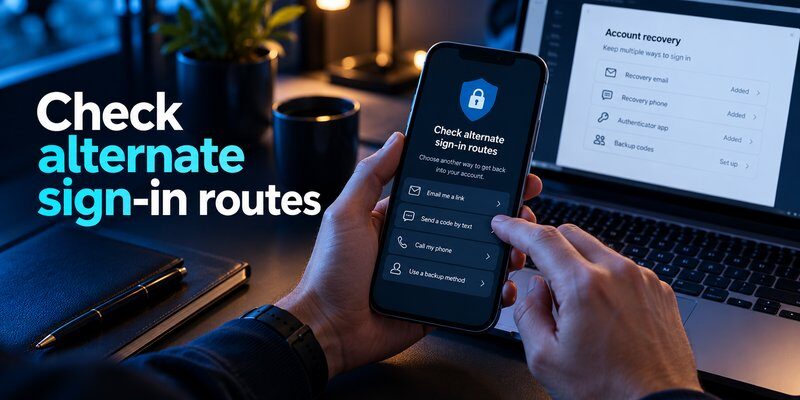
If you cannot access your original smartphone, start by identifying which alternative verification methods are available.
The following approach works as a general recovery framework for many online services.
Step 1: Look for Previously Saved Backup Codes
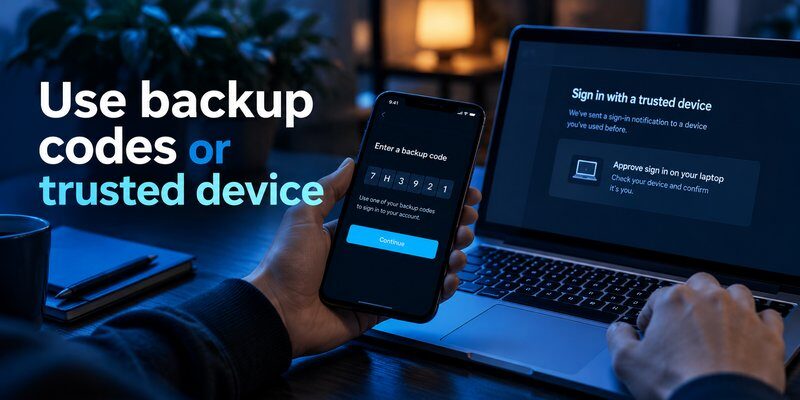
Backup codes are among the most useful options when you need to disable 2fa without phone access.
Many platforms provide recovery codes when users first activate two-factor authentication.
These codes can sometimes replace an authenticator-generated code during login.
For example, Google offers 10 backup codes per set, each containing eight digits.
Every code is valid for a single successful use, and generating a replacement set invalidates the previous codes.
To use a backup code:
- Open the service’s official sign-in interface.
- Enter your username and password.
- Select Try another way, Use a backup code, or an equivalent recovery option.
- Enter an unused backup code.
- Complete any additional required verification.
- Open your account security settings after signing in.
You can then update your verification methods or turn off 2FA if the provider permits it.
Important: A backup code does not automatically deactivate 2FA. It usually provides an alternative way to complete verification.
Step 2: Check Your Trusted Devices
If you previously signed in on a laptop, desktop computer, or tablet, that device may help you recover access.
For example, Google may recognize a computer where you previously selected the option not to request verification again.
A trusted device can sometimes let you manage account security without accessing your missing phone.
However, a remembered login session does not guarantee permission to change security settings. Some providers require fresh verification before allowing sensitive changes.
Avoid signing out of your remaining trusted devices until you have registered another usable authentication method.
Step 3: Use Another Registered Verification Method
Check whether your account supports another authenticator, hardware security key, or passkey.
If you previously registered an alternative, select it during login.
After accessing the account, open the security settings and replace the unavailable method.
If you are learning how to disable 2fa, remember that replacing an authentication method is usually safer than removing the entire security feature.
Step 4: Complete Official Account Recovery
If no alternative verification method works, use the provider’s account recovery process.
You may need to confirm your recovery email, provide previously established account information, or complete additional identity checks.
The time required depends on the provider’s procedures.
Do not assume that account support teams can immediately remove 2FA. Some platforms cannot manually override their authentication safeguards.
A successful disable 2fa without phone process always depends on the recovery options permitted for your account.
3. How to Disable 2FA Without Phone on Google and Apple
Google and Apple both use two-factor authentication extensively, but their policies for disabling it are significantly different.
Understanding those differences prevents unnecessary recovery attempts.
Disable Google 2-Step Verification Without Your Phone
Google allows users to turn off two-step verification when they can successfully authenticate and access the relevant security settings.
If your phone is missing, begin with an approved alternative authentication method.
Once signed in:
- Open your Google Account settings.
- Select Security & sign-in.
- Find How you sign in to Google.
- Select 2-Step Verification.
- Complete any additional verification requested.
- Choose Turn off, if the option is available.
- Confirm the change.
The exact menu labels may differ between devices and account configurations.
Turning off two-step verification makes your account less secure, so consider registering a replacement authentication device instead.
If your original authenticator is unavailable, our Google Authenticator lost guide explains relevant recovery options.
If you cannot recover an approved verification method, use Google’s official account recovery process.
The ability to disable 2fa without phone access is not guaranteed simply because you remember your password.
Can You Disable Two-Factor Authentication on an iPhone?
The search phrase disable 2 factor authentication iphone often refers to two different situations:
- Turning off 2FA for an Apple Account.
- Turning off 2FA for another application installed on an iPhone.
These are not the same process.
For an Apple Account, two-factor authentication generally cannot be disabled once it becomes an established security feature.
According to Apple Support, accounts created using two-factor authentication cannot remove that protection.
Certain accounts that were recently upgraded may be eligible to lower their security within two weeks of enrollment.
This limited exception does not apply to every account.
If you search for iphone disable 2 factor authentication, be cautious of outdated tutorials claiming there is a universal switch in iPhone settings.
Instead, try recovering your Apple Account through a trusted device, trusted phone number, or the supported account recovery process.
For related guidance, see changing two-factor authentication Apple.
What About Authentication Apps on iPhone?
If your goal is to remove 2FA from Google, Discord, or another online service, manage that service’s security settings rather than your iPhone’s Apple Account settings.
Apple’s built-in verification-code functionality is also separate from the authentication requirements of third-party accounts.
Learn more about apple authenticator options before changing your existing security configuration.
For Apple users, account recovery and changing trusted devices are usually more practical than attempting to remove Apple Account 2FA.
4. How to Disable 2FA on Microsoft Without Your Phone

Microsoft provides different authentication policies for personal accounts and organizational accounts.
This distinction matters when you need to disable 2fa without phone access.
Disable Two-Step Verification on a Personal Microsoft Account
If you’re searching for disable 2fa microsoft, Microsoft currently provides an option to turn off two-step verification for eligible personal accounts.
Follow these steps after successfully signing in:
- Open your Microsoft account security dashboard.
- Select Manage how I sign in.
- Locate Additional security.
- Find the Two-step verification setting.
- Select Turn off.
- Follow the confirmation instructions.
Microsoft may require you to verify your identity before making the change.
If you cannot access your original phone, use another registered verification method or the official account recovery options.
Our Microsoft Authenticator recovery guide provides more information about recovering your authentication setup.
What If Microsoft Authenticator Is Your Only Verification Method?
A disable 2fa microsoft account request becomes more difficult if your only approved method was stored on a lost smartphone.
First, check whether you previously enabled Microsoft Authenticator backup.
Some authentication information may be recoverable, depending on the backup configuration, account type, and supported device platform.
Read our Microsoft Authenticator backup guide for an explanation of the available recovery considerations.
Restoring an authenticator backup may not restore every account’s ability to approve sign-ins. Some accounts require registration again.
Also note that removing an individual Microsoft sign-in verification method is different from turning off two-step verification. Microsoft documents a 30-day scheduled removal period for certain verification-method removals.
Can You Disable Microsoft 365 Work Account MFA?
For work and school accounts, administrators may enforce multifactor authentication through organizational policies.
Individual users may not be allowed to disable those requirements.
If you lose your registered device, contact your organization’s IT administrator to request an approved authentication reset.
You can also review how to disable Microsoft Authenticator for more details.
In many cases, replacing the registered device is safer and more appropriate than disabling MFA entirely.
5. How to Disable 2FA on Discord and PlayStation
Gaming and communication platforms frequently require additional authentication to protect account ownership, purchases, and personal information.
Discord and PlayStation offer recovery options, but their procedures are not identical.
How to Disable Discord 2FA Without a Code
Users frequently search for how to disable 2fa on discord without code after losing access to their authenticator.
Discord provides backup codes that can be used to recover access when the original authentication method is unavailable.
If you saved your codes:
- Open Discord’s sign-in screen.
- Enter your account credentials.
- Select Verify with something else.
- Choose Use a backup code.
- Enter an unused recovery code.
- Sign in and open User Settings.
- Locate your account’s multifactor authentication settings.
- Remove or reconfigure the authenticator after completing the required verification.
If you previously enabled SMS-based MFA, that method may also be available.
However, Discord states that its support team cannot remove MFA or issue new backup codes when users lack the required recovery credentials.
This is why backup preparation is essential.
Read our Discord two-factor authentication guide to understand how Discord’s security methods work.
How to Disable PlayStation 2-Step Verification
If you need to disable 2fa playstation authentication because your original phone is unavailable, first check whether you saved your PlayStation backup codes.
PlayStation provides 10 single-use 2SV backup codes.
To recover access:
- Sign in to PlayStation Account Management.
- Choose Trouble Receiving Code?
- Select Sign In Using a Backup Code.
- Enter an unused recovery code.
- Complete the sign-in process.
- Open Security in Account Management.
- Select Edit beside 2-Step Verification Status.
- Choose Deactivate.
Once the old method is disabled, you can activate 2SV again using your new device.
If you no longer have your phone or backup codes, PlayStation directs users to its official support recovery process.
A missing phone does not automatically authorize a security bypass.
The appropriate disable 2fa without phone procedure always requires valid account verification.
6. What If You Have No Phone, Backup Codes, or Trusted Device?
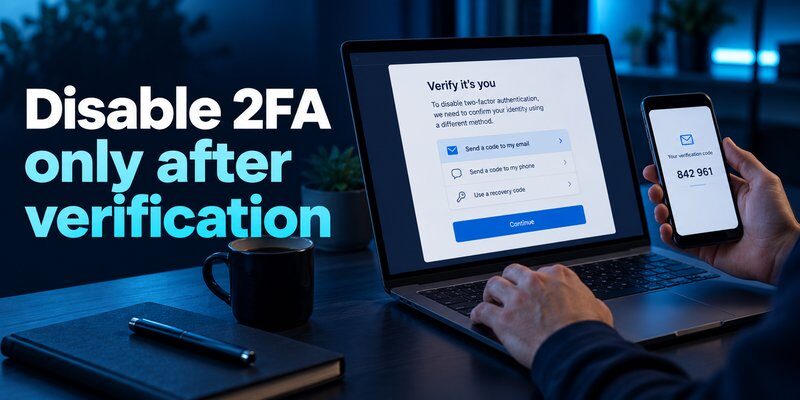
Losing your phone becomes especially challenging when you never saved recovery codes or configured a secondary authentication method.
In that situation, you may have no immediately available way to complete two-factor verification.
Check Whether Your Authenticator Was Backed Up
Some authenticator applications support synchronization or backup recovery.
If you previously enabled such a feature, you may be able to restore eligible authentication credentials on another device.
For example, Google Authenticator can synchronize supported codes with a Google Account when synchronization has been enabled.
Microsoft Authenticator supports certain backup and restoration scenarios, subject to platform and account limitations.
However, reinstalling an authenticator does not automatically recreate secret keys that were never backed up.
Our authenticator app restore from backup article explains the difference between restoring saved credentials and registering new ones.
Recover Your Original Phone Number
If your primary authentication method relied on SMS, contact your mobile provider.
Depending on the circumstances, the carrier may be able to transfer your existing number to a new SIM or eSIM.
This can restore access to SMS verification for services that still support it.
However, number recovery does not restore codes stored locally in an authenticator application.
For 2fa without phone number requirements, consider supported passkeys, hardware security keys, or authenticator-generated codes.
These alternatives can reduce dependence on SMS.
Contact the Account Provider
If all recovery methods are unavailable, use the provider’s official account recovery or support process.
Prepare information that can legitimately help establish ownership, such as previously registered recovery details and available account history.
Do not share passwords, backup codes, or private authentication secrets with unverified support representatives.
Some account providers may require additional verification or impose waiting periods.
Others may be unable to restore access without an existing recovery method.
There is no universal method to disable 2fa without phone access and without proving account ownership.
Recognizing this limitation helps you avoid scams promising guaranteed account recovery.
Download Authenticator App
Secure your accounts with fast, reliable two-factor authentication. Download now and protect your login in seconds.
7. Safer Alternatives to Disabling Two-Factor Authentication

Although turning off authentication may seem like the easiest solution, it can unnecessarily expose your accounts to password-based attacks.
A better approach is to restore access and configure a more reliable security system.
Replace Your Lost Authenticator
After regaining access, register a new authentication application with the affected services.
A dedicated Authenticator app can help generate compatible time-based verification codes for accounts that support standard TOTP authentication.
Before making changes, confirm that your chosen application supports the features you require.
For example, backup, synchronization, export, and account restoration capabilities vary between authentication apps.
Mac users can explore our google authenticator for mac guide for desktop-related authentication options.
If you are moving between smartphones, read how to transfer authenticator to new phone.
Create Multiple Recovery Options
To prevent another disable 2fa without phone emergency, prepare several independent ways to prove your identity.
Use a practical recovery checklist:
- Save backup codes in a secure location separate from your phone.
- Register another trusted device when the service permits it.
- Add a security key or passkey where supported.
- Maintain an accessible recovery email address.
- Review your account recovery information regularly.
- Remove lost or outdated authentication devices after registering replacements.
Do not store your only recovery codes exclusively on the same phone used for authentication.
If that device disappears, both your authenticator and recovery credentials may become inaccessible.
Use an Authentication App on Your Replacement Phone
If you are preparing a new iPhone, you can Download authenticator app to configure compatible verification codes once you have recovered account access.
An authentication application can generate TOTP codes without receiving an SMS message.
However, it must first be registered with each service, or the appropriate saved credentials must be restored through a supported process.
Installing a new application cannot automatically remove 2FA from existing accounts.
For additional protection, review our how to protect your online accounts guide.
The best long-term solution is not simply to disable 2fa without phone access, but to create a reliable authentication system that remains usable when one device is lost.
8. Disable 2FA Without Phone: Frequently Asked Questions
Can I Disable 2-Factor Authentication Without My Phone?
If you’re asking can i disable 2 factor authentication without your original device, the answer depends on the platform.
Some services allow it after you successfully sign in using backup codes or another approved verification method.
Others require 2FA to remain enabled.
You must complete the account provider’s required ownership checks.
How Do I Disable 2FA If My Phone Is Lost?
For users asking how do i disable 2fa, start by searching for saved recovery codes or another registered sign-in method.
After recovering access, open the account’s security settings and determine whether the provider allows 2FA to be disabled.
If possible, replace the missing verification method instead of removing 2FA.
Can I Turn Off Google 2-Step Verification Without a Phone?
Yes, if you can successfully access your Google Account and complete any required verification.
Google provides a Turn off option in its two-step verification settings for eligible accounts.
If you cannot sign in, use the account’s approved recovery methods first.
Can I Disable 2FA Without Any Backup Codes?
Possibly, if another recovery option exists.
A trusted device, hardware security key, registered passkey, or official identity verification process may help.
Without an approved recovery option, access may be delayed or unavailable.
Does Removing an Authenticator App Disable 2FA?
No.
Deleting an authenticator application does not turn off two-factor authentication on the accounts connected to it.
Instead, deleting the application may make future sign-ins more difficult.
Always verify that you have another working authentication method before removing an authenticator.
Can I Receive Authentication Codes Without My Phone?
Yes, depending on the account and authentication method.
A registered security key, passkey, secondary device, or compatible authenticator installed elsewhere may provide verification.
Standard TOTP codes do not require SMS connectivity, but the generating device must possess the correct registered secret.
Is It Safe to Disable Two-Factor Authentication Temporarily?
Temporarily disabling 2FA removes an important security protection.
If your provider allows the change, minimize the time your account remains unprotected.
Register a replacement verification method and reactivate two-factor authentication as soon as possible.
Keeping 2FA enabled with reliable recovery options is preferable to leaving it disabled.
What If I Cannot Recover My Account?
Use the provider’s official recovery process and follow its identity verification requirements.
Some platforms may not be able to restore access when all authentication and recovery methods are unavailable.
Avoid services advertising guaranteed bypasses or requesting sensitive credentials.
Should I Use Passkeys Instead of Authenticator Codes?
Passkeys can provide phishing-resistant authentication and may offer convenient sign-in experiences on supported services.
However, their recovery capabilities depend on how they are stored, synchronized, and protected.
Consider maintaining a backup authentication method even when using passkeys.
For users trying to disable 2fa without phone access, a properly configured passkey on another available device may sometimes provide an alternative route to signing in.
Final Thoughts
Learning how to disable 2fa without phone access is important when your smartphone is lost, damaged, stolen, or unavailable.
Fortunately, many services provide legitimate recovery options through backup codes, trusted devices, security keys, and account recovery procedures.
However, not every platform allows users to deactivate two-factor authentication.
Google and personal Microsoft accounts may allow the change after successful verification, while Apple Accounts generally retain 2FA and services such as Discord enforce strict recovery requirements.
Instead of removing an important security layer permanently, focus on recovering your accounts and configuring reliable authentication methods.
Your best protection is a combination of strong two-factor authentication, securely stored recovery codes, and more than one way to verify your identity.
With these precautions, losing your primary phone does not have to mean losing access to your digital life.
Download Authenticator App
Secure your accounts with fast, reliable two-factor authentication. Download now and protect your login in seconds.
