
Microsoft Authenticator Backup: How to Back Up and Restore Your Accounts
Published August 14, 2026 · Updated September 25, 2026
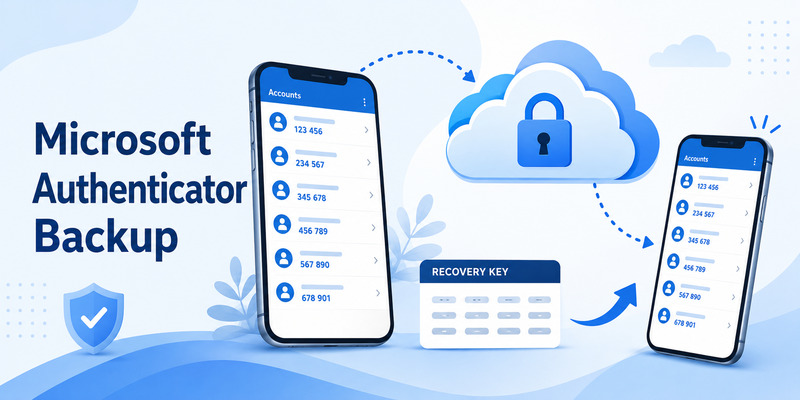
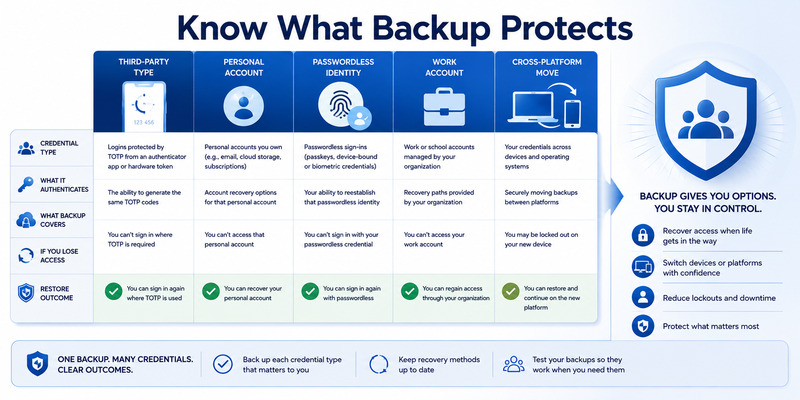
A microsoft authenticator backup can reduce the work required after a lost, replaced, or reset phone, but it is not a universal copy of every credential. Third-party TOTP accounts may restore with working codes, while work, school, and passwordless identities can require sign-in or re-registration.
Microsoft supports backup and restore only within the same device type: Android to Android or iOS to iOS. Cross-platform migration needs provider-by-provider enrollment.
This guide explains what backup stores, how to enable it on Android and iPhone, how to restore safely, how to handle Action required, and how to recover when no usable backup exists.
Quick Answer: How Microsoft Authenticator Backup Works
Microsoft Authenticator can back up supported account information so you can restore it after moving to a new phone or reinstalling the app.
However, there is one major limitation:
You can only restore a backup to the same device platform.
- Android backup → Android restore
- iPhone backup → iPhone restore
- Android backup → iPhone: not supported
- iPhone backup → Android: not supported
Microsoft also does not restore every account in exactly the same way.
For many third-party TOTP accounts, the one-time password configuration can be restored.
For Microsoft work or school accounts, and some Microsoft accounts using passwordless sign-in, you may need to sign in again after restore.
If you are moving to a new phone, the safest process is:
- Confirm backup is enabled on the old phone.
- Verify which recovery account or cloud service stores the backup.
- Install Microsoft Authenticator on the new phone.
- Choose Restore from backup or Begin recovery before adding new accounts.
- Complete sign-in or re-registration for accounts that require it.
This guide focuses specifically on backup and restore. For broader setup instructions, see the Microsoft Authenticator guide.
Download Authenticator App
Secure your accounts with fast, reliable two-factor authentication. Download now and protect your login in seconds.
2. What Does Microsoft Authenticator Actually Back Up?
Before relying on backup, it is important to understand that Microsoft Authenticator does not necessarily create a complete clone of every sign-in method.
What gets restored depends on the account type.
| Account type | What is typically restored | Extra action after restore |
|---|---|---|
| Third-party TOTP accounts | Account configuration and OTP codes | Usually minimal |
| Microsoft personal account using OTP | Account and OTP access | May work after restore |
| Microsoft personal account using passwordless sign-in | Account name/configuration | Sign-in may be required again |
| Work or school account | Account name | Reauthentication required |
| Push approval account | Account reference | Registration may need to be completed again |
Microsoft states that third-party accounts such as Amazon, Facebook, or Gmail that use time-based one-time passwords can have their OTP configuration restored. Work and school accounts generally require users to sign in again after recovery.
This distinction matters because backup is not the same as full credential cloning.
💡 Discover Helpful Guides: Microsoft Authenticator Passwordless Sign-In: Complete Guide
3. How to Back Up Microsoft Authenticator on Android
On Android, Microsoft Authenticator uses cloud backup to store supported authenticator account information.
Step 1: Open Microsoft Authenticator
Open the Microsoft Authenticator app on your Android phone.
Before changing anything, make sure the app displays all of the accounts you currently rely on.
If an account is already missing, enabling backup afterward will not restore data that is no longer present.
Step 2: Open Settings
Open the app menu and select Settings.
Look for the backup section.
Step 3: Turn On Cloud Backup
Enable Cloud Backup.
Microsoft will ask you to choose a Microsoft personal account that will be used as the recovery account.
This account is important because it is what you will later use when restoring Authenticator on a new Android device.
Microsoft’s current support documentation says Android backup stores backup information through the selected Microsoft personal account. Microsoft has also announced that, beginning in January 2027, Android backup will move toward Google One-based backup instead.
Step 4: Confirm the Backup Account
Make sure the recovery account shown is one you can access.
Do not casually choose a secondary or temporary Microsoft account.
If you later lose access to the backup account, restoring Authenticator becomes much harder.
Step 5: Confirm Backup Is Enabled
Return to Settings and confirm that Cloud Backup is still enabled.
If you are preparing to replace your phone, perform this check shortly before migration rather than assuming an old backup is still valid.
How to Back Up Microsoft Authenticator on iPhone
The iOS backup process is different.
Microsoft Authenticator relies on Apple’s iCloud services.
Step 1: Enable iCloud Drive
Open iPhone Settings and make sure iCloud Drive is enabled.
Step 2: Enable iCloud Keychain
Verify that iCloud Keychain is enabled.
Step 3: Allow Microsoft Authenticator in iCloud
Open the list of apps using iCloud and confirm that Microsoft Authenticator is allowed to store backup data.
Microsoft’s official guidance also recommends ensuring iCloud Backup is active for Authenticator.
Step 4: Open Microsoft Authenticator
Launch Microsoft Authenticator at least once before moving to the new phone.
Microsoft specifically recommends opening Authenticator before migration when troubleshooting missing iOS backups.
Step 5: Keep Access to the Same Apple Account
The new iPhone must be able to access the same iCloud environment used by the old device.
If you switch Apple IDs, backup restoration may fail.
🛠️ Learn with Step-by-Step Guides: Microsoft Authenticator App Not Showing Code: How to Fix It
How to Restore Microsoft Authenticator on a New Android Phone
If your original backup was created on Android, restore it to another Android device.
Step 1: Install Microsoft Authenticator
Install the official Microsoft Authenticator app on the new Android phone.
Do not begin manually adding accounts yet.
Step 2: Choose Restore From Backup
Open the app and select:
Restore from backup
or:
Begin recovery
The wording can vary slightly depending on the app version.
Microsoft specifically advises selecting recovery before signing in normally. If you sign in first, you may need to sign out again before the restore option becomes available.
Step 3: Sign In With the Recovery Account
Use the same Microsoft personal account that was selected when Cloud Backup was enabled on the old phone.
Authenticator will attempt to restore the supported account information associated with that backup.
Step 4: Review Restored Accounts
Do not assume every restored entry is fully active.
Some accounts may display messages such as:
- Sign in to restore your account
- Action required
- Additional verification required
These accounts need to be reauthenticated.
Step 5: Test Important Accounts
Before wiping or selling your old phone, test sign-in for your most important services.
Examples include:
- Microsoft account
- Outlook
- Microsoft 365
- work or school account
- GitHub
- banking or finance services
Make sure the generated codes or approval prompts work.
How to Restore Microsoft Authenticator on a New iPhone
The iPhone process follows the same general idea but depends on iCloud.
Step 1: Sign In to the Correct Apple ID
On the new iPhone, sign in to the Apple account that contains your Authenticator backup.
Step 2: Enable iCloud Services
Confirm that:
- iCloud Drive is active
- iCloud Keychain is active
- Microsoft Authenticator is enabled in iCloud
Step 3: Install Microsoft Authenticator
Download and install the official app.
Step 4: Restore the Backup
Open Authenticator and use the available recovery or restore option.
Microsoft’s documentation says restored accounts may still require additional sign-in verification.
Step 5: Reauthenticate Accounts Where Required
For work, school, passwordless, or push-based accounts, complete any additional login or re-registration steps.
🧭 Explore Guides: Microsoft Authenticator Extension: Safe Browser Guide
The Most Important Limitation: Android and iPhone Backups Are Not Interchangeable
This is the limitation that should be emphasized most strongly in the article.
Microsoft Authenticator does not support cross-platform backup restoration.
You cannot:
- restore an Android backup directly to iPhone
- restore an iPhone backup directly to Android
Microsoft explicitly states that backup and recovery must happen on the same device type.
This matters when users search for:
- move Microsoft Authenticator from Android to iPhone
- transfer Microsoft Authenticator from iPhone to Android
- restore Microsoft Authenticator cross-platform
In those cases, cloud backup alone is not enough.
You may need to re-register accounts individually.
For a full device migration workflow, link readers to the site’s dedicated Microsoft Authenticator new phone or recovery guide rather than expanding this backup article too far.
What Happens to Work and School Accounts After Restore?
Work and school accounts often behave differently from simple TOTP accounts.
Microsoft’s documentation says the account name can be restored, but the user generally must sign in again.
That means a successful restore does not necessarily mean the account is immediately ready for push approvals.
Your organization may require:
- reauthentication
- MFA re-registration
- device compliance verification
- QR-code enrollment
- approval through another recovery method
If the account is controlled by an employer or school, some settings may also be governed by the organization’s identity administrator.
Why Does Microsoft Authenticator Say “Sign In to Restore Your Account”?
This usually means the account entry was restored, but the credential itself requires additional authentication.
Microsoft instructs users to tap the affected account and complete sign-in verification.
This is common with:
- Microsoft personal accounts
- work accounts
- school accounts
- passwordless accounts
It does not automatically mean the backup failed.
Why Does Microsoft Authenticator Show “Action Required”?
“Action required” generally indicates that the account exists in Authenticator, but you need to reverify ownership or complete enrollment.
Typical next steps are:
- Tap the account.
- Choose the available sign-in or recovery option.
- Enter your password.
- Complete email, phone, or another verification step.
Microsoft documents this as part of the restore process for accounts that require further validation.
Can’t See “Restore From Backup”?
If the restore option is missing, Microsoft says you may need to remove or sign out of existing accounts before recovery becomes available.
This frequently happens when someone:
- installs Authenticator,
- signs into a new account immediately,
- then tries to find the restore option.
The correct sequence is usually:
Install → Restore/Begin recovery → Sign in to recovery account
not:
Install → Add new accounts → Try to restore
Microsoft Authenticator Backup Not Working
If backup fails, troubleshoot the backup itself before changing phones.
“Something went wrong” during backup
Microsoft says this can occur when the user is not properly signed in to the recovery account.
Return to Settings, enable Cloud Backup, and sign in again.
Backup restores but accounts are missing
Check:
- same device platform
- same recovery account
- iCloud enabled on iPhone
- correct Microsoft recovery account on Android
- latest Authenticator version
- app opened on old device before migration
iPhone backup does not appear
Verify:
- iCloud Drive
- iCloud Keychain
- Authenticator iCloud access
- correct Apple ID
Microsoft also recommends reinstalling the app on the new device in some iOS restore scenarios.
Work account does not work after restore
This may be expected.
Work and school accounts often require sign-in or re-registration after restore.
Use the organization’s security page or contact the identity administrator if necessary.
Should You Delete Microsoft Authenticator From the Old Phone?
Not immediately.
Keep the old phone until you have verified that:
- backup completed successfully
- the new phone restored the account list
- OTP codes work
- push approvals work
- work and school accounts are re-registered
- recovery methods are available
Only after testing should you remove Authenticator or wipe the old phone.
This is particularly important if Authenticator is the only MFA method registered on an important account.
Backup vs Recovery: What Is the Difference?
These terms are related but should not be treated as identical.
Backup means saving supported Authenticator account data before a problem occurs.
Restore means loading that saved backup onto a supported replacement device.
Recovery can be broader and may include regaining access when:
- backup was never enabled
- the phone was lost
- the recovery account is inaccessible
- an organizational account needs to be re-registered
For cases where no usable backup exists, direct readers to the site’s Microsoft Authenticator recovery guide.
Recommended Backup Checklist Before Changing Phones
Before replacing a phone, use this checklist:
- Confirm Microsoft Authenticator backup is enabled.
- Verify the correct recovery account.
- Keep access to that recovery account.
- Check whether your new phone uses the same platform.
- Make sure you have backup sign-in methods for critical accounts.
- Do not wipe the old device yet.
- Restore Authenticator first on the new phone.
- Reauthenticate work or school accounts.
- Test several critical accounts.
- Only then remove Authenticator from the old phone.
Final Takeaway
Microsoft Authenticator backup is useful, but it is not a universal device-cloning feature.
The most important rules are:
- back up before losing access to the old phone
- restore using the same platform
- keep access to the recovery account
- expect some Microsoft work, school, and passwordless accounts to require sign-in again
- verify every important account before wiping the old phone
If you are still setting up Microsoft Authenticator, read the Microsoft Authenticator pillar guide.
If your old phone is already lost or your backup cannot be restored, continue to the Microsoft Authenticator recovery guide instead.
Download Authenticator App Now
Download Authenticator App
Secure your accounts with fast, reliable two-factor authentication. Download now and protect your login in seconds.
