
Authenticator App PlayStation Setup for PS5, PS4, and the Web
Published November 20, 2026
By the Authenticator App Team
Set up the authenticator app PlayStation accepts from Security in Account Management or from your PS5 or PS4 security settings. Select Authenticator App under two-step verification, scan the setup QR or enter the displayed key, and verify a current code. Save the backup codes while the account is open.
Sony’s PlayStation Support documents Authy, Google Authenticator, and Microsoft Authenticator as examples. You can also use passkey sign-in on supported devices. A passkey QR, authenticator setup QR, and PS3 or PS Vita device password are separate credentials. Identify the sign-in method before changing security settings or deleting a working app entry.
Choose the Setup Path for Your PlayStation Device
| Device or route | Where to open setup | What to have ready |
|---|---|---|
| Web Account Management | Security and 2-Step Verification Status | Account email, password, and a compatible app |
| PS5 | Settings, Users and Accounts, then Security | A phone or tablet for pairing and backup storage |
| PS4 | Settings, Account Management, Account Information, then Security | The intended console account and code app |
| PS3 or PS Vita | Device Setup Password through account management | The separate device credential described by PlayStation |
| Passkey sign-in | Security and the sign-in-with-passkey controls | An eligible device and a working credential manager |
Confirm the PlayStation Account and Sign-In ID
Check the account email in Account Management or on the console. A family console may have several profiles, and the display name may differ from the email used to sign in. Match both to the profile you intend to protect. A setup QR connects the authenticator to that particular account.
Keep the original session open while you test. If you already have an app entry for PlayStation, check the account label before adding another. The authenticator app PlayStation verified for a previous account can still show digits. Verification must occur against the intended account and its current setup.
Identify the Console Generation and Current Method
PlayStation Support publishes separate menu paths for PS5 and PS4. It also points PS3 and PS Vita users to a device setup password. Before you change an account method, confirm the hardware and which login screen you need. For PS5 or PS4, choose the account’s current password or passkey route as appropriate.
A passkey and a rotating app code are different kinds of proof. Check whether your account currently uses password-based two-step verification or passkey sign-in. The authenticator app PlayStation offers for two-step verification serves the code-based method. A change to passkey sign-in should be tested on the devices you use.
If you are sharing a family console, verify the email for each user before starting an enrollment. Pair the authenticator app PlayStation offers for that account with a device the account owner can reach. When an authorized guardian manages recovery, keep the backup set under that person’s control. Test the sign-in after switching users so you know which account accepted the proof.
Pair the Authenticator App PlayStation Accepts

Start the Online Setup From Account Management
Sign in to the official PlayStation Account Management page. Open Security and edit the two-step verification status. Choose Authenticator App when asked which method you want. PlayStation Support’s How to set up 2-step verification guide describes a QR and a manual alphanumeric option if scanning fails.
Open the add-account scanner in the authenticator app for PlayStation. If the QR is on your phone, display the official enrollment on a trusted computer or follow the manual option. Avoid keeping a screenshot of the setup secret. Use the current official screen and verify the intended sign-in ID before pairing.
Use the PS5 or PS4 Security Screen
For PS5 2FA, PlayStation Support directs users to Settings, Users and Accounts, then Security and 2-Step Verification. For PS4 2FA, it directs users to Settings, Account Management, Account Information, and Security. Open the verification settings for the correct console profile before choosing the app.
If you see a QR on the console, check the label and scan it with the app’s enrollment view. A passkey setup or console sign-in handoff can also show a QR. The text around it identifies the intended action. Use the authenticator app PlayStation requested only for the two-step enrollment screen.
Enter a Current Value and Activate
Open the new entry in the authenticator app PlayStation just paired and enter its current verification code on PlayStation. If the value changes as you type, wait for the next one. Select Activate and check the account setting after confirmation. Label the local entry with the matching account email or other identifier where your app allows it.
Verify that the activation completed before leaving the screen. An app can generate values after scanning even if the service did not accept the confirmation. The useful test is a fresh PlayStation challenge that accepts a current value from the authenticator app PlayStation just enrolled.
Multi Factor Authentication Solutions for Workforce and Customer Access
Save the Ten Backup Codes Before a New Sign-In
Find the Recovery Set in Account Management
PlayStation Support says you can view backup codes in the Security section of Account Management while signed in. Store the set in a protected place outside the phone holding the PSN authenticator app. If you use a password manager, make sure you can open it from an independent device. Use a clearly labeled record for the correct PlayStation account.
The PlayStation recovery guide describes ten codes that each work once. Check the account before using one. If you keep records for several family accounts, label each set separately and keep it accessible only to the authorized owner or guardian. A backup code is a sensitive account credential.
Test the Usual Console or Browser Path
Keep the active browser session open and test a fresh official sign-in on a trusted device. Enter the account’s sign-in ID and password, then use the current app value if PlayStation asks. Confirm that the console profile and expected library or account information match what you intended.
If you can reach the browser account but a console opens another profile, compare the sign-in IDs before changing settings. The authenticator app PlayStation verifies belongs to the account, while console users and local profiles can differ. Check the intended device as well as the browser.
Compare an App Code, SMS, Passkey, and Device Password
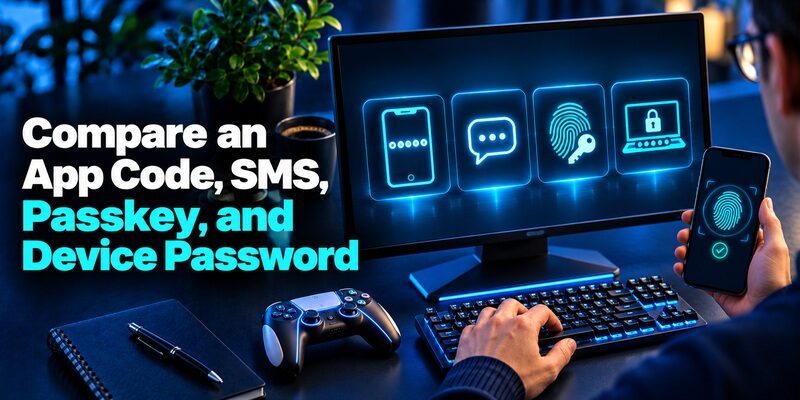
| What appears | Use this proof | What to check |
|---|---|---|
| PlayStation password plus an app code | The current rotating value | The exact account entry and device time |
| Text message challenge | The value delivered to the registered number | The destination and active request |
| Passkey sign-in or QR handoff | The saved passkey on an eligible device | The credential manager and official screen |
| Backup code option | An unused PlayStation-issued code | The current set and account |
| PS3 or PS Vita password field | The device setup password for that system | PlayStation’s instructions for the older console |
Read the Official Prompt Before Opening an App
An authenticator app code and a text message code can look similar. Read the option named on the console or browser. If PlayStation says it sent an SMS, check the current request and number. If it asks for the app value, open the paired entry. Wait for a new rotating value if it is about to change.
When troubleshooting the authenticator app PlayStation uses, note the exact prompt, the device, and whether you reached the sign-in page. A failed delivery and an invalid app code have different causes. A request that appears during console pairing can also belong to an entirely different step.
Treat Passkey QR and Device Setup Password as Separate
PlayStation’s passkey guide describes sign-in on PS5, PS4, the web, and other supported clients. Use the saved passkey in its official flow. For a console QR handoff, use the device or camera PlayStation specifies and verify that the prompt relates to the console you are using.
PlayStation’s same guide says PS3 and PS Vita require a device password. Follow the device setup password procedure for those systems. The authenticator app PlayStation supports for regular two-step verification cannot supply that device credential. Keep the legacy login procedure available if you still use those systems.
Compare Google Authenticator, Microsoft Authenticator, and Authy for PlayStation
| App | Useful when | Check before moving devices |
|---|---|---|
| Google Authenticator | You want a PlayStation code alongside other personal entries | Whether you use Google Account sync or a local transfer |
| Microsoft Authenticator | You already manage compatible personal codes there | Which device type and backup route support restoring the entry |
| Twilio Authy | You already use its supported mobile setup | Whether you can reach the registered number and backup password |
| Authenticator App | You want a dedicated list for compatible rotating-code accounts | Confirm the PlayStation pairing and your app recovery route |
Choose a Backup Model You Can Verify
What authenticator app does PlayStation use? Its 2SV support page lists several compatible apps as examples. Google Account Help documents optional sync and local transfer for Google Authenticator. Microsoft Support describes eligible code backup and platform limitations. Choose the app whose recovery steps you can test on your actual devices.
The authenticator app PlayStation accepts still needs the official account enrollment. If you use an app that can hold both work and personal entries, check that you can open the PlayStation entry without depending on an employer-managed phone. If the app’s backup is linked to a cloud account, verify access to that account separately.
Check an Existing Authy Setup or Try a Dedicated Code App
Twilio’s new-device guide describes registering Authy on the replacement and recovering encrypted entries with the appropriate backup settings and password. If you already use it, check those requirements while the old phone works. The authenticator app PlayStation originally accepted needs a valid pairing after a restore, so test a fresh sign-in.
For compatible QR enrollment, a dedicated Authenticator App can hold your PlayStation entry alongside other standard code accounts. Verify that a current value succeeds before making it your primary app. Give the entry a clear sign-in ID label and check which recovery route your installed version offers. Keep PlayStation’s backup set available independently.
Recover the Account After Losing a Phone or Number

Use One Unused Code From the Correct Set
On the official Account Management sign-in, PlayStation Support describes choosing the trouble-receiving-code option and signing in with a backup code. Enter one unused code for the intended account. The console’s two-step screen can also accept a saved code according to the support guide. Mark it as used afterward.
When access returns, open Security and review the current method. Reenroll a replacement if the old phone or number is unavailable. Test the new authenticator app PlayStation accepts before removing the original entry if that device still works. Save the current backup set and check that it is reachable independently.
Contact PlayStation if the Recovery Set Is Unavailable
If you cannot sign in, PlayStation says you cannot view the backup codes in account settings online. Keep any working session open and use PlayStation’s official account recovery procedure. Provide account details through that process as requested. Avoid sending a backup code, password, or setup key to an unofficial helper.
If the issue is a missing passkey, check whether it is available through a trusted device using the same credential manager. PlayStation’s passkey guidance also describes a separate option for when you cannot sign in with a passkey. Choose that route for a passkey failure rather than assuming the app-code backup still applies.
Switch Phones or Verification Methods While You Can Sign In
Transfer and Test the App Before Erasing the Phone
If your chosen app supports transfer, follow its documentation and keep both phones. Verify a fresh code from the replacement against your PlayStation account. Check the sign-in ID and observe the successful challenge on the browser or console. A restored app label alone does not establish that the current pairing works.
Check which account holds your app backup and whether it is still accessible after a phone change. If you are moving from iOS to Android or back, confirm the app’s supported transfer route. Keep the authenticator app PlayStation currently accepts until you have verified the replacement and stored its recovery information.
Use the Official Change Procedure for a Different Method
PlayStation’s two-step guide describes deactivating the current 2SV method and reactivating it to select the preferred option. Prepare the replacement first, keep an active session, and use the prompts the account displays. Verify the new app code or text and store the backup codes again.
If you are moving to passkey sign-in, use the separate passkey settings in Account Management. Check the credential manager and devices that can sign in with it. PlayStation provides a route back to password-based sign-in. Read the current settings and verify the method you intend to keep before changing the rest.
Fix an App Code That PlayStation Rejects

Check the Correct Entry and Automatic Time
Open the exact entry in the authenticator app PlayStation is asking for and enable automatic date and time on the phone. Wait for a fresh value and type it promptly. If one entry works and another fails, compare the account email and the date of the last enrollment. A phone restore can bring back an older PlayStation entry.
If the app QR does not scan, the PlayStation 2 step verification guide provides an alphanumeric setup option. Enter the full value only in the authenticator app PlayStation is pairing with your account. Confirm the current code on the official setup page. Close the page and clear the copied value when setup succeeds.
Diagnose a Failed Login Without Changing the Wrong Setting
Check whether the browser reached the password, app code, SMS, or passkey step. Note whether you could sign in on the official website but could not open the console account. The account may be correct even if the console session, network, or device credential needs attention.
If the problem followed a phone change, test the old app entry while it remains available. If it works, focus on transfer rather than replacing the current security setting immediately. If neither device works and you have a backup code, use PlayStation’s official recovery route and verify the new app after access returns.
Bank of America Authenticator App Options for Sign-In and Transfers
Keep PlayStation Recovery Separate From Your Other Game Accounts
Check Which Provider Shows the Verification Prompt
A linked game publisher can ask for its own verification after you sign into PlayStation. Look at the provider and account displayed before opening an app entry. A value from the authenticator app PlayStation verifies only answers the PlayStation challenge. Confirm the game account separately if your profile or progress differs after login.
For compatible rotating-code accounts, can store entries in a dedicated list. Use the official PlayStation 2FA setup to confirm that a value works before relying on the chosen app. If you have other game accounts, pair each through its own settings and identify them clearly.
Keep a Recovery Record for the Console You Use
Store the account email, verification type, and backup-code location in a private recovery record. Include which console and phone you verified. If you use a passkey, record the manager or device that holds it. Keep the record accessible without the authenticator app PlayStation relies on for the main sign-in.
Before a trip, trade-in, or shared-console session, confirm the account and recovery record. Sign out of devices you no longer use through official settings where appropriate. If a request arrives unexpectedly, open PlayStation directly and check the account rather than forwarding a code. Keep the last verified login path available during maintenance.
Common Questions About PlayStation Authenticator Apps

Can I Use the Same App on PS5 and PS4?
Yes, if both consoles sign in to the same PlayStation account using its app-based verification. The app entry belongs to the account. Check the email shown by each console, then use the current value when asked. Separate accounts need separate entries.
Does a Passkey Use the Same QR as Two-Step Verification?
Each QR belongs to the setup or sign-in action displayed around it. A passkey QR uses the device or credential manager described in PlayStation’s passkey guide. A 2SV enrollment QR belongs in the authenticator app PlayStation uses to verify rotating values.
Can I Find Backup Codes After I Am Locked Out?
PlayStation says the online backup-code list requires access to Account Management. Use a protected copy you already saved. If none is available and the primary proof is gone, start the official recovery process for the account and follow its ownership checks.
Why Does My PS Vita Still Ask for a Password?
PlayStation’s guidance specifies a device setup password for PS Vita and PS3. Follow the separate instructions in Account Management. The credential is created for the older device’s sign-in. Keep a record of which account and system it serves.
Final Thoughts
Set up the authenticator app PlayStation accepts from the security settings for your PS5, PS4, or online account. Verify a fresh code and keep the backup set outside the enrolled phone. Check whether your current login asks for an app value, passkey, or device password before you replace a method.
Download Authenticator App
Secure your accounts with fast, reliable two-factor authentication. Download now and protect your login in seconds.
