
What Is 2FA and How Does It Work?
Published November 12, 2026

By the Authenticator App Team
2FA protects your account by requiring two different types of proof at sign-in. A password and a code from an authenticator app are a common combination. If someone steals your password, they still need the second proof to complete that sign-in.
For everyday 2FA security, your choice depends on what the account supports and how you’ll recover access if you lose a device. For an account you rely on every day, check both before you switch anything on. This guide shows what counts as a second factor, how codes and passkeys differ, and how to test your setup while you still have access.
What the Two Factors Actually Prove
The simplest way to understand 2FA is to ask what each check proves. NIST’s Digital Identity Guidelines group authentication factors into three categories based on what you know, what you have, and what you are. A sign-in qualifies as two-factor authentication when it verifies two different categories. Two screens or two prompts alone tell you very little about which factors the service checks. A setting called “2-factor authentication” should combine distinct proofs, such as a password and access to a registered device.
Something You Know
A password or PIN is proof of knowledge. A site that asks for your password and then a security answer is asking for two pieces of information from the same category. Using a unique password still matters because a password reused across services can expose several accounts at once.
Something You Have
A phone that holds an authenticator’s setup secret or a registered hardware security key can prove possession. When a site asks for a code generated by an app, your ability to produce that code shows access to the registered secret. Simply knowing the phone number tied to an account offers no such proof.
Something You Are
A fingerprint or face scan can verify a person locally on a compatible device. With many passkey flows, for example, the device uses the biometric check to authorize use of a private key. The FIDO Alliance’s passkey documentation explains that biometric information stays on the device when used with FIDO authentication. This distinction helps explain why a sign-in can take a single gesture even when the underlying mechanism checks more than one kind of evidence.
2FA Authenticator App: Complete Guide to Setup, Use, Download, and Secure Your Accounts
How 2FA Works at Sign-In
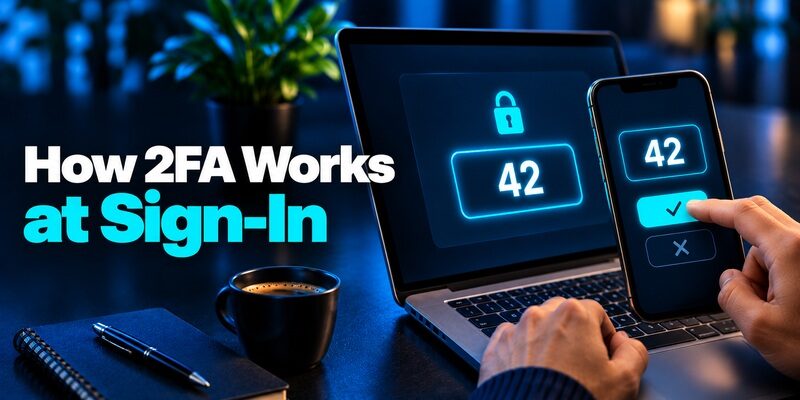
A typical 2FA login starts when you open the service yourself and enter your password. The service then asks for the registered second factor. The exact prompt depends on the method you enrolled and the service’s security policy. Some services remember a trusted browser, while others challenge you again when you switch devices or change a sensitive setting.
When a Site Asks for a Code
Open the authenticator entry for the specific account shown on the sign-in page. If you have a personal and a work account for the same service, match the email address in the app to the email address in the browser. If the countdown is almost over, wait for the next code before typing it. Enter the current code only on the genuine page you opened.
When a Site Asks You to Approve
With push verification, the service sends a request to a registered app. Some prompts ask you to match a number shown in the browser. CISA’s guidance on number matching explains how this reduces accidental approvals when attackers send repeated requests. An unsolicited request calls for a denial and a direct visit to your account’s security page. A number somebody reads to you over the phone is no reason to approve it.
The service checks the submitted proof before completing the sign-in. For a 2FA login, follow the method shown on the page you opened. A remembered browser may explain why you see fewer prompts than someone on a new device. Keep your second factor available even when your usual browser has gone weeks without asking for it.
2FA Authenticator APK: Safe Download, Installation, and Setup Guide for Android
Compare the Common 2FA Methods
Start with methods your account actually offers. The main trade-offs are resistance to phishing, what you must carry, and how easily you can restore access. CISA’s guidance on phishing-resistant MFA favors FIDO-based methods where supported. It also explains the limitations of SMS, one-time codes, and ordinary push approvals.
| Method | What you do | Main trade-off |
|---|---|---|
| Password and SMS code | Read a code sent to your phone number | Depends on delivery and control of that number |
| Password and app code | Type a rotating code from a registered app | Code generation can work offline, but phishing can capture the code |
| Password and push approval | Respond in the registered app | Unexpected prompts can be approved by mistake |
| FIDO security key | Connect or tap a registered physical key | You need the key available and should enroll a spare if supported |
| Passkey with device verification | Unlock use of a passkey with a device PIN or biometric | Availability and recovery depend on the service and passkey provider |
A 2FA app is a practical choice when a site offers standard authenticator codes and you want to avoid text delivery. For a primary email account or a work administrator account, check for passkeys or security keys first. If the service offers SMS as its only second step, use the method available and learn how to update the registered number before changing carriers.
One way to compare 2FA options is to picture your next trip or device upgrade. Can you still receive a text abroad, reach the app on another device, or use a spare key? A method you can keep available is easier to leave enabled. Save a recovery option at enrollment, while you can still reach the account’s settings.
A passkey can replace a password and the separate code prompt where the provider supports that flow. The sign-in result depends on how the provider configures verification, so follow the account’s own enrollment and recovery instructions.
Will 2FA Stop Hackers? What Two-Factor Authentication Can and Cannot Do
How Authenticator App Codes Work
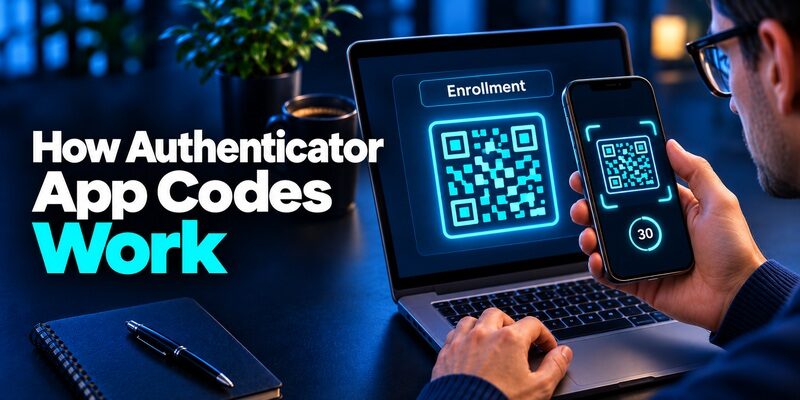
Among common 2FA apps, those that support the same time-based one-time password standard can often enroll at the same service. Look for an option called “Authenticator app” or “verification codes” in the account’s security settings. A provider’s push-only workflow may require its own app even when the provider also offers a separate code option.
The QR Code Carries a Setup Secret
During TOTP setup, the service gives the app a shared secret, usually through a QR code or a manual setup key. RFC 6238, the IETF standard for TOTP, describes how the service and app use that secret and the current time to calculate matching values. Thirty seconds is the default time step in the standard. Treat the QR code and setup key as credentials because either can let someone generate future codes.
The App and Service Check the Same Time Window
Once configured, a TOTP app can calculate codes without receiving a text or contacting the service. For this kind of 2FA, the website still needs to receive and verify the value when you sign in. Google Account Help’s guide to Google Authenticator confirms that its app can generate codes without internet or mobile service. An incorrect device clock, the wrong app entry, or a code near the end of its window can each produce a rejection. Check those before resetting a working setup.
If you configure two devices with the same setup secret, they can display matching codes at the same time. That can help you understand why an enrollment screenshot is sensitive even after the setup page closes. If you think someone copied the secret, replace the account’s authenticator registration through its security settings. Wait until you have confirmed a working replacement and recovery path before discarding anything you still need.
How to Enable 2FA Safely
Turn on 2FA from the account’s official security settings. Keep your current session open until you’ve enrolled a method, saved a recovery option, and tested a second sign-in. On a shared computer, wait until you can do this privately. Whoever sees an enrollment QR code may be able to copy the secret behind it.
Add the Factor From Security Settings
Look for “Two-Step Verification,” “Multi-Factor Authentication,” or another label such as “2 factor authentication.” Choose a method the service supports. For an authenticator code, scan the service’s QR code with your app or enter the setup key if offered. Then type the current verification code back into the service to confirm enrollment. When you register a passkey or hardware key, use the prompt presented by your browser or device and give the credential a label you’ll recognize later.
Confirm the Setup Before You Sign Out
Open a private browser window or use another trusted device to test your new sign-in method. Keep your original settings tab available in case the first attempt fails. If your browser skips the 2FA prompt, check whether it reused an existing session or switched to a passkey. Save backup codes or register another method if the provider allows it. If you have multiple accounts with the same provider, repeat the test for each one. Seeing an entry in an authenticator app tells you it can generate a code. A successful sign-in confirms the service has accepted that registration.
When a provider offers several options, write down which is your everyday sign-in method and which is your fallback. For example, a laptop passkey may be convenient day to day, while a separately stored hardware key can help after a laptop replacement. If you choose an authenticator app, give each entry a clear service and account label. That makes a meaningful difference the first time you have to select a code under time pressure.
Apple 2FA Authenticator: How It Works, Setup, Codes, and iPhone Security
Where to Turn On 2FA First

Start with your main email account. It often receives password-reset messages for other services, so losing access to it can affect several accounts at once. Add 2FA to the password manager that holds your logins and to important financial or cloud accounts using the methods each service supports.
| Account | Why to prioritize it | What to check |
|---|---|---|
| Primary email | It handles password resets and security alerts | A strong sign-in method and a backup you can reach |
| Password manager | It holds credentials for other accounts | A recovery path independent of the locked vault |
| Banking and payment apps | They can authorize transactions | Supported verification methods and how to update your number |
| Work or school account | It may provide access to shared systems | Which factors and recovery paths your administrator allows |
Set aside time to check what would happen if you lost the same phone that holds your email app, password vault, and verification codes. For email 2FA, a spare security key kept somewhere safe can give you another way in if your provider allows it. For work accounts, note which team resets sign-in methods and what proof it asks for. Check that your 2FA recovery instructions are available without signing into the system you’re trying to recover.
For example, Google Account Help places 2-Step Verification under Security & sign-in and notes that managed accounts can follow different rules. Apple’s iPhone User Guide describes Apple Account verification through trusted devices and trusted phone numbers. For 2FA through a general-purpose authenticator app, the service needs to offer compatible codes. If your employer specifies another method, use its instructions and record the help desk contact somewhere you can reach without the work account.
For a shared household account, check how each authorized person can enroll a method, if the provider permits it. Passing setup secrets around in a group chat creates copies that are easy to lose track of. An account that offers separate profiles or delegated access may give each person their own sign-in and recovery options.
What 2FA Stops and Where It Falls Short
If a reused password appears in a breach and someone tries it on another site, 2FA adds a separate hurdle. The value of that hurdle depends on how the second factor is verified. Think about the type of request you see and who initiated it before you enter any code or approve any prompt.
Live Phishing Can Relay a Code
A fake sign-in page can forward both a password and a fresh 2FA code to the genuine service while the code is still valid. NIST’s Digital Identity Guidelines explain that manually entered one-time passwords lack phishing resistance. When a provider supports FIDO passkeys or security keys, the credential is bound to the legitimate site. A lookalike page cannot use that credential to sign in to the genuine site. That difference matters for accounts that receive frequent password-reset or security messages.
Repeated Prompts Can Lead to an Approval
A stream of requests is a reason to investigate, even if you can make the alerts stop by tapping Approve. Deny prompts you did not initiate. Open the service directly, review sign-in activity, and change your password if you suspect someone has it. If an attacker already has an active session, use the service’s security settings to review and revoke unfamiliar sessions. For a managed account, report the activity through your organization’s security channel.
Apply the same caution to requests from people claiming to work for the service. If a caller says they need a rotating code to cancel a suspicious transaction, end the call and contact the service through a number or app you already trust. Use its official security page to review what actually happened.
2FA Code KuCoin: Setup, Find, Fix, and Recover Your Google Verification Code
Keep Access When You Change Phones
Treat a planned upgrade as a chance to test your 2FA recovery. Your contacts and photos may already be on the new phone while your 2FA entries still need a separate transfer, sync, or registration step. If a device is already lost, start with a backup method you registered before the loss.
Before You Wipe the Old Phone
Leave both devices available until you’ve verified a sign-in to your most important accounts on the new one. Google Account Help’s Google Authenticator guide documents a sync option when signed in to a Google Account and a manual transfer option for use without one. Other apps handle transfer differently. Where a service enrolled your old phone for push approvals, register the replacement through the service’s own settings. Remove old sign-in methods after testing their replacements.
If the Old Phone Is Already Gone
Use an enrolled spare key, a trusted device, or a backup code if your provider offers one. Google Account Help notes that each Google backup code becomes inactive after use. Store unused codes in a safe place you can access independently of the missing phone and the locked account. If you have no working method, use the provider’s recovery process or contact your administrator. Once you regain access, remove the lost device or replace the affected credentials and confirm a new backup path.
Before you put the replacement phone into daily use, write down which accounts you’ve checked. An authenticator app may show every entry after a transfer, but a successful test is stronger evidence than a matching label. Start with email and the password manager, then verify anything that uses a separate push registration.
Fix Common Verification Problems
When 2FA verification fails, check what the service is asking for before changing anything. An authenticator code, an SMS code, and a backup code may use different prompts. Read the label on the page and choose the corresponding method. If the app has entries for several accounts at the same company, compare the full email address.
The App Code Keeps Getting Rejected
If a 2FA code keeps failing, enable automatic date and time on your phone, wait for a fresh code, and verify that you have the right account entry. A recent re-enrollment may have created two entries with similar labels, one linked to an old secret. Keep the existing registration until a fresh sign-in confirms which entry is current. If you’re locked out, look for the provider’s alternate sign-in option and use your existing recovery method.
The Message or Push Request Never Arrives
Check that you’re using the phone number or device shown on the sign-in page. For an SMS request, confirm that you can receive messages on the registered number. For push, check that the registered device is online and open the correct app. Follow the provider’s alternate method if delivery fails. When a managed account gives you no alternate option, contact the administrator through a known number or help desk page. If an unsolicited message offers to fix your 2FA by asking for a live code, close it and go to the service directly.
If the page only says “invalid code,” return to the sign-in method selector when the service offers one. Choosing “Try another way” or a similarly named option can make clear whether the page expects a message, an app-generated code, or an approved device. The service’s prompt is the best guide to which proof it is waiting for.
When to Use Authenticator App
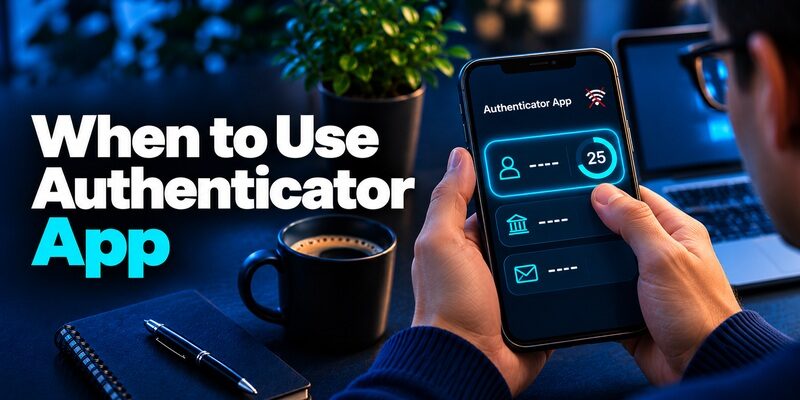
If a service offers standard authenticator codes and text messages arrive unreliably, you can move that account’s 2FA to an app and generate codes on the device. Begamob’s official product page says supports adding compatible accounts by QR code or manual setup key and generating TOTP codes offline. That makes it an option for someone who wants one place to find rotating codes for several compatible accounts. The service you’re signing into still controls which verification methods it accepts. Before you switch, check which devices the app supports and how you’d recover the entries if your phone stopped working.
For example, if an account offers both SMS and app codes, first open that account’s security settings while you can still sign in. Add the app through the account’s official enrollment screen, label the entry with the email address, then verify a fresh sign-in. Keep a recovery method you can reach separately from your phone. If the service requires a provider-specific approval prompt, follow its enrollment instructions. If you’re already locked out, use an existing recovery method first, then set up a new authenticator after you regain access. If you decide to remove SMS, check that the account still has a working recovery option.
Frequently Asked Questions About 2FA
Is 2FA the Same as MFA?
2FA uses two distinct factors. Multifactor authentication, or MFA, uses two or more. A password followed by a registered security key can satisfy both descriptions. A password followed by a security question still uses the knowledge category twice, even though you answer two prompts.
Does 2FA Work Without Internet on My Phone?
Yes, a configured TOTP authenticator can generate codes with your phone offline. The device you’re using to sign in still needs a connection to the service. Push approvals need a connection on the device receiving the request, while text-message codes depend on the registered number receiving the message.
Can I Use 2FA Without a Phone Number?
Yes, if the provider offers another method. You can use 2FA without a text message when the service supports a passkey, hardware security key, or authenticator code and lets you enroll it without SMS. Check enrollment and recovery separately. Some providers ask for a phone number during setup or recovery even when you normally use another factor.
Can I Use the Same Authenticator on Two Devices?
Yes, if both devices receive the same TOTP secret through a supported sync, transfer, or enrollment process. They can then generate the same codes at the same time. If you want one device to serve as a backup, check whether it would still be available if your primary device or sync account became inaccessible.
Do I Need a Separate Code After Signing In With a Passkey?
Often the passkey completes the sign-in by itself. Google Account Help, for example, says a passkey can bypass the separate second step on a Google Account. A provider can still request additional verification for a sensitive action or enforce a different flow on a managed account.
Google Authenticator 2FA: Complete Guide to Two-Step Verification
Final Thoughts
Set up 2FA first on the account you would have the hardest time losing, often your primary email. Choose a passkey or FIDO security key when the service supports one and you can recover it. If the service offers an app code, enroll it from the account’s official security page and test it before closing your existing session.
A complete 2FA setup includes a recovery method you can reach when the main device is unavailable. Register a spare key where supported, or store backup codes somewhere you can retrieve them independently. If your password manager also holds those codes, check whether you could open that vault after losing your phone. The fallback needs to work from the place where you’re likely to be locked out.
Test your 2FA again when you replace a device, change a number, or move your authenticator entries. Keep the old method available until the replacement works, then remove entries and devices you no longer use. You can start that check now by opening the security page for one important account, identifying the method it would ask for on a new device, and checking that your recovery option is still within reach. Check the date on any saved backup codes and replace them if the provider says they’ve expired.
