
Best Authentication LACOE: Sign In to the BEST Advantage Portal
Published October 13, 2026
For LACOE BEST Authentication, open the official BEST Advantage portal and complete its required MFA setup; LACOE recommends Microsoft Authenticator. “BEST” is the name of the Business Enhancement System Transformation project used by Los Angeles County Office of Education and participating districts, not a ranking of consumer authenticator apps. New users need the username supplied for their district or role, their password and an approved second method. If the sign-in fails, the LACOE Help Desk and your district’s access administrator have different responsibilities. This guide follows LACOE’s own portal, MFA user guide and support instructions.
Start at the Official BEST Portal
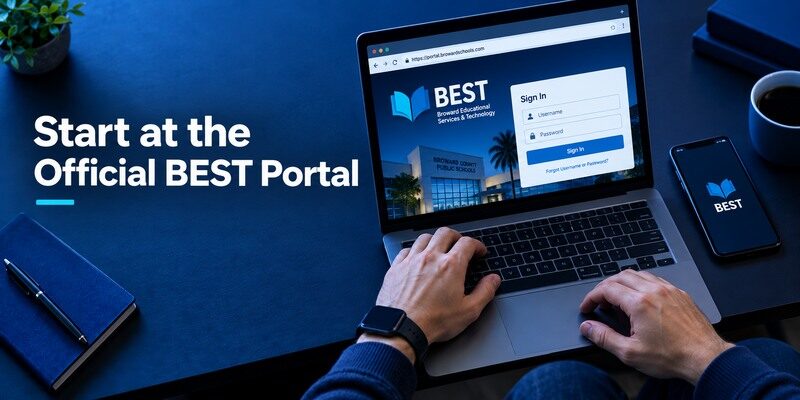
Type the BEST Advantage Portal address from your district’s official instructions into the browser and choose the production sign-in link for real work. Confirm the domain before entering credentials. The portal may also display a sandbox or training link; a successful sandbox login is not evidence that the production account is enabled. Use the BEST Authentication username issued to you. LACOE’s Help Desk notes that a district user may need to obtain the username from the district, while the district’s access request may require an IT form.
Know which account you are opening
BEST Advantage supports financial and human capital management functions, and employee self-service can use the same portal entry. A first-time ESS user may receive separate notices for username/password and application access. If you can reach a landing page but the expected payroll or finance function is missing, that can be an authorization issue rather than a wrong authenticator code. Record which application you tried and its exact message before contacting support; avoid sending your password or a live MFA code.
Workplace authentication systems often separate user identity, verification methods, and application permissions. This is why successfully signing in does not always mean every payroll or finance function is available. Our guide to the best authentication providers explains the differences between identity management, authentication methods, and access policies in organizational environments.
Use the correct environment
Production and sandbox may look similar and can be open in two browser tabs. Check the portal label before entering a one-time code and before assuming that an account exists in both places. If you bookmarked a deep link during training, return to the current official portal from the district’s intranet. Do not follow an unsolicited email link that asks you to re-enter your BEST credentials. A person who sees a different sign-in page should verify with district support rather than changing phone settings immediately.
The correct BEST sign-in route
For the LACOE BEST Advantage sign-in, use the official district/LACOE entry point and the verification method that your organization has enrolled. This query names a portal, not a competition between authenticator brands. Microsoft Authenticator is the app route where the current LACOE instructions require it; text or voice applies only when the portal offers that method for your account.
If a phone is replaced or the sign-in challenge is going to an old device, ask the district’s authorized support contact or LACOE support to reset the registered method. A different code generator cannot recreate a registered approval. The best outcome here is a successful, authorized sign-in and a documented recovery contact, not an app recommendation.
Secure your accounts with fast, reliable two-factor authentication. Download now and protect your login in seconds.Download Authenticator App
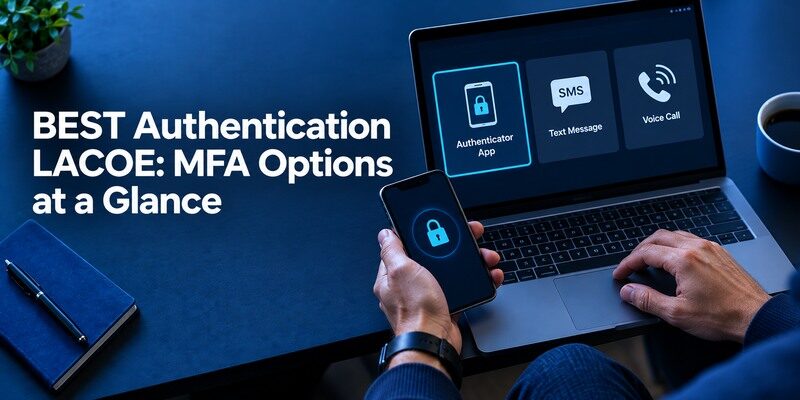
BEST Authentication LACOE: MFA Options at a Glance
| Method in LACOE guidance | What you need | When to choose it | Limitation |
| Microsoft Authenticator | Approved mobile device and enrollment | LACOE’s recommended app route | Replacement may need renewed registration |
| Text message | Reachable enrolled phone number | When offered by the current portal and policy | Depends on mobile service and number custody |
| Voice call | Reachable enrolled phone | When offered as an alternate route | Call delivery and availability vary |
| Another authenticator | Explicit portal option and policy approval | Only if permitted for this account | A generic TOTP app cannot copy a managed push |
LACOE’s published guide recommends Microsoft Authenticator and describes text or phone call as alternatives. Its screen also shows a choice for a different authenticator app, but the available choices for your account can be limited by current configuration. Do not treat a screenshot of every option as a promise that your district enabled it. Security questions appear in older FAQ text but LACOE warns they are being phased out; rely on the current portal and guidance.
Enroll Microsoft Authenticator the First Time
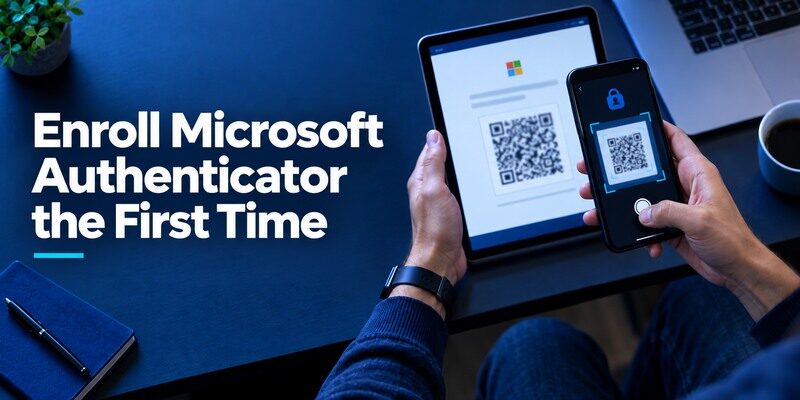
Follow the account’s setup prompt
After the BEST username and password are accepted, the portal may say that more information is required and show the Microsoft Authenticator setup flow. Install the official Microsoft app through your device’s store, confirm its publisher and follow the portal’s instructions to add a work or school account. The QR used for a managed registration belongs to that account’s enrollment. Scanning it into an unrelated app may fail or create an entry that cannot satisfy the portal’s required approval.
Setting up Microsoft Authenticator for an organization-managed account can differ from adding a personal website’s TOTP code. The available sign-in methods depend on your administrator’s policies and the enrollment flow shown by the service. Our guide to Microsoft Authenticator for work accounts explains common workplace authentication scenarios and the role of centrally managed MFA.
Verify with a fresh login
Complete the portal challenge and reach the function you actually need. Then sign out, open a new browser session and try again. If you only test a remembered browser session, you may not see whether the phone receives a new prompt. Record which device was registered and whether a number match or one-time code was requested, without writing down the live code. A new phone in a box is not yet a registered replacement just because Microsoft Authenticator was installed on it.
Use Text or Voice When That Is the Approved Route
LACOE’s guide lists a texted code or phone call as other methods. If your portal offers one and you have a phone that can receive it, follow the on-screen enrollment. Check that the number is yours, that the message is linked to a sign-in you started and that the challenge finishes at the official site. If a call arrives unexpectedly, decline to share the code with anyone claiming to be support. LACOE says technicians will not ask for your password; a live MFA code deserves the same caution.
Text delivery and app codes are different
A code sent by SMS is delivered to your number. A TOTP app calculates an enrolled code from a stored secret. Typing the wrong kind of six-digit number into a prompt can look like an app failure. Read whether the portal requested an app approval, a code shown in the app, or a code sent by message. If delivery fails, check the enrolled number and the site’s resend option before resetting a functioning authenticator.
SMS verification codes and TOTP codes are generated and delivered differently. A text message is sent to an enrolled phone number, while a TOTP app calculates a temporary code using a previously registered secret. Our guide to a TOTP authenticator app explains how time-based codes work and why they cannot automatically replace a managed push approval.
Voice is a fallback, not proof of account ownership alone
An enrolled number may reach a shared office phone or a device being transferred to another employee. Update the number through the approved district and LACOE process before it changes hands. If you have no compatible smartphone, ask about the current voice or other approved route. Do not borrow another person’s phone to enroll a factor that you cannot later control or recover.
Handle a New Phone Before Returning the Old One
An app backup and a BEST account enrollment are separate things. Microsoft Authenticator’s personal backups have platform and account rules; a work or school registration may still require revalidation or administrator action after restore. Ask the district or LACOE support how BEST handles replacement devices for your role. Keep the old phone available until a fresh production login reaches the new device successfully.
Replacing a phone requires careful preparation when the device is used for workplace authentication. Before removing the old device, confirm which accounts can be transferred and which require administrator-assisted re-registration. Our guide on how to transfer authenticator to a new phone explains general transfer precautions, backup considerations, and how to verify access on the replacement device. For BEST, follow your district’s approved procedure.
Inventory the active method
Before a trade-in, check whether your BEST account uses a push, a rotating code or a text/voice fallback. You may have several Microsoft Authenticator entries for different employers; label the one tied to BEST without exposing the secret. A personal Microsoft account on the same phone follows a different recovery process. Record an authorized help-desk route and a second method if policy allows it. This small preparation can avoid a payroll-day lockout.
Re-enroll through the official path
If the old handset still works, use the method-management or replacement instructions supplied by LACOE and the district. If it is already gone, contact the listed support route for identity verification and reset. Do not scan an old screenshot of a managed enrollment QR into a new device and assume it recreates a valid registration. Test in a new browser session, then ask support how the retired device is removed from the account.
If your previous phone is lost or unavailable, restoring the Microsoft Authenticator app may not automatically restore your BEST work account’s approved authentication method. Our guide to Microsoft Authenticator recovery explains common backup and account recovery scenarios. For LACOE BEST, your district or authorized support team must handle any required MFA reset or re-registration.
Diagnose a Failed BEST Sign-In
| Symptom | Likely next check | Correct owner |
| Username not recognized | Confirm district-provided BEST username and environment | District access contact or LACOE Help Desk |
| Password rejected | Use official reset or temporary-password instructions | LACOE identity support |
| MFA prompt reaches old phone | Confirm registered device and replacement procedure | LACOE support or district IT |
| Login succeeds, function absent | Check application authorization | District application administrator |
| Unexpected approval appears | Reject and report it | Security/help-desk process |
Preserve the exact error without the secret
LACOE asks users to provide the application and exact error message when seeking help. A screenshot can be useful if it excludes passwords, live OTPs and personal payroll data. Include the time, browser and whether the problem occurs on production or sandbox. This evidence helps the team distinguish a disabled username from an MFA failure or an authorization gap. Repeated guessing may trigger lockouts or obscure the original problem.
Do not normalize unsolicited prompts
If Microsoft Authenticator asks to approve a BEST sign-in you did not start, reject it. Navigate to the portal through your known bookmark and report the event using the district’s security channel. A push notification does not become trustworthy because it displays the familiar BEST name. If you have already approved something suspicious, follow the official incident response instructions promptly rather than trying to erase the app and hope the event disappears.
Identify which stage actually failed
Separate username and password rejection from the later MFA challenge. A stale browser bookmark, an incorrect account or a forgotten password is not repaired by reinstalling Microsoft Authenticator. If the portal accepted the password and shows a number-matching request, check whether the registered phone receives that particular prompt. If it asks for a text or voice code, use the approved destination that LACOE has on record. Record the exact stage and time of failure for support without copying live codes or QR images.
A phone notification can be delayed without losing registration
Check that the phone has connectivity and permits notifications for the approved app. Open the authenticator directly to see whether a pending request is visible. Cancel old browser attempts and initiate one fresh login, matching its number before approving. If the portal and phone never agree, stop trying repeatedly; a rate limit can complicate the issue. Use a district-approved alternate method or contact support. Never approve a request that arrives long after you abandoned the login.
Preserve the district’s recovery authority
LACOE’s published instructions identify official help and alternative verification routes. A staff member should not attempt to bypass a managed enrollment by scanning a QR from an unrelated website or installing an app suggested in a search advertisement. When a school-issued handset is replaced, follow district policy before wiping or returning the old one. A vendor cannot reset an employer’s account on your behalf. Staff can make support faster by stating the BEST portal step, available phone and last successful login, while keeping the actual secret private.
Know When to Contact District IT or LACOE
District IT can confirm whether access was requested, which role you should have and who issued your account details. LACOE’s Help Desk provides BEST portal and authentication support and lists a support phone number and email on its official help page. An employee whose app tile is missing after a successful login should ask about authorization; a person whose username cannot reach MFA should describe the earlier stage of failure. Routing the request correctly is faster than repeating generic “my authenticator doesn’t work” messages.
Prepare a useful ticket
Include your BEST username, district or agency, the application affected, the production or sandbox environment, exact safe-to-share error wording and what you have already tried. Do not include your password, a live verification code or a TOTP setup key. Mention if the handset was lost or stolen because support may need to remove its registration. If you have a near-term payroll or finance deadline, state it so the help desk understands the operational impact without bypassing identity checks.
Treat access requests separately from resets
LACOE notes that a request for new access may require an IT form. A help desk can help reset an existing identity method, but it may not be the owner of role approval. Ask the district manager or access administrator to submit the required request. This distinction explains why a successful password reset does not create a missing finance permission.
Give support the symptom, not the secret
Record whether the BEST portal rejected the password, failed to offer the registered verification method, or sent a request to an old phone. State the account identifier and time of the attempt through the official help channel. Do not attach the setup QR, a current six-digit code or a screenshot that exposes another employee’s information. This description lets support distinguish identity lookup from app enrollment. If a phone was stolen, say so explicitly so the administrator can review its registered factor and current sessions.
Coordinate around school device changes
A staff member returning a district phone should confirm the new device’s MFA registration before the old one is wiped, under the district’s approved procedure. If the personal phone is the registered factor, check whether policy permits it and how a replacement is handled. A colleague’s authenticator should never be substituted as a shortcut. The official reset may require identity checks and a short delay; planning before the handset swap is easier than asking for an emergency exception during payroll or grading work.
Can a Different Authenticator App Work Here?
Only if the BEST portal currently offers a standard authenticator-code route and your district approves it. The visible “different authenticator app” choice in LACOE’s setup guide warrants checking, but it does not promise that every personal app can replace Microsoft Authenticator push or satisfy a device-bound rule. describes QR/manual TOTP and offline codes for compatible issuers. Those features can be relevant only after the BEST account offers the corresponding enrollment method.
Ask the method question before installing
Show your IT team the exact prompt, not a product marketing list. Ask whether an alternate TOTP app is approved for the role and whether it changes recovery obligations. If the answer is yes, enroll through the official portal, save any permitted recovery method and test a fresh login. If no, keep Microsoft Authenticator or the approved text/voice route. A personal app can still protect unrelated websites on the same phone without changing the district’s BEST enrollment.
Keep work and personal factors apart
The is for evaluating a personal mobile TOTP workflow, not evidence of LACOE certification. Avoid exporting a managed secret to compare interfaces. For personal accounts, test the app on a recoverable website and inspect current backup options. For BEST, the organization that owns the account remains the authority on which factor is accepted.
Frequently Asked Questions
Is BEST Authentication a brand of authenticator app?
No. BEST is LACOE’s Advantage system and its sign-in flow; Microsoft Authenticator is the recommended mobile app in LACOE’s published MFA guide.
Can I skip MFA for the BEST portal?
LACOE’s guide says MFA is required for BEST Advantage and the setup cannot simply be skipped. Available methods depend on the current portal and policy.
Who supplies my BEST username?
Your district or LACOE account process supplies it. LACOE’s Help Desk notes that district users may need to ask their district for the BEST login username.
What if the MFA request goes to my old phone?
Use the official replacement and help-desk procedure. Installing the app on the new phone alone may not transfer a work enrollment.
Can Begamob approve a Microsoft Authenticator push?
No equivalent organization push enrollment is established by Begamob’s TOTP overview. Use it only if BEST explicitly permits and the administrator approves a compatible TOTP route.
Final Thoughts
If a phone is replaced or the sign-in challenge is going to an old device, ask the district’s authorized support contact or LACOE support to reset the registered method.
Best Authentication LACOE queries lead to a specific workplace portal, not a marketplace ranking. Use the current BEST Advantage sign-in, set up one of its approved MFA methods and test the production account from a fresh session. Keep the official LACOE support route for a new phone or a missing permission. A personal TOTP app can serve other compatible accounts, but the BEST method is decided by LACOE and the participating district.
