
Lost 2FA Device? How to Recover Your Accounts and Codes
Published November 9, 2026
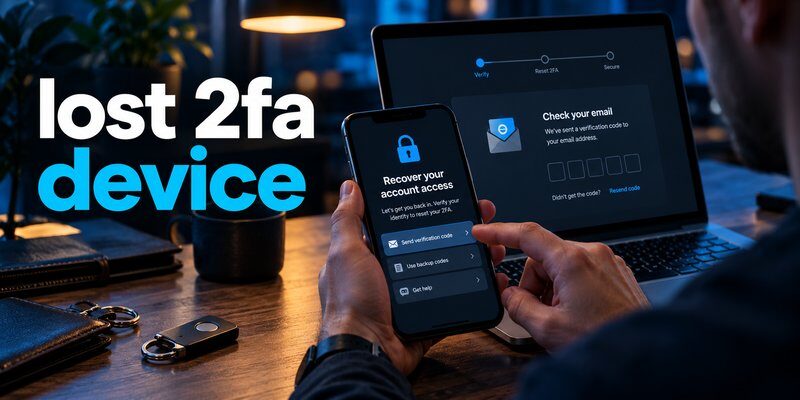
Lost your 2FA device? You can often recover your accounts using backup codes, another trusted device, a synced authenticator, a security key, or the account provider’s official recovery process. If none of these options is available, account recovery depends on the security policies of the service.
A lost 2fa device does not automatically mean your accounts are permanently inaccessible. However, recovering your login credentials requires proving that you own the account.
The fastest recovery process is to:
- Check whether you have backup codes or another authentication method.
- Look for an active session on a trusted computer or tablet.
- Restore authenticator codes from an existing backup, if available.
- Use the account provider’s recovery process.
- Replace the missing authentication method and secure your accounts.
If you have successfully recovered your accounts and need a replacement authenticator, you can Download authenticator app for your iPhone.
This guide explains how to recover access safely, what to do when backup codes are unavailable, and how to prevent future account lockouts.
What Happens When You Lose Your 2FA Device?
Two-factor authentication (2FA) protects online accounts by requiring another verification method in addition to your password.
This second factor may be a temporary code, a hardware security key, a passkey, or an approval notification on a trusted device.
When you have a lost 2fa device, you may still know your password but cannot complete the second verification step.
Why losing your phone can lock you out
Most authenticator applications use Time-Based One-Time Passwords (TOTP).
These applications generate temporary login codes using a secret key that was registered with the account provider during setup.
According to the National Institute of Standards and Technology (NIST), an OTP authenticator uses a cryptographic secret and a changing value to generate verification codes.
Many popular TOTP implementations generate six-digit codes that refresh every 30 seconds.
The important detail is that the code is generated from a secret, not simply sent to your phone number.
Therefore, transferring your phone number to another device does not automatically restore authenticator codes.
Common situations include:
- Your phone was stolen or misplaced.
- Your device stopped working.
- You accidentally deleted the authenticator application.
- You performed a factory reset without creating a backup.
- You purchased a new phone without transferring authentication data.
- Your authenticator codes were saved only on the original device.
In these situations, a lost 2fa device can prevent access to multiple accounts simultaneously.
Does losing your phone mean losing your accounts?
Not necessarily.
Most major platforms provide alternative recovery methods, although their availability differs.
For example, Google supports backup codes, previously registered security keys, trusted devices, and certain other verification methods.
Discord provides backup codes and other previously configured authentication methods.
However, some services cannot disable two-factor authentication when users cannot satisfy their recovery requirements.
Losing an authentication device is usually a recovery problem, not proof that your account has been deleted or compromised.
The best solution depends on which recovery options you prepared before losing access.
Download Authenticator App
Secure your accounts with fast, reliable two-factor authentication. Download now and protect your login in seconds.
What to Do Immediately After Losing Your 2FA Device
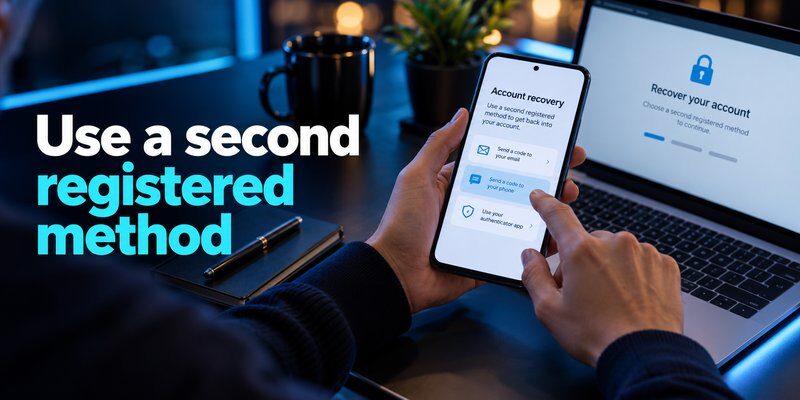
If your phone has disappeared, recovering account access is important, but preventing unauthorized access should come first.
A lost 2fa device may contain authentication codes, email accounts, passwords, or active login sessions.
Follow these steps as soon as possible.
Step 1: Secure the missing device
Use your device manufacturer’s built-in location and protection features to find or lock the phone.
For Android devices, use Google’s device-finding features where available. For iPhones, use Apple’s Find My functionality.
If the device cannot be recovered, consider remotely erasing its data.
Important: A remote erase can permanently destroy authenticator data stored only on that phone. Before erasing, check whether your codes were synchronized or backed up, if doing so does not delay urgent protection of a stolen device.
If your SIM card may have been stolen, contact your mobile carrier to protect or replace it.
Step 2: Check for existing account sessions
Before signing out everywhere, check whether you are already logged in on another trusted device.
Examples include:
- A personal laptop
- A desktop browser
- A tablet
- A second smartphone
- A previously authorized work computer
An active session may allow you to access security settings and register another authentication method.
However, an active session does not guarantee that you can change 2FA settings without additional verification.
Some platforms still require your password, backup code, security key, or another authentication challenge.
Step 3: Find your recovery codes
Backup codes are among the most useful recovery options for a lost 2fa device.
Look for codes stored in a trusted password manager, encrypted document, secure offline storage, or printed recovery sheet.
Avoid uploading recovery codes to unfamiliar websites or sending them to strangers offering account recovery services.
Step 4: Protect your most important accounts
Prioritize your primary email account, password manager, financial services, and accounts connected to other online profiles.
Once you have a verified recovery path, change passwords when appropriate, review active sessions, and revoke access from your missing device.
Do not disable every authentication method before confirming that a replacement method works.
The safest approach is to preserve a working recovery method while removing access from the missing device.
How to Recover Accounts Without Your Original 2FA Device
Recovering a lost 2fa device situation depends on what authentication methods remain available.
There is no universal recovery code that works across every online platform.
However, the following methods can help you regain legitimate access.
Method 1: Use backup recovery codes
Backup codes are usually created when you enable two-factor authentication.
They allow you to complete a login when your normal authentication method is unavailable.
For example, Google provides 10 backup codes, each containing 8 digits. Each code can be used once, and generating a new set invalidates the previous set.
To recover an account with a backup code:
- Open the account’s normal sign-in screen.
- Enter your username and password.
- Select “Try another way,” “Use a backup code,” or a similar option.
- Enter an unused recovery code.
- Complete any remaining verification requirements.
- Update your authentication settings after signing in.
Backup codes are account-specific. A Google backup code cannot unlock your Discord or X account.
If your lost 2fa device contained the only copy of your backup codes, move to another available recovery option.
Method 2: Use another registered device
Some accounts support multiple trusted phones, security keys, or passkeys.
If you configured a second authentication method, select it when prompted during sign-in.
A security key can be especially useful because it remains separate from the phone containing your authenticator application.
For users dealing with 2fa lost phone situations, another registered device may provide the shortest recovery route.
Method 3: Restore synchronized authenticator data
Some authenticator applications support synchronization or backup features.
If synchronization was enabled before the device disappeared, you may be able to restore your existing authentication entries.
The recovery process typically involves:
- Installing the same authenticator application on a replacement device.
- Signing in to the account associated with its backup or synchronization.
- Following the application’s restore procedure.
- Checking which authentication entries were successfully recovered.
- Testing access to the original services.
The exact process depends on the application.
For additional guidance, read authenticator app restore from backup.
Installing a new authenticator does not automatically recreate secrets stored only on a missing device.
Method 4: Recover access through the account provider
If backup codes, synchronization, and alternative authentication methods are unavailable, use the provider’s official account recovery process.
Depending on the service, recovery may involve:
- Verifying a previously registered email address
- Using a trusted browser
- Confirming account ownership
- Completing a security review
- Waiting for an account recovery decision
Some services offer manual recovery assistance. Others enforce strict policies that may prevent recovery without a valid second factor.
A lost 2fa device cannot be bypassed simply by proving that you know the account password.
This restriction helps prevent attackers from removing account protection.
How to Restore Authenticator Codes on a New Phone

After purchasing a replacement phone, restoring authentication codes is usually your next priority.
However, recovery depends on the original application’s backup capabilities.
Restore Google Authenticator
Google Authenticator supports synchronizing codes with a Google Account.
If you enabled synchronization, sign in to the same Google Account within Google Authenticator on your replacement device.
Your synchronized authentication entries may then become available.
If your codes were stored locally without synchronization, reinstalling the application alone will not restore them.
You must use each service’s recovery process and register a new authenticator.
For more information, see google authenticator lost.
A lost 2fa device becomes easier to recover when authenticator data has already been synchronized and the synchronization account remains accessible.
Restore Microsoft Authenticator
Microsoft Authenticator offers backup and recovery features, but availability varies by platform and account type.
For example, some personal account credentials can be restored using the application’s backup process.
Work and school accounts may still require you to sign in again, re-register the authenticator, or contact your organization’s administrator.
Consult the guide to microsoft authenticator backup before replacing your previous configuration.
Never assume that restoring the application automatically restores every account registration or passwordless approval method.
Recover 2FAS authentication entries
For users searching 2fas lost phone, the 2FAS Auth support documentation describes cloud backup restoration through iCloud or Google Drive when the feature was enabled beforehand.
Users may also be able to import a previously exported backup file.
If neither synchronization nor an exported backup exists, 2FAS states that it cannot regenerate locally stored secret keys for users.
You must recover access through the individual account providers instead.
Restore authentication on Apple devices
Some Apple users save verification codes in the Passwords application.
When iCloud Passwords & Keychain synchronization was enabled, eligible saved verification codes can become available on another compatible Apple device signed in to the same Apple Account.
You can learn more about apple authenticator options and how they relate to verification codes.
Remember: restoring the app, restoring its stored secrets, and resetting an online account’s 2FA registration are three different processes.
A lost 2fa device is fully resolved only when you can successfully authenticate to the original service using the replacement method.
How to Recover Google, Discord, and X Accounts
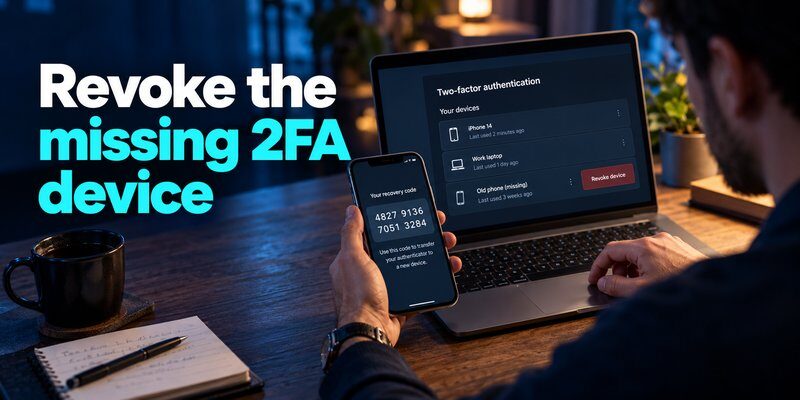
Account recovery is not identical across platforms.
The following examples explain what to do when a lost 2fa device affects commonly used online accounts.
Google: Recover access after losing your phone
Users searching 2fa lost phone google or 2 step verification lost phone usually need to restore access to a Google Account without their primary verification device.
Google recommends trying previously established alternatives.
These may include:
- Another phone already signed in to the Google Account
- An unused backup code
- Another registered phone number
- A security key
- A passkey on another device
- A trusted device that Google recognizes
Start the normal Google sign-in process and select “Try another way” when prompted.
If no alternative method is available, follow Google’s account recovery process.
Google recommends using a familiar device and location when completing recovery.
Once you regain access, review your security settings and remove the missing device.
The google account two step verification guide provides additional information about managing Google’s authentication methods.
A replacement SIM card may restore text-message access, but it does not recreate locally stored authenticator secrets.
Discord: Recover an account without authenticator codes
The search lost 2fa discord often appears when someone cannot access Discord after changing or losing their phone.
Discord supports recovery through previously saved backup codes and certain alternative methods that were configured before losing access.
According to Discord’s support documentation, users can select “Verify with something else” and choose an available recovery method.
For example, an unused Discord backup code can be entered instead of a normal authenticator code.
Discord backup codes contain 8 digits and are intended for one-time use.
If SMS-based backup authentication was previously enabled, that option may also be available.
Read more about discord 2fa code requirements and common login problems.
However, Discord explicitly states that its support team cannot remove MFA or generate new backup codes when users have lost the required recovery credentials.
If you cannot access any registered authentication method or recovery code, Discord account recovery may not be possible.
X: Recover access after losing your authenticator
If you encounter x 2fa not working, first determine whether the problem involves a missing authenticator, an incorrect code, or a different login issue.
X provides backup-code recovery for users who generated and saved a valid code.
To attempt recovery:
- Open the normal X sign-in page.
- Enter your account credentials.
- Choose an available backup-code option.
- Enter your valid backup code.
- Review two-factor authentication settings after signing in.
Users reporting an x 2fa problem without any valid backup code should use X’s official account support process.
X’s help documentation advises users who no longer have a logged-in session or an active backup code to contact support for assistance.
Support does not guarantee that access can be restored.
You can also read about twitter x two factor authentication to understand the available security options.
A lost 2fa device does not necessarily compromise your X account, but it can prevent access until you successfully complete an approved recovery method.
Why Your 2FA Codes May Be Missing or Not Working
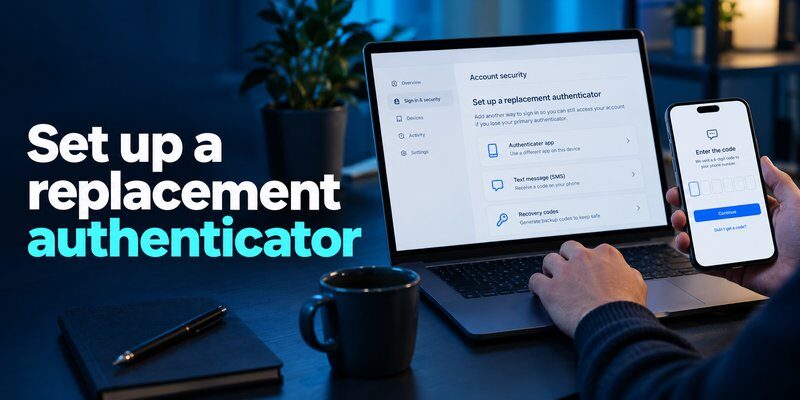
Sometimes the device has not actually been lost.
Instead, the problem is that the application cannot generate or display the expected code.
Before starting account recovery, identify the cause.
The six-digit verification code is incorrect
A common 2fa 6 digit code is generated using a stored secret and a changing time value.
A six-digit numeric code has 1,000,000 possible combinations, equivalent to approximately 19.93 bits of information.
That does not mean a user or attacker can simply test all combinations: properly implemented verification services use short validity periods, rate limits, and additional security controls.
If your code is being rejected, check:
- Whether you selected the correct account entry
- Whether the code expired before submission
- Whether your phone’s date and time are accurate
- Whether the original service changed its authenticator registration
- Whether you accidentally restored an outdated configuration
Google’s support documentation recommends checking device time synchronization when authenticator codes are invalid.
Your authenticator codes disappeared
A lost 2fa code may be caused by an incorrect account selection, an unsuccessful restore operation, or a missing synchronization account.
For Google Authenticator, check whether you are signed in to the same Google Account previously used for code synchronization.
If you used the application without a Google Account, your codes may have remained only on the original device.
If you cannot identify the issue, see authenticator app is not showing code.
Your recovery code is rejected
Recovery codes can fail because they have already been used, were revoked, belong to another account, or were entered incorrectly.
Some platforms also restrict which login actions accept backup codes.
Do not confuse a temporary authenticator code with a saved backup recovery code.
A normal TOTP code refreshes repeatedly, while a backup code is generally a separately issued recovery credential.
In a lost 2fa device situation, knowing the difference can help you select the right sign-in option.
How to Prevent Losing Access to 2FA Again
Once your accounts are accessible again, use the opportunity to improve your recovery strategy.
The goal is not to remove two-factor authentication. It is to ensure that losing one device does not permanently block access.
1. Keep backup codes in a secure location
When enabling 2FA, save the recovery codes immediately.
Store them in a trusted password manager, an encrypted offline file, or a printed document kept in a secure place.
Do not keep your only copy of recovery codes on the same phone that generates your authentication codes.
Otherwise, losing that device may eliminate both your primary authentication method and its recovery option.
2. Register a second authentication method
Where supported, configure another trusted device, a hardware security key, or a passkey.
NIST SP 800-63B recommends that service providers encourage users to maintain at least two separate means of authentication to reduce dependence on account recovery.
For important accounts, a second security key can provide a useful physical backup.
3. Choose an authenticator with appropriate backup options
An Authenticator app can help generate verification codes for compatible services.
However, backup, synchronization, export, and restore features vary by application.
Before selecting an authenticator, evaluate:
- Supported authentication standards
- Backup and recovery options
- Device compatibility
- Privacy and security controls
- Ease of transferring accounts
- Availability of recovery instructions
If you use an Apple computer, the google authenticator for mac guide can help you understand the available desktop-related options.
Not every mobile authenticator has an official standalone desktop version.
4. Test recovery before an emergency
Do not wait until you have a lost 2fa device to discover that your backup codes are missing.
Create a simple recovery checklist:
- Confirm that your backup codes are stored securely.
- Verify that another authentication method works.
- Check the application’s backup settings.
- Keep your recovery email address updated.
- Review your trusted devices periodically.
- Replace recovery codes when they may have been exposed.
Testing a backup method does not require deliberately locking yourself out of your primary device.
5. Set up a replacement authenticator securely
If you are moving to a new iPhone, you can Download authenticator app and register it with services that support compatible TOTP verification.
Follow each service’s official setup procedure.
After scanning its QR code or entering its setup key, verify that the new code works before removing the old authentication method.
An authenticator application cannot recover an existing account merely because you install it. The account provider must recognize the new registration, or you must restore the previously enrolled secret through a supported backup.
A successful recovery plan should leave you with at least one working authentication method and one secure recovery option.
Frequently Asked Questions About Lost 2FA Devices

Can I recover my account after losing my 2FA phone?
Yes, depending on the service.
A lost 2fa device can often be handled using backup codes, a trusted device, another registered authentication method, or account recovery.
If none of these options is available, recovery may be restricted or impossible.
What if I lost my phone and have no backup codes?
People searching 2fa lost my phone frequently face this situation.
Check for another authenticated device, a synced authenticator backup, a passkey, or an alternative verification method.
If nothing is available, use the individual account provider’s official recovery process.
Can I recover my old authenticator codes?
Sometimes.
If your previous authenticator synchronized codes or created an exportable backup, you may be able to restore those authentication entries.
Without an existing backup or original secret key, installing a replacement application generally cannot recreate the missing codes.
Can I get my 2FA codes using my email address?
Usually not directly.
An email address may help with an account provider’s recovery process, but it generally cannot reproduce the secret key used to generate TOTP codes.
You must use recovery methods supported by the specific service.
Can I transfer my authenticator to a new phone without the old phone?
You may be able to transfer authentication entries if your previous application supported a backup or synchronization feature that you had already enabled.
Otherwise, you usually need to recover each service account and register a new authenticator.
How long does recovering a lost authenticator take?
Recovery time varies.
Using a valid backup code may restore access during the normal sign-in process.
More complicated identity verification may take longer, and some providers do not offer recovery when all registered factors are lost.
There is no guaranteed recovery timeline across all services.
Is it safe to disable 2FA after losing my phone?
Temporarily removing a missing authentication method may be necessary during legitimate recovery.
However, leaving 2FA disabled increases account security risks.
Once access is restored, register a replacement authenticator or another strong authentication method as soon as possible.
What is the best way to avoid permanent 2FA lockout?
Maintain backup codes, configure a second authentication method, and verify that your authenticator’s backup features work.
For a lost 2fa device, having a previously prepared recovery method is much more reliable than trying to reconstruct missing credentials afterward.
Final Thoughts
A lost 2fa device can prevent you from signing in to important accounts, but several legitimate recovery options may still be available.
Start with backup codes, trusted devices, synchronized authenticator entries, and previously registered security keys or passkeys. If those methods are unavailable, follow the account provider’s recovery procedure.
After restoring access, secure the missing device, remove obsolete authentication registrations, and set up reliable backup methods.
To protect compatible accounts with a replacement authenticator, Download Authenticator App for iPhone and follow each account provider’s official 2FA setup instructions.
The best protection against losing access is preparing recovery options before your primary authentication device disappears.
Download Authenticator App
Secure your accounts with fast, reliable two-factor authentication. Download now and protect your login in seconds.
