
Lost Phone Locked Out? How to Recover Your Accounts and 2FA Access
Published November 9, 2026
If you’re facing a lost phone locked out situation, immediately secure your missing device, protect your phone number, and recover account access using backup verification methods. You can often restore access through recovery codes, trusted devices, security keys, or your account provider’s official recovery process.
Losing a smartphone is stressful, especially when it contains your passwords, banking applications, email accounts, and two-factor authentication (2FA) codes.
The problem becomes more serious when your missing phone is also the only device authorized to verify your identity.
Fortunately, being locked out does not necessarily mean your accounts are permanently lost.
This guide explains how to handle a lost phone locked out emergency, secure your information, restore authentication methods, and prevent future account recovery problems.
1. Lost Phone Locked Out: What Should You Do First?
When your smartphone disappears, your first priority should be protecting your digital identity rather than immediately replacing the device.
A lost phone locked out situation typically involves two separate problems:
- Device access: You cannot locate or physically access your smartphone.
- Account access: You cannot receive verification codes or approve login requests because your phone is missing.
Both problems require different recovery steps.
Step 1: Check Whether Your Phone Is Nearby
Before assuming your phone was stolen, try calling it from another device.
Check locations where you recently used it, including your home, workplace, vehicle, or nearby businesses.
If location tracking was enabled, use Apple’s Find My or Google’s Find Hub to view its available location.
Avoid confronting anyone if the device appears to be at an unfamiliar or potentially unsafe location. Contact local authorities when appropriate.
Step 2: Secure Your Missing Device
If you cannot recover your phone quickly, activate its remote locking feature.
This prevents casual access to your personal information and can display contact details for someone who finds it.
For an iPhone, activate Lost Mode through Find My.
For an Android device, use Find Hub and select the option to mark the phone as lost.
Step 3: Protect Your Mobile Number
Contact your mobile carrier and explain that your phone is missing.
Ask whether you should temporarily suspend the line, block the SIM or eSIM, and transfer your existing number to a replacement device.
Your phone number may still be used for SMS verification and password recovery.
An attacker who gains control of that number could potentially intercept authentication messages.
Step 4: Review Your Important Accounts
Prioritize your primary email, Apple or Google account, banking services, and password manager.
If you can sign in using a trusted computer, check recent security activity and remove unfamiliar sessions.
A lost phone locked out emergency becomes easier to manage when you secure these accounts before attempting multiple password resets.
Download Authenticator App
Secure your accounts with fast, reliable two-factor authentication. Download now and protect your login in seconds.
2. How to Find and Lock Your Lost iPhone or Android

Both iOS and Android include built-in tools for locating and protecting missing smartphones.
However, remote management generally requires location or device-finding features to have been enabled before the phone disappeared.
How to Lock a Lost iPhone
If you’re asking, “i lost my phone how do i lock it”, Apple’s Find My feature is the recommended starting point.
Follow these steps:
- Open Find My on another trusted Apple device or use Apple’s Find Devices service in a browser.
- Sign in using your Apple Account.
- Select your missing iPhone.
- Choose Mark As Lost.
- Follow the instructions to activate Lost Mode.
- Add a contact number or message if appropriate.
Lost Mode locks the device using its passcode and can display a recovery message.
Apple also suspends applicable payment cards and services while Lost Mode is active.
According to Apple Support, Activation Lock remains an important protection against unauthorized reactivation, even when the device is erased remotely.
If your iPhone is offline, the Lost Mode request may remain pending until the device reconnects.
How to Lock a Lost Android Phone
Android users can manage compatible missing devices through Google Find Hub.
The process is similar:
- Open Find Hub from another device or browser.
- Sign in with the Google Account connected to your missing phone.
- Select the missing Android device.
- Check its available location.
- Choose Mark as lost.
- Add contact information to the lock screen.
Google reports that Find Hub can also ring a supported phone for five minutes at full volume, even if the device is set to silent.
This is particularly helpful when a lost phone may still be nearby.
Location information may be unavailable when the device is powered off, has no connectivity, or cannot be reached.
What If You Cannot Sign In to Find My or Find Hub?
If your missing phone was your primary verification device, you may be unable to access its location service immediately.
In this lost phone locked out scenario, try signing in from a previously trusted computer or using an available recovery code.
If necessary, complete account recovery before attempting remote device management.
Remember that remote locking and account recovery are separate security processes. Completing one does not automatically complete the other.
3. Lost Phone Locked Out of Google, Apple, or Microsoft Accounts
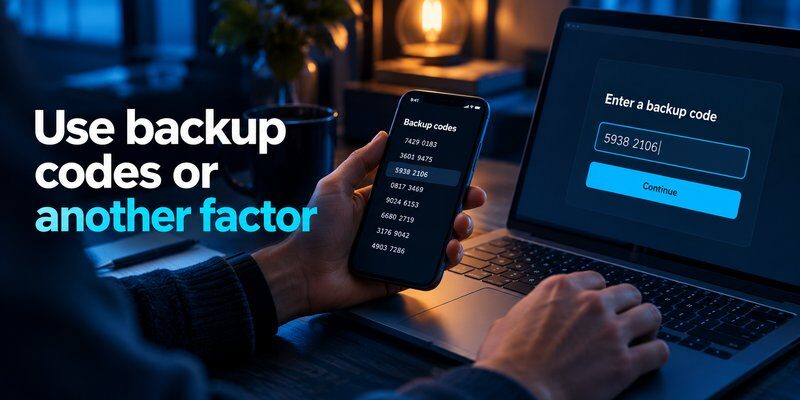
Losing your primary authentication device can prevent you from signing in even when you remember your password.
This happens because two-factor authentication requires another form of identity verification.
The purpose is to protect accounts from unauthorized access, but losing that verification method can temporarily interrupt legitimate access.
Recover Your Google Account Without Your Phone
If you are in a lost phone locked out situation involving Google, start with the account’s alternative verification options.
Depending on what you configured previously, Google may allow you to use:
- A backup code
- Another trusted phone
- A registered security key
- A passkey on another device
- An additional verification phone number
- A previously trusted computer
Google provides 10 backup codes per generated set, and each code contains eight digits.
Each backup code can be used only once. Generating a new set invalidates the previous set.
If you previously saved those codes, choose Try another way during sign-in and select the backup code option.
For authentication-specific problems, see our guide to Google Authenticator lost.
Recover Your Apple Account
Apple Account recovery depends on the security options already associated with your identity.
You may be able to use another trusted Apple device, your trusted phone number, or an established recovery contact.
If these methods are unavailable, use Apple’s official account recovery process.
Account recovery may require a waiting period and cannot always be completed immediately.
Avoid repeatedly attempting unfamiliar recovery methods or sharing verification codes with anyone claiming to represent support.
Recover Your Microsoft Account
Microsoft account recovery may involve another registered verification method, a recovery code, or account-specific identity checks.
If Microsoft Authenticator was your only verification option, determine whether you previously enabled cloud backup.
Our Microsoft Authenticator recovery guide explains the main recovery considerations.
For workplace or school accounts, contact your organization’s IT administrator. Administrators may be able to reset authentication registrations after verifying your identity.
Never assume reinstalling an authenticator automatically restores every account.
The safest solution for a lost phone locked out problem is to use recovery options established before the device was lost.
4. How to Recover Authenticator Codes After Losing Your Phone
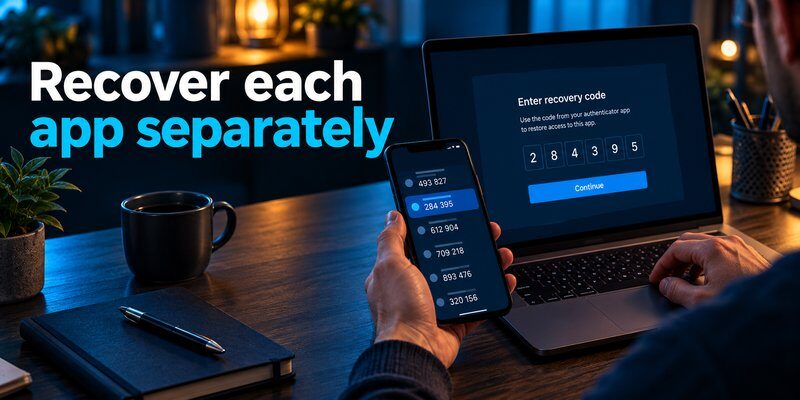
One of the most frustrating consequences of losing a smartphone is losing access to time-based one-time passwords.
These six-digit verification codes are commonly generated by authentication applications.
They usually refresh every 30 seconds, although the interval depends on the authentication system.
A standard TOTP application can generate codes offline because it uses a stored secret and the current time.
However, installing an authentication application on another phone does not automatically recreate the original secret keys.
Restore Codes From an Existing Backup
If your authentication application supports backup or synchronization, check whether you enabled it before losing the device.
The recovery procedure depends on the application.
For example:
- Google Authenticator may restore synchronized entries when you sign in with the Google Account previously used for synchronization.
- Microsoft Authenticator provides backup and recovery features, but restoration conditions and account types vary.
- Other applications may require an encrypted backup file or an earlier export.
Our authenticator app restore from backup guide provides additional recovery information.
If synchronization was never enabled and no backup exists, the original authentication secrets may be unrecoverable.
Restore Access Using Backup Codes
Many services provide one-time recovery codes when two-factor authentication is first enabled.
If you saved these codes securely, you may be able to sign in without your original authentication device.
After recovering access:
- Open the account’s security settings.
- Review all registered authentication methods.
- Remove the missing device’s authentication credentials when appropriate.
- Register your replacement phone.
- Generate and securely save new recovery codes.
This process is particularly valuable when a lost phone locked out problem affects multiple online accounts.
Set Up Authentication on Your New Phone
Once you regain access, register a new verification method using each account provider’s approved setup process.
For additional guidance, read how to transfer authenticator to new phone.
If you need a dedicated verification application, consider the Authenticator app for managing compatible two-factor authentication codes.
Important: Installing a new app helps you configure future verification, but it cannot independently bypass an existing account’s recovery requirements.
Mac users can also explore the available options discussed in google authenticator for mac.
For iPhone users, our apple authenticator guide explains Apple’s built-in verification code features and related authentication options.
With the right recovery methods, a lost phone locked out emergency does not have to result in permanent account loss.
5. Should You Erase a Lost Phone Remotely?
Remote erasure can protect sensitive data when you believe your missing smartphone is unlikely to be recovered.
However, deleting the device should generally come after checking whether it can still be located.
Erasing a phone is not the same as recovering your accounts.
When Remote Erasure Makes Sense
Consider remotely erasing your smartphone if:
- You believe it was stolen.
- Sensitive business information is stored on it.
- The device contains confidential personal records.
- You cannot recover it through available location services.
- You suspect someone may gain unauthorized access.
Before deciding to erase lost phone data, confirm whether important files, photos, and authentication credentials are backed up elsewhere.
Remote erasure may permanently destroy data that has not been backed up.
On Android, Google states that a factory reset removes device data and makes the phone unavailable through Find Hub afterward.
For supported iPhones running iOS 15 or later, Apple indicates that location features may remain available after remote erasure, while Activation Lock continues to protect the device.
Do not remove a missing iPhone from Find My merely because it has been erased. Doing so may remove Activation Lock.
Locking vs. Erasing a Lost Device
| Action | Lock Device | Erase Device |
|---|---|---|
| Protects against casual access | Yes | Yes, by removing data |
| Preserves existing local data | Yes | No |
| Allows a recovery message | Usually | Depends on platform |
| Maintains tracking capability | Generally | Platform-dependent |
| Best for | Potentially recoverable phones | Devices unlikely to be recovered |
If you’re dealing with a lost phone locked out emergency, choose the action that protects your information without unnecessarily destroying valuable recovery data.
Your phone’s location, backup status, and security risks should determine the decision.
6. Can You Unlock a Lost or Locked Phone?
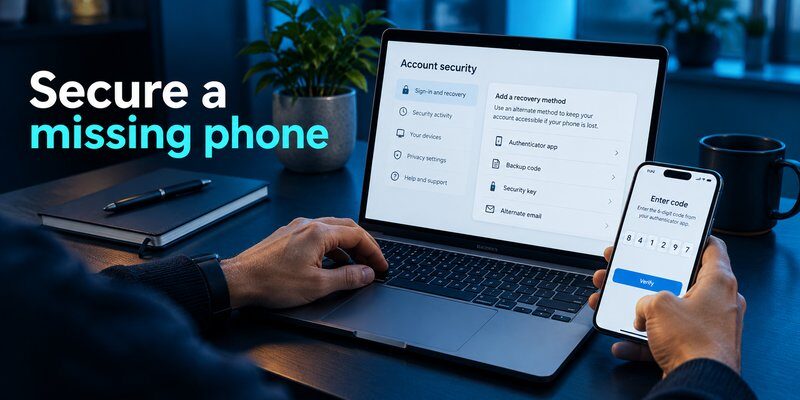
A common question is “can lost phone be unlocked” after it has been recovered.
The answer depends on whether you own the device, remember its credentials, and understand which type of lock is active.
Different Types of Phone Locks
A smartphone may have several independent security restrictions.
Screen lock: A PIN, password, pattern, or biometric authentication requirement protects local access.
Activation Lock: Apple’s device protection can require the associated Apple Account credentials before reactivation.
Android device protection: After certain resets, Android may require credentials from a previously associated Google Account.
Carrier restriction: A carrier may restrict network activation or SIM use separately from the screen lock.
These restrictions serve different purposes.
Searching for how to unlock a lost phone may therefore produce instructions that do not apply to your particular problem.
How to Unlock Your Own Recovered Phone
If you find your phone after activating Lost Mode, start by confirming that it is your device.
For an iPhone, you can normally deactivate Lost Mode with the appropriate passcode or through your Apple Account.
For Android, use your established screen unlock credentials and follow the device’s recovery instructions.
If you forgot the screen password, use the manufacturer’s authorized reset or recovery process.
Resetting a phone may erase its local data, and ownership verification may still be required.
Avoid third-party tools promising to bypass Activation Lock or factory reset protection.
What If Verizon Has Locked Your Phone?
If you’re experiencing a verizon phone locked out issue after reporting your device missing, check whether your mobile line was suspended.
Verizon’s published lost-or-stolen suspension guidance describes a temporary suspension period of up to 30 days.
A carrier suspension is different from a device screen lock. Restoring the line will not automatically unlock a forgotten screen passcode.
Contact Verizon through its official support channels to confirm the current procedure.
Understanding the lock type is essential to resolving a lost phone locked out problem safely.
7. How to Prevent Another Lost Phone Locked Out Situation
The best time to prepare for smartphone loss is before it happens.
A reliable recovery strategy should allow you to authenticate without relying entirely on one device.
Use More Than One Authentication Method
Two-factor authentication adds important protection against compromised passwords.
In a February 2022 security report, Google stated that it had automatically enrolled more than 150 million people in two-step verification during 2021.
Google subsequently observed a 50% reduction in compromised accounts among those enrolled users.
This was an observed outcome of Google’s specific initiative, not a guarantee that every implementation produces identical results.
The takeaway is that strong authentication matters, but recovery preparation matters too.
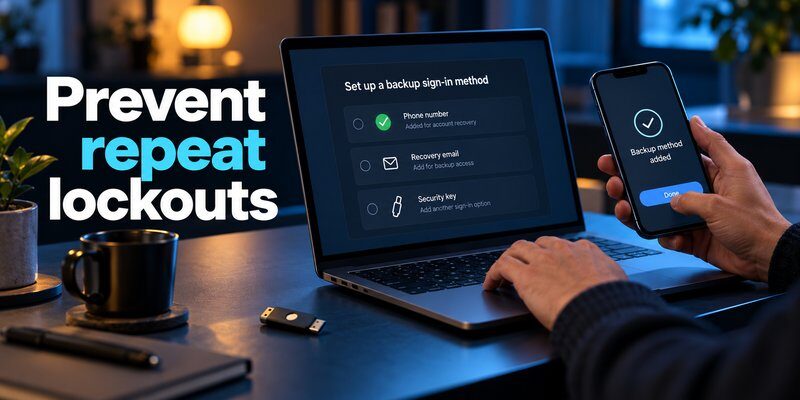
Create a Recovery Backup Plan
To avoid another lost phone locked out emergency, follow these practices:
- Save recovery codes securely. Store them somewhere separate from your primary smartphone.
- Register another authentication method. Consider a hardware security key, a second trusted device, or a supported passkey.
- Keep your recovery email updated. Confirm you can access it independently.
- Review authenticator backup settings. Understand exactly what your chosen application can restore.
- Maintain a secure device passcode. Protect local data if your phone disappears.
- Enable device tracking. Configure Find My or Find Hub before an emergency occurs.
- Review account security regularly. Remove devices and recovery methods that you no longer control.
For further guidance, read how to protect your online accounts.
Prepare Your Replacement Phone
After restoring your account access, make sure every important service has a working authentication method.
Test verification before signing out of your existing trusted sessions.
If you are setting up a new iPhone, you can Download authenticator app to configure compatible TOTP accounts after completing the required account verification.
Do not delete your remaining recovery codes until your replacement authentication method works correctly.
A strong backup plan means a lost phone locked out incident becomes a manageable inconvenience rather than a lasting loss of digital access.
8. Lost Phone Locked Out: Frequently Asked Questions
Can I Recover My Accounts Without My Lost Phone?
Yes, provided your service offers an available recovery method.
You may be able to use backup codes, a trusted device, a recovery contact, a security key, or identity verification through the account provider.
If none are available, recovery may take longer or may not be possible.
How to Unlock Lost Phone When Found?
If you are the legitimate owner and want to unlock lost phone access, use your original passcode or the manufacturer’s official recovery process.
For Apple devices, deactivate Lost Mode using your authorized credentials.
For Android devices, follow the applicable screen lock or account verification procedure.
Remote unlocking cannot legitimately eliminate all security protections.
How to Return a Lost Phone That Is Locked?
If you’re wondering how to return a lost phone that is locked, avoid attempting to bypass its security features.
Look for owner contact information displayed on the lock screen.
You can also hand the device to the business where it was found, the relevant lost-property office, or local authorities.
Never access personal accounts or attempt to defeat the screen lock.
Can Someone Unlock My Lost Phone Without My Password?
Modern smartphones use security controls designed to make unauthorized access difficult.
However, protection depends on the device model, software updates, configured security features, and whether an attacker already knows your credentials.
Use a strong passcode and activate available device protections.
What If I’m Locked Out of X After Losing My Phone?
If you’re searching for x locked out of account recovery, use X’s official sign-in recovery options and any previously saved backup codes.
If an authenticator was required, you may need to complete the platform’s account ownership verification process.
Avoid unofficial account recovery services.
Can I Recover Verification Codes From a Missing Phone?
Sometimes. Recovery depends on whether your authentication application synchronized or backed up its credentials.
Without a backup, a second registered method, or access to each account’s recovery process, the original TOTP secrets may not be recoverable.
What Should I Do If My Phone Has Been Missing for Several Days?
Continue checking its location status if available, report the loss to your carrier, protect important accounts, and review suspicious activity.
If recovery is unlikely, evaluate remote erasure after considering the consequences for your data.
A lost phone locked out problem should also prompt you to check every account that relied exclusively on the missing device.
Is It Safe to Use an Authenticator App After Losing a Phone?
Yes. An authenticator remains a useful security method when configured properly.
The important precaution is maintaining independent recovery options.
Losing a device should not mean losing your only way to verify your identity.
Final Thoughts
A lost phone locked out emergency can affect far more than your ability to make calls. It may interrupt access to your email, financial services, social accounts, and two-factor authentication codes.
Fortunately, a missing smartphone does not automatically mean permanent account loss.
Start by securing your device, protecting your mobile number, and using the official recovery options associated with your accounts.
After regaining access, register new authentication methods and store backup codes somewhere safe.
The best protection combines strong authentication with a practical recovery plan. That preparation helps ensure your digital identity remains accessible even when your primary smartphone is not.
Download Authenticator App
Secure your accounts with fast, reliable two-factor authentication. Download now and protect your login in seconds.
