
Backup Codes vs Authenticator App Transfer: Which Saves You From Lockout?
Published November 9, 2026
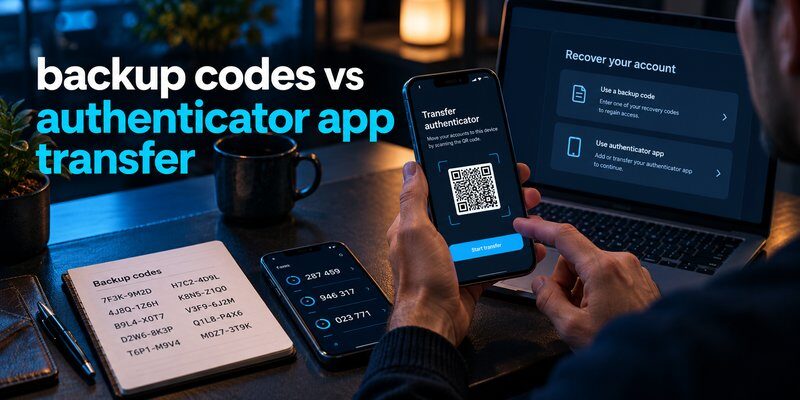
Changing your smartphone should be simple, but moving two-factor authentication (2FA) can create unexpected problems. If your authentication codes disappear, you may suddenly lose access to important accounts.
Understanding backup codes vs authenticator app transfer helps you avoid these situations and choose the safest recovery method.
Quick Answer: Backup codes are emergency login credentials used when your normal authentication method is unavailable. Authenticator app transfer moves your existing authentication credentials to another device so you can continue generating verification codes.
Which is better? Use authenticator app transfer when switching phones while your old device is available. Keep backup codes for emergencies, such as losing your phone or being unable to open your authenticator.
The safest approach is to use both methods together, because transferring authentication data does not automatically protect you against every possible account lockout.
This guide explains the differences, provides step-by-step instructions, and covers recovery options for Google, Microsoft, X, and 1Password.
What Is the Difference Between Backup Codes and Authenticator App Transfer?
The main difference between backup codes vs authenticator app transfer is their purpose.
Backup codes help you bypass an unavailable second authentication method. An authenticator transfer moves the credentials needed to continue using that method.
Both support account accessibility, but they solve different problems.
What Are Backup Codes?
Backup codes are special recovery credentials generated by an online service.
They provide an alternative verification method when your normal 2FA method is unavailable.
For example, you might need one when:
- Your phone is lost or stolen.
- Your authenticator application is deleted.
- Your device is damaged.
- You cannot receive verification messages.
- Your authentication data was not transferred successfully.
Many platforms issue a set of recovery codes that must be saved in advance.
Google, for example, provides 10 backup codes containing eight digits each. Every code can be used once.
These codes are account-specific and cannot automatically unlock other services.
For someone comparing backup codes vs authenticator app transfer, the critical point is that backup codes restore access to an account rather than recreate an authenticator’s entire configuration.
What Is Authenticator App Transfer?
Authenticator app transfer is the process of moving authentication credentials from one device to another.
Most authenticator applications use time-based one-time passwords, also known as TOTP.
A typical TOTP code contains six digits and changes every 30 seconds, although implementation details depend on the service.
The authenticator uses a shared secret and the current time to generate matching codes.
When you transfer authentication credentials, the new application gains the information required to generate valid codes for supported accounts.
Transfer methods may include:
- QR code export and import.
- Encrypted cloud synchronization.
- Application backup and restore.
- Manual account re-enrollment.
Transferring an authenticator does not mean transferring your passwords or every recovery code.
Key Differences at a Glance
| Feature | Backup Codes | Authenticator App Transfer |
|---|---|---|
| Main purpose | Emergency account access | Move active 2FA credentials |
| Typical use | Lost phone or unavailable 2FA | New phone or device replacement |
| Code validity | Often single-use | Generates ongoing OTPs |
| Requires old phone | Not necessarily | Usually for manual transfer |
| Supports multiple accounts | Each service has its own codes | Potentially multiple accounts |
| Needs preparation | Codes must be saved | Sync, backup, or old device needed |
| Replaces normal 2FA setup | No | Can preserve compatible TOTP setup |
Best practice: Save recovery codes independently and verify the authenticator migration before erasing your previous device.
Backup Codes vs Authenticator App Transfer: Which Should You Choose?
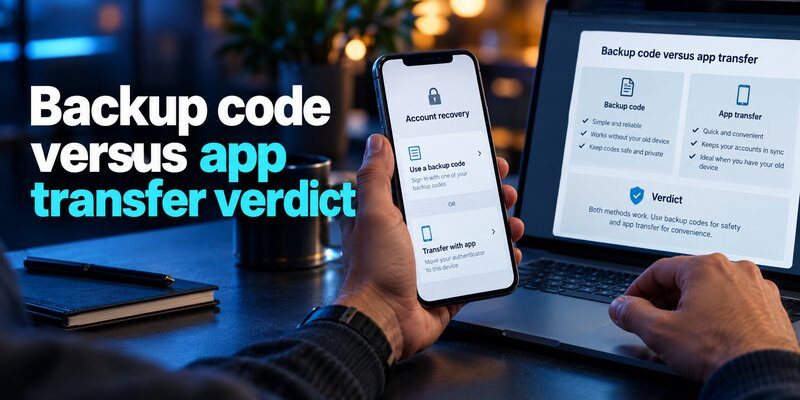
Choosing between backup codes vs authenticator app transfer depends on whether you are preparing to change devices or already experiencing an authentication problem.
Choose Authenticator Transfer When Changing Phones
If your current phone is working and you are upgrading to a new device, transfer your authenticator credentials first.
This approach helps you preserve your existing 2FA configuration.
You can continue generating verification codes without using emergency recovery credentials.
For example, transferring ten TOTP accounts to a new authenticator could save you from manually reconfiguring each account, provided the application supports those transfers.
Always verify that the new phone generates working codes before resetting the old phone.
A successful transfer notification alone does not guarantee that every account has been configured correctly.
Choose Backup Codes When Your Phone Is Unavailable
If your original phone is broken, lost, or inaccessible, manually transferring local authenticator data may be impossible.
This is where recovery codes become valuable.
Suppose your Google Account requires a verification code, but your phone has stopped working.
If you previously saved a Google backup code, you may be able to enter it instead of the usual authenticator code.
After signing in, you can register your new device.
This is a common situation in which understanding backup codes vs authenticator app transfer prevents unnecessary recovery attempts.
Use Both for Maximum Recovery Readiness
These methods complement each other.
Authenticator transfer simplifies planned device changes, while backup codes protect against unexpected failures.
A practical setup includes:
- An authenticator configured for supported accounts.
- Securely stored recovery codes for important services.
- A verified backup or transfer method.
- Updated account recovery information.
Neither approach guarantees recovery if the account provider cannot verify your identity or has restricted the account for another reason.
Download Authenticator App
Secure your accounts with fast, reliable two-factor authentication. Download now and protect your login in seconds.
How to Generate and Use Backup Codes Safely
Before comparing the technical details of backup codes vs authenticator app transfer, it helps to understand how emergency recovery credentials are created and used.
Step 1: Open Your Account Security Settings
Sign in to the relevant online service through its official application or website.
Look for a section named:
- Security
- Two-Factor Authentication
- Two-Step Verification
- Backup Codes
- Recovery Options
Some platforms generate backup codes automatically when you enable 2FA.
Others require you to create them manually.
Step 2: Generate Your Recovery Codes
Follow the provider’s instructions to generate a set of codes.
For Google accounts:
- Open your Google Account.
- Select Security & sign-in.
- Open 2-Step Verification.
- Locate Backup codes.
- Generate or display your codes.
- Download or print them securely.
Google issues 10 eight-digit backup codes.
A common search phrase is 8 backup codes google, but this mixes up the code length and number of codes: Google provides ten codes, each containing eight digits.
Generating a new set invalidates the previous set.
Step 3: Store Your Codes Separately
Save your backup credentials somewhere you can access without your primary phone.
Possible options include an encrypted password manager or a printed copy stored securely.
Avoid keeping your only backup codes inside an application that requires the same unavailable authentication device.
Step 4: Use a Backup Code When Necessary
To use backup codes, start the normal account sign-in process.
After entering your password, select the option to try another verification method.
Choose the recovery or backup code option when available.
Enter one of your unused codes.
For Google, the process includes selecting Try another way, choosing the eight-digit backup code option, and entering a valid code.
After successful authentication, that code becomes inactive.
Step 5: Restore Your Normal Authentication Method
Once you regain access:
- Add your new authentication device.
- Confirm your recovery email and phone.
- Generate replacement codes if necessary.
- Review recent account activity.
- Remove devices you no longer use.
The advantage of backup codes vs authenticator app transfer becomes clear here: a backup code gets you back into an account, while transferring or re-enrolling an authenticator restores your everyday authentication method.
For additional recovery instructions, read authenticator app restore from backup.
How to Transfer Authenticator Codes to a New Phone
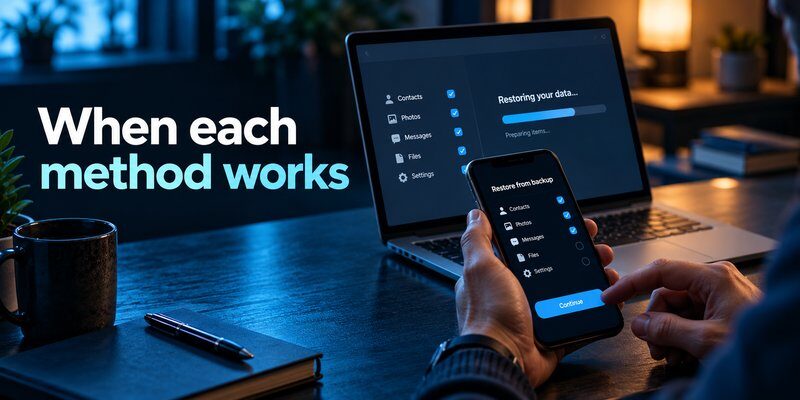
Transferring authentication credentials is generally the preferred option when both phones are available.
However, the process depends on your authentication application.
Step 1: Prepare Both Devices
Before starting:
- Charge both phones.
- Install the latest supported authenticator version.
- Keep your old device unlocked and available.
- Confirm access to your account passwords.
- Make sure your recovery codes are stored safely.
Do not factory-reset your original device before confirming that authentication works on the replacement.
Step 2: Transfer Google Authenticator Codes
Google Authenticator supports account synchronization and manual transfer.
If your codes are synchronized with your Google Account, signing in to the same Google Account within Google Authenticator on the new phone can make those codes available automatically.
For manual transfer:
- Install Google Authenticator on the new phone.
- Open Google Authenticator on the old phone.
- Find the transfer or export codes option.
- Select the accounts to export.
- Unlock the device if prompted.
- Display the transfer QR code.
- Open the import option on the new phone.
- Scan the QR code and confirm the transfer.
The exact menu wording may differ by application version.
Google states that manual export may generate multiple QR codes when transferring several accounts.
Treat transfer QR codes as sensitive secrets. Anyone who copies the underlying credentials may be able to generate matching OTPs.
Step 3: Restore Microsoft Authenticator
Microsoft Authenticator offers backup and restore for supported accounts.
However, the restoration process has important restrictions.
Microsoft Support confirms that Authenticator backups can only be restored between devices of the same platform type.
For example, an iPhone backup cannot be directly restored on Android using Microsoft’s supported backup process.
Microsoft also distinguishes between account types:
- Personal Microsoft accounts using supported OTP credentials may be restored.
- Third-party TOTP accounts may be restored.
- Work or school accounts generally require re-registration.
- Passwordless credentials may need to be set up again.
If you are preparing to change devices, see microsoft authenticator change phone.
You can also review microsoft authenticator backup for additional information.
Step 4: Test Every Important Account
After migration, sign in to your most important accounts.
Check that:
- The new authenticator displays the correct account.
- The generated verification code works.
- Account names are clearly identifiable.
- Backup and recovery options remain available.
- No account requires additional registration.
Do not assume that transferring one account means every account transferred successfully.
The comparison of backup codes vs authenticator app transfer is especially relevant during this stage because recovery codes provide a fallback if an individual account fails after migration.
Step 5: Remove Old Authentication Access
After verifying your new device, review your security settings.
You may need to remove old device registrations or revoke outdated authentication methods.
Be careful not to remove the only functioning verification method.
If your application supports multiple trusted devices, determine whether you want to retain a protected secondary device.
Backup Codes and Authenticator Transfers for Google, Microsoft, X, and 1Password
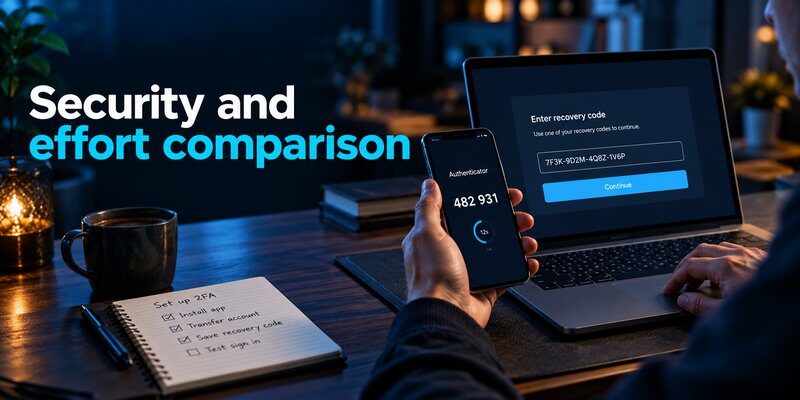
Different platforms have different backup and recovery rules.
Understanding these differences helps you avoid assuming that one recovery credential works everywhere.
Google: Backup Codes and Synchronized Authenticator
Google supports both backup codes and Google Authenticator synchronization.
According to Google Account Help:
- Users can generate 10 single-use backup codes.
- Every backup code contains 8 digits.
- Previously generated codes become invalid when replaced.
- Google Authenticator can synchronize TOTP credentials across devices when account synchronization is enabled.
Google Authenticator can also operate without synchronization, in which case manual transfer or re-enrollment becomes important.
If you lose your device before transferring local codes, read google authenticator lost.
Important: Google Account backup codes do not automatically recreate the TOTP secrets for every third-party website listed inside Google Authenticator.
This distinction is central to backup codes vs authenticator app transfer.
Microsoft: App Backup and Account Recovery
Microsoft Authenticator backup focuses on supported OTP credentials and account information.
It does not necessarily preserve every authentication capability.
Microsoft Support explains that work and school accounts must be registered again after restoration.
Additionally, Microsoft’s separate 25-digit personal Microsoft account recovery code is not the same as a backup of Microsoft Authenticator.
That recovery credential is designed for personal account recovery, not transferring all OTP entries.
For related issues, read microsoft authenticator recovery.
X: Platform-Specific Backup Codes
If you are searching for x backup codes, X provides backup credentials for situations where normal two-factor verification is unavailable.
According to X Help Center:
- Users can generate up to five active backup codes.
- Codes must be used in the specified order.
- Using them out of order can invalidate earlier codes.
- Backup codes are different from temporary passwords.
If you lose your phone, an active backup code may help you sign in and update your authentication settings.
Transferring your authenticator credentials does not automatically manage X’s separately issued backup codes.
1Password: Recovery Codes and Authenticator Credentials
Users searching for 1password backup codes should distinguish three different concepts: account recovery codes, stored website recovery codes, and time-based one-time passwords.
1Password provides recovery codes for eligible individual and family accounts.
According to 1Password Support:
- Account recovery requires access to the associated email address.
- Recovery can provide a new Secret Key and allow creation of a new account password.
- A recovery code can remain valid after a successful recovery.
- Previously enabled two-factor authentication remains enabled.
These recovery codes are not equivalent to Google’s single-use 2FA backup codes.
Also, storing a website’s OTP inside 1Password does not automatically mean that the website’s emergency recovery codes have been saved.
Check each service’s recovery settings independently.
The practical lesson from backup codes vs authenticator app transfer is that the application holding your login information and the website issuing recovery credentials may follow completely different rules.
What to Do If You Lose Your Phone Before Transferring Codes
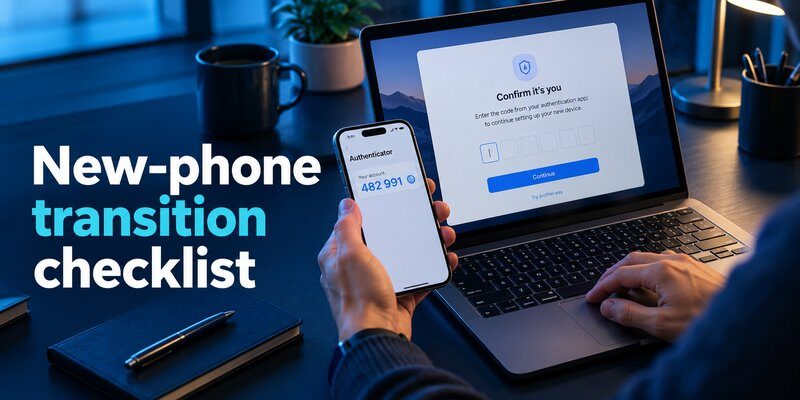
Losing the original authentication device is one of the most common reasons people need emergency recovery methods.
If your phone is unavailable, consider these steps.
Check for Existing Cloud Synchronization
First, determine whether your authenticator previously synchronized its credentials.
For example, Google Authenticator can synchronize codes through a signed-in Google Account.
If synchronization was configured, installing the application on a new device and accessing the same account may restore the synchronized entries.
However, not every authenticator enables cloud backup automatically.
Microsoft Authenticator also has platform-specific backup requirements.
Look for Previously Saved Backup Codes
If synchronization is unavailable, check your secure recovery records.
You may have saved codes in:
- A password manager.
- An encrypted document.
- A protected offline backup.
- A printed emergency-access folder.
A backup code generally helps with the service that issued it.
It cannot automatically replace unrelated accounts’ authentication credentials.
Use Another Registered Verification Method
Some providers support alternative methods, including:
- Passkeys.
- Hardware security keys.
- Trusted devices.
- Additional authenticator registrations.
- Recovery emails or phone numbers.
Select the official alternative verification process available for your account.
Once access is restored, register the new phone and update your recovery details.
Request Official Account Recovery
If you cannot access your codes, synchronized data, or other verification methods, use the provider’s recovery procedure.
Be prepared for identity checks and possible waiting periods.
No legitimate authenticator application can bypass an account provider’s ownership verification requirements.
When evaluating backup codes vs authenticator app transfer, remember that neither method guarantees access if you did not previously prepare the required credentials.
Security Best Practices for Backup Codes and Authenticator Transfers

Both backup codes and authenticator transfers involve sensitive security information.
Handling them incorrectly can increase the risk of unauthorized access.
Keep Recovery Codes Away From Untrusted Devices
Never send recovery credentials through unsolicited messages.
Avoid saving unencrypted screenshots in shared folders.
A stolen recovery code may allow an attacker to complete a second authentication step if other required login credentials have also been compromised.
Use More Than One Recovery Method
Avoid depending entirely on one smartphone.
Where supported, consider a protected secondary device, recovery codes, or a hardware security key.
This provides multiple legitimate options if one authentication method becomes unavailable.
Verify Synchronization Before Changing Phones
Check whether your authenticator actually synchronizes account credentials.
For Google Authenticator, synchronization is associated with your Google Account sign-in status.
If you are using the application without a Google Account, the credentials may remain local to the device.
Verify your specific configuration rather than relying on assumptions.
Learn From Common Migration Mistakes
Discussions about reddit backup codes frequently raise concerns about users resetting their old phones before confirming that authentication codes work on the new device.
For example, a 2026 discussion in the Google Pixel community describes a user recovering access after losing a phone by using previously available backup codes.
These are individual experiences rather than formal security studies, but they illustrate a practical lesson.
Verify your new device and recovery methods before erasing your old one.
Protect Desktop and Apple Authentication
If you are exploring authentication on computers, our guide to google authenticator for mac discusses relevant options and compatibility considerations.
Apple users can also explore apple authenticator features and authentication management.
For compatible accounts, a dedicated Authenticator app can provide time-based verification codes.
Check the application’s supported transfer and backup features before relying on it for device migration.
A secure authentication strategy combines strong passwords, protected devices, verified recovery information, and recovery credentials stored independently.
Download Authenticator App
Secure your accounts with fast, reliable two-factor authentication. Download now and protect your login in seconds.
Frequently Asked Questions About Backup Codes and Authenticator Transfers
Are backup codes better than authenticator transfer?
Neither is universally better.
In backup codes vs authenticator app transfer, the preferred option depends on your circumstances.
Use authenticator transfer when changing devices normally. Use recovery codes when your standard authentication method is unavailable.
For reliable account protection, prepare both.
Can backup codes transfer Google Authenticator accounts?
No. Google Account backup codes are used to satisfy an authentication requirement for that Google Account.
They do not transfer all the TOTP secrets stored inside Google Authenticator.
For manual migration, use the application’s supported export and import process.
Do I need backup codes if my authenticator has cloud backup?
Yes, where the account provider supports them.
Cloud synchronization can help restore authenticator data, but it might be unavailable if you cannot access your synchronization account.
An independently stored backup code provides an additional recovery option.
Can I transfer authenticator codes without my old phone?
Sometimes.
If you previously enabled supported cloud synchronization or backup, you may be able to restore eligible entries.
Without those preparations, you may need to use each provider’s recovery procedure and configure a new authenticator.
How many Google backup codes can I generate?
Google provides 10 backup codes, each containing eight digits.
They are single-use, and generating a new set invalidates the previous set.
This number and format are specific to Google Account backup codes.
Can I use a backup code more than once?
That depends on the provider.
Google backup codes are single-use, while other providers may issue recovery credentials with different validity rules.
Always follow the service’s instructions.
Does transferring an authenticator disable 2FA?
A normal successful TOTP transfer does not inherently disable two-factor authentication.
However, individual services may require re-enrollment, replacement of registered devices, or additional verification.
Check each account after migration.
Is cloud synchronization safer than manual transfer?
Both methods can be secure when implemented and used correctly.
Cloud synchronization reduces the risk of losing all locally stored codes, but protecting the synchronization account becomes especially important.
Manual transfer avoids depending on continuous cloud synchronization, but may require access to the original device.
Should I save backup codes in my password manager?
An encrypted password manager can be a reasonable storage option.
However, make sure you can access your recovery information if that password manager becomes unavailable.
Consider keeping a separate protected emergency-access copy.
What is the safest way to change phones with 2FA enabled?
The safest process is to save emergency codes, verify backup settings, transfer eligible credentials, test important accounts, and only then erase the old phone.
Never assume authentication data has transferred simply because your photos and applications were restored.
Final Thoughts
Understanding backup codes vs authenticator app transfer is essential for anyone using two-factor authentication across multiple devices.
Backup codes are your emergency access method, allowing you to complete authentication when the usual verification device is unavailable.
Authenticator app transfer is your migration method, allowing compatible authentication credentials to move to another device.
Both have limitations, especially when backup settings were never configured or the original device is already lost.
For the strongest protection, save emergency recovery credentials, enable appropriate backup features, and verify your new authenticator before removing access from the old device.
Want to improve security for your online accounts?
Download authenticator app to explore two-factor authentication for supported services.
Secure your accounts today, and prepare your recovery methods before an unexpected device failure.
