
Passkey Not Working? Troubleshoot iCloud Keychain & Login Issues
Published November 5, 2026

If your passkey is not working, first check that your device is updated, iCloud Keychain is enabled, and the correct password manager is selected. Then verify your internet connection, screen lock, and browser compatibility before attempting to recreate the passkey.
Most passkey problems involve missing credentials, synchronization issues, incorrect autofill settings, or authentication requests being sent to the wrong device.
This passkey not working troubleshoot guide explains how to resolve common problems on iPhone, iPad, Mac, Google Accounts, and 1Password.
Passkeys are designed to simplify secure authentication, but they still depend on compatible software and properly configured credential storage.
According to the FIDO Alliance’s Passkey Index 2026, passkey sign-ins succeeded 93% of the time, compared with 78% for traditional multi-factor authentication across participating services.
Although passkeys are generally reliable, errors can prevent users from accessing important accounts.
The following passkey not working troubleshoot instructions prioritize safe fixes that preserve your existing credentials and recovery options.
1. Passkey Not Working Troubleshoot: Why Do Passkeys Fail?
Passkeys replace reusable passwords with cryptographic credentials stored on a compatible device, security key, or password manager.
When you sign in, the authenticator uses a private key to prove that you control the registered credential.
The website verifies the authentication response without receiving your private key.
However, successful authentication depends on several components working together.
Common Reasons Your Passkey Stops Working
| Problem | Possible cause | Recommended fix |
|---|---|---|
| Passkey not found | Wrong credential provider | Check Apple Passwords or 1Password |
| iCloud Keychain not syncing | Sync disabled or device not approved | Verify iCloud settings |
| Face ID authentication fails | Biometric recognition problem | Try the device passcode |
| Passkey missing on Mac | Different Apple Account | Check the signed-in account |
| Passkey QR code fails | Bluetooth or proximity issue | Enable Bluetooth and retry |
| Google passkey unavailable | Browser or device issue | Update software and check account settings |
| 1Password not offering passkey | Autofill or extension disabled | Enable the correct provider |
| Passkey rejected by website | Credential mismatch or revoked registration | Check the website’s security settings |
How Passkeys Depend on Credential Storage
A passkey is not simply another version of your account password.
It consists of cryptographic credentials associated with a particular website or service.
For example, an icloud keychain passkey may be stored through Apple’s password-management system and synchronized across approved devices using the same Apple Account.
A passkey stored in 1Password instead depends on that provider’s supported synchronization and authentication features.
Passkeys stored in different password managers do not necessarily appear in one shared list.
This distinction is important because users sometimes assume that every saved credential is automatically available in every application.
The first objective of this passkey not working troubleshoot process is to identify where the credential was originally saved.
Download Authenticator App
Secure your accounts with fast, reliable two-factor authentication. Download now and protect your login in seconds.
2. Passkey Not Working Troubleshoot: Quick Fixes to Try First
Before making significant changes to your account, perform a few basic checks.
These steps can resolve temporary authentication problems without deleting existing credentials.
Step 1: Restart the Authentication Process
Close the failed sign-in prompt and return to the website’s login screen.
Make sure you are accessing the legitimate website or application.
Select the passkey option again and follow the displayed instructions.
If multiple authenticators are available, choose the one that actually contains your passkey.
Avoid repeatedly approving unexpected authentication requests.
Step 2: Update Your Device and Browser
Outdated software can cause compatibility problems.
Check for updates to:
- iOS or iPadOS on your mobile device.
- macOS on your computer.
- Safari, Chrome, Edge, or another compatible browser.
- Your password manager and its browser extension.
After updating, restart the device if necessary and attempt to sign in again.
Step 3: Check Your Screen Lock
Passkey authentication usually requires local verification through a device screen lock.
Depending on the system, this may involve Face ID, Touch ID, fingerprint recognition, or a PIN.
If biometric verification fails, try the device’s supported passcode option.
A failed biometric scan does not necessarily mean the passkey has been deleted.
Step 4: Confirm Your Credential Provider
Open the password manager where you originally saved the passkey.
On Apple devices, this may be the Passwords app.
For other users, it may be 1Password or another compatible credential manager.
Verify that the expected account appears before changing any autofill settings.
Step 5: Check Connectivity and Bluetooth
For passkeys stored on the same device, authentication may not require Bluetooth.
However, cross-device authentication frequently uses Bluetooth to establish device proximity.
If you are signing in to a computer using your phone, enable Bluetooth on both devices and keep them nearby.
Both devices should also have the necessary network connectivity.
This initial passkey not working troubleshoot checklist helps eliminate the most common configuration problems before moving to advanced troubleshooting.
3. How to Fix iCloud Keychain Passkeys on iPhone
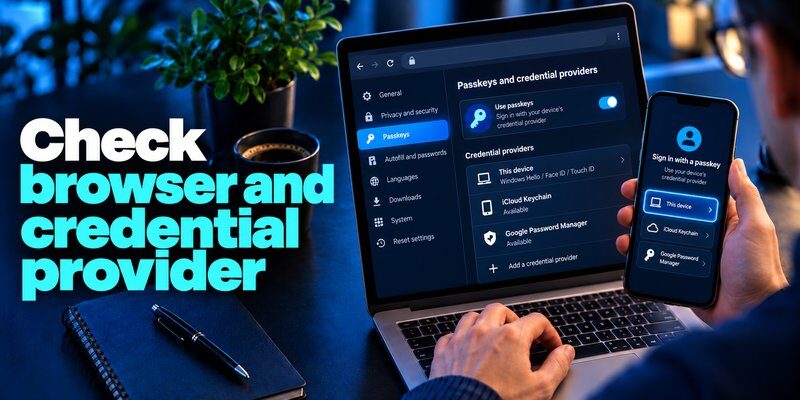
Apple users frequently encounter passkey issues when iCloud Keychain is disabled, password autofill is misconfigured, or credentials have not synchronized between devices.
Fortunately, these problems can often be resolved through iPhone settings.
Check Whether iCloud Keychain Is Enabled
An apple icloud keychain passkey depends on Apple’s supported credential storage and synchronization system.
To check iCloud Keychain on a current iPhone:
- Open Settings.
- Tap your name at the top.
- Select iCloud.
- Under Saved to iCloud, open Passwords.
- Enable Sync this iPhone if it is disabled.
- Complete any requested account verification.
On iOS 17 or earlier, the relevant menu may be called Passwords and Keychain.
Apple also requires two-factor authentication for the Apple Account used with iCloud Keychain.
Do not sign out of your Apple Account or reset encrypted Keychain data as an initial troubleshooting step.
Those actions may complicate credential recovery.
Find Missing Passkeys in Apple Passwords
If you are thinking, “my icloud keychain is enabled, but my passkey disappeared,” check the Passwords app before assuming the credential was lost.
On iOS 18 or later:
- Open the Passwords app.
- Unlock it with Face ID, Touch ID, or your device passcode.
- Select Passkeys or All.
- Search for the website associated with your account.
- Open the matching entry to inspect its details.
On iOS 17 or earlier, open Settings → Passwords instead.
If the credential is missing, check the Deleted section or Recently Deleted where available.
Apple’s May 2026 support guidance specifically recommends checking the full credential list and deleted items when saved passwords or passkeys cannot be found.
Fix Password Autofill on iPhone
Sometimes the passkey exists but is not offered during login.
Open:
Settings → General → AutoFill & Passwords
Then:
- Enable AutoFill Passwords and Passkeys.
- Check that Apple’s Passwords provider is enabled if that is where your passkey is stored.
- Review any other enabled credential providers.
- Return to the affected website.
- Attempt authentication again.
On older iOS versions, the relevant options may appear under Settings → Passwords → Password Options.
If multiple password managers are enabled, pay attention to which application displays the sign-in suggestion.
The passkey icloud keychain relationship is straightforward: iCloud Keychain synchronizes Apple’s supported credentials, while the Passwords app provides a way to manage them.
What If Your iPhone Password Does Not Work?
Some users searching for icloud keychain password iPhone troubleshooting are actually experiencing a device passcode or Apple Account verification issue.
These are different authentication processes.
Your iPhone passcode unlocks the device and may authorize passkey use.
Your Apple Account password helps manage access to Apple’s account services.
A website passkey is a separate credential.
Changing your Apple Account password does not automatically recreate a missing website passkey.
This distinction prevents unnecessary account changes during the passkey not working troubleshoot process.
4. Passkey Not Working Troubleshoot on Mac and Safari

Mac users may experience passkey problems when iCloud Keychain is disabled, Safari autofill is not configured correctly, or a browser selects another credential provider.
Enable iCloud Keychain on Mac
To verify synchronization:
- Open System Settings.
- Select your Apple Account.
- Click iCloud.
- Open Passwords.
- Enable Sync this Mac.
- Complete any required device approval.
On macOS Sonoma or earlier, the menu may appear as Passwords & Keychain.
Make sure your Mac and iPhone use the intended Apple Account.
Credentials synchronized through Apple’s system generally require approved devices signed in to the same Apple Account.
Locate the Missing Passkey
On compatible recent macOS versions, open the Passwords app.
Select the Passkeys category and search for the affected website.
If the credential exists on your iPhone but not on your Mac, check both devices’ iCloud settings.
Also confirm that the credential was actually saved to Apple’s Passwords system rather than another manager.
If it was stored in 1Password, opening Apple Passwords will not necessarily display it.
Check Safari and Browser Settings
If a passkey exists but Safari does not offer it:
- Update macOS and Safari.
- Check password autofill settings.
- Confirm that the correct credential provider is available.
- Test the website in a normal browsing window.
- Disable conflicting extensions temporarily when appropriate.
Apple notes that Private Browsing can affect password-saving behavior, while Google warns that some private browsing configurations may limit passkey creation or authentication.
For users comparing passkey authentication with verification-code applications, our google authenticator for mac guide explains a different account-security approach.
Remember that TOTP verification codes are not equivalent to FIDO2 passkeys.
This passkey not working troubleshoot process should identify the correct credential provider before recommending account recovery or passkey deletion.
5. How to Fix iCloud Keychain and 1Password Sync Issues
Using multiple password managers is one of the most common sources of confusion.
Apple Passwords and 1Password can both manage supported passkeys, but they use different storage and synchronization systems.
Does 1Password Sync Automatically With iCloud Keychain?
Users searching for 1password icloud keychain sync may expect credentials to appear automatically in both applications.
1Password does not automatically mirror every password or passkey stored in Apple Passwords or iCloud Keychain.
A credential saved to Apple’s system remains associated with that system unless it is transferred through a supported process or a new credential is registered in another manager.
Similarly, a passkey created in 1Password is not automatically duplicated in Apple’s credential storage.
This is why users may find that a passkey works in one browser or application but is unavailable elsewhere.
Fix 1Password Autofill on iPhone
If a 1password icloud passkey appears missing, first determine which manager originally saved it.
To configure 1Password:
- Open your iPhone Settings.
- Select General.
- Tap AutoFill & Passwords.
- Enable AutoFill Passwords and Passkeys.
- Turn on 1Password.
- Open 1Password and verify that the expected credential exists.
1Password’s official support guidance also explains that users can disable Apple’s Passwords autofill provider to reduce confusion when they intend to save new credentials exclusively in 1Password.
Only change provider settings after confirming where your existing passkeys are stored.
Changing the default provider does not automatically migrate credentials.
Fix 1Password Passkeys in Your Browser
On desktop computers, make sure the supported 1Password browser extension is installed and enabled.
Then:
- Unlock 1Password.
- Check that the relevant passkey is saved.
- Open the affected website.
- Select the passkey sign-in option.
- Choose 1Password when prompted.
If another provider takes over the authentication request, inspect the browser’s credential settings.
For more guidance, read our 1Password authenticator app article and how to use a password manager.
Should You Move Passkeys Between Managers?
A search for icloud keychain 1password migration may involve either ordinary saved passwords or passkeys.
These credentials do not always have identical transfer capabilities.
Some password managers support passkey export or transfer in specific versions and on supported platforms.
Do not assume that exporting a standard password file also exports your passkeys.
Verify the destination manager’s current passkey-transfer support and retain a working sign-in method before migration.
If a compatible transfer is unavailable, you may need to register a new passkey for the website and save it using the preferred manager.
Never delete the old credential until the new one has been tested successfully.
6. Passkey Not Working Troubleshoot for Google Accounts
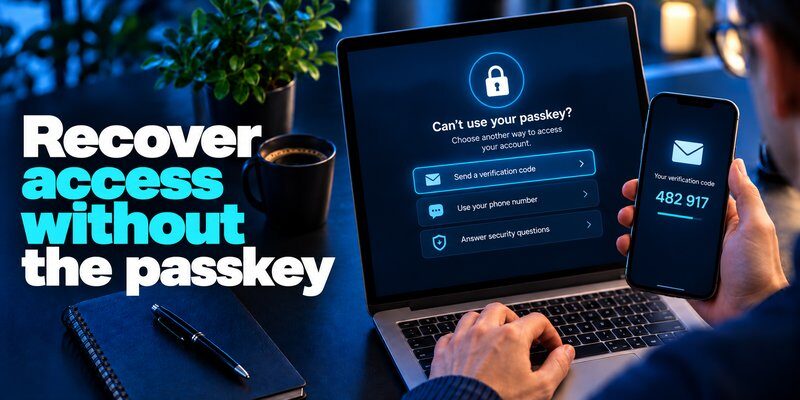
Google Account authentication introduces additional considerations because Google passkeys can be stored through different compatible credential providers.
Fix Google Passkeys Stored in iCloud Keychain
A google passkey icloud keychain issue often occurs when an iPhone or Mac is not correctly configured to use Apple’s credential storage.
Start with the following checks:
- Confirm that you are signing in to the correct Google Account.
- Enable iCloud Keychain on the Apple device.
- Check whether the Google passkey exists in Apple Passwords.
- Update the operating system and browser.
- Enable the correct password autofill provider.
- Retry authentication in a normal browser window.
Google Account Help recommends enabling iCloud Keychain on Apple devices before creating or using compatible passkeys.
If the credential is stored in another password manager, select that provider instead.
Google Passkey QR Code Not Working
When using an iPhone to authenticate on a Windows computer, Google may display a QR code.
If scanning fails:
- Enable Bluetooth on the phone and computer.
- Keep both devices close together.
- Check network connectivity.
- Use the phone’s camera to scan the displayed code.
- Follow the authentication prompt on the phone.
Avoid treating the QR code as a standard OTP setup code.
A cross-device passkey QR code initiates a different authentication process.
For broader information about Google verification methods, explore Google account two-step verification.
Google Passkey Is Missing After Changing Devices
If you recently replaced your iPhone, verify that your new device is signed in to the intended Apple Account and that iCloud Keychain synchronization is enabled.
Check Apple Passwords for the Google credential.
If it is unavailable, use another authorized Google sign-in method to access your account and review registered passkeys.
For managed Google Workspace accounts, passkey availability may depend on administrator policies.
Do not delete your Google Account’s only remaining usable authentication method.
When performing passkey not working troubleshoot steps for Google, safe recovery should always take priority over repeated credential registration attempts.
7. How to Recover, Reset, and Protect Your Passkeys
If basic troubleshooting fails, account recovery may be necessary.
However, deleting or resetting passkeys should be a last resort.
What to Do If a Passkey Was Deleted
First, determine whether the credential is genuinely deleted or simply unavailable through the current provider.
Check:
- Apple Passwords and its Deleted section.
- The original password manager.
- Other approved devices.
- The website’s registered authentication methods.
If a passkey was permanently deleted and cannot be restored, sign in using another authorized method.
Then open the account’s security settings and register a replacement passkey.
Creating a new passkey does not always revoke the old credential automatically.
If the old credential is compromised or no longer controlled by you, remove its registration from the service when possible.
Avoid Resetting iCloud Keychain Unnecessarily
Apple warns that certain Keychain reset actions can delete synchronized credential data.
Turning off iCloud Keychain on all devices, particularly when removing stored items, can result in loss of access to saved information.
Therefore, never reset Keychain simply because a single website fails to authenticate.
Instead, isolate whether the problem involves one credential, one device, or the broader synchronization service.
For additional protection, review our article on how to protect your online accounts.
Keep a Backup Authentication Method
Even a well-configured passkey system needs secure recovery procedures.
Depending on the service, recovery options may include:
- A second registered passkey.
- A hardware security key.
- Backup recovery codes.
- An approved account recovery process.
- Traditional MFA where supported.
An Authenticator app can provide time-based verification codes for services that support TOTP authentication.
However, TOTP applications do not automatically recover or recreate lost FIDO2 passkeys.
The best passkey not working troubleshoot strategy combines secure credential storage with tested, service-supported recovery methods.
8. Passkey Not Working Troubleshoot: FAQs and Final Checklist
Why Is My iCloud Keychain Passkey Missing?
Your passkey may be stored in another password manager, associated with a different Apple Account, or unavailable because synchronization is disabled.
Check Apple Passwords, your autofill provider, and iCloud synchronization settings.
An apple passkey icloud problem does not necessarily mean the credential has been permanently deleted.
Is iCloud Keychain Secure for Passkeys?
Yes. Apple uses end-to-end encryption to protect supported iCloud Keychain information.
Apple’s iPhone documentation describes 256-bit AES encryption for iCloud Keychain data in storage and transmission.
However, users should continue protecting their device passcode, Apple Account, and approved devices.
What Is the Difference Between iCloud Keychain and 1Password?
iCloud Keychain is Apple’s credential synchronization service, while 1Password is a separate password and passkey manager.
Both can store supported credentials, but their databases are not automatically identical.
Choose a manager based on your devices, security needs, compatibility, and recovery preferences.
Does iCloud Keychain Support 2FA Codes?
Yes. Apple Passwords supports verification codes for websites and applications that use compatible time-based authentication.
However, icloud keychain 2fa functionality should not be confused with FIDO2 passkey authentication.
TOTP codes can add an authentication factor, but they do not offer the same phishing resistance as properly implemented passkeys.
For more information, explore what is an authenticator app.
What Does “iCloud Keychain 2” Mean?
The search phrase icloud keychain 2 does not refer to a separate official Apple Keychain product.
Users may be looking for iCloud Keychain two-factor authentication, synchronization between two devices, or a newer version of Apple’s password-management features.
Apple’s current credential-management experience includes the Passwords app and iCloud Keychain synchronization.
Is the iCloud Keychain Password the Same as My Apple Account Password?
No. People searching for keychain icloud password information may confuse several different credentials.
Your Apple Account password, device passcode, and saved website passwords serve different purposes.
The device passcode can authorize local access to supported passkeys, while Apple Account authentication helps manage iCloud services.
Can I Use an Authenticator App Instead of a Passkey?
For services that support TOTP verification, an authenticator application can provide an additional account-security method.
However, it is not a direct substitute for a FIDO2 passkey unless the service explicitly offers an alternative sign-in flow.
For Apple users comparing authentication options, our apple authenticator guide explains available tools.
If you need TOTP codes for compatible accounts, you can Download authenticator app for iPhone.
Final Checklist: Fix Your Passkey Safely
Before concluding that a passkey is permanently broken, verify the following:
| Check | Expected result |
|---|---|
| Operating system | Updated and compatible |
| Browser | Supports passkey authentication |
| Device screen lock | Enabled and working |
| Credential manager | Correct provider selected |
| Apple Passwords | Passkey visible if stored there |
| iCloud Keychain | Sync enabled on intended devices |
| Apple Account | Correct account signed in |
| Cross-device login | Bluetooth and connectivity working |
| Account recovery | Alternative sign-in method available |
| Passkey registration | Valid and not revoked |
Final Thoughts
Passkey not working troubleshoot procedures should always begin with identifying the affected credential provider and checking basic device settings.
Most common problems can be investigated without deleting passwords, resetting iCloud Keychain, or removing existing passkeys.
For iPhone and Mac users, verify iCloud Keychain synchronization, Apple Passwords, autofill settings, and Apple Account consistency.
For 1Password users, confirm that the credential is actually stored in 1Password and that its supported autofill or browser extension is enabled.
For Google Accounts, check browser compatibility, credential availability, and cross-device authentication requirements.
The safest solution is the one that restores access while preserving existing credentials and recovery methods.
Follow this passkey not working troubleshoot guide whenever a passkey is missing, rejected, or unavailable, and recreate credentials only after confirming that the affected account can still be recovered.
Download Authenticator App
Secure your accounts with fast, reliable two-factor authentication. Download now and protect your login in seconds.
