
Passkeys vs Passwords: What Is the Difference and Which Is Safer?
Published October 30, 2026
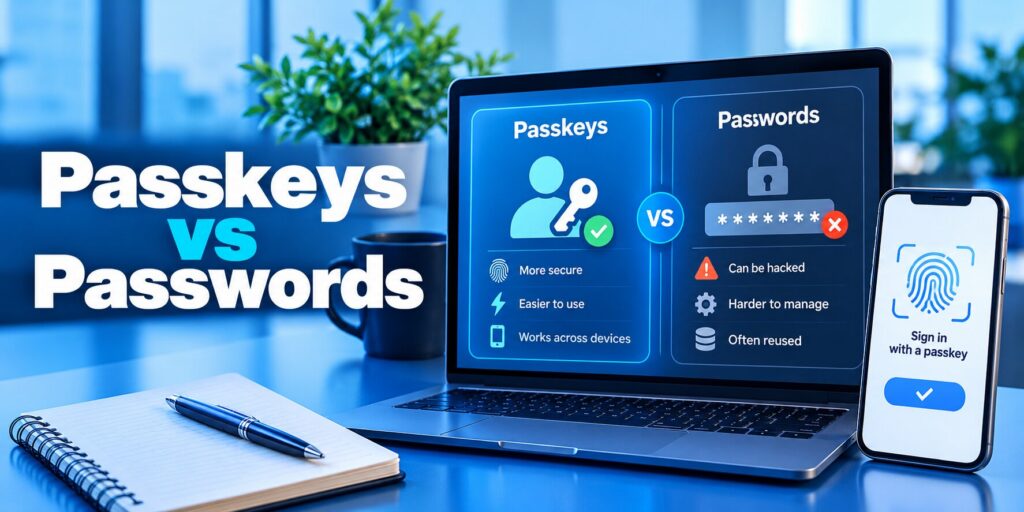
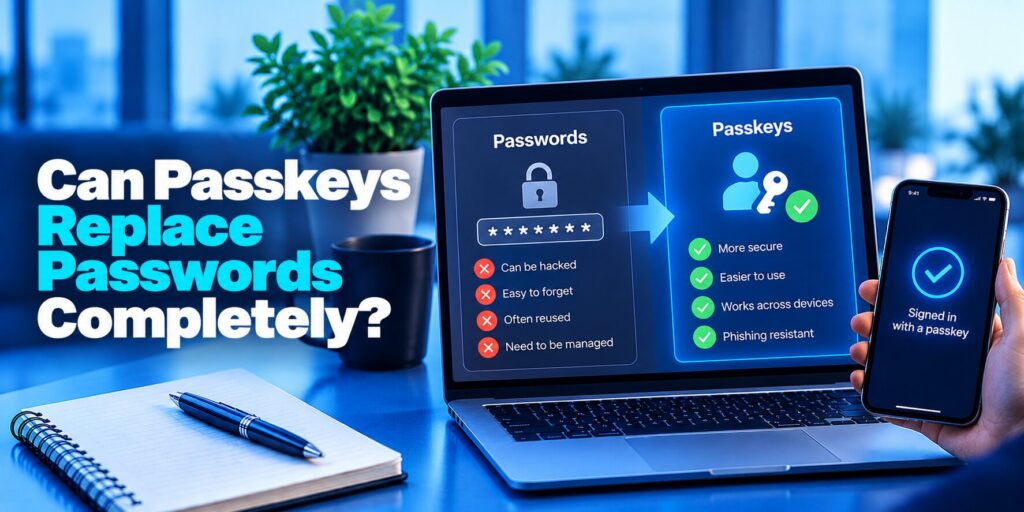
Passkeys vs passwords is the biggest change in how people sign in to online accounts in decades. A password is a secret you memorize and type into a website, while a passkey is a cryptographic key stored on your device and unlocked with your fingerprint, face or screen-lock PIN.
Short answer: In the passkeys vs passwords comparison, passkeys are safer and easier to use. A passkey relies on a public–private key pair, so there is no shared secret to phish, reuse or steal in a data breach, and you sign in with a biometric or device PIN. Passwords still work everywhere, so for now the best setup is passkeys wherever a site offers them and strong, unique passwords with two-factor authentication (2FA) everywhere else.
This guide to passkeys vs passwords explains what each method is, how they work, where they differ, and when you should (and should not) switch.
What Is a Password and Why Is It a Weak Spot?
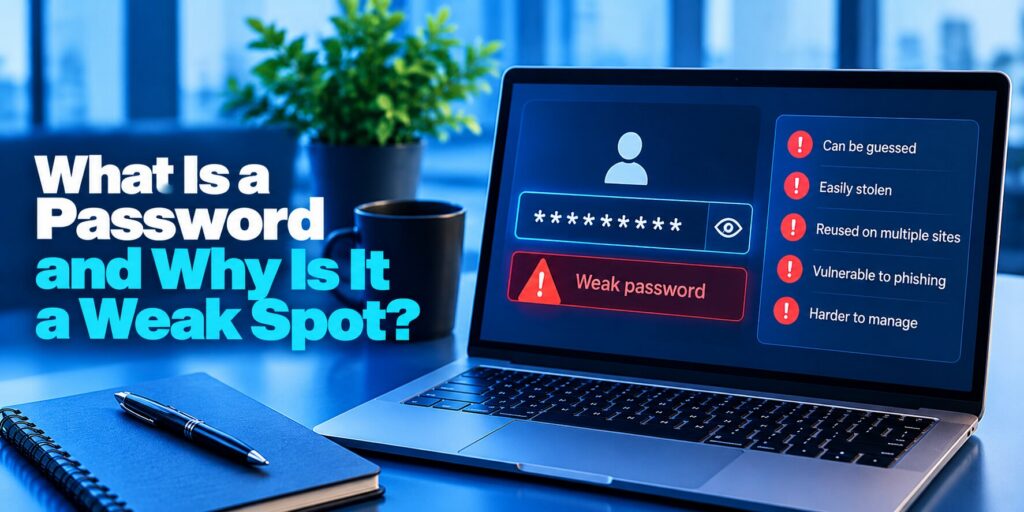
Before comparing passkeys vs passwords, it helps to see how a password works. A password is a string of characters you create and remember, the classic form of “something you know” authentication. When you sign up, the website scrambles it into a hash and stores that hash. When you log in, the site hashes what you typed and checks for a match. Because you and the server both depend on the same value, a password is called a shared secret.
That design is why passwords fail in the same predictable ways:
- Phishing: a fake login page tricks you into typing your password into an attacker’s site.
- Credential stuffing: attackers replay passwords leaked from one service against many others, which works because people reuse passwords.
- Data breaches: hashed passwords stolen from a server can be cracked offline, away from any lockout or rate limit.
- Weak choices: short or predictable passwords fall quickly to guessing and brute-force attacks.
The load is heavy, too. Estimates put the average person at somewhere between 70 and 100 or more passwords. A password manager solves the memory problem by generating and filling unique passwords, and it can warn you when a site looks like a fake. But the underlying shared-secret model stays exactly the same.
What Is a Passkey?
A passkey is a passwordless login credential built on the FIDO2 standard from the FIDO Alliance and the W3C WebAuthn browser API. Instead of a secret you remember, a passkey is a pair of cryptographic keys created for one specific account:
- Private key: stays on your phone, computer, security key or password manager and is never sent to the website.
- Public key: stored by the website. On its own it is useless to an attacker.
To approve a sign-in, you unlock the private key with the same fingerprint, face scan or PIN you use to unlock your device. Your biometric data stays on the device, and the website never sees it. Apple, Google and Microsoft support passkeys in their platforms, and password managers such as Bitwarden, 1Password and Proton Pass can store and sync them too.
Two details matter in the passkeys vs passwords debate. First, each passkey is tied to the exact domain where you created it, which is what makes it phishing-resistant. Second, passkeys come in two forms: synced passkeys, which are backed up and shared across your devices through an account or password manager, and device-bound passkeys, which live on one hardware key or device and never leave it.
Read more: What Is a Passkey? The Passwordless Credential Explained
How Do Passkeys and Passwords Work Behind the Scenes?
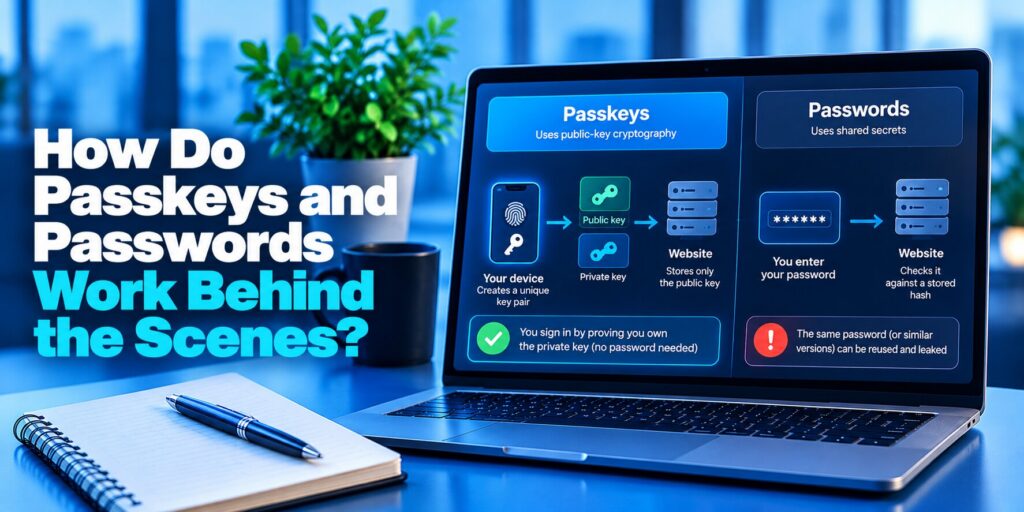
Passkeys vs passwords look similar on screen, but the steps underneath are very different.
Password login
- You type your username and password, or let a password manager fill them in.
- The password travels to the server (encrypted in transit, but still sent).
- The server hashes it and compares the result with the stored hash.
- If they match, and usually after a second factor such as a one-time code, you are in.
Passkey login
- You choose “Sign in with a passkey”, or your browser offers it automatically.
- The website sends your device a random challenge.
- You unlock your device with a biometric or PIN, and the device signs the challenge with the private key.
- The website checks the signature against your stored public key. If it is valid, you are in.
The key point in passkeys vs passwords is step 3. A passkey proves that you hold the private key without ever revealing it, so there is no reusable secret in transit for an attacker to capture. This cryptographic sign-in process is built on standards such as WebAuthn and FIDO2. If you want to understand the technology behind phishing-resistant authentication, explore what is FIDO2, including how public-key credentials, authenticators, and websites work together during login.
Read more: What Is Passwordless Authentication? What It Is and How It Works?
What Are the Main Differences in Passkeys vs Passwords?
Here is how passkeys vs passwords compare side by side across security, convenience and support.
| Feature | Passwords | Passkeys |
|---|---|---|
| Authentication model | Shared secret (something you know) | Public-key cryptography (something you have + something you are) |
| What the server stores | A password hash | Only the public key |
| Phishing resistance | Low: works on any site you type it into | High: bound to the real domain |
| Reuse across sites | Common | Not possible: unique per account |
| Impact of a server breach | Hashes can be cracked and reused elsewhere | Public keys are worthless to attackers |
| How you sign in | Type or autofill, often plus a 2FA code | Fingerprint, face scan or device PIN |
| Built-in two-factor | No: needs a separate step | Yes: device plus biometric or PIN |
| Memorization | Required, or a password manager | None |
| Recovery | Email or SMS reset link | Synced passkeys, a second device, backup codes or account recovery |
| Site support | Universal | Growing: all major platforms, 48% of the top 100 websites |
Are Passkeys Safer Than Passwords?
Yes. In the passkeys vs passwords security comparison, passkeys remove the weaknesses attackers exploit most often:
- Phishing: the browser checks the website’s domain before the passkey responds, so a look-alike site cannot get a valid sign-in. The protection works at the protocol level and does not depend on you spotting a fake page.
- Credential stuffing and reuse: every passkey is unique to one account, so a leak from one service cannot unlock another.
- Data breaches: the server holds only a public key. If it is stolen, attackers have nothing they can log in with.
- Guessing and brute force: the private key is a long cryptographic value, not something a person chose, and using it requires your device unlock.
- Interception: no secret is sent during login, so there is nothing to capture in transit.
The data backs this up. Verizon’s 2025 Data Breach Investigations Report found stolen credentials in 88% of breaches in the basic web application attacks pattern. Standards bodies are moving the same way: NIST SP 800-63B requires phishing-resistant authentication at its highest assurance level and expects it to be offered at the middle one, and CISA recommends passkeys as a phishing-resistant method. A password cannot meet that bar, however long or complex it is. On pure security, passkeys vs passwords is not a close contest.
Safer does not mean invincible. A passkey is only as strong as the device lock and the account recovery behind it. A weak PIN, malware on an unlocked device, or a recovery process that is easy to trick can still lead to an account takeover.
Which Is Easier to Use: Passkeys or Passwords?
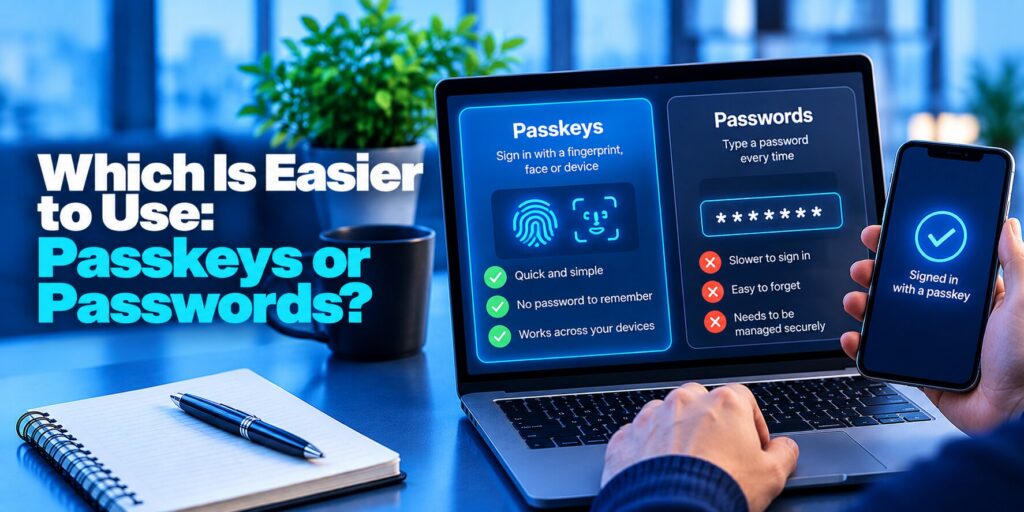
Passkeys. For everyday sign-ins, passkeys vs passwords is a contest between a tap and a typing exercise. The FIDO Alliance’s Passkey Index (October 2025) reports a 93% sign-in success rate for passkeys against 63% for passwords, and an average sign-in time of 13.6 seconds against 27.5 seconds. Businesses in the study also reported 81% fewer sign-in-related help desk calls after rolling out passkeys.
There is nothing to remember, type or reset. Passkeys also travel with you. They sync through iCloud Keychain, Google Password Manager, Windows Hello or a password manager, so a passkey created on your phone is ready on your laptop. On a device that does not have your passkey yet, you can usually scan a QR code and approve the sign-in from your phone. That convenience is a big reason passkeys vs passwords keeps tilting toward passkeys.
Read more: Google Password Verification: Passwords, 2FA, Passkeys and Authenticator
Do Passkeys Replace Two-Factor Authentication?
For the accounts that support them, mostly yes. A passkey already combines two factors in a single step: possession of the device that holds the private key, plus your biometric or PIN. You do not need a separate one-time code.
A password is different. On its own it is a single factor, so two-factor authentication (2FA) is essential. An authenticator app that generates time-based one-time passwords (TOTP) is much stronger than SMS codes, but a real-time phishing page can still capture both the password and the code. That is why the fair comparison in passkeys vs passwords is a passkey against a password plus 2FA, and the passkey still wins on phishing resistance, speed and fewer steps.
Two practical rules follow. Keep 2FA with an authenticator app on every account that still uses a password. And protect the account that syncs your passkeys (your Apple, Google or password manager account) with a strong passphrase and 2FA, because it holds the keys to everything else.
When Do You Still Need a Password?
Passkeys do not cover everything yet, so the passkeys vs passwords decision is rarely all-or-nothing. You still need a password in these cases:
- Sites and apps without passkey support, including many older systems, internal tools and smaller services.
- Shared or public computers, where you cannot use your own device. The QR-code option often works, but a password with 2FA is the usual fallback.
- Shared, service and kiosk accounts, because passkeys are tied to one person and one device.
- Older devices and browsers that do not support WebAuthn and cannot create passkeys.
- Company policies and compliance rules that still require a password as one of the factors.
- Recovery and fallback, since many services keep a password as the backup sign-in method.
For all of these, treat the password as a fallback and make it count: long, unique, stored in a password manager and protected by 2FA.
Can Passkeys Replace Passwords Completely?
In the passkeys vs passwords story, passwords will probably fade eventually, but not yet. Apple, Google and Microsoft have built passkeys into their operating systems and browsers, and the FIDO Alliance reports that 48% of the world’s top 100 websites now support them, more than double the 2022 figure. Companies are moving too: a FIDO Alliance survey of 400 US and UK executives at firms with 500 or more employees found that 87% had deployed passkeys for employee sign-in or were rolling them out.
Until support is universal, most people and organizations will run a hybrid model. Passkeys protect the highest-value accounts first (email, banking, cloud storage, the password manager itself), while passwords with 2FA cover everything else. Work is also under way on a Credential Exchange Protocol to move passkeys between providers, which should ease today’s worry about being locked into one ecosystem.
Read more: How to Protect Your Online Accounts: A Priority-First Plan
How Do You Switch From Passwords to Passkeys?
- Update your device and browser. Current versions of iOS, Android, macOS, Windows 10 and 11, Chrome, Safari, Edge and Firefox support passkeys.
- Choose where passkeys live. Use the built-in option (iCloud Keychain, Google Password Manager, Windows Hello) or a password manager that stores passkeys.
- Start with the accounts that matter most: your email, Apple, Google or Microsoft account, banking and password manager.
- Create the passkey. In the account’s security settings, choose “Create a passkey” or “Sign in with a passkey”, then confirm with your fingerprint, face or PIN.
- Set up recovery. Register a passkey on a second device or security key, save backup codes, and keep your password and 2FA in place until you trust the setup.
- Keep 2FA on every account that still uses a password. Only remove a password when the service allows it and your recovery options are solid.
Passkeys vs Passwords: Which Should You Choose?
Choose passkeys whenever a service offers them. They are safer against phishing and data breaches, and they are faster to use. Keep a strong, unique password with 2FA as your fallback everywhere else.
If you want one rule to follow in the passkeys vs passwords decision, use this order: passkey first, password manager second, and an authenticator app for every account that still needs a password.
FAQ: Passkeys vs Passwords
What are the disadvantages of passkeys?
Passkeys are strong, but the passkeys vs passwords trade-off includes some real downsides:
- Uneven support: many sites, apps and older systems still do not accept them.
- Ecosystem lock-in: synced passkeys are tied to Apple, Google, Microsoft or a password manager, and moving them between providers is still maturing.
- Device loss and recovery: if you lose every device and have no backup, recovery is harder than a simple password reset.
- Shared accounts: passkeys are built for one person and one device, so shared logins and kiosks are awkward.
- Older hardware: devices and browsers without WebAuthn support cannot create passkeys.
- Learning curve: many people are unsure what a passkey is or how syncing works.
None of these cancel the security benefits, but each one is worth planning for.
Should I use passkeys instead of passwords?
Yes, wherever a site or app offers a passkey. In the passkeys vs passwords comparison, passkeys are safer and faster, and they remove the risk of weak or reused passwords. Do not delete your password straight away: keep it, protected by 2FA, until you have a second device or backup method for recovery. Continue using strong, unique passwords with an authenticator app on services that do not support passkeys.
What happens to passkeys if you lose your phone?
Losing a phone is less scary with passkeys vs passwords than many people expect, because you do not lose your accounts. If your passkeys were synced through iCloud Keychain, Google Password Manager or a password manager, they are still available on your other devices, and you can restore them on a new phone after signing in to that account. A thief cannot use the passkeys on your phone without your fingerprint, face or PIN.
To be safe, lock or erase the lost phone remotely, sign in to your sync account on a new device, and remove the old device from your account. If the phone held the only copy of a device-bound passkey, use the service’s recovery options: another registered passkey or security key, backup codes, or its account recovery process. Registering a second passkey on another device is the best prevention.
What is an example of a passkey?
The most common example is signing in to a service such as Google, PayPal, eBay or Best Buy by tapping “Continue with a passkey” and confirming with Face ID, a fingerprint or your phone’s PIN. Behind the scenes, a key pair is stored in iCloud Keychain, Google Password Manager, Windows Hello or a password manager such as Bitwarden, 1Password or Proton Pass. A hardware security key such as a YubiKey can also hold a device-bound passkey. On a laptop that lacks your passkey, you can scan a QR code and approve the sign-in on your phone.
