
Authenticator App Download: The Complete Guide to Getting Set Up Safely (2026)
Published August 28, 2026 · Updated October 1, 2026
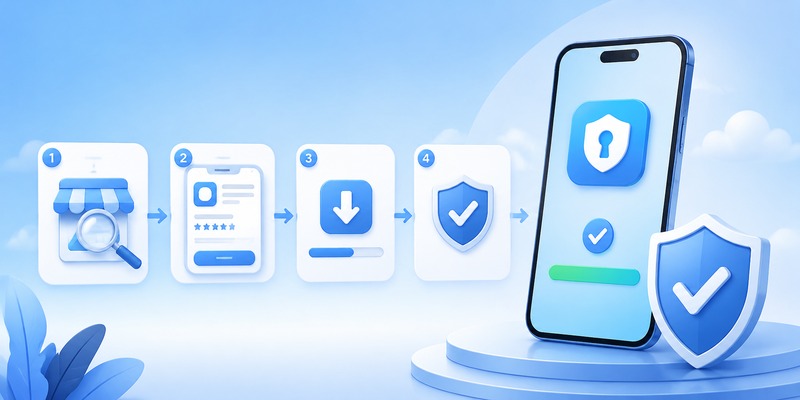
Quick answer: The fastest way to get an authenticator app download is straight from your phone’s official app store — the Apple App Store on iPhone or the Google Play Store on Android. Search for a trusted name like Google Authenticator, Microsoft Authenticator, or Authy, confirm the developer name matches the real company, and tap install. The rest of this guide covers exactly how to do that for your device, which app to pick, and how the process works for specific services like Binance, Facebook, Roblox, and more.
How to Download an Authenticator App on iPhone

On an iPhone, download your authenticator from the Apple App Store.
Step 1: Open the App Store
Open the App Store on your iPhone.
Step 2: Search for the Exact App Name
Search for the authenticator you want to install.
For example:
Google Authenticator
or
Microsoft Authenticator
Avoid searching only broad terms and installing the first result you see.
Step 3: Check the Developer
Before tapping Get, confirm that the developer name matches the official provider.
This helps reduce the chance of installing a copycat authenticator app.
Step 4: Install and Open the App
Tap Get, complete Face ID, Touch ID, or Apple ID verification if required, and wait for the app to install.
Then open the authenticator.
At this point, the app may be empty.
That is normal.
You need to connect an account before verification codes begin appearing.
🗺️ Browse How-To Guides: TOTP Authenticator App Guide 2026: How to Use & Compare the Best Options
2. How to Download an Authenticator App on Android
On Android, the safest general option is the Google Play Store.
Step 1: Open Google Play
Open the Play Store on your Android phone.
Step 2: Search for the Authenticator
Enter the exact authenticator name.
For example:
- Google Authenticator
- Microsoft Authenticator
- 2FAS
- Ente Auth
Step 3: Verify the Listing
Before tapping Install, check:
- App name
- Developer
- Official website if listed
- Download source
- Permissions requested
Authenticator apps handle sensitive authentication information, so you should be more careful than you might be with an ordinary utility app.
Step 4: Install the App
Tap Install.
When installation finishes, open the app and follow its initial setup instructions.
Do not worry if no codes appear yet.
The authenticator only generates codes after you connect an account.
3. How to Make Sure You’re Downloading the Right Authenticator App
Authenticator apps are security tools, which makes choosing the correct download especially important.
Before installing, check these points.
Use an Official App Store
For most users:
iPhone → Apple App Store
Android → Google Play Store
Avoid downloading installation files from random websites.
Check the Developer Name
An app can have a name that looks almost identical to a well-known authenticator.
The developer information is often a better way to confirm that you have found the correct listing.
Avoid Unofficial APK Downloads
Android APK files can be useful in specific technical situations, but downloading a security application from an unknown APK site creates unnecessary risk.
If the developer provides an official alternative distribution method, use the developer’s own documentation to find it.
Otherwise, stick with Google Play.
Be Careful With Sponsored Search Results
Do not assume that the first result in an app store or search engine is automatically the official authenticator.
Verify the listing before installing.
💡 Discover Helpful Guides: Authenticator App Code: How to Get Verification Codes and Fix Common Problems
4. What to Do After Installing an Authenticator App

Downloading an authenticator is only the first step.
The authenticator does not automatically know which accounts you want to protect.
To add an account:
- Sign in to the website or app you want to secure.
- Open its security settings.
- Find Two-Factor Authentication, 2-Step Verification, or Authenticator App.
- Choose the authenticator-app option.
- The service should display a QR code or setup key.
- Open your authenticator.
- Select Add account or Scan QR code.
- Scan the QR code.
- Enter the generated verification code back into the service.
After the service accepts the code, setup is complete.
The authenticator should now show a temporary verification code for that account.
Save Recovery Codes
Many services provide recovery codes when you enable two-factor authentication.
Save them somewhere secure.
Do not store your only recovery method exclusively on the same phone as your authenticator.
Configure Backup or Sync
If your chosen authenticator supports backup, account transfer, or synchronization, understand how it works before adding dozens of accounts.
The important question is:
How will I restore these codes if this phone is lost or replaced?
💡 Discover Helpful Guides: Facebook Authentication App: Setup, Login Codes, and Recovery Guide
Can You Download an Authenticator App on PC or Mac?
Some authentication tools support desktop access, but most traditional authenticator workflows are still designed primarily around phones.
If you need authentication codes on a computer, your options depend on the product.
Some services offer:
- Desktop applications
- Browser extensions
- Password-manager integrations
- Cross-device synchronization
For example, password managers such as 1Password can generate compatible one-time passwords inside their desktop or browser apps.
Some cross-platform authenticators also support desktop operating systems.
However, Microsoft Authenticator itself is primarily a mobile application, and Google Authenticator is also centered on mobile devices.
If your main goal is finding an authenticator specifically for macOS or desktop use, use a dedicated desktop-authenticator guide instead of choosing an app based only on its phone version.
📘 Find the Right Guide: Is Authenticator App Safe? A Complete Security Breakdown for 2026
FAQs About Authenticator App Downloads
Is an authenticator app free to download?
Many well-known authenticator apps provide basic TOTP code generation for free.
Some products may offer additional paid features, but you do not normally need to pay simply to generate standard verification codes.
Which authenticator app should I download?
Choose based on your accounts and device ecosystem.
If a company, school, or workplace explicitly requires a particular authenticator, use that one.
Otherwise, compare factors such as backup, synchronization, platform support, privacy, and ease of use.
For a full comparison, see our guide to choosing the best authenticator app.
Do I need a separate authenticator app for every account?
Usually, no.
One compatible authenticator can normally hold multiple account entries.
For example, the same authenticator may contain verification codes for several websites and services.
Can I download Google Authenticator?
Yes. Google Authenticator is available for supported Android and iOS devices through the official app stores.
Can I download Microsoft Authenticator?
Yes. Microsoft Authenticator is available as a mobile application for Android and iOS.
Organizations may specifically require Microsoft Authenticator for workplace or school accounts.
Should I download an authenticator APK?
For most Android users, use Google Play.
Only use another installation source when it is explicitly provided or documented by the authenticator’s official developer.
Avoid third-party APK websites for an app that stores authentication secrets.
Why doesn’t my authenticator show a code after installation?
Installing the app does not automatically connect your accounts.
You must open the security settings of the service you want to protect and add it to the authenticator by scanning its QR code or entering its setup key.
Can one authenticator work with Facebook, Roblox, or other services?
Often, yes.
Many services use compatible TOTP authentication and do not require their own dedicated authenticator app.
However, always check the service’s current security settings and documentation before setup.
📘 Find the Right Guide: Which Authenticator App Is Best? The Best 2FA Apps Compared for 2026
Conclusion
For a safe authenticator app download, start with the official app store for your device.
The safest workflow is:
Official App Store → Verify developer → Install authenticator → Open account security settings → Scan QR code → Save recovery options.
You do not need to download a different authenticator for every website.
Choose one that fits your device and backup needs, install it from a trusted source, and then connect each account separately.
Download Authenticator App
Secure your accounts with fast, reliable two-factor authentication. Download now and protect your login in seconds.
💡 Discover Helpful Guides: Authenticator Login: How to Sign In With an Authenticator App on Any Service
