
2FA Authenticator for Chrome: Extensions, Setup & Security Guide
Published August 22, 2026 · Updated October 20, 2026
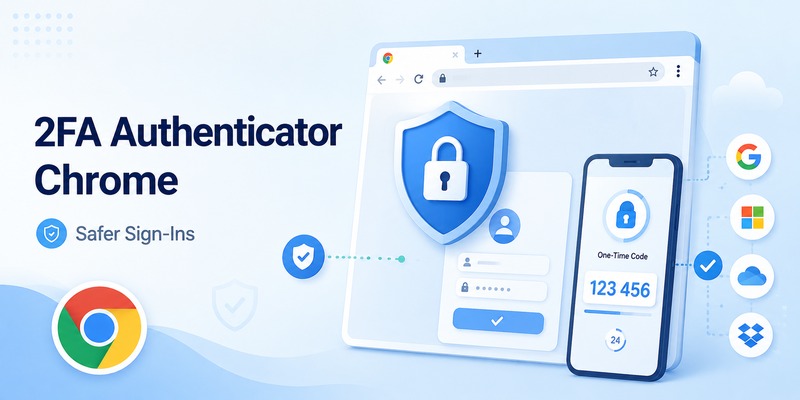
Looking for a 2FA authenticator for Chrome that can generate verification codes while you browse? A Chrome authenticator extension can make two-factor authentication (2FA) more convenient by displaying temporary login codes directly in your browser.
However, not every authenticator extension is developed by Google, and storing authentication secrets inside a browser introduces security considerations that differ from using a separate phone.
Quick Answer: You can use a third-party authenticator extension from the Chrome Web Store to generate time-based one-time passwords (TOTP) directly in Chrome. Install an extension from a developer you trust, review its permissions and backup options, then connect it to a compatible account using the account provider’s official 2FA setup process. Google does not offer an official Google Authenticator Chrome extension. You can still use the official Google Authenticator mobile app to sign in to websites opened in Chrome.
This guide explains how Chrome authenticator extensions work, how to install and configure them, what to know about Google Authenticator compatibility, and how to protect your authentication codes.
What Is a 2FA Authenticator for Chrome?
A 2FA authenticator Chrome extension is a browser add-on that generates or manages authentication codes for compatible online accounts.
Most authenticator extensions support TOTP, a standard that uses a shared secret and the current time to generate short-lived verification codes.
A typical sign-in process works like this:
- Open a website in Chrome.
- Enter your username and password.
- The website requests an authenticator code.
- Open your Chrome authenticator extension.
- Find the account’s current verification code.
- Enter the code to complete sign-in.
Many TOTP services use six-digit codes that refresh approximately every 30 seconds.
Chrome Authenticator Extension vs Mobile Authenticator App
Both types of authenticator can generate standard TOTP codes, but they store credentials in different environments.
| Feature | Chrome authenticator extension | Mobile authenticator app |
|---|---|---|
| Runs directly in Chrome | Yes | No |
| Generates standard TOTP codes | Usually | Usually |
| Works without internet after setup | Often | Usually |
| Uses a separate device | No, if browsing on the same computer | Yes, when using a phone |
| Stores secrets in the browser environment | Usually | No |
| Supports encrypted backup | Depends on the extension | Depends on the app |
| Available from Google as an official Chrome extension | No | Google offers official mobile apps |
Using an authenticator on a separate phone can provide better separation between the device used for browsing and the device storing verification secrets.
A Chrome extension can be convenient, but it should not automatically be considered safer.
Download Authenticator App
Secure your accounts with fast, reliable two-factor authentication. Download now and protect your login in seconds.
💡 Discover Helpful Guides: 2FA Authenticator App: Complete Guide to Setup, Use, Download, and Secure Your Accounts
Best Ways to Use an Authenticator App With Chrome
There are several ways to use two-factor authentication while browsing in Chrome.
Option 1: Use Google Authenticator on Your Phone
For many users, this is the simplest option.
You do not need a Chrome extension to use Google Authenticator when signing in through Chrome.
To authenticate:
- Open the website in Chrome.
- Enter your login credentials.
- Wait for the verification code prompt.
- Open Google Authenticator on your Android phone or iPhone.
- Select the correct account.
- Enter the current code into Chrome.
The website does not require Google Authenticator to run inside the browser.
Best for: Users who prefer to keep authentication codes on a separate device.
For more information, see our Google Authenticator for PC guide.
Option 2: Use a Third-Party Authenticator Chrome Extension
Some Chrome extensions generate standard TOTP codes directly in the browser.
For example, the Chrome Web Store lists an extension named Authenticator, published through authenticator.cc, which describes support for TOTP, HOTP, account import, encrypted backups, and synchronization options.
Another listing, 2FA Authenticator, describes local code generation, Google Authenticator import, and optional password protection.
These are independent third-party products, not official Google Authenticator extensions.
Important: These listings are examples, not security certifications or endorsements. Check the current publisher, permissions, privacy policy, security documentation, and extension updates before installing.
Best for: Users who specifically need TOTP codes inside Chrome and accept the associated security trade-offs.
Option 3: Use a Password Manager With TOTP Support
Some password managers can generate verification codes and integrate with Chrome.
This can reduce the need for a separate authenticator extension.
However, storing both passwords and TOTP secrets in the same password vault reduces separation between the two authentication factors.
Best for: Users who prioritize convenience and understand the implications of combining credentials.
Which Chrome Authentication Method Should You Choose?
| Your priority | Suggested approach |
|---|---|
| Keep codes separate from your browser | Mobile authenticator app |
| Generate codes inside Chrome | Carefully evaluated third-party extension |
| Use an existing password manager | Its supported TOTP feature |
| Protect high-value accounts against phishing | Passkey or FIDO2 security key, when supported |
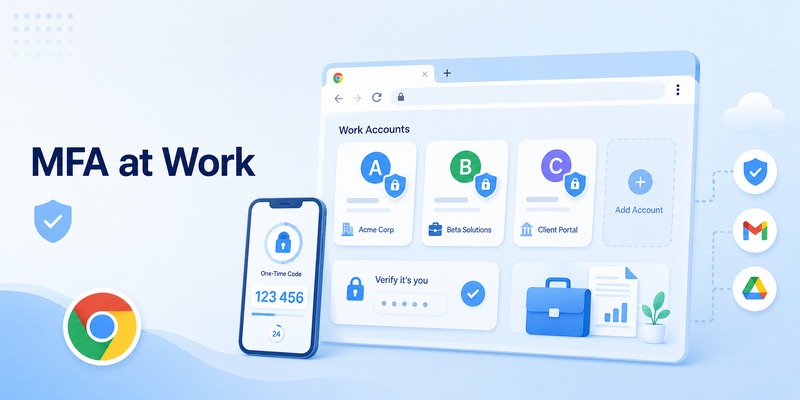
| Follow workplace MFA policies | Organization-approved authenticator |
For accounts with elevated security requirements, prioritize phishing-resistant authentication methods when available.
How to Install and Set Up a Chrome Authenticator Extension
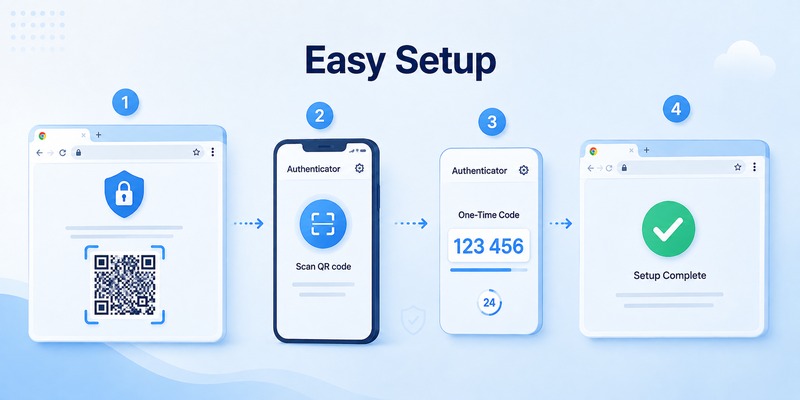
If you decide to use an authenticator app for Chrome, install it from the Chrome Web Store and configure it through the account provider’s official security settings.
Step 1: Open the Chrome Web Store
Open Chrome and visit: https://chromewebstore.google.com/
Search for an authenticator extension.
Be careful with similar names. Multiple unrelated developers may publish extensions using words such as Authenticator, Google, OTP, or 2FA.
Step 2: Check the Extension Before Installing
Review:
- Developer and publisher identity.
- Requested browser permissions.
- Privacy policy.
- Security documentation.
- Update history.
- Available backup and recovery methods.
- Independent security assessments, if available.
Pay particular attention to extensions requesting broad access to website content.
A Chrome Web Store listing alone does not guarantee that an extension is secure.
Step 3: Install the Extension
After selecting an extension you trust:
- Open its official Chrome Web Store listing.
- Click Add to Chrome.
- Review the permission request.
- Confirm the installation if the permissions are acceptable.
- Open Chrome’s Extensions menu.
- Pin the authenticator extension if desired.
The exact interface depends on the extension.
Step 4: Enable 2FA on a Website
Next, connect a compatible online account.
- Sign in to the website.
- Open Account Settings or Security Settings.
- Find Two-Factor Authentication.
- Select an authenticator app or TOTP option.
- Follow the website’s setup instructions.
- Locate the QR code or manual setup key.
Some websites support several verification methods, so choose the method compatible with standard TOTP.
Step 5: Add the Account to Your Extension
Open the Chrome authenticator extension.
Depending on its features, you may be able to:
- Scan a setup QR code.
- Import a QR code from an image.
- Enter a secret key manually.
- Import accounts from a supported backup format.
Use only the extension’s documented setup procedure.
Do not upload authentication QR codes to random online QR readers or conversion tools.
Step 6: Verify the Code
Once the account is added:
- Open the extension.
- Find the correct account.
- Copy or enter its current verification code.
- Return to the website’s 2FA setup page.
- Submit the code.
- Confirm that the website reports successful enrollment.
Do not assume 2FA is active until the account provider confirms it.
Step 7: Configure Backup and Recovery
Before relying on the extension for important accounts, check whether it supports encrypted backups or secure exports.
Also save the recovery codes issued by individual account providers.
Keep backup files and recovery codes separate from your everyday browser profile.
Avoid storing unencrypted authentication secrets in shared folders or unprotected screenshots.
Google Authenticator for Chrome: Is There an Official Extension?
Many users search for Chrome Google Authenticator because they want Google’s authenticator codes to appear directly in the browser.
The important distinction is that Google Authenticator is an official mobile app, while Chrome authenticator extensions are separate products.
Is There an Official Google Authenticator Chrome Extension?
No. Google does not currently provide an official Google Authenticator Chrome extension for generating TOTP codes directly in the browser.
The official Google Authenticator app is available for supported Android devices and for iPhone and iPad.
You can use codes from that mobile app to sign in to websites opened in Chrome on Windows, macOS, Linux, or other supported platforms.
A browser extension with “Google Authenticator” in its name should not be assumed to be published or endorsed by Google.
Can Google Authenticator Work With Chrome?
Yes.
Google Authenticator generates codes for compatible websites regardless of which browser you use to access those websites.
For example:
- Open your Google Account sign-in page in Chrome.
- Enter your normal sign-in credentials.
- If Google requests an authenticator code, open Google Authenticator on your phone.
- Enter the current code.
- Complete sign-in.
The same general workflow applies to other services that support standard authenticator-based verification.
Can You Access Google Authenticator Codes Through a Google Website?
Google does not provide an official web dashboard where you can sign in and view all Google Authenticator codes.
Google Account synchronization helps supported codes move between devices running the official Authenticator app.
It does not turn Google Authenticator into a browser-based code generator.
For more information, read our Google Authenticator website login guide.
Is a Third-Party Chrome Extension Compatible With Google Authenticator?
Some extensions can import standard TOTP credentials from Google Authenticator.
However, compatibility depends on the extension and its supported import formats.
Importing credentials into another application creates an additional copy of the authentication secrets.
It does not mean that Google officially supports or endorses that extension.
How to Transfer Google Authenticator Codes to Chrome
Some people want to move existing Google Authenticator codes into a Chrome extension so they can access them directly from a desktop browser.
This may be possible when the extension supports Google’s export format or another compatible TOTP import method.
Before You Transfer Your Codes
Consider the security implications.
A transfer QR code may contain reusable TOTP secrets, not merely temporary six-digit verification codes.
Anyone who obtains those secrets may be able to generate future codes for the affected accounts.
Therefore:
- Use only a trusted destination application.
- Avoid untrusted QR scanning websites.
- Do not upload transfer QR codes to cloud image services.
- Do not share transfer screenshots.
- Keep the original authenticator available.
- Test account access before deleting any credentials.
Method 1: Import Using a Supported Transfer Feature
If your chosen extension explicitly supports Google Authenticator export:
- Open Google Authenticator on your phone.
- Locate the account transfer or export function.
- Select the accounts you intend to export.
- Generate the transfer QR code.
- Open the trusted extension’s documented import workflow.
- Follow its supported import procedure.
- Compare the imported account names.
- Test a sign-in using a newly generated code.
Google Authenticator may produce multiple QR codes for larger transfers.
The destination extension must support the relevant export format.
Do not assume every Chrome extension can import Google’s transfer QR codes.
Method 2: Register a New TOTP Credential
If direct import is unavailable, use the account provider’s security settings.
- Sign in using your existing authenticator.
- Open the account’s 2FA settings.
- Look for an option to add or replace an authenticator.
- Follow the provider’s approved registration process.
- Register the new authenticator.
- Test a sign-in.
- Remove outdated authentication methods only after verification.
Some websites allow multiple authenticators, while others require replacement.
Do not disable 2FA unnecessarily or remove your only working sign-in method.
Should You Keep Google Authenticator on Your Phone?
For many users, yes.
Keeping authentication on a separate mobile device can reduce dependence on the browser environment.
However, copying the same TOTP secret to multiple devices increases the number of locations where that secret is stored.
If you need a backup, use a supported recovery method and protect each device appropriately.
For broader recovery advice, see our authenticator transfer guide.
Is a Chrome Authenticator Extension Safe?
A Chrome authenticator extension can be useful, but its security depends on the extension’s design, storage model, permissions, and your computer’s security.
Understand the Risk of Storing 2FA Codes in Your Browser
When a password and a TOTP secret are stored on the same computer, malware or a compromised browser environment may have more opportunities to access both.
This does not mean every browser authenticator is unsafe.
It means the security model differs from keeping the authenticator on a separate device.
For high-value accounts, evaluate whether a dedicated authenticator, passkey, or hardware security key is more appropriate.
Check Extension Permissions
Browser extensions can request access to different types of browser data.
Before installing:
- Review the permissions requested.
- Understand why each permission is needed.
- Check whether the extension can read or modify website content.
- Review its privacy policy.
- Avoid granting unnecessary broad access.
- Remove extensions you no longer use.
Google’s Chromium documentation explains that extensions may access sensitive browser data when granted the relevant permissions.
Protect Stored Authentication Secrets
If the extension offers password-protected storage or encrypted backups, review how those features work.
Do not assume encryption is enabled by default.
Use a strong, unique password for encrypted exports when supported.
Store recovery information securely.
Avoid Fake Google Authenticator Extensions
Do not trust an extension solely because its name or icon resembles Google’s official Authenticator app.
Verify the publisher independently.
Avoid extensions that:
- Request unnecessary sensitive permissions.
- Require you to upload authentication secrets to unknown websites.
- Have unclear data-handling practices.
- Claim to bypass 2FA.
- Impersonate Google without evidence of affiliation.
Consider Phishing-Resistant Alternatives
TOTP codes improve security compared with password-only sign-ins, but they can still be stolen through phishing.
Passkeys and FIDO2 security keys provide stronger protection against many credential phishing attacks because authentication is bound to the legitimate service.
When supported, these may be preferable for sensitive accounts.
Chrome Authenticator Not Working: Common Fixes
If your Chrome authenticator extension is missing, shows invalid codes, or stops generating codes, try the following troubleshooting steps.
Chrome Authenticator Code Is Invalid
If a website rejects the code:
- Confirm that you selected the correct account.
- Enable automatic date and time on your computer.
- Wait for a fresh code.
- Enter it before expiration.
- Check whether the account’s authenticator registration was changed.
- Follow the extension developer’s troubleshooting guidance.
Standard TOTP depends on synchronized time.
An incorrect computer clock can cause valid-looking codes to fail.
Authenticator Extension Is Missing From Chrome
If the extension no longer appears:
- Open Chrome.
- Visit
chrome://extensions. - Look for the installed authenticator.
- Confirm that it is enabled.
- Check Chrome’s Extensions menu.
- Pin the extension again if needed.
Do not reinstall or remove the extension until you have confirmed that its authentication secrets can be restored.
QR Code Import Does Not Work
If importing an account fails:
- Check whether the extension supports the QR code format.
- Confirm that you are using a current, valid setup code.
- Review the extension’s official import instructions.
- Avoid third-party QR conversion websites.
- Use the account provider’s official re-registration process if necessary.
Google Authenticator transfer QR codes and individual account setup QR codes are not always interchangeable.
Codes Disappeared After Changing Computers
If you switch computers or Chrome profiles, your authenticator data may not automatically transfer.
Check whether your extension supports:
- Encrypted export files.
- Supported cloud synchronization.
- Chrome profile synchronization.
- Manual account restoration.
Chrome Sync alone does not guarantee that all locally stored extension data or authentication secrets will be restored.
If no usable backup exists, use account recovery methods provided by each service.
Chrome Extension Stops Working After an Update
If an extension stops working:
- Check the extension’s official support page.
- Review recent release notes.
- Restart Chrome.
- Confirm that your browser is updated.
- Check whether the extension is disabled.
- Preserve any available backup before troubleshooting further.
Avoid repeatedly uninstalling the extension if it holds your only copies of authentication credentials.
What If You Lose Access to Your Chrome Authenticator?
Use one of the following recovery methods, if previously configured:
- A supported encrypted backup.
- Another registered authenticator.
- Backup codes.
- A passkey or security key.
- The account provider’s official recovery process.
Never trust services claiming they can generate valid authentication codes without access to the account’s legitimate setup or recovery credentials.
Frequently Asked Questions
What is a 2FA authenticator for Chrome?
A 2FA authenticator for Chrome is typically a browser extension that generates temporary verification codes for compatible accounts directly inside the browser.

Is there an official Google Authenticator Chrome extension?
No. Google does not currently offer an official Google Authenticator extension for Chrome. Extensions with similar names are third-party products.
Can I use Google Authenticator with Chrome?
Yes. Open the website in Chrome and enter the verification code generated by Google Authenticator on your phone.
What is the best authenticator app for Chrome?
The best option depends on your security requirements. A mobile authenticator is a good default for device separation, while a carefully evaluated third-party extension may suit users who need codes directly in Chrome.
Can a Chrome authenticator generate codes offline?
Many TOTP extensions can generate codes offline after setup. Other functions, such as synchronization or cloud recovery, may require internet access.
How do I install an authenticator extension in Chrome?
Open the Chrome Web Store, select an extension from a trusted developer, review its permissions, click Add to Chrome, and follow its official setup instructions.
Can I import Google Authenticator codes into Chrome?
Some third-party extensions support Google Authenticator export formats. Verify compatibility and security before importing reusable authentication secrets.
Is a Chrome authenticator extension safe?
It depends on the extension’s security design, permissions, storage, backups, and the security of your computer. Keeping TOTP secrets in the browser introduces different risks from using a separate phone.
Can I use a Chrome authenticator for Gmail?
A compatible TOTP authenticator may work with Google Account verification when the account supports that method. Follow Google’s official security settings to register it.
Does Chrome have a built-in Google Authenticator?
No. Chrome does not provide a built-in version of Google’s official Authenticator mobile app.
Can I use Chrome Authenticator on Windows and Mac?
Many Chrome extensions can run on supported desktop versions of Chrome, including Windows and macOS. Check the specific extension’s compatibility requirements.
What happens if I uninstall a Chrome authenticator extension?
You may lose locally stored authentication secrets unless you have a usable backup or another registered method. Confirm recovery options before uninstalling.
Why is my Chrome authenticator code not working?
Common causes include an incorrect system clock, expired code, wrong account, or an outdated authenticator registration.
Does Chrome Sync back up my authenticator codes?
Not necessarily. Extension settings and authentication secrets may use different storage systems. Follow the extension developer’s backup documentation.
Is Google Authenticator available as a Chrome website?
No. Google does not offer an official browser dashboard for viewing Google Authenticator codes.
Is a browser authenticator better than a phone authenticator?
A browser extension can be more convenient, while a phone authenticator provides better device separation when the website is accessed on a computer. The better choice depends on your threat model.
Are authenticator extensions better than SMS?
Standard TOTP can avoid some SMS-related risks, but both TOTP and SMS codes can be phished. Passkeys and FIDO2 security keys provide stronger phishing resistance when supported.
Conclusion
A 2FA authenticator for Chrome can make account verification convenient by generating TOTP codes directly inside the browser.
However, an authenticator app for Chrome is generally a third-party extension, not Google’s official Authenticator application.
If you are searching for Chrome Google Authenticator, remember that Google’s official app is designed for supported mobile devices. You can use its codes to sign in through Chrome without installing a browser extension.
If you choose a Chrome authenticator extension, verify the developer, review permissions, protect stored secrets, and prepare a secure recovery method.
For further guidance, explore our Google Authenticator for PC guide, Google Authenticator download guide, and authenticator recovery tutorial.
