
Best Offline Password Manager: 5 Secure Local Vault Apps
Published October 9, 2026 · Updated October 21, 2026
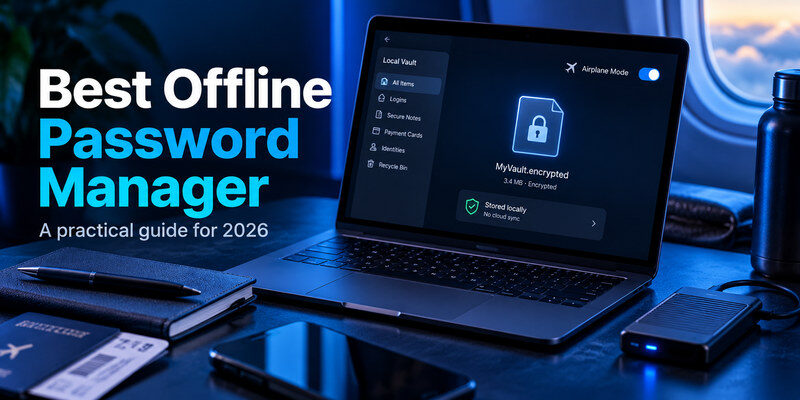
The best offline password manager should let you securely store and access your passwords without relying on a constant internet connection. For users who want complete control over their credentials, local password managers such as KeePassXC, Enpass, and KeePass offer an alternative to traditional cloud-based services.
KeePassXC is our top recommendation for desktop users who want a free, open-source password manager with a fully encrypted local database. Enpass is a better option for people who need local storage across phones and computers, while KeePassDX is particularly suitable for Android users.
However, not every password manager that works without internet is truly offline-first. Some applications simply allow you to access previously synchronized passwords when your connection disappears.
This guide compares five popular options, explains how offline password storage works, and helps you choose a secure password manager based on your devices, privacy preferences, and backup requirements.
Best Offline Password Managers: Quick Comparison
Before choosing an offline password manager, it is important to understand how each application handles stored credentials. Some keep an encrypted database entirely on your device, while others synchronize information online but allow limited access without internet.
| Password Manager | Best For | Storage Model | Offline Editing |
|---|---|---|---|
| KeePassXC | Desktop users | Local encrypted database | Yes |
| Enpass | Multi-device users | Local vault, optional sync | Yes |
| KeePass | Windows users | Local encrypted database | Yes |
| KeePassDX | Android users | Local KDBX database | Yes |
| Bitwarden | Occasional offline access | Cloud-synced vault with local cache | No |
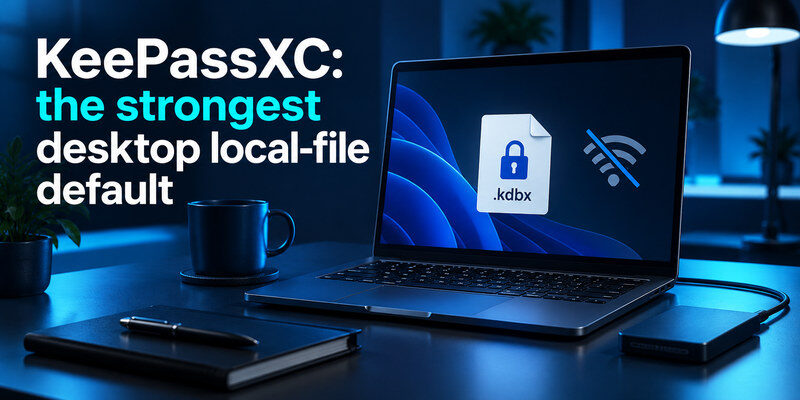
KeePassXC is the best overall offline password manager for users who mainly work on Windows, macOS, or Linux. It does not require an online account and gives you direct control over your encrypted password database.
For those who need a more convenient experience across desktop and mobile devices, Enpass provides local storage with optional synchronization. KeePassDX is an excellent choice if you primarily manage passwords on Android.
Bitwarden belongs to a different category. Its offline mode is useful when you temporarily lose internet access, but it is not a replacement for a fully local password manager.
If you are still deciding which storage model suits your needs, our guide on cloud password manager vs local password manager explains the main differences in privacy, accessibility, and data control.
Secure your accounts with fast, reliable two-factor authentication. Download now and protect your login in seconds.Download Authenticator App
5 Best Offline Password Managers Compared
1. KeePassXC – Best Overall Offline Password Manager
KeePassXC is one of the strongest choices for users who want to keep their passwords entirely under their control.
Unlike many cloud-based password managers, KeePassXC does not require you to create an account or connect to an online service. Instead, it stores your credentials in an encrypted database file, commonly using the KDBX format, that you can save directly on your computer.
This approach allows you to create, view, organize, and update passwords without internet access. Your database remains in the location you choose, whether that is your computer’s internal storage or an encrypted external drive.
KeePassXC also offers features commonly associated with modern password managers, including password generation, entry organization, browser integration, and Auto-Type. Its browser extensions can help fill login details when working with supported browsers, making local password management more convenient than manually copying credentials.
Another important advantage is transparency. KeePassXC is free and open source, so its code can be reviewed by security researchers and the wider community.
However, greater control also means greater responsibility.
KeePassXC does not automatically maintain a cloud backup or provide a centralized account recovery service. If you lose your only database file or forget the password needed to unlock it, recovering your credentials may be impossible.
The application is also designed primarily for desktop operating systems. Users who want mobile access need a compatible application that supports the KDBX database format.
Our verdict: KeePassXC is the best offline password manager for Windows, macOS, and Linux users who want strong encryption, local storage, and independence from cloud services.
Users who prioritize transparent software can also explore our comparison of the best open-source password managers.
2. Enpass – Best for Offline Password Management Across Devices
Enpass is a practical option for users who want offline password storage without sacrificing the convenience of managing credentials across multiple devices.
Like KeePassXC, Enpass stores your passwords in an encrypted vault under your control. However, it offers a more guided experience for people who use both computers and smartphones.
The main advantage is flexibility in synchronization.
Enpass allows you to keep your vault locally or choose how encrypted information moves between devices. Depending on your setup, you can synchronize using a personal cloud service, a local folder, or supported Wi-Fi synchronization methods.
This distinction is important. Using Google Drive or another cloud provider to synchronize an encrypted Enpass vault does not make the setup completely offline. However, using local folder or local-network synchronization can help avoid dependence on a third-party cloud service.
Enpass also provides password generation, AutoFill, vault organization, and biometric unlocking on supported devices. These features make it a more familiar experience for users moving away from mainstream cloud password managers.
The main drawback is that synchronization requires careful configuration. Changes made on different devices may not appear immediately when your devices are disconnected, and users must understand how their chosen synchronization method handles updates.
You should also review Enpass’s current licensing terms because the available features and device limits can depend on your plan.
Our verdict: Enpass is an excellent choice for users who want offline-capable password management on both desktop and mobile devices, with flexibility over where their encrypted data is stored.
3. KeePass – Best Traditional Offline Password Manager for Windows
KeePass is a long-established password manager built around a simple principle: store sensitive credentials in an encrypted database that the user controls.
It is particularly popular among Windows users who prefer a traditional desktop application and want to avoid relying on online accounts.
Like KeePassXC, KeePass allows you to manage passwords locally without an internet connection. You can organize credentials, generate passwords, and protect your database with a master password and supported additional authentication components.
One of KeePass’s strengths is its extensive ecosystem. The application has a long history and supports various plugins and integrations that allow users to customize their password management workflow.
This flexibility can be valuable for experienced users, but it also introduces complexity.
KeePass has a more traditional interface than many modern password managers, and the experience may feel less intuitive to beginners. Some advanced features require additional configuration or third-party plugins.
Mobile support is another consideration. The main KeePass application is Windows-focused, so users who want to access the same database on Android or iPhone typically need compatible applications developed separately.
These applications can be useful, but you should evaluate their security, maintenance, and compatibility before trusting them with important passwords.
Our verdict: KeePass remains a strong offline password manager for Windows users who prefer an established local database system and are comfortable managing their own backups and integrations.
For users comparing local solutions with free cloud-based alternatives, our best free password manager guide covers other options worth considering.
4. KeePassDX – Best Offline Password Manager for Android
KeePassDX is a free, open-source password manager designed specifically for Android.
It uses the KeePass database format, allowing users to store passwords in an encrypted local file rather than relying on an online account.
This makes KeePassDX particularly appealing to Android users who want their password vault to remain available even when their phone has no internet connection.
The application supports password management, secure database access, and integration with Android’s password filling features. It also works with compatible KDBX databases, making it possible to use the same encrypted file with desktop software such as KeePassXC.
For example, someone using KeePassXC on a laptop could maintain a compatible database and transfer it to an Android device for access through KeePassDX.
However, transferring a database between devices introduces additional responsibilities. If you edit different copies independently, you must ensure that the latest changes are not accidentally overwritten.
KeePassDX does not automatically solve every multi-device synchronization problem. Your database location, file transfer method, and backup process remain important parts of the overall setup.
The application is also Android-specific, so it is not a direct solution for someone seeking the same app on an iPhone.
Our verdict: KeePassDX is one of the best offline password managers for Android users who want local encrypted storage and compatibility with the KeePass ecosystem.
If mobile compatibility is your main priority, you can also compare other options in our best password manager for Android guide.
5. Bitwarden – Best for Occasional Offline Password Access
Bitwarden is different from the other password managers in this comparison because its standard workflow relies on vault synchronization.
It is primarily designed to provide encrypted password management across multiple devices using an account-based service. However, Bitwarden applications can retain previously synchronized vault information, allowing certain credentials to remain accessible when the device temporarily loses internet access.
This can be particularly useful when traveling, working in an area with unreliable connectivity, or experiencing a temporary network outage.
For example, if your Bitwarden vault has already synchronized with your laptop, you may still be able to unlock the application and view available saved passwords while offline.
However, this does not make Bitwarden a fully offline password manager.
Its documented offline mode does not support creating new entries or editing existing vault information. Synchronization and many account-management operations still require connectivity.
You should also avoid assuming that a newly installed or signed-out Bitwarden application will automatically have access to your password database without internet.
The best approach is to test offline access before traveling or depending on the application in a disconnected environment.
Offline vs Cloud Password Managers: Which Is Safer?
Choosing an offline password manager does not automatically make your passwords safer than using a cloud-based solution.
The main difference is how credentials are stored, synchronized, and recovered.
With a local password manager, you generally control the encrypted database and decide whether to transfer it to another device. This reduces dependence on an external service and may be preferable for users who want to avoid keeping their vault in a provider-managed cloud.
However, local storage introduces risks that are easy to overlook. If your computer fails, your database becomes corrupted, or you lose the only copy, you may permanently lose access to your credentials.
Cloud-based password managers often provide automatic synchronization and easier access across devices. Many also offer account recovery or emergency-access features, depending on the provider.
The trade-off is that you rely more heavily on the service’s infrastructure, authentication systems, and security practices.
There is also a difference between encrypted cloud synchronization and exposing passwords to a provider. Properly implemented end-to-end or zero-knowledge encryption can protect credential contents even when encrypted vault data is stored remotely.
For most users, the safest approach is the one they can maintain consistently. A carefully configured cloud password manager may provide better practical protection than a local database without backups.
If you are comparing password storage with browser-based tools, our guide on password manager vs browser autofill explains how these approaches differ.
How to Choose the Best Offline Password Manager

The right offline password manager depends on your devices, your level of technical experience, and how you intend to back up your information.
Consider Where Your Passwords Will Be Stored
The first question is whether you want your passwords to remain exclusively on one device.
If your goal is to maintain a fully local database on a desktop computer, KeePassXC or KeePass may be suitable. Both allow passwords to be created and edited without an internet connection.
If you need password access on several devices while controlling synchronization, Enpass or a compatible KeePass-based workflow may be more appropriate.
It is important to distinguish between offline storage and offline access. A cloud password manager that opens without internet may still require an online connection to update or synchronize credentials.
Check Device Compatibility and AutoFill
Offline storage is useful only if you can access your passwords when you need them.
For desktop users, KeePassXC provides browser integration that can help with everyday sign-ins. Android users may prefer KeePassDX or Enpass, while iPhone users should verify that their chosen solution supports the device’s AutoFill framework.
If you regularly switch between operating systems, confirm that your encrypted database format can be opened reliably on every device you use.
Convenience also matters. A password manager that requires complicated manual steps for every login may become difficult to maintain over time.
Make Sure You Can Recover Your Vault
Recovery deserves as much attention as encryption.
A local password database is usually protected by a master password or passphrase. If you forget it, the application provider may have no ability to reset your access.
For this reason, choose a long, unique master passphrase and create a secure recovery plan before moving important accounts into your vault.
Our guide on how to create a strong master password explains how to protect your vault without making account recovery unnecessarily difficult.
You should also plan for device failure. Keeping a second encrypted copy on separate storage can prevent data loss if your primary computer or phone stops working.
How to Set Up an Offline Password Manager Securely
The process begins with choosing an application that supports the storage model you want.
For a fully local desktop setup, KeePassXC is a straightforward starting point. Download the software from its official website, create a new encrypted database, and protect it with a strong master passphrase.
Save the database in a location you can identify and access reliably. Avoid keeping your only copy in a temporary folder or relying entirely on a single storage device.
Before importing all your accounts, add a few test entries and confirm that you can open, edit, and save the database without internet access.
Next, verify that the application works with your preferred browser or device. If you plan to use the database on both desktop and mobile, test the transfer process and make sure the receiving application can open the file correctly.
If you have passwords stored in another application, you may need to import them. Be especially careful with CSV exports because they often contain readable passwords.
For a more detailed explanation, see our guide on how to import passwords into a password manager.
Finally, create a backup of your encrypted database and test restoring it. A backup is useful only if you can successfully unlock and read it when needed.
It is also worth reviewing your passwords during the migration process. Replacing reused or weak credentials with unique passwords can reduce the impact of a compromised account.
Frequently Asked Questions
What is the best offline password manager?
KeePassXC is our top recommendation for most desktop users who want encrypted local storage without a cloud account. Enpass is a strong choice for multi-device users, while KeePassDX is particularly suitable for Android.
Can a password manager work completely without internet?
Yes. KeePassXC, KeePass, and KeePassDX can store and manage passwords locally without an internet connection. Enpass also supports local storage and offline synchronization options. Other password managers may only provide limited access to previously synchronized credentials.
Is an offline password manager safer than a cloud password manager?
Not necessarily. Offline storage gives you greater control over where your database is stored, but it also places more responsibility on you for backups, updates, and recovery. Security depends on the encryption, device protection, and storage practices involved.
What is the best free offline password manager?
KeePassXC is an excellent free option for desktop users. KeePass is another established choice for Windows, while KeePassDX provides free, open-source password management for Android.
Can I use KeePassXC on Android or iPhone?
KeePassXC does not provide an official mobile application. However, its KDBX database format is supported by compatible third-party mobile password managers. You should evaluate the security and maintenance of these applications before using them.
Can I sync offline passwords between multiple devices?
Yes, depending on the application. Enpass supports local Wi-Fi and folder synchronization, while KeePass-compatible databases can be copied or synchronized using user-controlled methods. You should test how updates and conflicting file versions are handled before relying on multi-device access.
What happens if I lose my offline password database?
If you lose the only copy of your database and have no backup, your stored passwords may be permanently lost. This is why keeping encrypted backup copies and testing restoration are essential parts of offline password management.
Final Thoughts
Choose KeePassXC for a genuinely local desktop vault, Enpass for an offline-capable phone-and-desktop workflow, or KeePass for an established Windows setup. Treat Bitwarden’s offline mode as a read-only contingency. Whichever you choose, prove that you can fill a login, edit in the conditions you expect, and restore a backup before migrating every password.
The simplest trial is to disconnect the network and perform your real tasks: unlock, create a test entry, change it, close the app, reopen it, and restore a separate copy. This exposes the difference between an offline cache and a usable local database, and it checks the failure mode that matters most: losing the only accessible vault file.
