
Google Chrome Extension Hijacking: How to Stay Safe
Published October 30, 2026
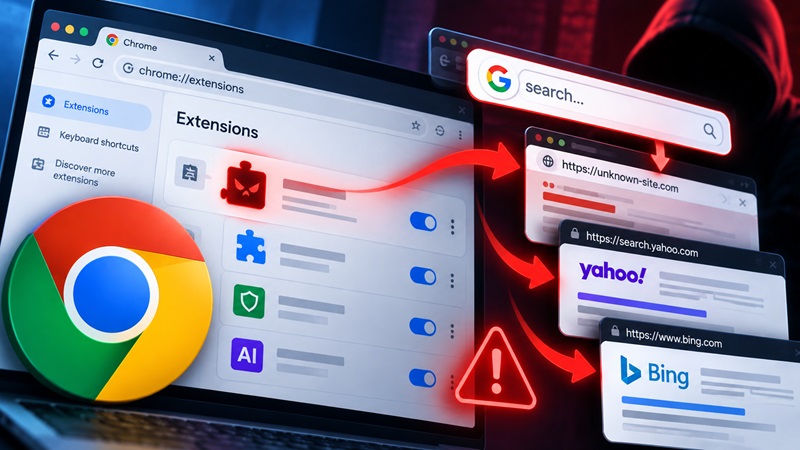
Security researchers have uncovered a large-scale Google Chrome extension hijacking campaign involving 319 browser extensions with approximately 13.4 million reported installations. The findings, published on October 29, 2026, reveal how seemingly legitimate browser tools redirected users’ search queries through operator-controlled servers to generate advertising revenue.
The extensions often disguised themselves as PDF converters, AI search assistants, manual finders, and security tools. Some operated with minimal code and without requesting the extensive website permissions users might normally associate with malicious extensions.
Quick answer: If you use Google Chrome, review your installed extensions at chrome://extensions, remove unfamiliar or suspicious add-ons, check whether your default search engine has changed, and run Chrome Safety Check. Only install extensions from trusted developers, and avoid unnecessary browser add-ons promoted through unsolicited advertisements.
The latest chrome extension hijacking investigation demonstrates why even software distributed through an official browser extension marketplace deserves careful scrutiny.
Google Chrome Extension Hijacking: What Happened?
On October 29, 2026, security company Socket published an investigation titled “Searchjacked: Hidden Browser Extensions Hijack Searches for 13 Million Users.”
Researcher John Tuckner identified a widespread campaign in which browser extensions quietly changed the default search provider and redirected queries through intermediary servers.
According to Socket’s investigation, the identified extensions had accumulated approximately 13.4 million reported installations over roughly a decade.
These figures represent historical installation counts, not necessarily the number of currently affected users.
Key facts about the incident
| Incident Detail | Reported Information |
|---|---|
| Report publication | October 29, 2026 |
| Affected platform | Google Chrome |
| Extensions identified | 319 |
| Reported installations | Approximately 13.4 million |
| Newly identified extensions | 264 |
| Additional reported installs | Approximately 8.7 million |
| Primary objective observed | Search redirection and referral revenue |
| Potential additional threat | Phishing and malicious redirects |
The investigation expanded on research first published in April 2025, when Socket identified 57 suspicious extensions associated with approximately 6 million reported users.
Researchers subsequently identified hundreds of additional extensions exhibiting similar behavior.
What types of extensions were involved?
The campaign included extensions promoted as:
- PDF converters and document tools
- User manual search utilities
- Safe Search and browser protection tools
- AI-powered search assistants
- General search enhancements
These categories are not inherently malicious. The problem arises when an extension secretly changes browser behavior, redirects searches through an undisclosed intermediary, or misrepresents its functionality.
Many affected extensions were unlisted on the Chrome Web Store. That means users could access them through direct links but would not ordinarily discover them through the store’s search results.
According to Socket, the operators promoted them through advertisements and redirects on third-party websites.
The key finding: The extensions did not need to visibly infect Google Chrome. They could misuse supported browser configuration features to take control of how searches were routed.
How Chrome Extension Hijacking Works
Chrome extension hijacking occurs when an installed browser add-on changes browser behavior without the user’s informed consent.
In the October 2026 campaign, the primary target was the browser’s default search engine.
Instead of delivering searches directly to the user’s selected provider, the extensions redirected queries through infrastructure controlled by their operators.
Step 1: Users install a misleading extension
A user might click an advertisement promoting a free PDF converter or a tool promising safer search results.
The advertisement leads to a Chrome Web Store listing.
Because the extension appears in an official marketplace, the user may assume it has been fully verified and poses no security risks.
However, marketplace distribution does not guarantee that an application is trustworthy.
Step 2: The extension changes search settings
Some extensions use Chrome’s supported chrome_settings_overrides mechanism to define a different default search engine.
This capability can have legitimate uses when transparently disclosed.
In the reported campaign, researchers found extensions that used it to route address-bar searches through operator-controlled services.
An important technical detail: Some suspicious extensions contained little more than a configuration manifest and icons. They did not necessarily require extensive website access permissions.
That makes simple permission-based checks insufficient on their own.
Step 3: Search queries pass through a third-party server
A normal search might follow this route:
Google Chrome → Selected search engine → Search results
A hijacked search may instead follow:
Google Chrome → Extension-controlled search endpoint → Redirect server → Bing or Yahoo
The intermediary server may process the search terms before forwarding the user to the final search provider.
The operators can also attach referral identifiers to generate advertising revenue.
Step 4: The destination may change
One of the concerning aspects of this chrome extension hijacking campaign is that the redirect destination can be controlled remotely.
Researchers observed inconsistent destinations for repeated searches made through the same extension.
This means the operator may change where users are sent without publishing a new extension version.
Although the investigation primarily documented search redirection and referral monetization, researchers warned that the same mechanism could potentially direct users toward phishing websites or malicious downloads.
This is a potential escalation risk, not proof that all identified extensions were already stealing credentials.
Why Malicious Chrome Extensions Are Dangerous
Browser extensions often have privileged access to browser features.
Depending on their permissions and configuration, they may interact with webpages, browser settings, search providers, or network requests.
The risks of chrome extension hijacking can extend beyond annoying search redirects.
1. Search queries may expose sensitive information
Users sometimes enter personal details directly into search engines.
Search queries may contain names, addresses, account information, confidential work topics, or health-related questions.
When a browser extension routes searches through an unknown intermediary, those queries can potentially become visible to an additional party.
This creates privacy concerns even when the final search results appear legitimate.
2. Users may encounter phishing websites
An operator-controlled redirect service could send users to websites impersonating trusted brands.
A fake Google, Microsoft, or banking login page may attempt to collect passwords, authentication codes, or other sensitive information.
Not every redirect is necessarily malicious, but unexpected changes in search behavior warrant investigation.
3. Users may be exposed to unwanted downloads
Some malicious websites attempt to convince visitors to install browser updates, security tools, or document viewers.
These downloads can contain unwanted software or malware.
Never install an unexpected security update merely because a webpage claims your browser is infected.
4. Browser security settings may be altered
Certain unwanted extensions can change search engine preferences, new-tab behavior, or other browser settings.
The user may attempt to restore their preferences, only to see the changes return.
Google identifies recurring search-engine changes, unfamiliar toolbars, persistent pop-ups, and unexpected redirects as possible symptoms of unwanted software.
For broader prevention advice, see our best cybersecurity tips for beginners.
7 Signs Your Google Chrome Browser May Be Hijacked
Not every browser issue indicates malware.
However, several recurring symptoms may suggest that an extension or another unwanted program is interfering with Chrome.
1. Your default search engine changes unexpectedly
You may suddenly notice that Google Chrome uses a different search provider without your permission.
Open Settings → Search engine and inspect your current selection.
If an unfamiliar provider appears, investigate recently installed extensions.
2. Search results pass through unknown websites
Watch for unfamiliar website addresses appearing briefly before the final results page loads.
In the October 2026 investigation, some redirects eventually reached legitimate Yahoo or Bing search results.
The final destination appearing legitimate does not necessarily mean every intermediary was trustworthy.
3. Unfamiliar extensions appear in Chrome
Open chrome://extensions and inspect the complete list.
Look for tools you do not remember installing, particularly extensions promising search improvements, document conversion, or browser protection.
A forgotten extension is not automatically malicious, but it should be reviewed before being trusted.
4. Your homepage or new-tab page changes
Some browser hijackers replace the homepage or new-tab interface.
Unexpected search boxes, advertisements, or unfamiliar branding can be warning signs.
5. Search settings cannot be restored
If Chrome repeatedly changes its search engine after you manually select another provider, an installed extension or unwanted program may be enforcing the change.
On work-managed devices, organizational policies can also control these settings.
6. Chrome displays extension security warnings
Google Chrome may identify extensions that contain suspected malware, violate Chrome Web Store policies, or have been removed from the store.
Take those warnings seriously.
Google recommends reviewing flagged extensions through Chrome’s built-in extension management and Safety Check features.
7. Unexpected advertisements or redirects appear repeatedly
Persistent pop-ups, unsolicited download pages, and unfamiliar redirects can indicate unwanted browser software.
If several warning signs appear together, investigate promptly rather than ignoring the behavior.
How to Remove Malicious Chrome Extensions
If you suspect chrome extension hijacking, follow these steps to inspect and restore your browser.
Step 1: Open Chrome’s extension manager
Open Google Chrome on your computer.
Enter the following address:
chrome://extensions
This page displays installed extensions and allows you to review their details.
You can also access it through Menu → Extensions → Manage Extensions.
Step 2: Review your installed extensions
Inspect every extension carefully.
Pay particular attention to tools you installed after clicking advertisements or visiting unfamiliar websites.
Compare suspicious extensions against the list published in Socket’s original investigation.
Do not assume every PDF converter, AI assistant, or security extension is malicious. Check the extension’s identity, behavior, and research findings.
Step 3: Remove suspicious extensions
Select Remove on extensions you no longer trust or need.
Confirm the removal.
For extensions you want to investigate before deleting, you may first disable them.
Removing an extension should stop that extension’s normal browser-level operation, but it does not guarantee that other unwanted programs or previously exposed information have been resolved.
Step 4: Restore your default search engine
Open:
chrome://settings/search
Choose a search provider you trust.
Google’s official search settings guide explains how to change the default provider.
If Chrome continues to redirect searches, inspect the browser again for unwanted extensions or software.
Step 5: Run Chrome Safety Check
Open Chrome’s Settings and navigate to Privacy and security → Safety Check.
Review any warnings related to extensions, browser updates, or account security.
Google explains that Chrome can identify certain suspicious or policy-violating extensions through its built-in security systems.
Step 6: Scan your device for malware
Run a reputable antivirus or anti-malware scan.
This is particularly important if an extension installed additional software or if unwanted browser changes continue after removal.
Avoid downloading random cleanup applications advertised through pop-ups.
Step 7: Reset Chrome settings if necessary
If the problem persists, open:
chrome://settings/reset
Select Restore settings to their original defaults.
According to Google Chrome Help, resetting Chrome settings does not delete saved bookmarks or passwords.
However, it can reset search preferences and disable extensions, requiring you to review your browser configuration afterward.
Do not automatically re-enable every previous extension. Restore only those you have verified.
If you entered passwords on a suspected phishing page, change those passwords from a trusted device and review account sessions.
How to Protect Your Google Account and Browser
Preventing chrome extension hijacking requires more than deleting suspicious add-ons.
Users should reduce unnecessary extensions and strengthen their account security.
Install only extensions you actually need
Every additional extension introduces another piece of software into your browser.
Before installing one, consider whether Chrome already provides the required functionality.
When possible, use built-in browser features instead of adding unnecessary third-party tools.
Verify the developer and official website
Check the extension’s publisher, website, update history, and privacy disclosures.
Reviews and installation counts may be useful signals, but they are not reliable proof of security.
Avoid installing extensions through unsolicited advertisements or unfamiliar download pages.
Review permissions and site access
Chrome lets users inspect and modify the website access granted to supported extensions.
Go to Manage Extensions → Details and review the available permissions.
When appropriate, restrict access to specific websites or require manual activation.
Remember that some search-hijacking techniques do not require broad website permissions, so limited permissions alone do not prove an extension is safe.
Keep Google Chrome updated
Browser updates include security fixes and improvements.
Check Menu → Help → About Google Chrome to review the installed version and available updates.
Keeping Chrome current reduces exposure to known browser vulnerabilities, though it cannot guarantee protection from misleading extensions.
Enable stronger Google Account authentication
Protecting your Google Account is particularly important if Chrome synchronizes your browsing data across devices.
Use a unique password and enable an appropriate additional authentication method.
Google supports passkeys and two-step verification for eligible accounts.
For instructions, read our guide to google account two step verification.
You can also learn about two factor authentication apps and how they protect supported online accounts.
Important: Two-factor authentication helps prevent unauthorized account access, but it does not stop an already installed extension from changing local browser settings.
For a wider device-security routine, follow our personal cybersecurity checklist.
Frequently Asked Questions
What is Chrome extension hijacking?
Chrome extension hijacking occurs when a browser extension takes control of browser behavior, such as search settings or redirects, without properly informed user consent.
The October 2026 campaign documented extensions redirecting user searches through operator-controlled servers.
Were 13.4 million Google Chrome users hacked?
Not necessarily.
Researchers identified 319 extensions with approximately 13.4 million reported installations accumulated over multiple years.
That figure does not mean 13.4 million distinct users were actively compromised on October 29, 2026, or that their passwords were stolen.
Can Chrome extensions steal passwords?
Some malicious extensions with sufficient capabilities may capture sensitive information or help redirect users to credential-phishing pages.
However, the October 2026 Searchjacked investigation primarily documented search redirection and referral monetization.
It did not establish that every identified extension stole passwords.
How do I know which Chrome extensions are malicious?
Review extension warnings in Chrome, developer information, permissions, behavior, and credible security research.
For the 2026 Searchjacked campaign, consult the list of affected extension identifiers in Socket’s report.
Avoid deciding solely from an extension’s name or appearance.
Is the Chrome Web Store safe?
Google reviews and monitors extensions, but marketplace distribution cannot eliminate every malicious or unwanted add-on.
Users should still inspect publishers, permissions, functionality, and security warnings before installing extensions.
Can antivirus software remove a browser hijacker?
Security software may detect certain malicious extensions and related programs.
However, browser settings may still require manual inspection or restoration.
Follow Google’s recommended removal and reset steps when necessary.
Does Google Authenticator stop browser hijacking?
No. An authenticator application can provide additional login protection for supported accounts, but it does not directly prevent a malicious extension from changing Chrome’s search settings.
Both account authentication and browser security are important.
Final Thoughts: Protect Your Browser From Malicious Extensions
The chrome extension hijacking campaign disclosed on October 29, 2026, shows how ordinary-looking browser tools can interfere with millions of reported installations over time.
Researchers identified 319 extensions associated with approximately 13.4 million historical installations, many of which redirected searches through intermediary servers to generate referral revenue.
The findings do not prove that all affected users experienced credential theft, but they highlight a genuine privacy risk and the possibility of more dangerous redirects.
The best protection is straightforward:
- Review your installed Chrome extensions regularly.
- Remove unnecessary or untrusted add-ons.
- Check for unexpected search engine changes.
- Keep Chrome and your operating system updated.
- Use strong account authentication and remain alert to phishing.
A trusted browser starts with understanding what your extensions can do—and removing those that have not earned your trust.
