
Coinbase Two Factor Authentication: Complete 2FA Setup, Security Methods & Troubleshooting Guide
Published September 9, 2026
Coinbase requires two-step verification to access your account. Coinbase two factor authentication adds another verification layer beyond your password and currently supports several methods, including security keys, passkeys, authenticator apps, push notifications, SMS, and recovery options such as trusted contacts.
If you want a practical setup, avoid relying on SMS alone. Coinbase currently labels text-message verification as its least secure 2FA method. For stronger protection, Coinbase recommends combinations such as two security keys, a passkey plus a security key, or a passkey plus push notification.
For users who prefer a simple software-based option, a TOTP authenticator app remains a strong improvement over SMS.
The most important principle: your Coinbase account should have both a strong authentication method and a recovery method you can still access if your phone is lost.
That matters even more for cryptocurrency accounts because an attacker may target not only your login but also your ability to approve transactions or lock you out of the account.
1. What Coinbase Two Factor Authentication Does
Coinbase two factor authentication is a second identity check used alongside your normal sign-in credentials.
Coinbase also calls the feature 2-step verification or 2FA.
Instead of trusting only:
Email + password
your account requires another proof that the person attempting to access it is really you.
That proof might be:
- A security key
- A passkey
- A TOTP authentication code
- A Coinbase push approval
- An SMS verification code
Coinbase says 2-step verification is required to access Coinbase accounts, rather than being an optional feature users must discover and enable themselves.
So if you’re searching does coinbase have two factor authentication, does coinbase have 2fa, or does coinbase have 2 factor authentication, the answer is straightforward:
Yes — and Coinbase requires it.
Why is another factor necessary?
Passwords fail in several predictable ways.
People:
- Reuse passwords
- Enter them into phishing websites
- Save them on compromised devices
- Lose them through malware
- Use passwords leaked by another service
Verizon’s 2025 DBIR research found that compromised credentials were the initial access vector in 22% of the breaches studied. It also found that, in a median case involving infostealer data, only 49% of a user’s passwords across services were unique.
The threat continues to evolve. Verizon’s 2026 DBIR reports that mobile-oriented social-engineering attacks now achieve 40% higher success rates than traditional email phishing, illustrating why authentication security cannot focus on passwords alone.
These statistics cover the broader cybersecurity landscape, not Coinbase specifically. But they illustrate the problem that coinbase 2 factor authentication is designed to address.
If someone steals your password, they should still face another barrier.
Download Authenticator App
Secure your accounts with fast, reliable two-factor authentication. Download now and protect your login in seconds.
2. Coinbase 2FA Methods: Which One Should You Use?
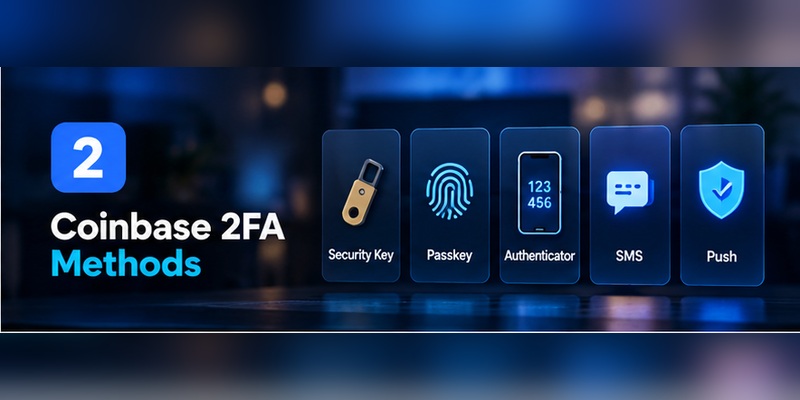
One of the biggest changes in coinbase two factor authentication is that users now have more choices than the old “SMS or Google Authenticator” model.
As of September 2026, Coinbase’s current Help Center documents:
- Security Key
- Passkey
- Authenticator (TOTP) App
- Push Notification
- Text Message (SMS)
- Trusted Contacts for account recovery
Coinbase also encourages users to configure multiple methods so that losing access to one factor does not necessarily lock them out.
Security key: strongest protection
A physical security key uses standards such as WebAuthn/FIDO2.
Coinbase recommends compatible devices such as YubiKey and currently describes using two security keys as its highest-security configuration — one for normal use and another as backup.
CISA also places security keys at the top of its mainstream MFA security hierarchy because they provide strong phishing resistance.
Best for: users holding significant assets, businesses, active traders, and anyone at elevated phishing risk.
Passkey: strong security with easier login
Passkeys use public-key cryptography instead of asking you to manually type a reusable password or one-time code.
Coinbase supports passkeys and recommends combinations such as:
Passkey + security key
or:
Passkey + push notification
for security plus recovery flexibility.
Authenticator app: strong and accessible
A TOTP authenticator app generates time-sensitive verification codes.
Coinbase currently supports authenticator applications including:
and states that compatible authenticator applications can be used.
For many users, this is a good balance between security and convenience.
Coinbase push notifications
Coinbase can send a verification request directly to logged-in Coinbase mobile-app sessions.
You then approve or reject the action.
Push requests currently expire after five minutes, according to Coinbase’s troubleshooting documentation.
SMS: convenient but weakest
Coinbase two factor authentication text message verification sends a code to your registered phone number.
Coinbase currently calls SMS its least secure 2FA option and recommends adding stronger methods.
That does not mean SMS provides no protection.
It means you should not choose it over stronger available methods simply because it is familiar.
Which should you choose?
For stronger security:
Security key + backup security key
or:
Passkey + security key
For a practical software-only setup:
Passkey + authenticator or push notification
If you’re still using SMS:
Add a stronger method before disabling anything.
Coinbase provides an especially useful warning: an account is only as secure as the least secure authentication method that remains enabled.
That means adding a security key while leaving an easily exploited fallback available may not provide the protection you expect.
3. How to Set Up Coinbase Two Factor Authentication
Because coinbase two factor authentication is already required, “setting up 2FA” often means upgrading from the default method to something stronger.
Step 1: Sign in to Coinbase
Use Coinbase directly rather than following an unexpected security link from an email, SMS, or social-media message.
Step 2: Open Security settings
Go to your account settings and open:
Security → 2-Step Verification
Coinbase’s current documentation uses the 2-step verification settings page for managing authentication methods.
Step 3: Review your current methods
Before changing anything, check what is already enabled.
This is important because you do not want to remove the only working authentication method before a replacement is ready.
Step 4: Choose a stronger authentication method
Under Available Methods, select the method you want to configure.
For example:
Authenticator App → Set up
or:
Security Key → Set up
or:
Passkey → Set up
Step 5: Follow the verification prompts
Coinbase may require you to confirm your existing 2FA before allowing a security change.
This prevents someone who only has access to an unlocked account session from silently replacing your security method.
Step 6: Add a backup option
Do not finish with just one method if you can avoid it.
Coinbase specifically recommends configuring multiple methods so that another remains available if your primary factor is lost.
Step 7: Test it
Log in using the new method before removing an older one.
A security configuration is not finished until you know it works.
That is a better approach to coinbase two step authentication than simply activating a feature and assuming recovery will work later.
4. How to Set Up an Authenticator App for Coinbase
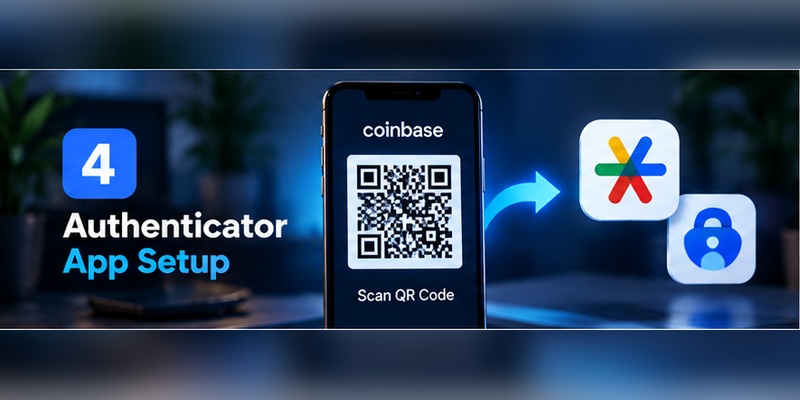
For many users, TOTP is the most practical upgrade from SMS-based coinbase two factor authentication.
What is TOTP?
TOTP means Time-based One-Time Password.
The authenticator and Coinbase share a secret during enrollment. Your authenticator then uses that secret and the current time to generate temporary verification codes.
The code changes regularly, so it is not a reusable password.
Coinbase authenticator setup
Coinbase currently documents this process:
- Download an authentication application.
- Sign in to Coinbase’s 2-step verification settings from a web browser.
- Find Authenticator app under Available Methods.
- Select Set up.
- Follow the prompts using your mobile authenticator.
Coinbase supports applications including Google Authenticator, Duo, and Microsoft Authenticator.
Protect the setup secret
When configuring TOTP, treat any QR code or secret key displayed during enrollment as sensitive.
The secret is what lets your authentication application generate valid codes.
Do not:
- Screenshot it and leave it in a shared photo library
- Post it in a support forum
- Send it to someone claiming to be Coinbase staff
- Save it in an unsecured shared document
Think about migration before losing your phone
Different authenticator applications handle backup differently.
Some provide encrypted synchronization.
Some let you export accounts.
Others deliberately keep tokens only on one device.
Before depending on an authenticator for coinbase two factor authentication, know how your particular app handles a lost or replaced device.
Should you remove SMS afterward?
Potentially — but only after you have verified your replacement methods.
CISA recommends avoiding SMS when stronger authentication is available because SMS is not phishing-resistant and can be exposed through telecom attacks. It notes that authenticator codes are stronger than SMS, although TOTP codes themselves can still be phished.
Coinbase reaches the same practical conclusion: SMS is its weakest documented 2FA method.
5. Why SMS Is Coinbase’s Weakest 2FA Option
SMS is easy.
That convenience explains why it remains widely used.
But coinbase two factor authentication text message protection depends partly on control of your phone number.
That creates a weakness called SIM swapping or phone-number porting.
How a SIM swap can undermine SMS 2FA
An attacker convinces or tricks a mobile carrier into moving your number to another SIM or device.
If successful, the attacker may receive:
- Calls
- Password-reset messages
- SMS security codes
Coinbase has publicly described phone-number porting as one reason SMS is less secure than TOTP or physical security keys.
CISA likewise advises against SMS for highly sensitive accounts when stronger options are available.
Coinbase has seen this attack pattern
Coinbase has previously explained that account-takeover attacks often involve phishing campaigns, SIM swaps, and support impersonation scams.
Coinbase has also said that users with hardware security keys have shown its strongest observed defense against account-takeover attempts.
That is important practical evidence.
It does not mean every Coinbase user needs a hardware key tomorrow.
It does mean that not all forms of coinbase two factor authentication provide equal protection.
Is SMS better than no 2FA?
Yes.
But that comparison is less useful on Coinbase because 2FA is already mandatory.
The real decision is:
Why use Coinbase’s weakest method if your account supports a stronger one?
For an account that may hold transferable digital assets, upgrading is usually worth the extra setup.
6. How to Change Your Coinbase Two Factor Authentication Method
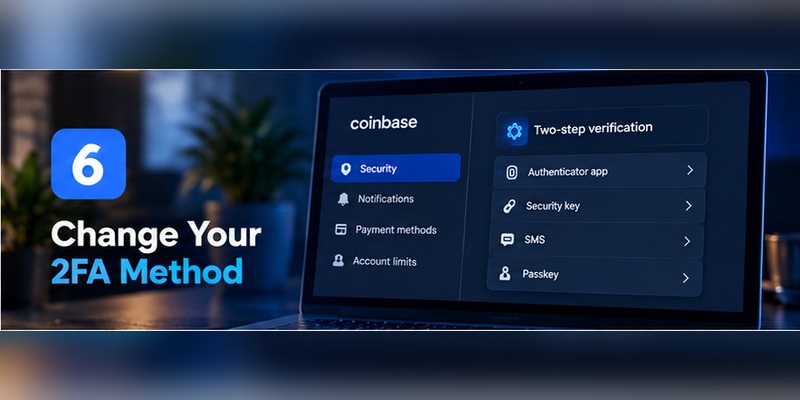
The intent behind coinbase two factor authentication change is often more important than the original setup.
Users change 2FA because they:
- Bought a new phone
- Want to stop using SMS
- Lost an authenticator
- Purchased a security key
- Want to add a passkey
- Need a backup authentication route
Changing an authentication method
Coinbase currently allows enabled methods to be toggled from its 2FA Settings after they have been set up.
A safe process is:
- Sign in.
- Open Settings → Security → 2-Step Verification.
- Set up the new method first.
- Test the new method.
- Add a second recovery-capable method.
- Only then disable an older, weaker method.
For users asking how to change 2 factor authentication on coinbase, this ordering is important.
Add first. Test second. Remove last.
Can you change the 2FA method in the Coinbase app?
Coinbase’s current guidance says the main 2-step verification method should be changed through the web security settings rather than the Coinbase mobile app.
Phone-number management itself can be available from the app, but that is not the same thing as replacing your main authentication method.
Changing your phone number
If you’re still using SMS, update the number before losing access to the old one.
Coinbase documents both mobile and browser flows for changing a verified phone number and specifically encourages users to switch to stronger authentication such as a passkey or authenticator app to reduce dependence on a phone number.
7. Coinbase 2FA Not Working: Fixes by Authentication Method
Searches for coinbase 2 factor authentication not working often combine several completely different problems.
The fastest fix is to identify which authentication method is failing.
Authenticator code does not work
If coinbase two factor authentication not working specifically means TOTP codes are being rejected:
- Check your device clock.
TOTP relies on time synchronization.
Set:
- Date automatically
- Time automatically
- Time zone automatically
- Use the latest code.
If the displayed code is close to changing, wait for the next one.
- Confirm the correct Coinbase entry.
Users with multiple Coinbase accounts or old authenticator entries sometimes enter the code from the wrong token.
- Try another enabled method.
Coinbase says that when another authentication method is available, you can use it rather than the failed authenticator. If you have no accessible method, start the recovery process.
SMS code does not arrive
Coinbase currently recommends waiting about 30 seconds and selecting Resend code if the expected 6-digit SMS code does not arrive.
Also check:
- Correct phone number
- Cellular signal
- SMS filtering
- Carrier outages
- Whether you recently changed numbers
Push notification does not appear
Check that:
- You are signed into the Coinbase mobile app.
- Coinbase notifications are enabled at the operating-system level.
- You are connected to the internet.
Then select Resend push or choose another verification method.
Coinbase says push verification requests expire after five minutes.
Security key is not detected
For security keys:
- Use a current supported browser.
- Confirm USB/NFC/Bluetooth connectivity.
- Allow browser security-key prompts.
- Make sure you are using the key registered to this Coinbase account.
Coinbase notes that it cannot recover or replace a physical security key you have lost. You need another configured sign-in method.
Passkey does not work
Coinbase recommends checking:
- Supported browser and OS versions
- The cloud account storing the passkey
- Device unlock features
- Whether passkey sync is enabled
- Whether you are using the correct Coinbase account
Nothing works
If coinbase two factor not working means none of your methods are accessible, choose Coinbase’s option to update/recover your 2FA and follow the account-recovery process.
Do not give verification codes, recovery information, or identity documents to a person contacting you through social media or an unsolicited phone call.
Use Coinbase’s official recovery workflow.
8. Lost or Changed Your Phone? What to Do Next

A lost phone does not have to become a lost Coinbase account.
The outcome depends largely on how well you prepared your coinbase two factor authentication recovery options.
If you still have another authentication method
At the verification prompt, select:
Try another way
Then use:
- Passkey
- Security key
- Another enabled method
- Supported backup/recovery option
Coinbase specifically recommends multiple 2FA methods for this reason.
If SMS was your only factor
If you lose the phone or phone number and SMS is your only method, Coinbase directs users through account recovery.
If the authenticator was your only method
The same principle applies.
Try restoring the authenticator through its supported backup mechanism first.
If that is impossible and no other Coinbase factor is available, use Coinbase’s recovery process.
Coinbase backup code
Coinbase documentation also describes a backup code as one possible recovery method in its phone-number recovery guidance. Each backup code can be used only once.
If your account provides this option, store the code somewhere separate from the device you are trying to recover.
New phone and new number
This is the highest-risk migration scenario because both your authenticator and SMS route may change at once.
If possible:
Move your security before replacing access, not after.
Before wiping the old phone:
- Confirm a passkey or security key works.
- Restore or migrate your authenticator.
- Update the phone number.
- Test Coinbase on another device.
- Verify your recovery options.
That is much safer than attempting a full coinbase two factor authentication change after every old authentication route is already gone.
9. Understanding Coinbase Authenticator Codes
Users searching for coinbase 6 digit authenticator are usually trying to understand which code Coinbase wants.
Two different code types can easily be confused.
SMS code
Coinbase explicitly documents sending a 6-digit code when verifying a phone number through SMS.
Authenticator TOTP code
With an authenticator, Coinbase describes the credential as a time-sensitive security code generated by the TOTP app.
Use the code displayed for the Coinbase account inside your authenticator.
Do not use:
- An old SMS code
- An email verification code
- A backup code in the TOTP field unless Coinbase specifically offers that recovery route
- A code for another Coinbase account
Why authenticator codes expire
TOTP credentials are deliberately short-lived.
The authenticator and Coinbase independently calculate what the valid code should be for the current time window.
That means the code does not need to travel through the mobile network.
This is one reason TOTP coinbase two factor authentication avoids some of the weaknesses associated with SMS.
Can someone steal a TOTP code?
Yes.
A fake Coinbase website can ask you for:
- Username or email
- Password
- Current TOTP code
If an attacker submits those details immediately to Coinbase, the code can potentially be abused while it remains valid.
TOTP is stronger than SMS, but it is not phishing-resistant.
CISA explicitly makes this distinction and identifies FIDO-based authentication as the phishing-resistant option.
10. How Phishing Can Defeat Weak 2FA Habits
A strong coinbase two factor authentication method loses much of its value if you willingly hand the credential to an attacker.
Coinbase has documented real phishing patterns targeting its customers.
One attack sequence described by Coinbase involved scammers:
- Impersonating Coinbase support.
- Sending victims to fake Coinbase pages.
- Stealing passwords.
- Claiming the victim’s 2FA needed verification.
- Collecting the 2FA code.
- Attempting to obtain new-device confirmation information.
Coinbase will not call asking for your 2FA code
Coinbase warns users to be skeptical of unsolicited calls claiming to be about account security and says it does not make unsolicited security calls asking for account information.
Treat these phrases as immediate warning signs:
- “Read me the code we just sent.”
- “Move your crypto to a safe Coinbase wallet.”
- “Your Coinbase account is compromised.”
- “Install this remote-support app.”
- “Send funds to verify your wallet.”
- “Your 2FA was changed; confirm this code.”
Check the domain
Coinbase identifies coinbase.com as its legitimate domain and warns about fake sites designed to look almost identical.
A professional logo does not prove a site is genuine.
Why crypto users need extra caution
Unlike many ordinary account compromises, cryptocurrency theft can involve transfers to blockchain addresses controlled by an attacker.
Coinbase has warned that crypto transactions sent to third-party blockchain addresses can be irreversible.
Preventing the unauthorized login can therefore be far easier than trying to fix what happens after a fraudulent transfer.
11. Build a Recovery-Ready Coinbase Security Setup
The best coinbase two factor authentication setup is not simply the strongest method.
It is the strongest method you can recover safely.
Strong setup for most security-conscious users
Consider:
Passkey + security key
Coinbase currently recommends this combination because the passkey offers convenience while the physical key provides a backup if the phone is unavailable.
Maximum hardware-oriented protection
Consider:
Two security keys
Keep:
- One available for daily use
- One secured as backup
Coinbase currently identifies this as its highest-security recommended combination.
Practical setup without hardware
A reasonable alternative is:
Authenticator + push notification + secure recovery method
Then consider disabling SMS if your recovery design no longer depends on it.
Do not ignore your email account
Coinbase calls email one of the most important connections to your account because it uses email for:
- New-device confirmations
- Security alerts
- Support communication
Protect that inbox with:
- A unique password
- Phishing-resistant MFA where possible
- Secure recovery information
If an attacker controls both your email and a weak Coinbase factor, your security position becomes significantly worse.
Use a unique password
Coinbase recommends a long, unique password and a password manager rather than reusing credentials from other sites.
Final principle
Don’t optimize only for today’s login.
Ask:
If my phone disappeared tonight, could I still authenticate tomorrow without giving an attacker an easy fallback?
If the answer is yes, your coinbase two factor authentication setup is doing more than checking a box.
12. Coinbase Two Factor Authentication FAQ
Does Coinbase have two-factor authentication?
Yes. Coinbase two factor authentication is mandatory for account access. Coinbase calls the feature 2-step verification and supports several authentication methods.
Is Coinbase 2FA automatically enabled?
Coinbase requires 2-step verification. SMS has historically been the basic/default method, while stronger options can be added through security settings. Coinbase’s current Help Center describes SMS as the default and least secure option.
What is the best Coinbase 2FA method?
Coinbase currently identifies two security keys as its highest-security recommended configuration.
It also recommends:
- Passkey + security key
- Passkey + push notification
Is Google Authenticator supported by Coinbase?
Yes.
Coinbase supports TOTP authenticator app options including Google Authenticator, Duo, and Microsoft Authenticator.
Is Coinbase Authenticator better than SMS?
A TOTP authenticator removes dependence on SMS delivery and phone-number control.
Coinbase ranks authenticator-based TOTP above SMS, while CISA similarly rates app-based authentication above text-message verification.
Is Coinbase SMS 2FA safe?
It adds protection beyond a password, but Coinbase calls SMS its least secure 2FA method.
SMS can be exposed through SIM swaps and phone-number porting attacks.
How do I change 2-factor authentication on Coinbase?
For how to change 2 factor authentication on coinbase, open your Coinbase security settings, go to 2-Step Verification, configure the new method, test it, and then disable any method you no longer want.
Coinbase allows configured methods to be toggled from its 2FA settings.
Why is my Coinbase authenticator code not working?
Common causes include:
- Incorrect device time
- Expired TOTP code
- Wrong authenticator entry
- Old 2FA configuration
- Loss of access to the original authenticator
If another method is enabled, select it. Otherwise use Coinbase’s 2FA recovery flow.
Why am I not receiving my Coinbase SMS code?
Confirm the phone number and signal first.
Coinbase recommends waiting 30 seconds and selecting Resend code when a 6-digit SMS code does not arrive.
What if I changed phone numbers?
If you can still sign in, update your number through your Coinbase account.
Coinbase also recommends moving to a passkey or authenticator because those methods are not tied directly to the mobile number.
What if I lost my authenticator phone?
Try another enabled coinbase two factor authentication method.
If the authenticator was your only usable factor and it cannot be restored, follow Coinbase’s account-recovery process.
Can I use a backup code on Coinbase?
Coinbase’s phone-number recovery documentation describes a one-time backup code that can be entered instead of an SMS verification code when available. Each code works once.
Does Coinbase support passkeys?
Yes.
Coinbase currently supports passkeys and recommends using them in combination with another strong authentication method.
Does Coinbase support hardware security keys?
Yes.
Coinbase supports compatible WebAuthn/FIDO2 security keys and recommends security keys for high-security authentication.
How many security keys can I add?
Coinbase documentation currently states that users can manage multiple registered security keys and allows up to five keys in the documented security-key flow.
You do not need five.
Two can provide a useful primary-and-backup configuration.
Are security keys safer than authenticator codes?
Against phishing, generally yes.
Both Coinbase and CISA rank physical/FIDO security keys above manually entered TOTP codes.
What should I do if I receive a Coinbase 2FA request I did not initiate?
Reject it.
For an unexpected push request, Coinbase instructs users to choose No, don’t allow, review the account for unauthorized activity, and consider locking the account.
Then:
- Change your password if necessary.
- Secure your email.
- Review your 2FA methods.
- Check for unauthorized account changes.
Will Coinbase support ask me for my 2FA code?
Treat anyone asking you to reveal a password or 2FA credential as suspicious.
Coinbase’s published security guidance says Coinbase employees will not ask for your password, and Coinbase has repeatedly warned users against support-impersonation scams that attempt to steal 2FA codes.
Final Coinbase 2FA Checklist
Before leaving your Security settings, verify the following:
- Coinbase two factor authentication is active
- You are not relying solely on SMS if stronger methods are available
- Your authenticator works
- Your passkey or security key has been tested
- You have more than one recovery-capable method
- Your phone number is current
- Your email account has strong MFA
- Your Coinbase password is unique
- You know how to use “Try another way”
- You have prepared for losing your phone
- You never approve an unexpected push request
- You never give a Coinbase authentication code to another person
- You check that you are really on Coinbase before entering credentials
There is one idea worth remembering above everything else:
Not all 2FA is equally strong.
Coinbase requires two-step verification, but simply having coinbase two factor authentication does not mean your security setup is optimal.
SMS can be attacked through phone-number takeover. Authenticator codes can be phished. Push approvals can be accepted accidentally. A physical security key can be lost.
That is why Coinbase increasingly emphasizes multiple authentication methods instead of one fragile factor.
For a normal user who wants better protection without much extra hardware, an authenticator or passkey is a strong place to start.
For users protecting meaningful crypto assets, a passkey or security key with a separate backup method deserves serious consideration.
Coinbase has said that hardware security-key users showed its strongest observed defense against account-takeover attempts, while CISA similarly recommends phishing-resistant MFA for accounts requiring stronger protection.
The goal of coinbase two factor authentication is therefore not to make signing in annoying.
It is to make sure a stolen password, stolen phone number, phishing message, or lost device does not become a single point of failure for your crypto account.
Download Authenticator App
Secure your accounts with fast, reliable two-factor authentication. Download now and protect your login in seconds.
