
Authenticator Login: How to Sign In With an Authenticator App on Any Service
Published September 7, 2026 · Updated October 8, 2026
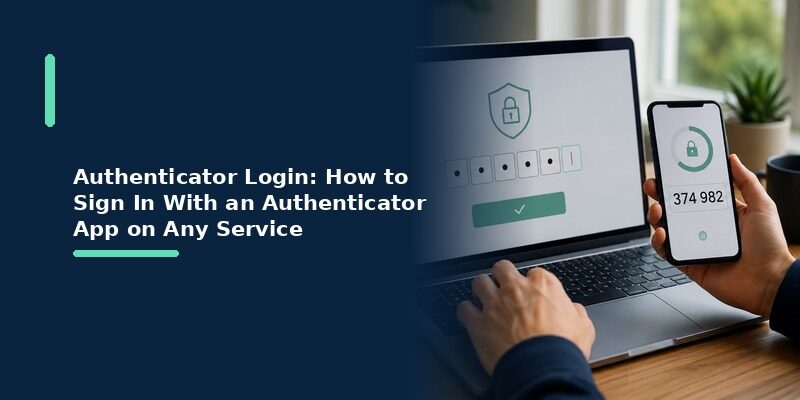
Authenticator login is a secure sign-in process that uses an authenticator app to verify your identity. After entering your password, open your authenticator app, find the correct account, and enter the current six-digit verification code. Some services also allow you to approve a notification or sign in using a passkey.
If your authenticator login is not working, check that you’re using the correct account, your phone’s date and time are accurate, and the verification code has not expired.
In this guide, you’ll learn how to log in with an authenticator app, set up two-factor authentication (2FA), troubleshoot verification problems, and recover access if you’ve lost your phone.
What Is an Authenticator Login? How to Log In With an Authenticator App?
An authenticator login is a sign-in that requires two things: something you know (your password) and something you have (a rotating code from your authenticator app), so a stolen password alone isn’t enough to get in.
If you’ve already connected an authenticator app to your online account, signing in usually takes less than a minute.
Follow these steps:
- Open the website or application you want to access.
- Enter your username and password.
- When prompted for two-factor authentication, select the authenticator app option if available.
- Open your authenticator app on your phone.
- Find the account that matches the website.
- Enter the current six-digit verification code.
- Select Verify, Continue, or Sign in to complete the process.
Most authenticator login codes change every 30 seconds. If a code is about to expire, wait for a new one before entering it.
You don’t need to receive an SMS message when using a standard time-based one-time password (TOTP) authenticator.
Download Authenticator App
Secure your accounts with fast, reliable two-factor authentication. Download now and protect your login in seconds.
Where Do I Find My Six-Digit Authenticator Code?
Open the authenticator app you used when enabling 2FA.
You should see a list of registered accounts, often identified by the website name and your username or email address.
Select the appropriate account and use its current verification code.
Common authenticator apps include:
- Google Authenticator
- Microsoft Authenticator
- LastPass Authenticator
- 1Password
- Other compatible TOTP authenticator apps
If the account doesn’t appear, it may not have been registered in that app, or its authentication data may not have been restored after changing devices.
For more information about app-generated verification codes, see our Google OTP app guide.
How to Set Up Authenticator Login for the First Time
Before you can use authenticator login, you must connect your chosen authenticator app to the account you want to protect.
Installing an authenticator app alone does not automatically enable two-factor authentication on your websites.
Step 1: Download an Authenticator App
Choose a trusted authenticator app that supports your account’s authentication requirements.
Install it from an official app store or the developer’s verified website.
If you’re looking for a compatible TOTP solution, explore how to download an authenticator app.
Step 2: Enable Two-Factor Authentication
Sign in to the website you want to protect.
Open its account settings and look for an option such as:
- Security
- Two-Factor Authentication
- Two-Step Verification
- Multi-Factor Authentication
- Authenticator App
Choose the authenticator app option if the service supports it.
The website may display a QR code or a manual setup key.
Step 3: Scan the QR Code
Open your authenticator app and select the option to add a new account.
Then:
- Choose Scan QR Code.
- Allow camera access if requested.
- Scan the QR code shown on the website.
- Confirm that the account appears in your authenticator app.
- Return to the website.
If your authenticator supports manual entry, you can use the setup key provided by the service instead.
Treat QR codes and setup keys as sensitive information. Anyone who obtains the underlying TOTP secret may be able to generate the same verification codes.
Step 4: Verify and Save Recovery Codes
Enter the verification code generated by your authenticator to confirm the setup.
If the website provides backup or recovery codes, save them in a secure location.
Recovery codes may help you regain access if your phone is lost or your authenticator becomes unavailable.
Once setup is complete, your account can request authenticator verification during future sign-ins.
💡 Discover Helpful Guides: App Authenticator: Complete Guide to 2FA, OTP Codes, Setup & Recovery
How to Log In With Google Using an Authenticator
Entering Your Google Verification Code
After your Google password, choose the authenticator app option if prompted, open your app, and enter the six-digit Google verification code it shows for that account.
If Google shows a different method first, look for a link such as “try another way” to switch to the authenticator app option.
That link is easy to miss but reliably present, so if your preferred method isn’t shown first, it’s almost always available one tap away.
Choosing the App Over a Text Code
Where Google offers both, the authenticator app is the stronger choice for a Google login, since an app code works offline and isn’t exposed to the risks that affect text messages.
This matters most for a primary email account, which is often the recovery route for every other service you use and therefore worth protecting with the strongest available method.
Steam Authenticator Login
Using the Steam Mobile Authenticator
Steam builds its authenticator into the Steam mobile app, so a Steam login prompts for a Steam Guard code generated inside that app rather than a separate authenticator.
This is worth knowing because Steam Guard codes come from the Steam app itself, not from Google Authenticator or a similar third-party tool, which occasionally confuses people expecting all codes in one place.
When Steam Asks for a Code on a New Device
Signing in from an unfamiliar device triggers the Steam Guard step every time, which is the normal behavior of an authenticator login designed to catch sign-ins you didn’t start.
On devices you use regularly, Steam can remember them so the prompt appears less often, striking a balance between security and convenience.
This is why a first sign-in on a new computer asks for a code while later ones often don’t, which is expected behavior rather than an inconsistency.
🗺️ Browse How-To Guides: Best Authenticator App Android: 6 Free Apps Reviewed and Setup Guide
Login.gov and Government Service Sign-Ins
Setting Up an Authenticator With Login.gov
Login.gov lets you add an authenticator app as a sign-in method by scanning its QR code during setup, after which each future sign-in asks for a code the same way as any other service.
During that setup, login.gov also provides backup codes, which are genuinely worth saving given how much a government account can gate access to important services.
Treat these codes as seriously as the account itself, storing them somewhere safe rather than dismissing the screen and moving on.
Why Government Accounts Favor Strong Methods
Because government accounts hold sensitive information, an authenticator-based authenticator login is preferred over weaker methods, and backup codes are especially worth saving for these accounts.
Losing access to a government account can be slower to recover than a typical consumer service, which makes a saved backup method more valuable here than almost anywhere else.
The extra minute spent saving backup codes at setup can save days of recovery effort later, a trade almost always worth making.
Authenticator Login on the Web vs a Phone
Signing Into a Website
On a computer, you enter your password in the browser and then type the code from your phone’s app, since the app itself usually lives on your phone even when the login happens on a desktop.
This split, password on the computer and code from the phone, is the most common setup and works fine for the vast majority of people.
It also keeps the two factors on separate devices, which is a subtle security benefit compared with having both on the same machine.
Using a Desktop or Browser Authenticator
A desktop app or browser extension can supply the code on the same computer, removing the need to reach for your phone during a web authenticator login, though the phone remains a common backup.
This suits people who spend most of their day at a computer and would rather not pick up their phone dozens of times, though it does place the code on the same device as the password, which is a small trade-off worth being aware of.
For most everyday accounts this trade-off is perfectly reasonable, though for the most sensitive logins some people deliberately keep the authenticator login split across two devices.
💡 Discover Helpful Guides: Authenticator App Desktop: Safe Ways to Use 2FA on Windows and Laptops
Authenticator Login Across Popular Services at a Glance
The exact prompt differs by service, but every authenticator login follows the same password-then-code pattern. This reference shows where the code comes from on the services people ask about most.
| Service | Where the Code Comes From | Notes |
|---|---|---|
| Any standard authenticator app | Offers app or text; app is stronger | |
| Steam | The Steam mobile app (Steam Guard) | Built in, not a third-party app |
| Login.gov | Any standard authenticator app | Save backup codes at setup |
| Work / Microsoft 365 | Often Microsoft Authenticator | May use push approval instead of a code |
Whatever the service, the underlying step is identical: prove you hold the device that generates the current code.
This consistency is what makes an authenticator login easy to get used to: learn it once, and it works the same way whether you’re signing into a game, an email account, or a government portal.
Logging In With a Token or Passwordless Method

Login With a Token
Some systems refer to the six-digit code as a token, and logging in with a token simply means entering that time-based code the same way as any other authenticator code.
The terminology varies between services, but a token, a one-time code, and a verification code all describe the same rotating number in this context.
How Passwordless Fits In
A growing number of services offer passwordless options like passkeys, though an authenticator app remains the fallback for the many accounts that still rely on a password plus a code.
Even as passwordless methods spread, an authenticator app is likely to remain useful for years, since not every service supports the newer options yet.
For now, the practical reality is that most people still complete an authenticator login the traditional way, entering a password followed by a code, across the majority of their accounts.
💡 Discover Helpful Guides: Why Is My Authenticator App Not Opening? 7 Fixes That Actually Work
Authenticator Login vs Text Message Codes
Why the App Is Generally Stronger
An authenticator-based authenticator login doesn’t rely on a phone number, which means it can’t be intercepted through SIM-swapping the way a text message code sometimes can.
When Text Codes Still Have a Role
Text codes remain far better than no second factor at all, and some services only offer them, so they’re a reasonable fallback even if an app is the stronger primary choice.
Where a service offers both, though, moving your authenticator login to the app keeps you on the more resilient of the two methods.
Setting Up an Authenticator Login for the First Time
Finding the Two-Factor Setting
Open the account’s security or two-factor authentication settings, then choose the authenticator app option rather than text or email to reveal a QR code.
Scanning and Confirming
Scan that code with your app, then enter the six digits it generates to confirm the connection, and the authenticator login is active from the next sign-in onward.
Confirming with a code during setup, rather than skipping it, ensures the connection genuinely works before you rely on it for real.
Saving Your Backup Codes
Most services show a set of backup codes right after setup; saving them somewhere safe at this exact moment is far easier than trying to recover access later without them.
Common Authenticator Login Problems
| Symptom | Likely Cause | Fix |
|---|---|---|
| Code is rejected | Phone clock out of sync | Turn on automatic date and time, then retry |
| No code showing | App frozen or account missing | Restart the app or re-add the account |
| Can’t reach the app | Phone lost or unavailable | Use backup codes or account recovery |
Code Rejected Every Time
A device clock even slightly out of sync is the most common cause, since the code depends on matching time between your app and the server; enabling automatic date and time resolves it.
This is especially common after traveling across time zones or manually changing the clock, which is exactly when a device’s time is most likely to drift out of alignment.
Can’t Access the Authenticator App
If your phone is unavailable, backup codes saved at setup let you complete the authenticator login without the app, and each service’s recovery process is the fallback when no codes exist.
This is the single strongest argument for saving backup codes in advance, since they turn a lost phone from a genuine emergency into a minor inconvenience.
📘 Find the Right Guide: How to Download TCS Authenticator App on iPhone: Step-by-Step Guide
How to Keep Authenticator Logins Reliable
Save Backup Codes
Storing each account’s backup codes somewhere off your phone means a lost or broken device never fully locks you out of an important account.
A printed copy in a drawer or an entry in a password manager both work well, as long as the codes live somewhere other than the single device you’d lose.
Some people keep a copy in two separate places for extra safety, since backup codes are only useful if you can actually find them when you need them.
Keep the App Synced or Backed Up
Enabling sync or a regular export means switching phones doesn’t interrupt your authenticator login for any account, since the entries move with you automatically.
This is worth setting up the day you first install an app, rather than scrambling to arrange it the night before a planned phone upgrade.
A little preparation early removes almost all of the stress people associate with moving their accounts to a new device later.
Can Authenticator App Simplify Your Logins?
Authenticator App keeps codes for every service in one synced, clearly labeled list, so each authenticator login, from Google to Steam to a government portal, follows the same simple routine on whichever device you have handy.
Because the same accounts stay available across your phone and a browser session, you’re rarely caught without a way to complete a sign-in when it matters.
That flexibility is especially valuable during the moments people find most stressful, like signing into an important account from an unfamiliar computer while traveling.
Having your codes reliably accessible in those exact moments is often what separates a smooth trip from a frustrating lockout far from home.
Frequently Asked Questions About Authenticator Logins
Do I need internet to complete an authenticator login?
The app generates codes offline, so it works without a connection, though the service you’re signing into naturally needs you to be online to accept the code.
This offline capability is a genuine advantage over text-message codes, which can be delayed or fail entirely in areas with poor signal.
Travelers in particular notice this difference, since an app keeps working on a plane or abroad where an expected text code might never arrive.
What if my code is always wrong?
This is almost always a clock issue. Turning on automatic date and time on your phone syncs it precisely and fixes the rejected codes in the large majority of cases.
If it persists after that, confirm you’re reading the code for the correct account, since a mismatched entry looks identical to a genuinely wrong code.
Can I use one authenticator app for all my logins?
Yes. A single app can hold codes for many accounts at once, so one app can handle your Google, Steam, work, and government logins together.
Keeping them in one place also makes it easier to see at a glance which of your accounts are protected and which still need setting up.
That overview is genuinely useful for anyone gradually rolling out two-factor across a long list of accounts over time.
What happens to my logins if I lose my phone?
Backup codes or a synced backup restore access; without either, each account’s own recovery process is the way back in, which is why setting up a backup early matters.
Keeping the old phone until every account is confirmed working on a new one is also a simple way to avoid ever facing this situation unprepared.
Is an authenticator login the same as MFA?
An authenticator login is one common form of multi-factor authentication, where the app supplies the second factor alongside your password.
Other forms of MFA include hardware keys and biometric checks, but an authenticator app is the most widely available and works across nearly every service.
Its broad compatibility is a big part of why an authenticator app is the most common entry point into multi-factor security for everyday users.
💡 Discover Helpful Guides: Authenticator App Is Not Showing Code: How to Fix Missing Verification Codes
Final Thoughts
An authenticator login follows the same reliable pattern everywhere: password first, then a rotating code from your app, giving your accounts a second layer that a stolen password alone can’t get past.
Once the routine is familiar on one service, it carries over to every other, and keeping backup codes or a synced backup ready ensures a lost phone never turns a routine sign-in into a lockout.
Want every login to follow one simple, consistent routine? Download and keep all your codes in one place.
Download Authenticator App
Secure your accounts with fast, reliable two-factor authentication. Download now and protect your login in seconds.
