
Best Backup Methods for 2FA Codes: 6 Safe Options
Published November 9, 2026
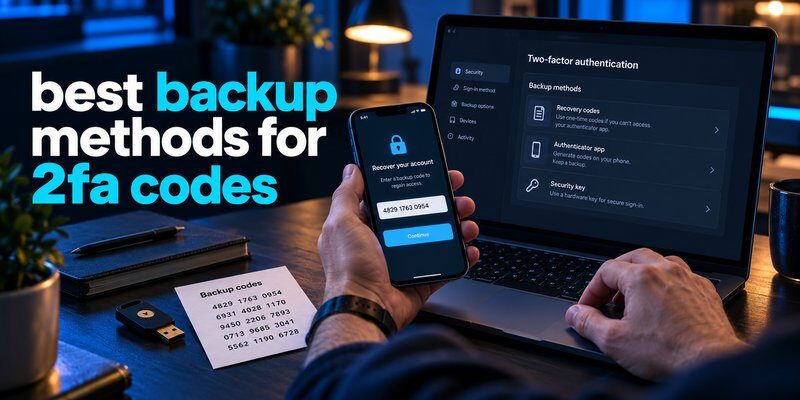
The best backup methods for 2fa codes are secure cloud synchronization, encrypted offline backups, recovery codes, and a second trusted authentication device. For most users, combining supported cloud backup with separately stored recovery codes provides a practical balance of security, convenience, and account recovery.
If you lose your phone, replace your device, or accidentally delete your authenticator, a reliable backup can prevent serious account access problems.
The challenge is choosing a method that protects your authentication information without exposing sensitive credentials.
This guide compares the best backup methods for 2fa codes in 2026, including free options, their security benefits, limitations, and recommended use cases.
Quick recommendation:
- Best for beginners: Supported cloud synchronization.
- Best for privacy: Encrypted offline backup.
- Best for emergency recovery: Service-issued recovery codes.
- Best for device loss: A second independently registered authenticator.
- Best overall: Combine two independent recovery methods.
1. Why Do You Need to Back Up 2FA Codes?
Two-factor authentication (2FA) adds another layer of security by requiring additional verification beyond your password.
Many authentication apps generate time-based one-time passwords (TOTP), usually displayed as six-digit codes.
According to RFC 6238, published by the Internet Engineering Task Force (IETF), the recommended default time interval for generating TOTP codes is 30 seconds.
These codes are created using a shared secret and the current time. When the interval changes, the application generates another code.
However, losing access to that shared secret can create a significant problem.
What happens if you lose your authenticator?
Imagine your phone stops working unexpectedly.
You remember your email password, but your email provider requests a code from an authentication application installed on the missing phone.
Without an alternative verification method, you may be unable to sign in.
This situation can affect:
- Email accounts: Gmail, Outlook, and other providers.
- Financial accounts: Banking and cryptocurrency services.
- Social media: Facebook, Instagram, and other platforms.
- Business applications: Cloud storage and workplace accounts.
- Developer accounts: Hosting platforms and code repositories.
Account recovery may require identity verification, support assistance, or previously generated recovery codes.
Some services offer limited recovery options.
Learning about the best backup methods for 2fa codes before a device failure is therefore an important part of digital security.
What should a 2FA backup contain?
A proper backup should preserve either the authentication secret needed to generate future codes or an alternative way to recover the protected account.
Saving a screenshot of a temporary verification code is not a valid long-term backup.
Because TOTP codes expire quickly, a saved six-digit number will not work indefinitely.
The best backup methods for 2fa codes focus on preserving authentication credentials securely or establishing an independent recovery method.
Download Authenticator App
Secure your accounts with fast, reliable two-factor authentication. Download now and protect your login in seconds.
2. 6 Best Backup Methods for 2FA Codes in 2026
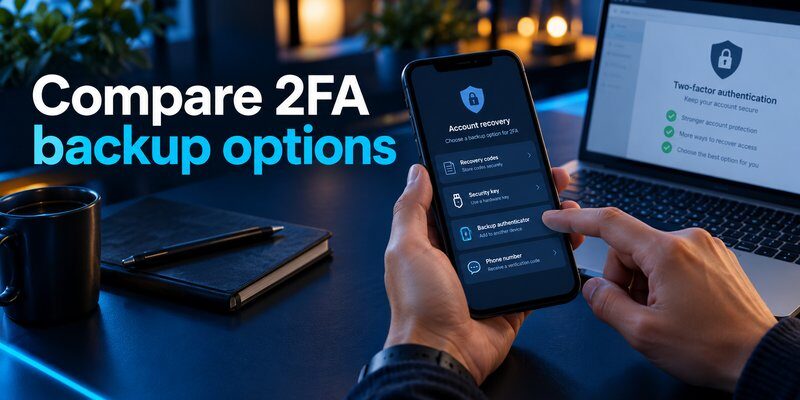
There are several ways to protect authentication credentials, but no single solution is ideal for everyone.
The following six options represent the top backup methods for 2fa codes for different security needs.
Method 1: Cloud synchronization
Best for: Beginners and everyday users
Cloud synchronization allows supported authenticator applications to make authentication credentials available across authorized devices.
For example, Google Authenticator supports synchronization through a signed-in Google Account.
When you install the application on another device and sign in with the same account, synchronized codes can become available.
Advantages:
- Convenient when replacing your phone.
- Less manual account setup.
- May synchronize changes automatically.
- Usually available without an additional backup subscription.
Limitations:
- Requires access to the synchronization account.
- Features vary between applications.
- A compromised cloud account may increase exposure risk.
- Not every authentication credential is eligible for restoration.
Google Account Help states that Google Authenticator codes synchronized with a Google Account are encrypted in transit and at rest.
Recommendation: Cloud synchronization is one of the best backup methods for 2fa codes when you prioritize convenience and can secure your synchronization account.
Method 2: Encrypted offline backup
Best for: Privacy-focused and advanced users
An encrypted offline backup stores supported authenticator export data in a protected file or device without relying entirely on an online synchronization service.
Some authentication applications offer encrypted export functionality.
To use this method:
- Check whether your authenticator supports exporting account secrets.
- Export the credentials using its official functionality.
- Encrypt the export using a trustworthy encryption tool if necessary.
- Save the protected file on secure offline storage.
- Keep the decryption password separately.
- Verify that the exported format can actually be restored.
Advantages:
- Greater control over storage.
- Reduced dependence on cloud availability.
- Useful for long-term recovery planning.
- Can provide an independent backup copy.
Limitations:
- Requires careful handling.
- Backup files can become outdated.
- Losing the encryption password may make the backup unusable.
- Some applications do not support portable exports.
Important: Never store unencrypted authentication setup keys in ordinary text files.
An exported secret is sensitive because it may allow someone to reproduce your authentication codes.
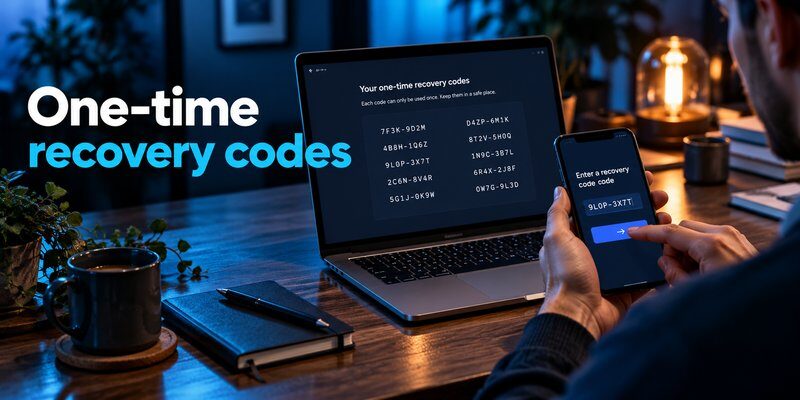
Method 3: Recovery codes
Best for: Emergency account recovery
Recovery codes are among the simplest safeguards against losing access to an authenticator.
Many services provide one-time backup codes when users enable two-factor authentication.
For example, Google Account Help explains that users can generate 8-digit backup codes, with each code usable only once.
Unlike a backup of an authentication secret, a recovery code allows account access through a separate verification process.
To protect these codes:
- Sign in to your service’s account settings.
- Open the security or two-factor authentication section.
- Locate the backup or recovery code option.
- Generate the codes.
- Store them securely outside your primary phone.
The NIST Digital Identity Guidelines, SP 800-63B, recognize securely saved recovery codes as an account recovery method and describe offline storage as an appropriate approach.
Advantages:
- Frequently free.
- Independent of authenticator synchronization.
- Useful when your phone is lost.
- Does not require restoring the original application.
Limitations:
- Codes may be single-use.
- They must be kept confidential.
- Availability differs by service.
- They do not automatically restore all authenticator entries.
Recovery codes are an essential companion to the best backup methods for 2fa codes, even when cloud backup is already enabled.
Method 4: Manual QR code transfer
Best for: Switching phones while your old device still works
Some authenticators provide a secure transfer process using QR codes.
Google Authenticator, for example, supports exporting selected authentication accounts from one device and importing them on another.
This method is particularly useful when you prefer not to synchronize your codes through a cloud account.
Advantages:
- Direct transfer between compatible devices.
- Does not require storing an export in a cloud account.
- Can transfer multiple supported accounts.
- Convenient during planned phone upgrades.
Limitations:
- Normally requires access to the old device.
- Transfer QR codes contain sensitive information.
- Not suitable as the only emergency recovery strategy.
Never photograph, publish, or send authentication transfer QR codes through insecure messaging channels.
Method 5: Register a second trusted device
Best for: People managing important accounts
A second trusted device can provide continued authentication access when your primary device becomes unavailable.
Depending on the service, you may be able to register another authenticator independently or use an approved synchronization feature.
For example, a personal phone can serve as the primary authenticator while a secured backup device remains available at home.
Advantages:
- Reduces dependence on one phone.
- Provides immediate alternative access.
- Can work without restoring a backup file.
- Useful during device repairs or travel.
Limitations:
- Not every service permits multiple registered authenticators.
- The backup device must remain protected and updated.
- Both devices can be compromised if managed carelessly.
This is one of the best backup methods for 2fa codes for users who want fast recovery without depending entirely on cloud storage.
Method 6: Register a hardware security key
Best for: High-value accounts and stronger authentication
A hardware security key is not a backup copy of TOTP codes. Instead, it can provide an independent authentication method for services that support FIDO2 or related security standards.
This distinction matters.
If you lose the device containing your TOTP codes, an already registered hardware security key may still let you sign in.
NIST SP 800-63B explains that manually entered OTP authentication is not phishing-resistant, while appropriately implemented cryptographic authentication can provide phishing resistance.
Advantages:
- Provides an alternative to TOTP authentication.
- Can offer phishing-resistant authentication.
- Does not depend on recovering original TOTP secrets.
- Useful for email and other critical accounts.
Limitations:
- Requires compatible services.
- Usually involves purchasing hardware.
- Must be registered before losing access.
- Does not restore codes stored in another application.
For high-value accounts, consider registering two compatible security keys and storing the spare securely.
3. How to Back Up 2FA Codes with Google Authenticator
Google Authenticator is a widely used option for generating time-based verification codes.
It supports Google Account synchronization and manual account transfers.
Understanding these features makes it easier to evaluate the best backup methods for 2fa codes for Android and iOS devices.
Option 1: Enable Google Account synchronization
Follow these steps:
- Open Google Authenticator.
- Check the profile icon or account information.
- Sign in with your Google Account if synchronization is desired.
- Confirm that your verification codes are associated with the correct account.
- Install Google Authenticator on your second device.
- Sign in with the same Google Account.
- Verify that the expected authentication entries appear.
According to Google Account Help, supported codes synchronize when Google Authenticator is used with a signed-in Google Account.
Important: Google Authenticator can also operate without an account. Codes stored only locally are not automatically recovered through Google Account synchronization.
For more information, read google authenticator.
Option 2: Transfer codes between devices
To transfer authentication credentials manually:
On your old phone:
- Open Google Authenticator.
- Open the menu and choose the transfer option.
- Select Export accounts.
- Select the authentication accounts.
- Generate a transfer QR code.
On your new phone:
- Install Google Authenticator.
- Select Import accounts.
- Scan the QR code from the old phone.
- Confirm the transferred entries.
- Test your important accounts.
Keep your original phone until every necessary account works correctly.
If your original device is unavailable, review google authenticator lost for recovery considerations.
For users researching google authenticator for mac, remember that Google’s official Authenticator synchronization and transfer instructions center on its mobile application. Desktop tools should not be assumed to restore mobile codes automatically.
4. How to Back Up 2FA Codes with Microsoft Authenticator
Microsoft Authenticator offers backup features for eligible personal and third-party one-time-password accounts.
However, its backup process differs between Android and iPhone.
Microsoft Authenticator backup on Android
As of November 2026, Microsoft’s documented Android process uses a personal Microsoft account for cloud backup.
- Open Microsoft Authenticator.
- Go to Settings.
- Enable Cloud Backup.
- Select the Microsoft personal account used for recovery.
- Confirm that the backup is configured.
Microsoft has also documented a planned transition to Google One backup starting in January 2027, so users should check current instructions when performing future migrations.
For details, read microsoft authenticator backup.
Microsoft Authenticator backup on iPhone
For iOS devices, Microsoft’s guidance requires enabling the relevant Apple services:
- Enable iCloud Drive.
- Enable iCloud Keychain.
- Enable iCloud Backup.
- Locate Microsoft Authenticator under applications saved to iCloud.
- Allow backup for Microsoft Authenticator.
Important backup limitations
Microsoft Authenticator backup cannot be restored directly between Android and iOS.
Microsoft Support states that an iPhone backup requires iOS for restoration, while an Android backup requires Android.
Additionally, work and school account credentials are not fully preserved in the backup.
Their names may appear after restoration, but users must generally sign in and register the accounts again.
Some passwordless credentials also require reconfiguration.
These restrictions are important when comparing the best backup methods for 2fa codes for workplace and personal accounts.
For further recovery guidance, visit microsoft authenticator recovery.
5. How to Back Up 2FA Codes on iPhone and Apple Devices
Apple users have a built-in option for managing verification codes through the Passwords app and iCloud Keychain.
Apple Support explains that the Passwords app can store passwords, passkeys, and verification codes, while iCloud Keychain synchronizes supported credentials across approved Apple devices.
Enable iCloud Keychain synchronization
On a compatible iPhone:
- Open Settings.
- Tap your Apple Account name.
- Select iCloud.
- Open Passwords.
- Enable Sync this iPhone.
- Confirm that your Apple Account is protected with two-factor authentication.
Next, open the Passwords app and check that your supported verification codes are saved.
On another approved Apple device, verify that the expected credentials become available.
When is this method useful?
Apple’s built-in synchronization is especially convenient when you use an iPhone, iPad, and Mac together.
It avoids repeated manual setup for credentials that are actually stored in the Apple Passwords system.
However, iCloud Keychain does not automatically import authentication secrets stored in unrelated third-party apps.
If you use a separate authenticator, review its own backup and restore features.
Learn more through the internal guide on apple authenticator.
What about third-party apps?
A dedicated Authenticator app can help you generate verification codes for compatible online services.
Begamob Global Limited also offers an iOS authenticator for managing two-factor authentication.
You can Download authenticator app to explore its supported authentication features.
Before relying on any third-party application for recovery, confirm that your installed version supports the specific backup or transfer method you need.
6. Which Backup Method Should You Choose?
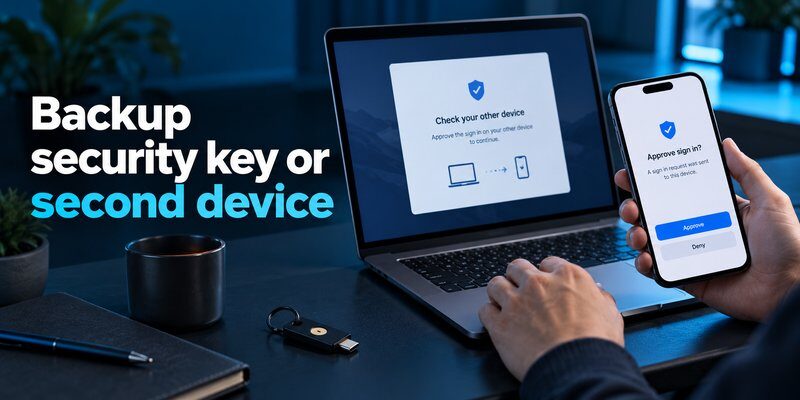
When comparing the best backup methods for 2fa codes, consider convenience, security, price, and how quickly you need to recover an account.
There is no universal winner.
Backup method comparison
| Method | Cost | Main advantage | Key limitation |
|---|---|---|---|
| Cloud synchronization | Usually free | Convenient restoration | Depends on synchronization account |
| Encrypted offline backup | Free or paid | Greater storage control | Requires manual management |
| Recovery codes | Usually free | Independent emergency access | Service-specific, often single-use |
| QR code transfer | Usually free | Direct device migration | Usually needs old device |
| Second trusted device | Existing or extra device | Immediate alternative access | Must be supported and secured |
| Hardware security key | Paid | Strong alternative authentication | Does not back up TOTP secrets |
Best backup methods for different users
For beginners: Use supported cloud synchronization plus separately stored recovery codes. This minimizes maintenance while preserving another recovery route.
For privacy-focused users: Choose encrypted offline exports if your authenticator supports them. Protect the decryption password and test restoration.
For business users: Follow your organization’s authentication policy and register approved alternative methods. Some workplace credentials require administrator-managed recovery.
For frequent travelers: Keep an independent authentication method available in case your primary phone is lost or damaged.
For high-risk accounts: Combine a supported authenticator with independently registered phishing-resistant authentication where available.
If your question is which backup methods for 2fa codes should i choose, start with the method supported by your existing authenticator and add a recovery method that does not depend on the same device.
Are free backup methods good enough?
Yes, several effective options do not require a paid subscription.
Cloud synchronization, manual transfer, and recovery codes are commonly available at no additional charge, although availability and storage requirements vary.
When comparing the best backup methods for 2fa codes free, prioritize security and restoration support over the number of features.
A free, properly configured backup is more useful than a paid service that you have never tested.
7. How to Create a Secure 2FA Backup Strategy
Choosing a backup method is only the beginning.
A strong strategy should protect authentication secrets, provide emergency access, and remain usable when a device is unavailable.
The following process combines the best backup methods for 2fa codes into a practical routine.
Step 1: Identify critical accounts
Create an inventory of services protected by two-factor authentication.
Prioritize accounts used for:
- Primary email and account recovery.
- Banking and financial services.
- Cloud storage.
- Work and business administration.
- Password managers.
- Social media and communication.
You do not need to record passwords or authentication secrets in this inventory. Record the service name and available recovery methods.
Step 2: Configure supported backup
Review your authenticator’s settings.
Enable a documented synchronization or backup feature where appropriate.
If your application supports only manual exports, create a protected offline backup before switching devices.
Avoid assuming that an ordinary phone backup automatically includes every authenticator secret.
Step 3: Save independent recovery codes
Generate recovery codes for services that provide them.
Store these codes in an encrypted vault or secure physical location.
Do not keep your only recovery copy on the same phone as your authenticator.
Step 4: Register another authentication method
Where supported, add a second trusted authenticator or hardware security key.
This gives you another way to access important services without restoring the original authentication application.
Step 5: Test recovery before an emergency
Install or configure your authenticator on the replacement device using its supported process.
Verify that important accounts work.
Keep the old device until successful migration is confirmed.
For additional instructions, read authenticator app restore from backup.
Step 6: Review your backups regularly
Recheck recovery methods whenever you:
- Add important accounts.
- Change your phone.
- Replace your authenticator.
- Update account security settings.
- Regenerate recovery codes.
- Suspect unauthorized access.
The best backup methods for 2fa codes remain useful only when their credentials and recovery arrangements are current.
8. Common Backup Mistakes and Frequently Asked Questions
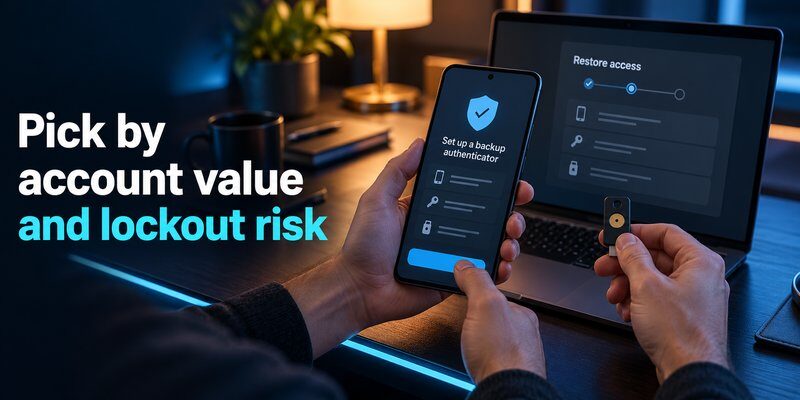
Even reliable backup methods can fail when they are configured incorrectly.
Understanding common mistakes helps reduce the risk of account lockouts.
Common 2FA backup mistakes
1. Saving screenshots of temporary codes
A screenshot of a six-digit TOTP code does not preserve the underlying secret. The code generally expires after its short validity window.
2. Storing authentication secrets without encryption
Exported secrets and authentication setup QR codes may allow someone else to generate valid verification codes.
Always handle these materials as sensitive credentials.
3. Relying on one device
If both your authenticator and recovery codes are accessible only through one phone, losing that phone can eliminate both recovery options.
4. Assuming all accounts support cloud restoration
Some applications or account types cannot restore every credential automatically.
5. Removing the original authenticator too early
Never delete your last working authentication method before verifying that the replacement works.
6. Forgetting to protect the backup account
A cloud backup account should have a strong password and independent recovery options.
Frequently Asked Questions
What are the best backup methods for 2FA codes in 2026?
The best backup methods for 2fa codes 2026 include supported cloud synchronization, encrypted offline exports, recovery codes, manual device transfers, and independently registered backup authenticators.
The strongest practical setup usually combines more than one method.
Is cloud backup safer than offline backup?
Neither is automatically safer in every situation.
Cloud backup can reduce the chance of losing credentials with a damaged device, but it introduces dependence on the security of the synchronization account.
Offline backup reduces cloud dependence but requires careful physical protection, encryption, and maintenance.
Choose based on your threat model and recovery needs.
Can I recover 2FA codes after losing my phone?
Possibly.
If your authenticator previously synchronized eligible secrets, you may be able to restore them on another device.
Otherwise, recovery codes or alternative authentication methods may let you regain account access.
Without any supported backup or alternative, you may need to contact individual services for account recovery.
Can I use the same 2FA codes on two phones?
Some authenticators support synchronization across devices. Other services allow multiple independently registered authentication methods.
Always follow the account provider’s enrollment process.
Do I need to pay for a secure backup?
Not necessarily.
Many authentication applications support free synchronization or device transfers, and numerous online services provide recovery codes without an extra charge.
Hardware security keys and certain premium backup features may involve costs.
How often should I update my 2FA backups?
Review them whenever you add accounts, change authentication settings, or replace devices.
For manually exported credentials, create a fresh backup when the account collection changes.
For cloud synchronization, periodically verify that your newest entries appear on another approved device.
Can backup codes replace an authenticator?
Recovery codes may allow emergency sign-in, but they are not intended to replace everyday authentication.
Some are single-use and need regeneration after being consumed.
Use recovery codes to restore account access, then configure a suitable ongoing authentication method.
Final Thoughts
The best backup methods for 2fa codes combine reliable restoration with protection against unauthorized access.
For everyday users, supported cloud synchronization and securely stored recovery codes offer a convenient starting point. Privacy-focused users may prefer encrypted offline backups, while people protecting critical accounts should consider a second independent authentication method.
The most important rule is to verify your recovery options before you need them.
If you are setting up two-factor authentication on your iPhone, explore the Authenticator App by Begamob Global Limited and check its current backup and transfer capabilities as part of your security setup.
Protect your accounts today with a backup strategy that remains useful even when your primary device is unavailable.
Download Authenticator App
Secure your accounts with fast, reliable two-factor authentication. Download now and protect your login in seconds.
