
Coinbase Two Factor Authentication: Setup & Recovery Guide
Published September 9, 2026 · Updated October 21, 2026
Coinbase two factor authentication helps protect your cryptocurrency account by requiring an additional verification step when signing in. Coinbase supports several 2FA methods, including authenticator apps, passkeys, security keys, push notifications, and SMS.
But which option should you use, and what happens if you lose access to your verification device? This guide explains how to set up Coinbase 2FA, connect an authenticator app, change authentication methods, troubleshoot verification errors, and recover account access when your phone is lost.
Coinbase 2FA Methods: Which Should You Use?
Coinbase calls its MFA feature 2-step verification.
The important question is not whether Coinbase supports 2FA—it requires it—but which authentication methods you should configure.
| Coinbase method | Security/convenience | Best use |
|---|---|---|
| Security key | Very strong; phishing-resistant when using FIDO2/WebAuthn | High-value and high-risk accounts |
| Passkey | Strong and convenient | Modern passwordless/phishing-resistant sign-in |
| Authenticator app | Strong practical option | Users wanting offline TOTP codes |
| Push notification | Convenient | Coinbase mobile-app users |
| SMS | Coinbase’s least secure option | Fallback where stronger options are unavailable |
Security key
A compatible hardware security key can provide strong phishing-resistant authentication.
Coinbase supports compatible WebAuthn/FIDO2 security keys and recommends security keys for users seeking its strongest authentication setup.
Coinbase’s current recommended configurations include using two security keys, with one available as a backup.
This helps solve a major hardware-key problem: losing your only physical key.
Passkey
Passkeys use public-key cryptography instead of requiring you to manually type a reusable password or temporary OTP into every authentication flow.
Coinbase currently recommends configurations including:
Passkey + security key
and:
Passkey + push notification
for a combination of strong authentication and recovery flexibility.
Authenticator app
A TOTP authenticator generates temporary verification codes.
Coinbase supports compatible authenticator apps including:
A TOTP authenticator is a strong practical upgrade from SMS because the code is generated by the authenticator rather than delivered through your phone number.
Download Authenticator App
Secure your accounts with fast, reliable two-factor authentication. Download now and protect your login in seconds.
Push notification
Coinbase can send authentication requests through the Coinbase mobile app.
This is convenient, but never approve a Coinbase push notification that you did not initiate.
An unexpected request may indicate that someone else is attempting to access your account.
SMS
SMS sends a verification code to your registered phone number.
Coinbase currently describes SMS as its least secure 2-step verification option and recommends adding stronger authentication methods.
The main concern is that SMS security depends partly on control of your phone number, creating exposure to phone-number porting or SIM-swap attacks.
💡 Discover Helpful Guides:
Best Authenticator App for Android: Compare Local Vaults and Sync
How to Set Up Coinbase Two Factor Authentication
Because Coinbase already requires 2-step verification, setup often means adding or upgrading to a stronger method.
Step 1: Sign in directly to Coinbase
Open Coinbase directly rather than following an unexpected account-security link from an email, text message, social post, or chat.
This reduces phishing risk.
Step 2: Open 2-Step Verification settings
Go to your Coinbase security settings and open:
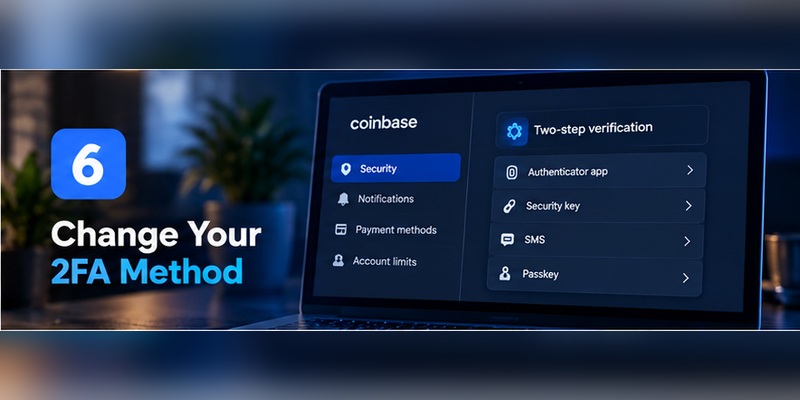
Security → 2-Step Verification
Review which authentication methods are currently active.
Step 3: Add the new method first
Under the available methods, select the authentication method you want to configure.
Depending on your account and Coinbase’s current interface, this can include:
- Security key
- Passkey
- Authenticator app
- Push notification
- SMS
Follow Coinbase’s verification prompts.
Coinbase may require your existing authentication method before allowing security changes.
Step 4: Complete enrollment
Finish the setup process for the new authentication method.
Do not remove your current working method midway through enrollment.
Step 5: Test the new method
Confirm that the new authentication method works.
A good rule is:
Add → verify → test → then review old methods.
Not:
Delete old method → hope new method works.
Step 6: Add a secure backup method
Coinbase recommends configuring multiple authentication methods.
This can prevent a lost phone, damaged security key, or unavailable authenticator from becoming an immediate account lockout.

How to Set Up an Authenticator App for Coinbase
If you want traditional TOTP-based Coinbase two factor authentication, an authenticator app is a practical option.
Step 1: Install a trusted authenticator
Choose a reputable TOTP authenticator.
Coinbase documents support for authenticator applications including Google Authenticator, Microsoft Authenticator, and Duo.
Verify the publisher before installing an application.
There are many unrelated apps with generic names such as “Authenticator.”
Step 2: Open Coinbase security settings
Sign in to Coinbase through a web browser.
Open:
Security → 2-Step Verification
Find Authenticator app under the available methods and choose Set up.
Step 3: Start authenticator enrollment
Coinbase will provide the information needed to connect your authenticator.
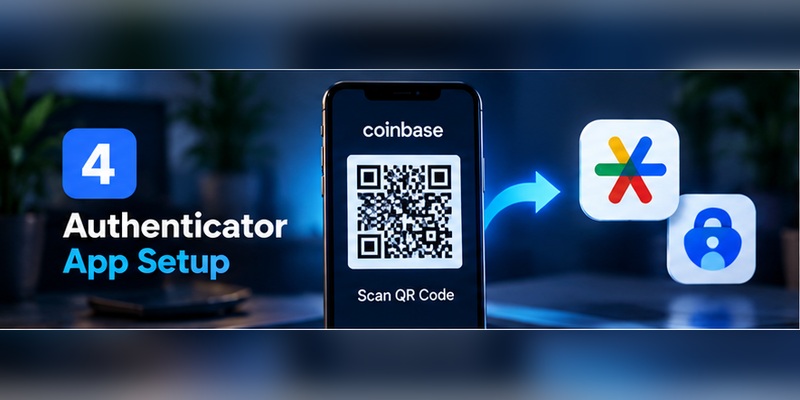
This commonly involves a QR code representing the TOTP enrollment secret.
Step 4: Scan the Coinbase QR code
Open your authenticator.
Choose the option to add an account and scan a QR code.
Scan the QR generated inside your authenticated Coinbase security settings.
Do not scan a “Coinbase authenticator QR code” found through Google Images, social media, forums, or another website.
The legitimate setup QR is generated specifically for your account enrollment.
Step 5: Enter the generated code
After scanning, your authenticator should begin generating a temporary Coinbase code.
Enter the current code into Coinbase when requested.
If it is close to expiring, wait for a fresh code.
Step 6: Confirm setup
Do not assume that scanning the QR completed the process.
Wait until Coinbase confirms that the authentication method was successfully configured.
Protect the QR code
Treat the authenticator setup QR as sensitive.
It contains enrollment information that can allow a compatible authenticator to generate future codes.
Do not:
- Post it online
- Send it to another person
- Give it to “Coinbase Support”
- Upload it to an online QR decoder
- Keep unnecessary screenshots
A current six-digit TOTP expires quickly.
The underlying setup secret is much more persistent.
How to Change Coinbase Two Factor Authentication
Changing Coinbase 2FA should be done carefully.
If you still have account access:
- Sign in to Coinbase.
- Open Settings → Security.
- Open 2-Step Verification.
- Review your currently active methods.
- Add the replacement method.
- Complete its verification.
- Test the replacement.
- Only then decide whether an older method should be disabled.
Do not remove your only functioning authentication method first.
Moving Google Authenticator or Microsoft Authenticator to a new phone
If your authenticator itself supports a secure transfer or synchronization process, complete that migration before wiping the old phone.
Then test Coinbase on the new device.
If necessary, you can also reconfigure the authenticator method from your Coinbase security settings while you still have account access.
The safest sequence is:
Keep old phone → prepare new authenticator → verify Coinbase login → preserve recovery method → erase old phone last.
Coinbase 2FA Not Working
Troubleshoot according to the authentication method that is failing.
Coinbase authenticator code not working
If Coinbase rejects your TOTP code:
- Make sure you selected the correct Coinbase entry.
- Wait for a fresh code.
- Enter it promptly.
- Check that your phone’s date, time, and time zone are correct.
- Make sure the login screen is asking for an authenticator code rather than SMS, recovery, or another verification method.
Do not immediately delete the Coinbase entry from your authenticator.
Deleting the token does not fix the server-side enrollment and may remove your only working copy of the TOTP secret.
If another Coinbase authentication method is available, select Try another way.
Coinbase SMS code not arriving
Coinbase notes that SMS delivery can fail because of mobile-network issues.
Check:
- Cellular reception
- Whether your SMS inbox can receive messages
- Whether your phone number is still correct
- Whether your carrier is blocking messages
If you have another configured authentication method, use that instead.
An authenticator app does not require SMS coverage to generate an already-configured TOTP code.
Coinbase push notification not appearing
Check that:
- You are signed in to the Coinbase mobile app.
- Notifications are enabled.
- The phone has internet access.
- The Coinbase app is updated.
If the request still does not appear, use another previously configured authentication method.
Coinbase security key not working
Check:
- The key is the one registered with Coinbase.
- Your browser/device supports the key.
- USB/NFC connectivity is working.
- The security key is inserted or presented correctly.
If you registered a second security key, use the backup.
Passkey not working
Try the device or password manager where the Coinbase passkey was originally saved.
If another Coinbase authentication method is configured, select the alternative method rather than repeatedly changing security settings.
📖 Read More Guides: Best iOS Authenticator App: Fit the Apple Workflow You Actually Use
Lost Your Phone or Coinbase Authenticator?
The recovery path depends on what authentication methods you configured before losing the device.

A lost phone does not have to become a lost Coinbase account.
The outcome depends largely on how well you prepared your coinbase two factor authentication recovery options.
If you still have another authentication method
At the verification prompt, select:
Try another way
Then use:
- Passkey
- Security key
- Another enabled method
- Supported backup/recovery option
Coinbase specifically recommends multiple 2FA methods for this reason.
If SMS was your only factor
If you lose the phone or phone number and SMS is your only method, Coinbase directs users through account recovery.
If the authenticator was your only method
The same principle applies.
Try restoring the authenticator through its supported backup mechanism first.
If that is impossible and no other Coinbase factor is available, use Coinbase’s recovery process.
Coinbase backup code
Coinbase documentation also describes a backup code as one possible recovery method in its phone-number recovery guidance. Each backup code can be used only once.
If your account provides this option, store the code somewhere separate from the device you are trying to recover.
New phone and new number
This is the highest-risk migration scenario because both your authenticator and SMS route may change at once.
If possible:
Move your security before replacing access, not after.
Before wiping the old phone:
- Confirm a passkey or security key works.
- Restore or migrate your authenticator.
- Update the phone number.
- Test Coinbase on another device.
- Verify your recovery options.
That is much safer than attempting a full coinbase two factor authentication change after every old authentication route is already gone.
🛠️ Learn with Step-by-Step Guides:Authenticator Login: How to Sign In With an Authenticator App on Any Service
Understanding Coinbase Authenticator Codes
Users searching for coinbase 6 digit authenticator are usually trying to understand which code Coinbase wants.
Two different code types can easily be confused.
SMS code
Coinbase explicitly documents sending a 6-digit code when verifying a phone number through SMS.
Authenticator TOTP code
With an authenticator, Coinbase describes the credential as a time-sensitive security code generated by the TOTP app.
Use the code displayed for the Coinbase account inside your authenticator.
Do not use:
- An old SMS code
- An email verification code
- A backup code in the TOTP field unless Coinbase specifically offers that recovery route
- A code for another Coinbase account
Why authenticator codes expire
TOTP credentials are deliberately short-lived.
The authenticator and Coinbase independently calculate what the valid code should be for the current time window.
That means the code does not need to travel through the mobile network.
This is one reason TOTP coinbase two factor authentication avoids some of the weaknesses associated with SMS.
Can someone steal a TOTP code?
Yes.
A fake Coinbase website can ask you for:
- Username or email
- Password
- Current TOTP code
If an attacker submits those details immediately to Coinbase, the code can potentially be abused while it remains valid.
TOTP is stronger than SMS, but it is not phishing-resistant.
CISA explicitly makes this distinction and identifies FIDO-based authentication as the phishing-resistant option.
Coinbase Two Factor Authentication FAQ
Does Coinbase have two-factor authentication?
Yes. Coinbase two factor authentication is mandatory for account access. Coinbase calls the feature 2-step verification and supports several authentication methods.
Is Coinbase 2FA automatically enabled?
Coinbase requires 2-step verification. SMS has historically been the basic/default method, while stronger options can be added through security settings. Coinbase’s current Help Center describes SMS as the default and least secure option.
What is the best Coinbase 2FA method?
Coinbase currently identifies two security keys as its highest-security recommended configuration.
It also recommends:
- Passkey + security key
- Passkey + push notification
Is Google Authenticator supported by Coinbase?
Yes.
Coinbase supports TOTP authenticator app options including Google Authenticator, Duo, and Microsoft Authenticator.
Is Coinbase Authenticator better than SMS?
A TOTP authenticator removes dependence on SMS delivery and phone-number control.
Coinbase ranks authenticator-based TOTP above SMS, while CISA similarly rates app-based authentication above text-message verification.
Is Coinbase SMS 2FA safe?
It adds protection beyond a password, but Coinbase calls SMS its least secure 2FA method.
SMS can be exposed through SIM swaps and phone-number porting attacks.
How do I change 2-factor authentication on Coinbase?
For how to change 2 factor authentication on coinbase, open your Coinbase security settings, go to 2-Step Verification, configure the new method, test it, and then disable any method you no longer want.
Coinbase allows configured methods to be toggled from its 2FA settings.
Why is my Coinbase authenticator code not working?
Common causes include:
- Incorrect device time
- Expired TOTP code
- Wrong authenticator entry
- Old 2FA configuration
- Loss of access to the original authenticator
If another method is enabled, select it. Otherwise use Coinbase’s 2FA recovery flow.
Why am I not receiving my Coinbase SMS code?
Confirm the phone number and signal first.
Coinbase recommends waiting 30 seconds and selecting Resend code when a 6-digit SMS code does not arrive.
What if I changed phone numbers?
If you can still sign in, update your number through your Coinbase account.
Coinbase also recommends moving to a passkey or authenticator because those methods are not tied directly to the mobile number.
What if I lost my authenticator phone?
Try another enabled coinbase two factor authentication method.
If the authenticator was your only usable factor and it cannot be restored, follow Coinbase’s account-recovery process.
Can I use a backup code on Coinbase?
Coinbase’s phone-number recovery documentation describes a one-time backup code that can be entered instead of an SMS verification code when available. Each code works once.
Does Coinbase support passkeys?
Yes.
Coinbase currently supports passkeys and recommends using them in combination with another strong authentication method.
Does Coinbase support hardware security keys?
Yes.
Coinbase supports compatible WebAuthn/FIDO2 security keys and recommends security keys for high-security authentication.
How many security keys can I add?
Coinbase documentation currently states that users can manage multiple registered security keys and allows up to five keys in the documented security-key flow.
You do not need five.
Two can provide a useful primary-and-backup configuration.
Are security keys safer than authenticator codes?
Against phishing, generally yes.
Both Coinbase and CISA rank physical/FIDO security keys above manually entered TOTP codes.
What should I do if I receive a Coinbase 2FA request I did not initiate?
Reject it.
For an unexpected push request, Coinbase instructs users to choose No, don’t allow, review the account for unauthorized activity, and consider locking the account.
Then:
- Change your password if necessary.
- Secure your email.
- Review your 2FA methods.
- Check for unauthorized account changes.
Will Coinbase support ask me for my 2FA code?
Treat anyone asking you to reveal a password or 2FA credential as suspicious.
Coinbase’s published security guidance says Coinbase employees will not ask for your password, and Coinbase has repeatedly warned users against support-impersonation scams that attempt to steal 2FA codes.
Download Authenticator App
Secure your accounts with fast, reliable two-factor authentication. Download now and protect your login in seconds.
